Audit Logs provide a record of all activities within the system, they are instrumental in tracking the source of changes, ensuring data integrity, and making troubleshooting easy. For the Calendars, they also help you view extra information about the appointments or changes to them. This helps keep accountability across team members and saves any missing appointments and their information.
How Does It Work?
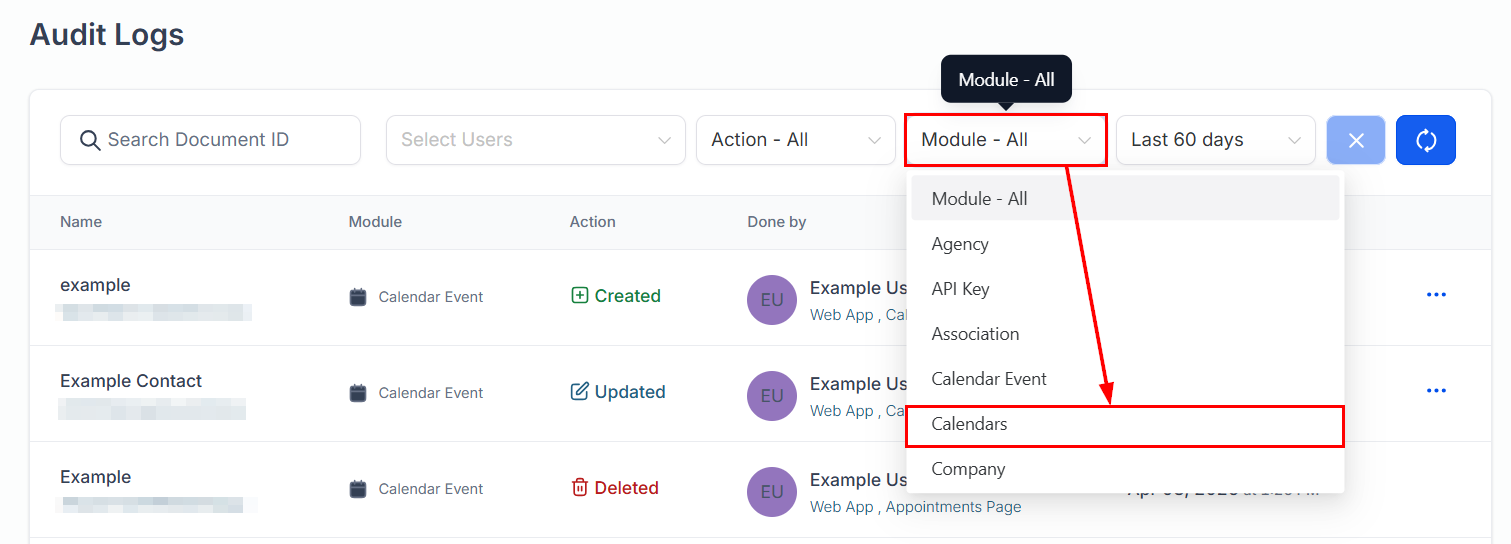
To look for Calendar information you need to start by accessing the Audit Logs section of your system. This will contain all information for actions performed in your CRM, to limit it to Calendars click the Module filter and select Calendars.
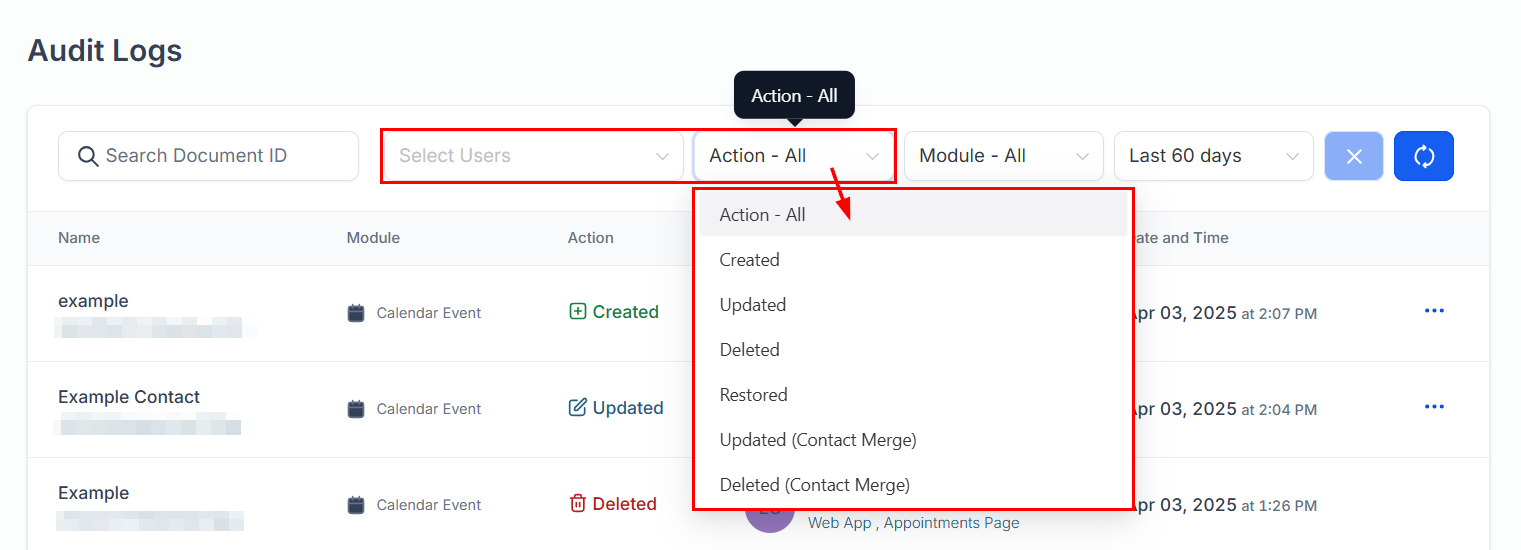
When filtering those results, you can do so based on the user or the type of action; in both cases, simply open the drop-down menu and click on the desired user or action.
If you need to look for the actions related to a specific calendar, go to Calendar Settings and copy the Calendar ID.
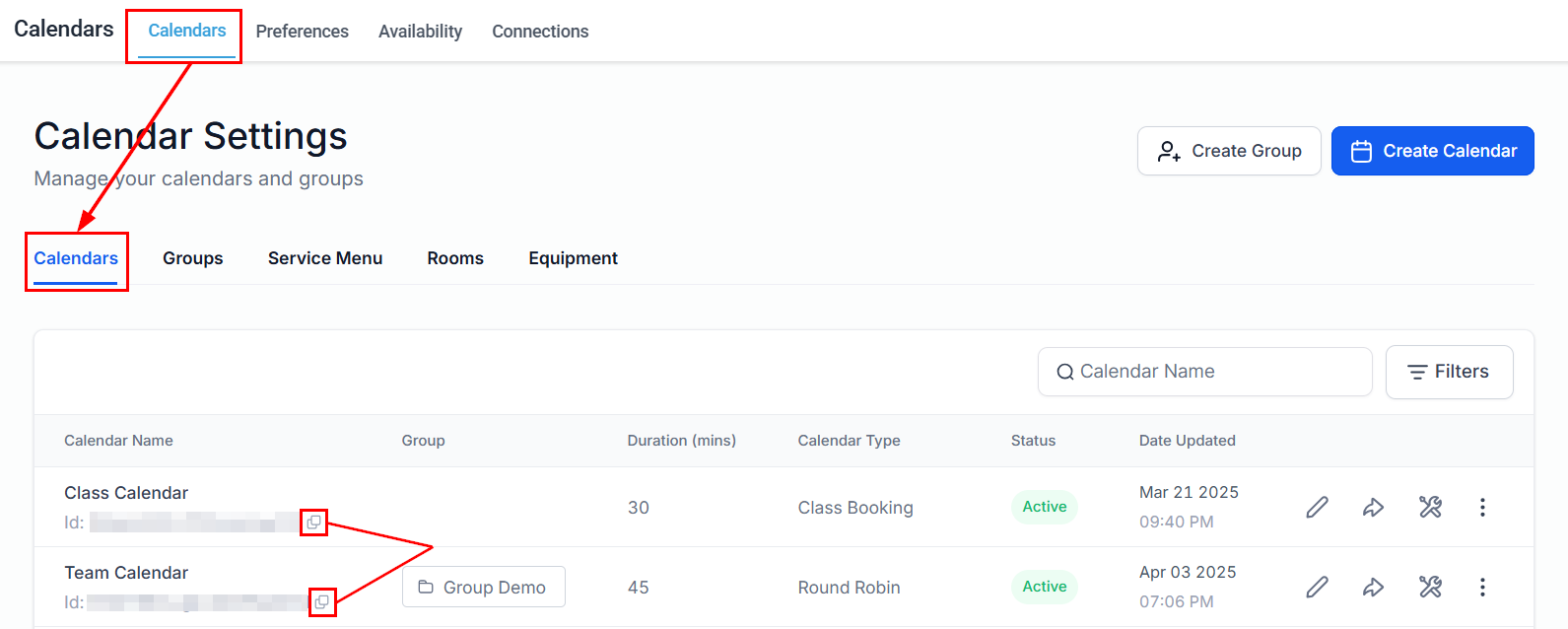
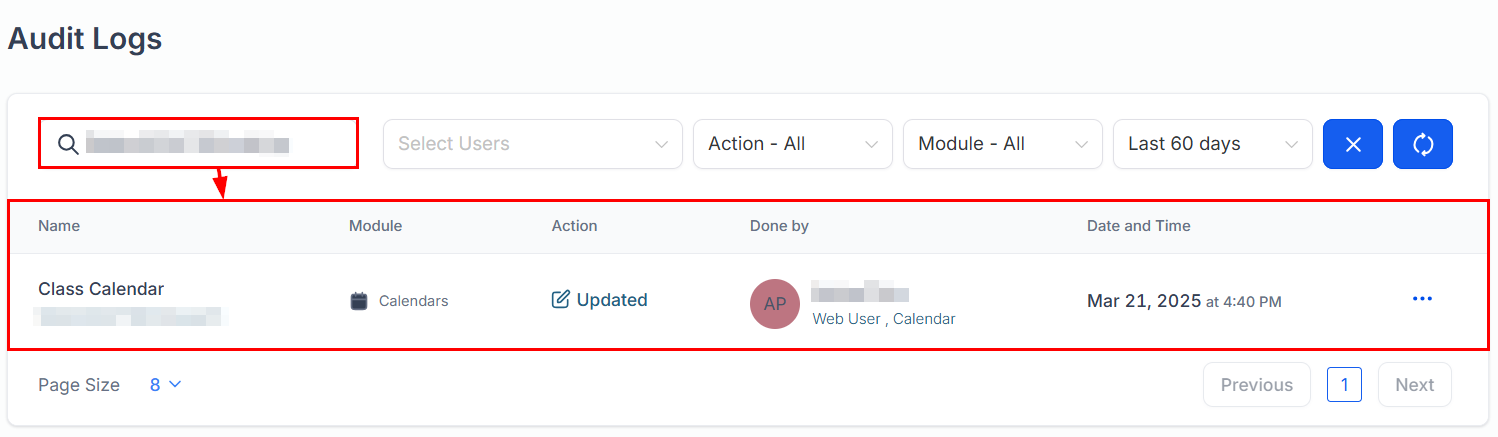
Once you have the Calendar ID, you can enter it in the search bar. Now, the Audit Logs will only display records for that calendar.
Restore Function
Have you ever accidentally deleted a Calendar? There's nothing to worry about. Inside the Audit Logs, you can recover deleted calendars, along with their appointments, by clicking on the three-dot icon next to the log entry and selecting Restore.

You are now fully proficient in Calendar Audit Logs, significantly enhancing the security and integrity of your data. With this expertise, you are better protected against data loss and accountability concerns, ensuring that all calendars and appointments are well-maintained and monitored.
Important Notes
- When restoring a calendar, appointments deleted within ±30 minutes of the calendar deletion time will be restored. Any appointments deleted outside of this timeframe will not be recovered.
- Audit logs are retained for a maximum of 60 days. Ensure timely restoration of deleted calendars to avoid data loss.
Was this article helpful?
That’s Great!
Thank you for your feedback
Sorry! We couldn't be helpful
Thank you for your feedback
Feedback sent
We appreciate your effort and will try to fix the article