Audit Logs are a vital component of the CRM that provides a detailed record of all activities and changes made within various modules such as contacts, calendars, opportunities, and communication. These logs are instrumental in tracking the source of changes, ensuring data integrity, and facilitating troubleshooting.
Accessing Audit Logs
To begin working with Audit Logs, follow these steps:
Start by accessing the settings area of your account. Within the settings menu, locate and select the option for Audit Logs. This will take you to the Audit Logs area, where you can view the recorded activities.

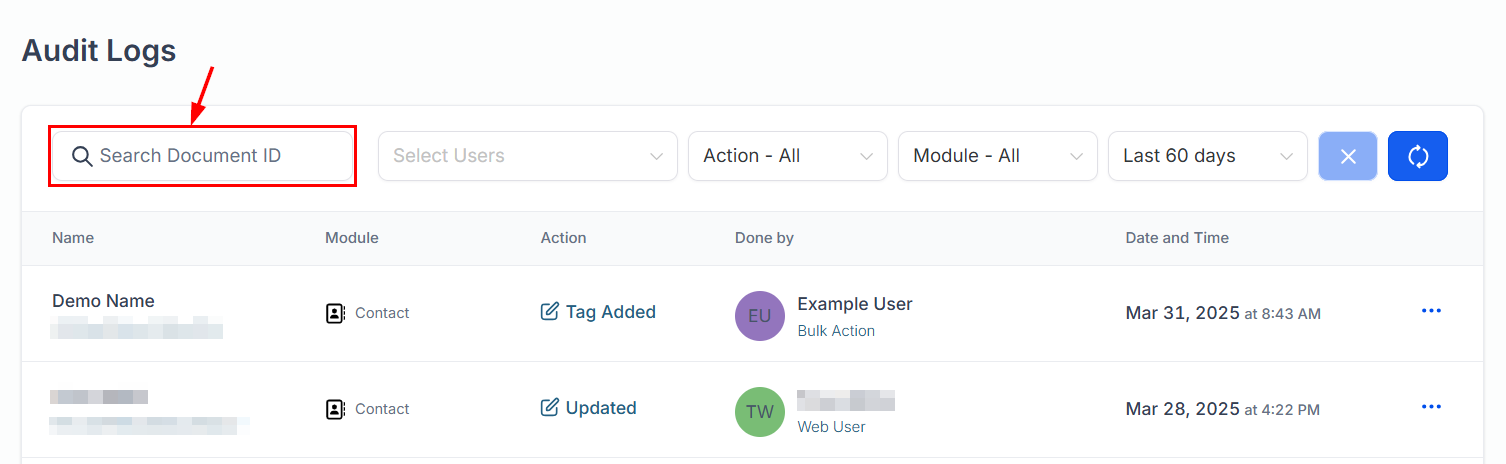
Search
Utilize the search feature to easily locate specific records.
Apply Filters
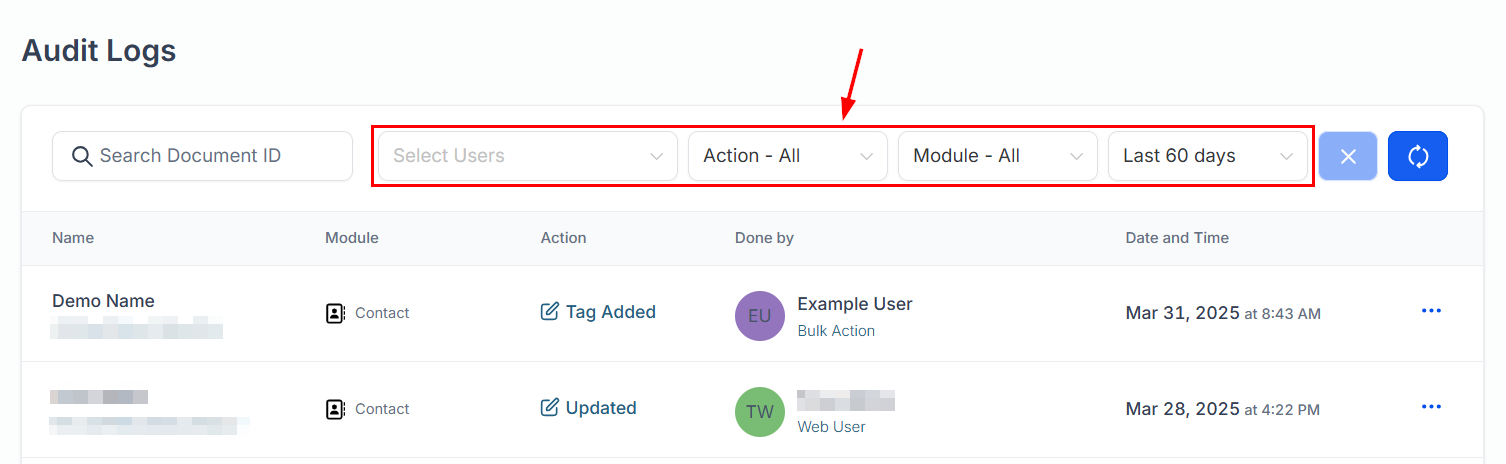
To narrow down the logs displayed, you can apply filters based on specific criteria such as user, activity type, module, or date range. This makes it easier to find the information you're looking for.
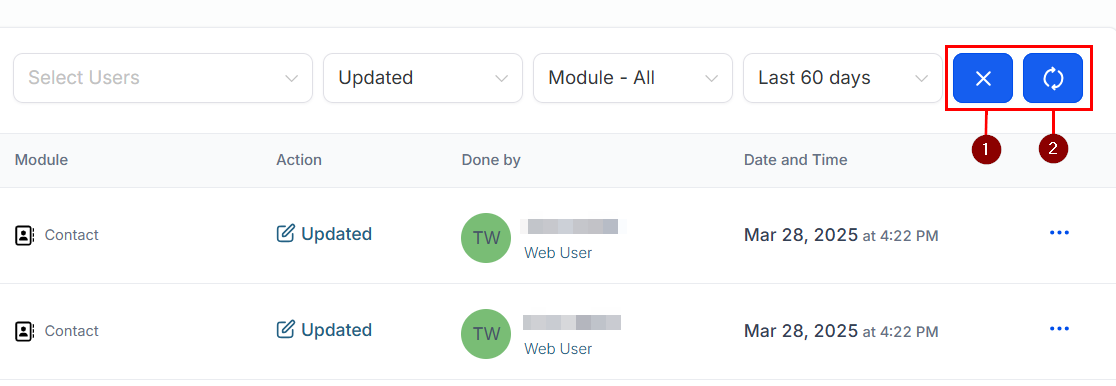
Remove filters by clicking the X icon (1) or refresh the list to ensure that the relevant filters have been applied or removed (2).
Viewing Detailed Logs
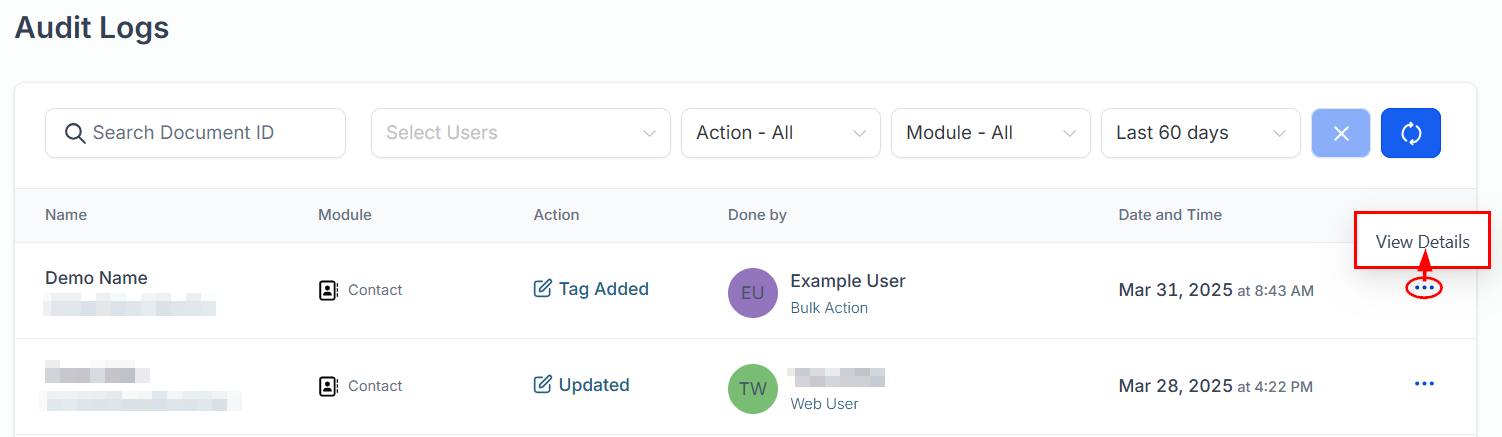
For a deeper insight into the activities recorded in the Audit Logs, you can view detailed information about each entry.
Locate the entry you're interested in and click on the three horizontal menu dots associated with it. This will open a context menu. From the context menu, choose the option to view details. This will expand the entry to show more comprehensive information about the activity.
If further details are available, they can be accessed by clicking on the arrow within the expanded menu. This allows you to view the specifics of the activity.
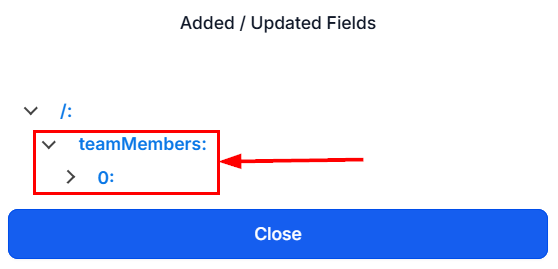
By utilizing features like search, filters, and detailed views, you can efficiently navigate and review activity logs, making it easier to monitor and troubleshoot any changes made within your system.
Troubleshooting Tips
Audit Logs Visibility
- Remember, Audit Logs are only visible to Account Admins. If you're unable to view the Audit Logs, ensure that you have the necessary administrative privileges.
Filtering Challenges
- If you're having trouble filtering the logs, double-check the filter criteria you're using. Ensure that the module IDs are accurate and that the filters are correctly applied.
Was this article helpful?
That’s Great!
Thank you for your feedback
Sorry! We couldn't be helpful
Thank you for your feedback
Feedback sent
We appreciate your effort and will try to fix the article