The CRM offers powerful tools to streamline content delivery and enhance the user experience for you and your clients. With features like a central Dashboard, customizable Products in the Membership section, and an intuitive Client Portal, the platform enables you to efficiently manage, sell, and engage with your courses and community groups. This guide will walk you through the differences between the Memberships section and the Client Portal, and how they work together to create a seamless experience for you and your clients.
Memberships
Memberships within the CRM are primarily focused on content delivery, such as courses or community groups. This feature allows for the creation, customization, and sale of courses, providing a comprehensive tool for educational or informational product offerings.
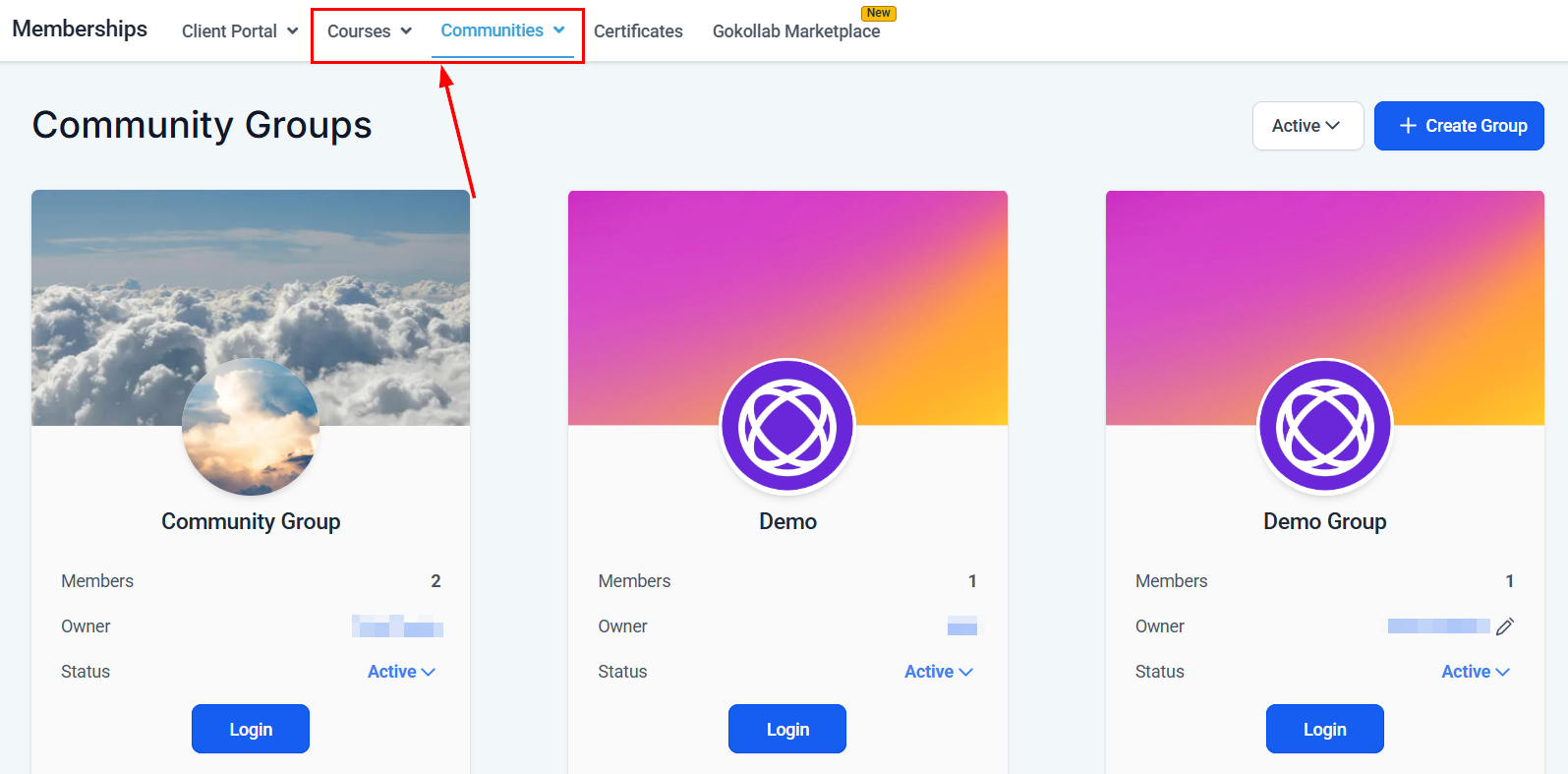
Dashboard
The Courses Dashboard serves as a central hub where you can view opt-ins, members, sales, and checkouts over the last 30 days.
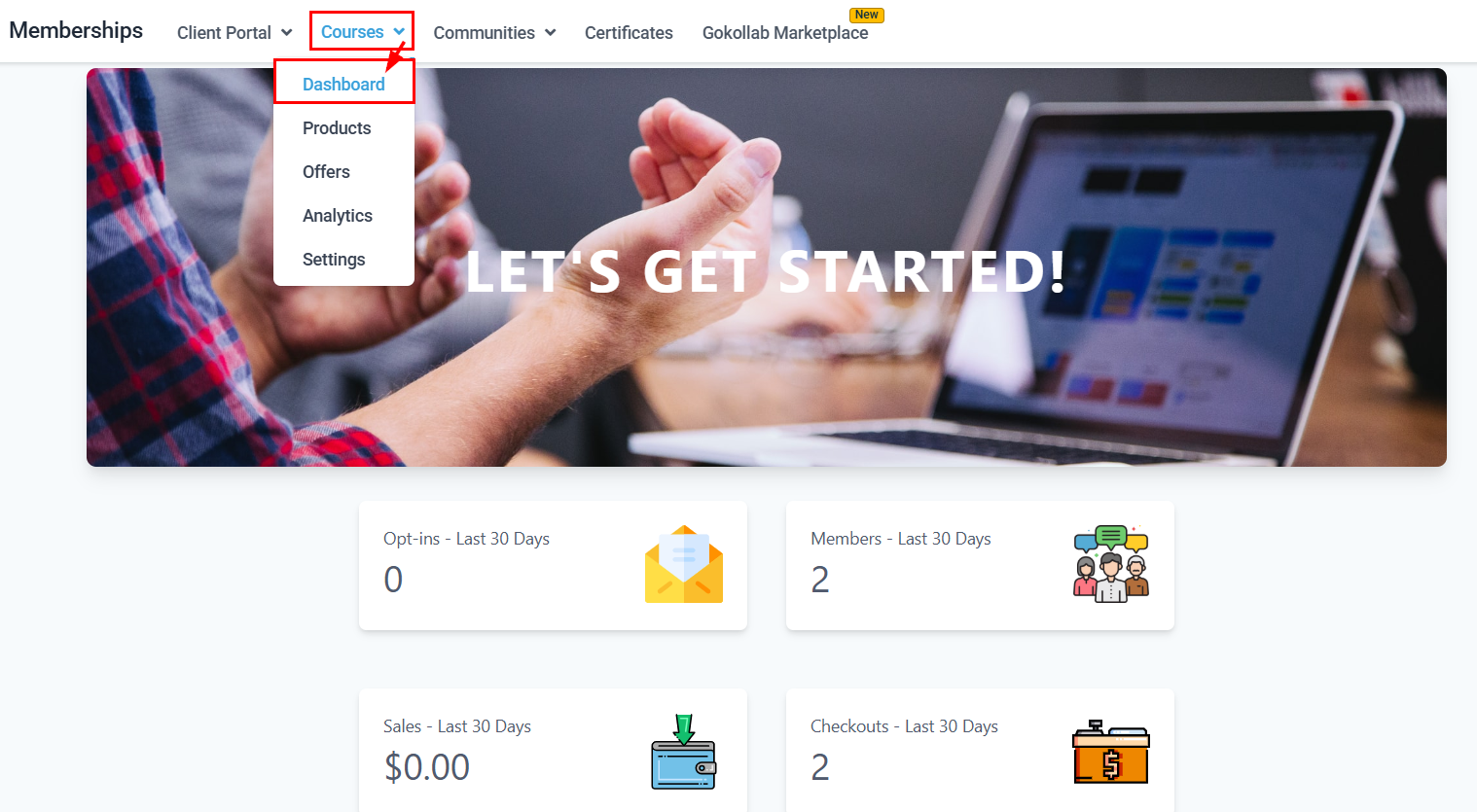
Products
Here, you can create and manage your courses. For instance, setting up a new course involves defining its structure, including episodes and categories, and uploading content like videos. Beyond content, courses can be personalized in various ways. You can edit course details, change thumbnails, and even customize the course landing page to match your branding.
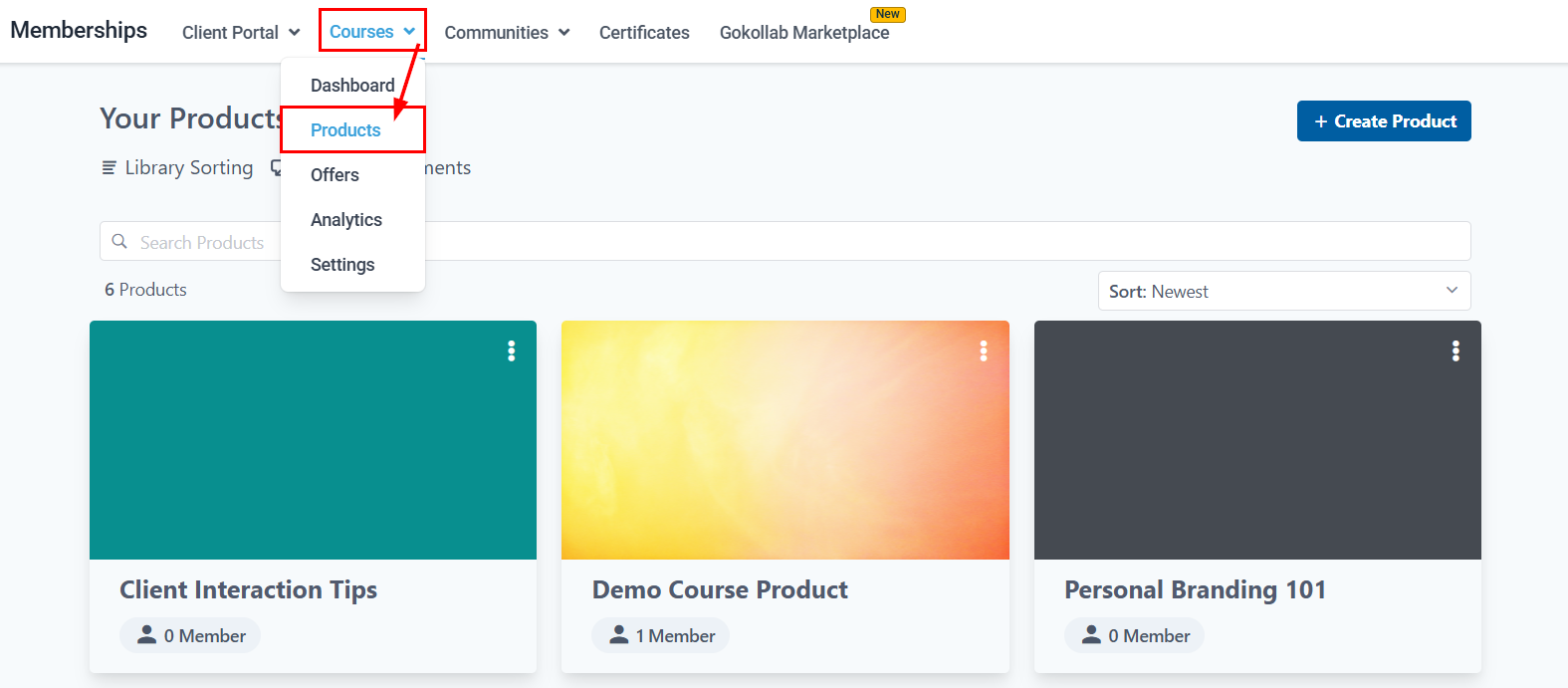
Once your course is ready, you can market and sell it using tailored offers or through the Learning tab within your community group. Sales and member engagement can be monitored and analyzed through the analytics section.
Client Portal
The client portal acts as a client-side interface, allowing clients and leads to access their accounts, affiliate commissions, community groups, and enroll in membership courses. It serves as a centralized platform for interaction and engagement.
Located under the "Sites" and “Memberships” section, the client portal is set up on a customizable subdomain.
Dashboard
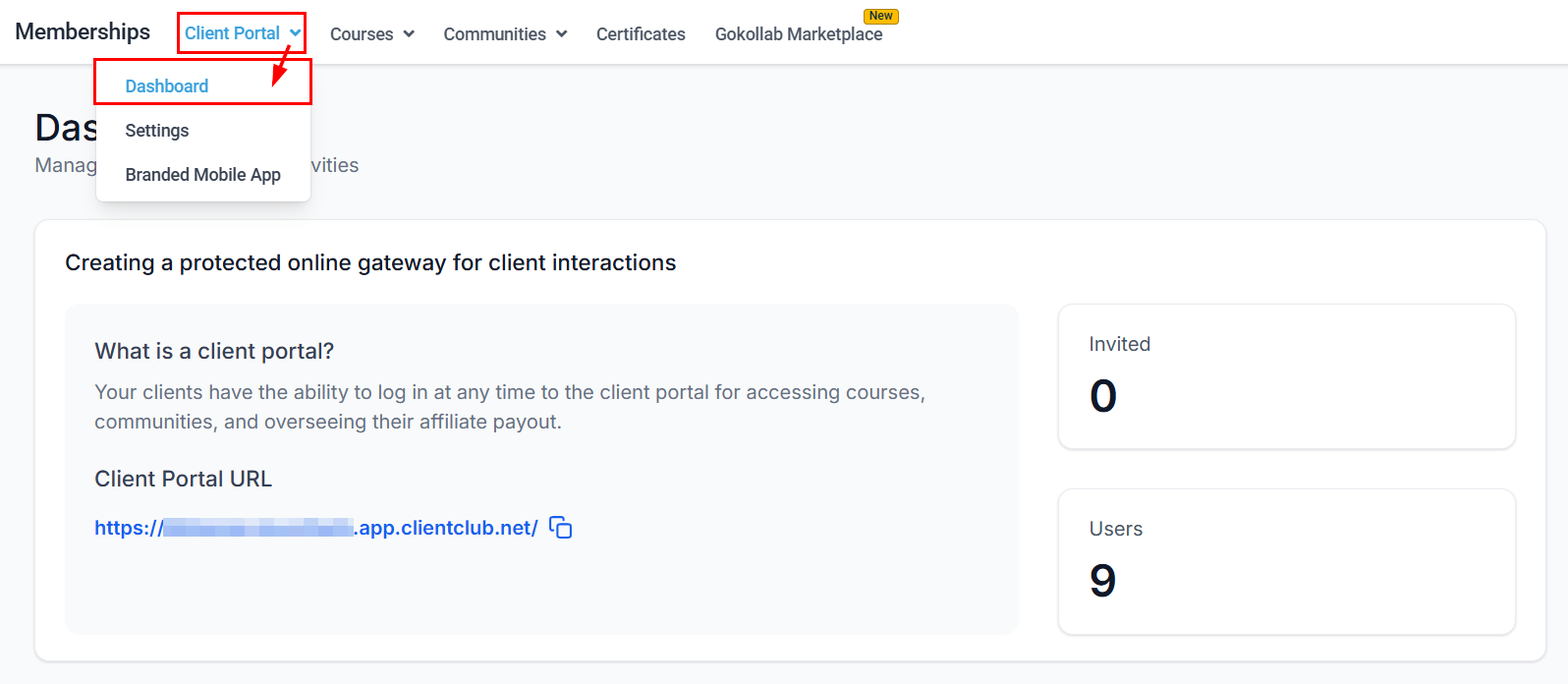
The Client Portal Dashboard acts as a central hub, allowing you to generate magic links, invite users to join your client portal, and view key details about your mobile app. It also provides insights into the number of users invited to access the feature, as well as the number of users who have accepted the invitation.
App Permissions
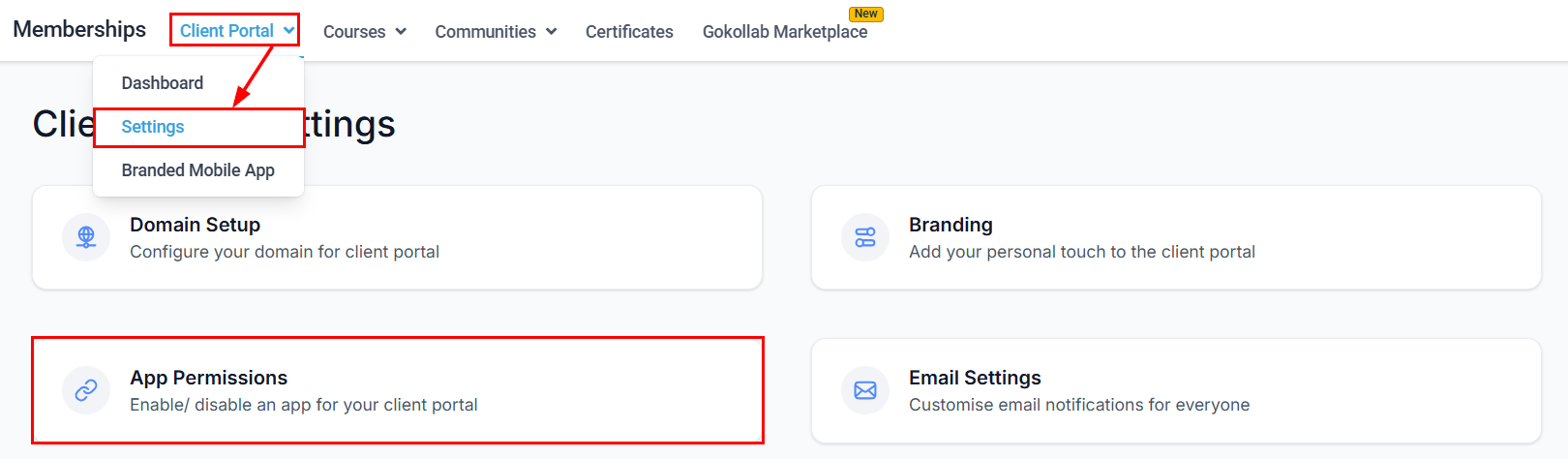
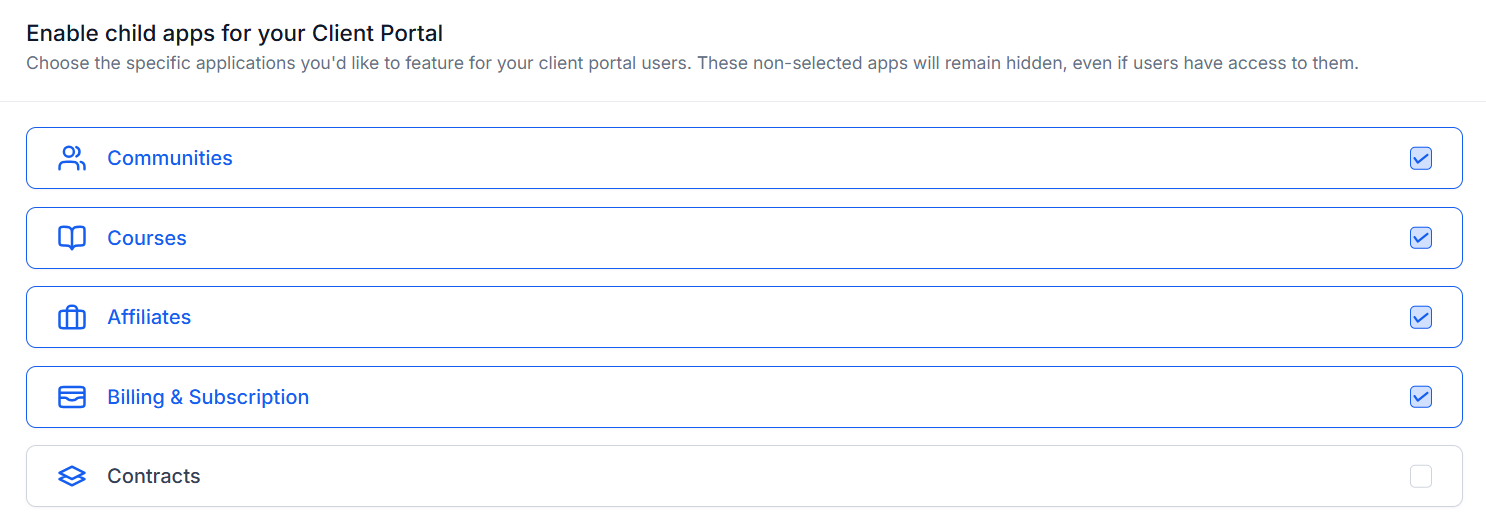
Configure the applications accessible through the Client Portal by heading to the App Permissions within the portal settings.
Apps you select will appear in the portal, while unselected apps will remain hidden.
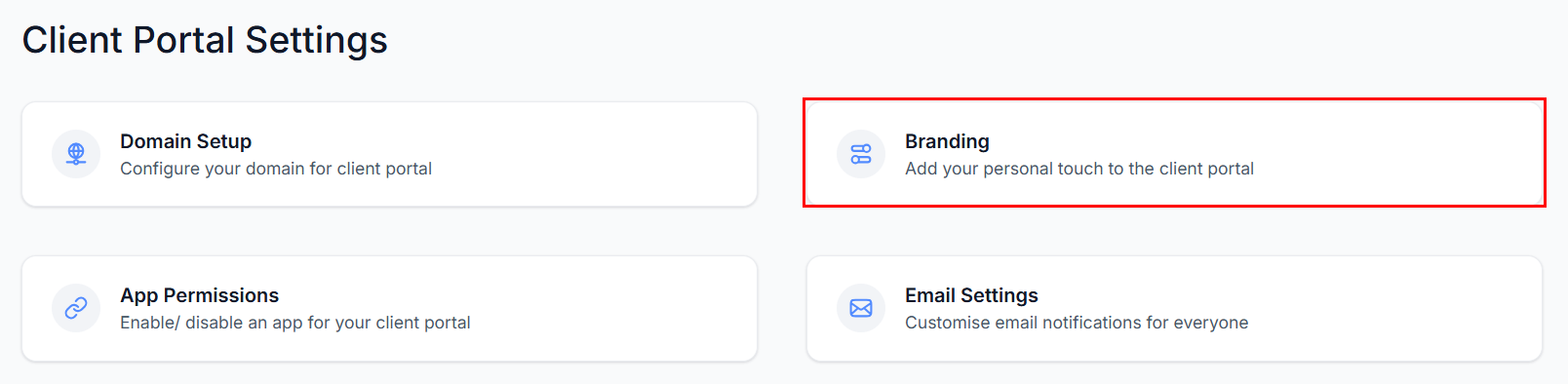
Branding
You can personalize the client portal by changing its branding to match your company's visual identity. This includes modifying colors, logos, and other design elements.
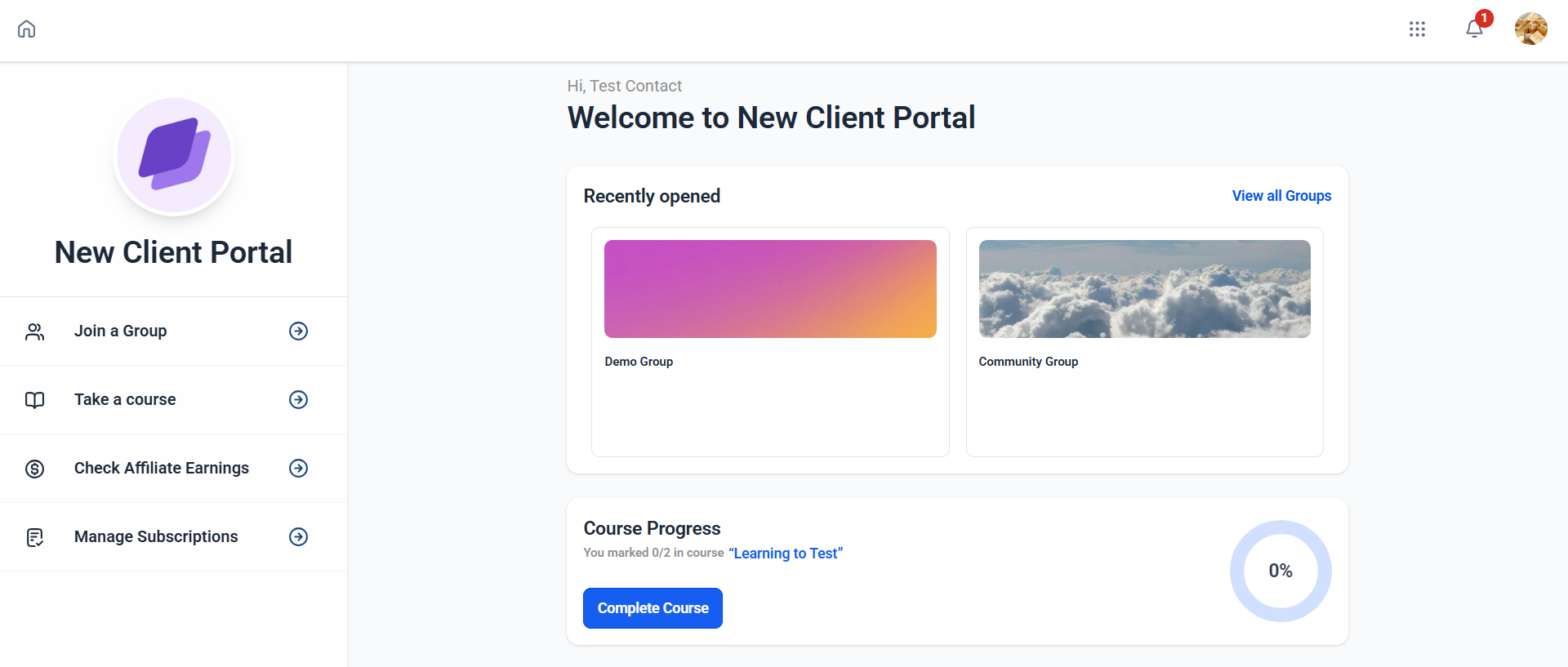
Once you are satisfied with the setup, preview the client portal to ensure it meets your requirements. Your clients will then have a user-friendly interface to easily access their community groups, courses, affiliate earnings, contracts and subscriptions.
Key Differences and How to Use Them Together
While memberships focus on content creation and management, the client portal is designed for client interaction and access. Courses and community groups created in the memberships section can be accessed by clients through the client portal, linking the two features seamlessly. Both features offer customization options, but they serve different ends—memberships for course design and client portals for user experience.
By understanding the key differences and synergies between the Memberships and Client Portal features, you can optimize your content delivery and client experience. With regular management and customization, you’ll be able to create a polished and efficient system for your product offerings.
Frequently Asked Questions
Q: Can I customize the client portal for each client?
- While broad customization is possible, individual client customization is limited to the information and courses they have access to.
Q: What if my clients can't access their courses?
- Ensure they are correctly enrolled in the course and that there are no restrictions set that might prevent access.
Was this article helpful?
That’s Great!
Thank you for your feedback
Sorry! We couldn't be helpful
Thank you for your feedback
Feedback sent
We appreciate your effort and will try to fix the article