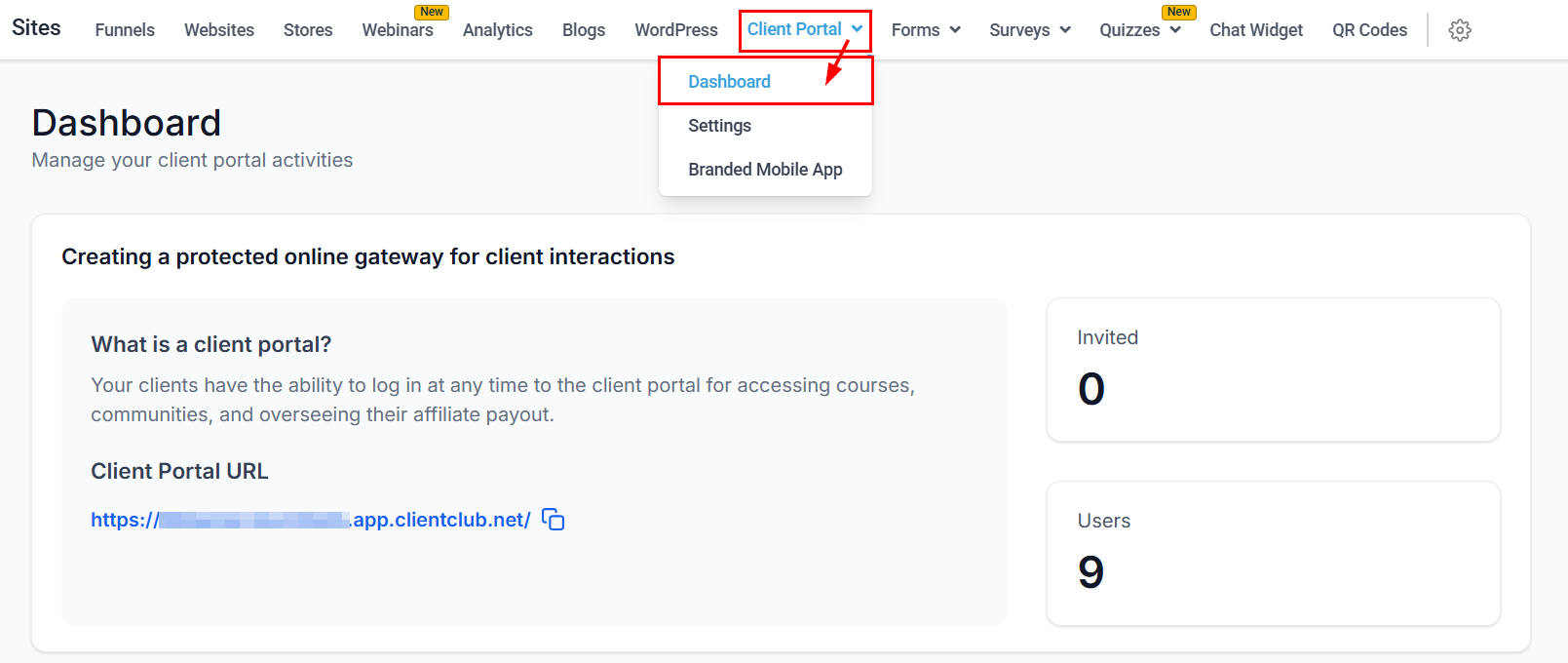
The client portal dashboard offers a comprehensive view of user activity, including invitations and accepted invites, and provides tools to enhance user engagement and streamline access. Locate this feature from the Sites or Membership tab to begin.
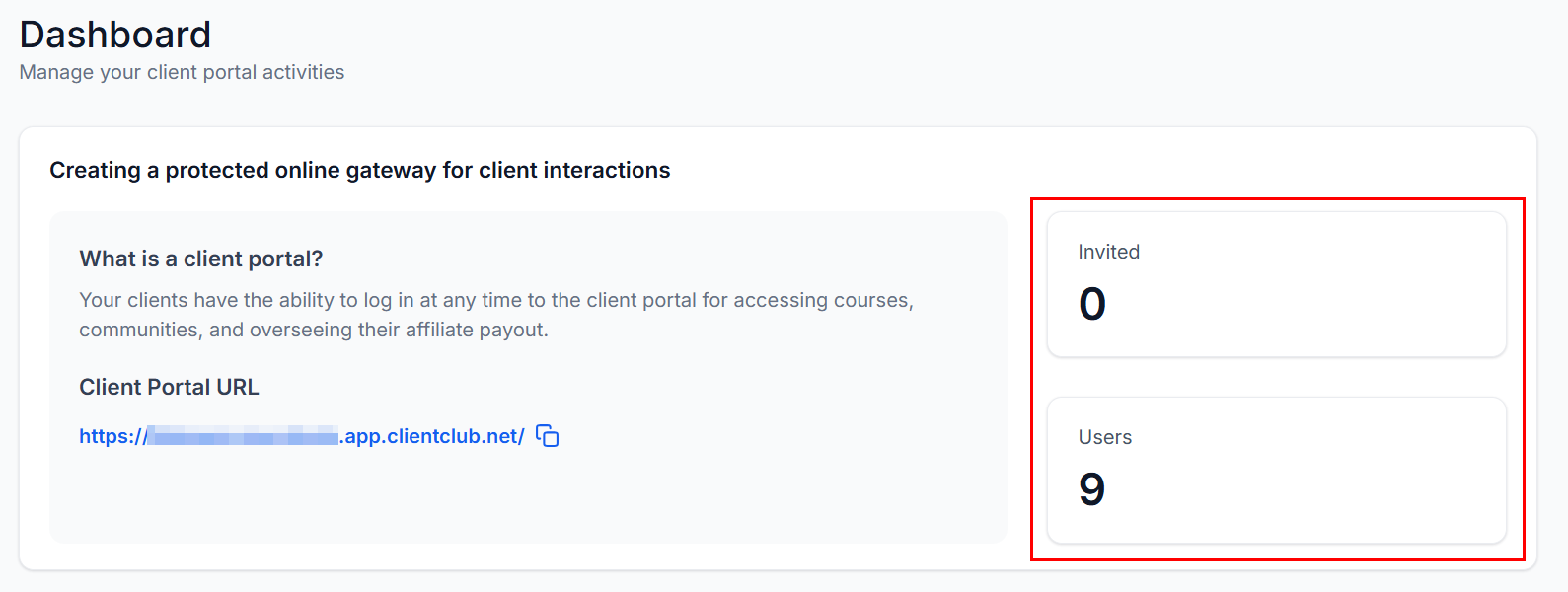
Invited Users vs. Joined Users
Invited Users refer to the individuals who have been invited to the client portal via the "Invite" option from the action menu. Joined Users, however, represent the actual number of individuals who have successfully logged into and joined the portal. Understanding this distinction helps you track both invitations sent and successful user registrations.
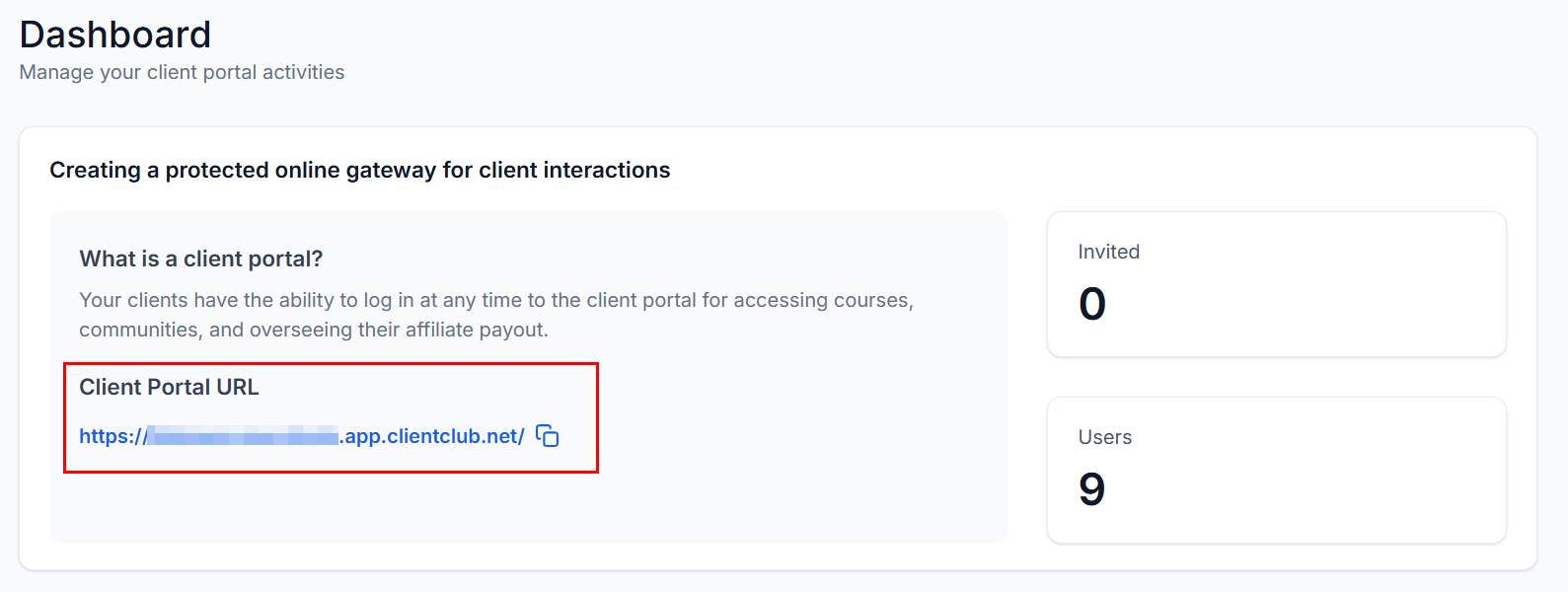
Client Portal URL
Once you have configured the sub-domain for your client portal, you can easily access the URL directly from the Dashboard. This allows you to quickly retrieve the link and send it to your contacts, streamlining the process of sharing access to the portal.
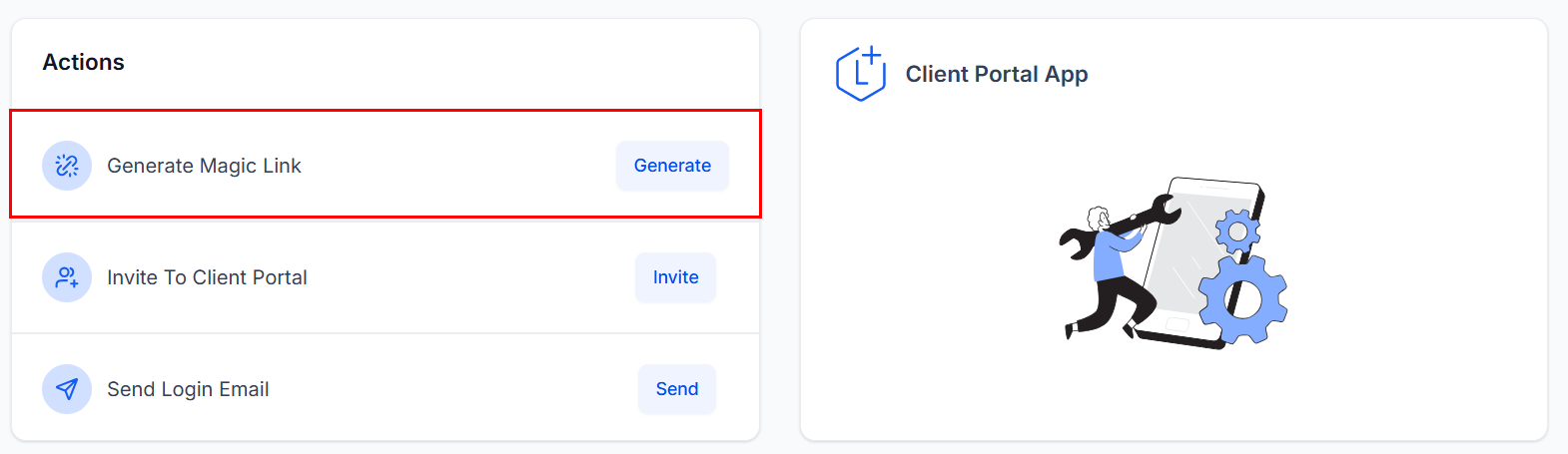
Generate Magic Link
Magic links allow you to provide direct access to the client portal without requiring users to manually log in. These links are particularly useful when shared via email or other messages, offering instant access. Magic links are generated at the individual contact level, and to streamline integration with email workflows, you can use custom values to automatically populate necessary data, ensuring seamless user access.
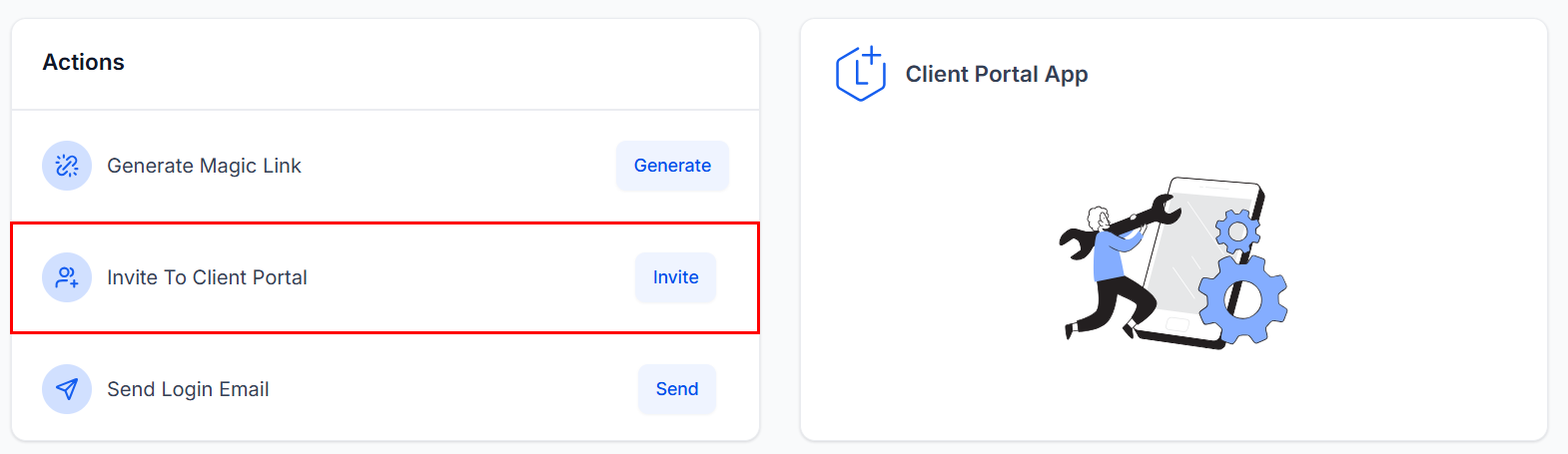
Invite to Client Portal
Inviting users to the client portal is straightforward. Simply select the "Invite" option, where you can either invite existing contacts or manually enter email addresses. Invitations will be sent from your default domain, providing a consistent and professional user experience.
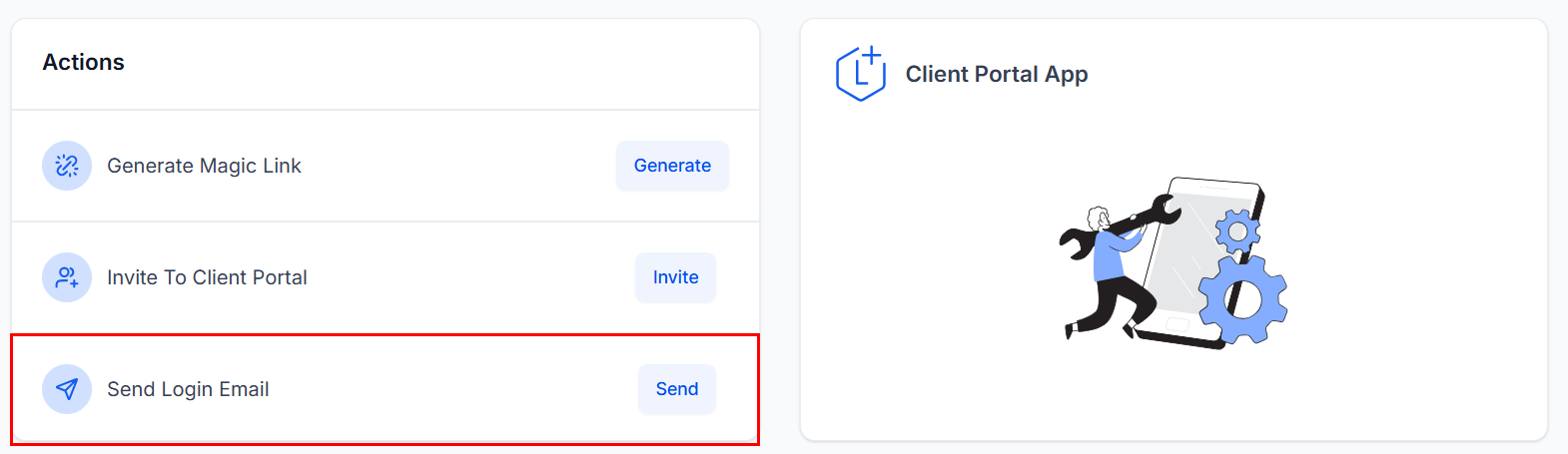
Send Login Email
The "Login Email" feature automates the process of sending login credentials to your contacts. This email contains a login button, allowing clients to access the client portal with a single click, eliminating the need to manually enter passwords. This feature enhances the user experience by providing an easy and secure way for users to log in.
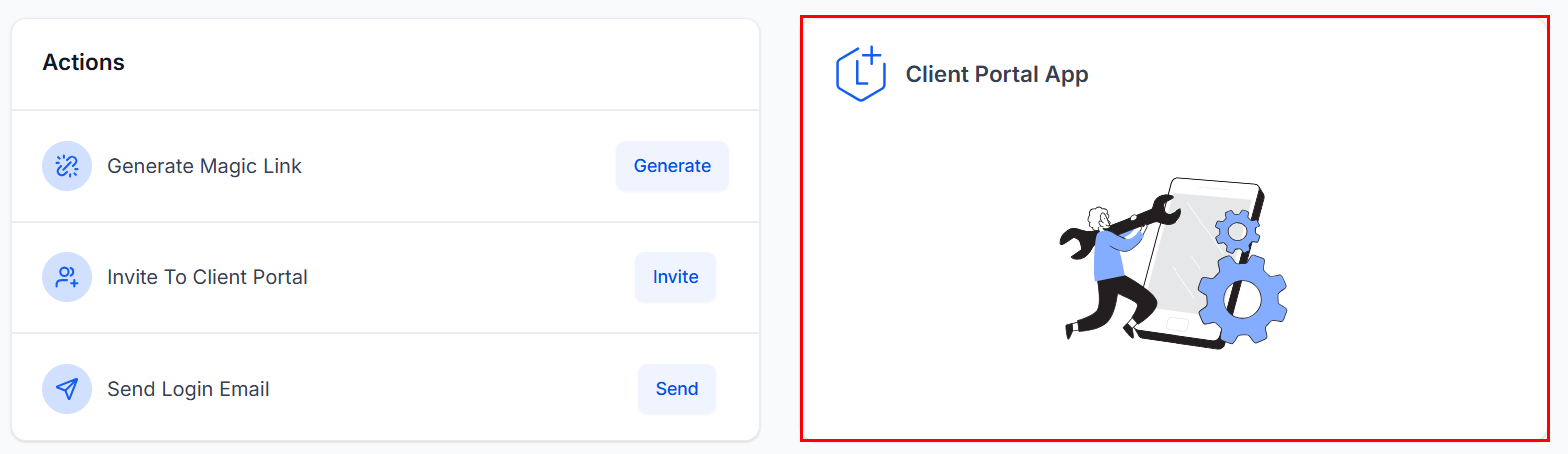
Client Portal App
After configuring your client portal app, you can view key details in this area of the dashboard, which provides a centralized location for monitoring and managing your portal settings.
With these tools in mind, you can effectively manage your client portal and access valuable insights to stay in the know.
Was this article helpful?
That’s Great!
Thank you for your feedback
Sorry! We couldn't be helpful
Thank you for your feedback
Feedback sent
We appreciate your effort and will try to fix the article