Your Dashboard is the face of your account. It allows you to see where you're successful and where to improve. Adding branding and contrast makes it feel more personal and easier to understand, so let's check how to use and create Dashboard Themes to achieve this.
Setting a Dashboard Theme
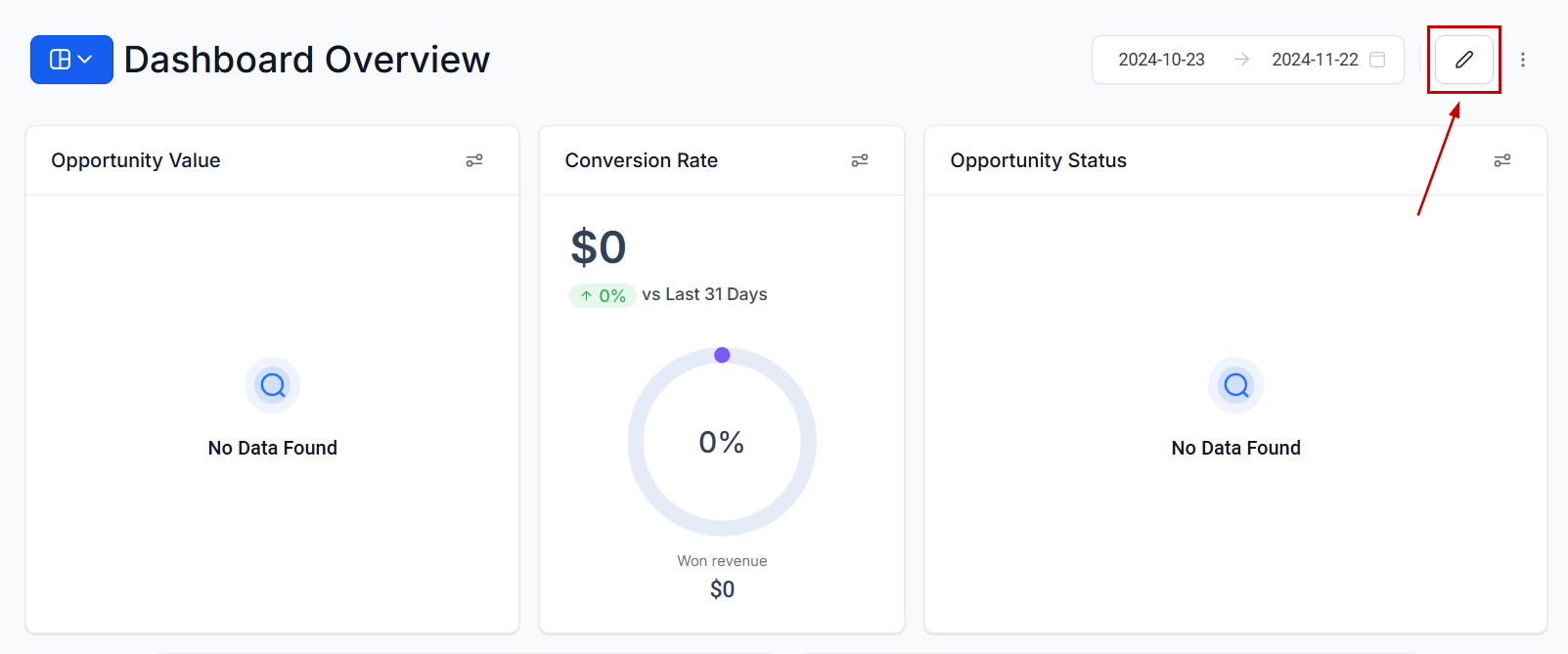
Click the pencil icon in the top right corner of the Dashboard section.
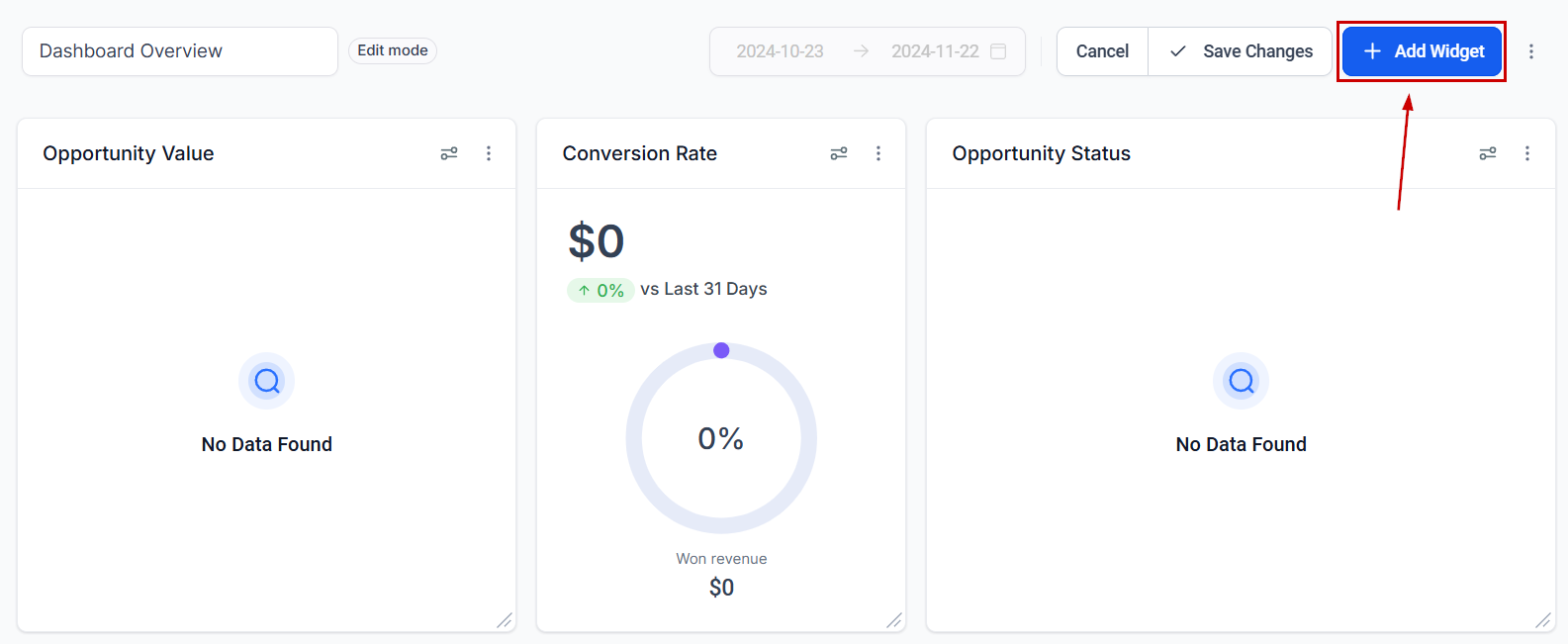
Click +Add Widget to open the right-side menu.
Switch to the Themes tab to select a new theme.
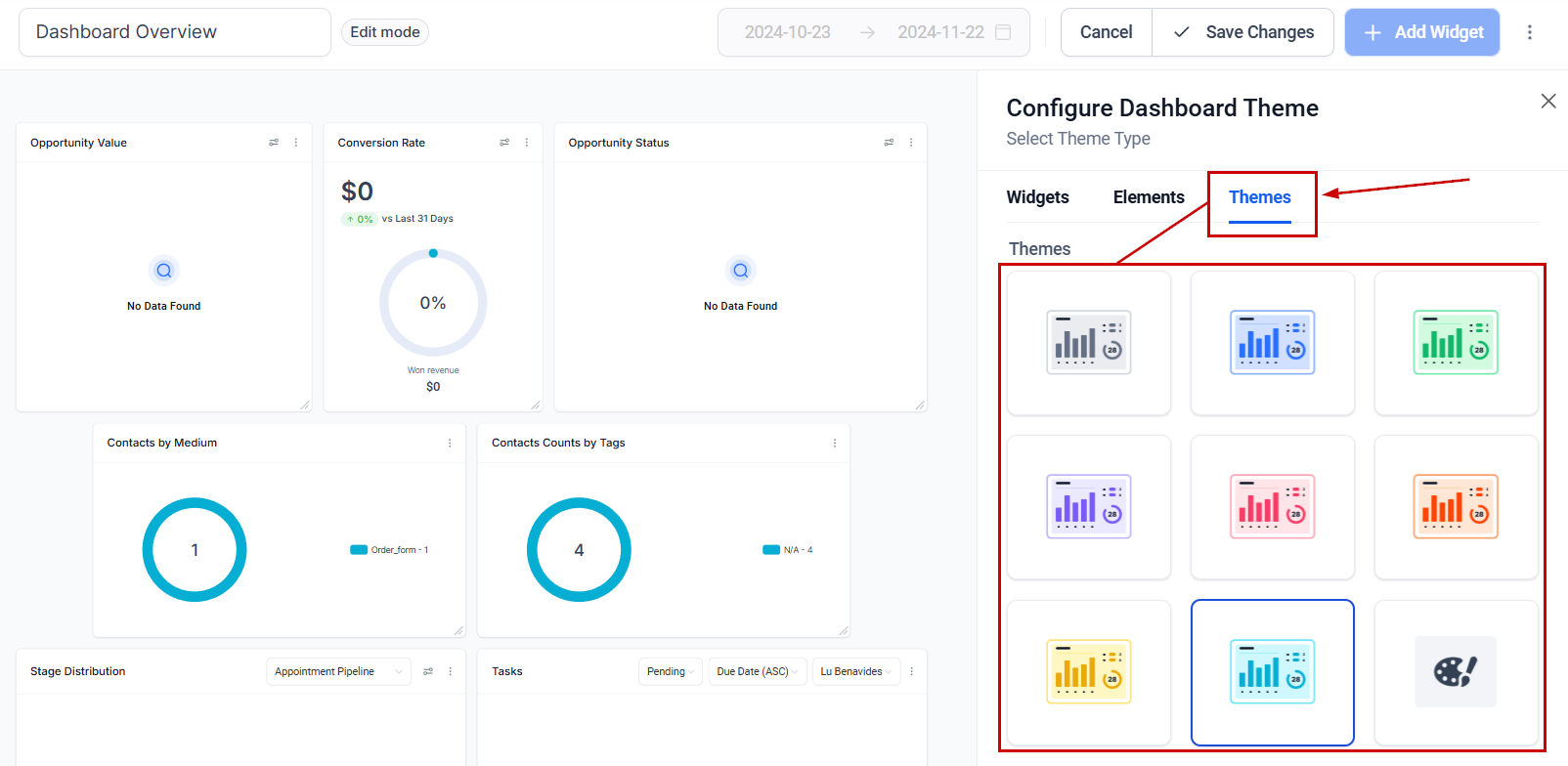
Selecting one of the predetermined options will quickly switch your dashboard color scheme.
Customized Looks
Click the paint palette to set personalized colors that better reflect your brand.
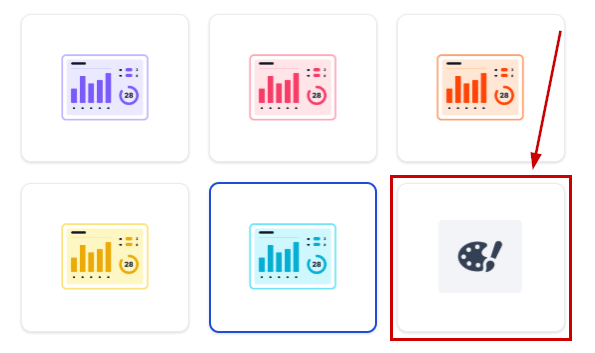
Set your desired colors for each element part, you can set the color for each part of your widgets and charts here.
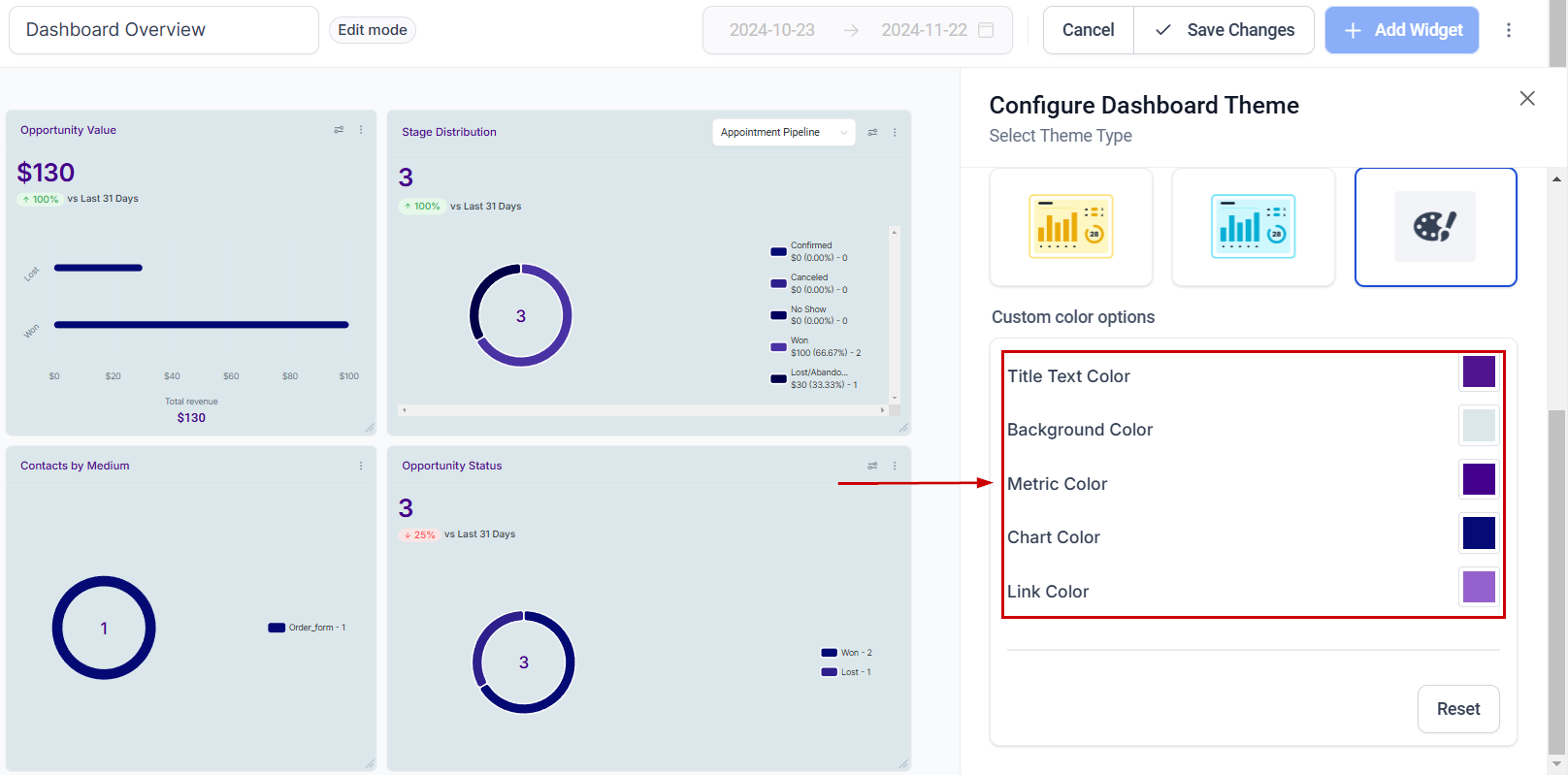
Once you're satisfied with the color click Save Changes.
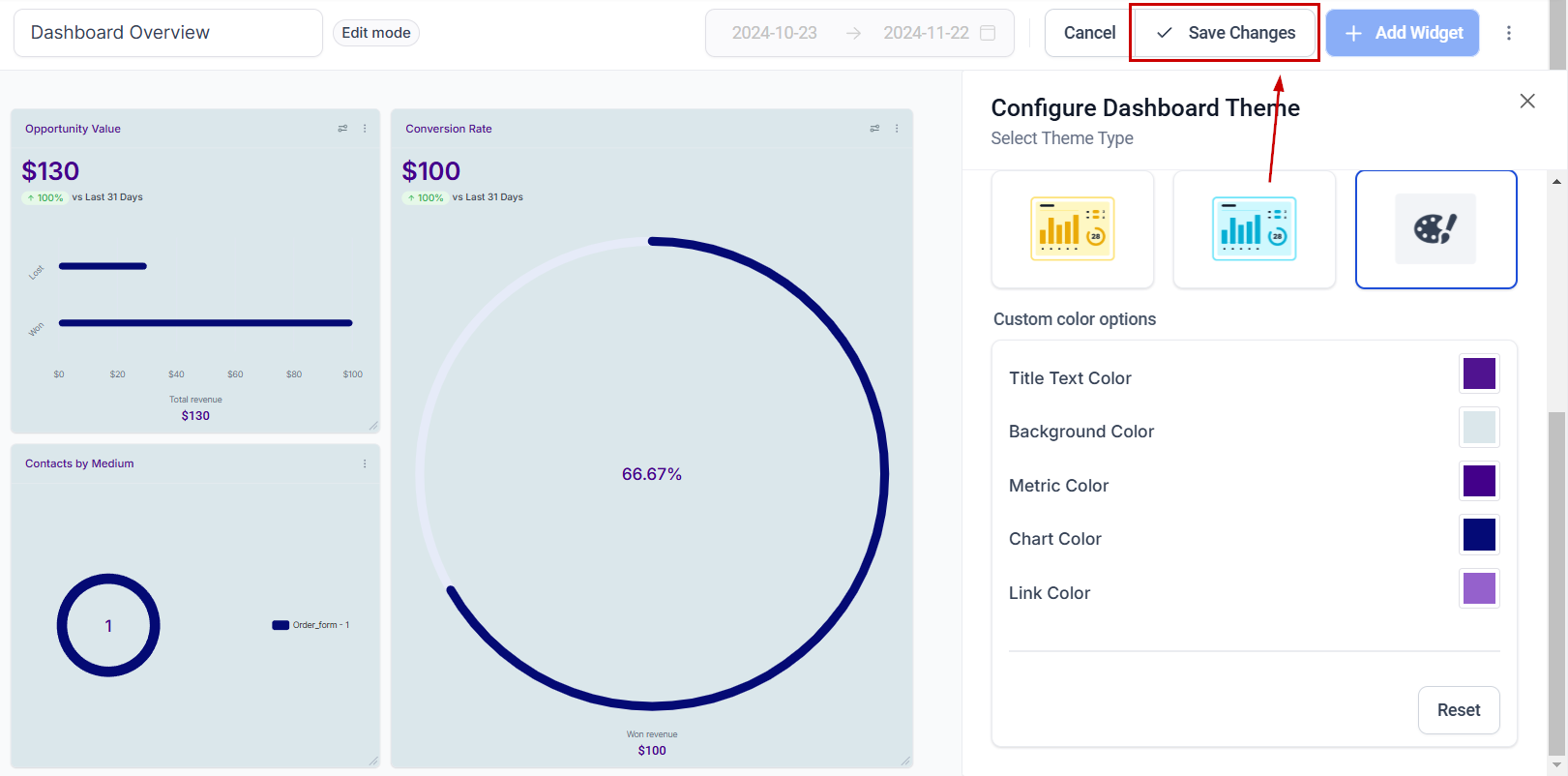
If you use multiple Dashboards, these changes will only apply to the one you've selected before editing. However, the custom theme colors will be maintained when cloning the dashboard. Now, enjoy an aesthetic experience and personalize your dashboard to your satisfaction with what you learned!
Was this article helpful?
That’s Great!
Thank you for your feedback
Sorry! We couldn't be helpful
Thank you for your feedback
Feedback sent
We appreciate your effort and will try to fix the article