Your social media is one of the main tools you have to market your business and generate interest. Adding links to your posts is an effective way to turn that interest into interaction. However, this tool will be your best friend when dealing with a long URL for a page.
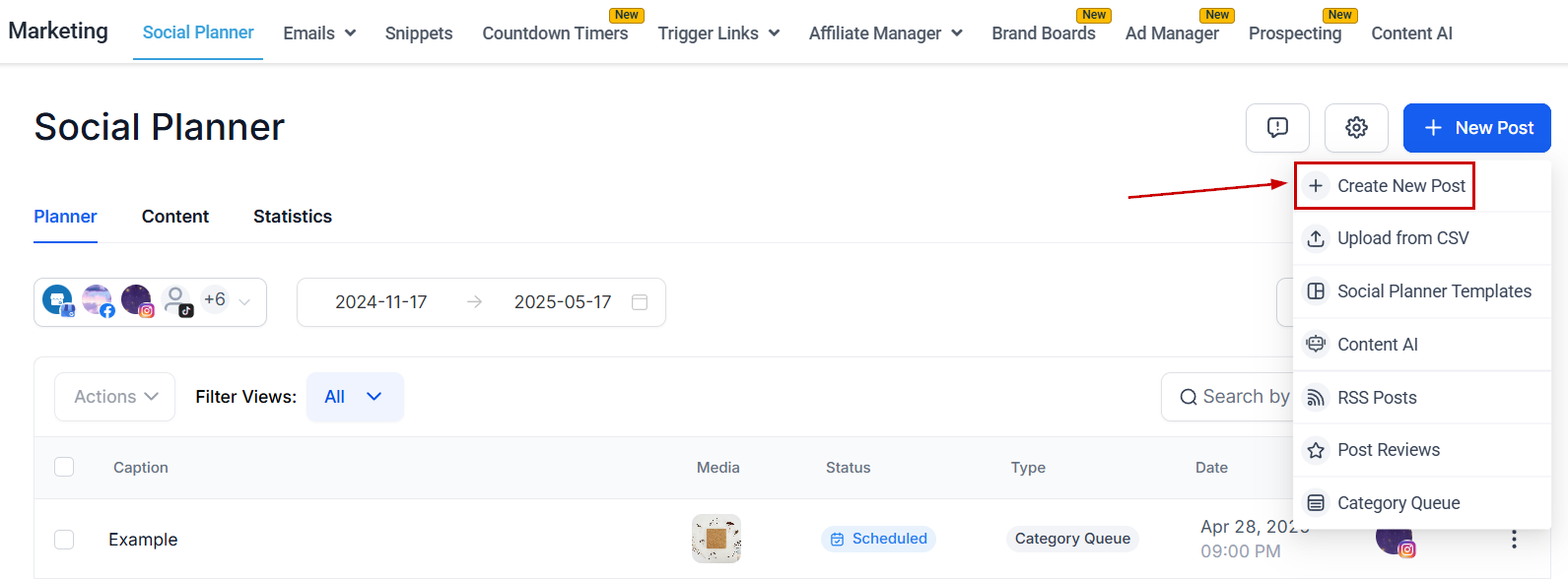
Start by creating a new post in your Marketing section.
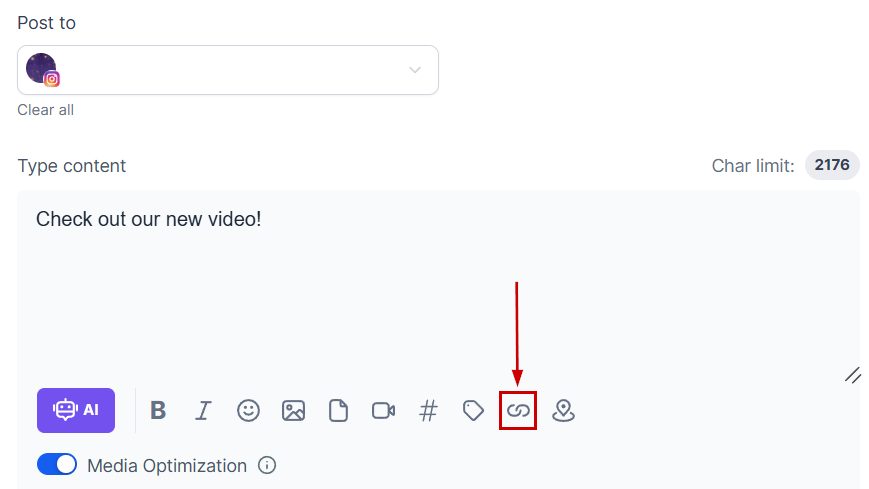
After selecting your social media and creating your post as normal, click the chain icon to access the link shortener.
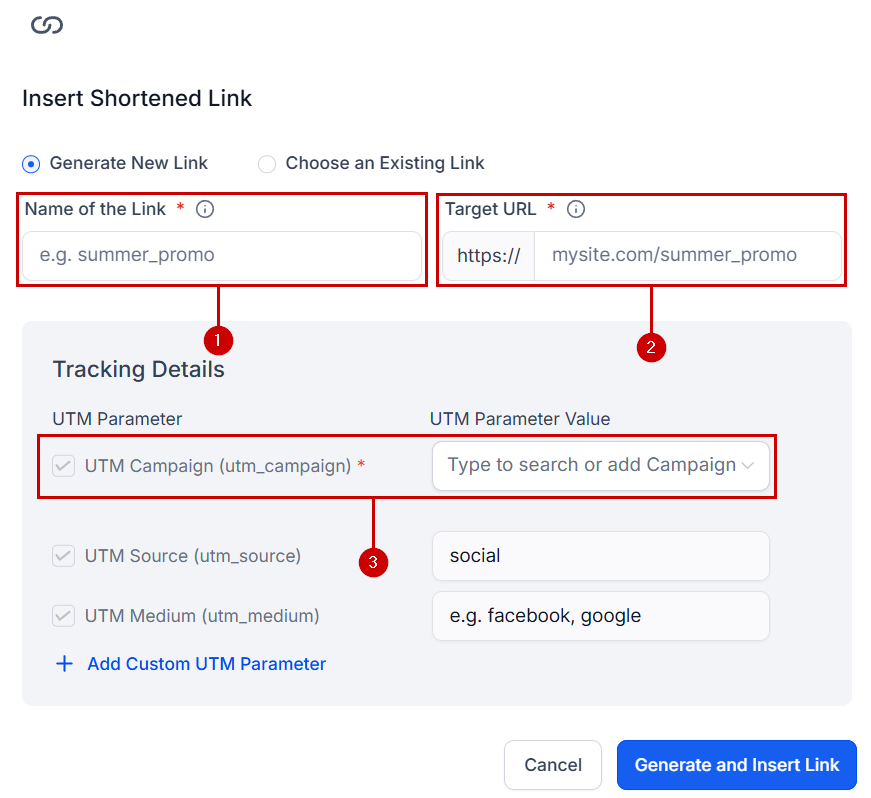
For a new link, fill out the following information:
- Name of the link.
- Target URL.
- If you want to track the interactions, create or select a UTM campaign.
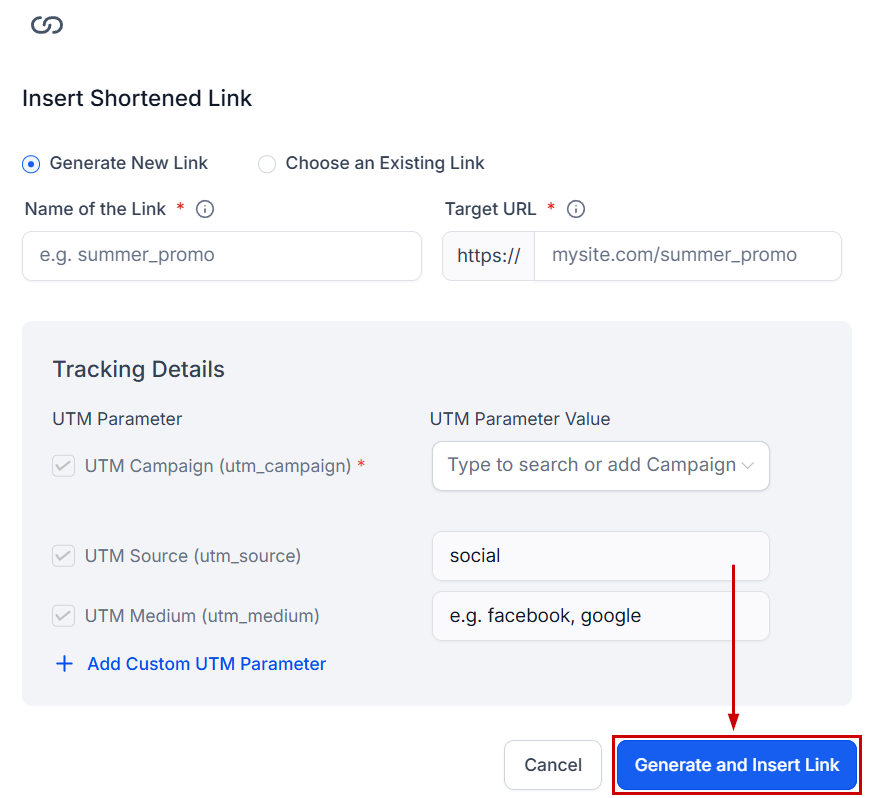
Click “Generate and Insert Link” to add it to your post.
If you've previously added a link, you can add it again by selecting “Choose an Existing Link” and selecting your link from the dropdown menu.
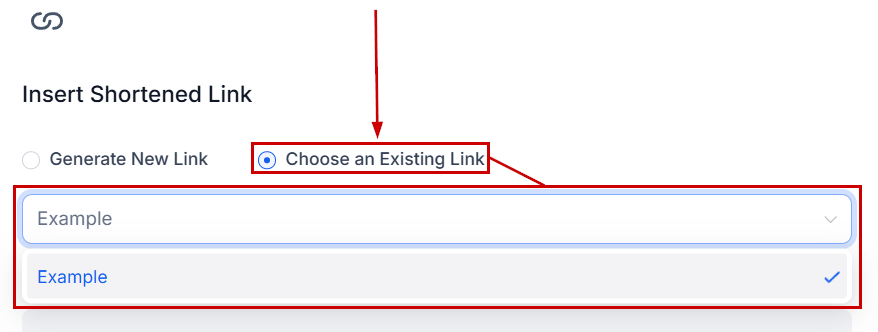
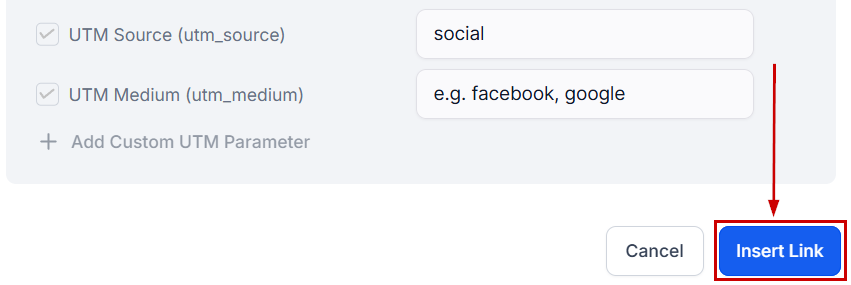
Click “Insert Link” to add it to your post.
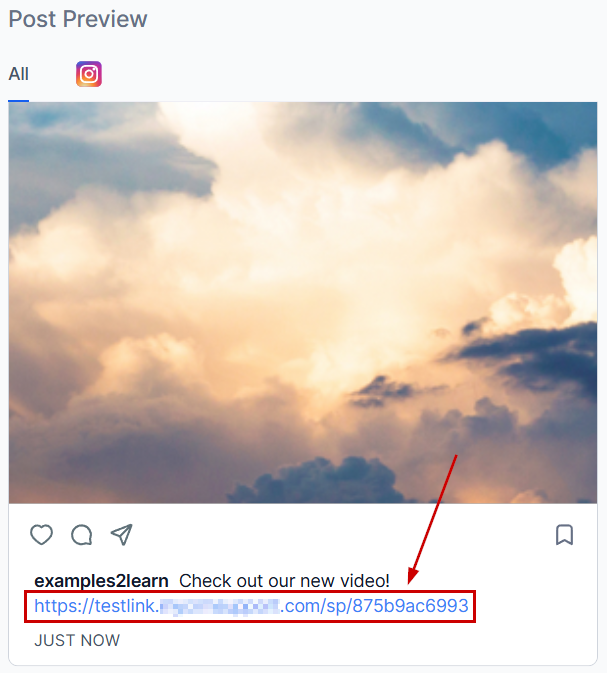
You can view the shortened link in the post preview.
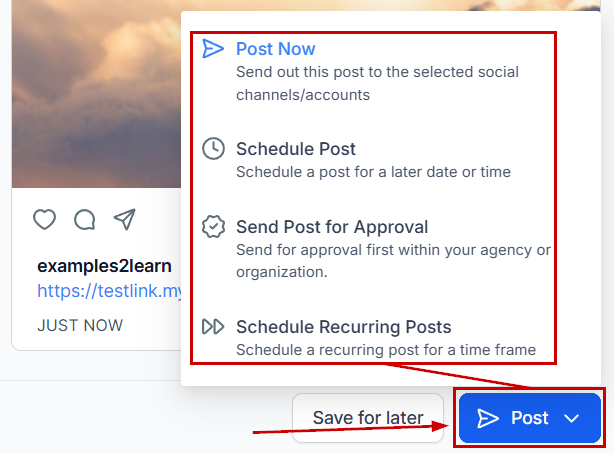
Once you're satisfied with your content, click Post to publish it.
Shorter URLs look better, are easier to share, and help you adhere to platforms with limited character space, so we hope you use this as an easy way to add links to your posts and even keep track of the traffic it generates!
Was this article helpful?
That’s Great!
Thank you for your feedback
Sorry! We couldn't be helpful
Thank you for your feedback
Feedback sent
We appreciate your effort and will try to fix the article