The Chat Widget is a great addition to your website, it helps you generate new leads and communicate with customers, keeping the interest active and the connection going. Your Chat Widget constantly captures contact information for you whether you decide to respond in a text back later or have a team responding for you 24/7.
In the Chat Widget tab inside the Sites section you can create, edit, and manage your Chat Widgets.
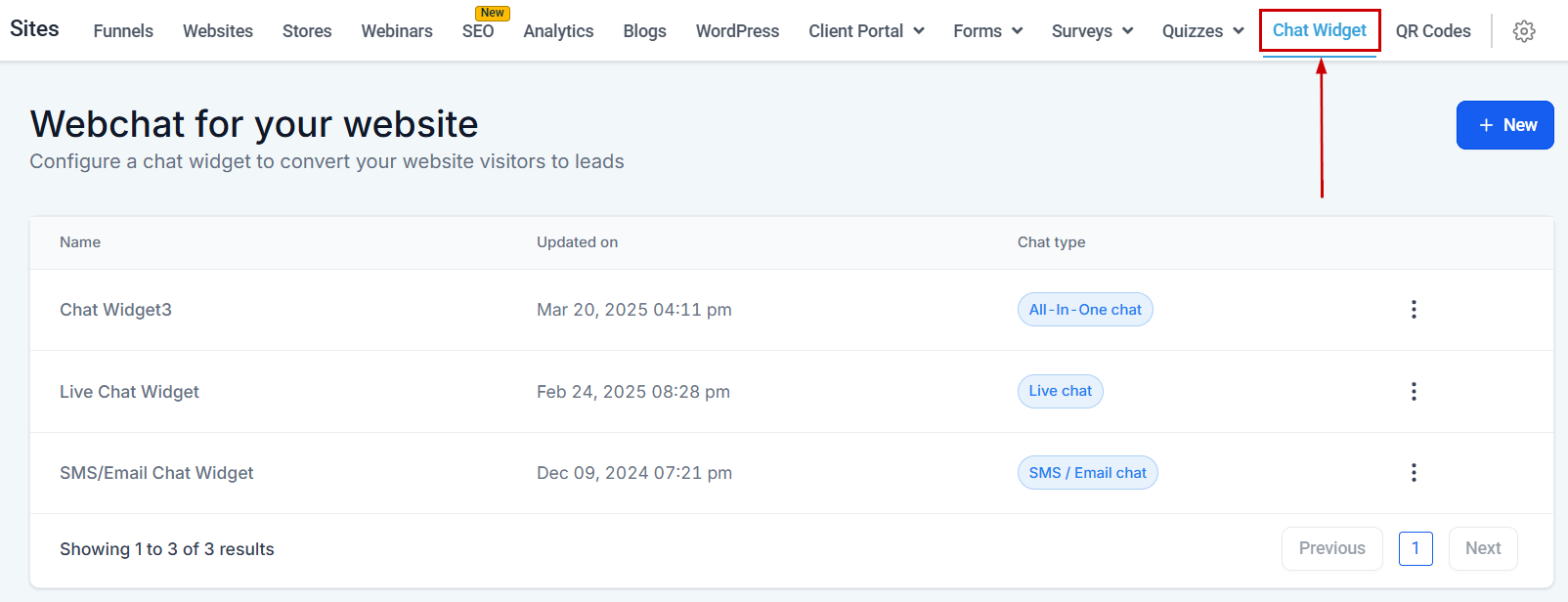
Creating a Chat Widget
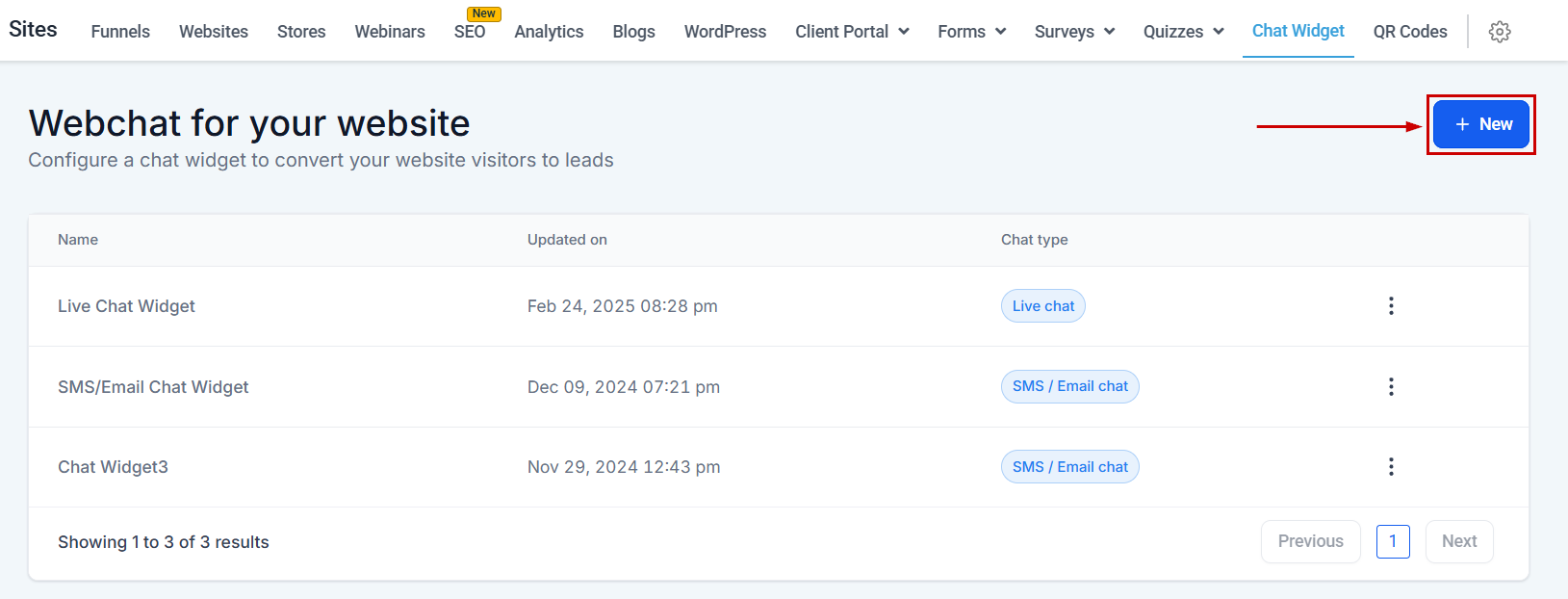
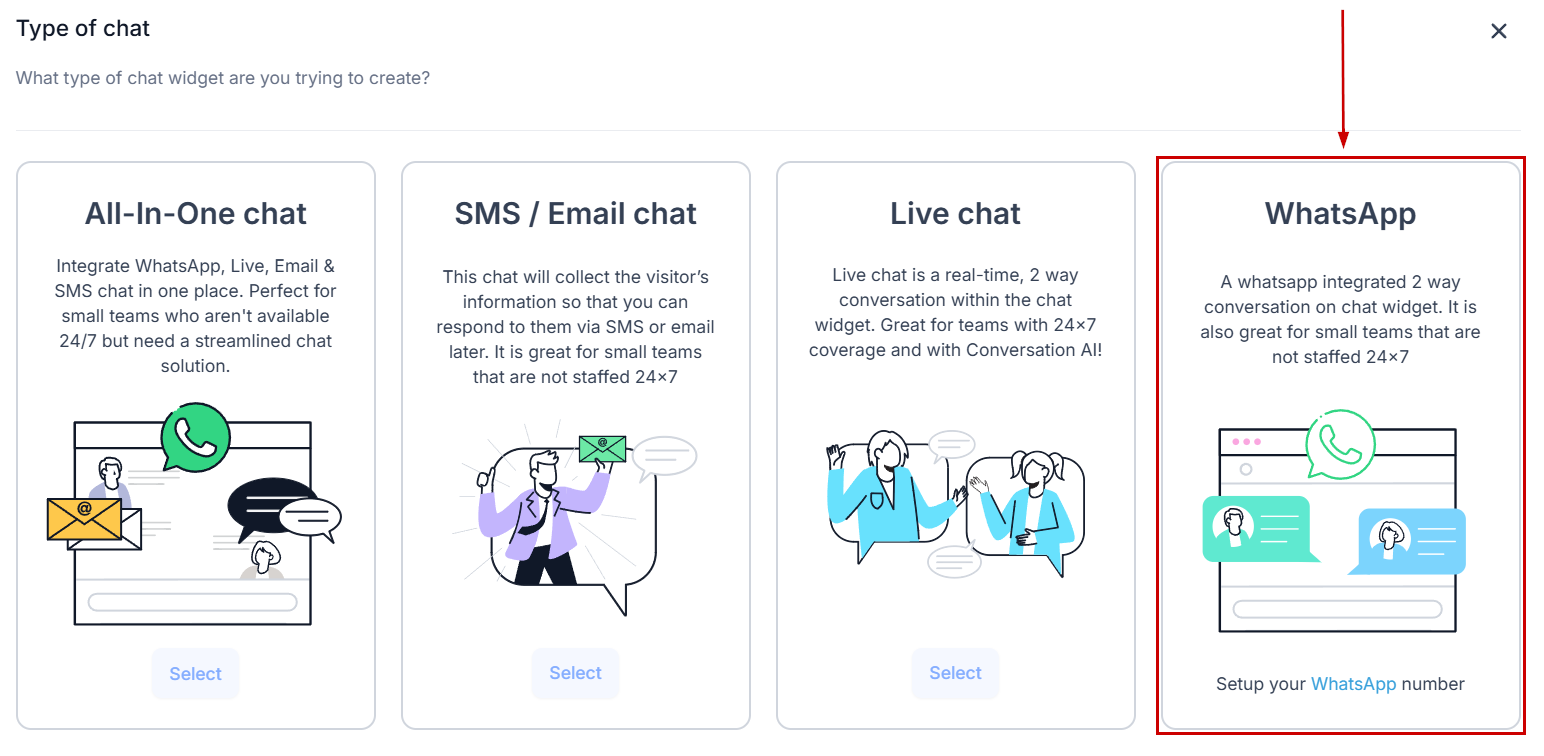
Inside the Chat Widget tab inside the Sites section click the +New button. This will prompt you to select between the Chat widget types: SMS/Email Chats, Live Chat, and WhatsApp. By default a SMS/Email chat widget will be added to your list but you can add as many as you see fit.
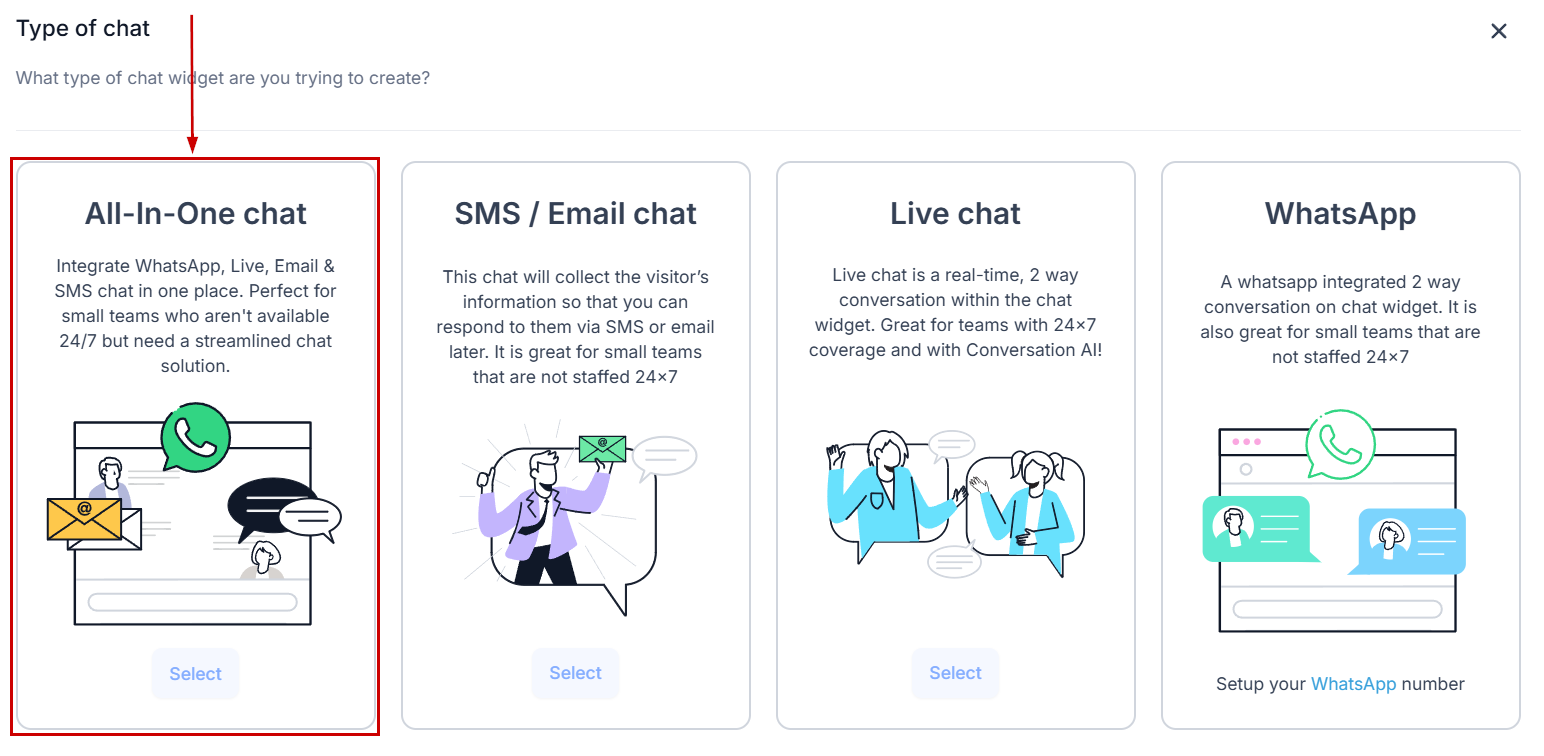
All-In-One Chat
This widget type allows you to manage multiple conversation channels within one widget. You can manage the conversations through the Live chat interface or move the conversation over to WhatsApp, SMS, or Email. They work best for smaller teams that can't manage multiple chat widgets.
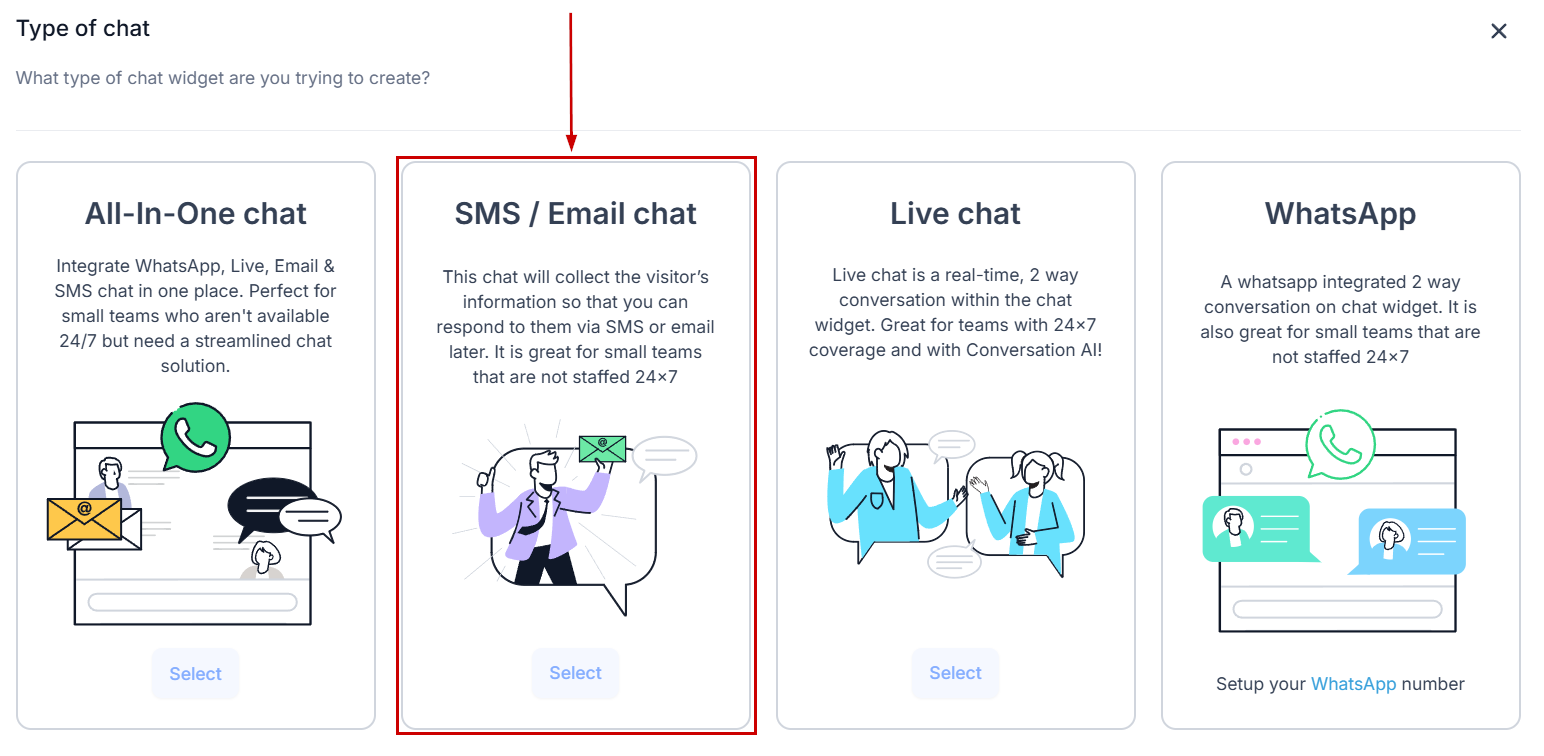
SMS/Email Chat
This collects the visitor's information and creates them as a contact in the system for you to respond to whenever you have the time. They work best for smaller teams where there isn't someone available to respond to clients immediately.
Live Chat
This allows you to respond to the visitor directly inside the chat bubble, it still collects contact information but you are encouraged to respond immediately. This keeps a 2-way conversation rolling and it's best suited to larger teams.
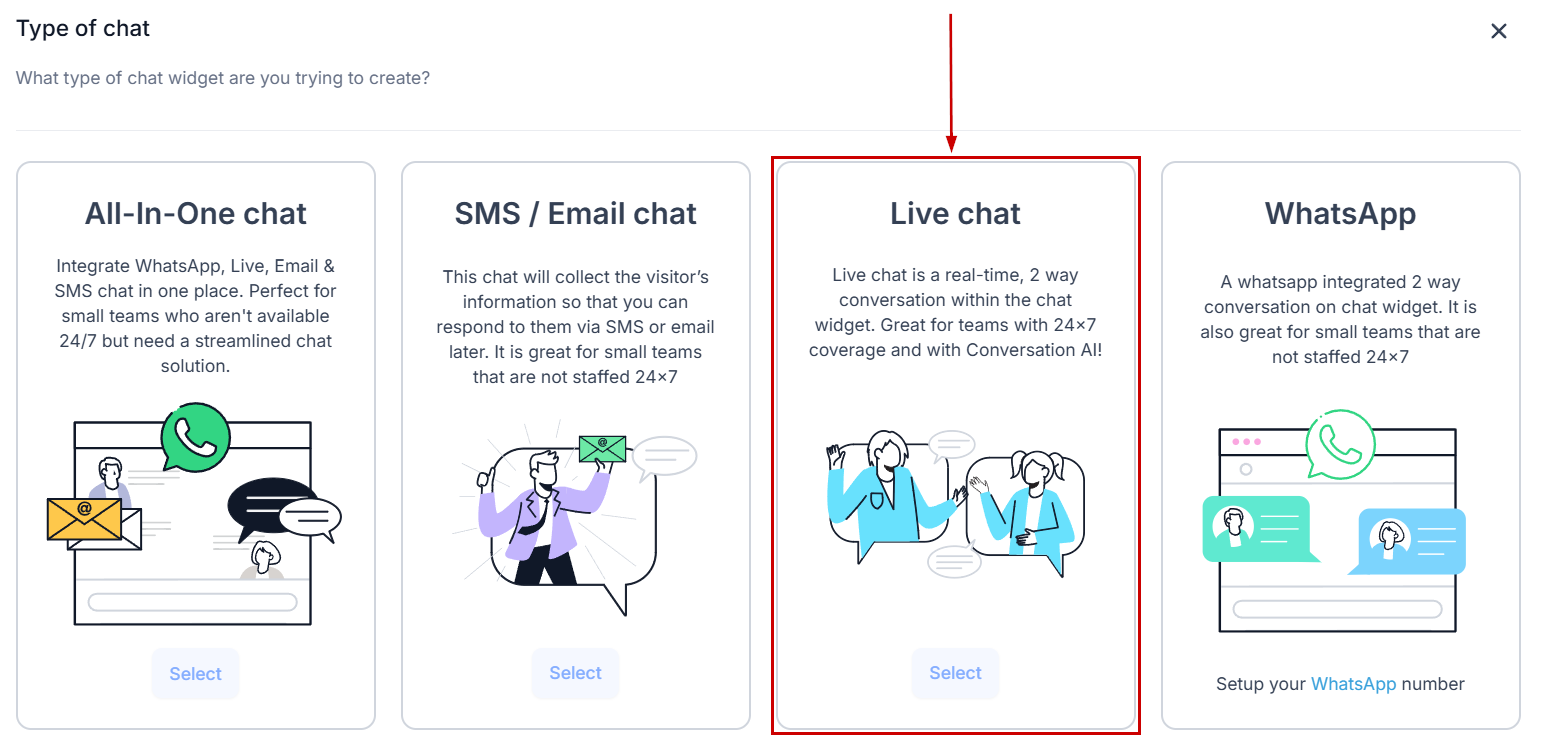
You can handle the conversation on the chat widget from WhatsApp, or move it to WhatsApp messaging altogether. This works great for bigger and small teams alike. However, to use it you need to have a WhatsApp number connected inside the system.
Chat Widget Options
By clicking on the three dots icon next to any widget you can access its options. This will be to edit, clone, or delete the Chat Widget.
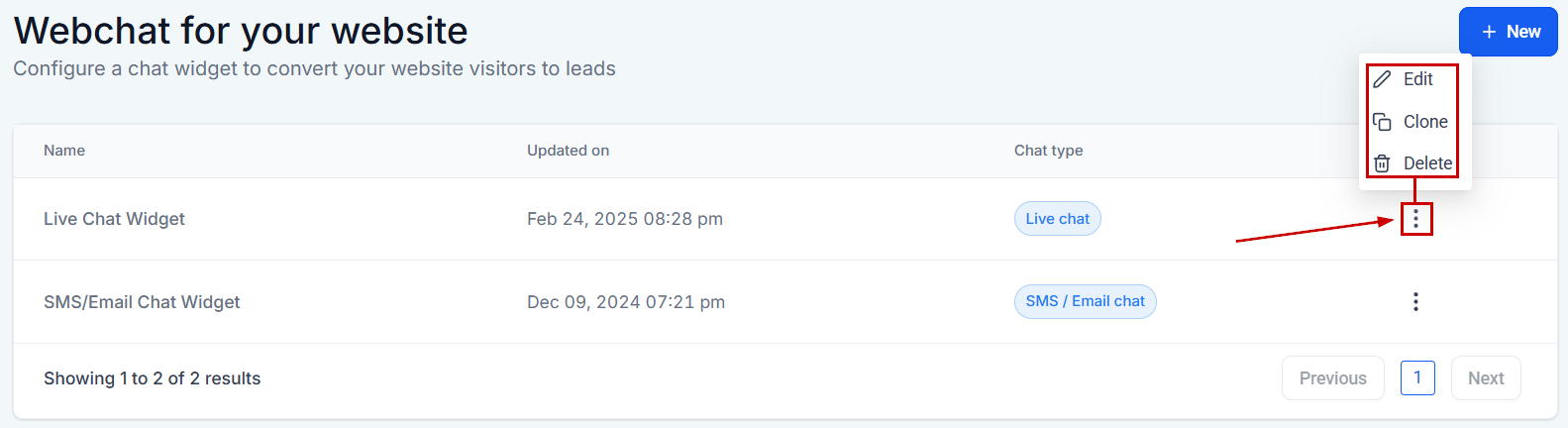
Edit
This option allows you to make changes to existing Chat Widgets.
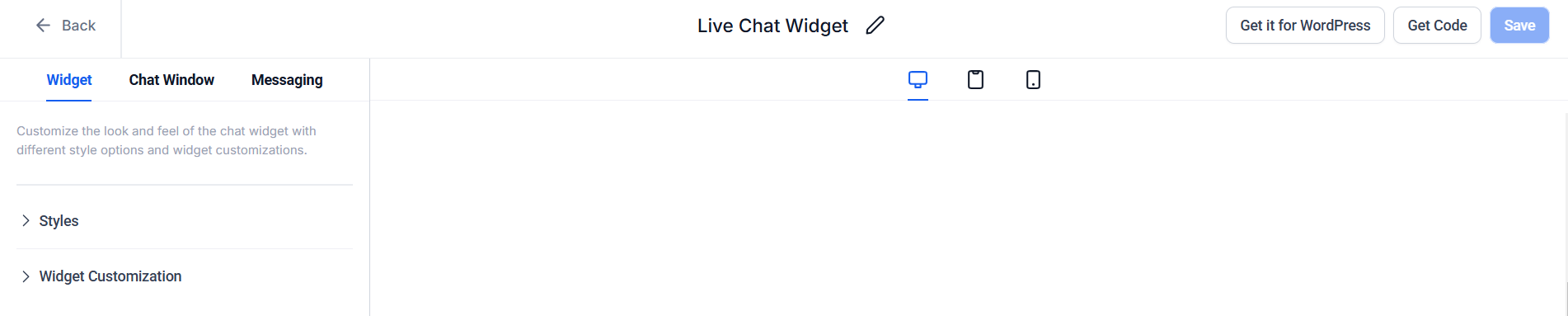
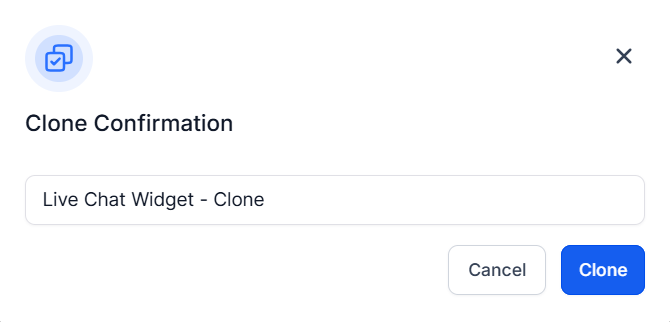
Clone
This will create a duplicate of the selected Chat Widget. The duplicate will have the same settings as the original including any images you've added.
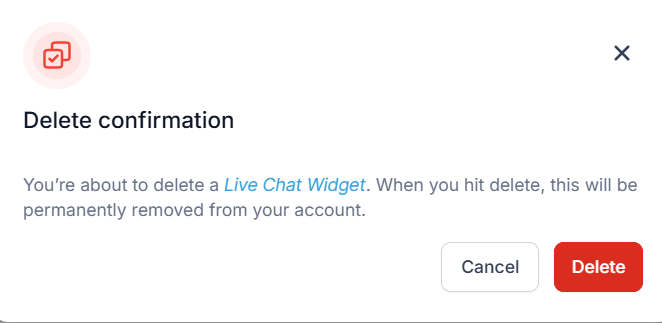
Delete
This removes the selected Chat Widget permanently, please keep in mind that this action can't be undone.
Now that you have the basis for the Chat Widget down you can start using it! We recommend checking the rest of the articles under this section so you can make the most out of your Widget.
Was this article helpful?
That’s Great!
Thank you for your feedback
Sorry! We couldn't be helpful
Thank you for your feedback
Feedback sent
We appreciate your effort and will try to fix the article