To elevate your communication strategy and improve customer interaction, it's essential to customize your email templates for recurring communications. This approach not only personalizes your outreach but also helps maintain consistency and professionalism, ultimately fostering stronger customer relationships.
Key Benefits
- More Efficient: Leverage pre-designed templates, eliminating the need to craft emails from scratch.
- Better Brand Consistency: Ensure every email aligns with your tone and brand identity for a cohesive customer experience.
- Higher Engagement & Review Conversions: Well-crafted emails enhance the likelihood of customers leaving valuable reviews, boosting your reputation.
Customizing Recurring Email Templates
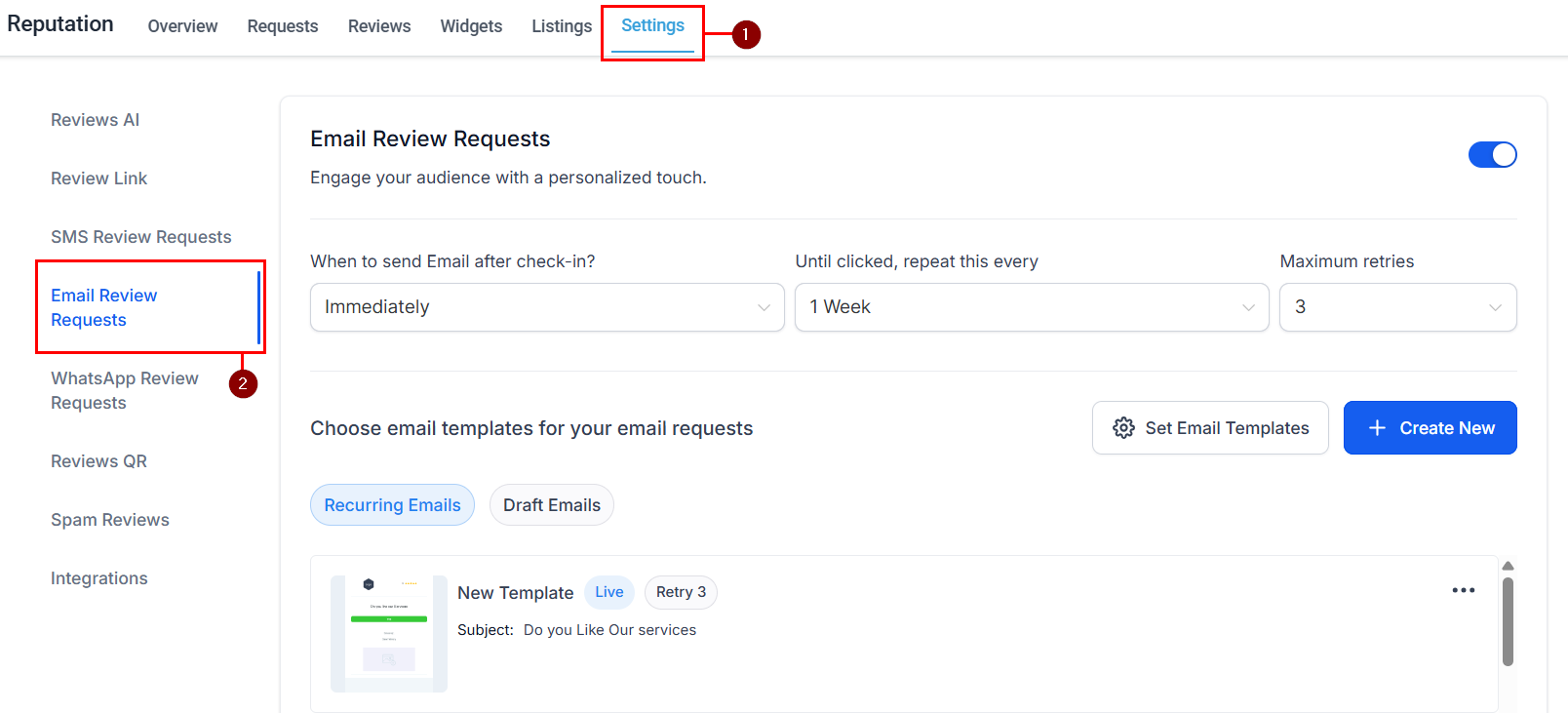
Navigate to the Email Review Requests section within your Reputation Settings to begin.
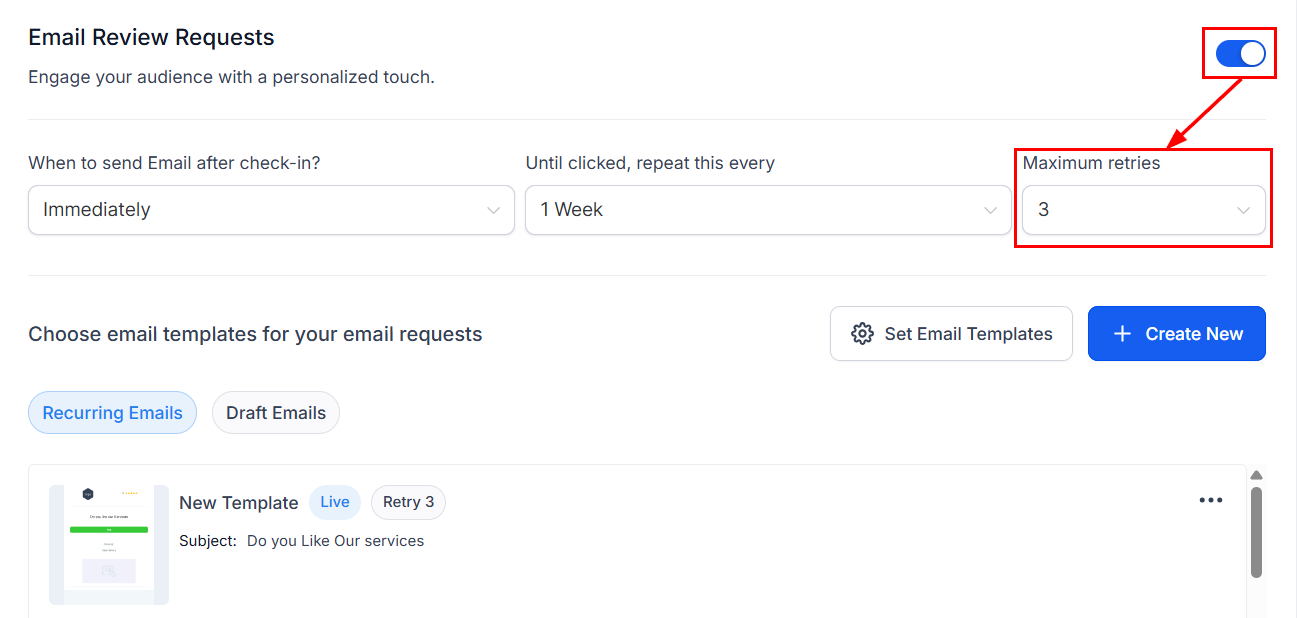
Next, ensure that Email Review Requests is enabled as shown in the image below. Then, set the "Maximum retries" to a value greater than 1 to allow multiple follow-up attempts.
A preview of the templates will appear in the "Choose email templates for your email requests" section. Here, you can select different email templates for each follow-up message by clicking the "Set Email Templates" option. Alternatively, you can craft a new template by clicking the "Create New" button. The email builder will be overlaid in the view, allowing for easy access and seamless navigation.
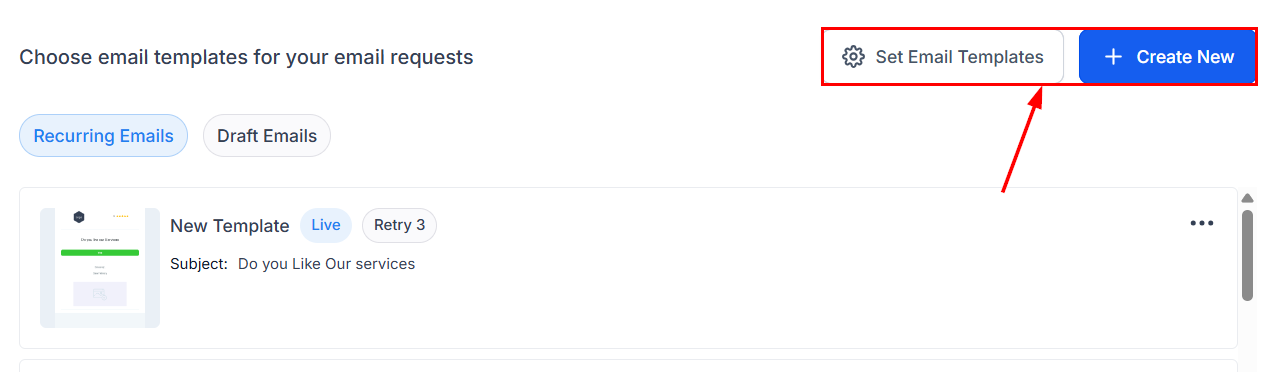
Create New
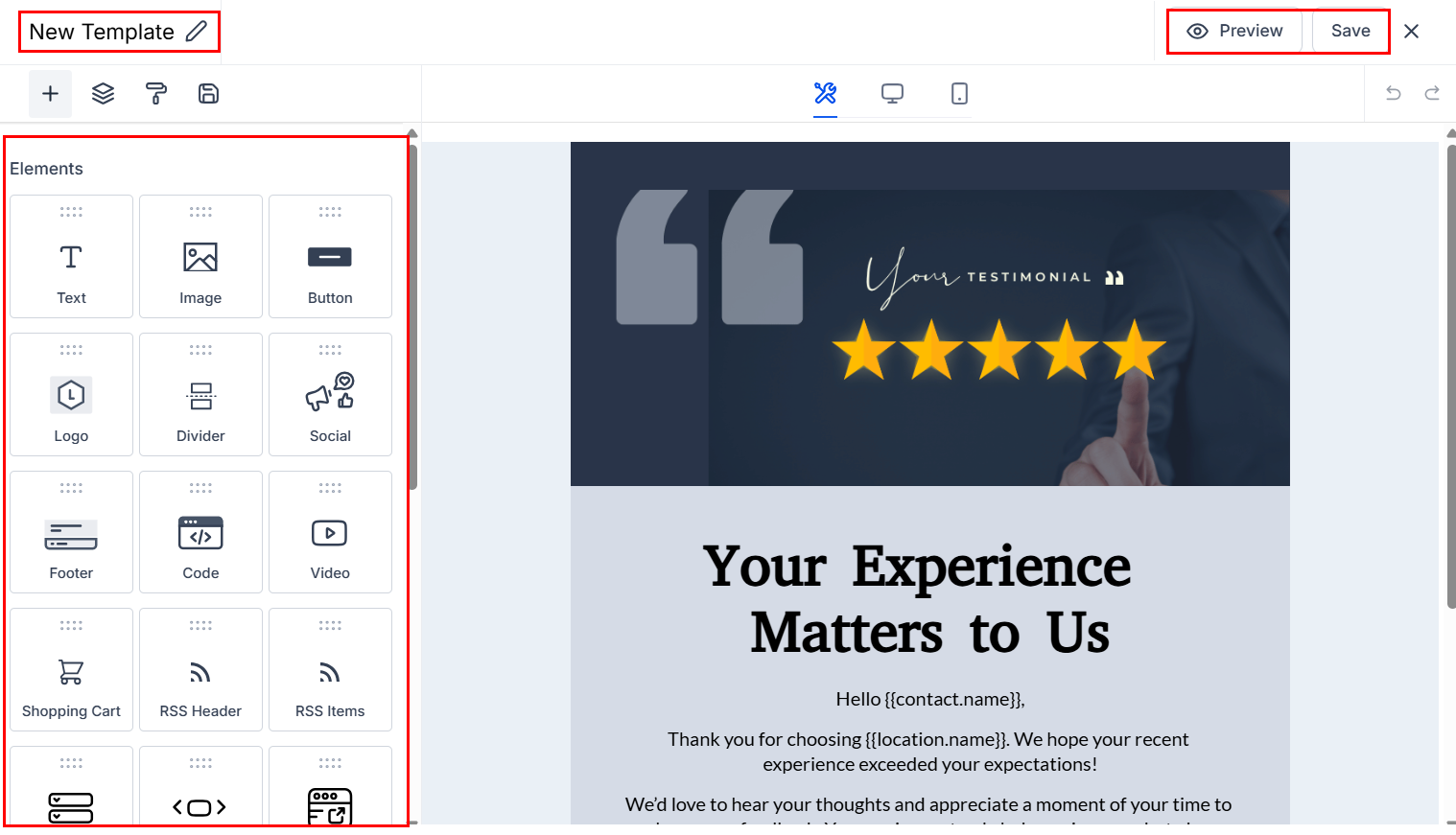
Drag and drop email elements into the builder to customize the design and content, ensuring it aligns with your brand. Don’t forget to rename your template, save your changes, and preview it before publishing to ensure everything looks perfect!
Set Email Templates
Clicking the option to set the email templates will open a modal with preconfigured template options based on the number of retries you have permitted.
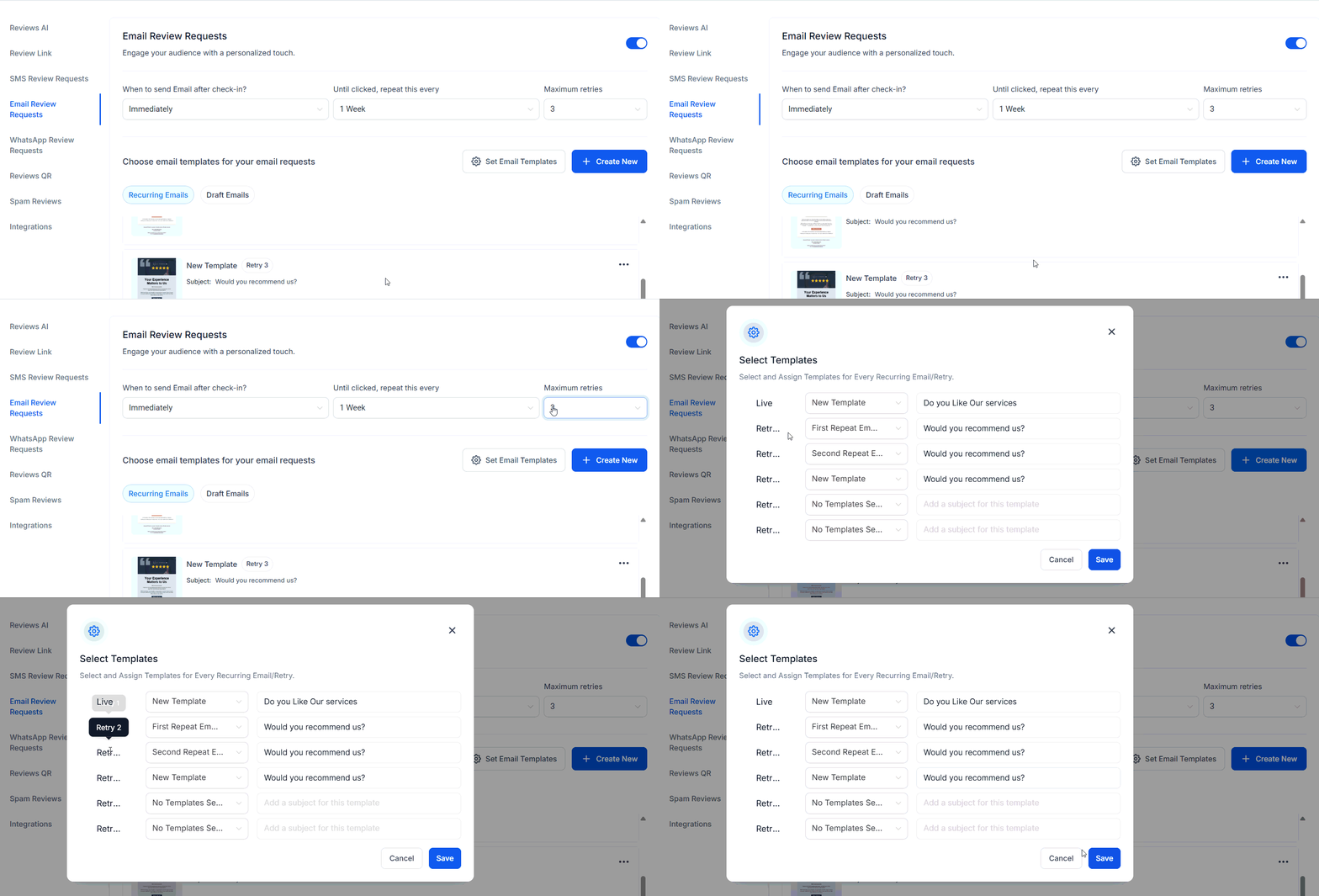
Choose from a diverse library of professionally designed templates tailored for various scenarios, or select a template you have created from the dropdown menu. Then, set the Subject for each recurring email to ensure clarity and relevance for your recipients.
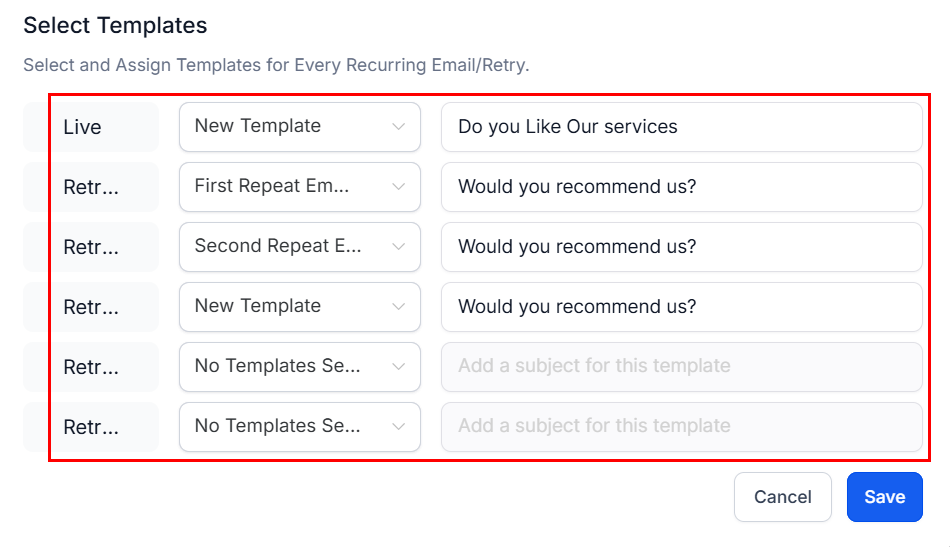
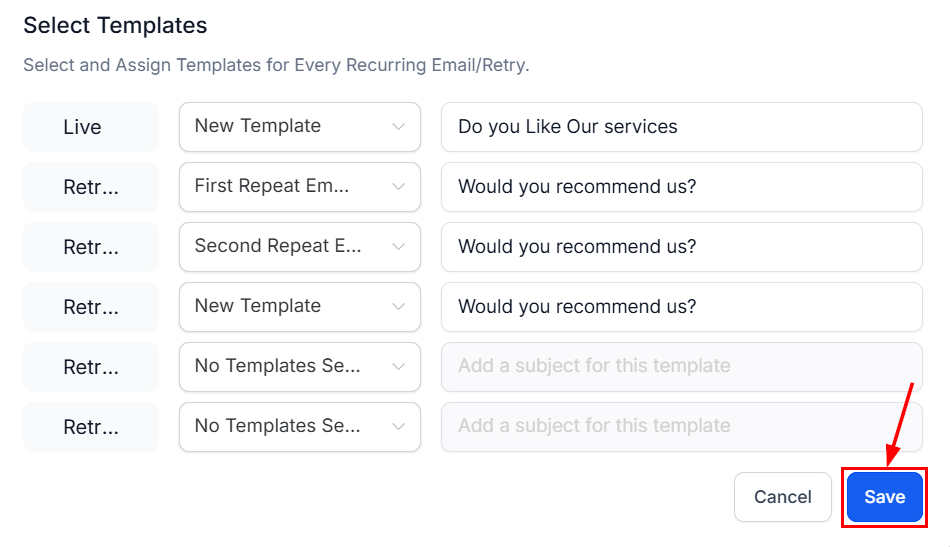
Save and activate your settings. Your emails will now automatically send with the selected templates!
Managing Templates
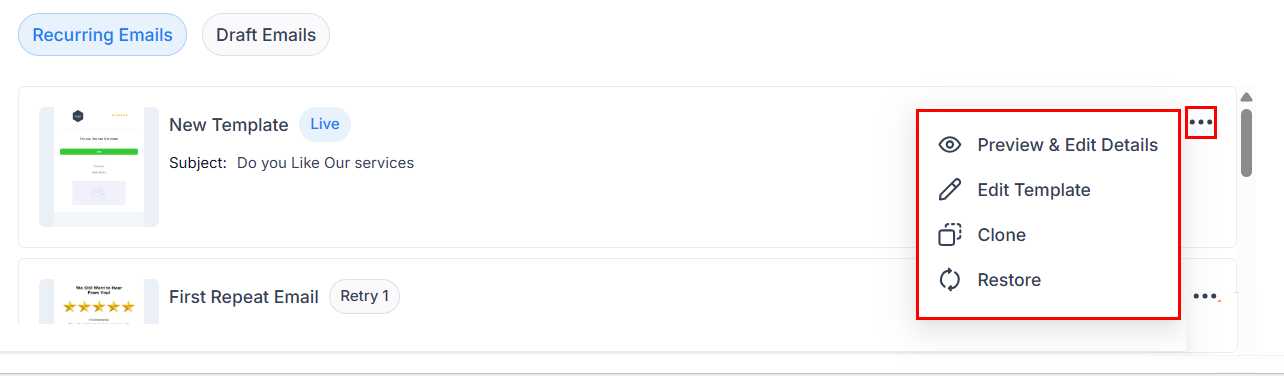
After creating and setting your templates, you can perform various actions such as previewing and editing, duplicating or refreshing, or discarding the template. Use the three-dot actions menu to complete these tasks.
Note: The Live template cannot be deleted. To delete it, you must first reassign another template.
By utilizing this strategy, you will ensure that your communications remain consistent, efficient, and engaging, while also driving better review conversions.
Was this article helpful?
That’s Great!
Thank you for your feedback
Sorry! We couldn't be helpful
Thank you for your feedback
Feedback sent
We appreciate your effort and will try to fix the article