Managing your opportunities effectively is key to staying organized and keeping track of valuable information. In the Opportunities tab, you can customize the information displayed on each opportunity card. This guide will walk you through how to view additional details using the More Info icon, helping you tailor your view to suit your preferences.
To begin, navigate to the Opportunities tab.
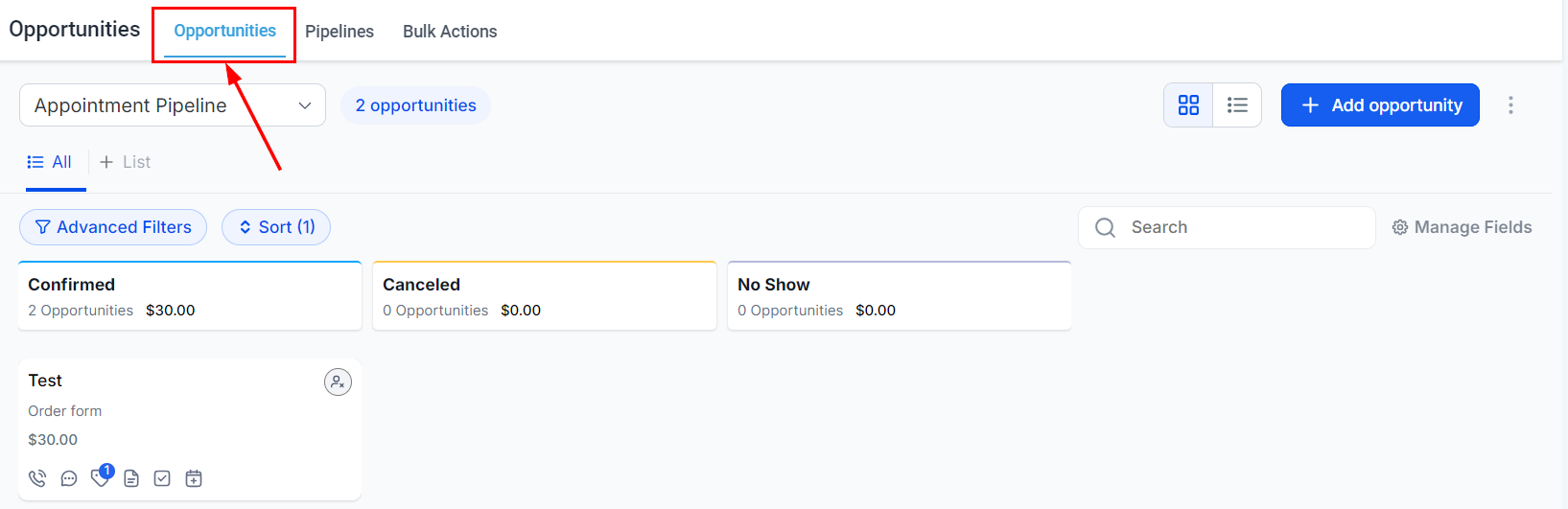
Access Additional Information
To add more detailed information to your opportunity cards, click on the More Info icon. A dropdown menu will appear allowing you to select the Additional Info option.
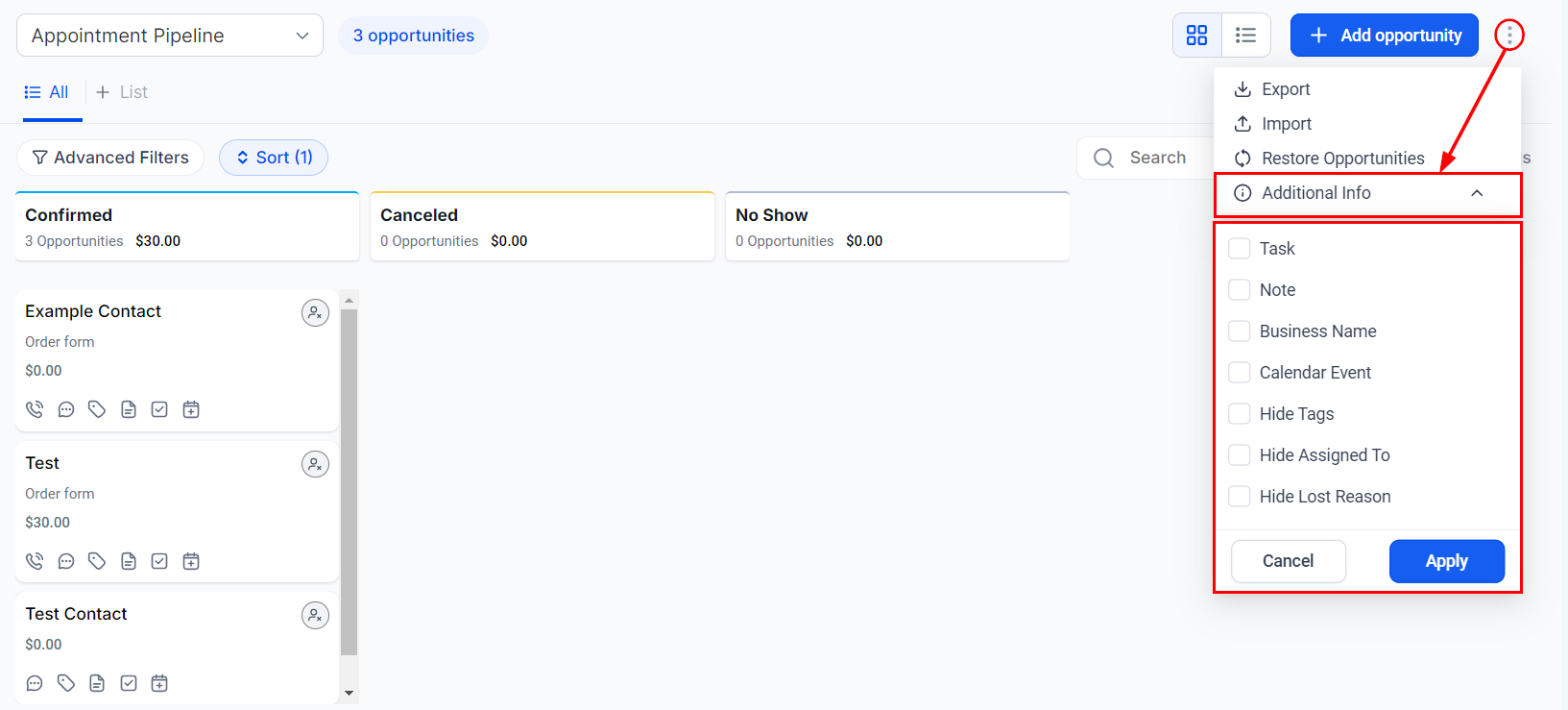
Select Items to Display
In this dropdown menu, you can select any items you wish to display on your cards. If an item is already displayed and you wish to hide it, simply click the item again to turn it off. It will no longer appear on the card.
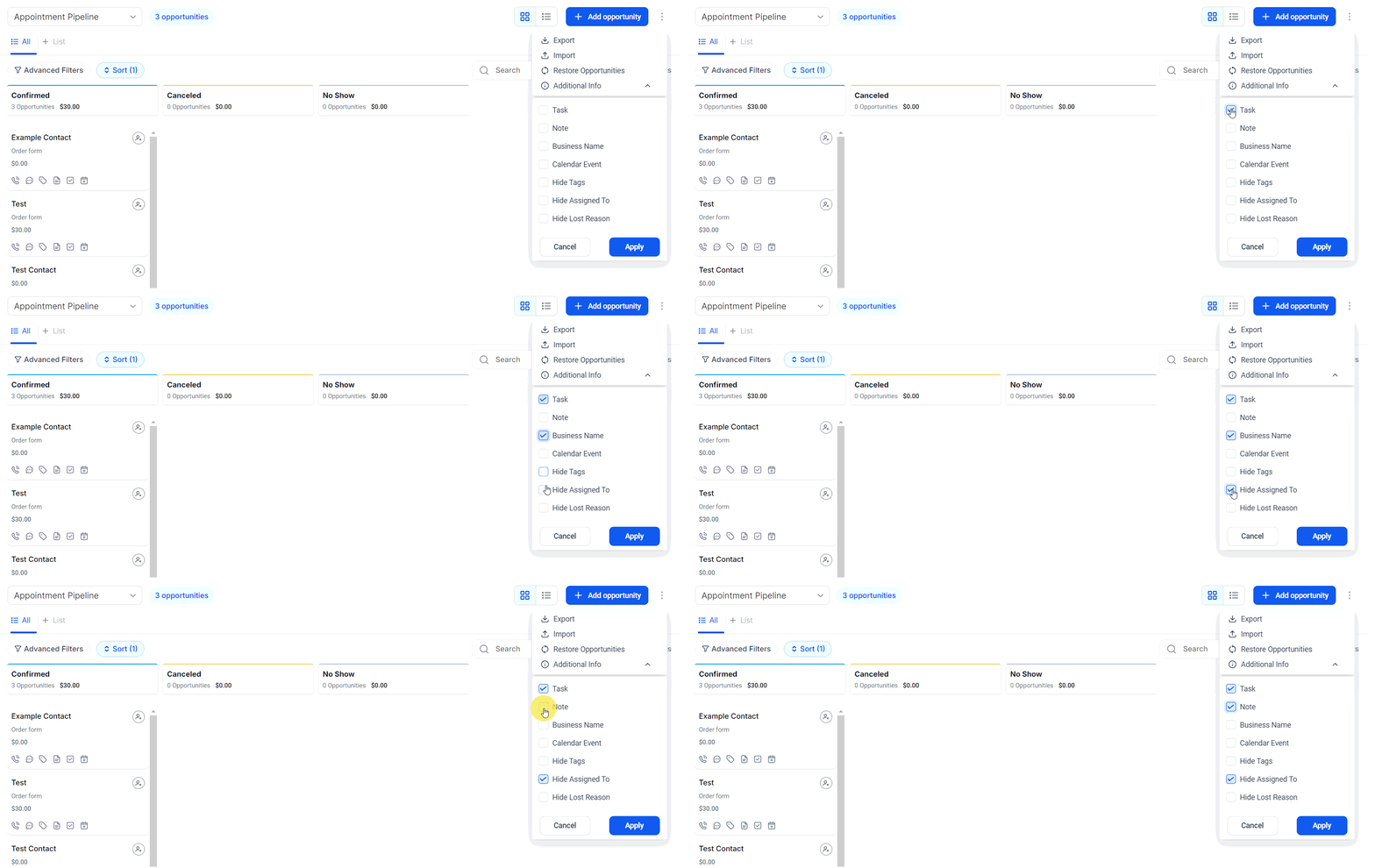
Apply Changes
Once you have configured your preferences, click the Apply button to maintain your changes.
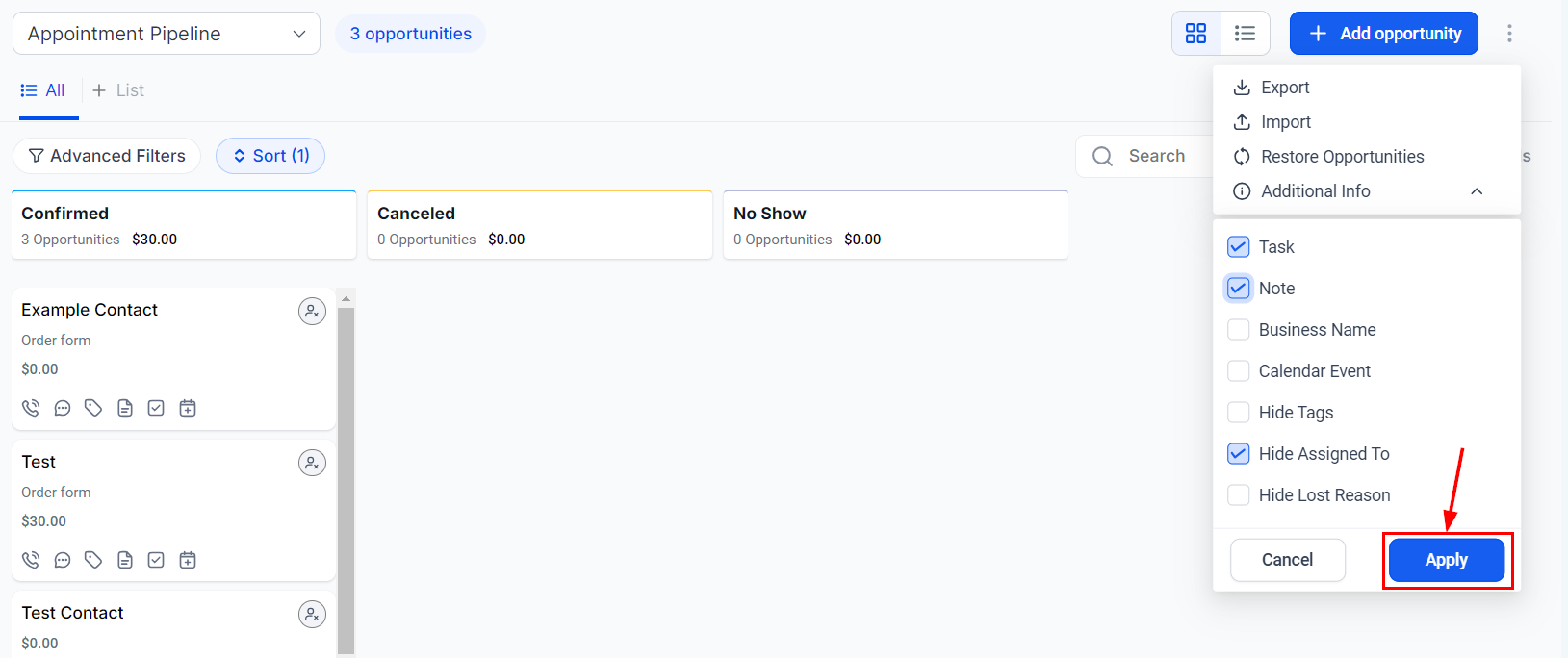
Your Opportunities view will now reflect the information according to your selected preferences.
Customizing your opportunity cards allows you to access the most relevant information at a glance, enhancing your ability to manage and prioritize tasks. By following these steps, you can ensure that your Opportunities tab reflects the details most important to your process.
Was this article helpful?
That’s Great!
Thank you for your feedback
Sorry! We couldn't be helpful
Thank you for your feedback
Feedback sent
We appreciate your effort and will try to fix the article