With the ability to pull Opportunity Custom Values directly into your invoice and estimate templates, you can seamlessly integrate opportunity-specific data within the "Terms & Notes" section. This feature ensures that your invoices and estimates are always populated with the most up-to-date information, eliminating the need for manual data entry. Additionally, fields in invoices and estimates automatically update with the latest opportunity details when sent, whether triggered from a workflow or the Opportunity screen.
How It Works
Adding Opportunity Fields in Invoices & Estimates
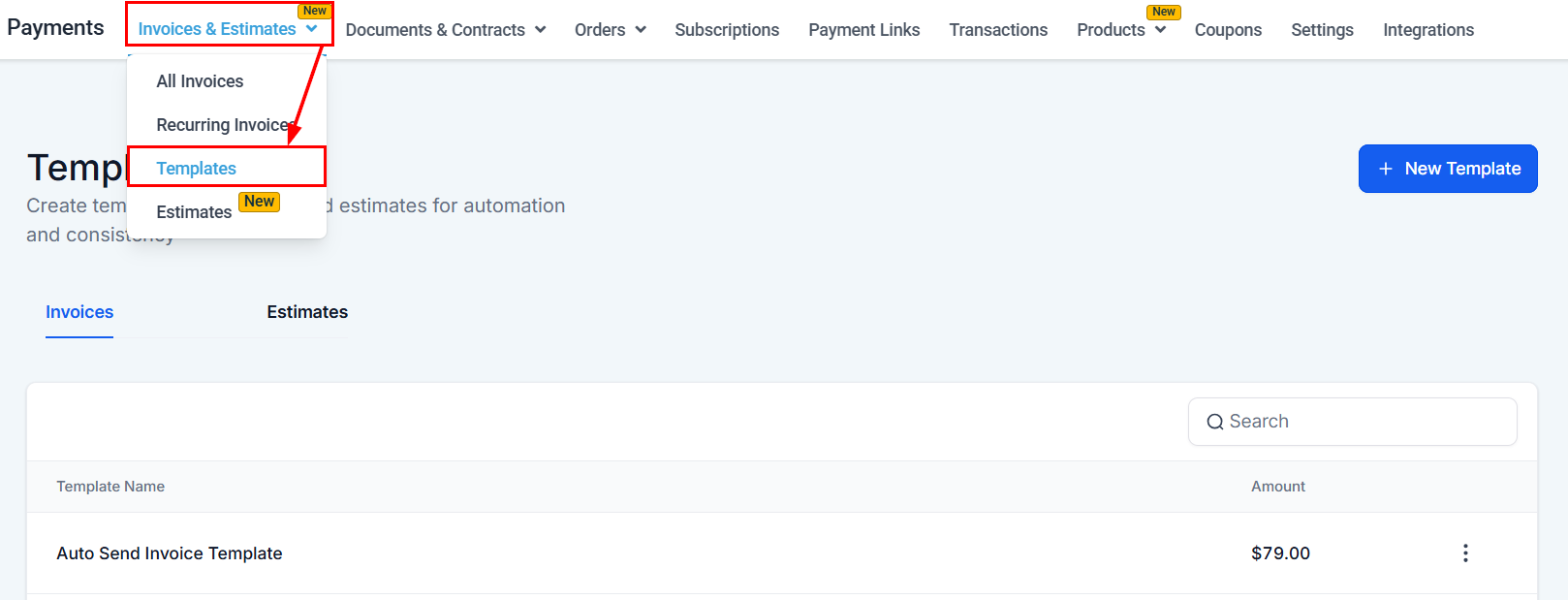
Navigate to the Templates section within the Invoices & Estimates tab and opt to create or update an invoice or estimate.
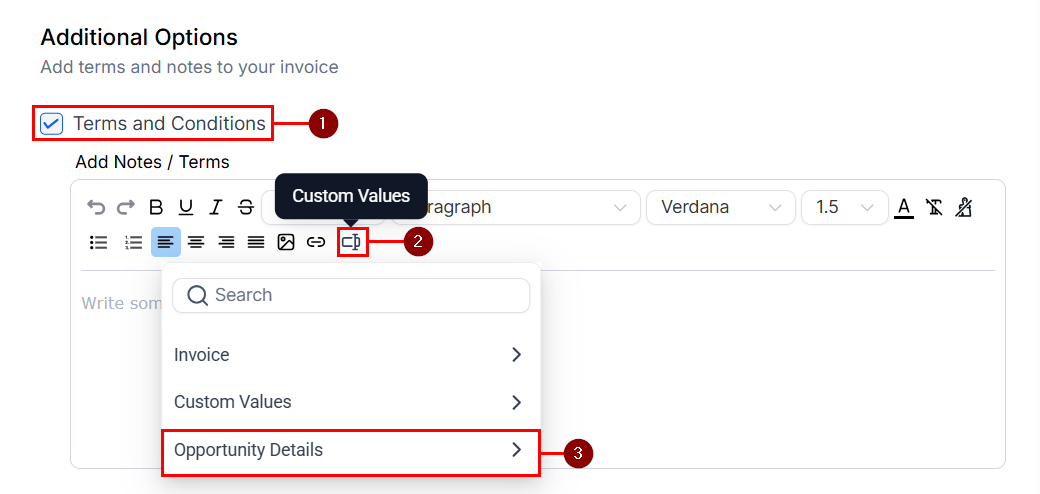
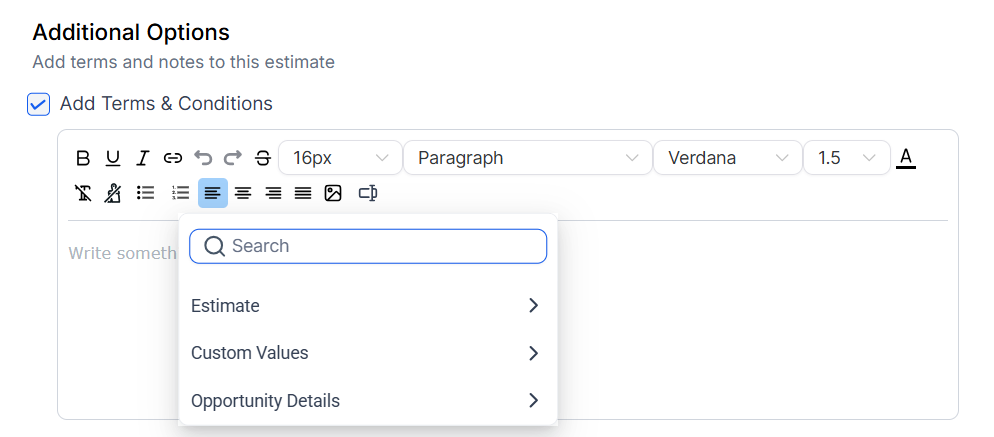
Locate the Terms and Conditions feature within the Additional Options, and enable it to enter the desired information. Next, click the Custom Values icon, then select the relevant field from the Opportunity Details menu.
Once you are satisfied with your template, save it to retain your changes!
Using Invoice/Estimate Templates in a Workflow
Now that you have created your invoice/estimate template with your opportunity custom fields, you can automate the process to send them to your clients.
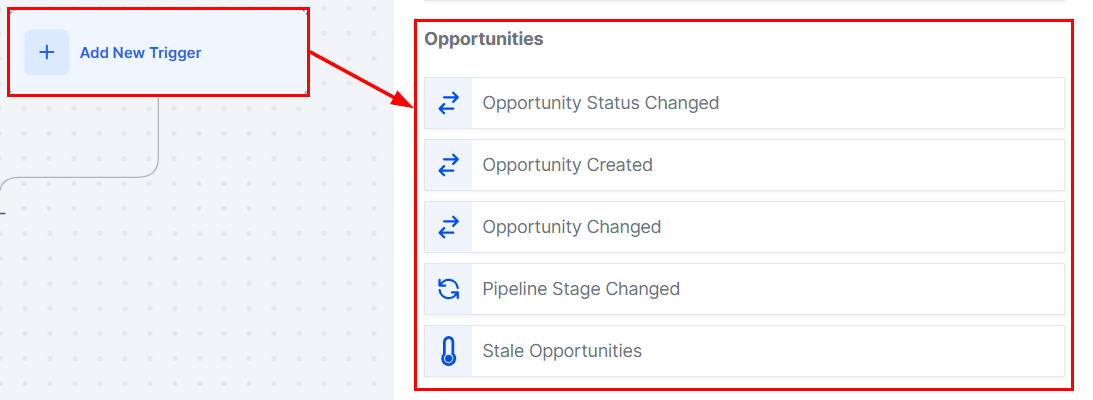
In your workflow, choose the appropriate opportunity trigger, such as Pipeline stage change or Opportunity status change.
Add a Send Estimate/Invoice action and select the template containing the opportunity fields.
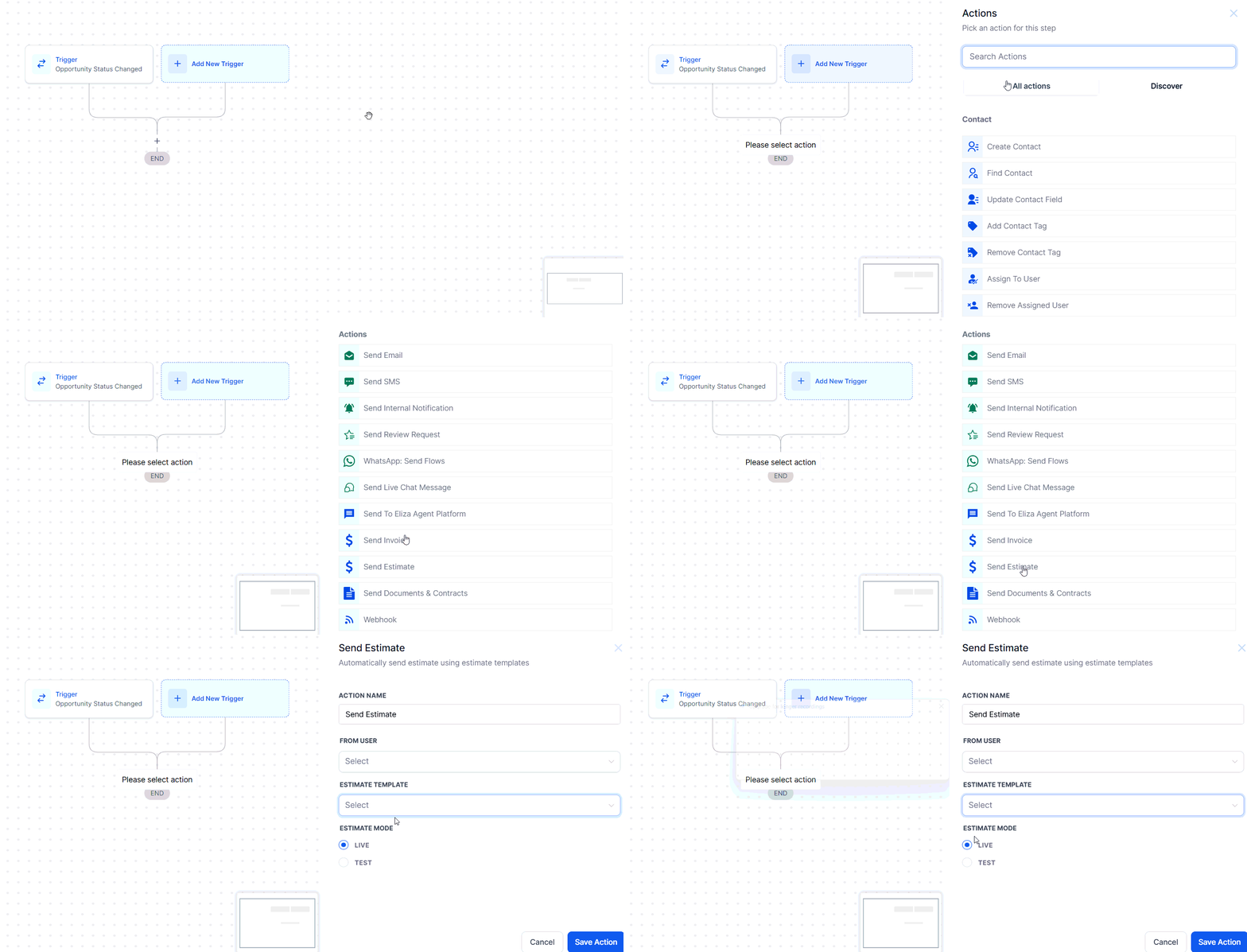
Be sure to save the action and publish the workflow to begin automating your process!
Creating an Invoice/Estimate from an Opportunity Card
Opportunity details can also be populated when an invoice/estimate is created from an opportunity card. To do so, go to Opportunities and select an opportunity from the grid/list view. This will open the opportunity card which contains all you need to know about your opportunities!
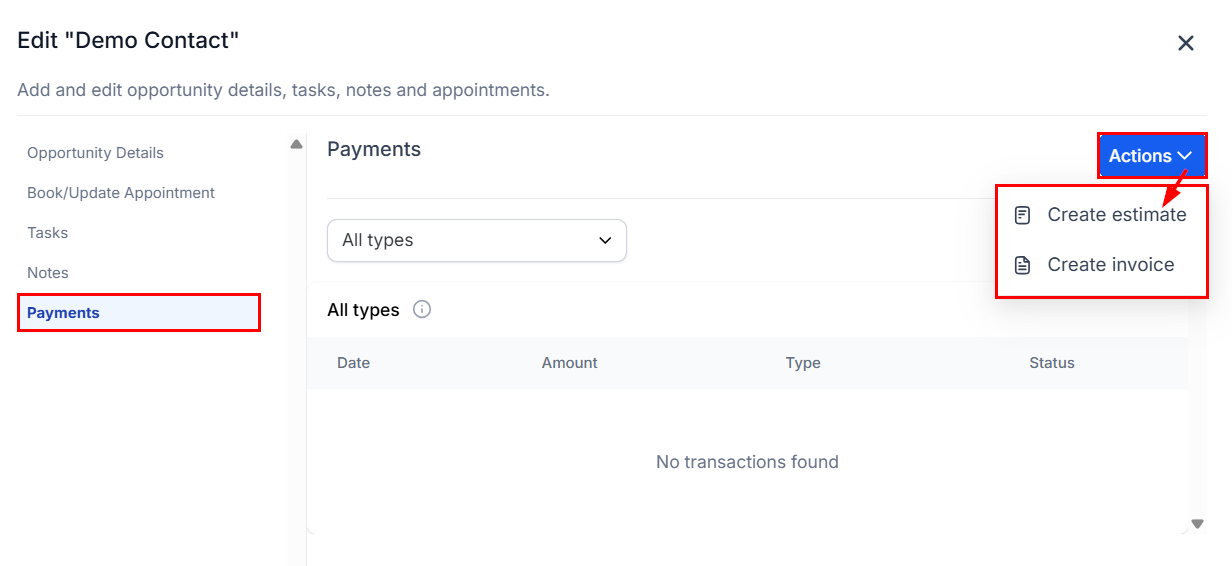
Next, open the Payments section and opt to Create an Invoice/Estimate by selecting the most suitable option from the Actions dropdown.
In the Terms & Notes section, insert the desired opportunity field (e.g., {{opportunity.assigned_to}).
Click Send to generate and send the invoice or estimate.
By auto-populating invoices and estimates with live opportunity data, this feature reduces manual entry, improves accuracy, and ensures that your documentation is always consistent and up-to-date. It's a powerful tool for businesses looking to save time and streamline their processes.
Practical Example
If you have a custom field called "tshirt" and use {{opportunity.tshirt}} in your template's Terms & Notes section, whenever a pipeline stage is updated, the invoice or estimate will automatically include the correct t-shirt size or details.
Was this article helpful?
That’s Great!
Thank you for your feedback
Sorry! We couldn't be helpful
Thank you for your feedback
Feedback sent
We appreciate your effort and will try to fix the article