Enhancing the visibility and organization of opportunity cards within the pipeline view can significantly optimize your workflow. Customizing fields, counters, and layouts allows you to tailor opportunity cards to better align with your business needs. This guide will walk you through the options available for personalizing up to seven displayed fields, adjusting quick action icons, and selecting the most suitable card layout for a streamlined and effective workflow.
Customization Options
- Field Customization: Select up to seven fields, including standard or custom options like Opportunity Name, Status, Value, and Contact Information. This flexibility ensures you display only the most relevant details for quick reference.
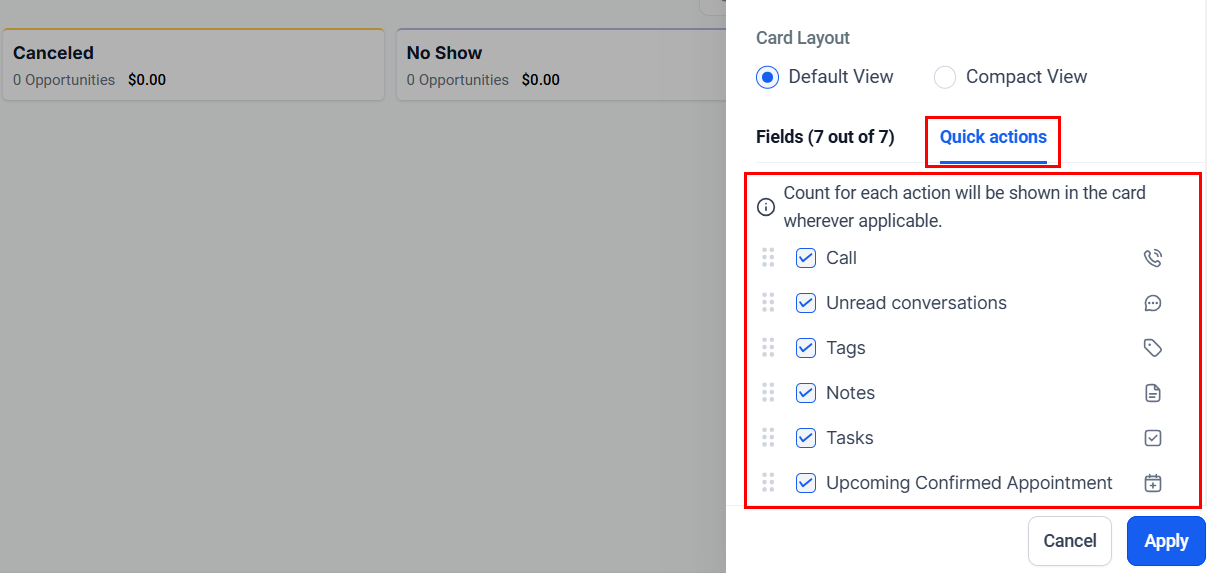
- Customizable Quick Actions: Tailor the icons at the bottom of each card to display quick-access items such as Conversations, Tasks, Notes, Calls, Tags, and Appointments. This feature allows you to prioritize the actions most relevant to each opportunity.
How to Customize Opportunity Cards
Access Customization Settings
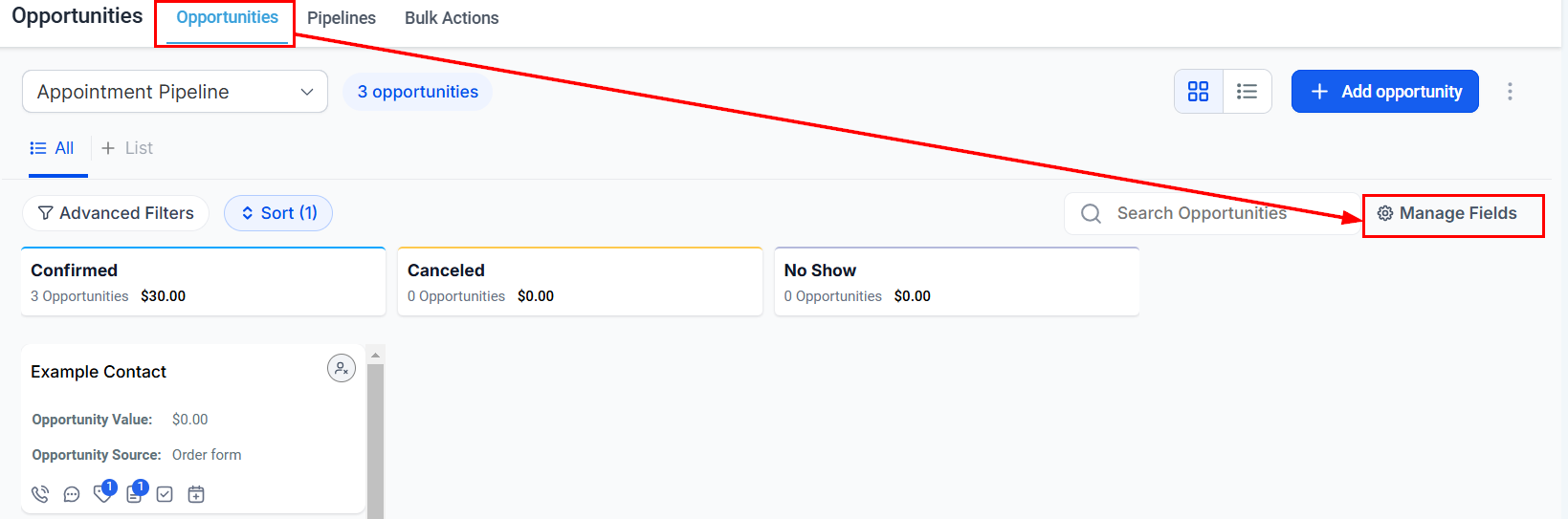
Navigate to the Opportunities section and select Manage Fields to begin your customizations.
Choose Your Preferred Layout
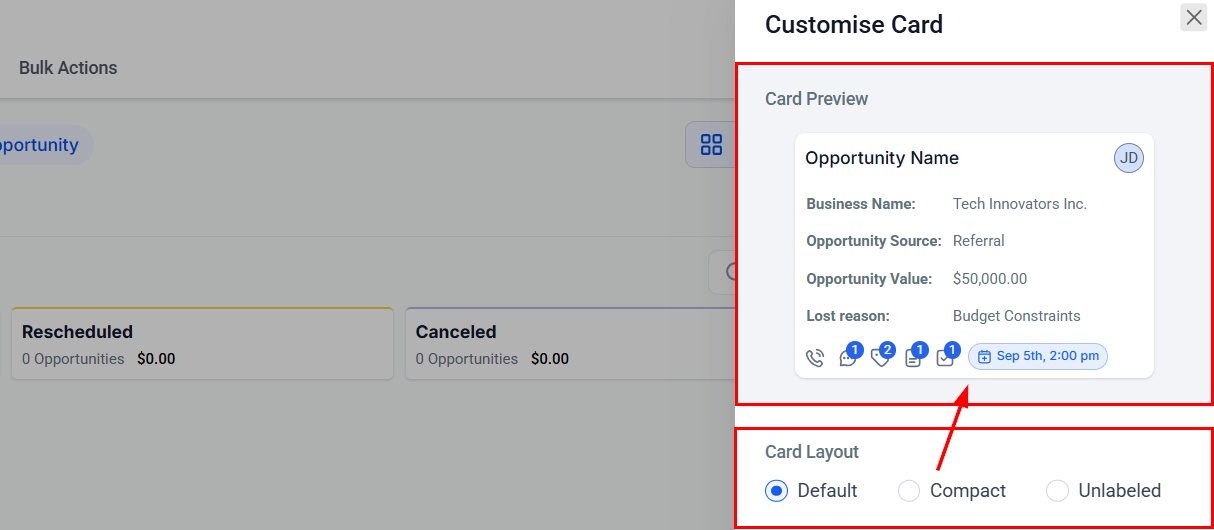
Choose the Default View to display both field labels and values, the Compact View to show only values with labels appearing on hover, or the Unlabeled View, which presents a single line per data field for a more compact card, allowing you to view additional information. A preview of the opportunity card is available in the section above.
Select Fields and Customize Quick Actions
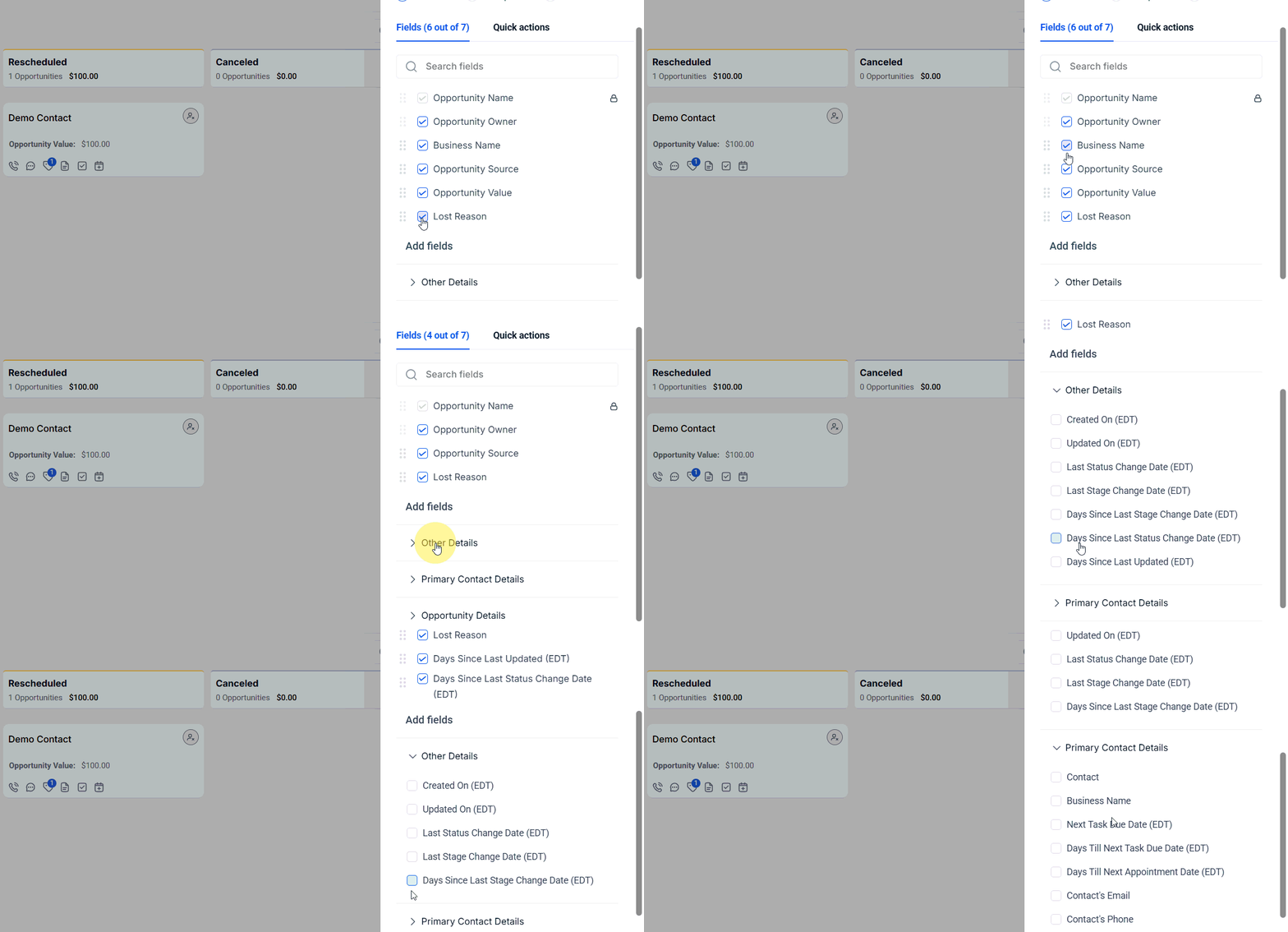
Choose up to seven fields, including a mix of standard, custom, and associated fields.
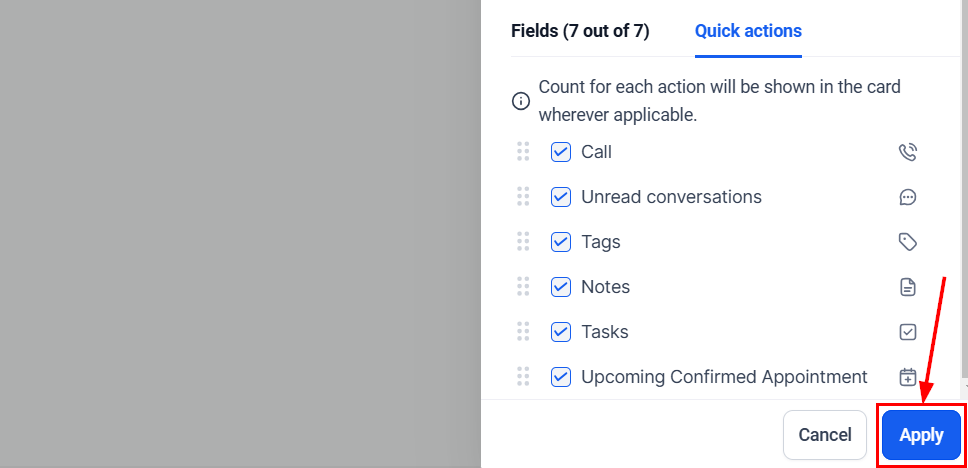
Optionally, personalize quick-action icons to include items such as Conversations, Tasks, Calls, Tags, Notes, and Appointments.
Save and Apply
Once you’ve completed your customizations, save the changes.
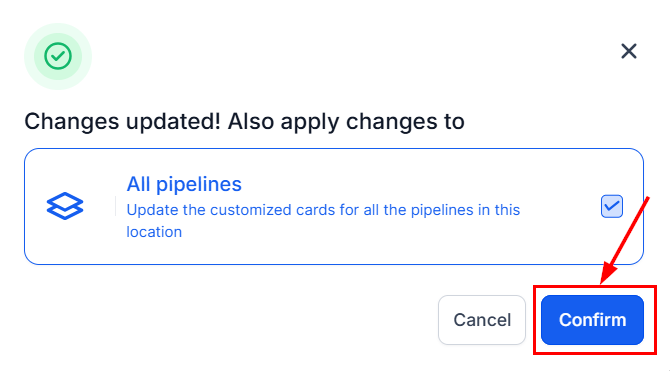
Click confirm to apply these settings across all pipelines. Otherwise, select cancel to close the modal. Field configurations are applied at the pipeline level by default, though users with multiple pipelines can apply these customizations across all pipelines for consistency.
Customizing your opportunity cards allows you to prioritize essential information, streamline navigation, and improve overall workflow efficiency. By selecting relevant fields, configuring quick actions, and choosing an optimal layout, you create a customized pipeline view that enhances focus and functionality.
Was this article helpful?
That’s Great!
Thank you for your feedback
Sorry! We couldn't be helpful
Thank you for your feedback
Feedback sent
We appreciate your effort and will try to fix the article