The One-Time Link is designed to simplify your scheduling process, providing a unique link for each booking that automatically expires once used. This ensures that your calendar remains protected from repeat bookings and unauthorized access, offering a secure scheduling environment.
Primary Benefits
- Enhanced Privacy: Protects your calendar from repeat bookings, ensuring a secure scheduling experience.
- Streamlined Booking Process: Offers a hassle-free way to schedule appointments, saving time and effort.
- Control Over Availability: Prevents future unauthorized access by expiring the link after a booking is made.
How to Use the One-Time Link Feature
Implementing the One-Time Link into your scheduling strategy is straightforward. Follow these steps to get started:
Access Calendar Settings
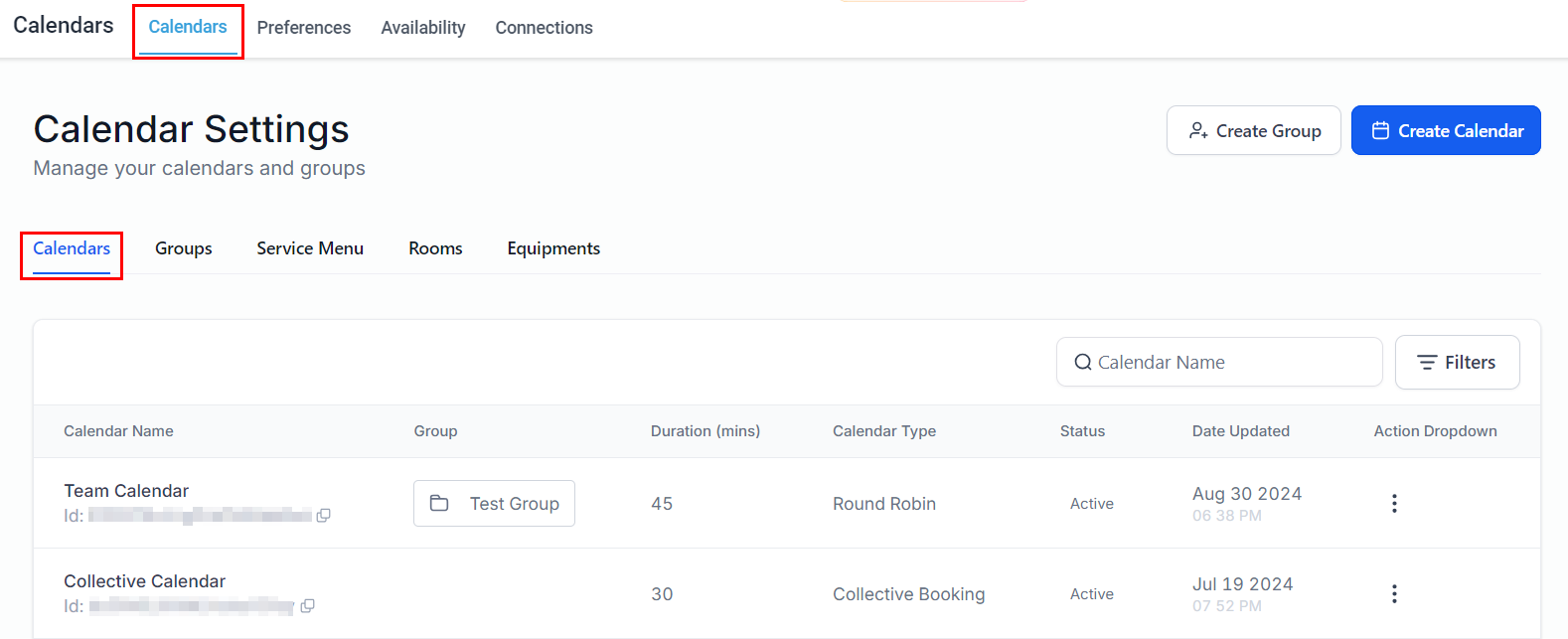
Access the Settings section in the CRM, navigate to the Calendars tab, and locate the calendar you wish to share from the Calendars list.
Copy the Link
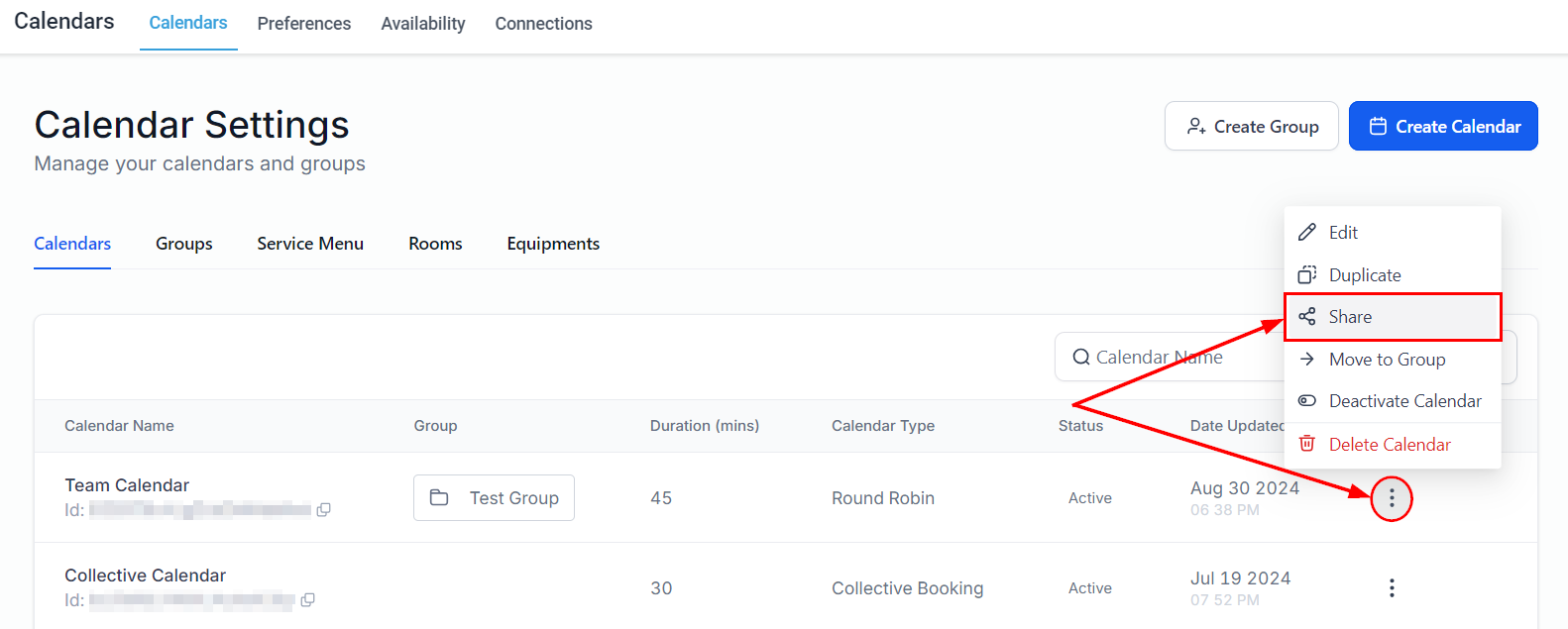
Click on the three dots menu next to your chosen calendar and select "Share" from the options.
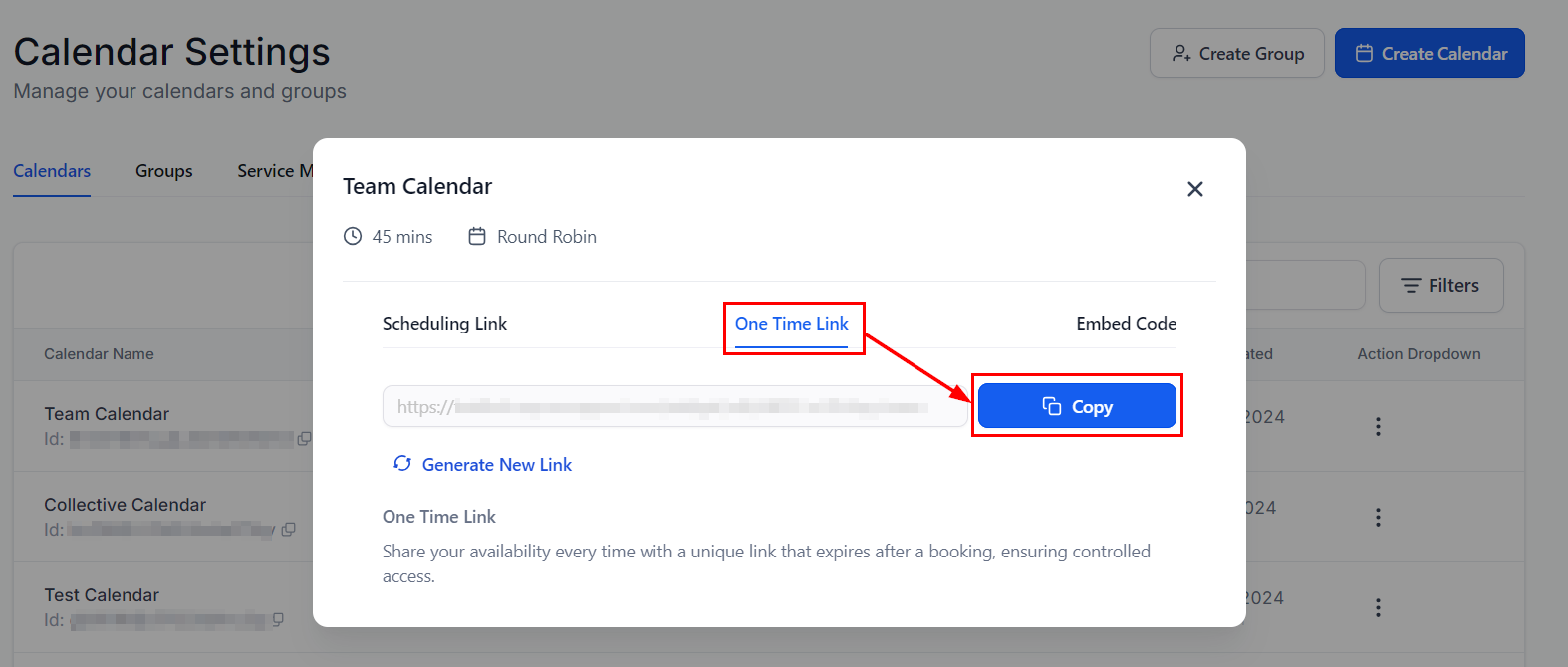
In the pop-up window, locate the "One-Time Link" feature and click "Copy" to copy the unique scheduling link.
Share the Link
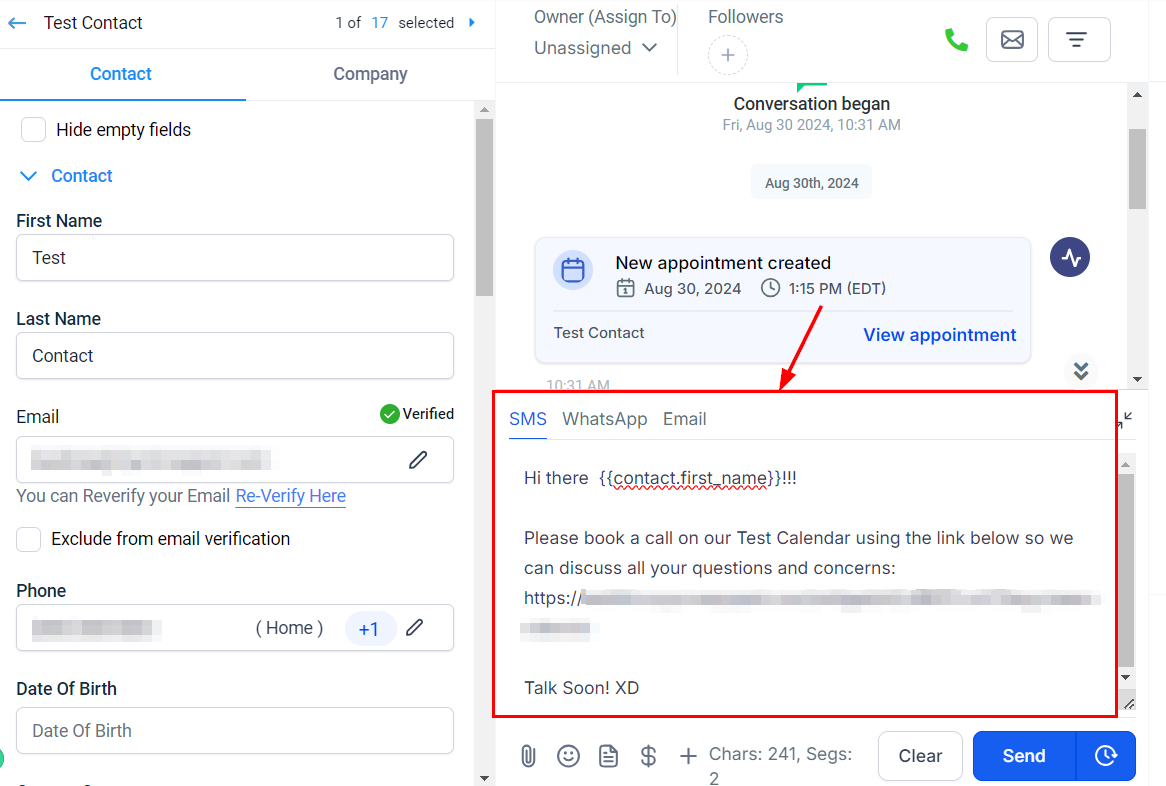
Share the copied link with your recipient by sending it through a manual SMS, email, or another preferred communication channel.
What Happens After Booking
When a booking is made, the link expires, and any attempt to schedule another appointment using that link will prompt a message instructing the user to contact the owner, ensuring that only valid and current links are utilized for scheduling.

By following these steps, you can enjoy a more secure and efficient scheduling process.
Frequently Asked Questions
Q: What happens if the One-Time Link is shared with multiple people?
- The link will only work for the first person who uses it to book an appointment. Once used, it automatically expires, preventing any further bookings.
Q: Can I generate another One-Time Link for the same calendar?
- Yes, you can generate a new One-Time Link for the same calendar by repeating the steps outlined above.
Q: What should I do if the One-Time Link does not work?
- Ensure that the link has not already been used to make a booking. If the issue persists, generate a new One-Time Link and try again.
Was this article helpful?
That’s Great!
Thank you for your feedback
Sorry! We couldn't be helpful
Thank you for your feedback
Feedback sent
We appreciate your effort and will try to fix the article