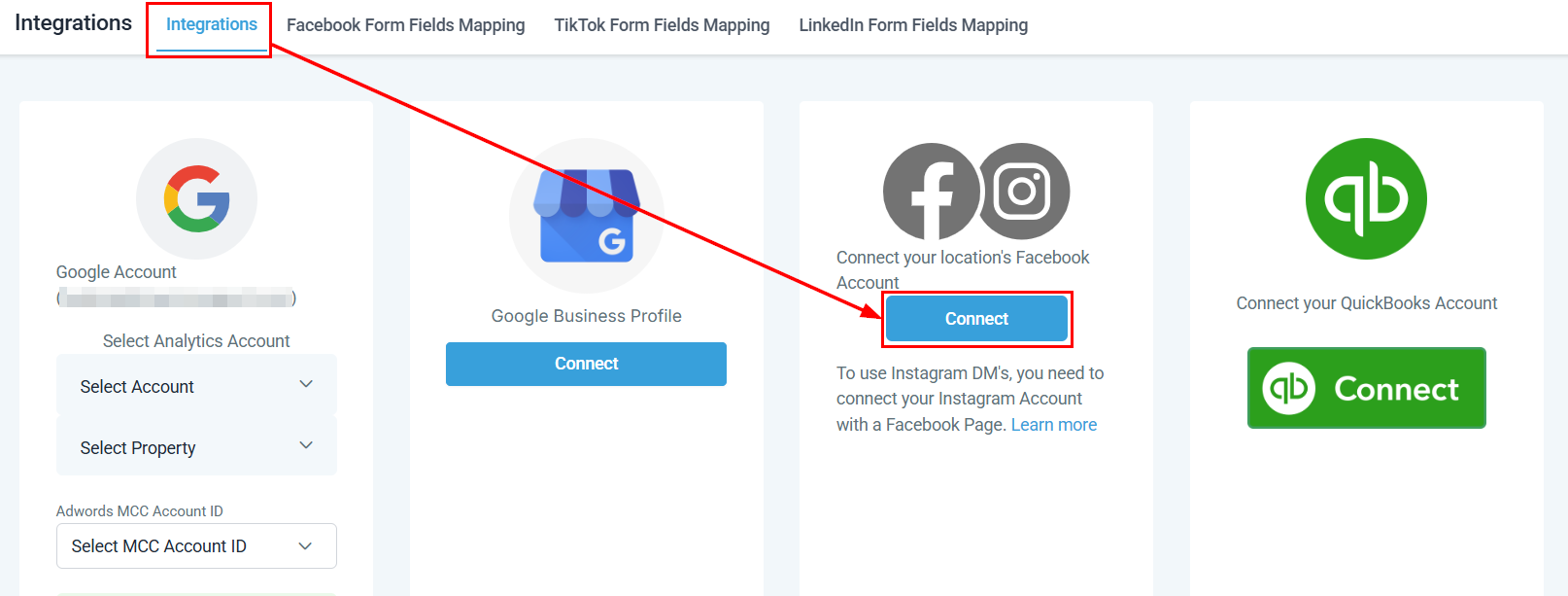
To initiate the connection, navigate to the Integrations section within your account settings. Next, click the Connect button associated with Facebook, and follow the guided steps to complete the process efficiently.
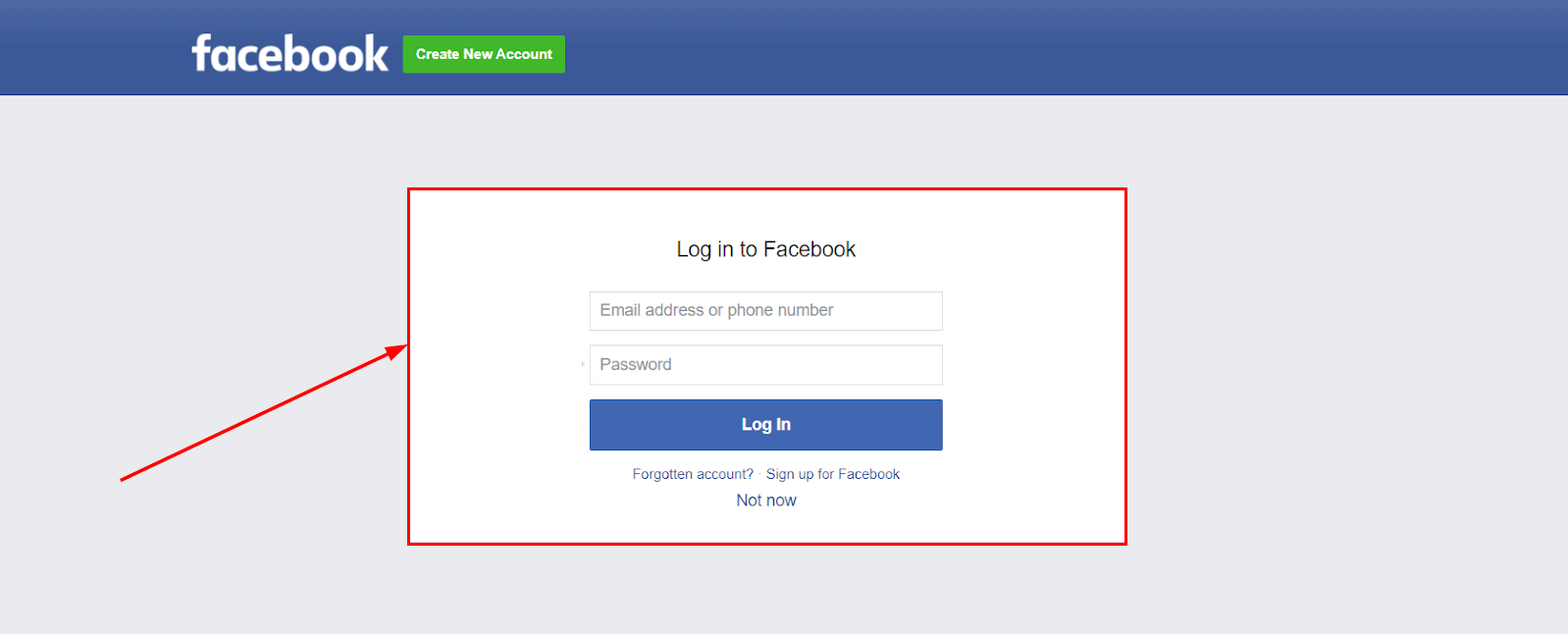
Facebook Login Page
Log into your Facebook by entering your username and password if prompted. Simply type in the corresponding information and click on the login option.
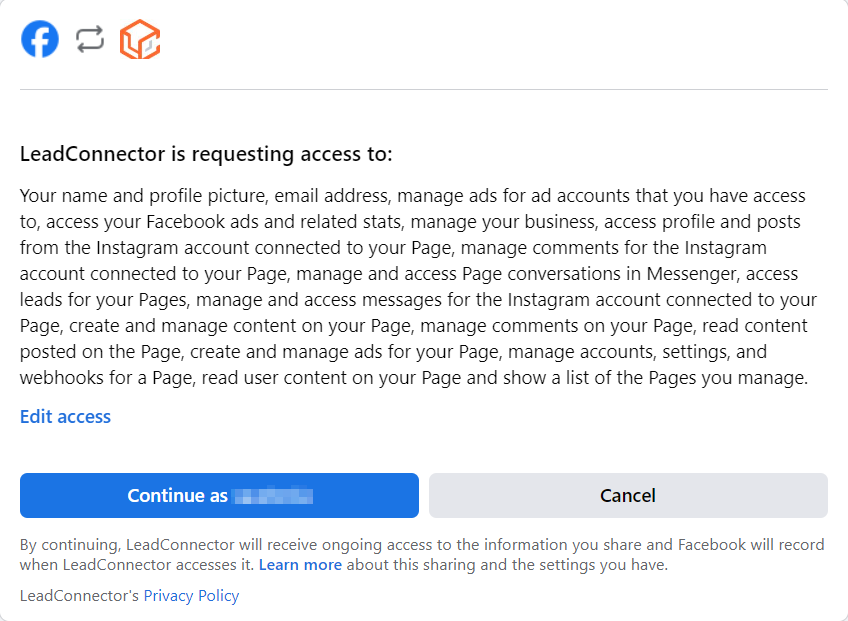
After logging in, you will be presented with a list of requested permissions. For optimal functionality, it is advisable to keep all permissions enabled. However, you can customize your preferences by clicking the "Edit Access" button and adjusting the switches as needed. Select the “Continue as” button to proceed to the next steps.
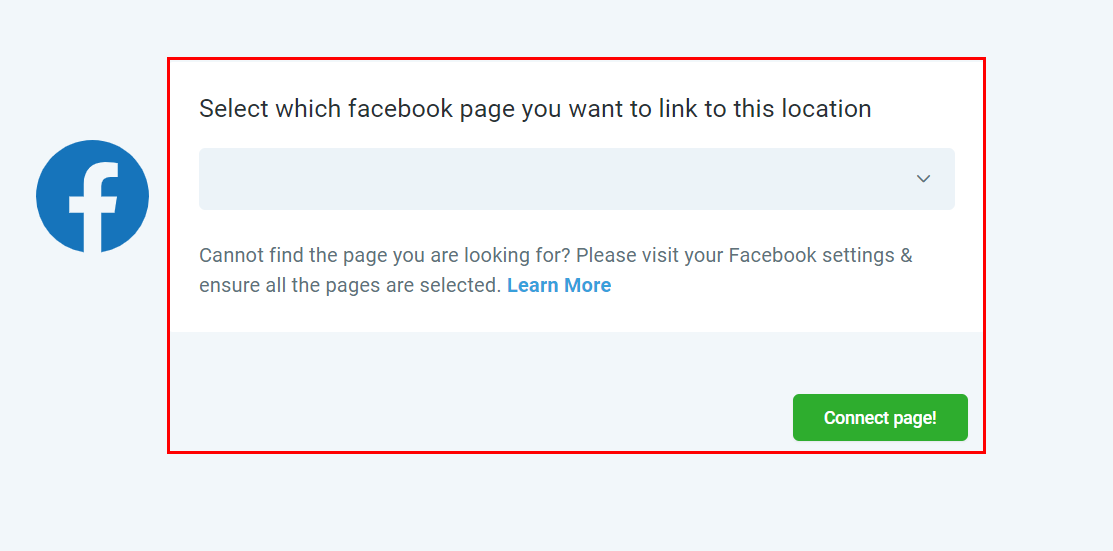
Choosing your Facebook Page
Choose the desired page from the dropdown menu.
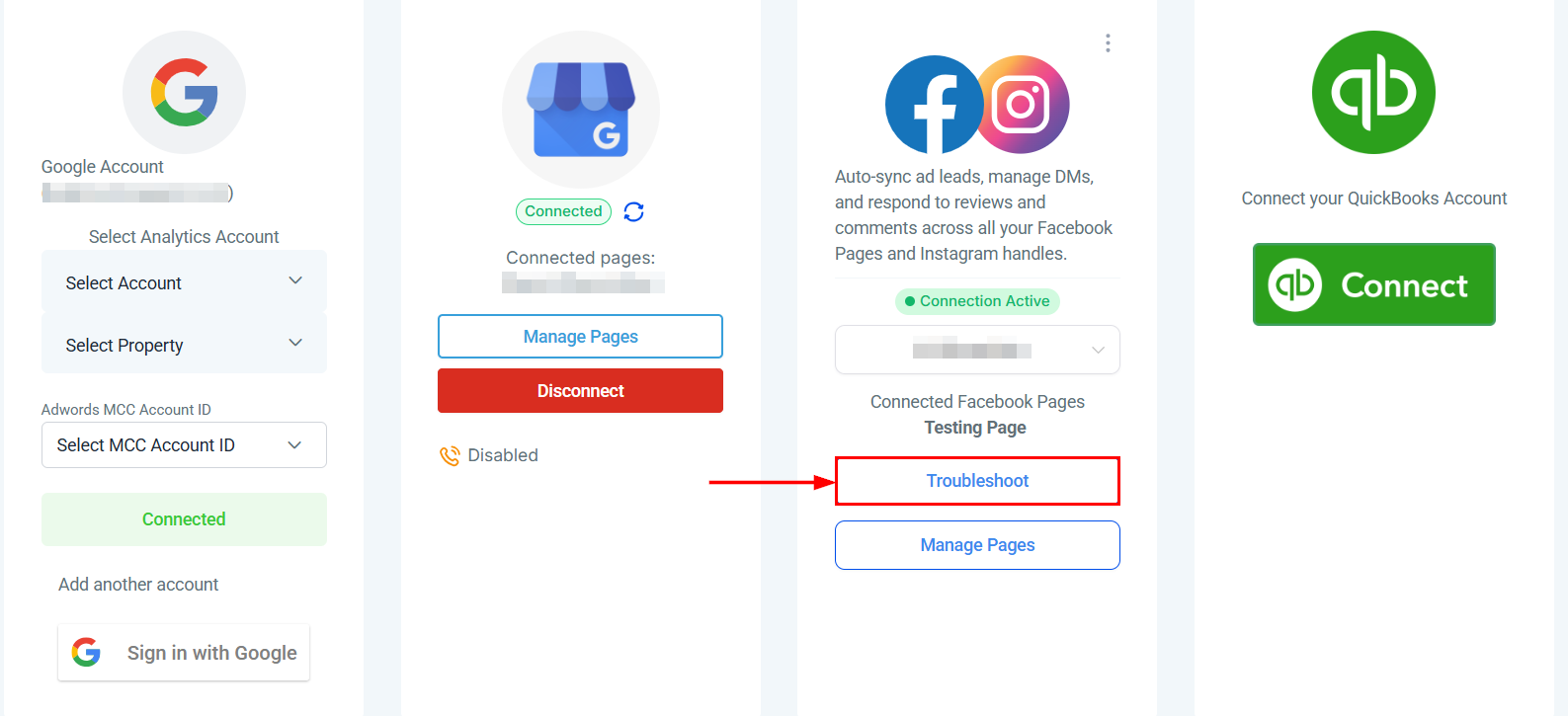
Click the Troubleshoot option to diagnose and resolve missing permissions and other issues related to Facebook integration.
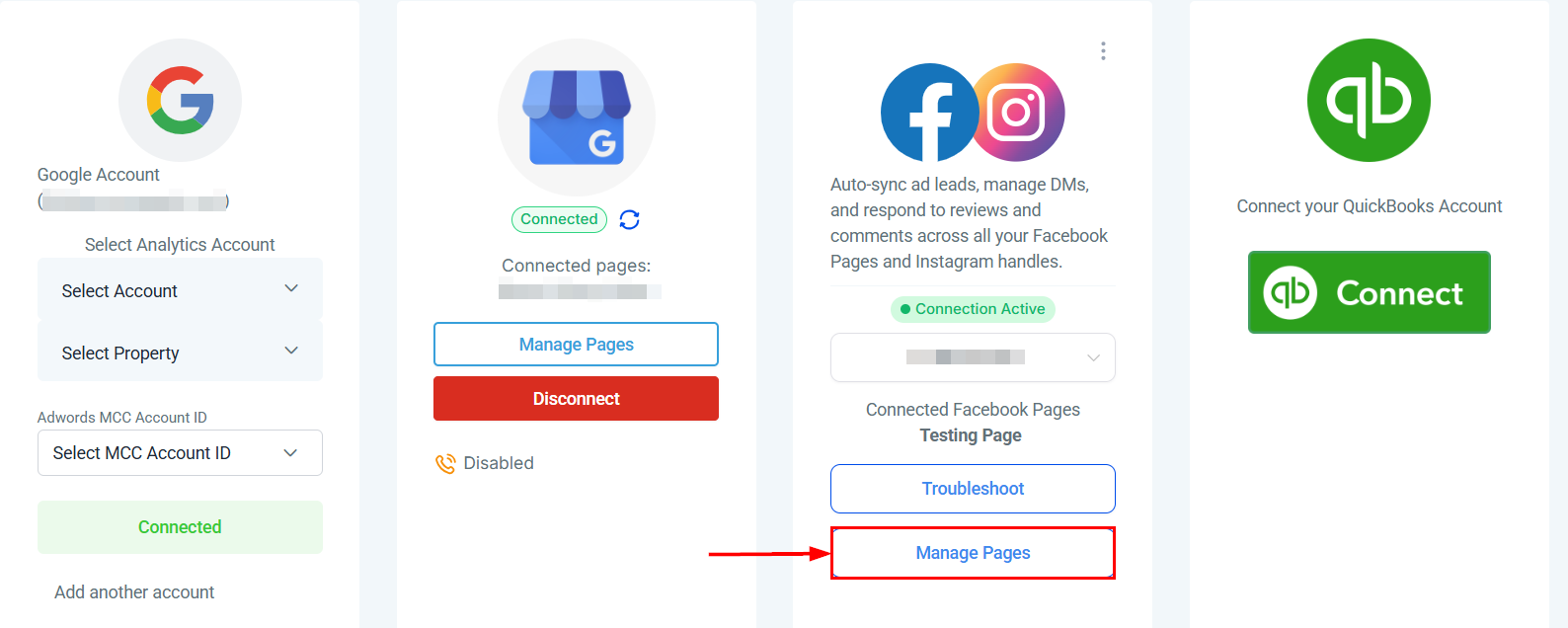
To connect additional pages click on Manage Pages.
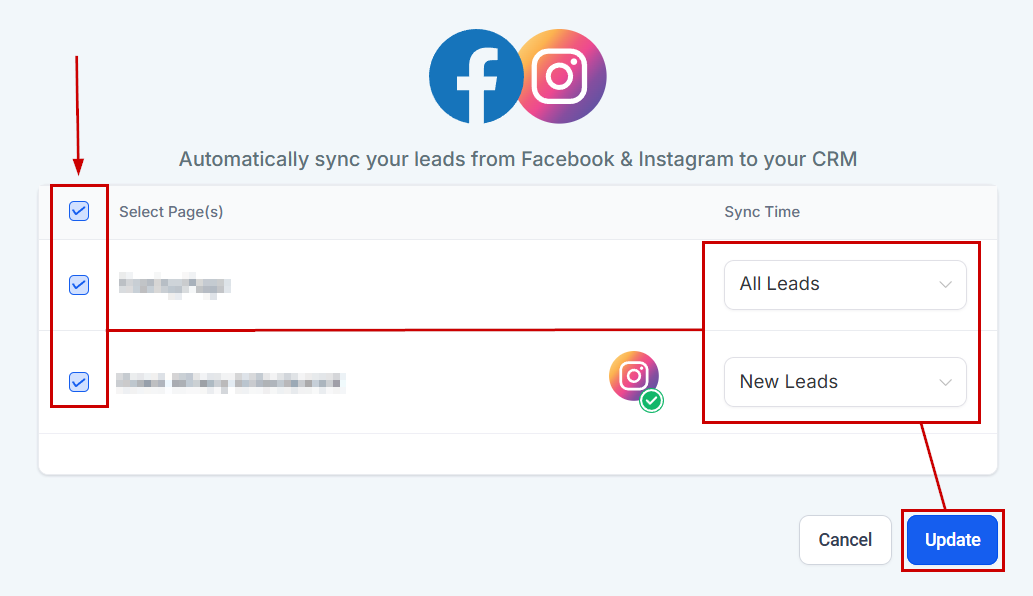
Check the box next to the pages you'd like to connect, set the leads that should be synced (All leads or only new leads after connection), then click Update.
Finalizing the Integration
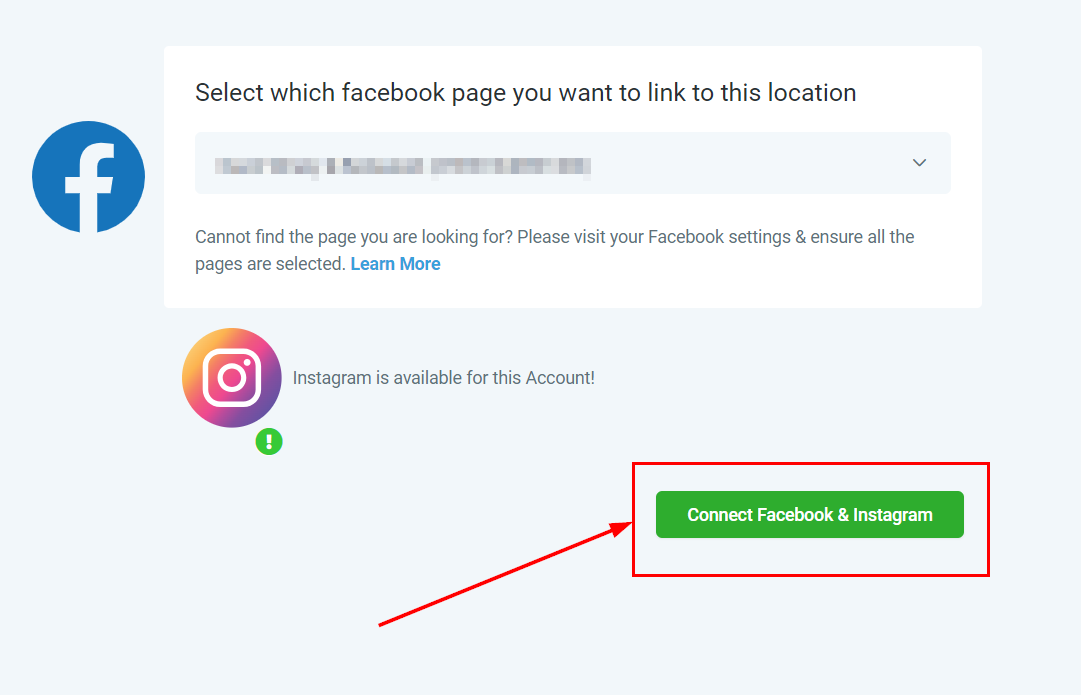
The Instagram business account linked to the selected Facebook page will be identified and available for connection. Click the "Connect Facebook and Instagram" button to finalize the integration.
Please note that your Instagram account will only appear if it has been previously linked to your Facebook account through the Linked Accounts section within Facebook.
Notice that the Facebook and Instagram symbols are no longer gray. This means you have successfully connected your Facebook and Instagram to your account.
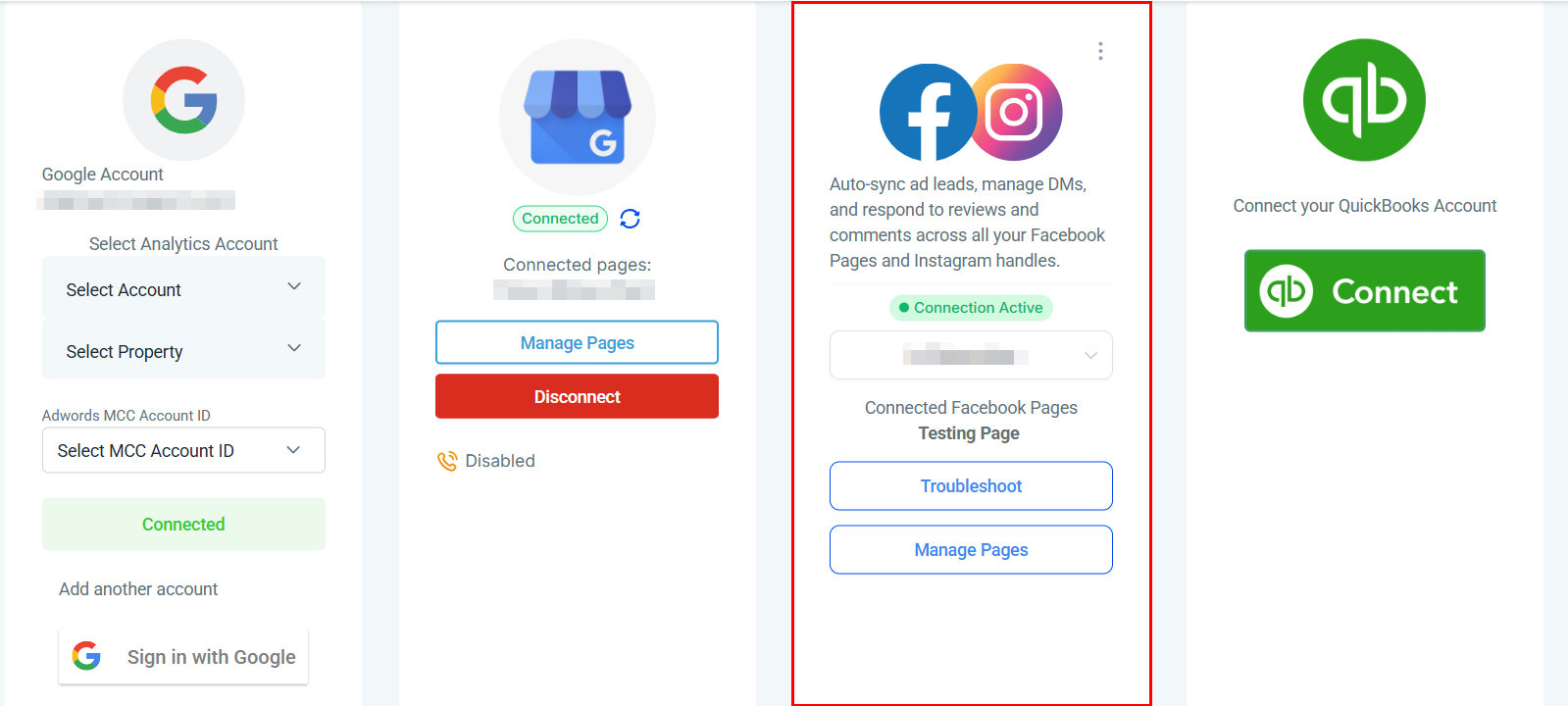
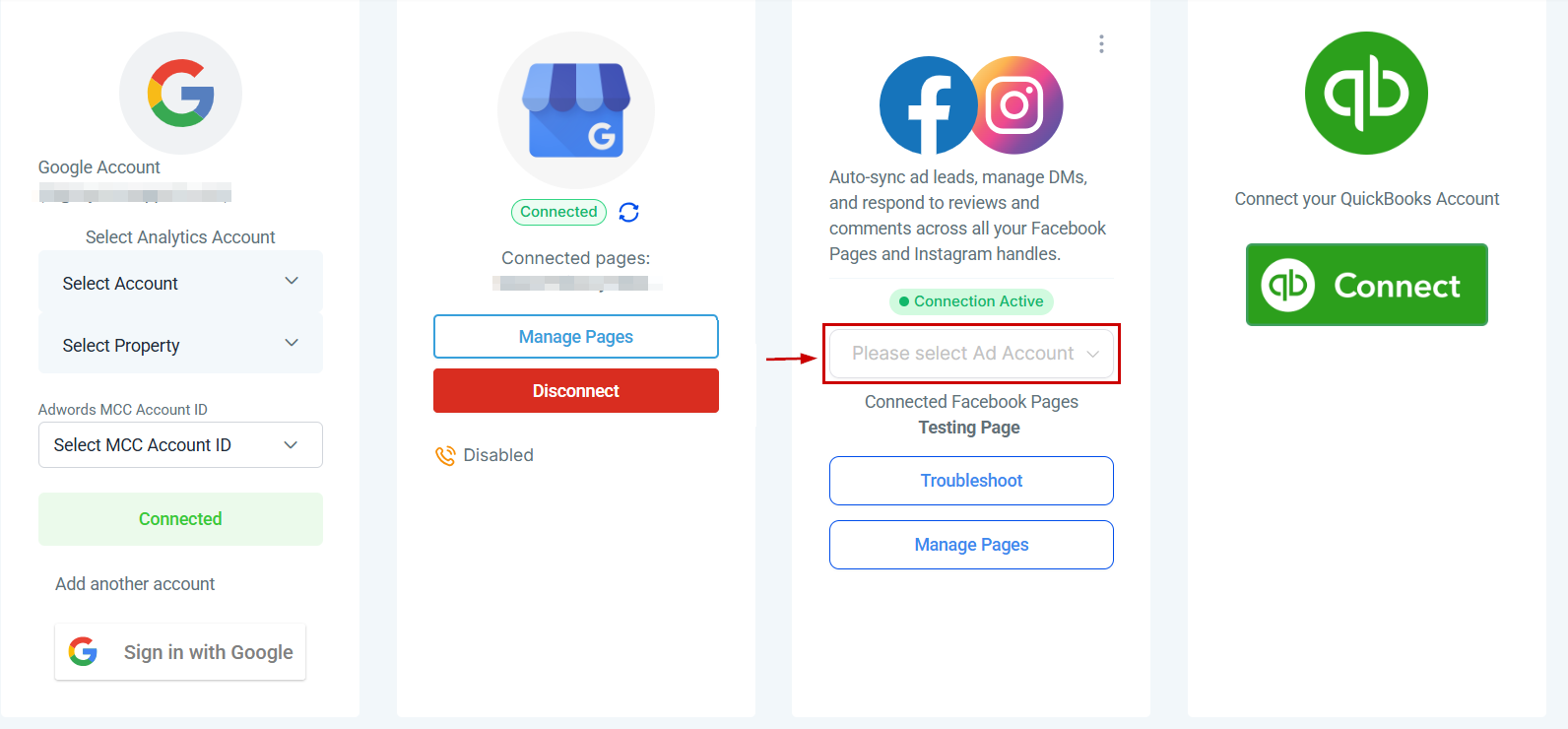
Selecting Ad account
If you wish to integrate your Facebook ads account, select the Ad account from the dropdown.
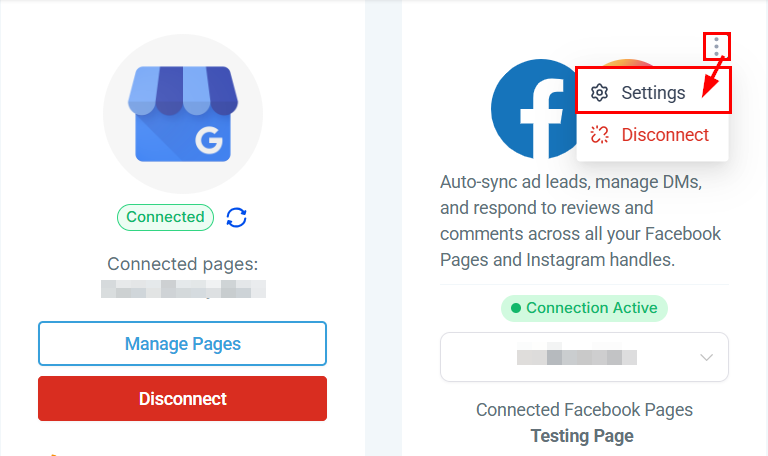
Settings
To manage Messenger or shops click Settings from the actions dropdown.
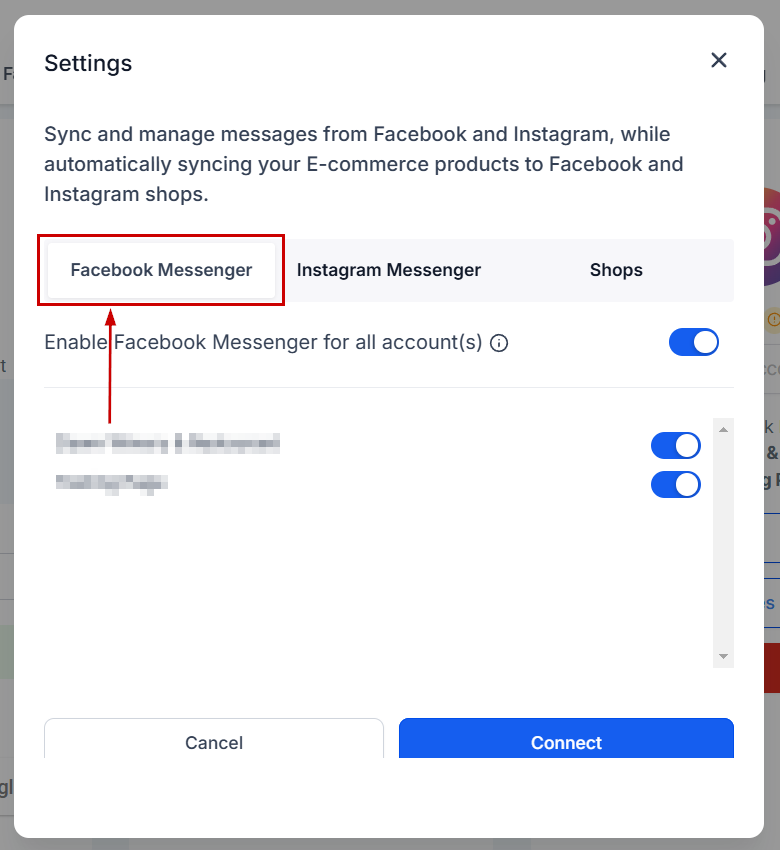
Facebook Messenger
Activating this feature allows you to receive messages from Facebook Messenger directly in your account, making it easier than ever to keep up with prospective customers. Toggle the option to enable or disable the feature according to your preference.
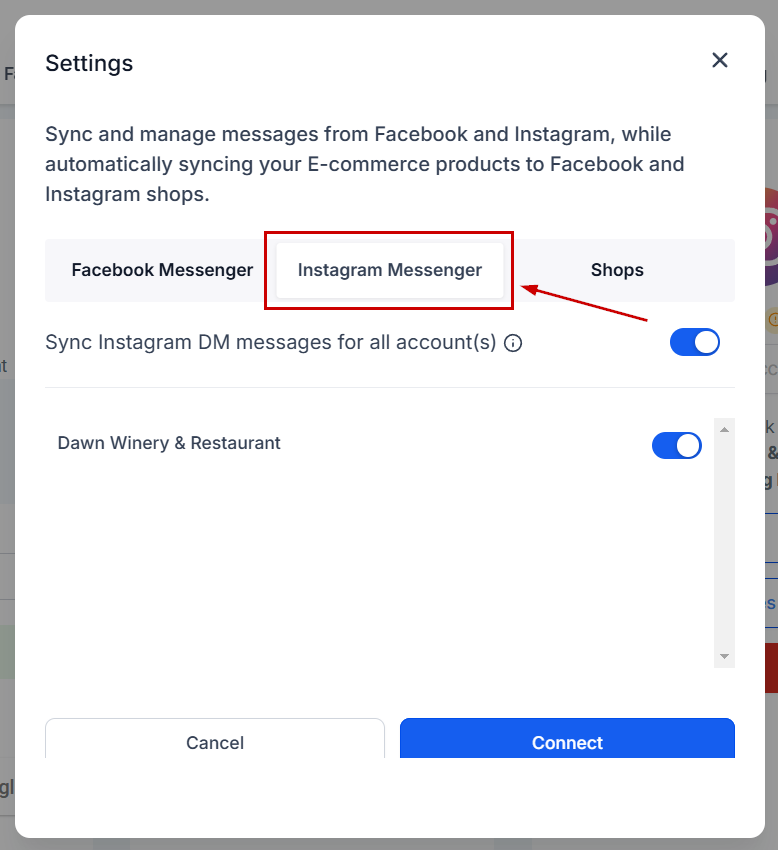
Instagram Direct Messages
Instagram tab provides direct access to your message inbox without opening a different window or loading a new page. Select the Instagram tab to enable or disable the feature according to your preference.
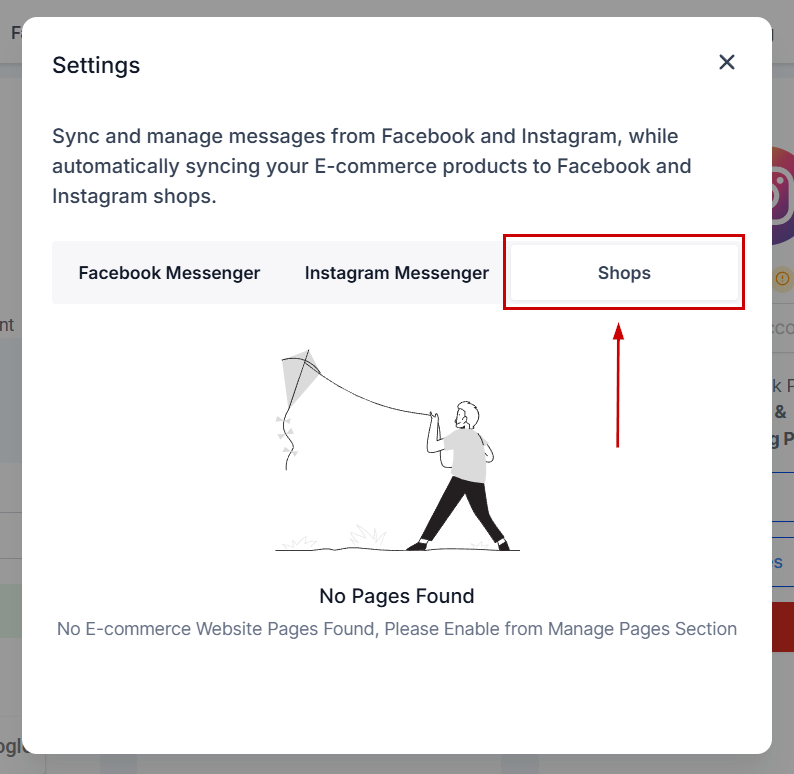
Facebook Shops
If you have a Facebook/Instagram Shop connected you can manage the messages and E-commerce products in this tab.
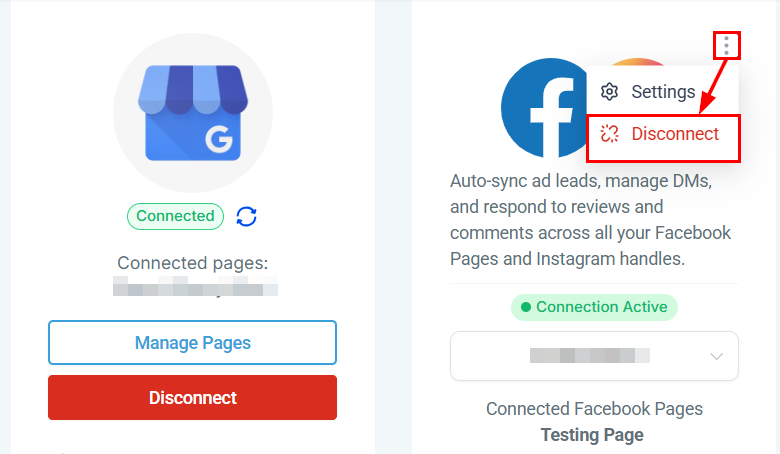
Removing the Connection
From the actions dropdown, click the “Disconnect” button to fully remove your Facebook account from the platform.
✍️Important Notes
- If you have manually imported missing leads using a CSV exported from Facebook Ads Manager, please disable the "Allow duplicate contacts" option to prevent the creation of duplicate records during synchronization.
- Workflows triggered by contact creation or Facebook Lead form submissions will activate for each new contact created while existing contacts generated through Facebook Leads will remain unaffected.
- The timestamp for new contacts will reflect the current time, and the synchronization process may take up to one hour to complete, depending on the volume of leads to be synced.
By following these steps, you ensure that your Facebook and Instagram accounts are seamlessly integrated, optimizing your social media management and lead synchronization. Regularly monitor and adjust your settings to maintain an efficient and updated connection between your platforms.
Was this article helpful?
That’s Great!
Thank you for your feedback
Sorry! We couldn't be helpful
Thank you for your feedback
Feedback sent
We appreciate your effort and will try to fix the article
