Effective communication is key to building a strong and engaged community. With the Community Chat Feature, you can engage in one-on-one conversations with any community member, whether you're an admin or a regular user. This feature allows for direct communication, fostering connections within your community.
?Note: Private messaging is only available after joining a group. Ensure you are a group member to unlock the full messaging functionality.
How It Works
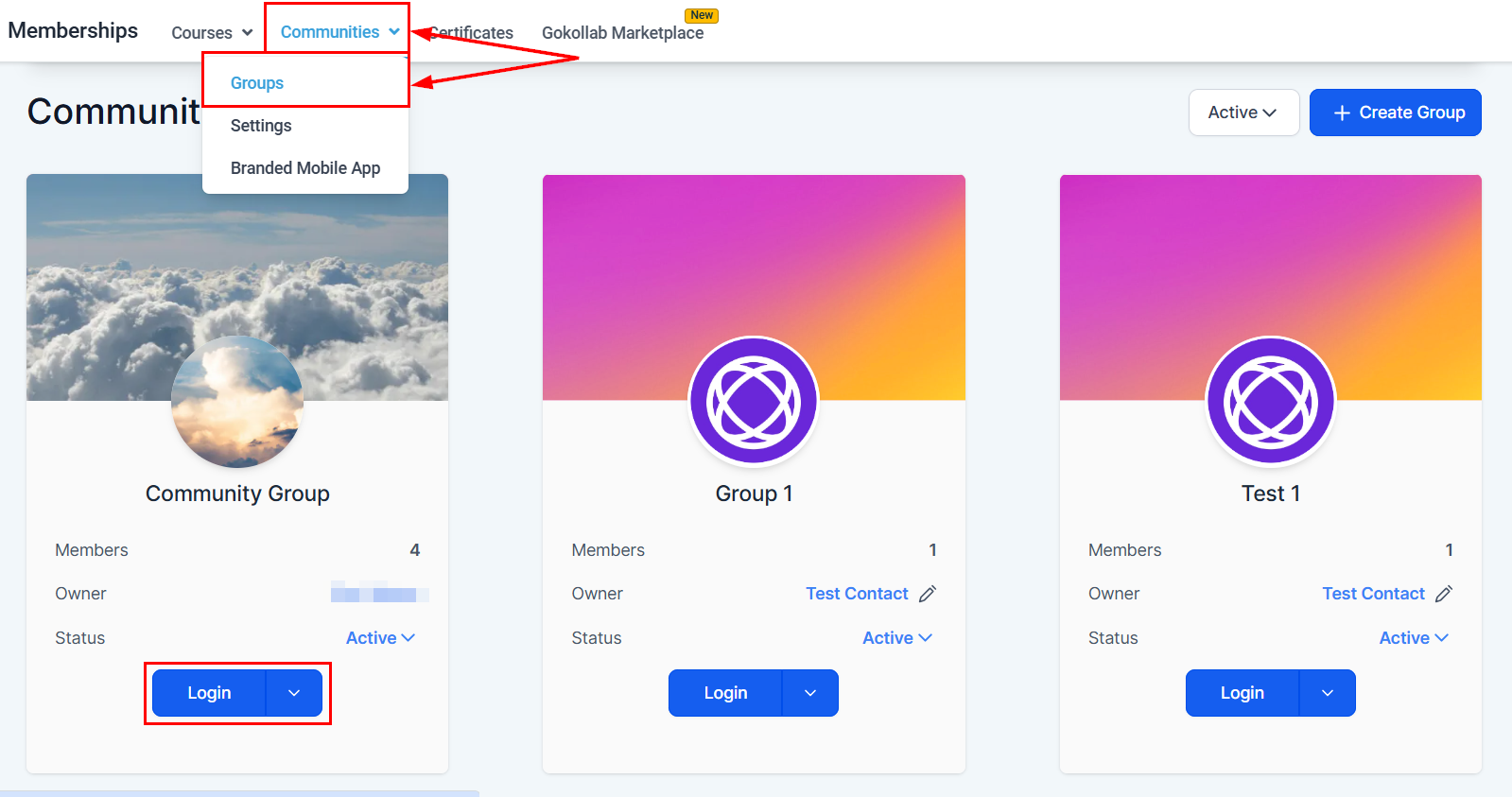
To get started, log in to the Group by navigating to Memberships > Communities > Groups within your account, or access it directly through the group link.
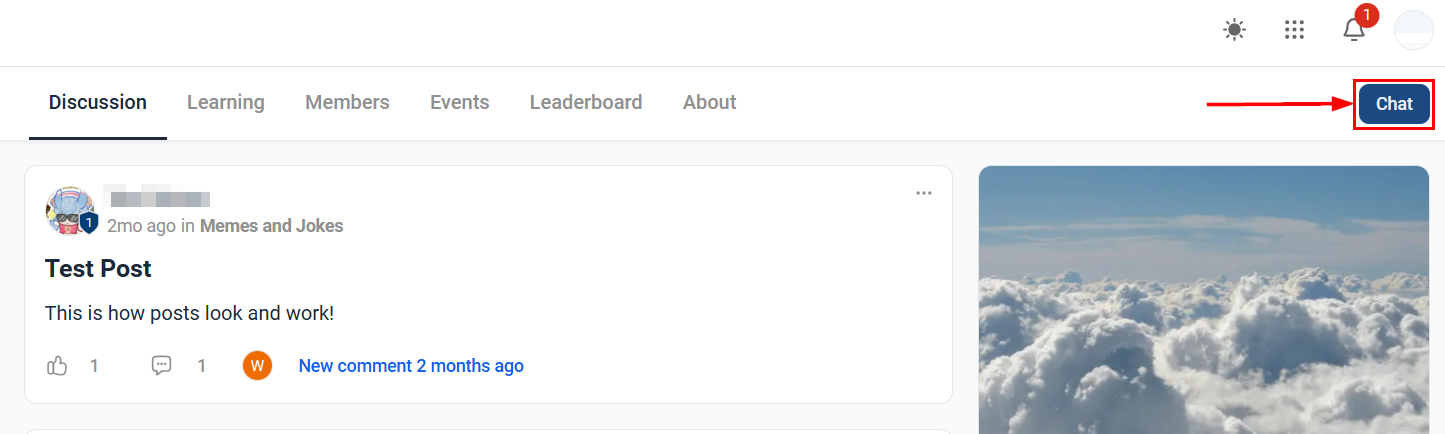
Click on the Chat icon in the upper-right corner of the group page to open the messaging interface.
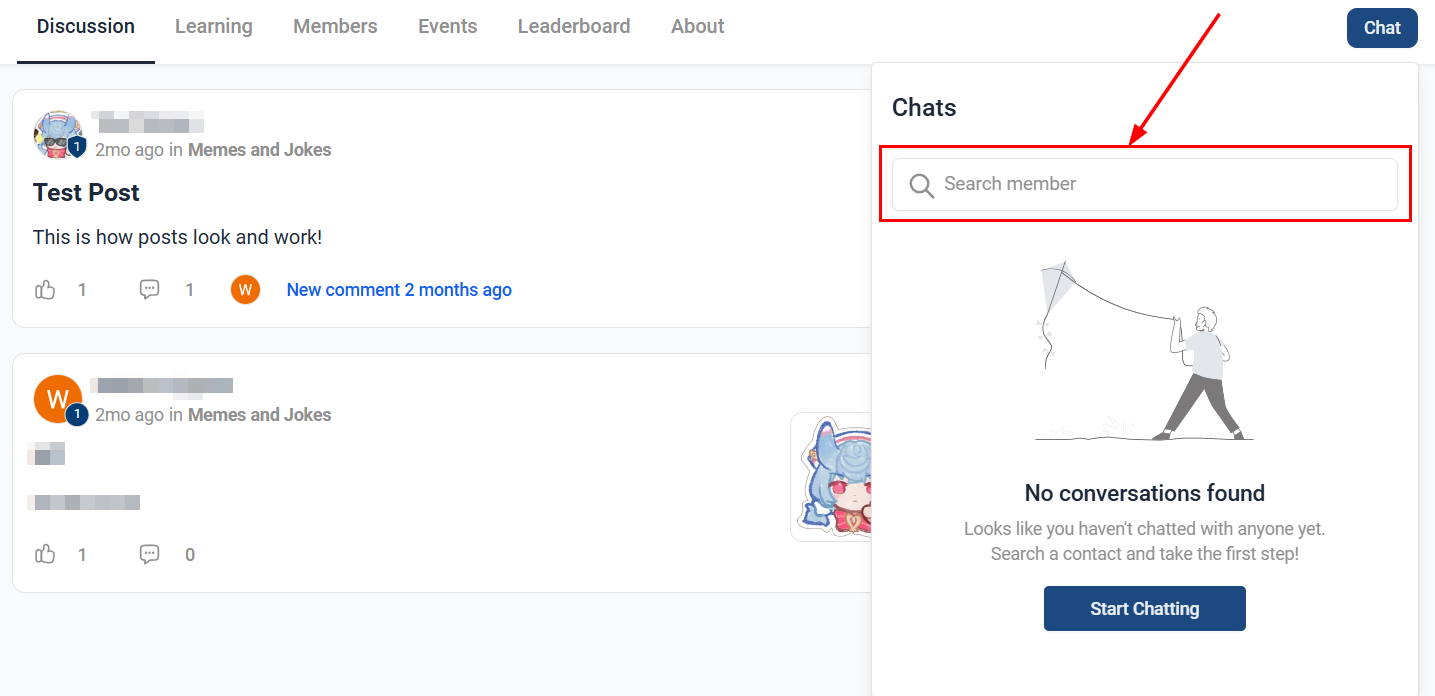
Ongoing messages will appear in this window, enabling you to respond to messages from other members. If you have not yet sent or received a message, locate contacts by using the search menu.
To compose a message, simply use the Message field at the bottom of the chat window.
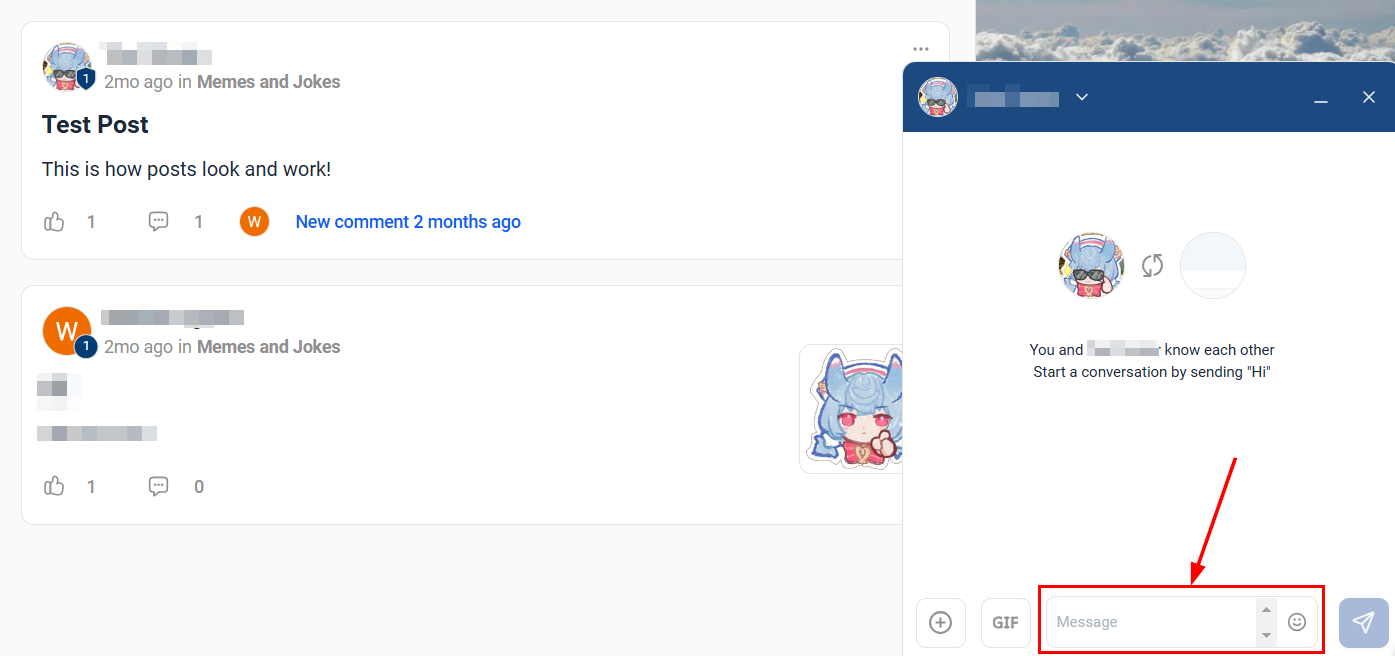
Enhance your conversations by sharing photos, files, GIFs, and a wide range of emojis. These interactive elements add a layer of fun and personalization to your chats.
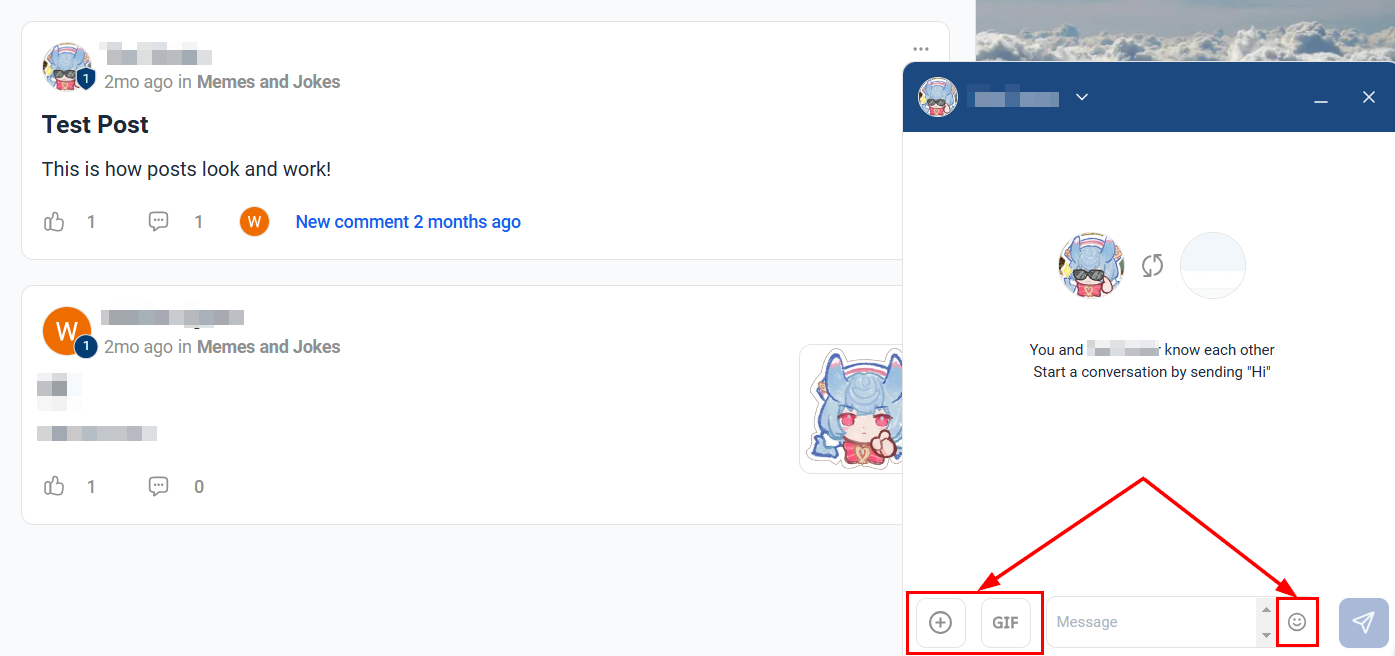
Once you're ready, hit Send to share your message with the recipient.
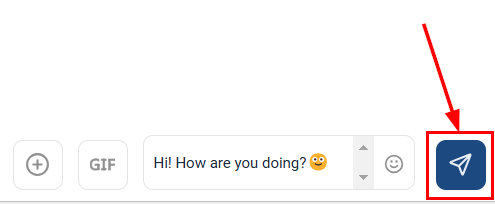
Your message will be displayed in the conversation window and will be sent to the other member instantly.
Stay informed and never miss a message by enabling push notifications. Receive real-time alerts with sound, ensuring you're always up-to-date with ongoing conversations.
Privacy & Control Settings
Maintain a spam-free inbox by blocking any users who may be sending unwanted messages. This feature allows you to take control of your messaging environment and ensure a positive experience.
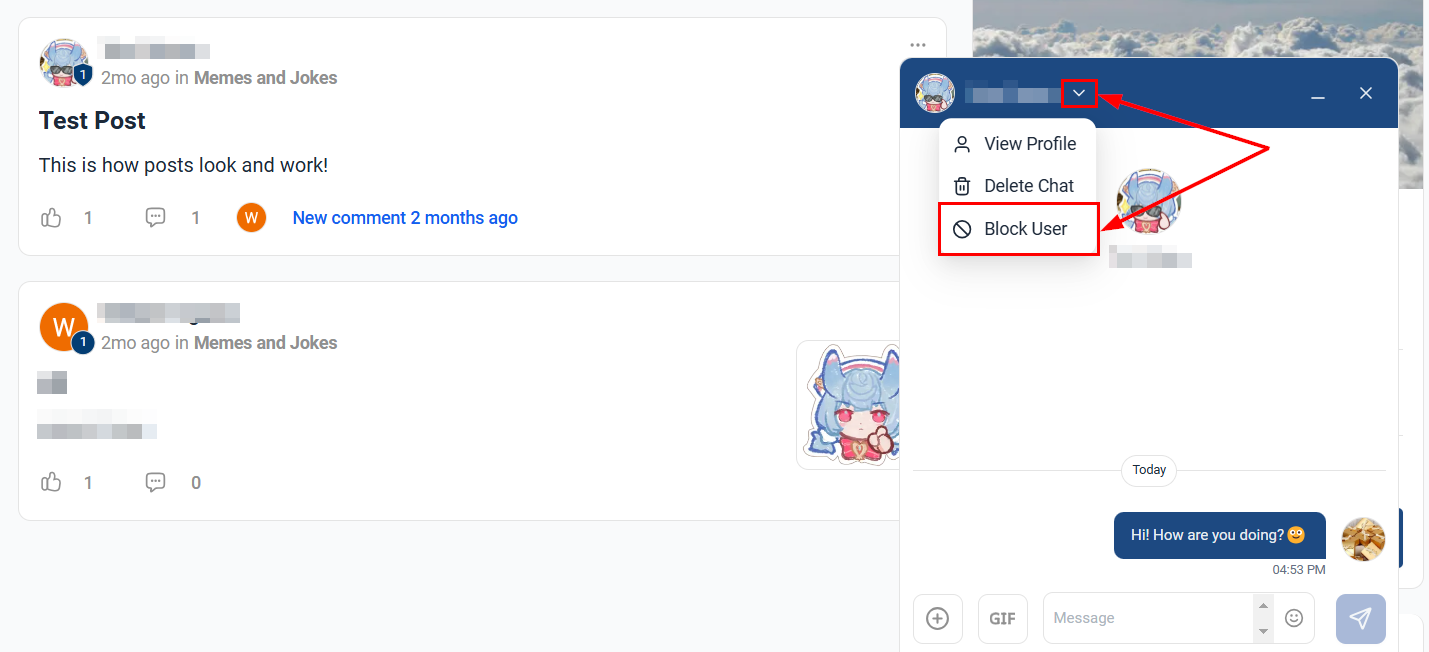
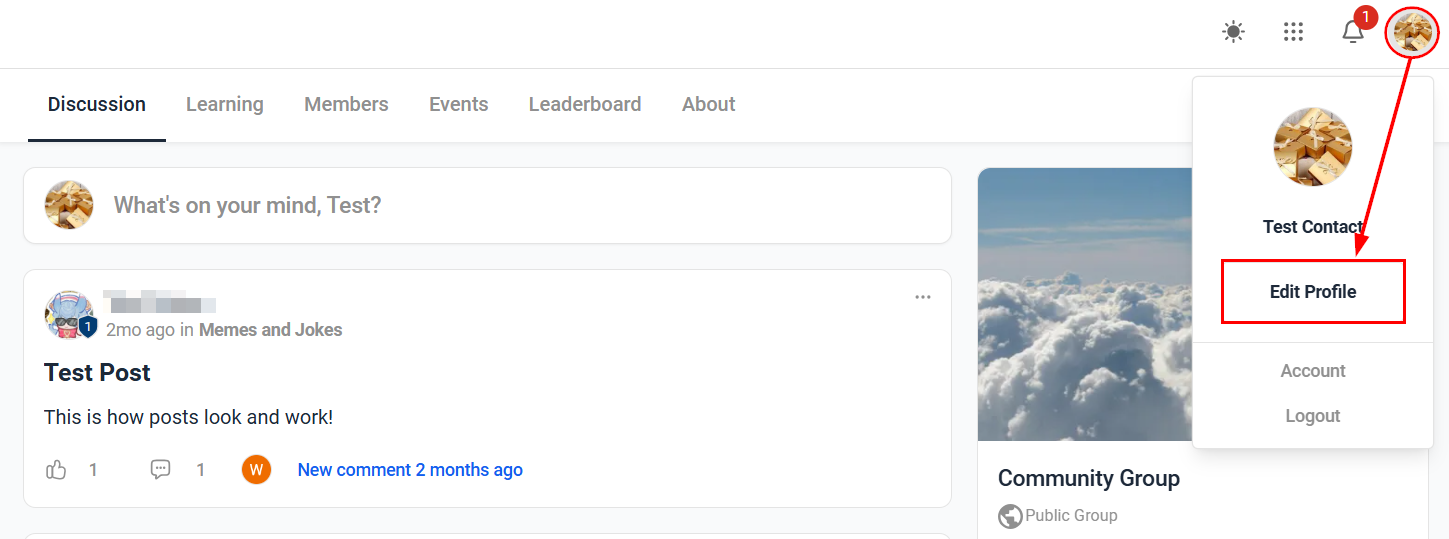
Furthermore, if you prefer not to participate in certain group conversations, you can easily disable chat functionality for those groups. To do so, navigate to your profile by clicking on your profile picture, then select the Edit Profile button.
Locate the Community Chats section, and turn off chat for the desired groups.
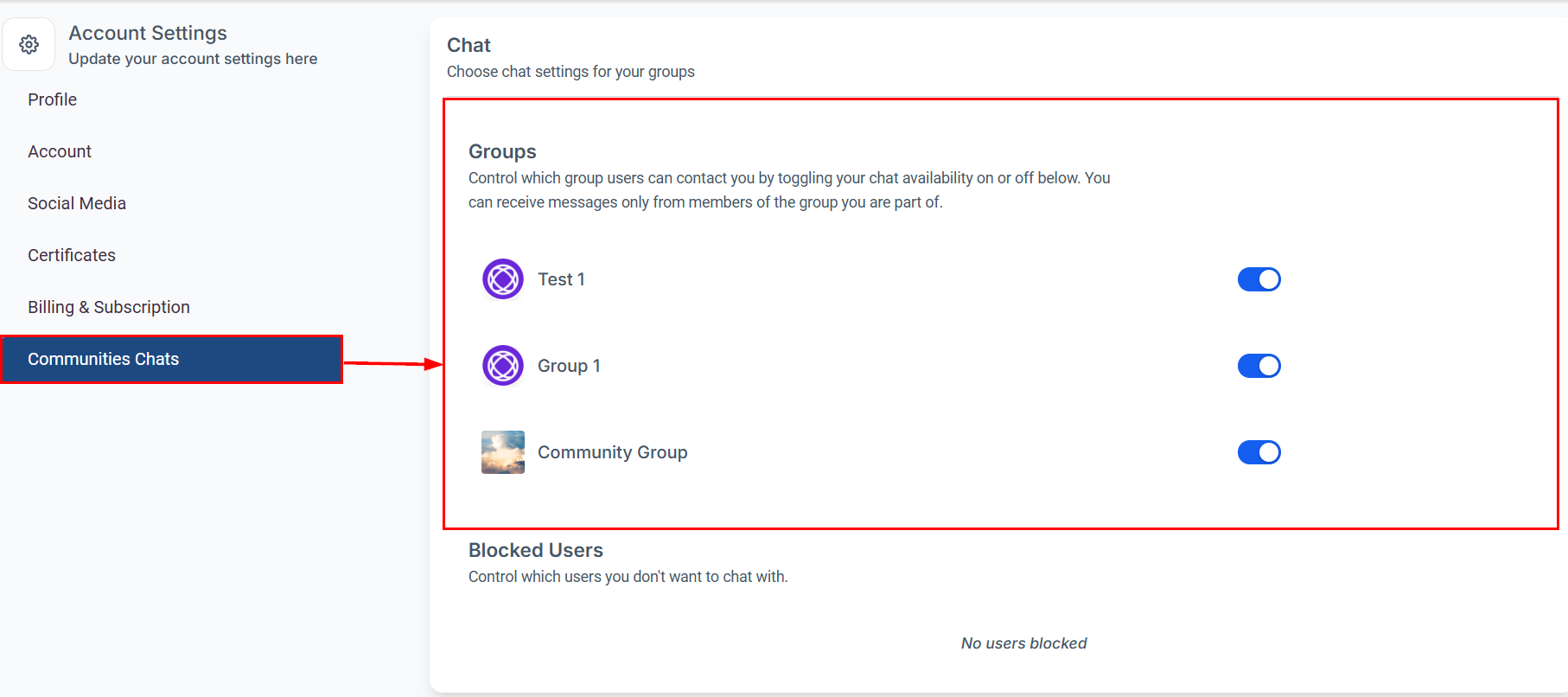
Blocked users will also appear in this section, allowing you to view and manage the users you have previously blocked.
By utilizing the private messaging features, you can foster meaningful connections within your community while maintaining control over your communication preferences. Whether it’s one-on-one chats, media sharing, or managing notifications, these tools are designed to enhance your community engagement and provide a secure, enjoyable messaging experience.
Was this article helpful?
That’s Great!
Thank you for your feedback
Sorry! We couldn't be helpful
Thank you for your feedback
Feedback sent
We appreciate your effort and will try to fix the article