Humans are, by nature, social animals, we love interacting with others and feeling like we belong. Communities allow you to create an online space for you and your audience to create bonds, develop loyalty and brand awareness, and promote a sense of belonging.
How Communities Benefit You
Communities have many benefits including:
- They allow you to turn regular people into brand advocates who can expand your business to untapped markets.
- You can find constant feedback and requests directly from your clients, giving you the best way to improve your business.
- You gain real-time data on your customers' priorities, needs, and wants, as well as a clearer view of who they are and their profile.
Navigating the Communities tab in the CRM
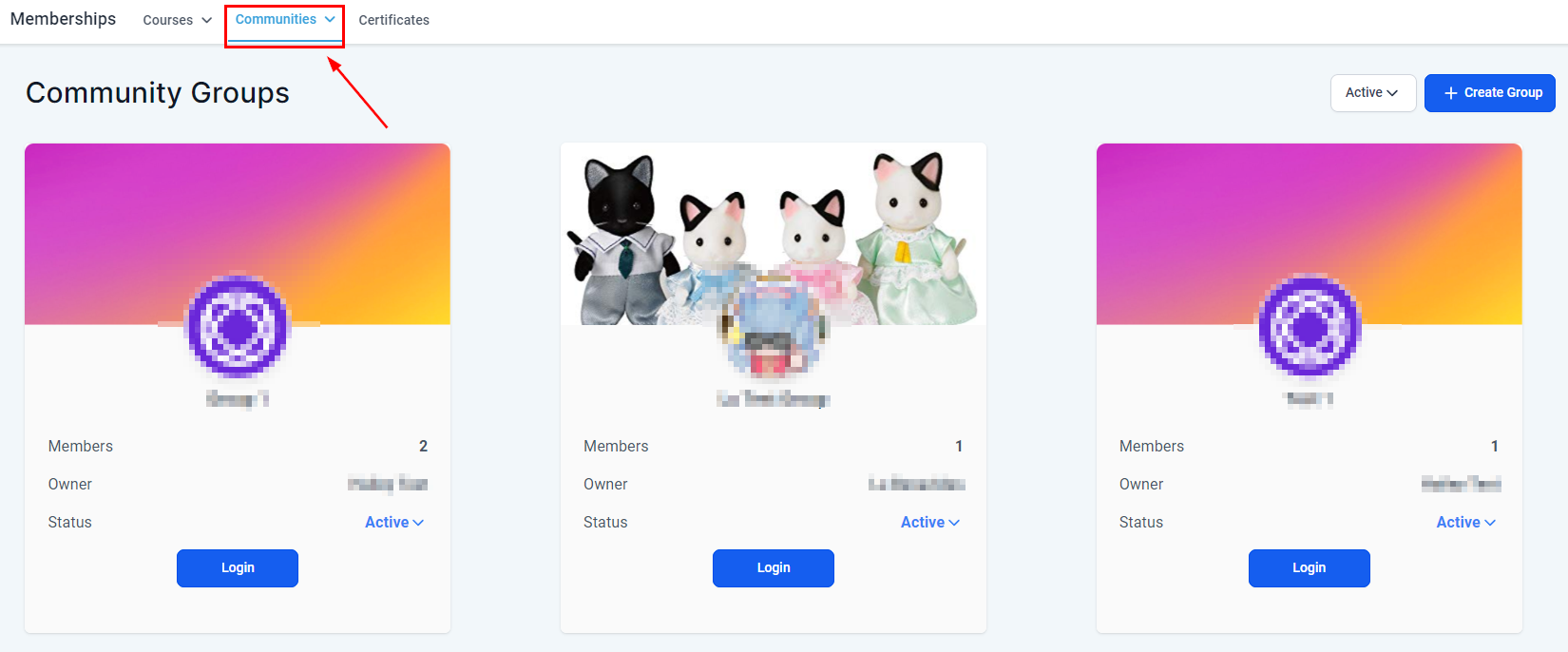
Inside the Memberships section of your system, you can find your Communities, clicking on it will take you to your Groups by default.
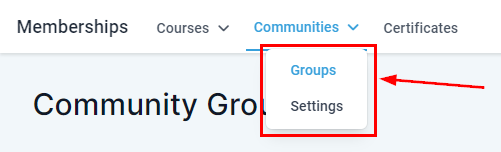
By hovering over it, you can see the two options: Groups and Settings.
Groups
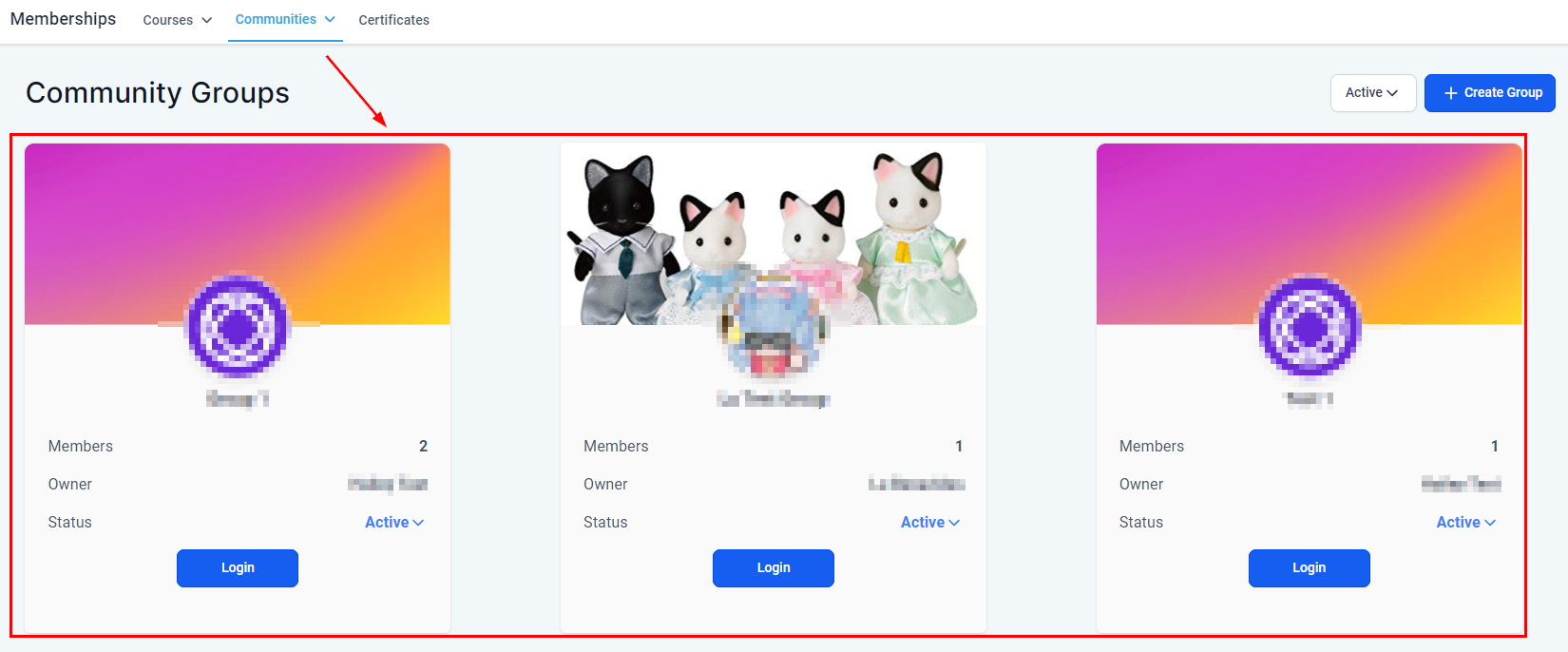
Here you have a comprehensive view of all your Communities.
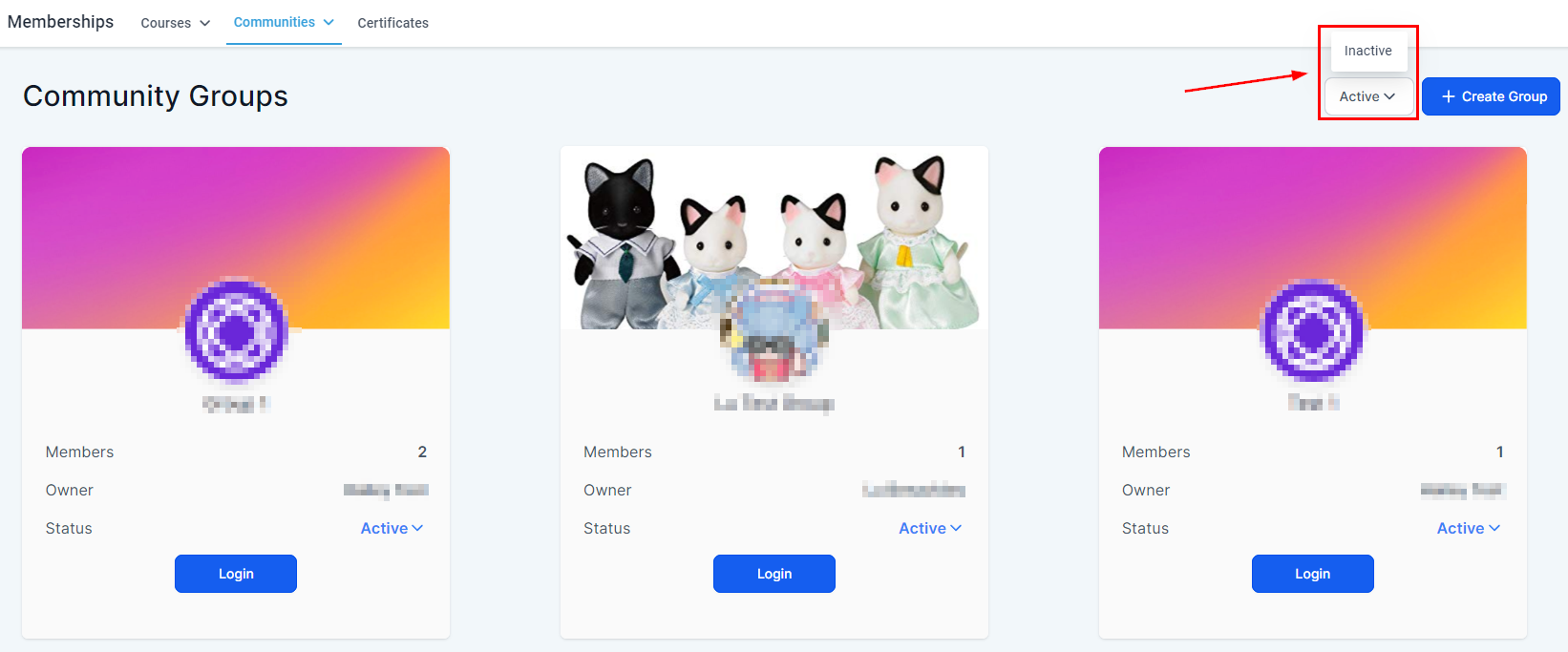
You can use the filter to limit the view to only Active or Inactive groups to get your desired result faster.
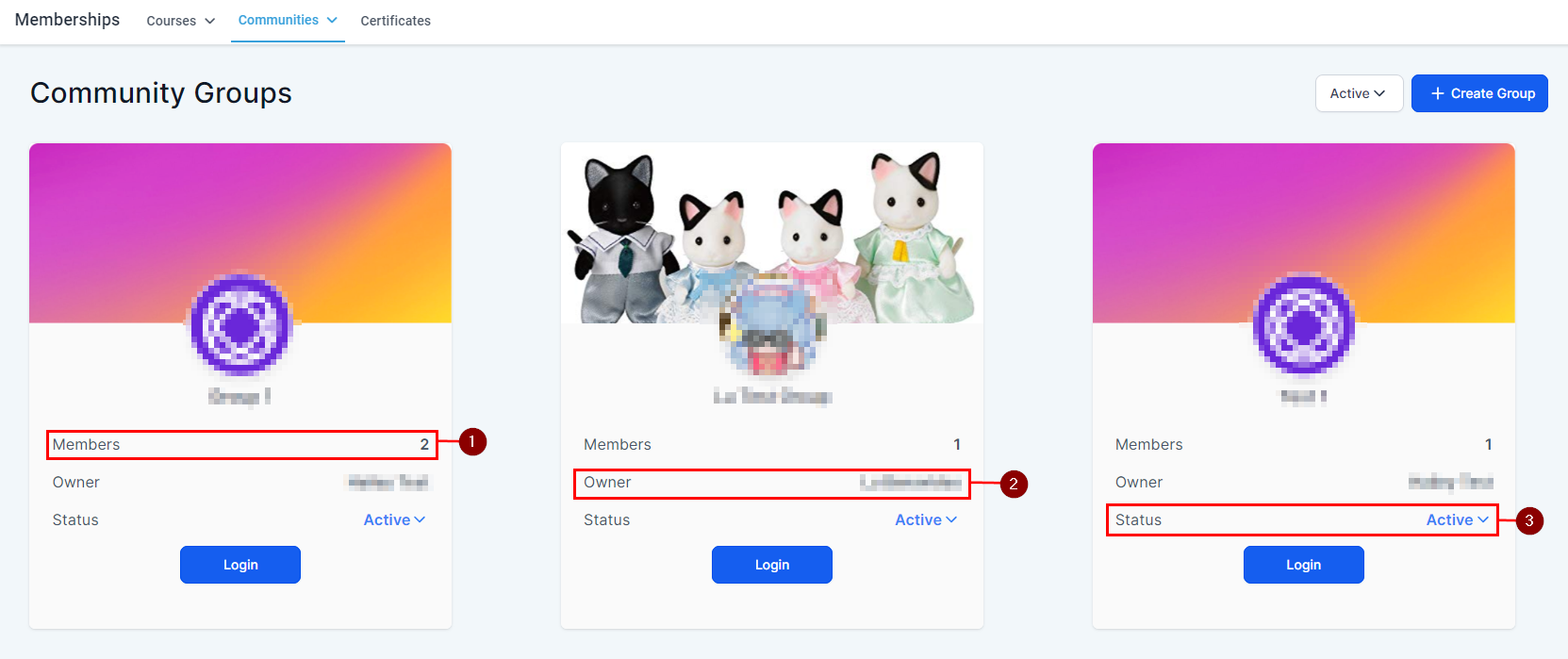
With the Group card you can at a glance check for the total number of members (1), the group's owner (2), and the status of your Group (3).
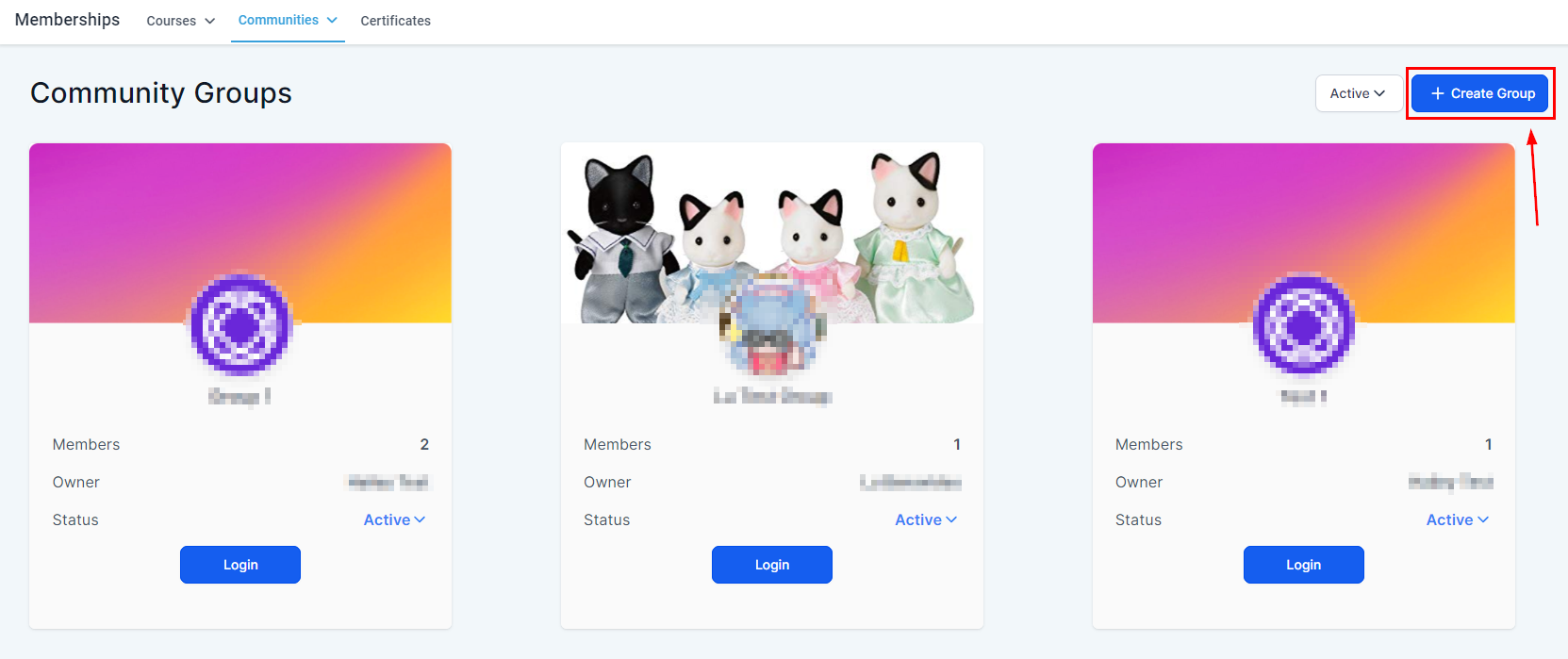
By clicking on Create Group you can build a new Community from zero.
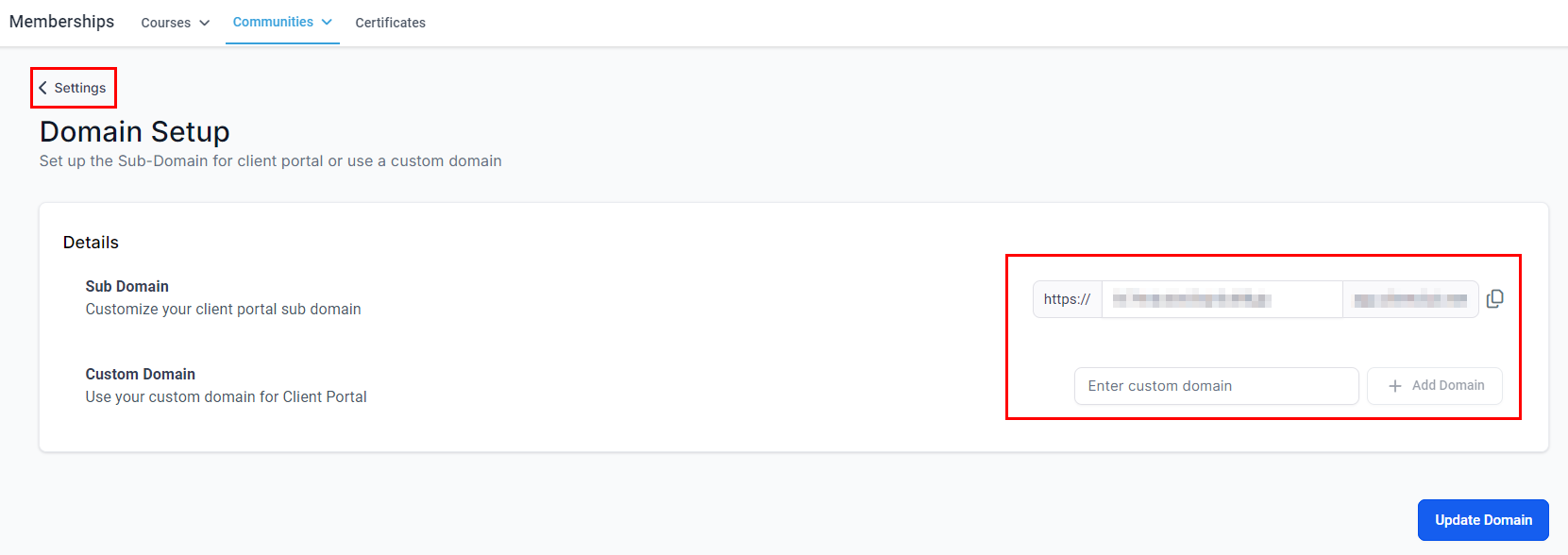
Settings
Here you can configure the domain for your Groups.
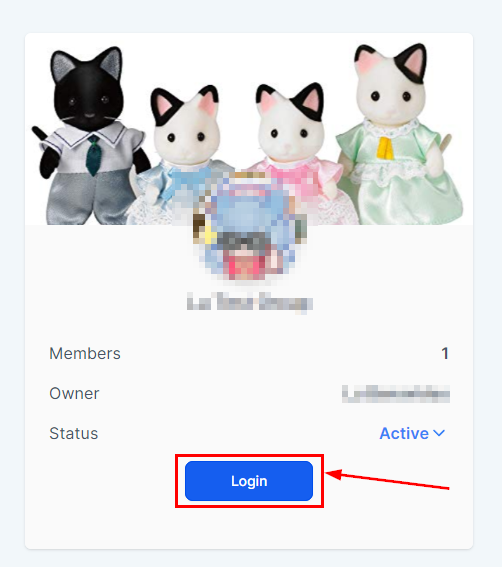
Accessing your communities
Click the Login button to enter your group, this will take you to another window with only the Community open.
Navigating your Groups
Inside your Community things are organized into channels and tabs.

Channels
These are subsections inside your Group for specific discussions. You can find them in the left sidebar, to create new channels click the button at the bottom.
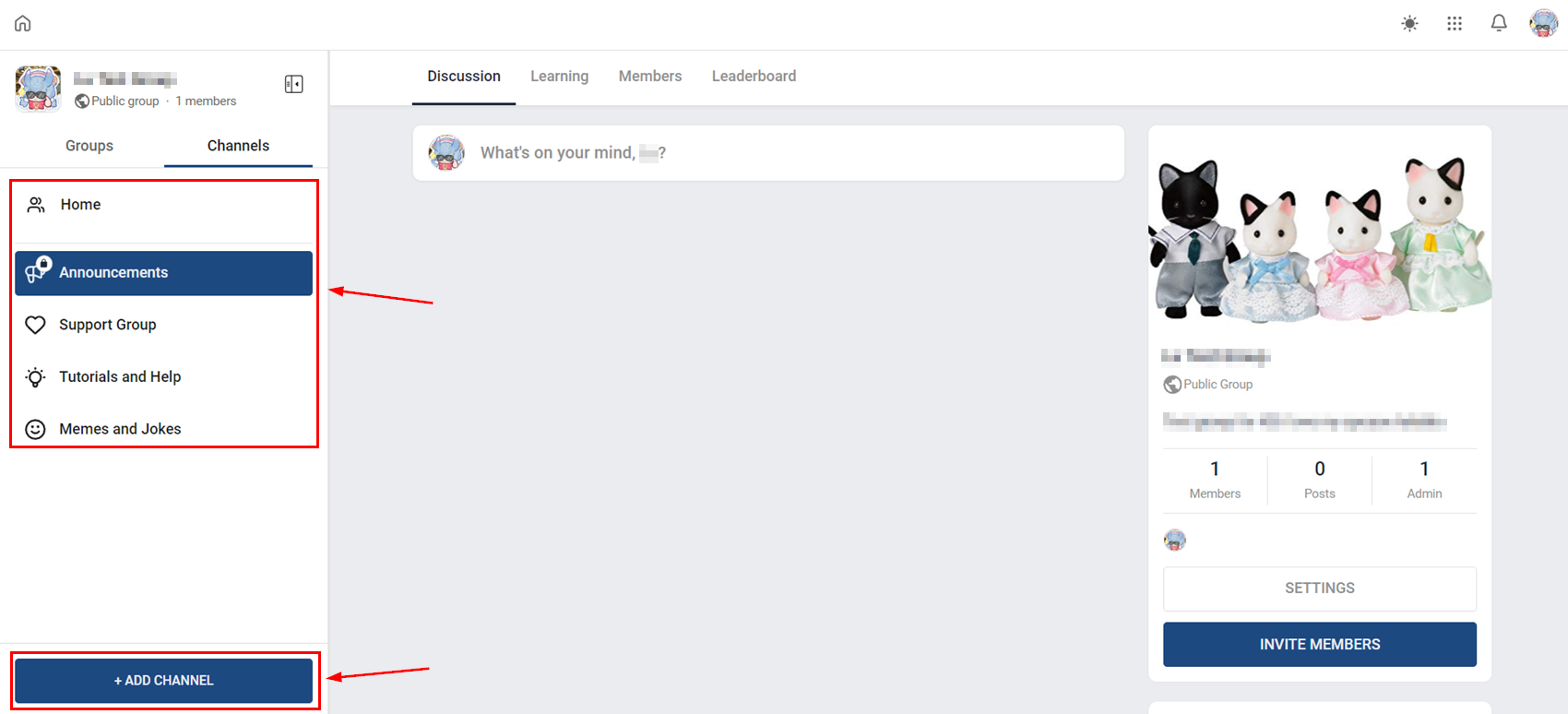
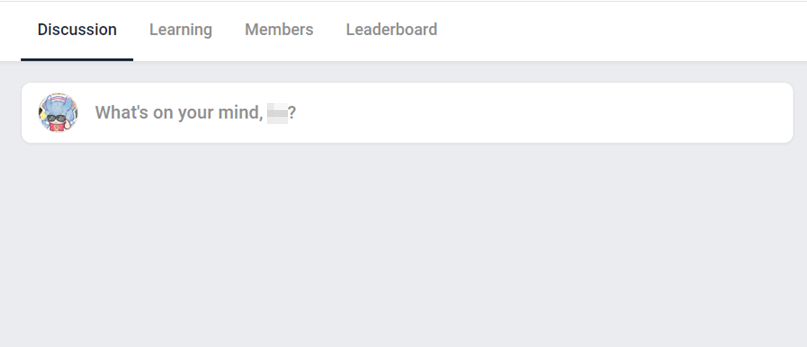
Discussion Tab
Here you'll find all the posts made inside the selected channel.
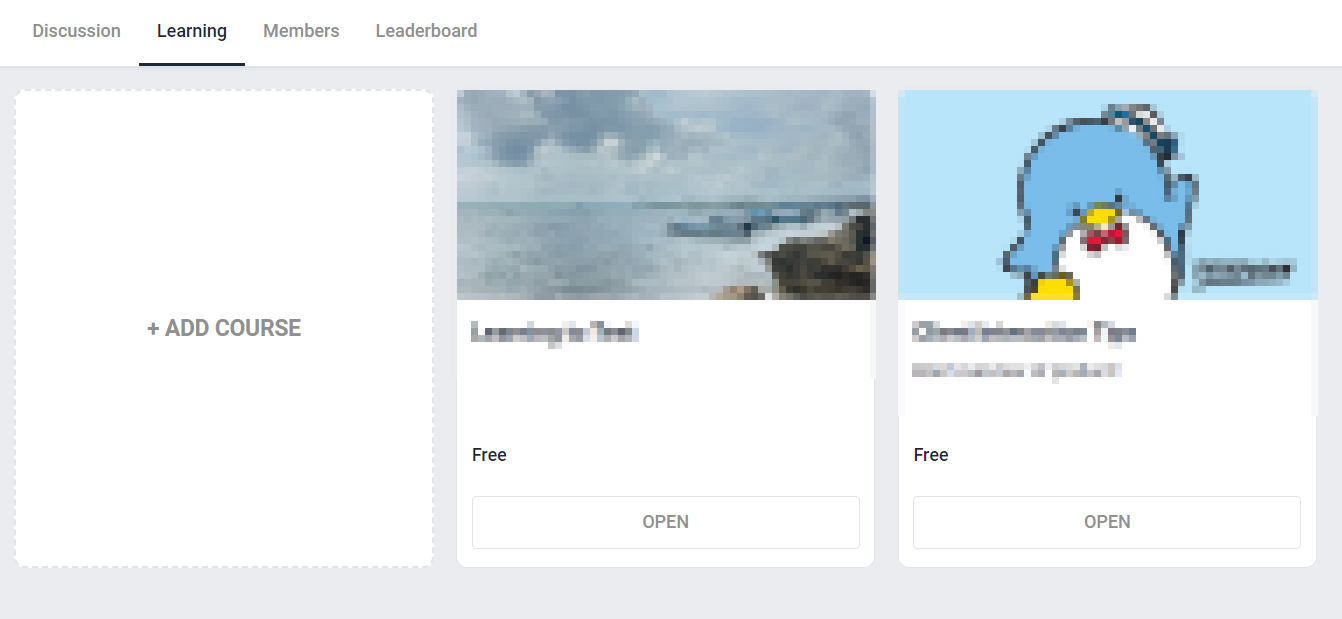
Learning Tab
Here you can create, see, and manage courses you offer to your Community.
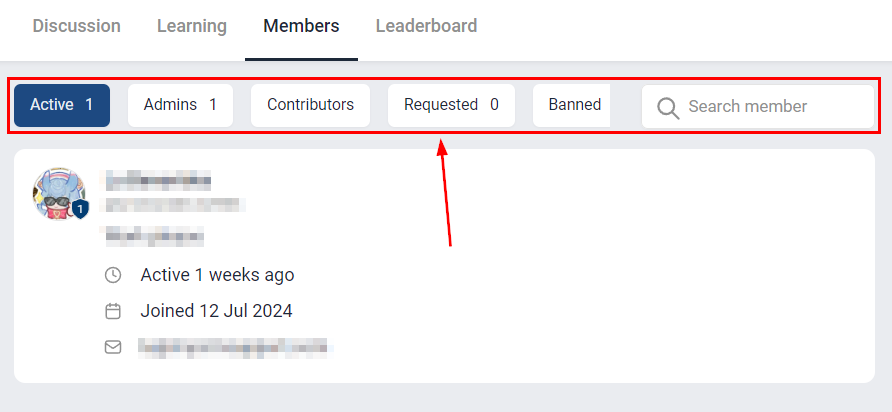
Members Tab
Here you can see and manage the members of your Community, as well as accept or refuse Requests to join.
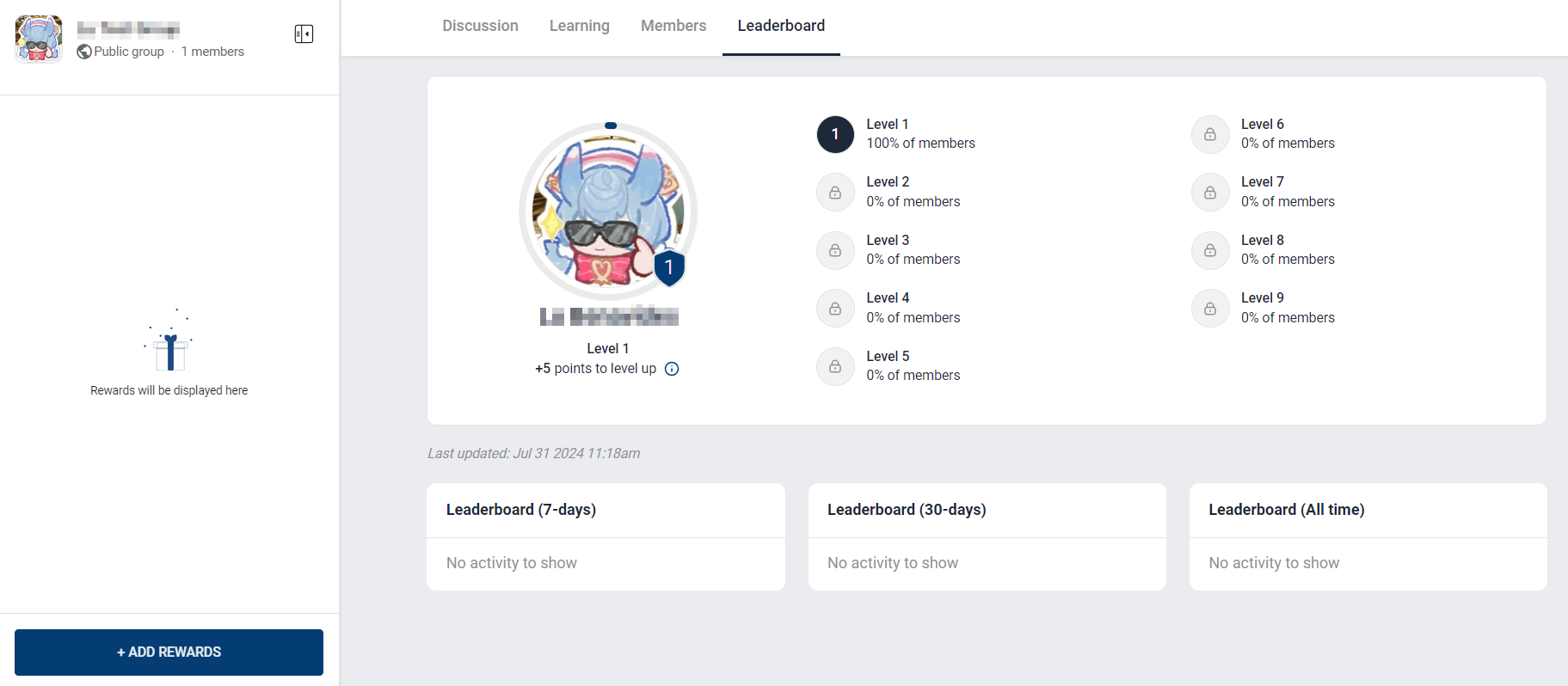
Leaderboard Tab
The Leaderboard organizes the Group members depending on their level of interaction and contribution, creating leaderboards for different time frames and highlighting your best members. This allows you to gamify your Communities and offer rewards.
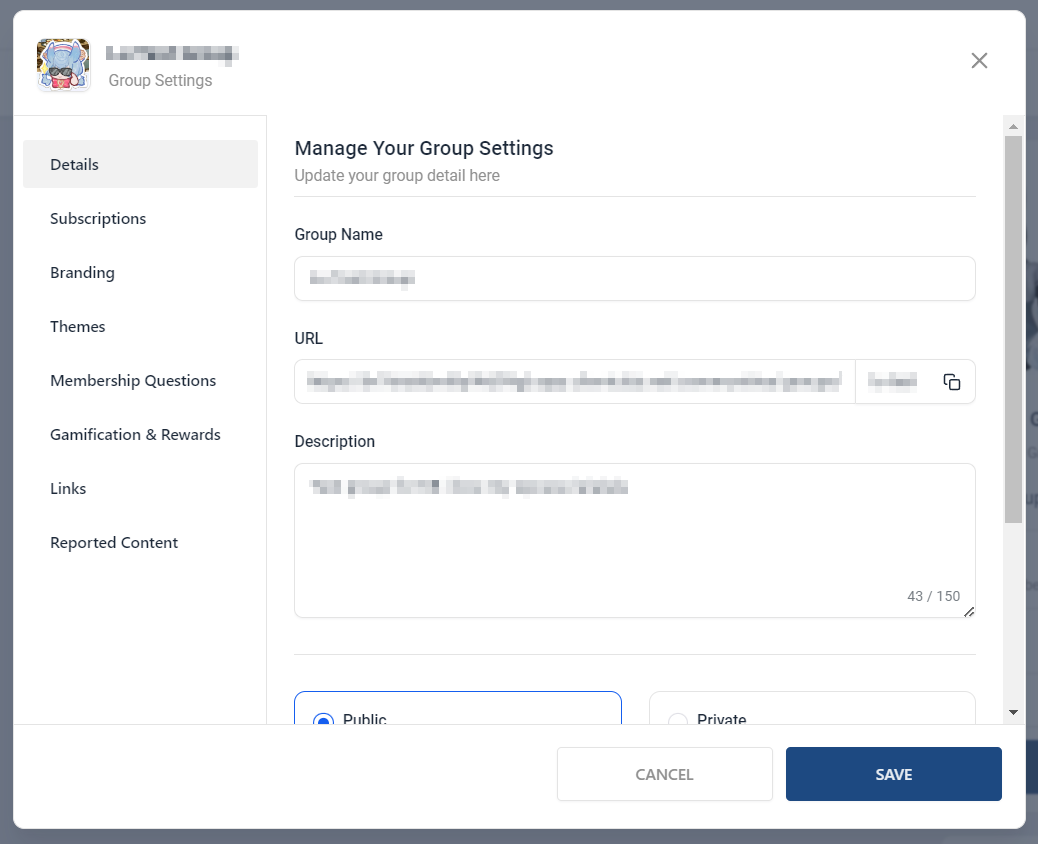
Group Settings
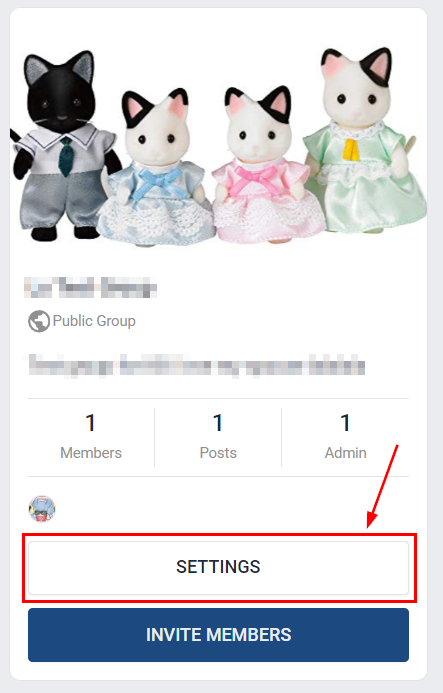
You can access your group settings and make changes to your group by clicking Settings on the right-side menu.
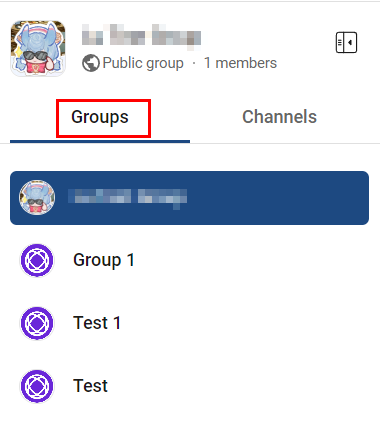
Switching Between Groups
With the left sidebar, you can switch between groups created in your CRM.
Now you have the bases down, get started by creating your own communities and leveraging the power of your audience to grow your business, generate more revenue, and reach goals! If you want to learn more about Communities please check the rest of the articles in this section.
Was this article helpful?
That’s Great!
Thank you for your feedback
Sorry! We couldn't be helpful
Thank you for your feedback
Feedback sent
We appreciate your effort and will try to fix the article