The Announcement Channel in your Community enables you to establish a dedicated channel for sharing critical updates, ensuring that important information is communicated effectively and isn't lost amidst general discussions. In this channel, only owners and admins can post and comment, ensuring that the content remains focused and authoritative. Now that you have learned the basics, let's dive into the Key Features of this feature and the steps to create and use an announcement channel.
Key Features
- Pinned Posts: Admins can pin key announcements at the top of the channel to ensure they are easily visible to all community members.
- Flexibility to Convert Back: Announcement Channels can be converted back to a regular channel, allowing group members to post content if necessary.
- Public or Private Access: Admins have the option to configure the Announcement Channel as either public or private, providing control over visibility and access.
- Role-Based Access Control: Only admins and owners can post in the Announcement Channel. Regular members can only view content, with read-only access.
How It Works
Creating an Announcement Channel
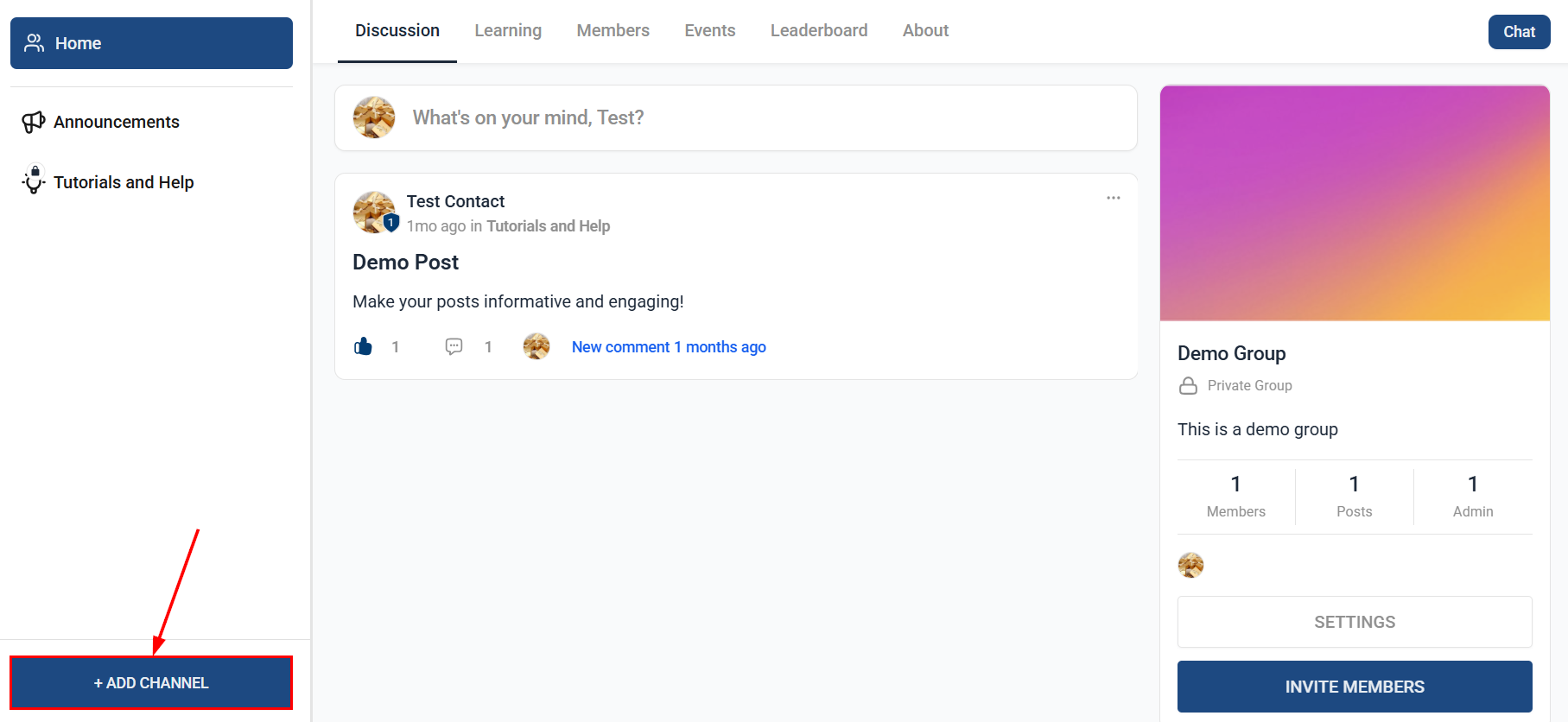
Open your Community Group and select the option to create a new channel.
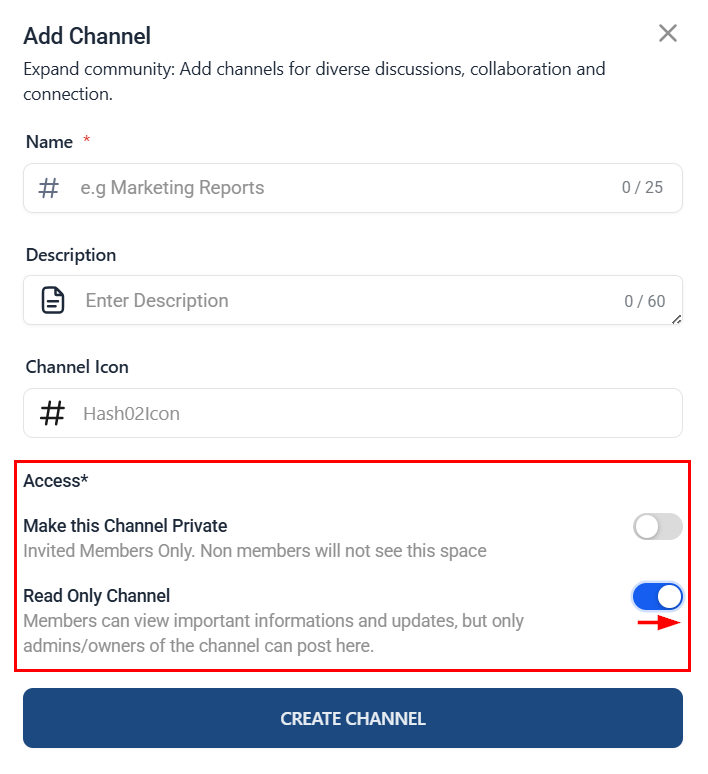
This will open a modal where you can enter the name, description, and channel icon.
Next, define the access level for your community. Activating the read-only channel feature is crucial in configuring your announcement channel so be sure to toggle it on! Furthermore, you can control channel visibility by making the channel public or private.
Once you are satisfied with the configuration, click Create to establish your new channel.
Updating an Existing Channel
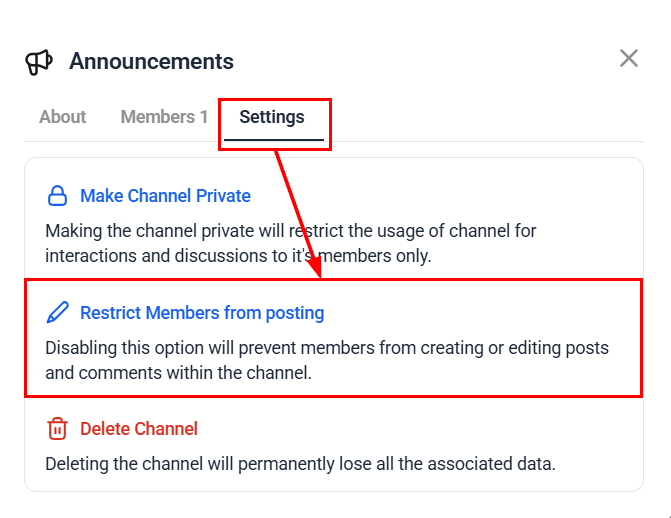
If you would prefer to update an existing channel, click the gear icon beside the name of the channel.

From the Settings window, convert your channel to read-only to restrict members from posting. You can also update the channel visibility if required.
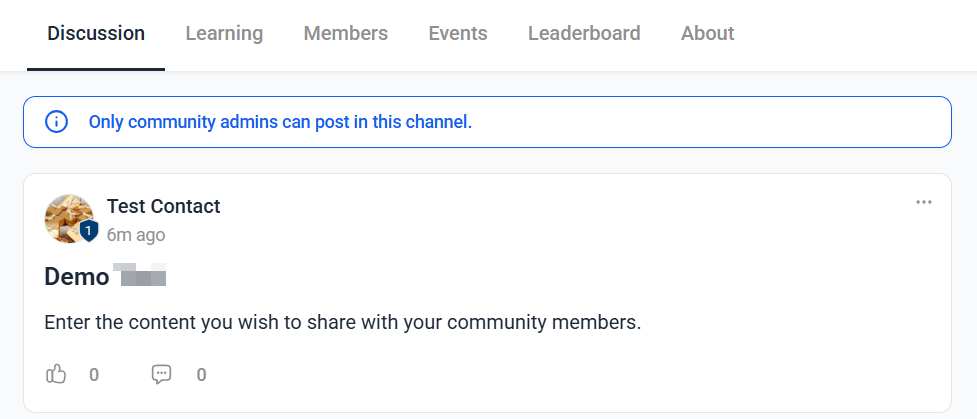
Once activated, the channel will be labeled and configured as an Announcement Channel.
Managing Announcement Channel Posts
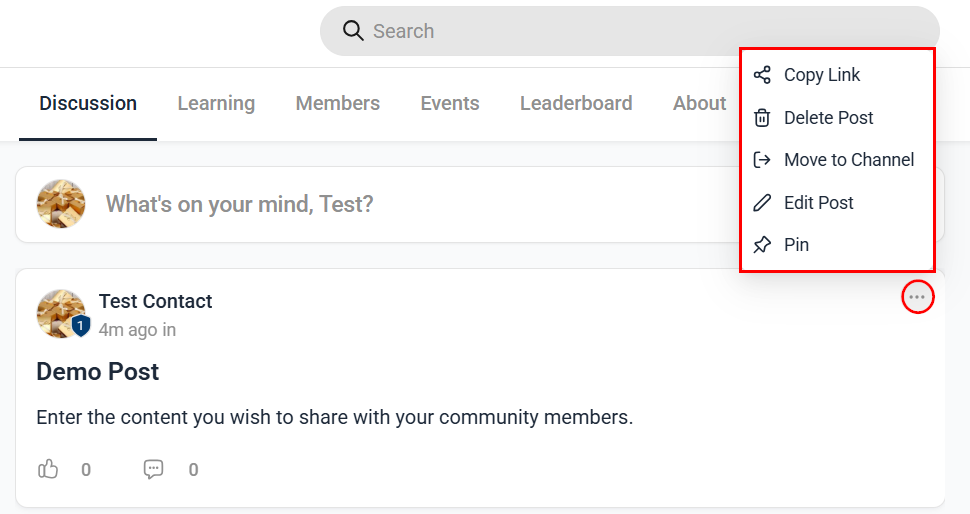
Similar to regular channels, you can copy a post's link, delete it, move it to another channel, edit its content, or pin it to the top of the channel for enhanced visibility and easy access.
Converting Your Channel Back to a Regular Channel
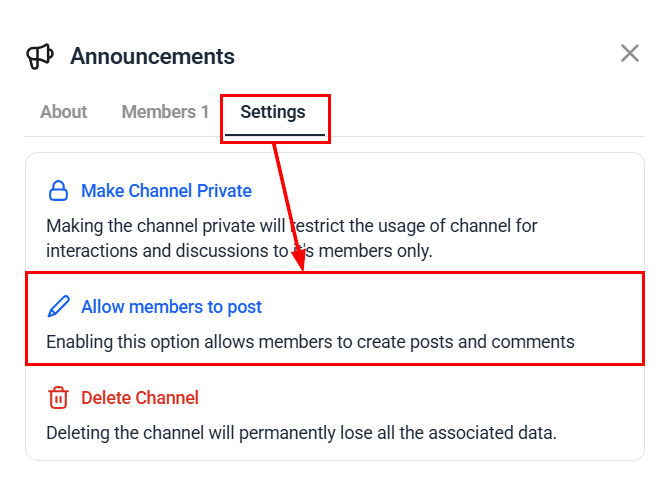
To revert your channel to a regular channel and allow members to create posts and comments, navigate to the channel settings and enable member posting. All members will then be able to create and share posts within the channel.
By incorporating an announcement channel, you can communicate more effectively and ensure your members are always up-to-date on crucial information. This feature provides a structured communication tool, ensuring critical information is effectively shared.
Was this article helpful?
That’s Great!
Thank you for your feedback
Sorry! We couldn't be helpful
Thank you for your feedback
Feedback sent
We appreciate your effort and will try to fix the article