The Private Channel Access Revoked Trigger allows you to automate processes based on a user losing access to one of your Community Private Channels such as sending follow-up emails, notifying team members, or revoking their access to another channel.
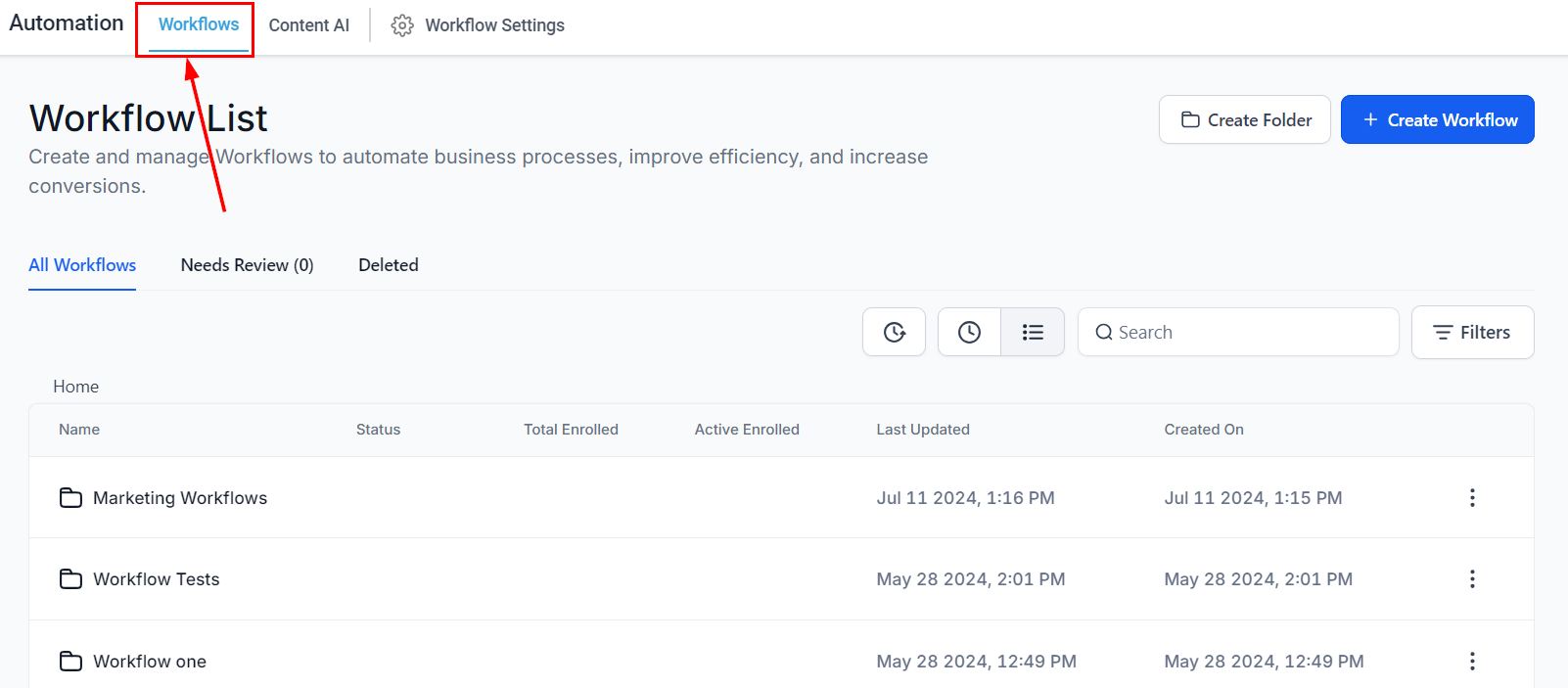
To get started with this trigger, navigate to the Workflows section within your account, then opt to edit an existing workflow or create a new one.
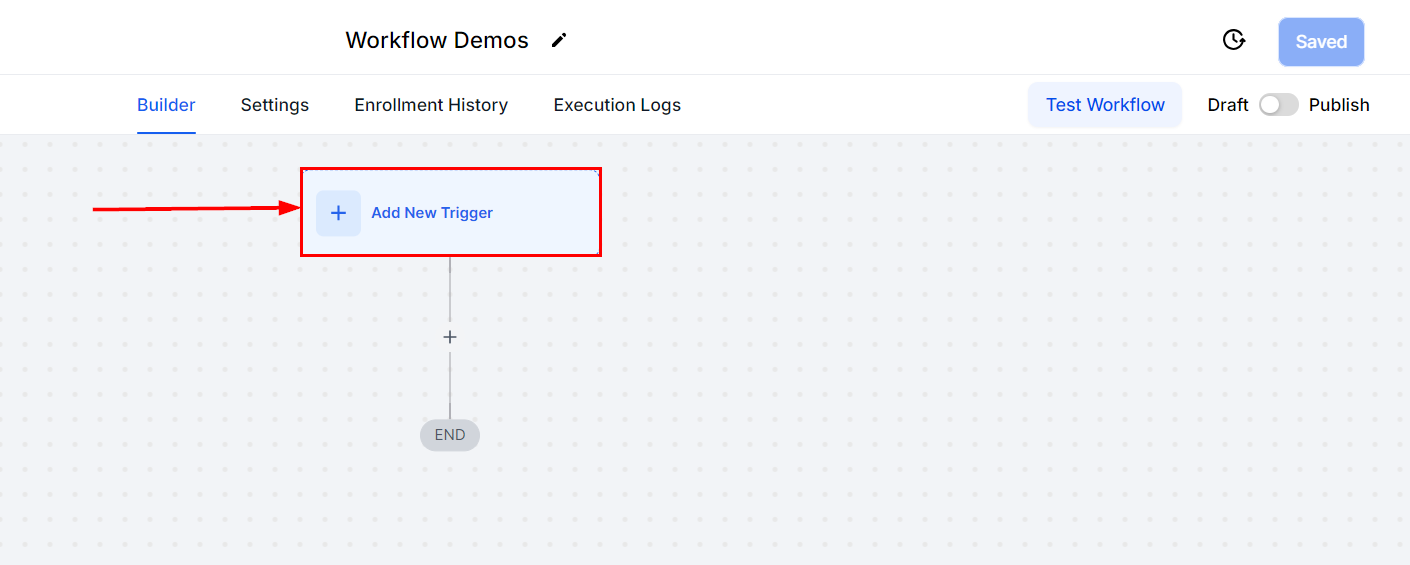
Select the option to Add a New Trigger.
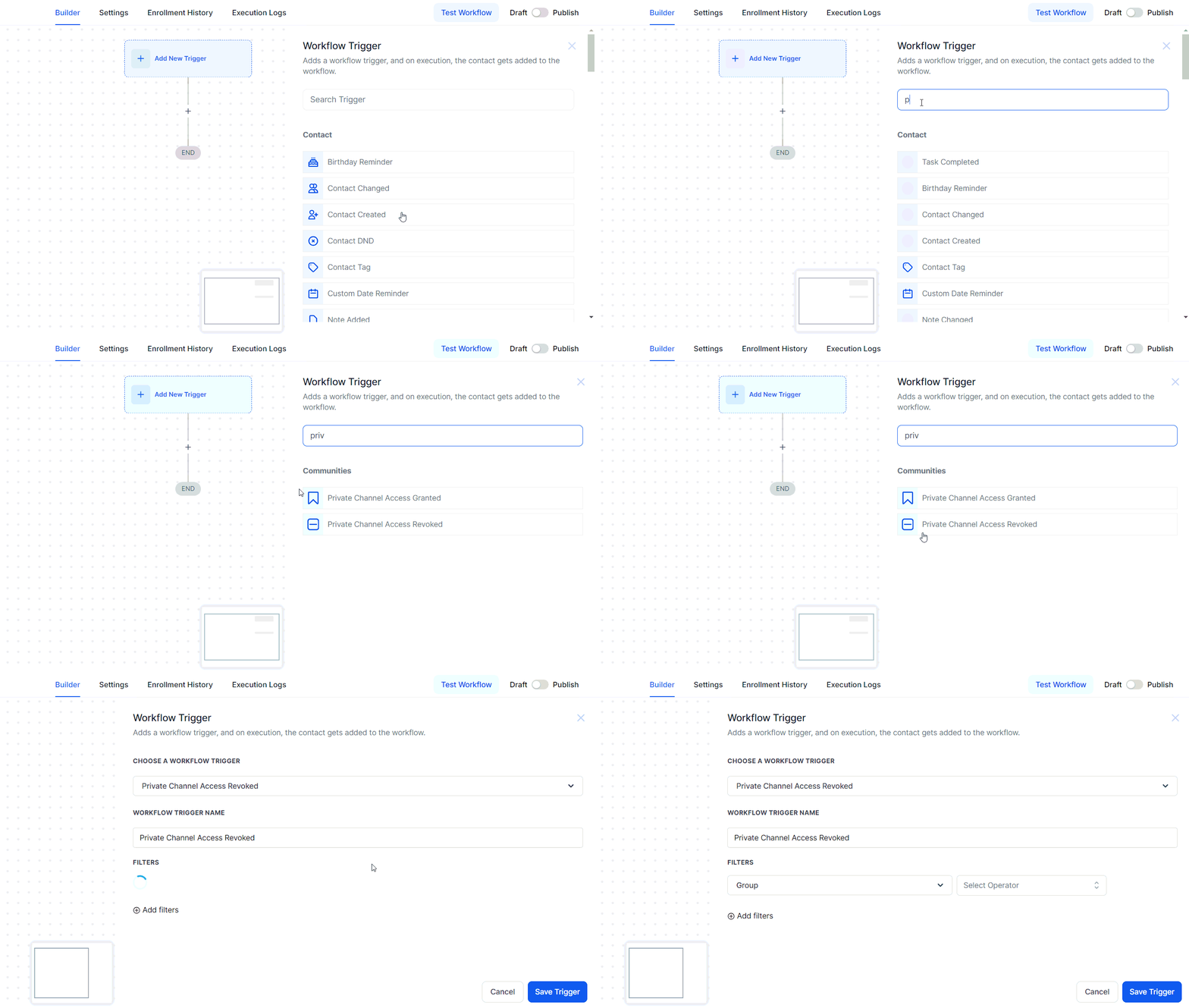
This action will display the trigger list, where you will need to locate and select the Private Channel Access Revoked trigger.
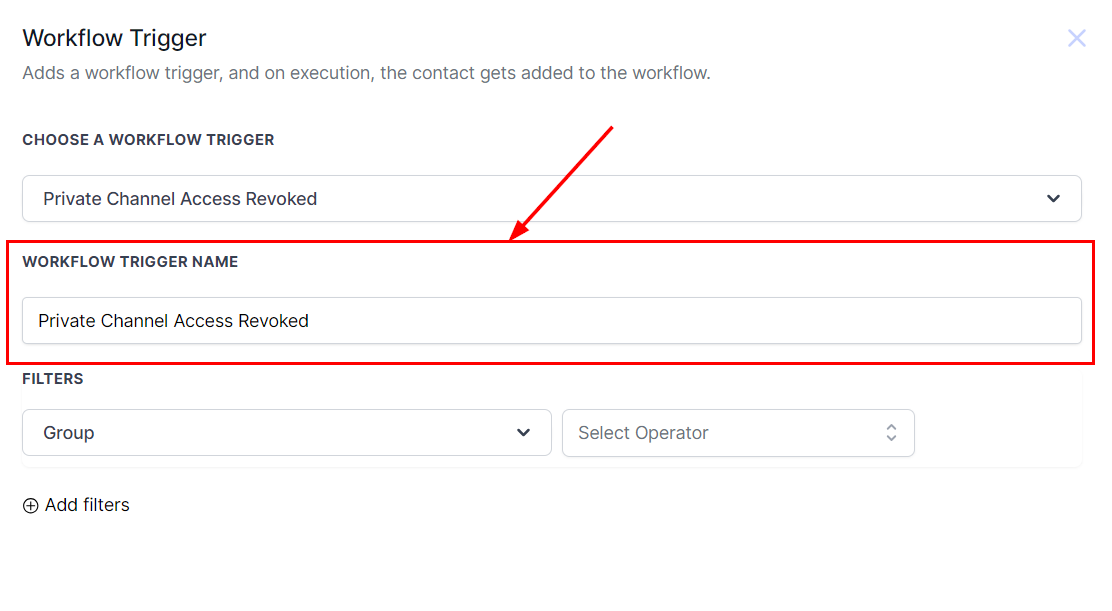
Update the name of the Trigger within the Workflow Trigger Name field to accurately reflect its intended purpose.
Within the Filters section, choose an Operator from the dropdown menu. If you selected the “Is” or “Is Not” operator, choose the relevant Community Group when prompted.
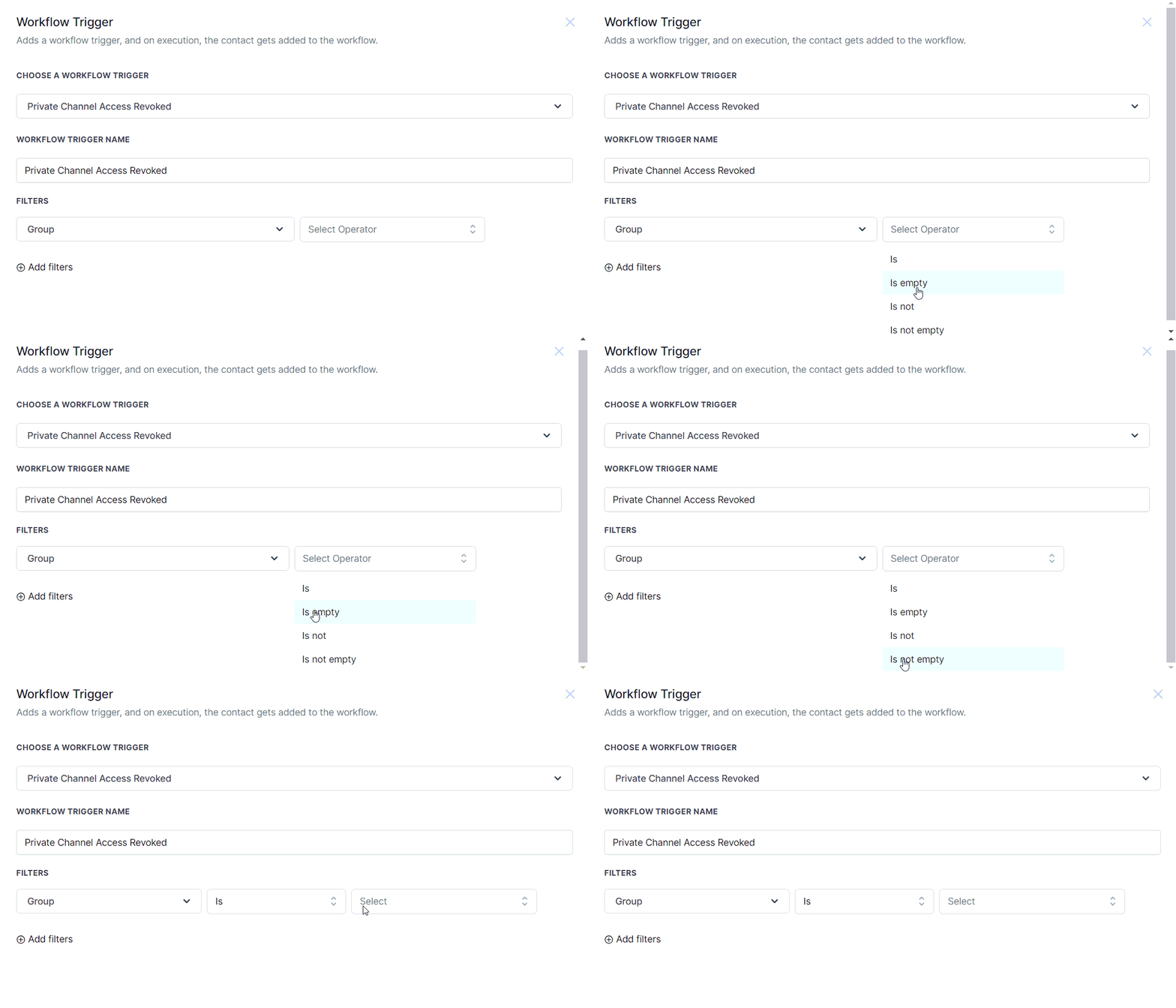
? Note: Please ensure that the selected group includes at least one private channel. If no private channels are available within the group, the workflow will not be successfully registered.
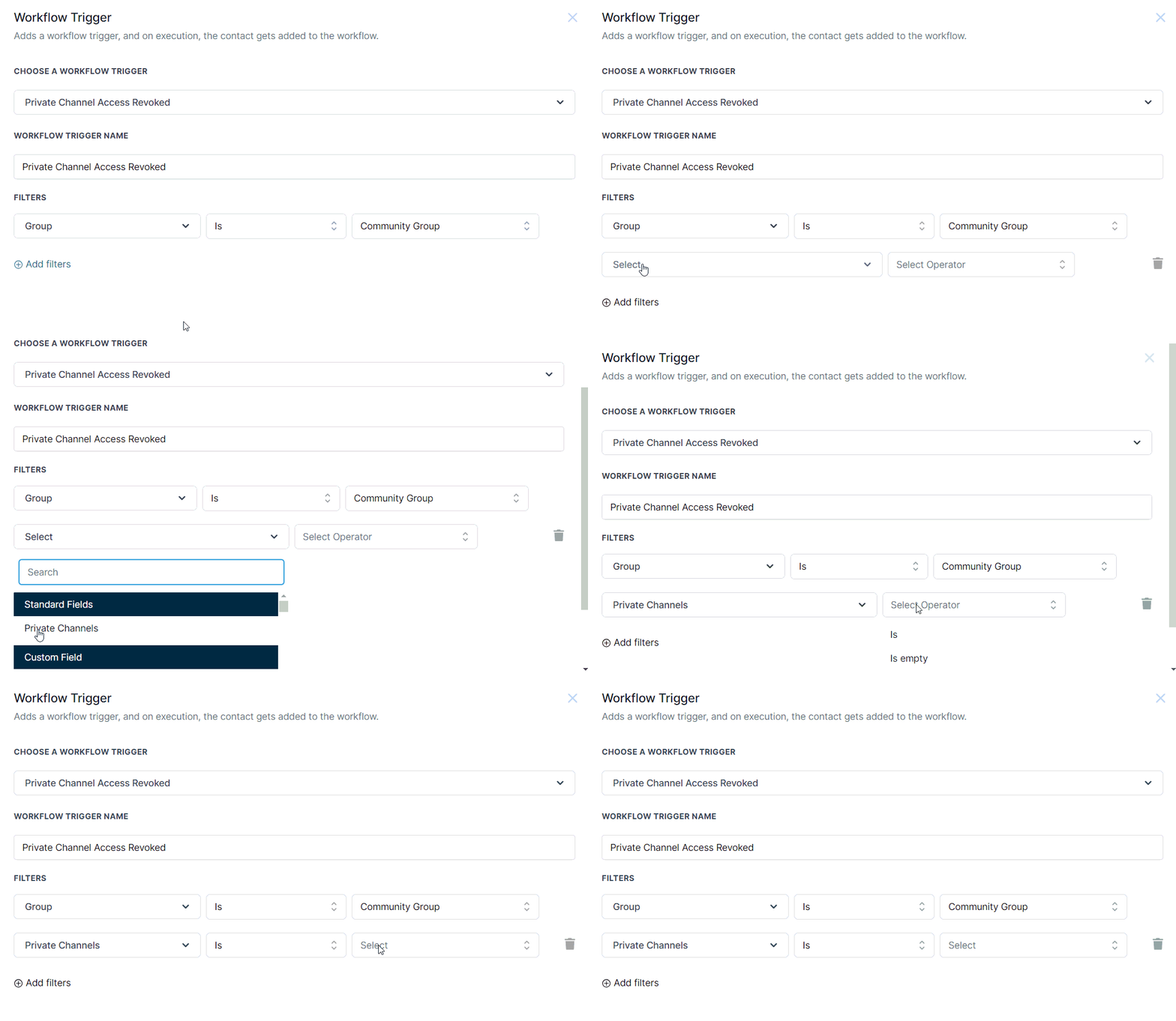
Further refine the trigger by applying additional filters to target specific private channels, if desired.
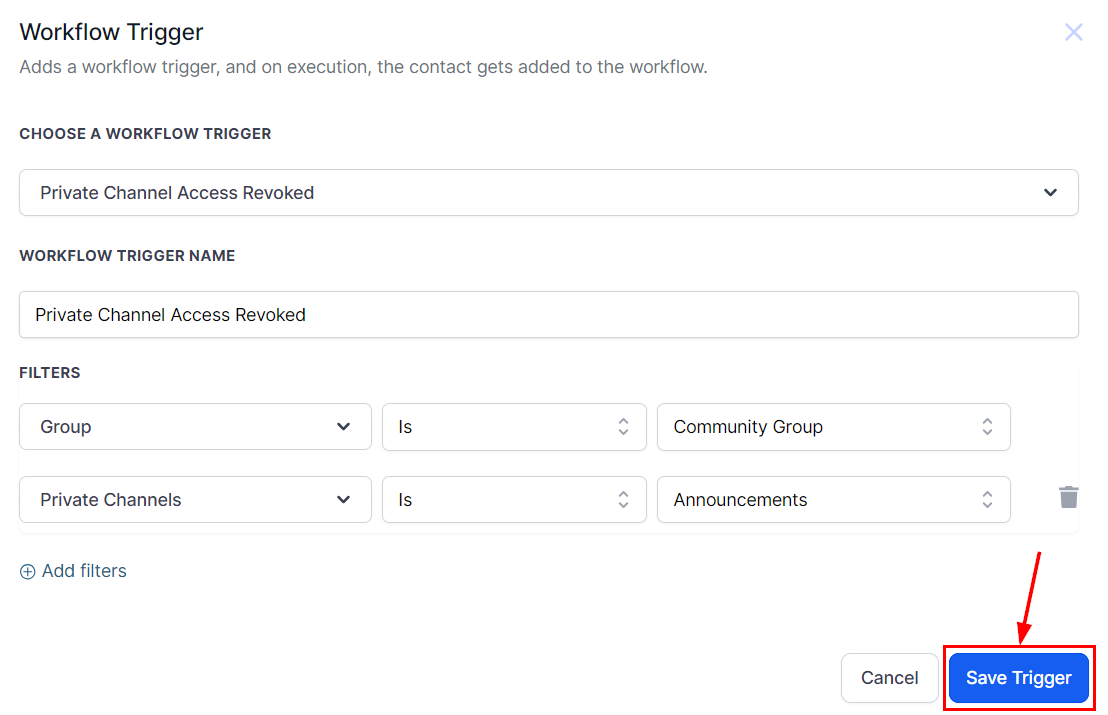
Save the trigger and begin adding actions to your workflow!
With these steps in place, you can confidently manage workflows tied to private channel access within your community.
?Please Note: Any user removed from a private channel will lose access to its content and communications immediately.
Was this article helpful?
That’s Great!
Thank you for your feedback
Sorry! We couldn't be helpful
Thank you for your feedback
Feedback sent
We appreciate your effort and will try to fix the article