If you would like to rescind access to a Private Channel for contacts who meet certain criteria, you can utilize the Revoke Private Channel Access action within workflows. This action allows you to automate the removal of users from private channels, ensuring accurate and timely access control.
To begin, navigate to the Workflows section in your account.

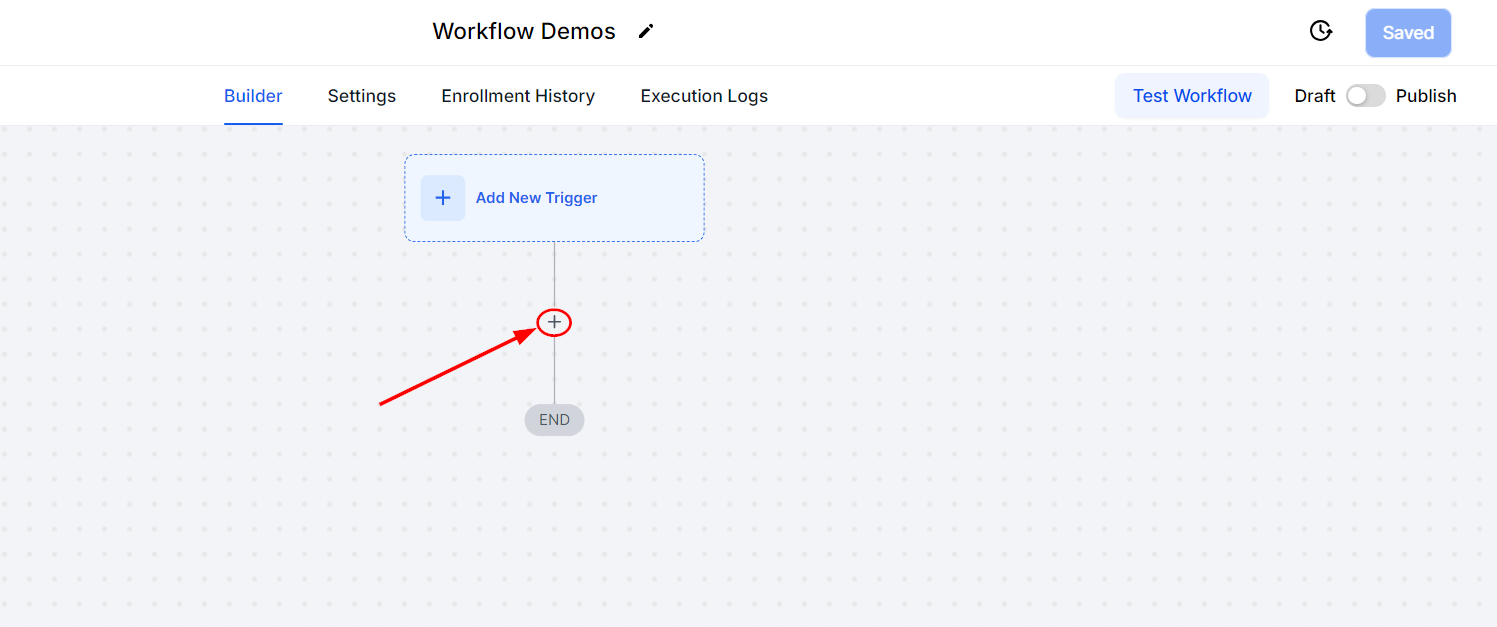
Next, create a new workflow or select a workflow from the Workflow list to access its editor and establish the necessary workflow trigger (if necessary). Click the “+” sign to add a new action.
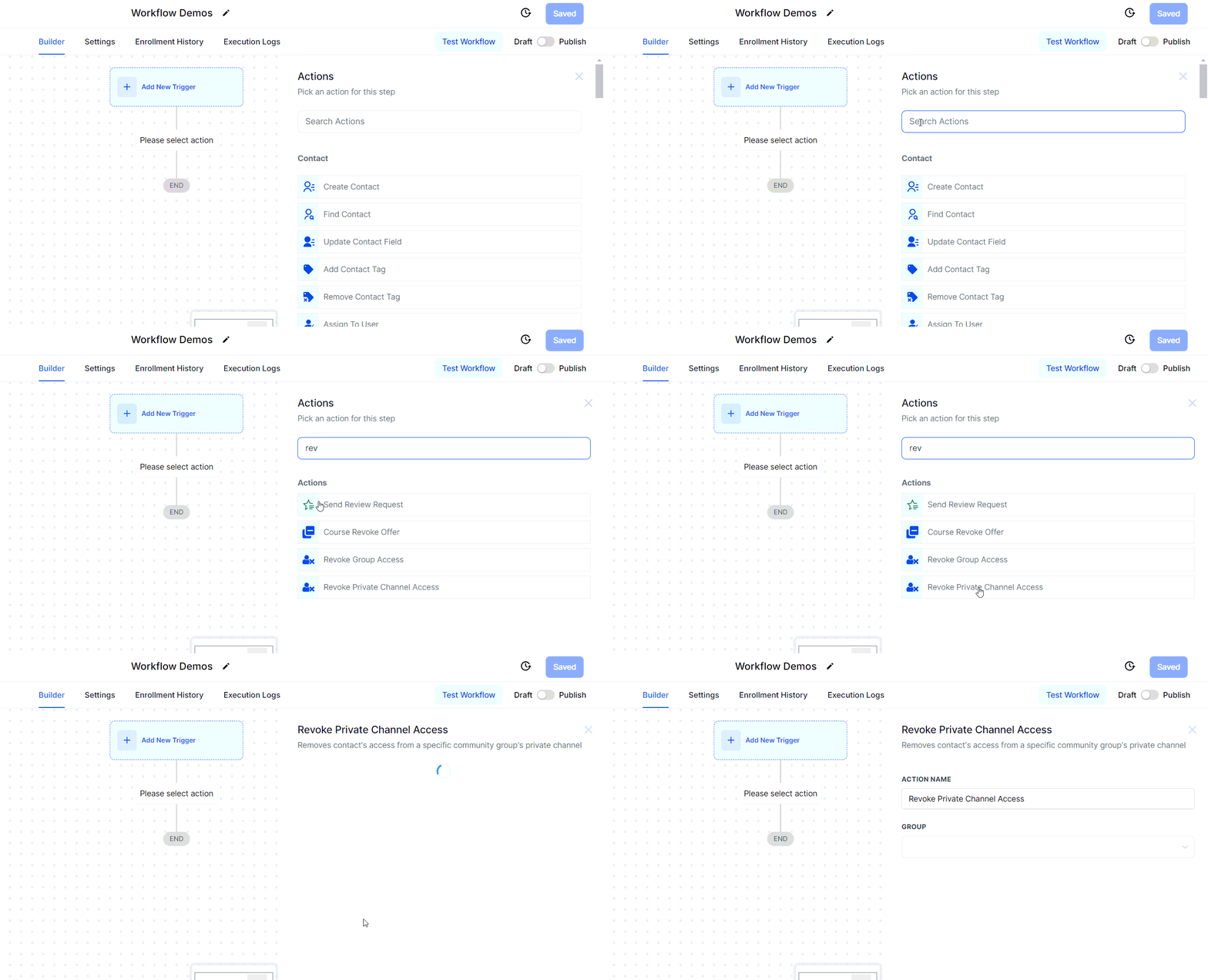
From the Workflow Actions list, locate and select the Revoke Private Channel Access action to begin configuring it.
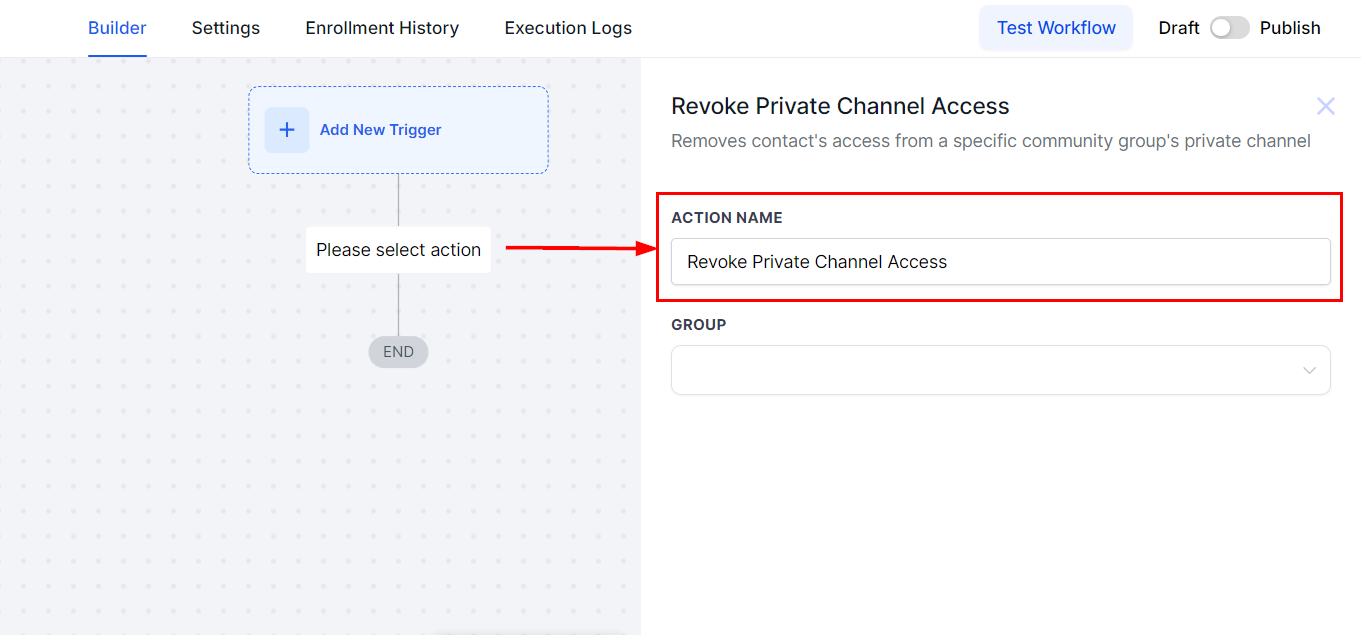
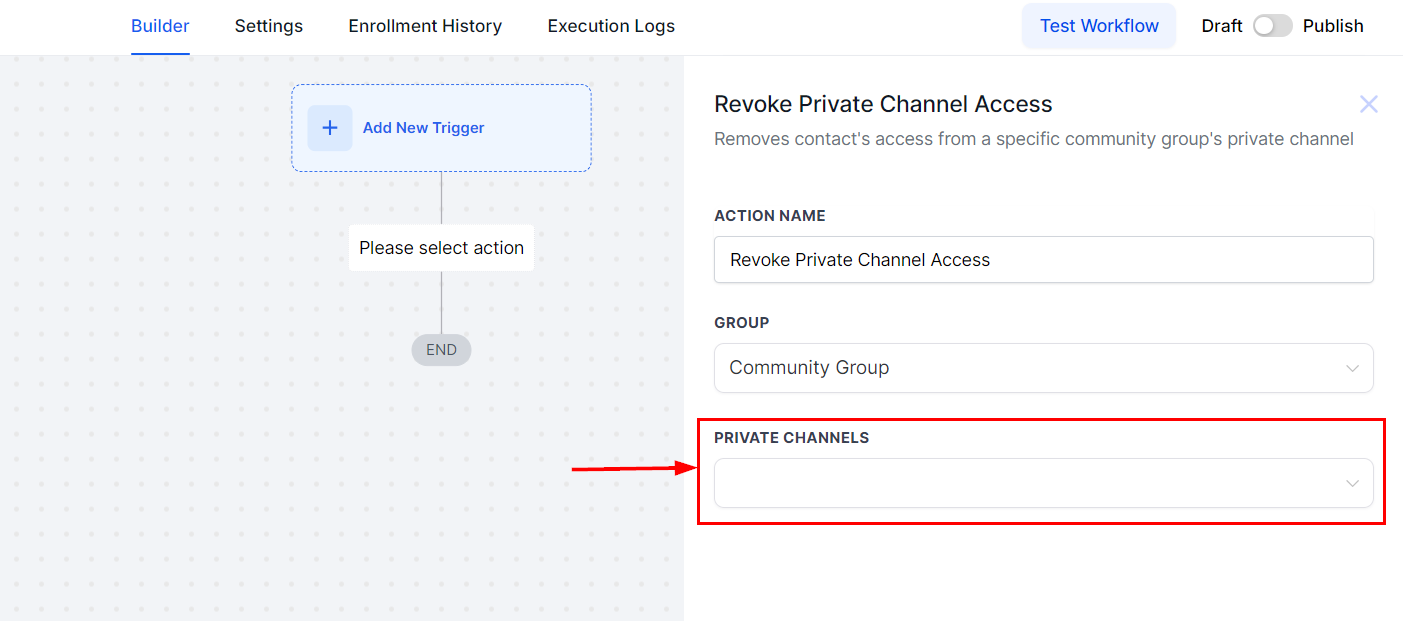
Assign a clear, descriptive name to the action in the Action Name field for easy identification.
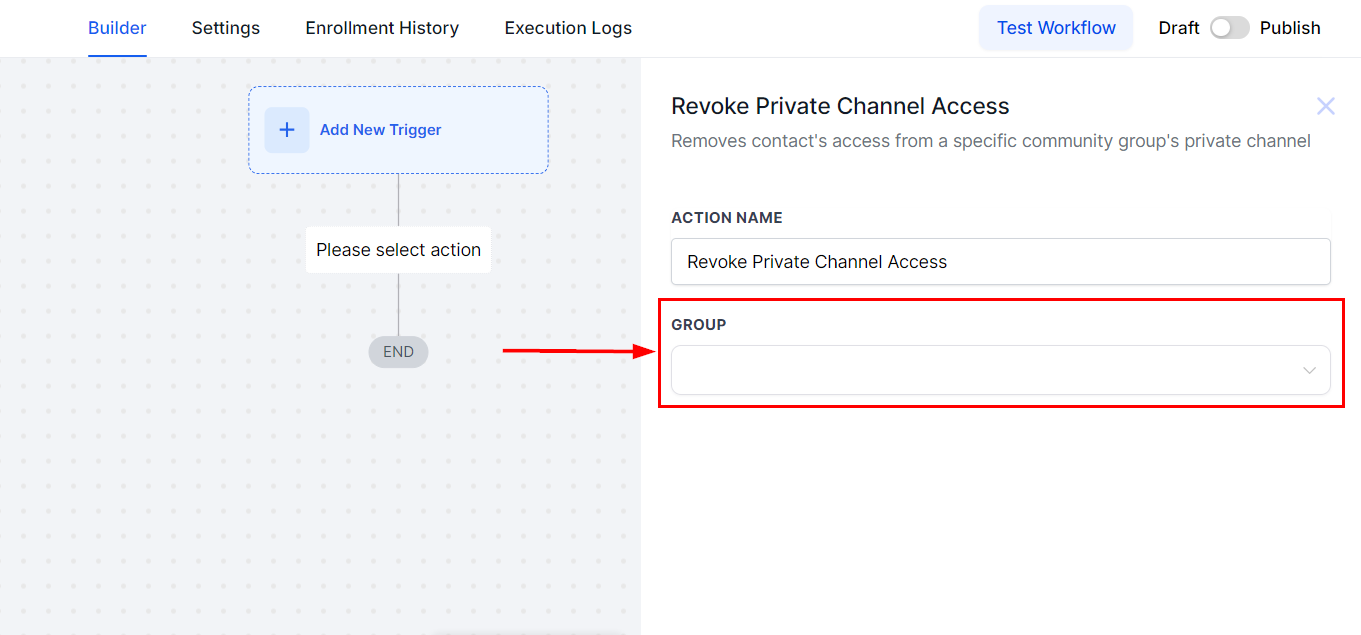
From the Group dropdown, select the group associated with the private channel. Once a group is chosen, the Private Channel field will populate, enabling you to select the relevant channel from the list.
Finally, select the relevant private channel from the dropdown. Be sure to choose the correct option to avoid unintentionally revoking access to the wrong channels.
Confirm your selections, and click the “Save Action” button to add the action to your workflow.
Automating the process enhances accuracy, reduces manual effort, and ensures timely updates to your community or team members' access rights.
Note: Any user removed from a private channel will lose access to its content and communications immediately.
Was this article helpful?
That’s Great!
Thank you for your feedback
Sorry! We couldn't be helpful
Thank you for your feedback
Feedback sent
We appreciate your effort and will try to fix the article