With the Social Planner users can keep a more active presence on social media, one of the tools that will help is the Recurring Post scheduling. This feature allows you to schedule posts at your desired frequency, whether daily, monthly, or yearly, and customize specific days, date ranges, and post times according to your preferences.
How to Use This Feature?
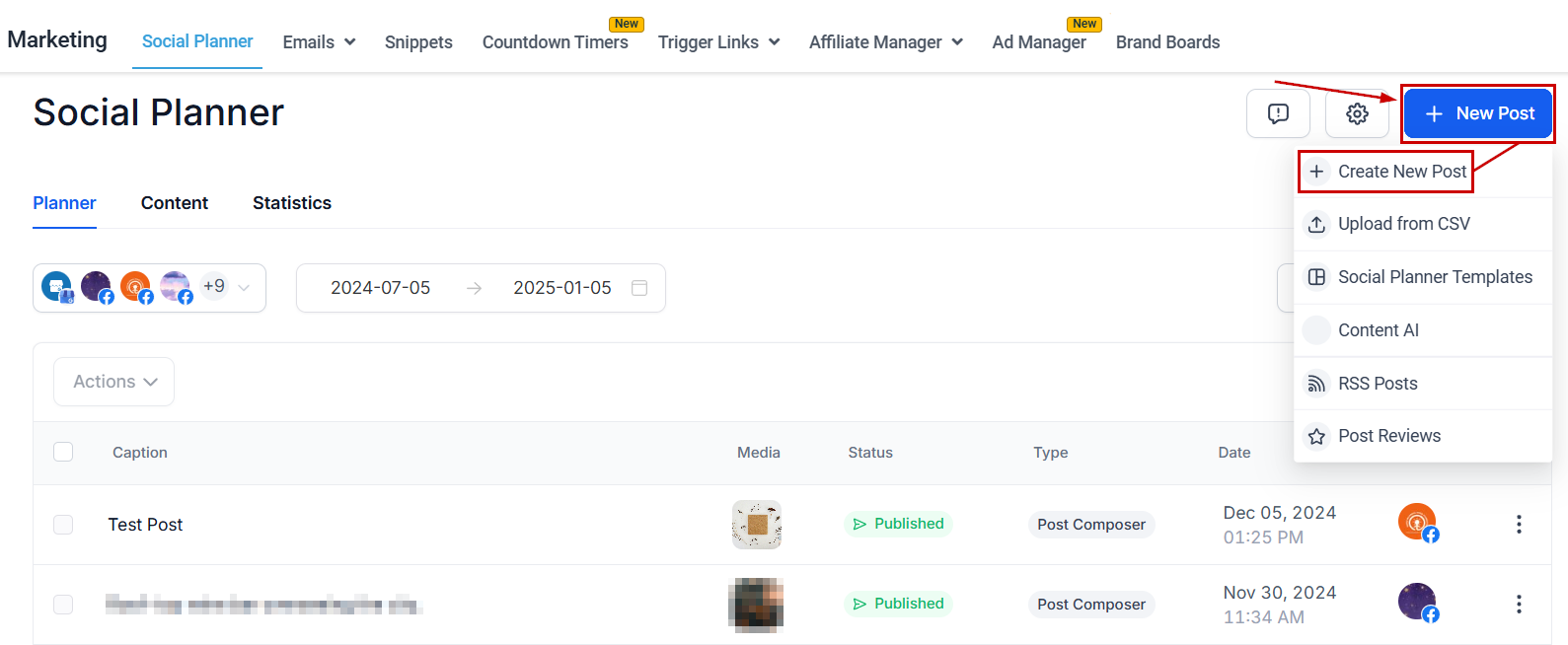
Navigate to the Social Planner inside the Marketing section. Click the “+ New Post” Button and select the “Create New Post” option.
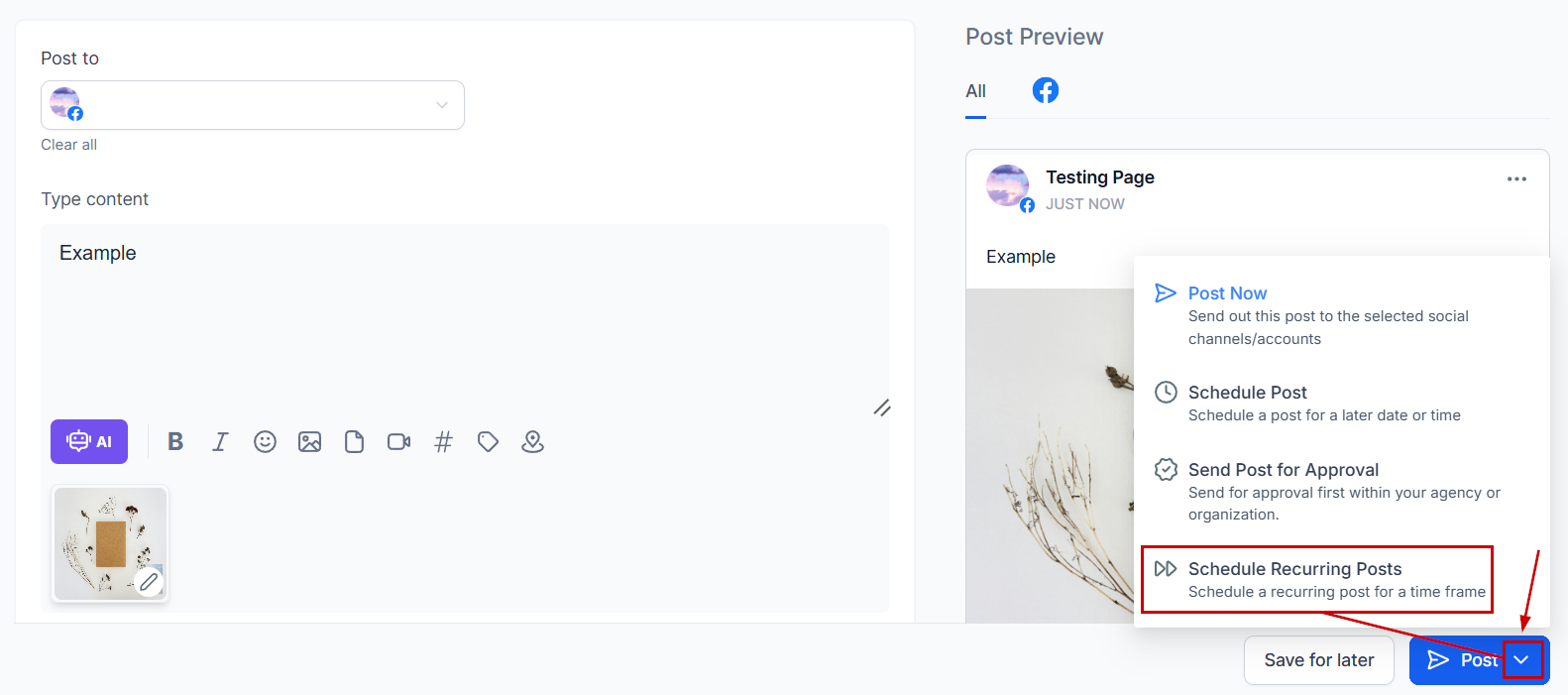
Select the social media to post to and create your post as normal. Once you're happy with your post choose the "Recurring Post" option.
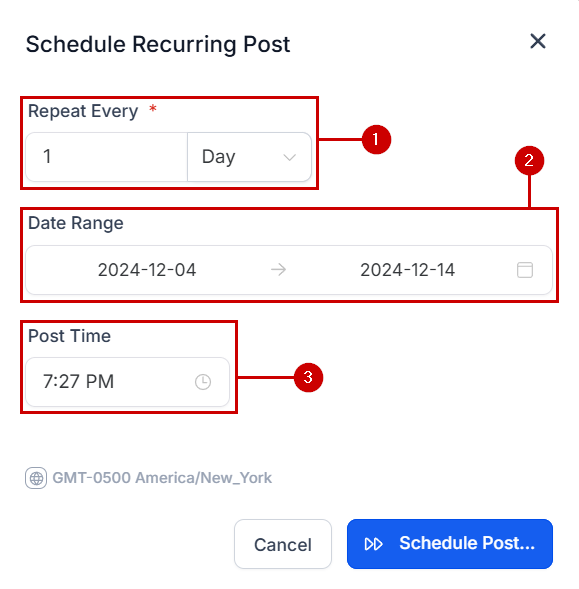
Set the posting details, these will be:
- The frequency in which you want the post to be repeated.
- A Date Range in which to post the content.
- The exact day hour the post will go live.
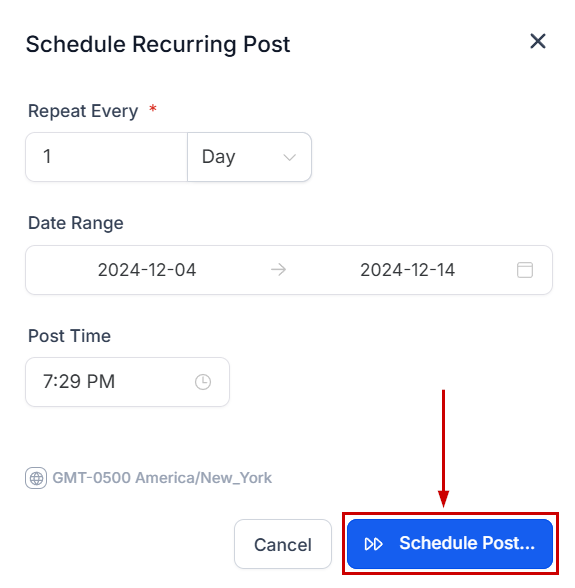
Once those fields are filled click the blue button to schedule your recurring post.
Editing Options
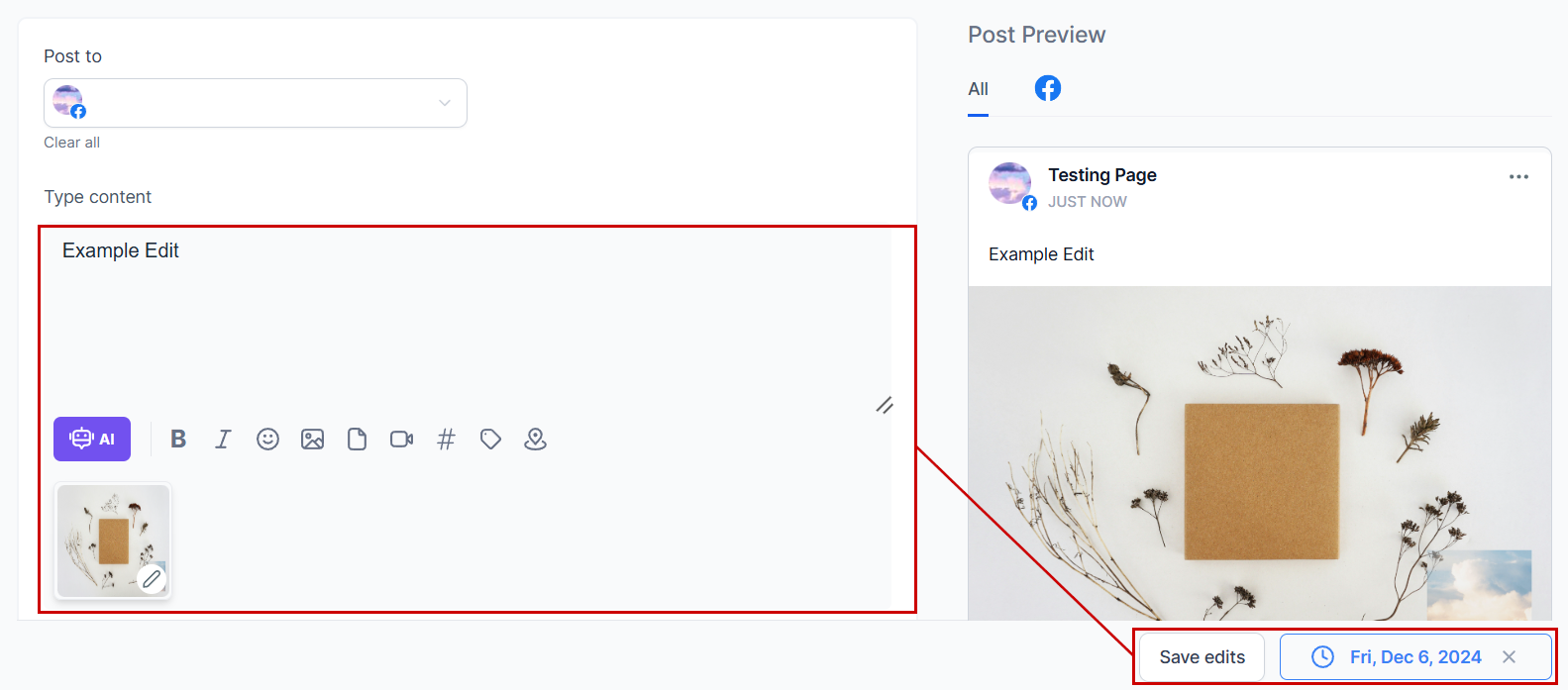
In the list view click the three dots next to a post to access the edit option.
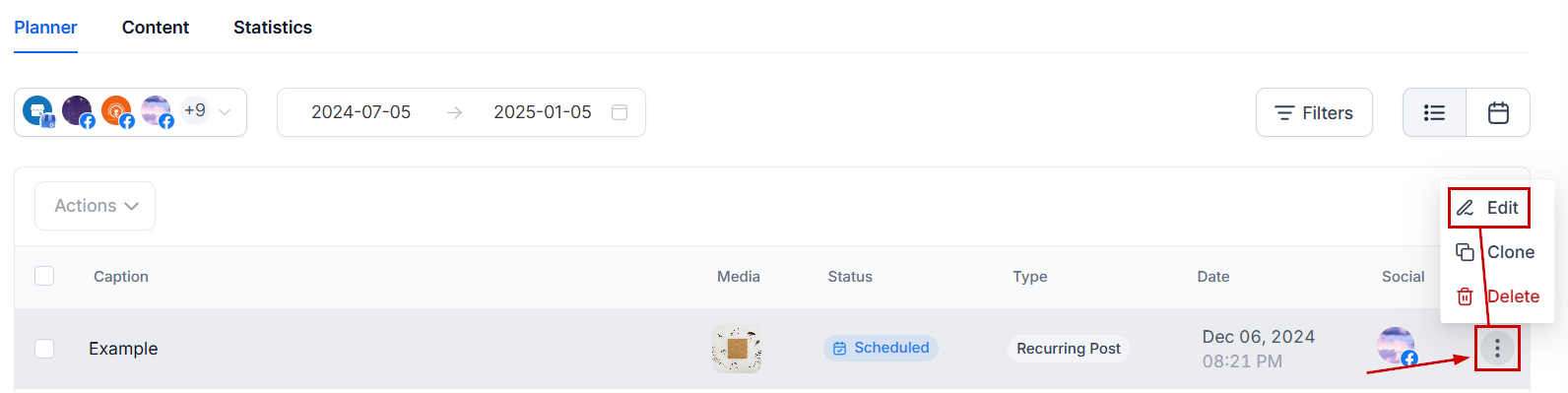
This will enable independent editing without affecting other posts.
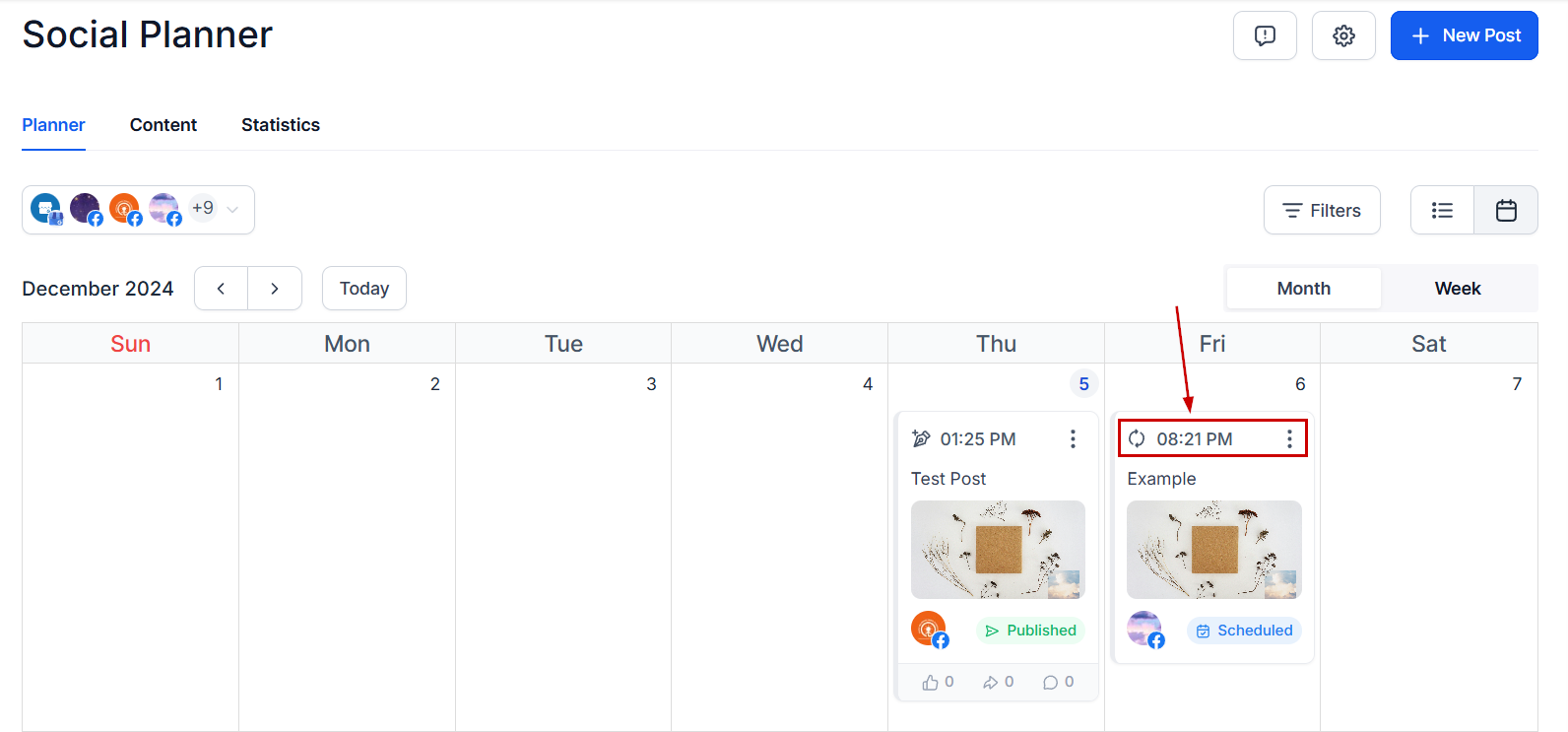
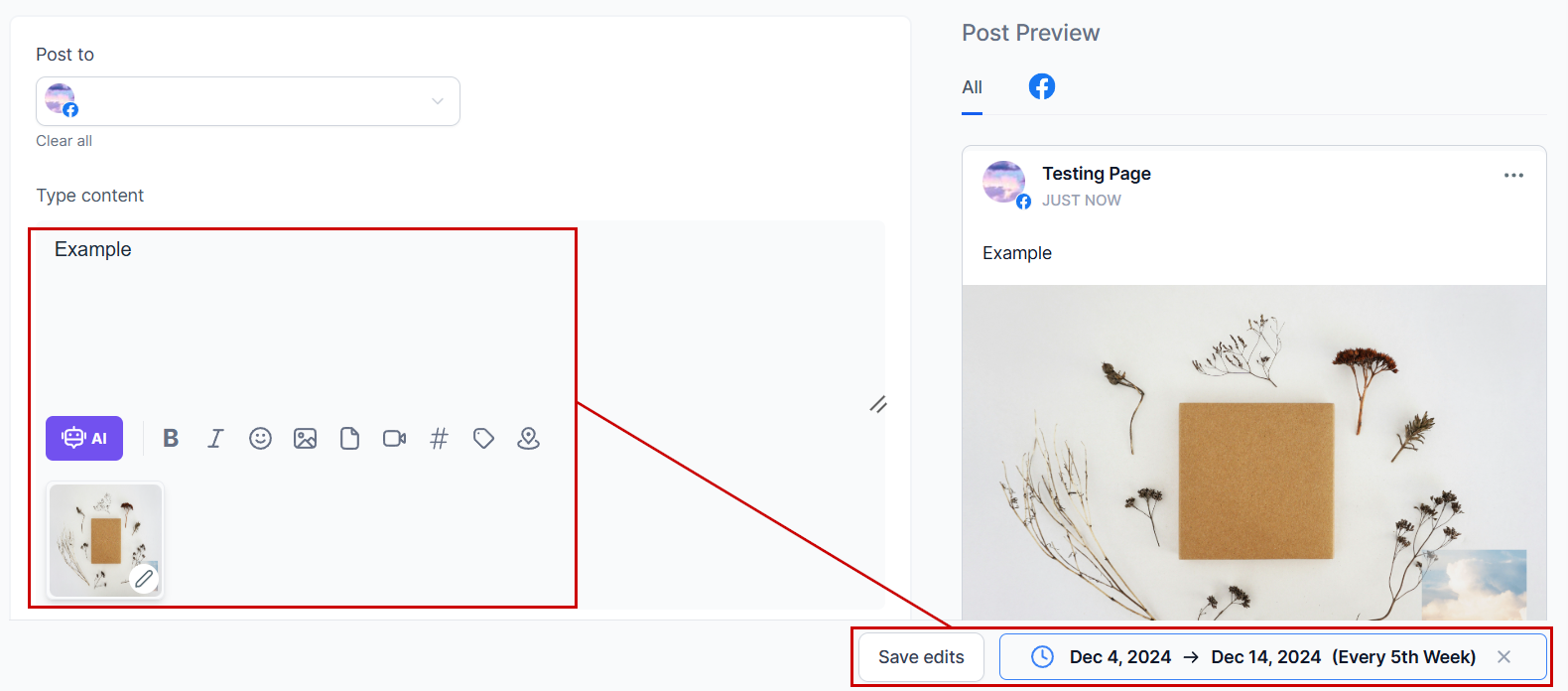
In the Calendar view, you can edit all posts at once by clicking the three-dot icon of any post in that series.
You can note that you're editing all posts since you'll see the entire span of your recurring posts instead of a specific date.
?NOTE: Please adhere to platform guidelines regarding recurring and automated posts. Being aware of platform policies and audience engagement is the best way to ensure your content stays relevant and is not flagged as repetitive.
Now that you know how to use this power tool, you can start effortlessly planning long-term content strategies, ensuring your brand stays in front of your audience without constant manual efforts. Seasonal Offers, celebrating anniversaries or holidays, and reminding your customers of recurring events are the perfect examples of how to use them.
Was this article helpful?
That’s Great!
Thank you for your feedback
Sorry! We couldn't be helpful
Thank you for your feedback
Feedback sent
We appreciate your effort and will try to fix the article