It is important to connect your Facebook account with all of the permissions. If you are trying to connect your Facebook pages with GHL Connector, but some of the pages are missing from the list then you can follow the below guide:
Navigate to Facebook
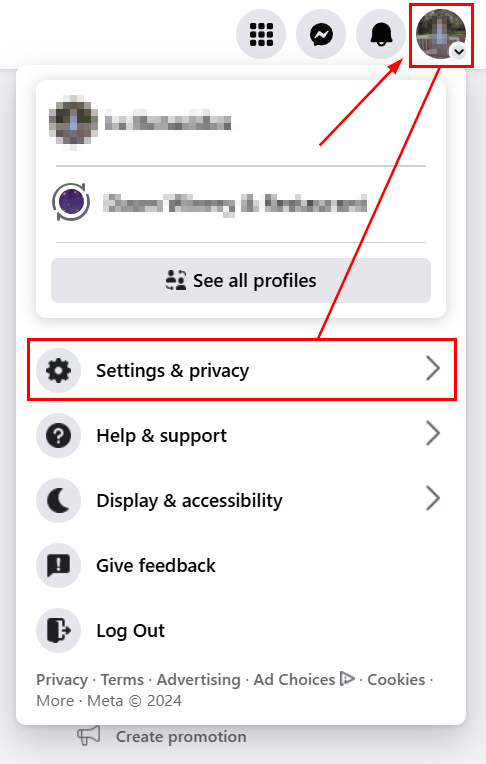
Log in to your Facebook account, click the dropdown icon next to your profile picture, select Settings and Privacy then click settings
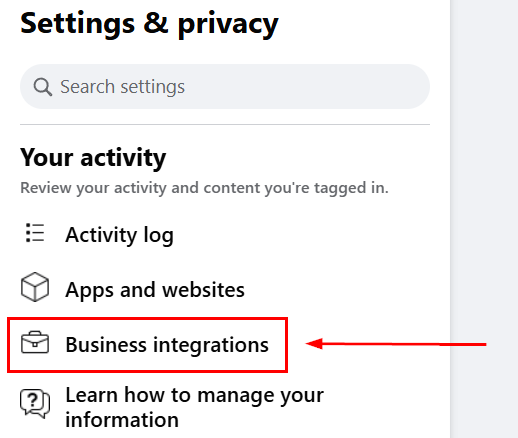
Select Business Integrations under Your Activity.
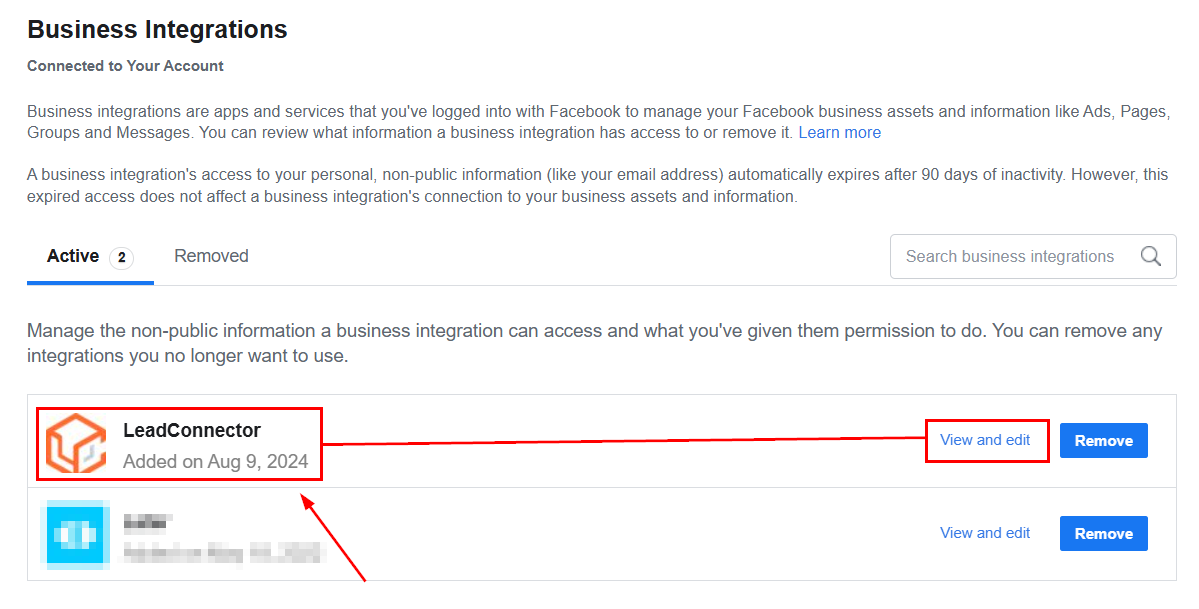
Search for the LeadConnector application in the Business Integrations. Once you find the application, click on the "View and Edit" link.
Select the List of Pages
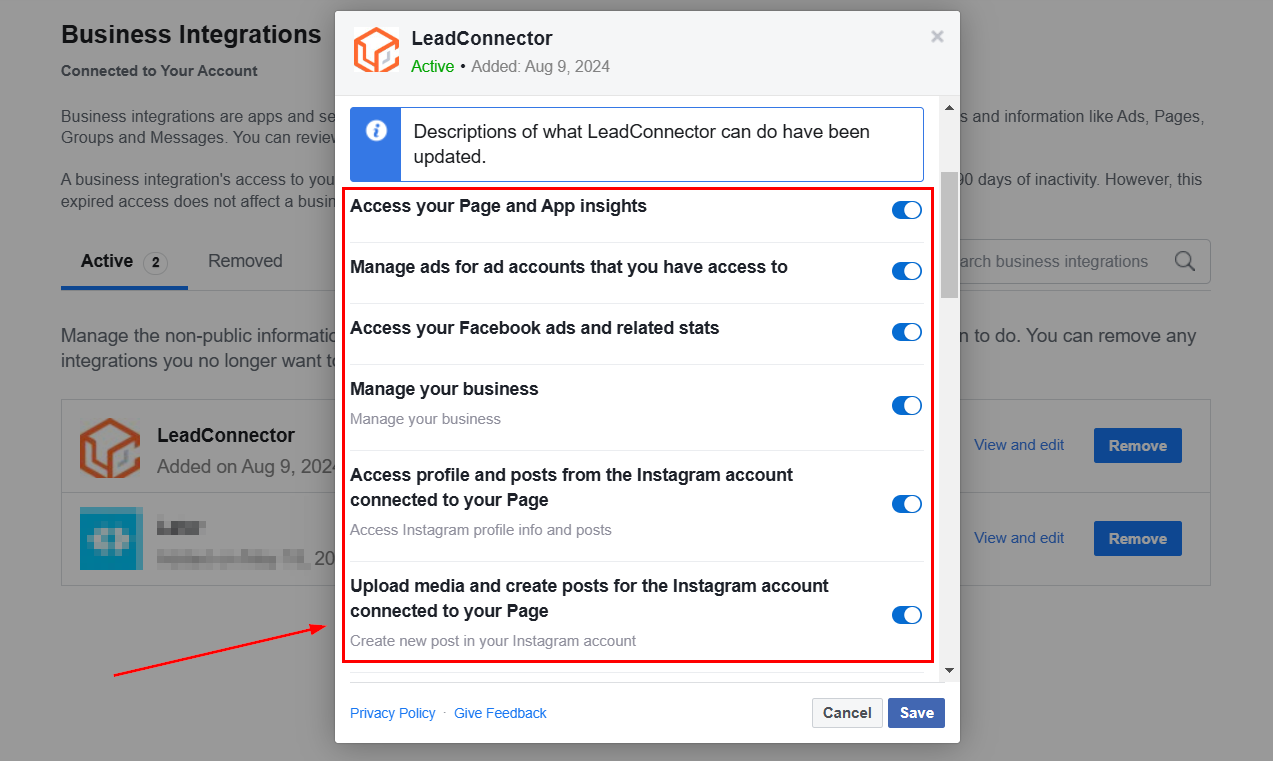
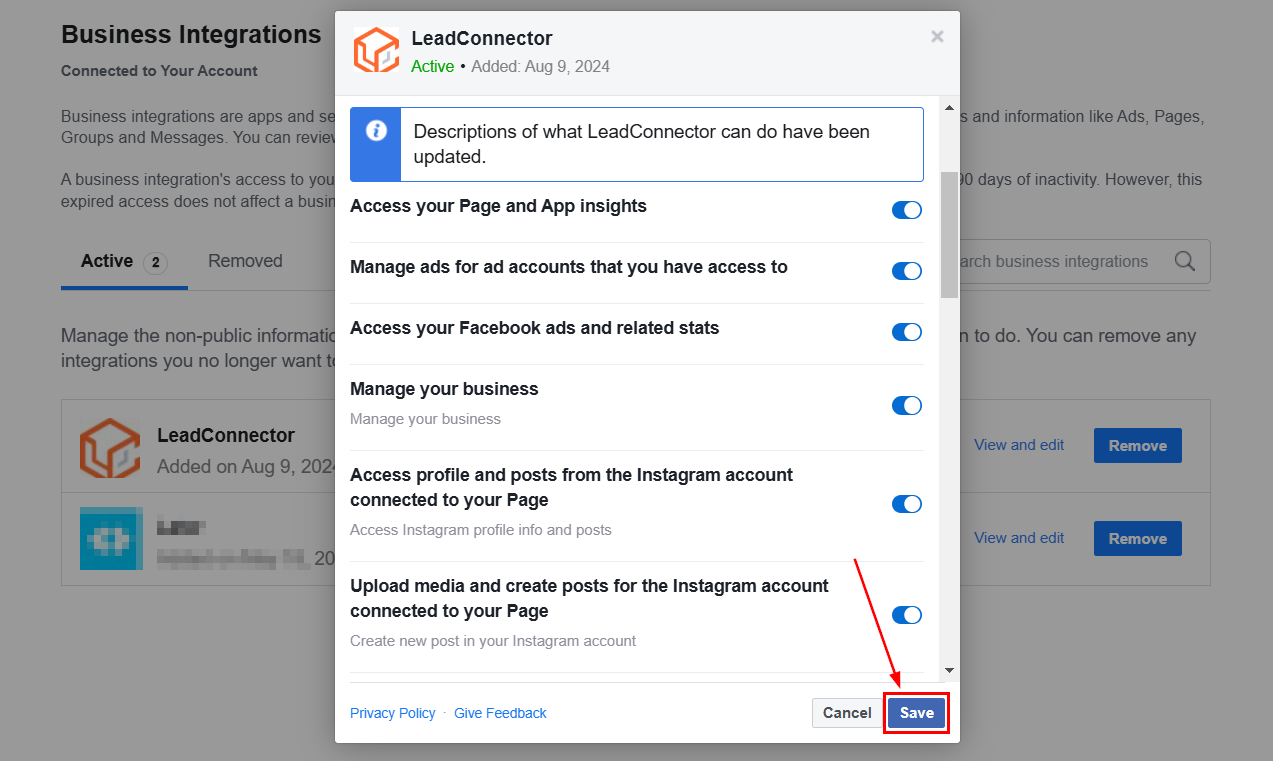
Upon clicking the link, you will see the popup, make sure you have given all the permissions and selected all of your social channels. If some of the channels are unchecked, you can check them from there.
Save and Reconnect
Click the Save button once you have changed the permissions and selected the new pages.
Now navigate to Settings in Social Planner, and connect your Facebook pages. This time, you should be able to see the pages that were not showing previously.
Was this article helpful?
That’s Great!
Thank you for your feedback
Sorry! We couldn't be helpful
Thank you for your feedback
Feedback sent
We appreciate your effort and will try to fix the article