The Social Planner is an awesome tool to keep an active and relevant social media presence. With it, you can link your social media accounts and schedule posts directly from the CRM. We recommend checking the articles for each social media platform for specific details. However, let's check the general procedures for connecting your accounts!
First Time Connections
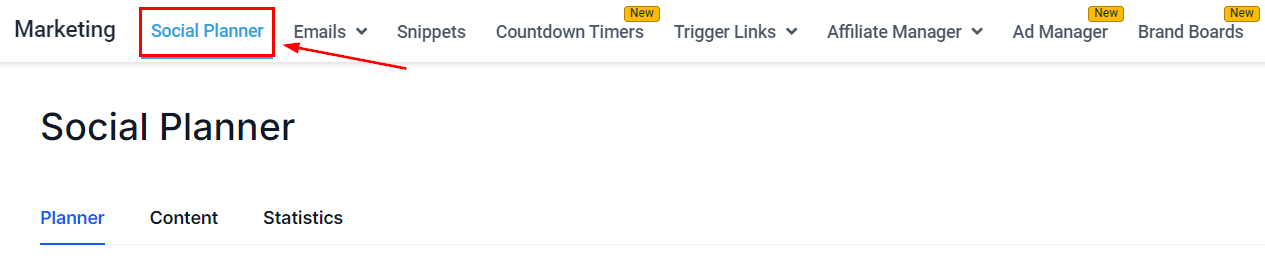
If you haven't connected any social media accounts, navigate to the Social Planner tab inside the Marketing section.
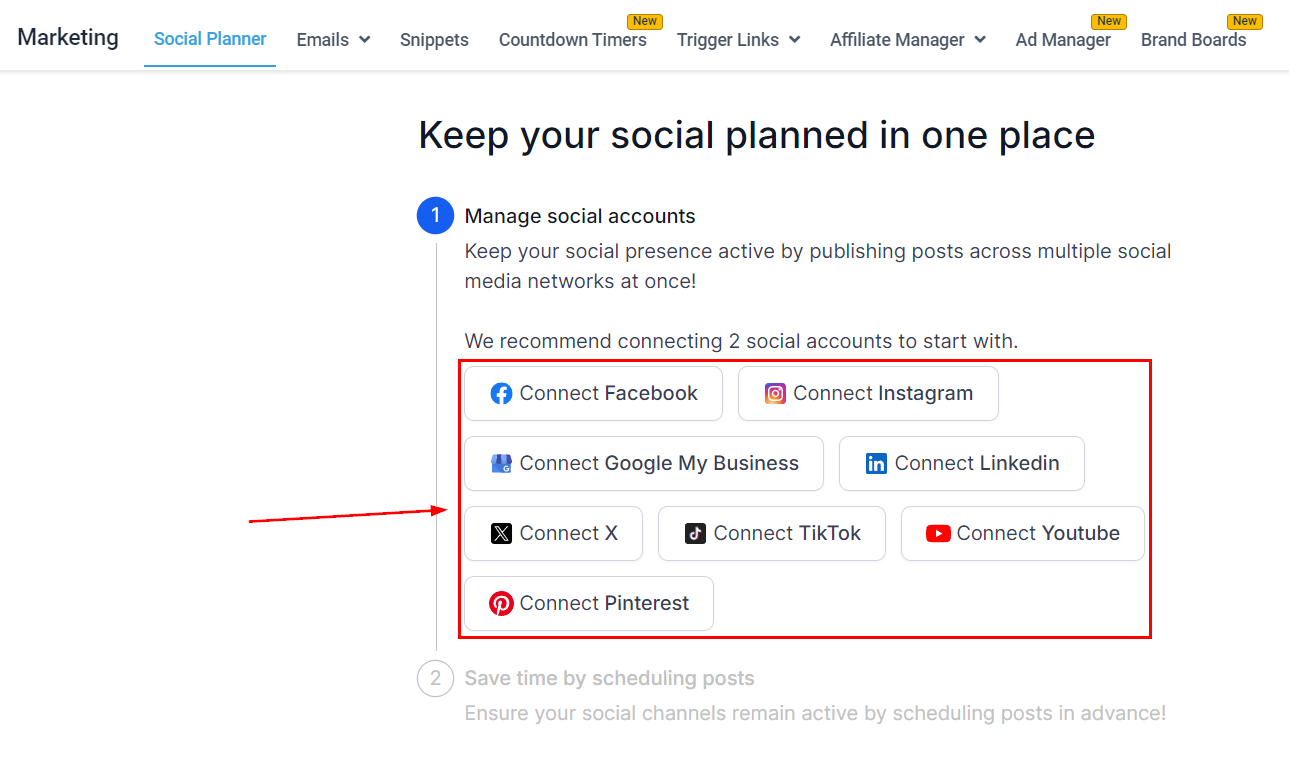
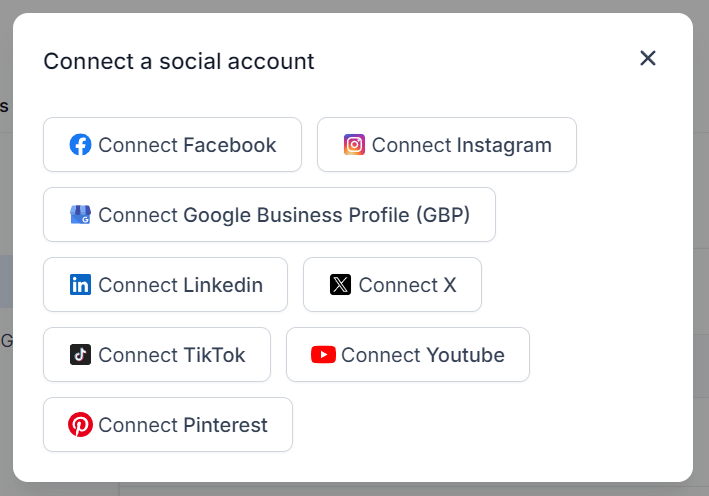
Click the icon for the platform in the wizard with the Connect option to begin setting up. This will create a pop-up window to log in to your account and enable Lead Connector permissions.
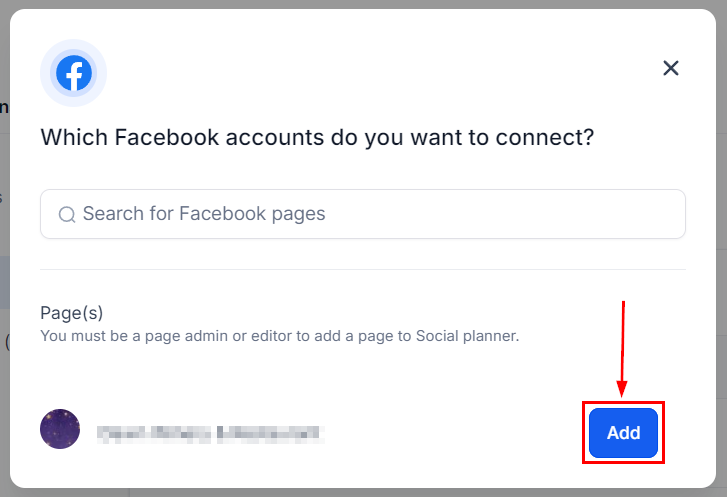
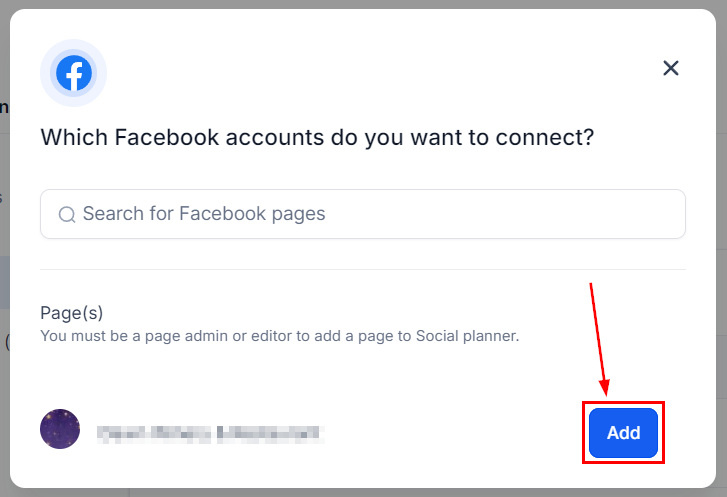
After an account is selected you'll see all available pages for that platform. Click Add next to the ones you'd like to connect.
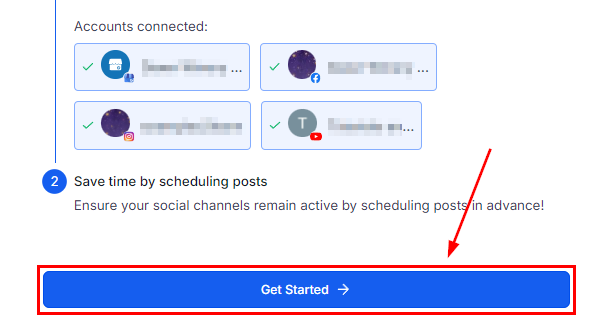
Once you've connected your accounts click Get Started, this will redirect you to the social planner.
Adding Extra Accounts
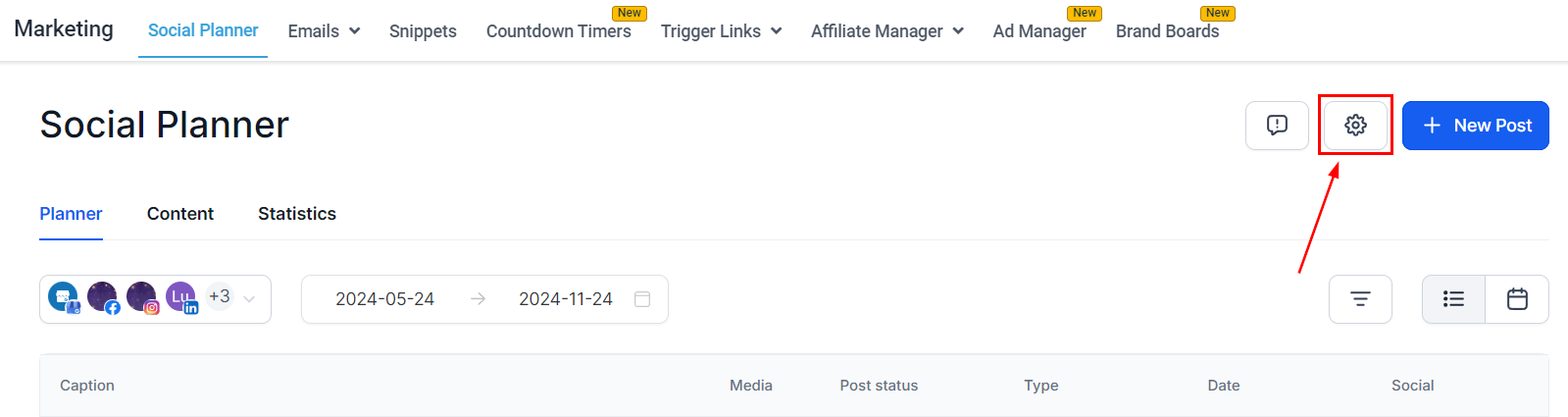
If you've already connected to other social media accounts, click the Gear icon to start the setup.
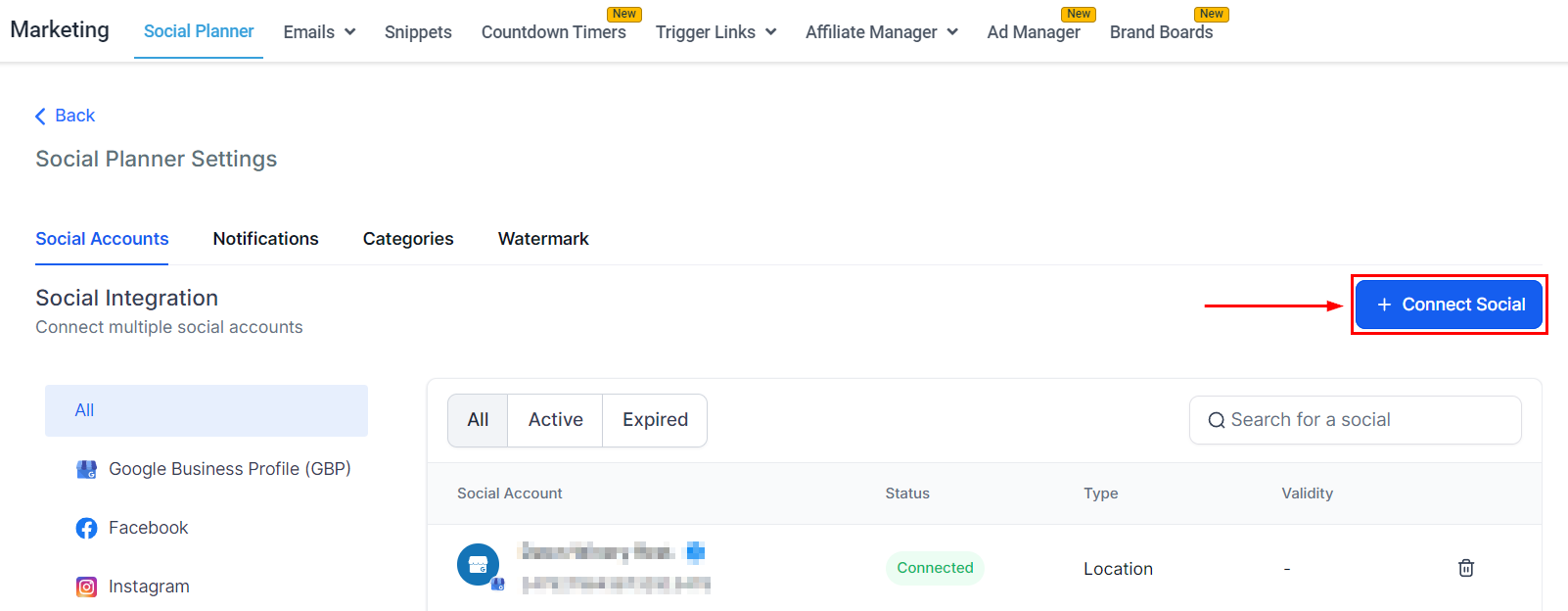
Click +Connect Social to open the options.
Click on the icon for the account you'd like to connect.
Select the Page(s) you'd like to connect by clicking Add. Once connected you'll be able to check the account and schedule posts.
Connecting your Social Media accounts and pages allows you to reach greater audiences by simplifying and organizing the posting process, resulting in a dependable social media presence. This will help you organically grow your audience, engage interested viewers, and increase brand recognition.
Was this article helpful?
That’s Great!
Thank you for your feedback
Sorry! We couldn't be helpful
Thank you for your feedback
Feedback sent
We appreciate your effort and will try to fix the article