Integrating Shopify with your CRM is a powerful way to centralize your business operations, from managing orders and products to optimizing customer data for marketing. This seamless integration allows you to keep all crucial data in one place and automate key processes, ultimately improving both efficiency and customer experience.
Access Your Shopify API
To get your Admin API access token go to your admin view at admin.shopify.com
Settings > Apps and sales channels > Develop apps.
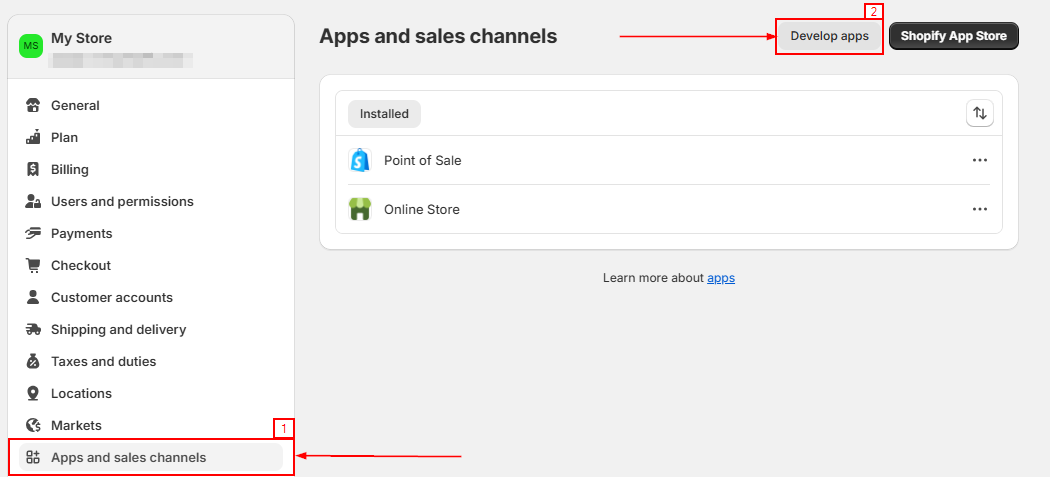
Click on “Allow custom app development” to continue the process.
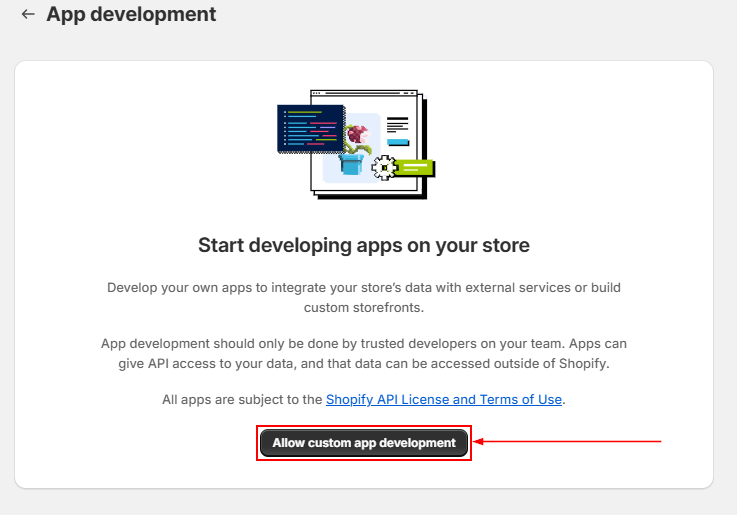
NOTE: Once custom app development is enabled in a store it cannot be undone.
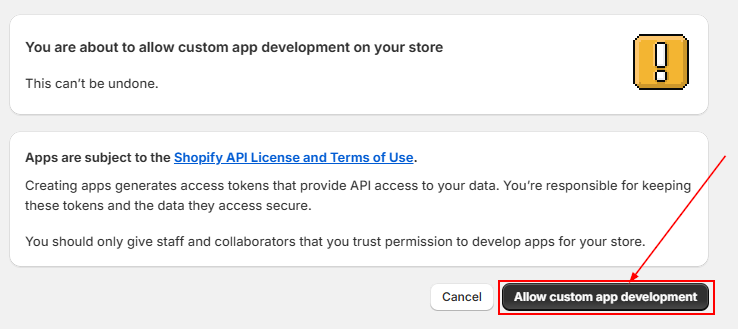
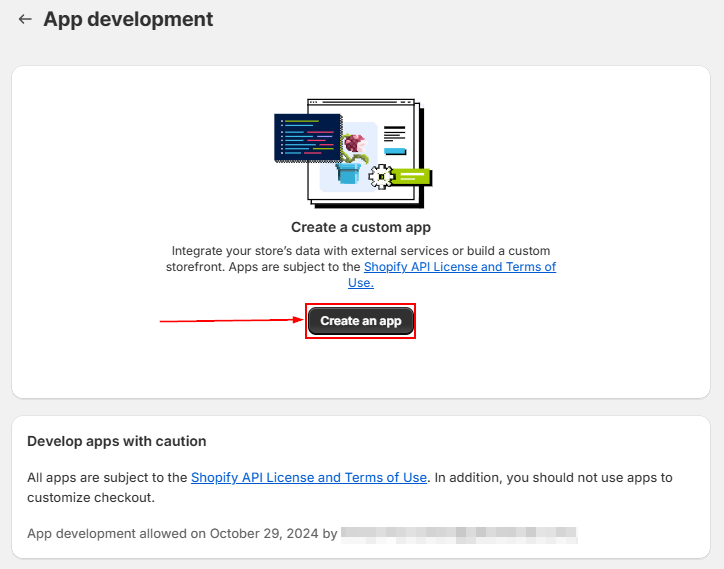
Click on the Create an App button.
Navigate to the API Credentials tab and click on Configure Storefront API scopes.
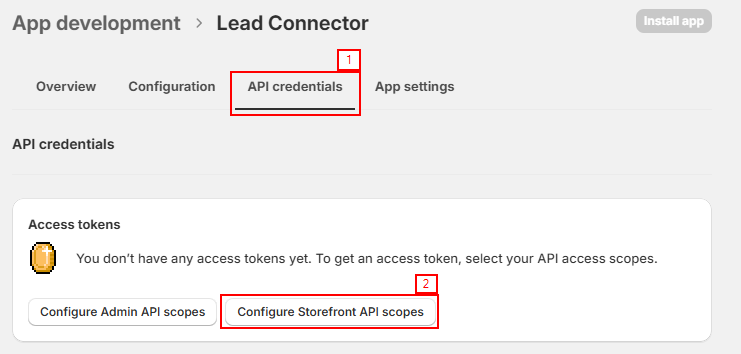
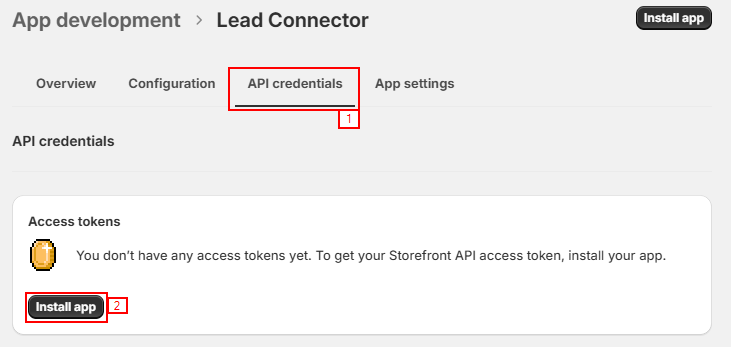
Still within the API Credentials click on Install app.
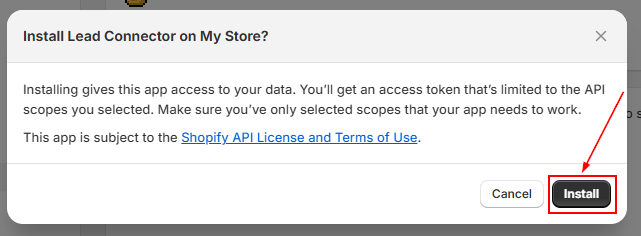
A window will pop up for you to proceed with the installation of the app.
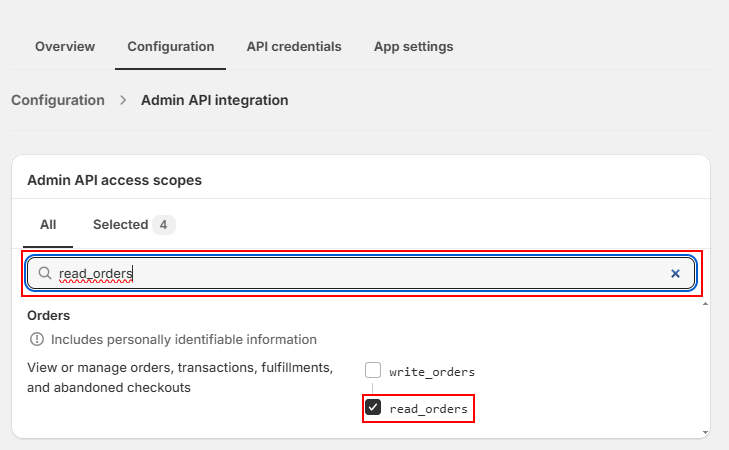
In the Configuration tab search and add these options as API access scopes:
- read_orders
- read_customers
- read_products
- read_inventory
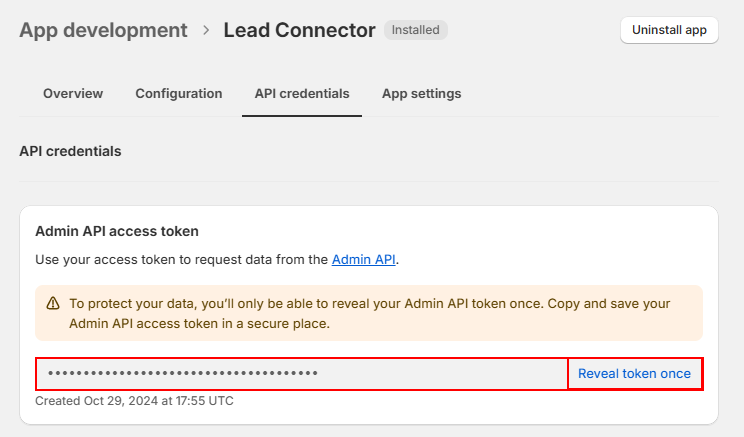
Then move to the API Credentials tab and, click on the Reveal token once and copy it for pasting into your CRM.
Setting Up Shopify in Your CRM
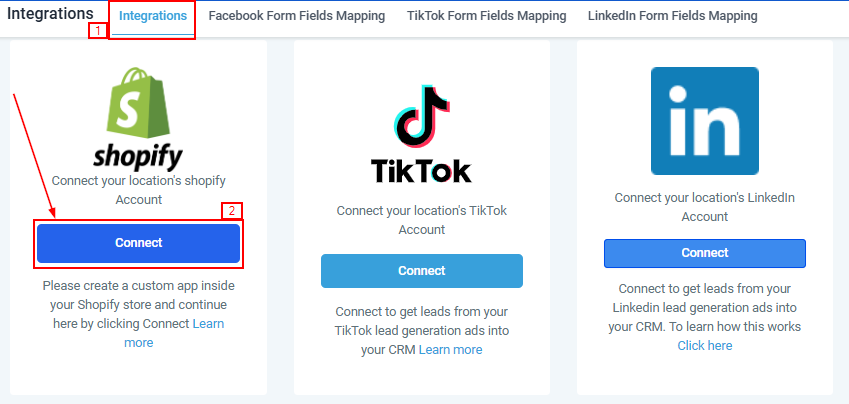
Navigate to Settings > Integrations > Shopify and Click on Connect.
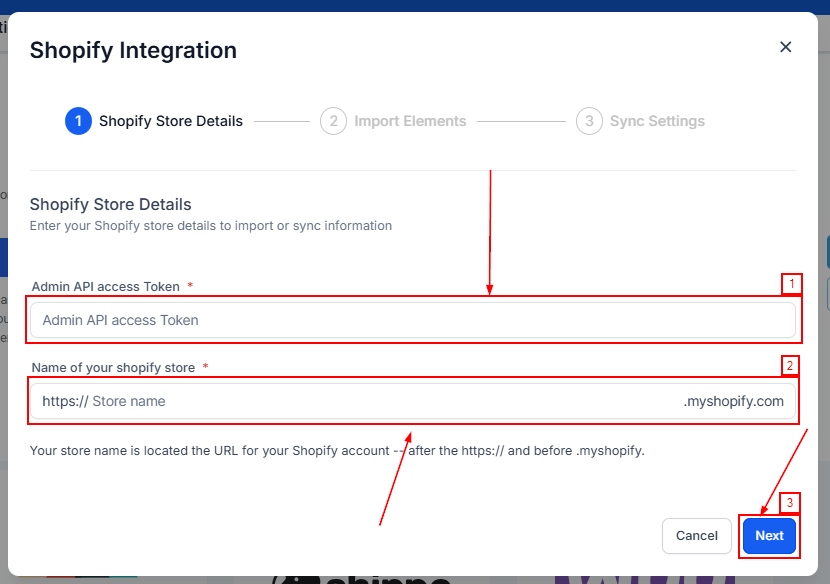
Fill out the Admin API Access Token and your Shopify store name.
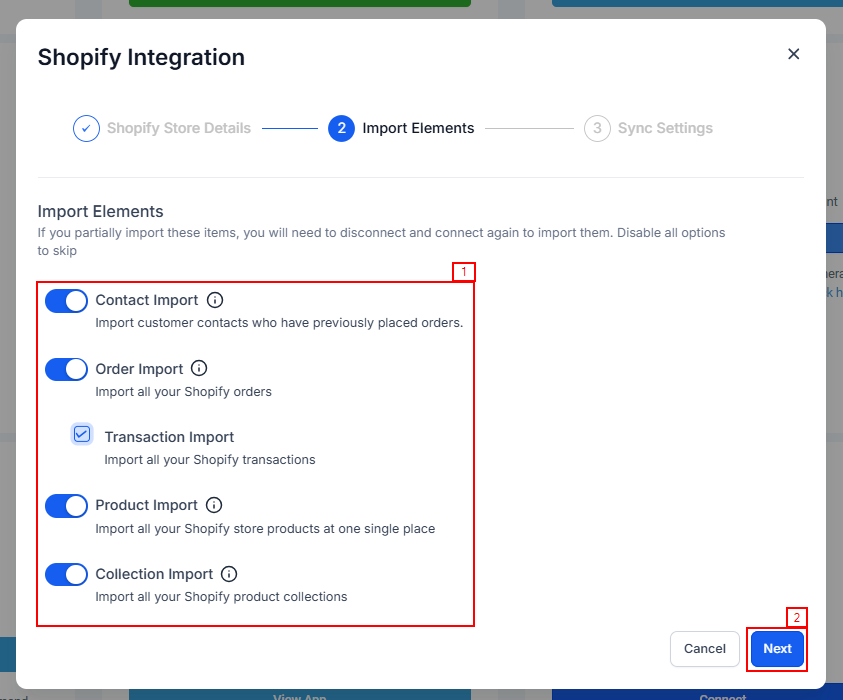
Import Elements
Toggle on all the options that suit your business needs.
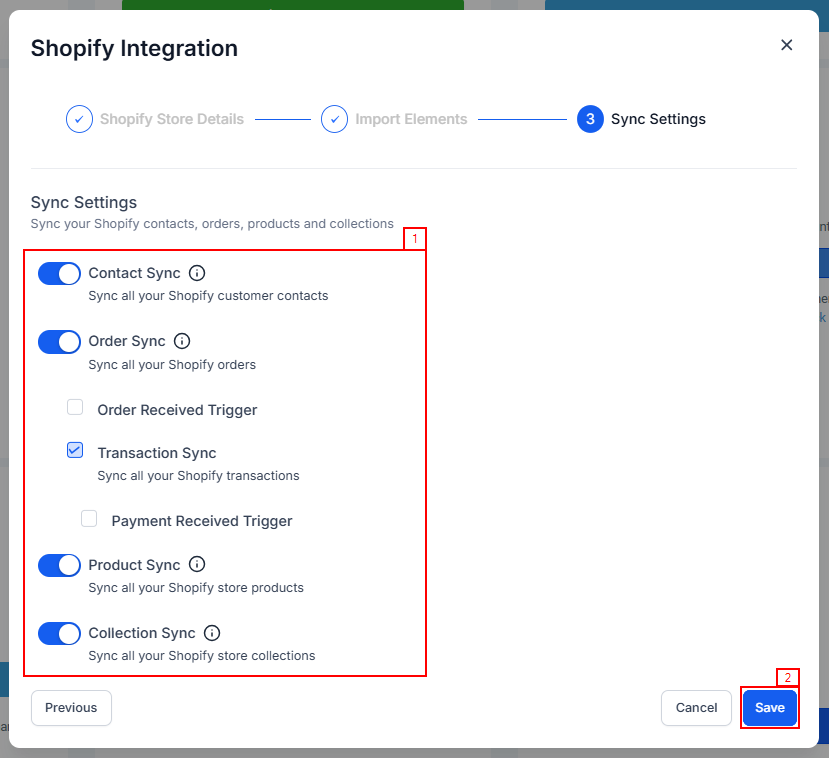
Sync Settings
Toggle on the sync settings that suit your business needs.
Confirm Integration
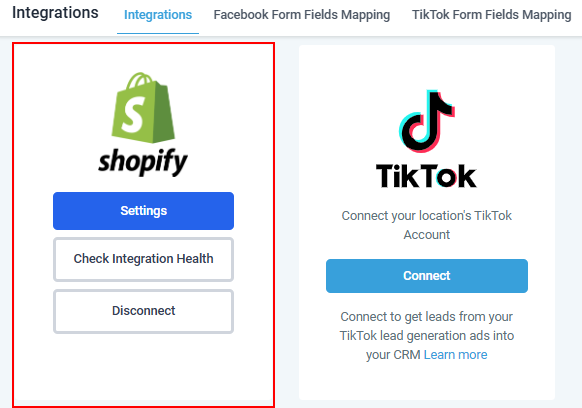
This is what a connected Shopify account looks like in your CRM.
View Order Details
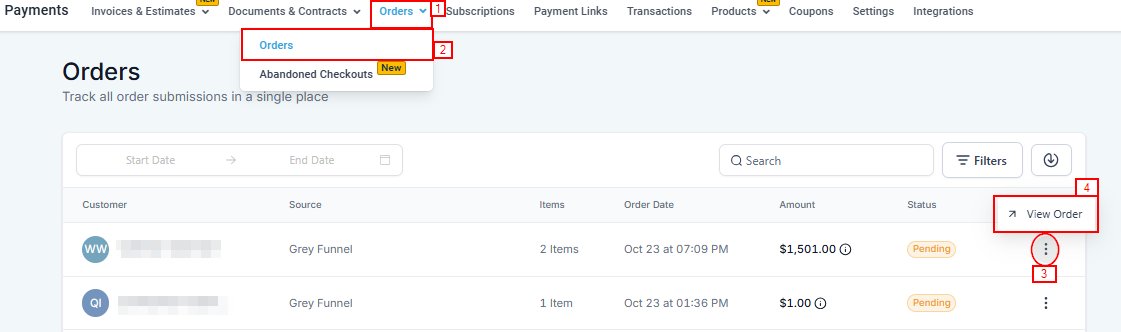
To see the details of the orders, access the Payments section from the left navigation menu. Select the Orders dropdown and click on Orders. Click on the three dots of the required order and select View Order.
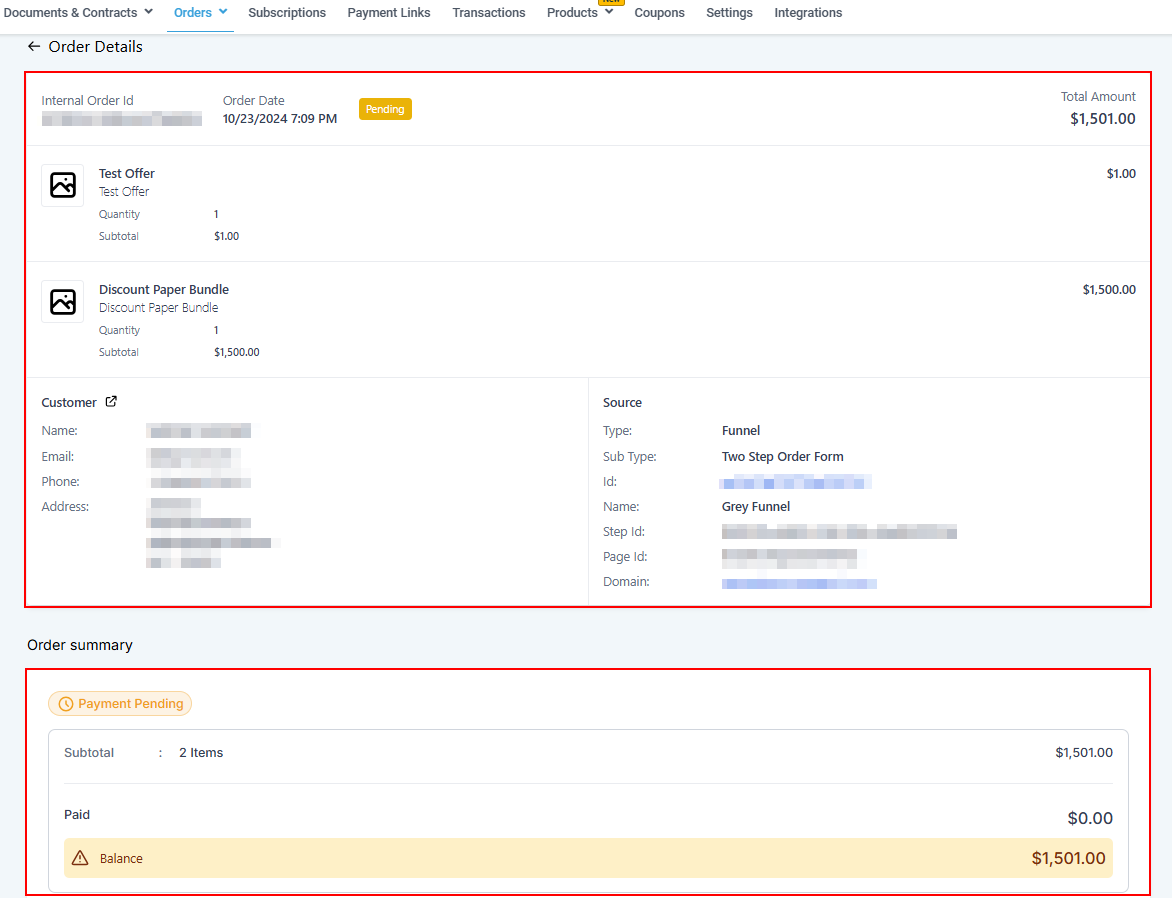
Here, you can view the order details along with the associated transaction value.
6
View Transaction Details
Access the Payments section from the left navigation menu again. Select the Transactions tab. Click on the three dots of the required transactions and select View Transaction.
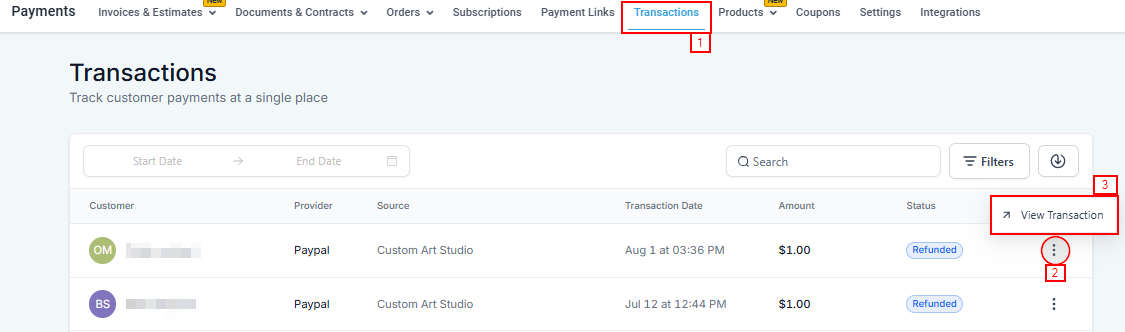
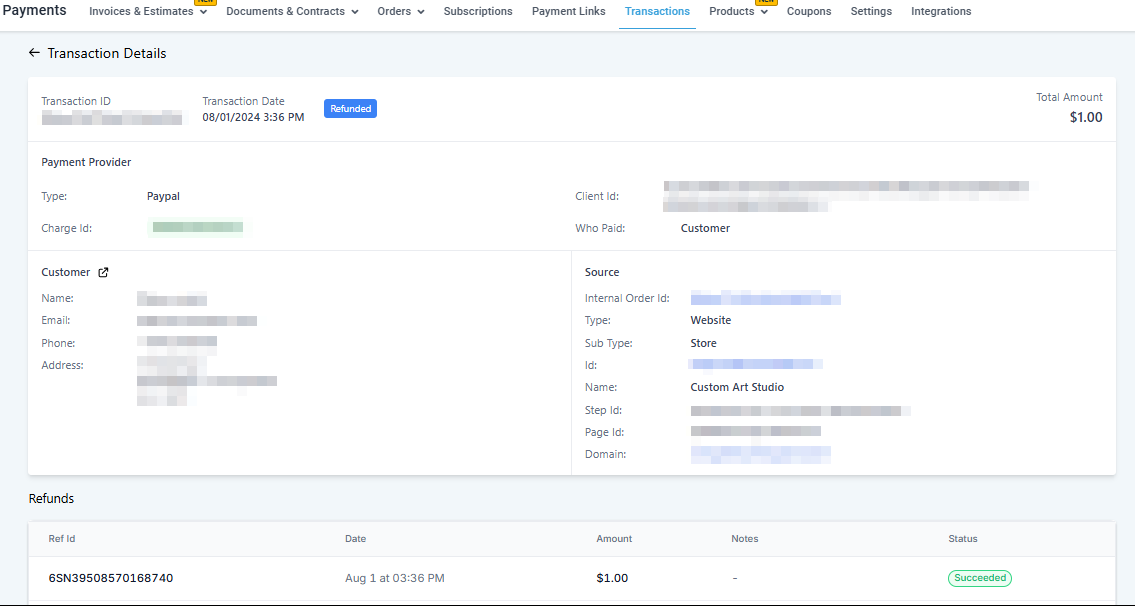
This will display the transaction details of the placed order.
With your Shopify store connected to your CRM, you can now enjoy streamlined workflows and valuable automation triggers, enhancing customer interactions while minimizing manual tasks.
Leverage this integration to elevate your business and manage your store more effectively than ever.
Troubleshooting Tips and Frequently Asked Questions
Q: What if my orders are not syncing?
- A: Ensure that the integration is properly enabled in the settings and that there are no connectivity issues between Shopify and the CRM.
Q: Can I sync past orders?
- A: No. The integration will sync new orders moving forward.
Was this article helpful?
That’s Great!
Thank you for your feedback
Sorry! We couldn't be helpful
Thank you for your feedback
Feedback sent
We appreciate your effort and will try to fix the article
