Appointments play a crucial role in client interactions, and managing them efficiently helps streamline scheduling and follow-ups. Within a contact’s profile in your CRM, the Appointments section provides a detailed view of all upcoming and past bookings associated with that specific contact. This section allows you to quickly access key details, including:
- Date and Time: The scheduled time of the appointment.
- Status: Whether the appointment is confirmed, completed, or canceled.
- Calendar: The specific calendar where the booking was made.
- Assigned User: The team member responsible for the appointment.
Delete Appointment
Navigate to the Smart Lists section under the Contact category. Click on the Contact name you want to delete the appointment booking.
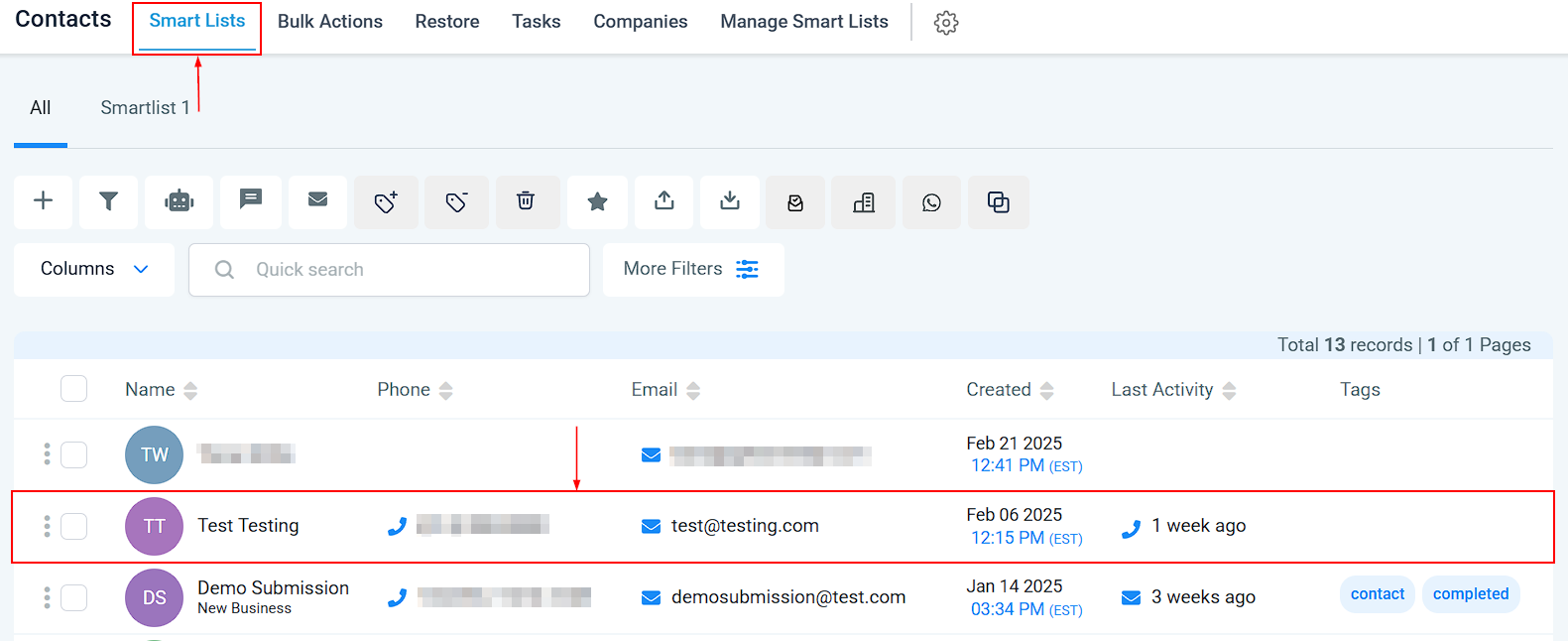
Once you click on the name it directs you to the Contact details, then click on the Appointment tab.
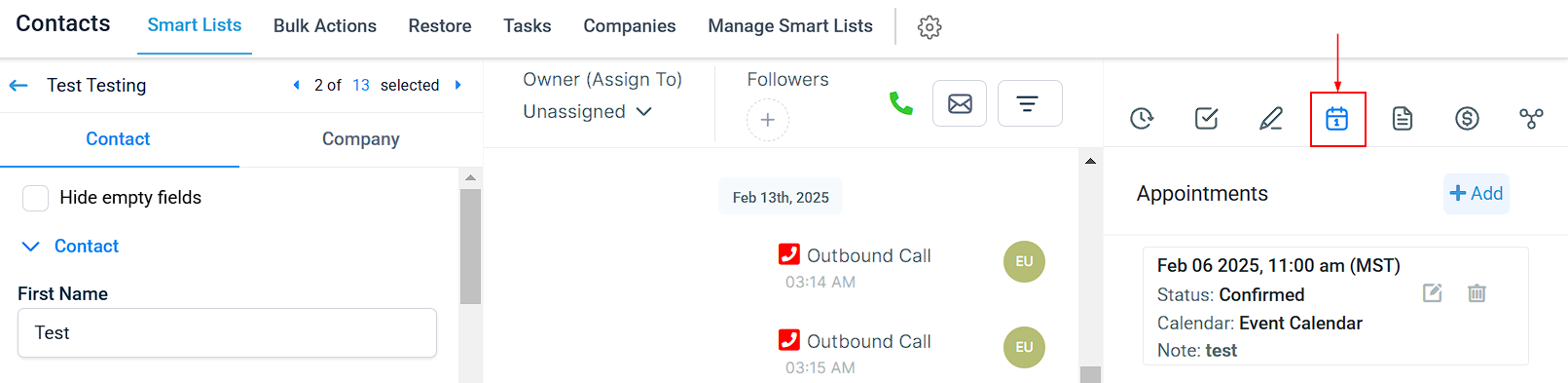
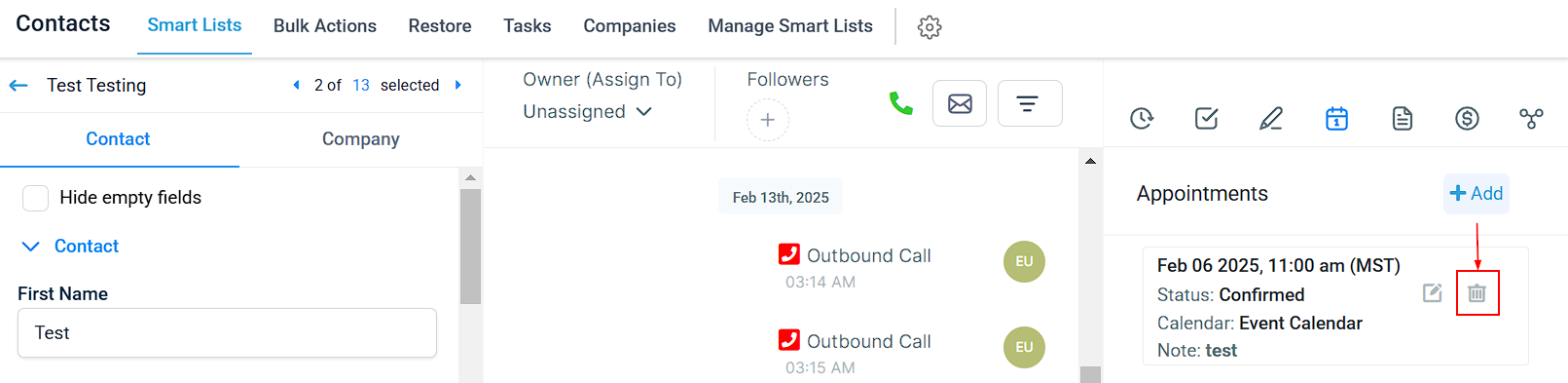
Click the delete "bin" icon here and confirm the delete.
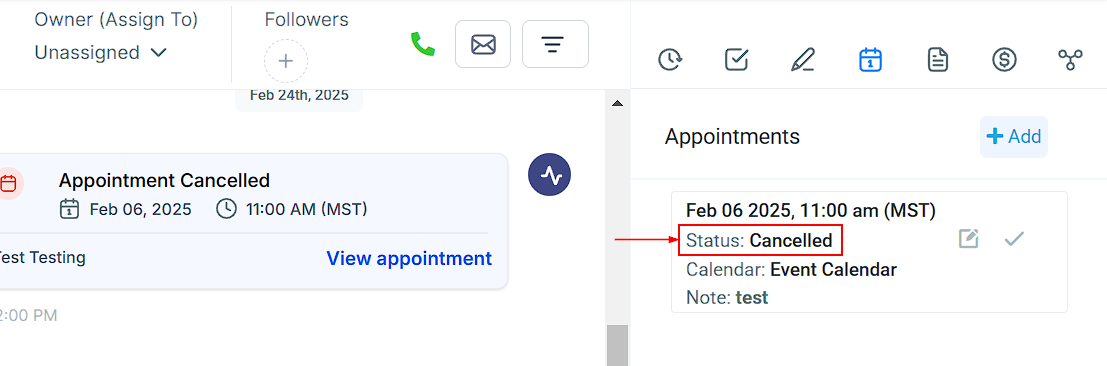
Once you delete it, the status changes to Cancelled.
Managing your appointments effectively ensures an organized workflow and a seamless experience for both your team and clients. By keeping your schedule updated, you can reduce no-shows, optimize availability, and maintain better client relationships.
Was this article helpful?
That’s Great!
Thank you for your feedback
Sorry! We couldn't be helpful
Thank you for your feedback
Feedback sent
We appreciate your effort and will try to fix the article