Within the Conversations section of your CRM, the Snippets tab allows you to craft text and email snippets. These snippets are a valuable resource for composing recurring messages sent to clients. By incorporating diverse elements such as custom values, trigger links, and file attachments, you can tailor your snippets to suit various communication needs.
NOTE: Depending on your user permissions, you may not have access to all components.
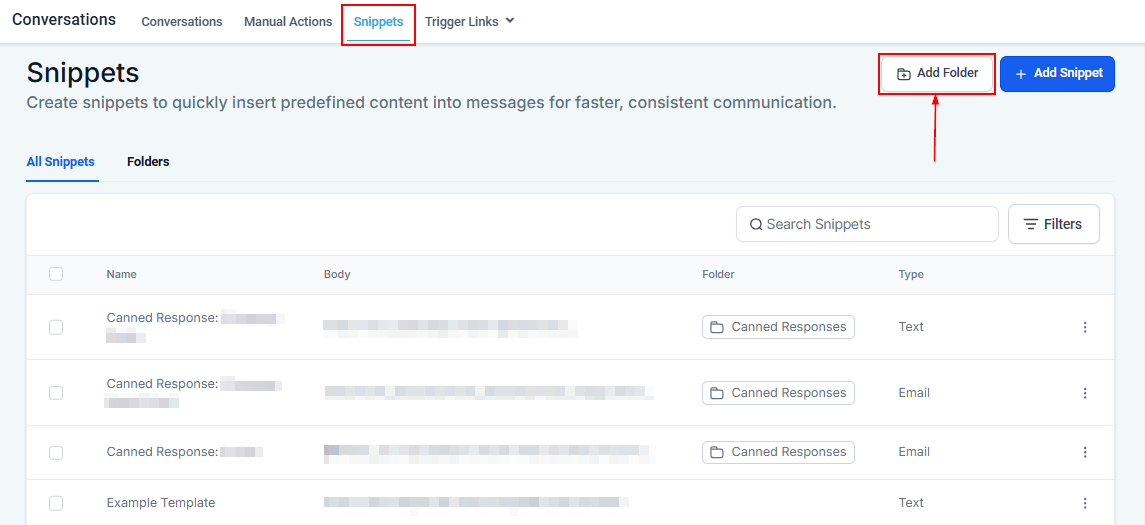
Add Snippets To Folders
This feature allows you to create folders to organize your snippets for easy access. You can create folders based on topic, client type, or any other categorization that fits your workflow.
Adding New Snippets
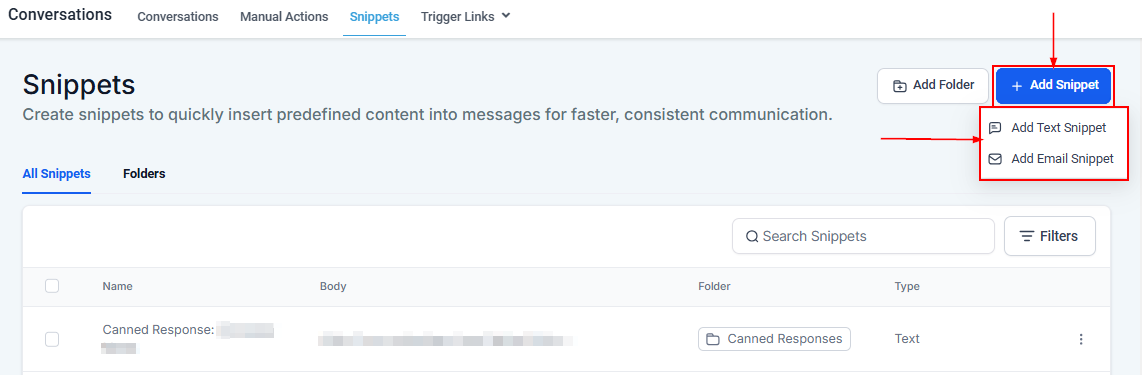
You can create a new snippet by clicking on the + Add Snippet button on the far right of your screen. A drop-down menu will appear for you to choose either a text or email snippet. When you select a snippet to add, a popup will appear for you to fill in the details.
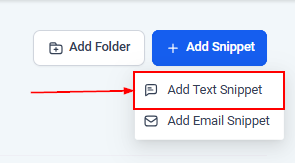
Add Text Snippet
Choose this option if you’re creating a quick message for SMS or chat. A text snippet is generally shorter and is ideal for brief, recurring messages like appointment reminders or follow-ups.
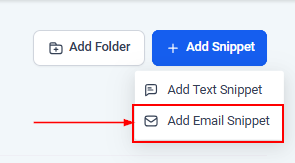
Add Email Snippet
Use this option if your message is intended for email. Email snippets are suited for longer messages and can include attachments, links, and formatted text to enhance communication.
All Snippets
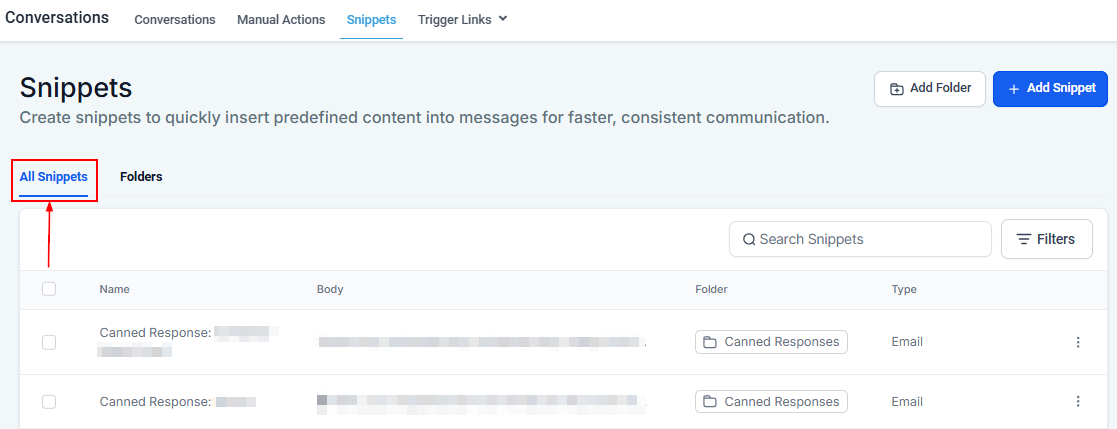
If you have Snippets created in your CRM, you will see a list of them here. There are four components of the snippets that you will see to help make them easily identifiable. These four components are name, body, folder, and type.
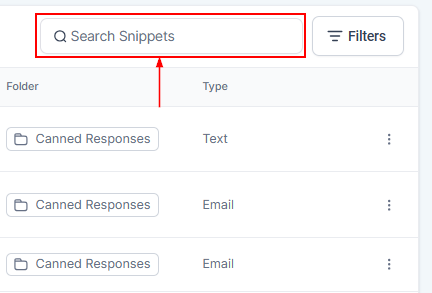
Search Snippets
This feature allows you to quickly locate specific snippets by typing keywords or phrases into the search bar. It’s a helpful tool for managing multiple snippets efficiently.
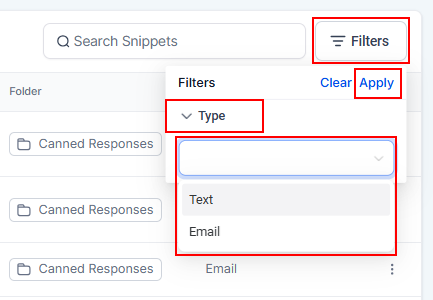
Filters
Filters enable you to sort snippets based on criteria such as type (text or email) or specific folders. Use filters to streamline access to the snippets you need.
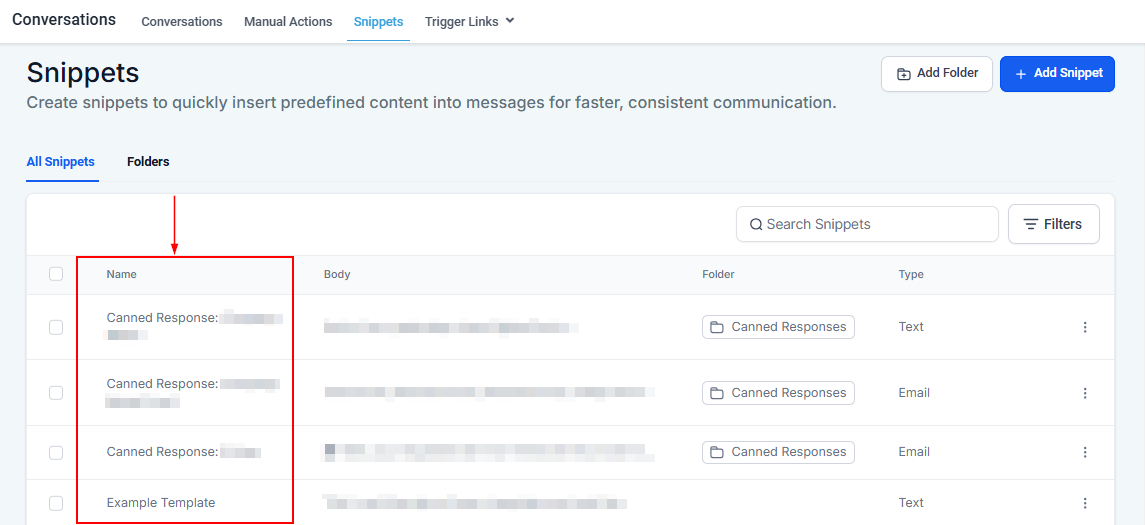
Snippet Name
Under the Name column to the far left, you’ll see a list of your previously created message snippets by their assigned names. Each name should be descriptive for easy identification.
Snippet Body
To the right of the name column, the Snippet Body displays the content of each snippet. This preview allows you to quickly check the main message without opening each snippet.
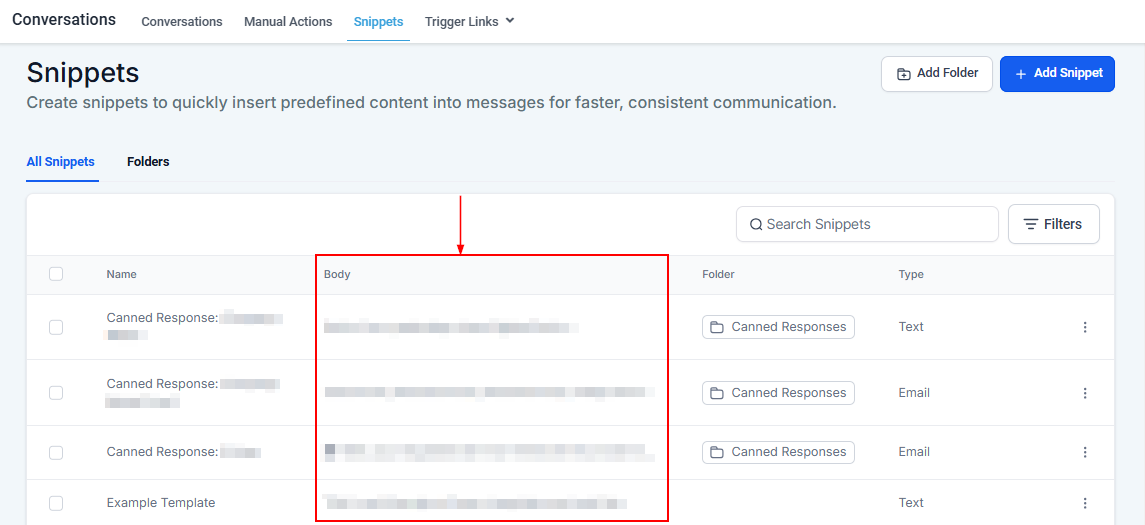
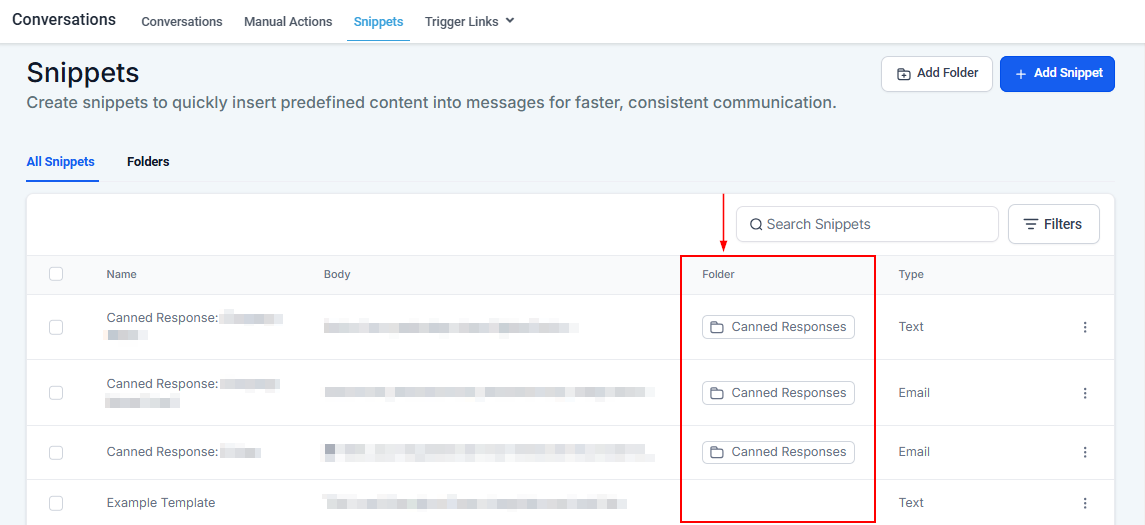
Snippet Folder
This column shows the folders where your snippets are grouped.
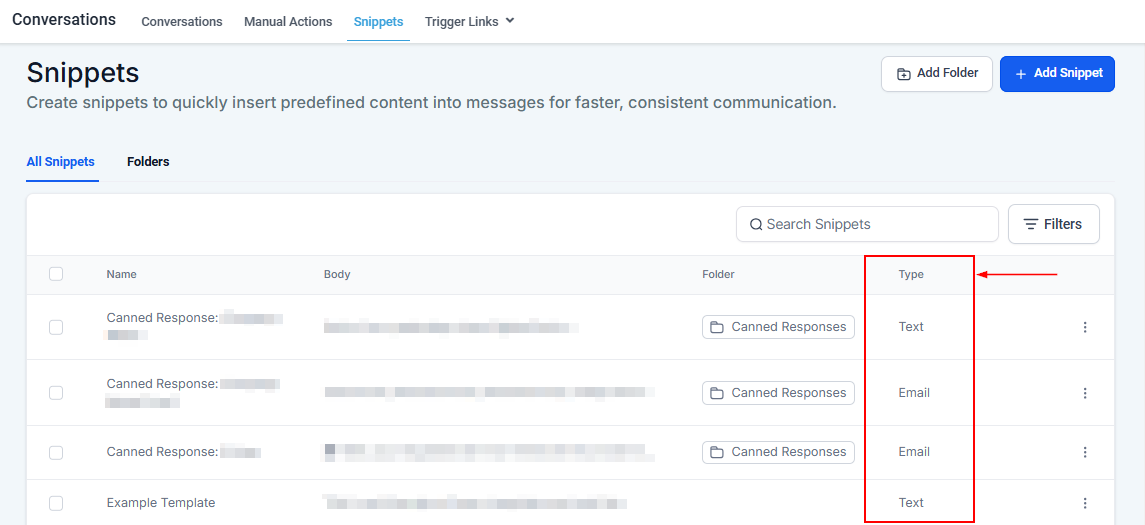
Snippet Type
Depending on the snippets in your list, you will see either text or email listed under the Type column to the far right.
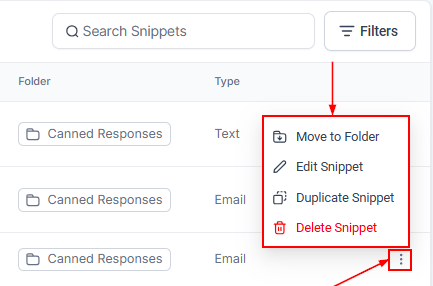
Clicking on the three-dot icon (⋮) in the folder of choice opens this menu, giving you quick access to these options for each snippet.
- Move to Folder: This allows you to move the selected snippet to a different folder. This helps keep your snippets organized by grouping them into relevant folders.
- Edit Snippet: This opens the editing window for the snippet, where you can make changes to the text, title, or any other details.
- Duplicate Snippet: Creates a copy of the selected snippet. This is useful if you want to create a similar snippet without starting from scratch.
- Delete Snippet: Permanently delete the snippet from your list. Use this option carefully, as it cannot be undone.
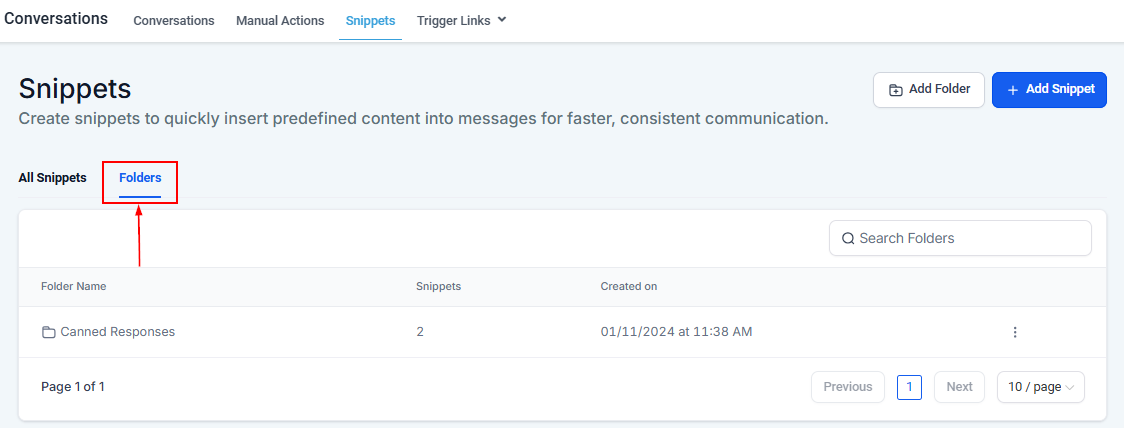
Folders Tab
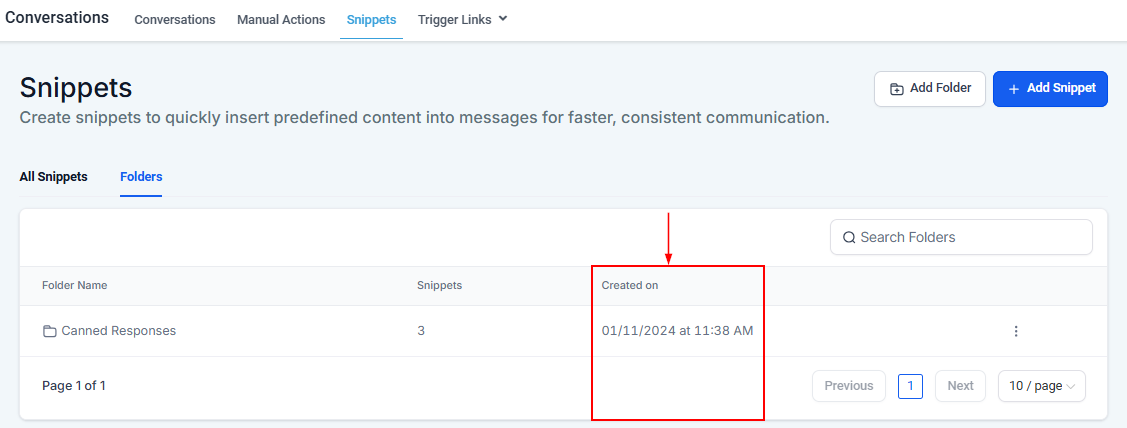
The Folders tab displays all folders you’ve created to organize your snippets.
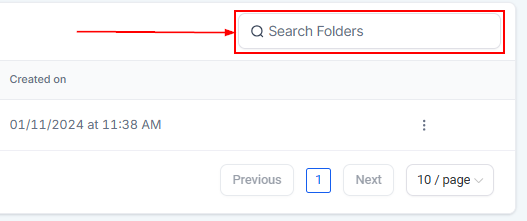
Search Folders
This function allows you to find specific folders by typing keywords. It’s useful for locating folders with similar names or topics.
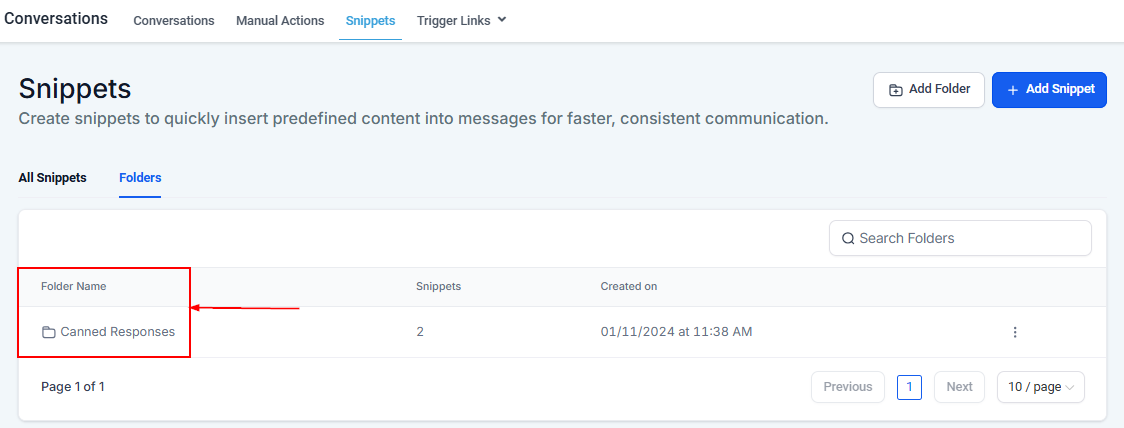
Folder Name
Under the Folder Name column, you’ll see the names of all folders. Choose descriptive names for easier organization.
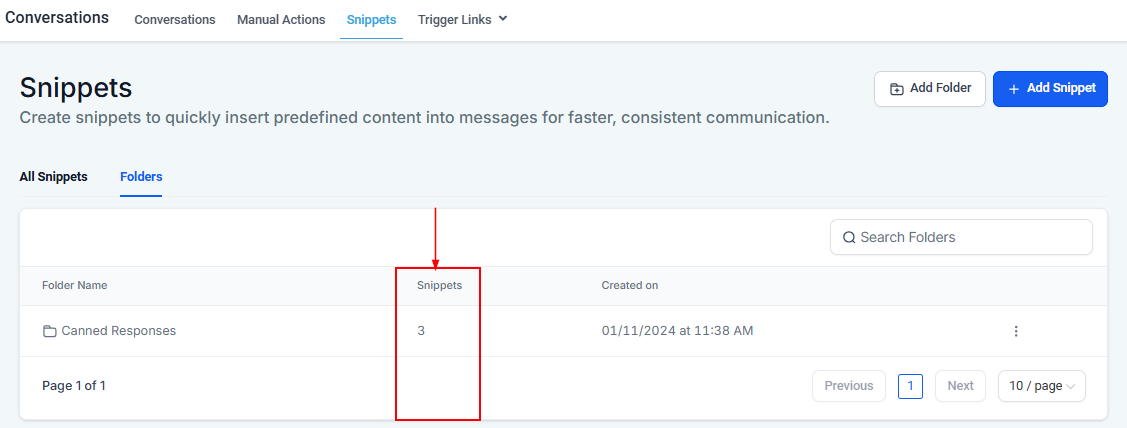
Number Of Snippets In a Folder
This column displays the count of snippets contained in each folder, so you can see at a glance how full each folder is.
Date Created
The Date Created column shows when each folder was created, which helps with organizing and tracking content over time.
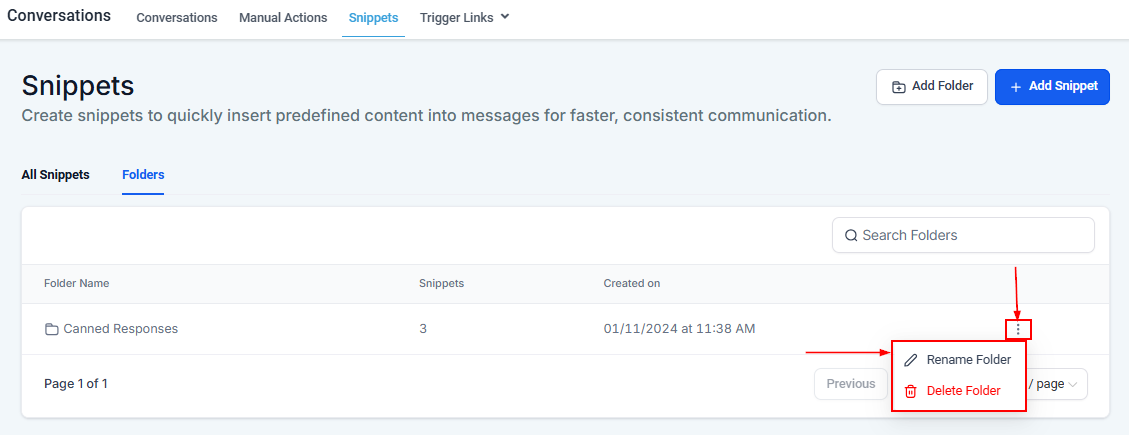
Rename Folder/Delete Folder
If needed, you can rename a folder to better reflect its contents or delete it if it’s no longer useful. Keep in mind that deleting a folder may also delete the snippets it contains, so proceed carefully.
Snippets make client communication easy. With saved text and email templates, you can quickly send consistent, personalized messages without starting from scratch each time. Add custom details or attachments as needed, and keep your messaging clear and efficient.
Was this article helpful?
That’s Great!
Thank you for your feedback
Sorry! We couldn't be helpful
Thank you for your feedback
Feedback sent
We appreciate your effort and will try to fix the article