In this guide, we will walk you through the process of connecting your Gmail account to your CRM, enabling you to use Gmail as a Simple Mail Transfer Protocol (SMTP) provider within your account. This integration ensures efficient communication and allows for seamless management of your email correspondence.
Getting Started
To begin using Gmail with your account, you will first need to generate an App Password from your Google account. Follow the steps outlined below to do this.
Enabling 2-Step Verification
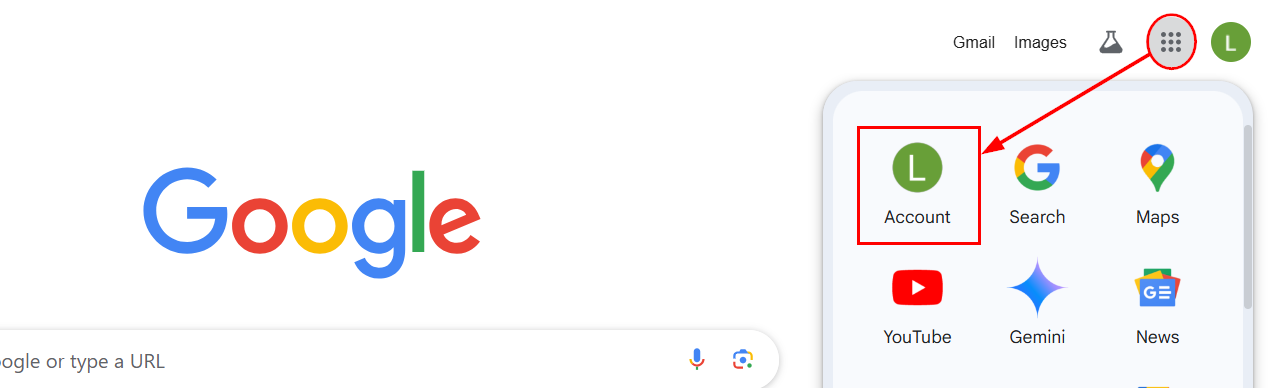
Navigate to your Google account page, click on the 9-dot menu, and select the Account tab.
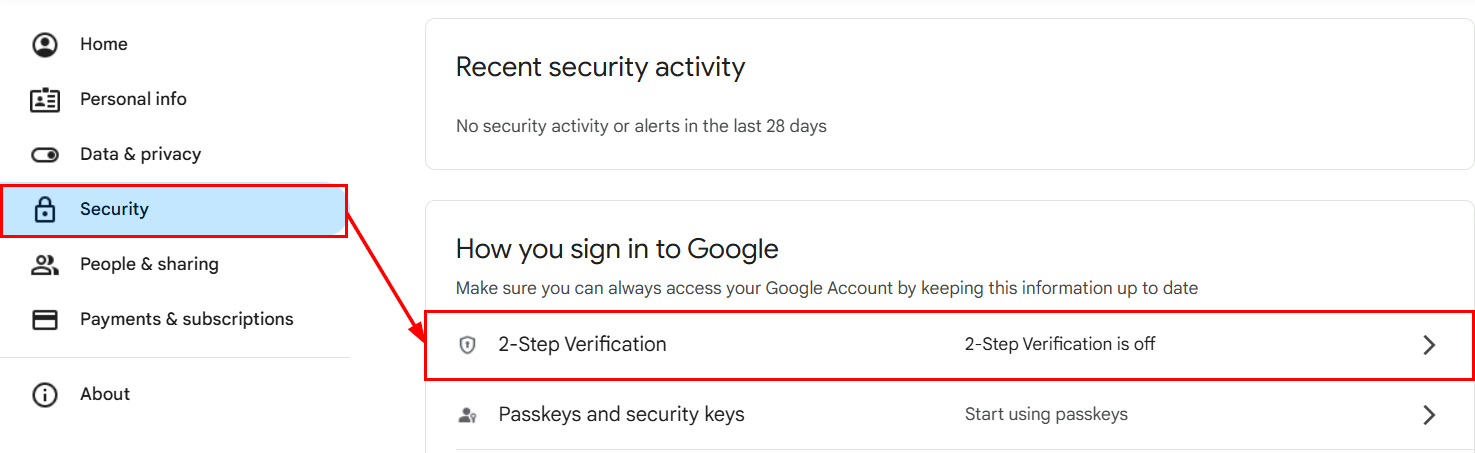
From here, navigate to the Security tab. Under the Sign in to Google section, ensure that 2-Step Verification is enabled to safeguard your account. This is required for connecting Gmail with external applications.
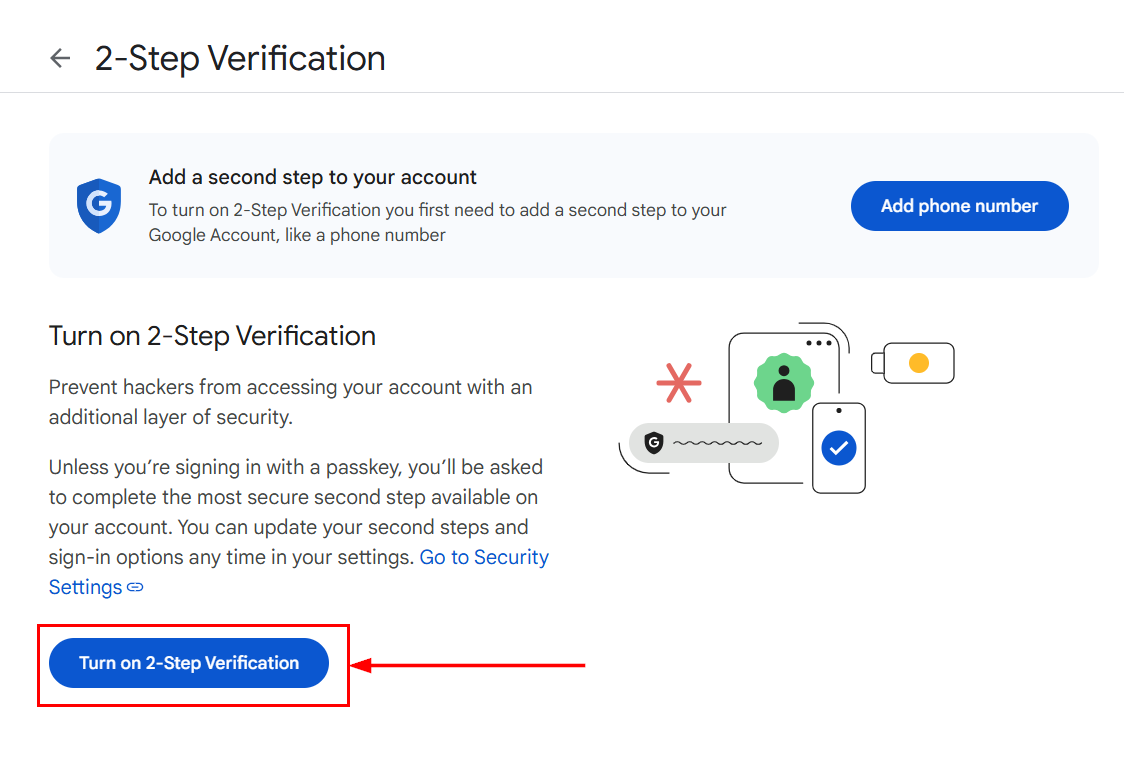
If you do not have 2-step verification enabled, you will see the option to turn it on. Follow the prompts to complete the process.
Generate the App Password
Return to the Security section of your Google account and scroll down to the App Passwords section. Click on the tab, then assign a custom name to the connection for ease of identification.
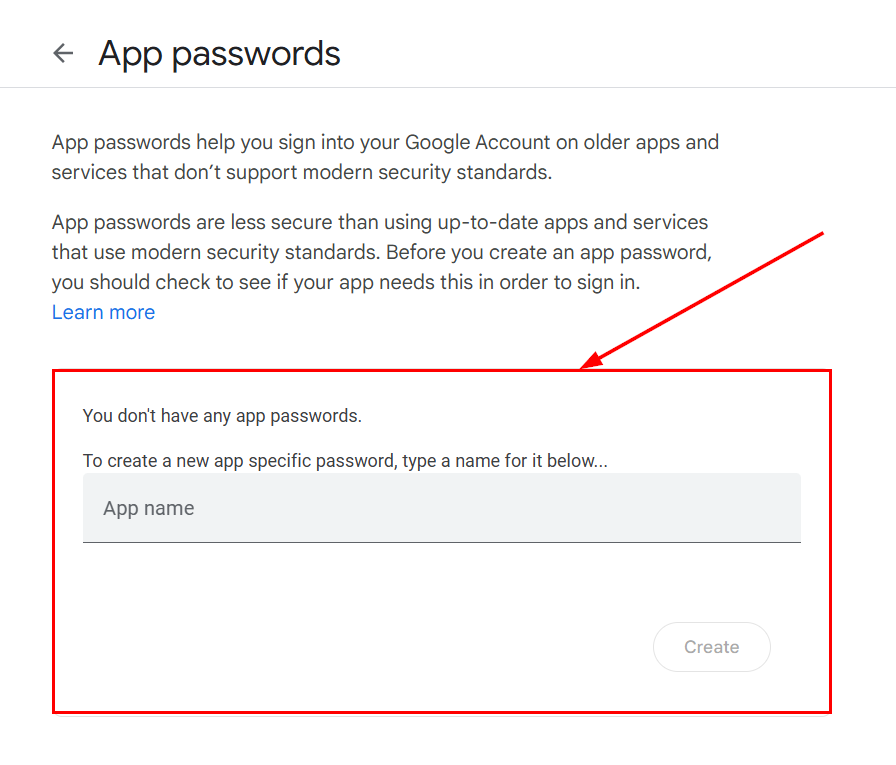
After naming your connection, click Create. A unique password will be created to establish a connection between your Gmail and CRM account.
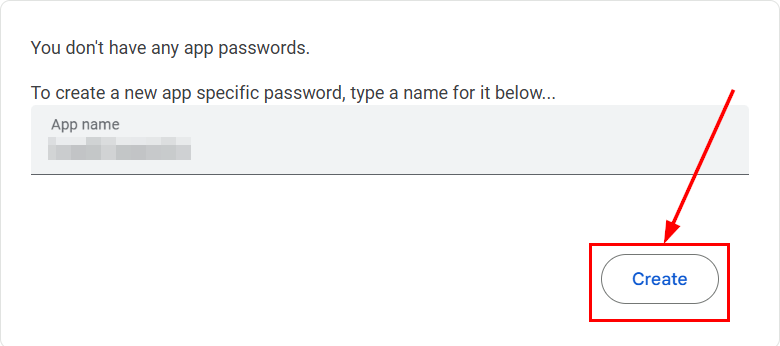
Copy the App Password
Copy the generated password and click Done.
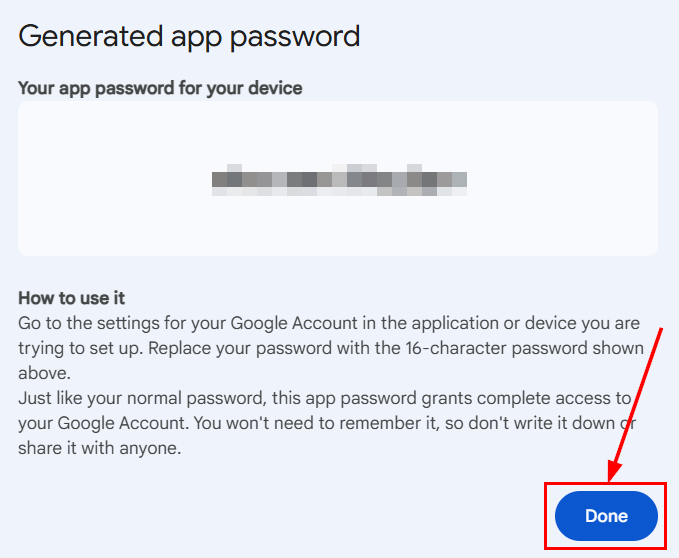
Ensure you save this password for future use, as it will be required for future logins.
Connecting Gmail to the Platform
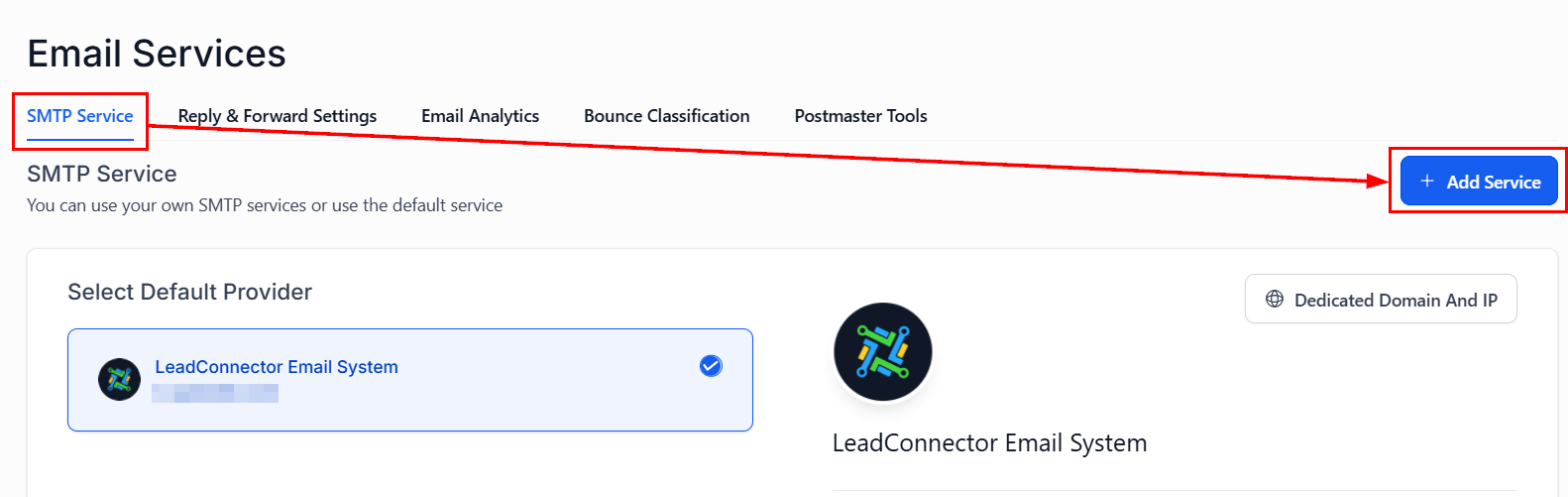
With your app-specific password now created, navigate to the Email Services section of your CRM located within Settings, and click the option to add a service.
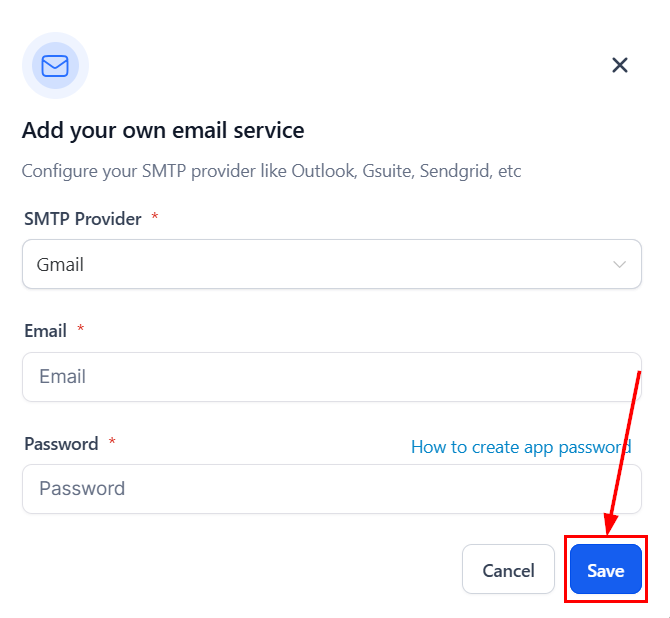
Select Gmail from the SMTP Provider dropdown menu, then enter your email address and the app-specific password into the designated field.
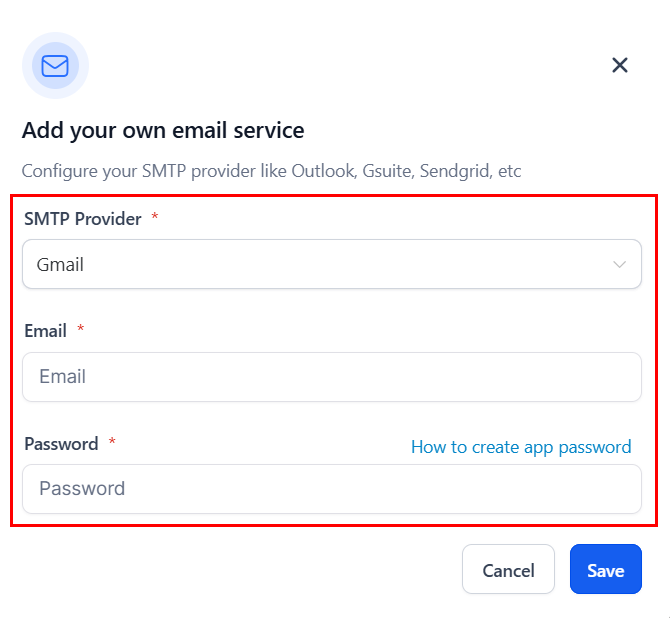
Finalize the addition by clicking the Save button.
You can now use your Gmail account to send and receive messages within your account!
By following these steps, you will have successfully connected your Gmail account, enabling you to efficiently manage your emails from within the CRM system. This integration enhances productivity and streamlines communication with your contacts.
Was this article helpful?
That’s Great!
Thank you for your feedback
Sorry! We couldn't be helpful
Thank you for your feedback
Feedback sent
We appreciate your effort and will try to fix the article