Add an MX record
Add MX (Mail Exchanger) records in your DNS zone file when your domain is using GoDaddy nameservers. MX records connect to your email service, like Google email or Microsoft 365. GoDaddy will automatically add MX records when your domain is using GoDaddy nameservers and email. Adding new MX records may interfere with any existing MX records for your current email service.
Sign in to your GoDaddy Domain Portfolio. (Need help logging in? Find your username or password.)
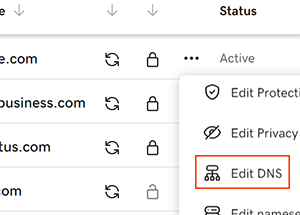
Select Domain Edit Options next to your domain and then select Edit DNS. You may need to scroll down to see the Edit DNS option.
Add New Record
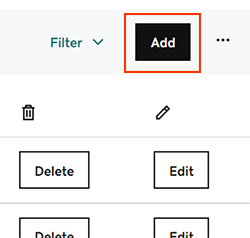
Click on the “Add” button to add a new record.
Select MX from the Type menu options. A domain can only use one email service at a time. For example, you can use Microsoft 365 or Google email on a domain, but you can't use both email services on the same domain.
Enter the details for your MX record:
Name: The domain or subdomain for the MX record. Use @ to deliver email to your root domain, or use a subdomain such as www or mail.
Priority: The order in which the record is evaluated and used. Lower priorities will be read before higher priorities.
Value: The mail server's address, such as smtp.secureserver.net.
TTL: How long the server should cache information? The default setting is 1 hour.
Select Add Record to save your new MX record.
Most DNS updates take effect within an hour but could take up to 48 hours to update globally.
Was this article helpful?
That’s Great!
Thank you for your feedback
Sorry! We couldn't be helpful
Thank you for your feedback
Feedback sent
We appreciate your effort and will try to fix the article