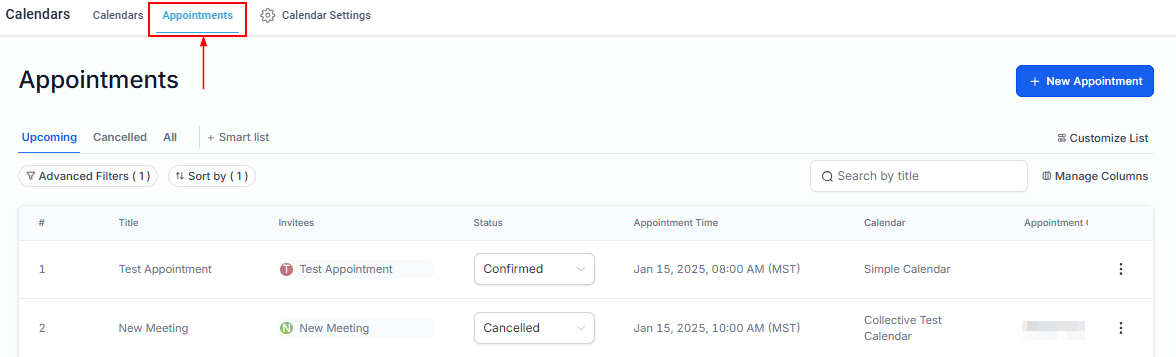
When a meeting is scheduled with you, it will reflect on the CRM calendar. One way you can easily monitor them is by accessing the Appointments tab inside the Calendars section. Here, you will see a list of all the appointments booked through the CRM, whether a customer or a team member books them. You can change the status of appointments and create new bookings in this section.
NOTE: Depending on your user permissions, you may not have access to all components.
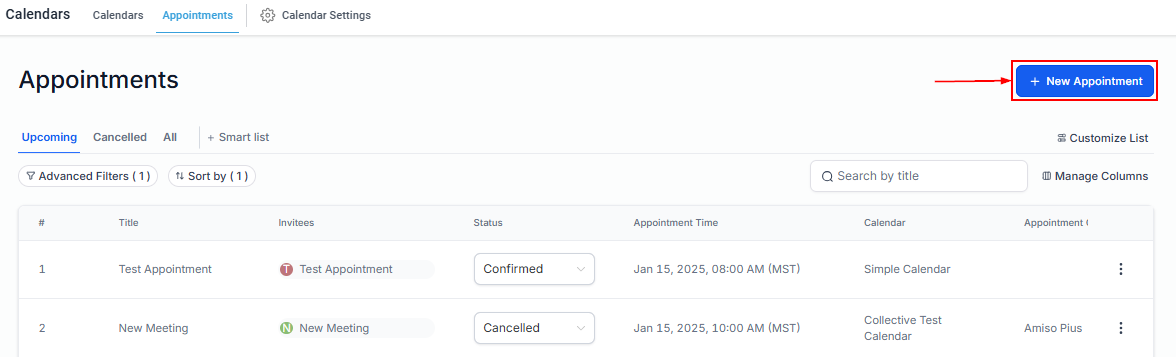
New Appointment
To manually create an appointment, click the "New Appointment" button.
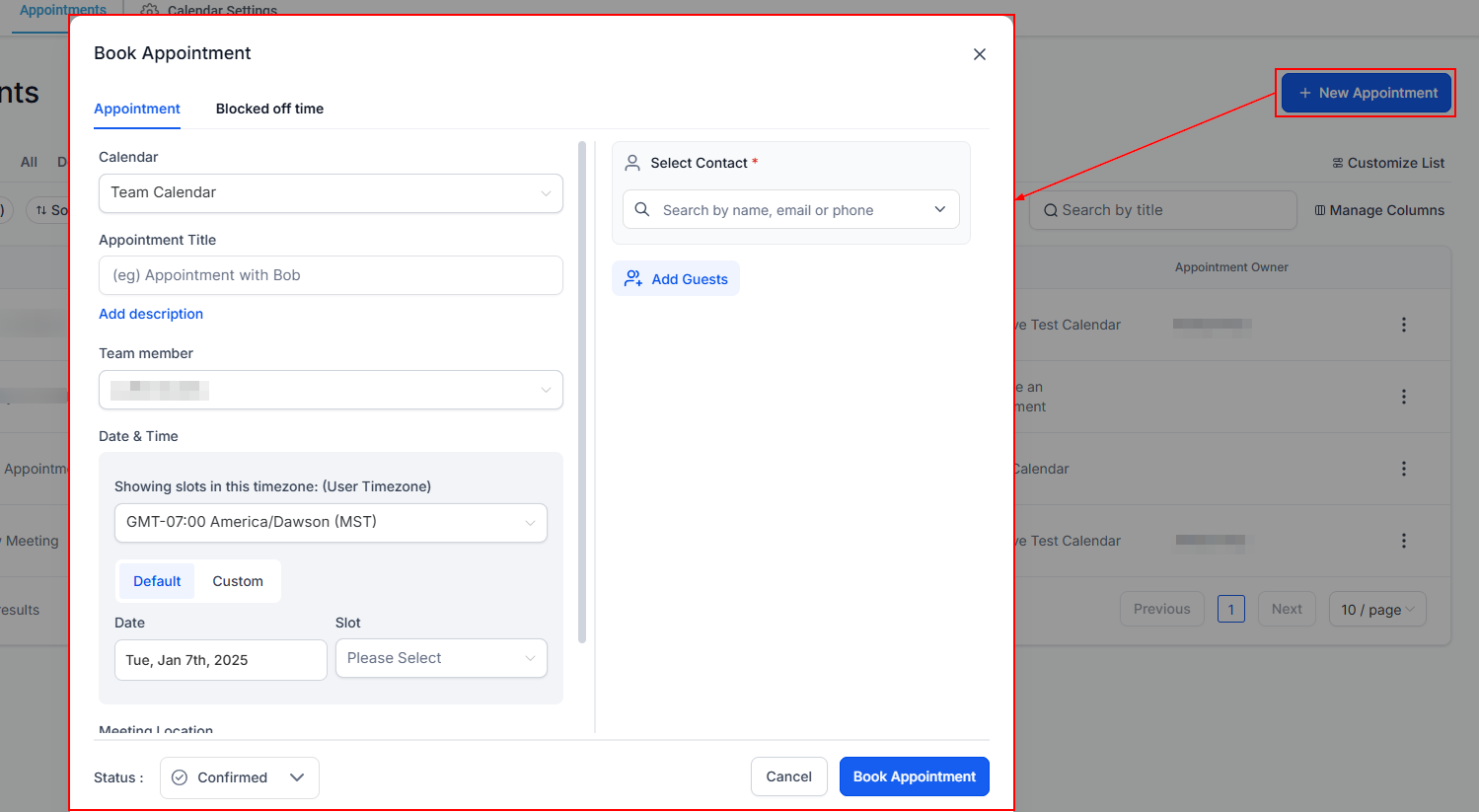
A popup will appear where you can accurately fill out the required columns to ensure the desired outcome.
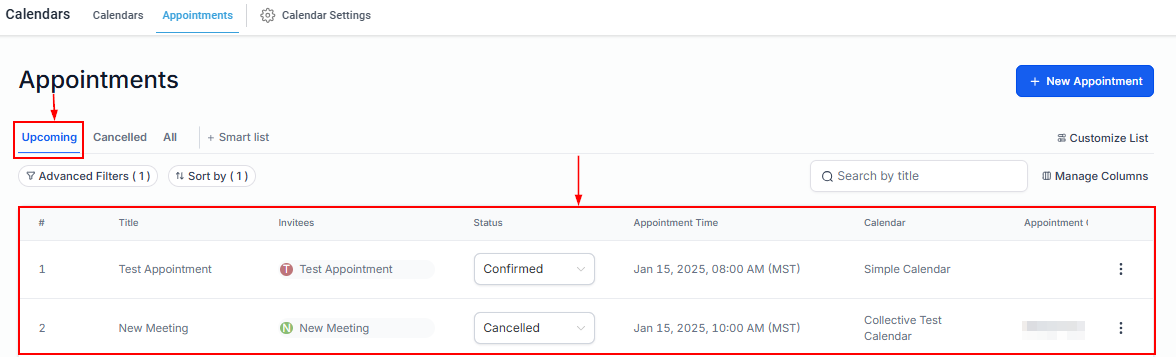
Upcoming
View all upcoming scheduled appointments in the Upcoming tab.
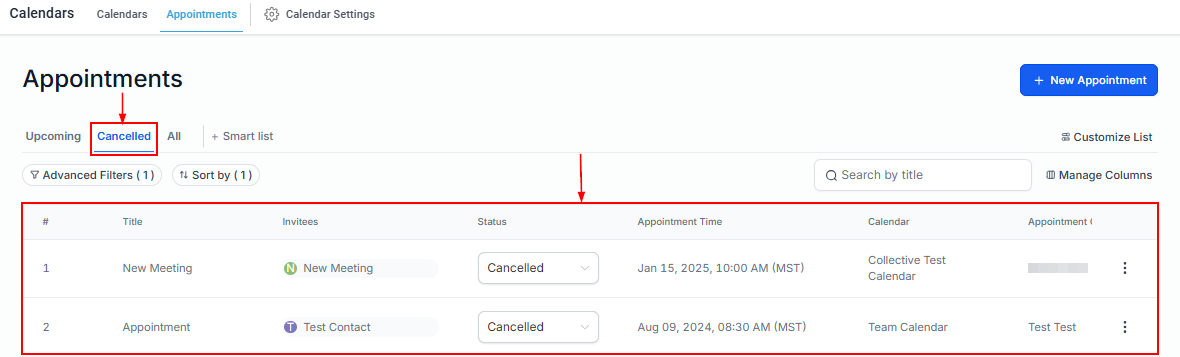
Cancelled
Here you can see a list of all cancelled appointments.
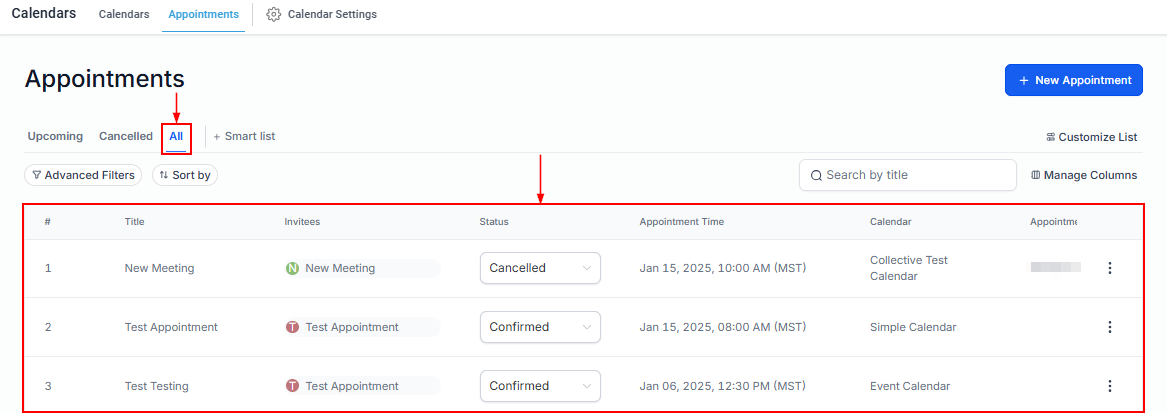
All
Access the complete history of appointments in one place.
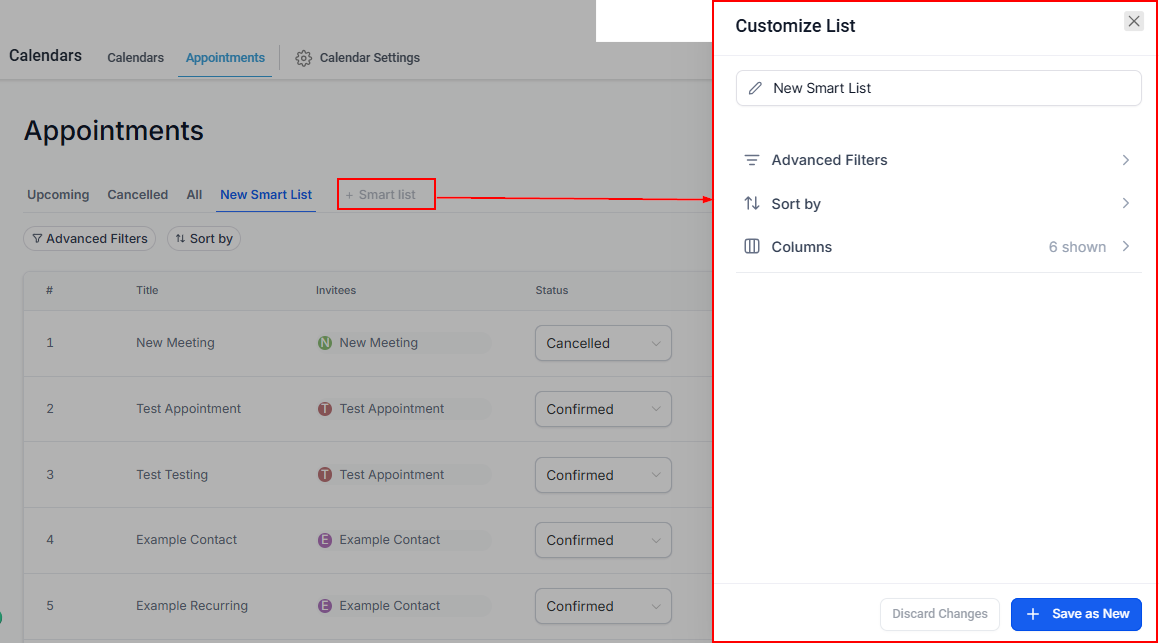
Create a Smart List
The Smart List feature allows you to organize appointments based on specific criteria. This helps in streamlining your workflow and focusing on targeted tasks.
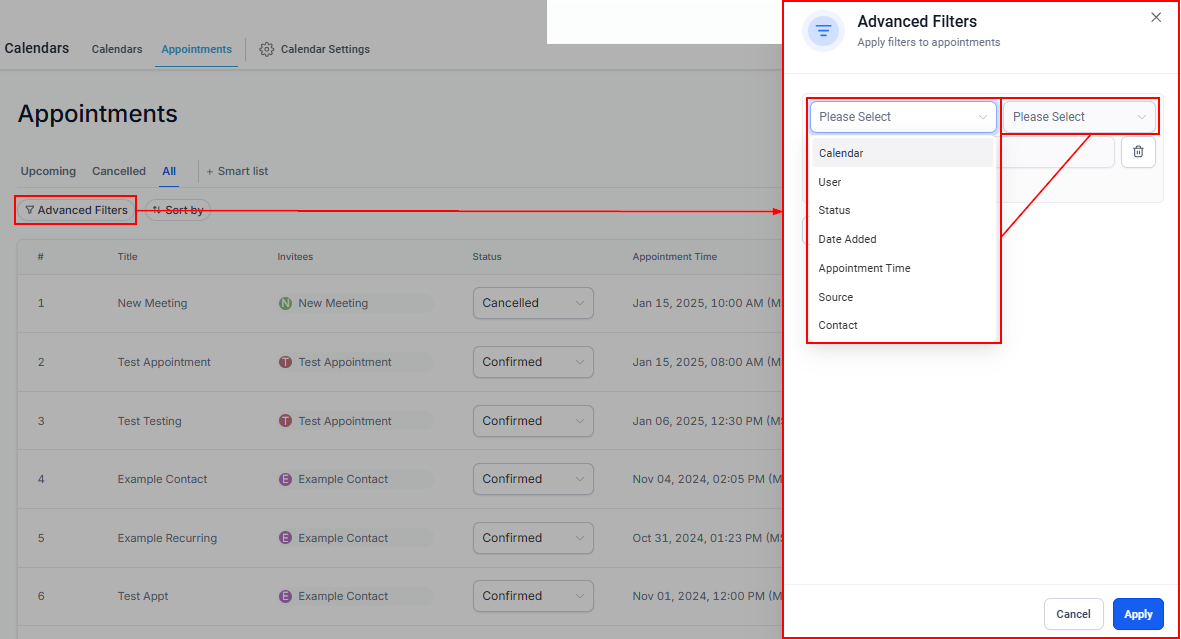
Advanced Filters
Use advanced filters to refine your appointment view. You can filter appointments by:
- Calendar
- User
- Status
- Date Added
- Appointment Time
- Source
- Contact
These filters enable you to display appointments from all calendars in your CRM or narrow the view to specific calendars, teams, or users.
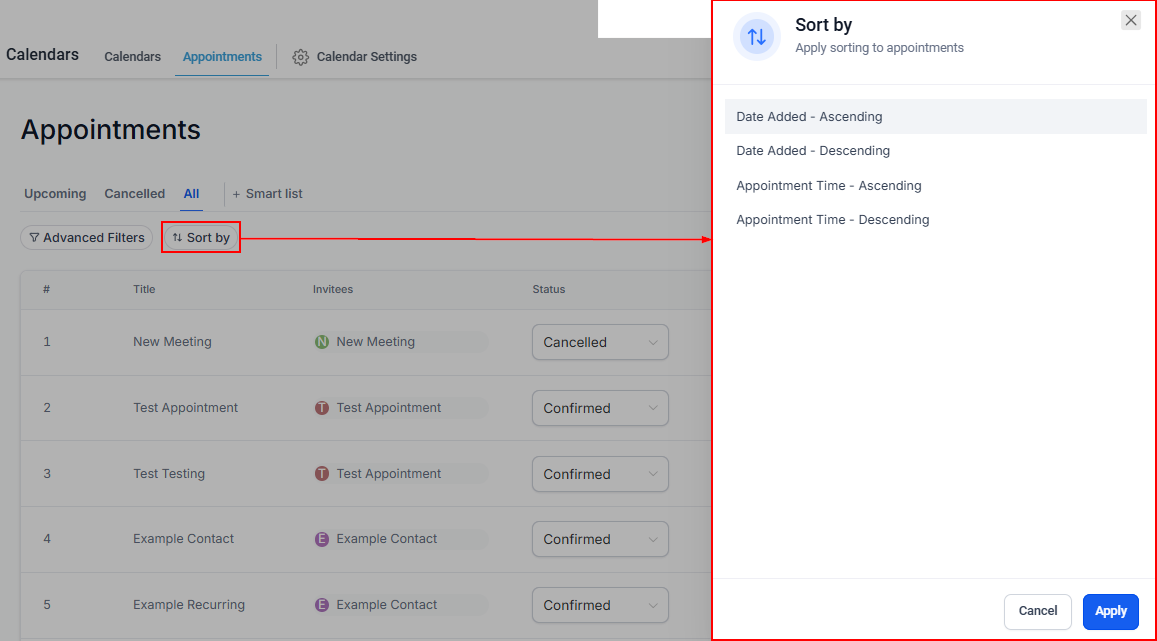
Sort By
Here, you can sort appointments by “Ascending order” (Display appointments starting from the earliest) or “Descending order” (Display appointments starting from the latest).
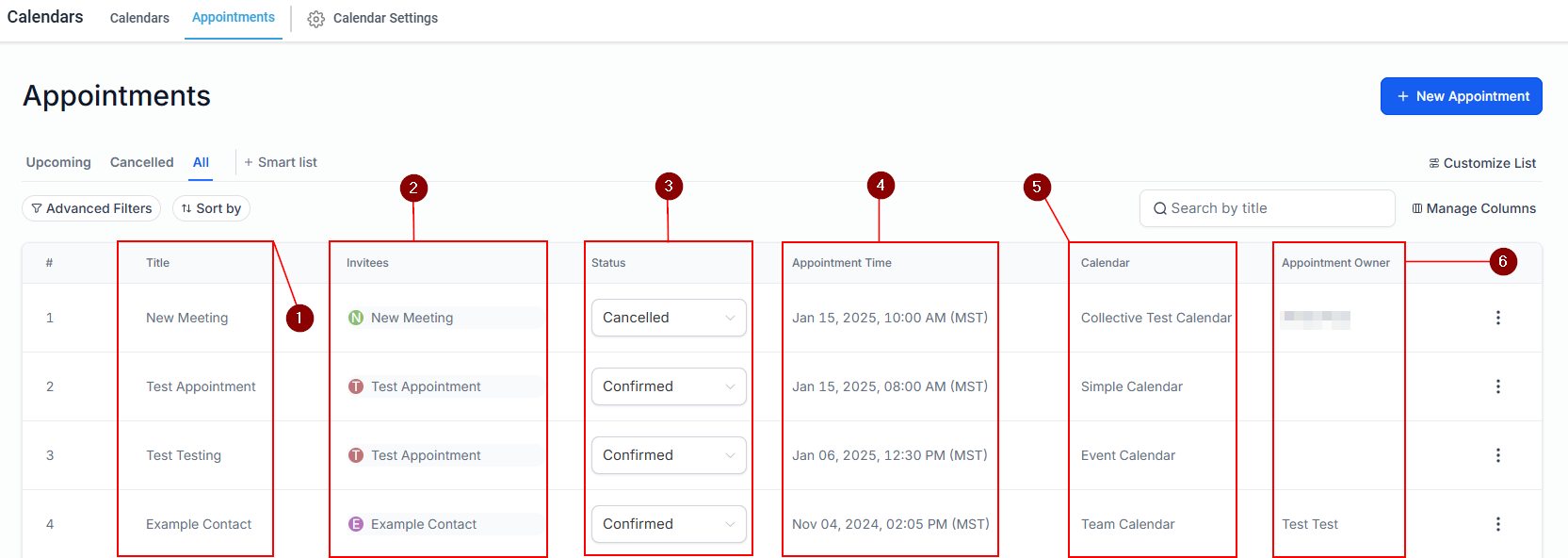
Appointment Table Overview
- Title: In this column, you can see the contact's name who scheduled the appointment with you or your team. When you click on the contact's Name or Icon, it directs you to the contact's details, where you can edit more actions.
- Invitees: Lists the participants invited to the appointment.
- Status: You can change the status of an appointment by clicking on the drop-down to select "Confirmed, Showed, No-Show, Canceled, or Invalid".
- Appointment Time: Shows the scheduled time of the appointment.
- Calendar: In the Calendar column to the right, you will see which calendar the appointment was booked on.
- Appointment Owner: This tab shows who the appointment belongs to, meaning the specific team member to whom the appointment was assigned
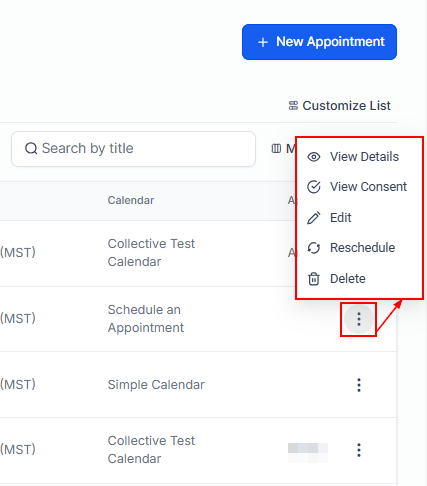
Appointment Actions
- View Details: Click here to view the details of the appointment.
- View Consent: Click here to view the agreed consent and the IP address where it was filled.
- Edit: This button allows you to modify the appointment details.
- Reschedule: Similarly to the Edit button this will open a pop-up window to modify the appointment.
- Delete: This permanent action will erase any appointment records inside the system.
Managing appointments within the CRM is a straightforward process with powerful features to ensure accuracy and efficiency. You can optimize your scheduling and ensure all team members stay informed and prepared by utilizing filters, smart lists, and detailed appointment actions.
Was this article helpful?
That’s Great!
Thank you for your feedback
Sorry! We couldn't be helpful
Thank you for your feedback
Feedback sent
We appreciate your effort and will try to fix the article