The expiry date feature in Certificates allows administrators to set expiration dates for certificates issued to users, providing greater control and management over certificate validity. Expiry dates can be configured at either the template level or the individual certificate level, ensuring flexibility in implementation based on organizational needs. This article outlines the functionalities, benefits, and best practices for utilizing expiring certificates effectively within your system.
Key Features and Benefits
- Flexibility: To ensure consistency, set expiry dates at the template level or customize expiry dates for individual certificates as needed.
- Automated Management: Once set, the platform automatically manages certificate expiry, restricting user access to expired certificates and sending reminder emails before expiry.
- Compliance and Control: Ensure compliance with internal policies or regulatory requirements by managing certificate validity effectively.
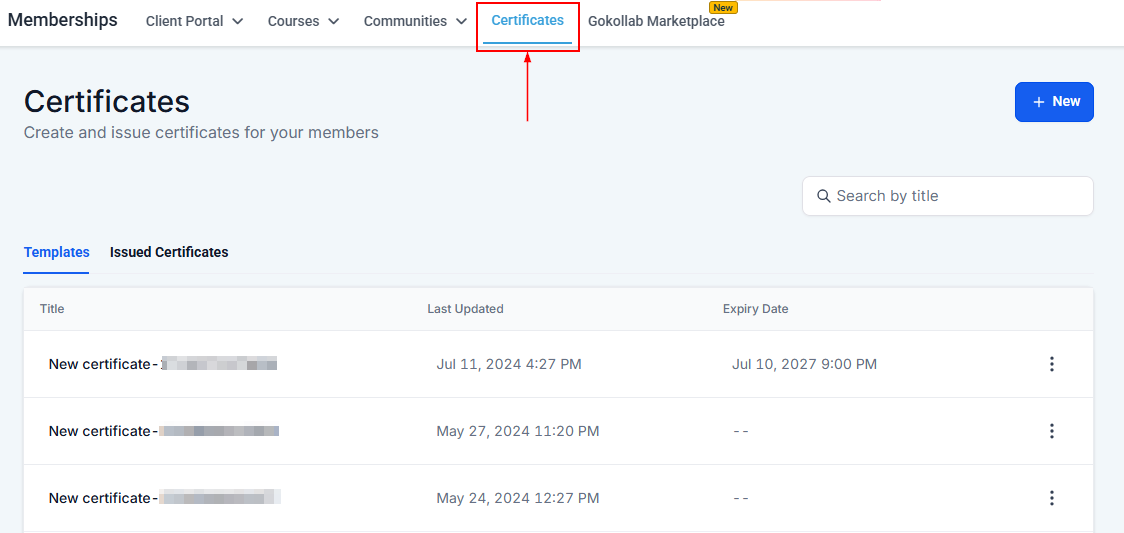
Access Certificate Builder
You can create and manage certificates by navigating to the Certificates Builder tab within the CRM's Memberships section.
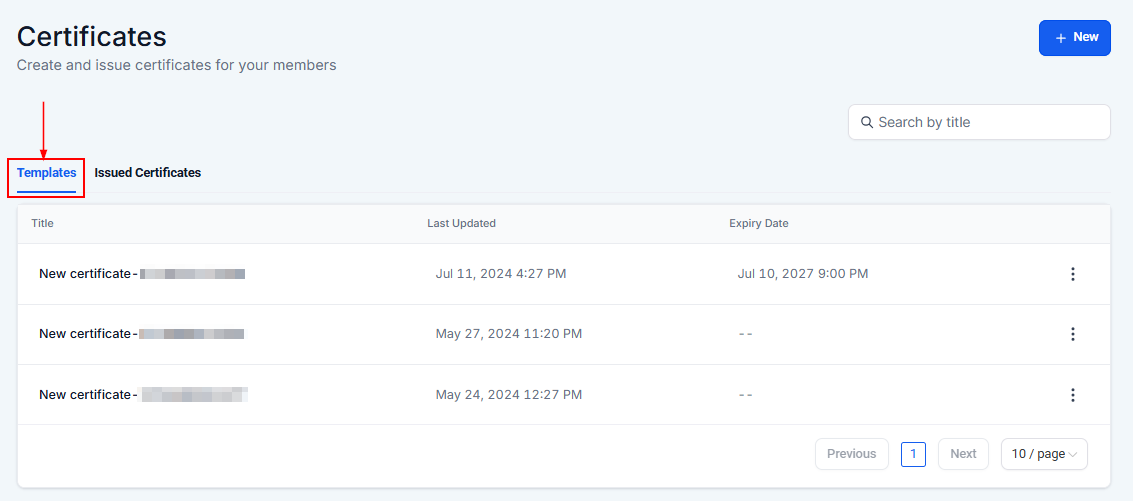
Templates
The template tab shows all the created certificates within your CRM.
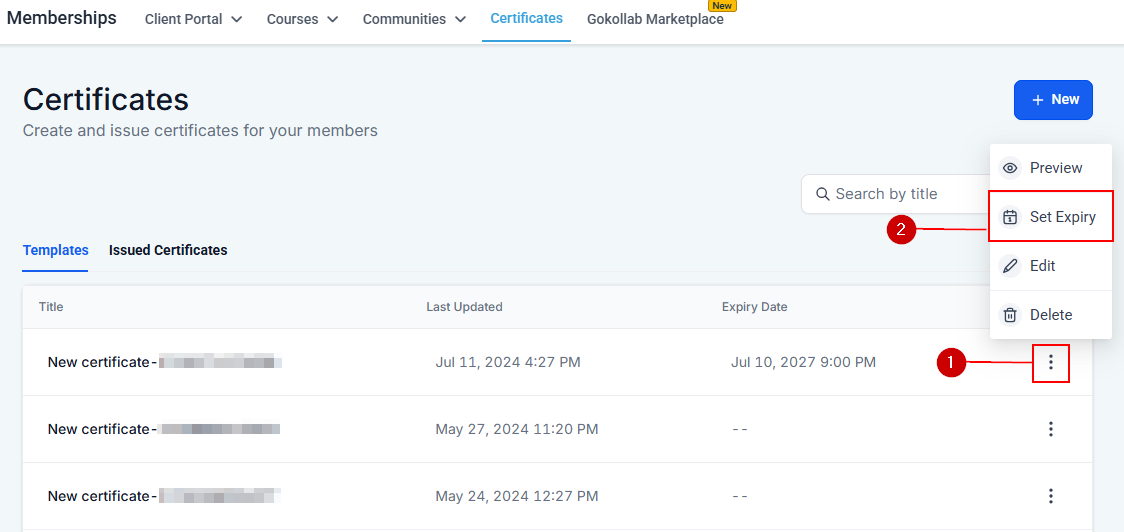
Set Expiry Date
Within the certificate template actions dropdown, click on the three-dotted action icon, and locate the option to set an expiry date.
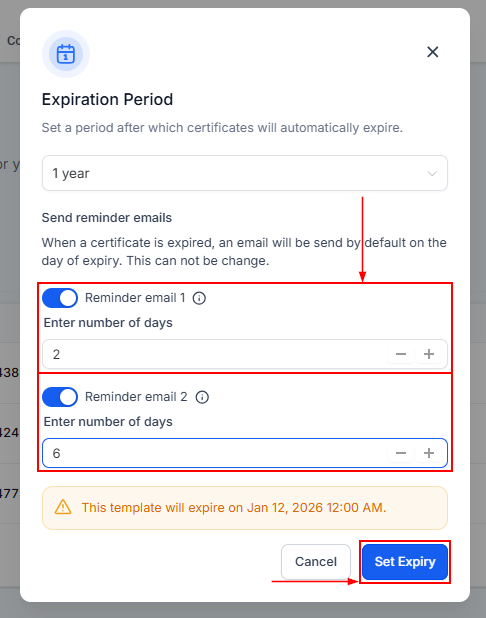
Choose the desired expiry date for certificates generated from this template. This date will apply to all certificates created using this template unless overridden at the individual certificate level.
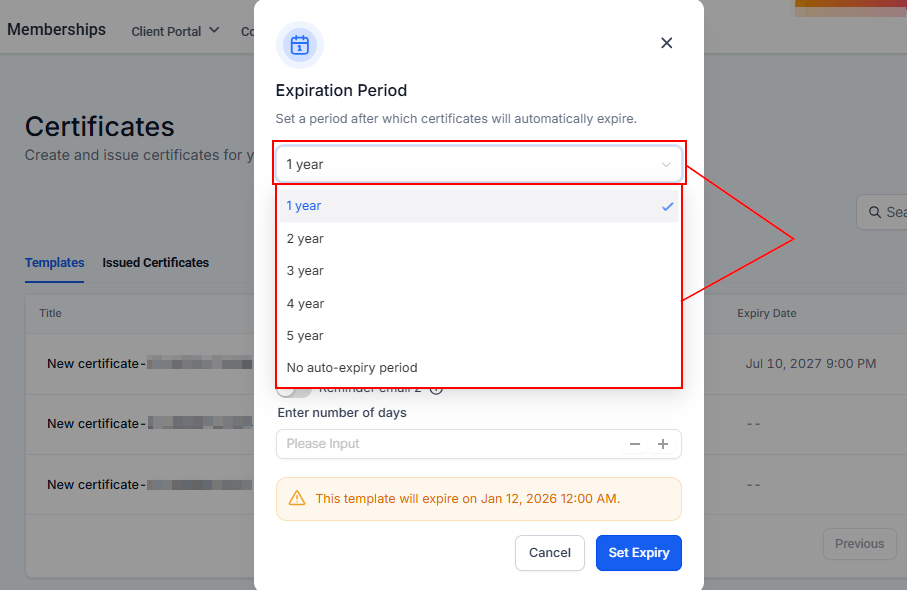
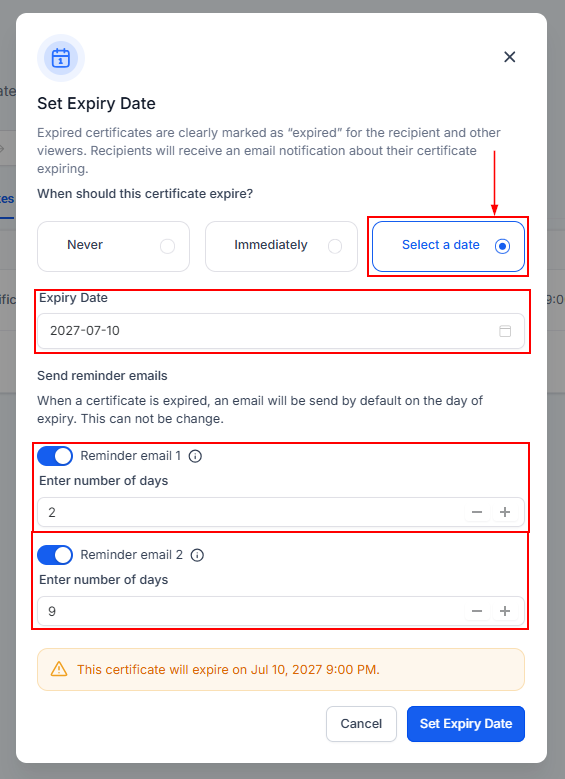
To send reminder emails, toggle on the options for Reminder emails and enter the number of days before the certificate expires should the emails go out. Then complete the process by clicking the "Set Expiry" button.
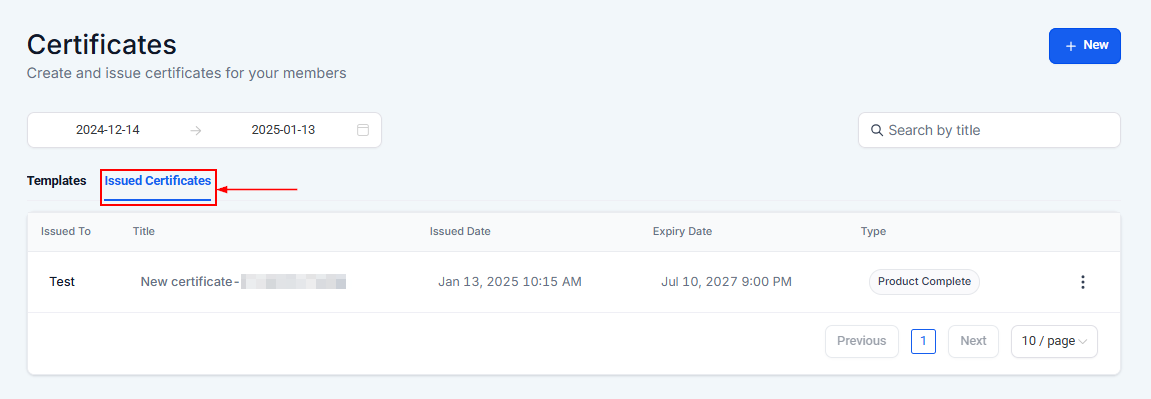
Issued Certificate
After issuing a certificate to a user you can go to the Issued Certificates tab to view certificates that have already been received by recipients.
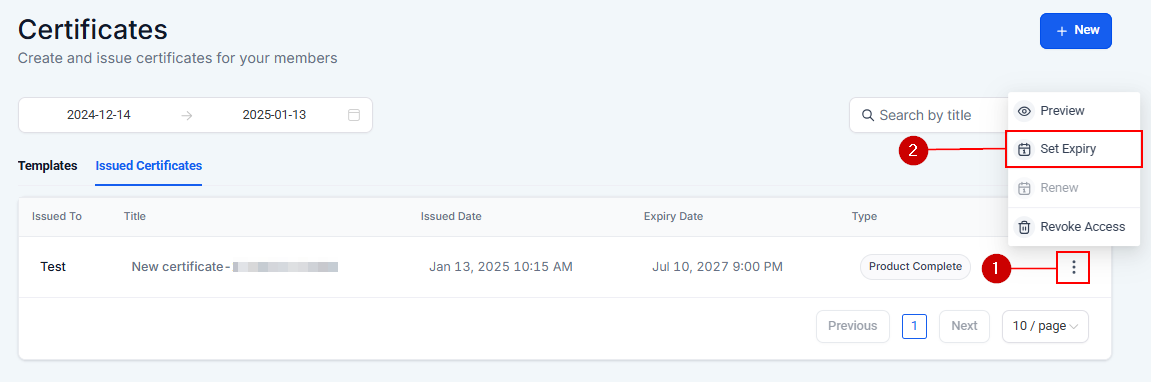
Set Expiry
You can customize the expiry date for that specific certificate by clicking on the three-dotted action icon, and locating the option to set an expiry date.
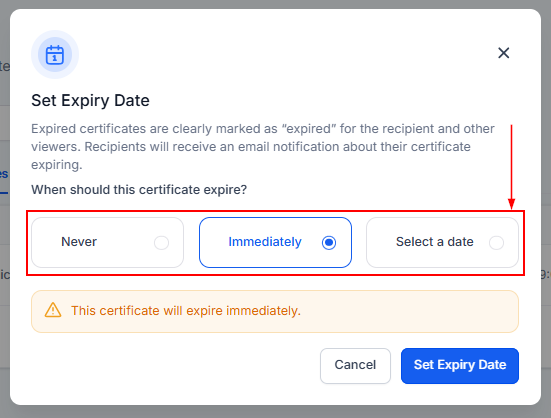
In the popup, you can choose never to let the certificate expire, to let it expire immediately, or you can select a date for its expiration.
If you picked the “Select a date” option, you would need to manually pick its expiration date, and you can also send reminder emails that tell certificate recipients when their issued certificates will expire.
Save Changes
After choosing the expiration date, save your changes by selecting the “Set Expiry Date” button. This ensures that the expiry settings are applied correctly to the certificate template or individual certificate.
With customizable expiry dates and reminders, you can maintain compliance, ensure recipients stay informed, and streamline certificate management at both the template and individual levels.
Frequently Asked Questions
Q: Can users still access expired certificates?
- No, once a certificate expires, users will no longer be able to preview or access it. Ensure to communicate expiry dates and renewal processes in advance.
Q: When are the reminder emails for certificate expiry sent?
- Reminder emails can be customized for preferred intervals. Users within the CRM can adjust the settings to match their preferences.
Troubleshooting Tips
- Certificate Visibility: If users report not being able to preview certificates, check the expiry settings and ensure certificates are within their validity period.
Was this article helpful?
That’s Great!
Thank you for your feedback
Sorry! We couldn't be helpful
Thank you for your feedback
Feedback sent
We appreciate your effort and will try to fix the article