The Custom Date Reminder trigger will start the workflow on any specific date you select. This is perfect for sending account review reminders or appointment reminders before a meeting or event.
To begin, click on Add New Workflow Trigger, and select Custom Date Reminder from the dropdown menu under Choose a Workflow Trigger.
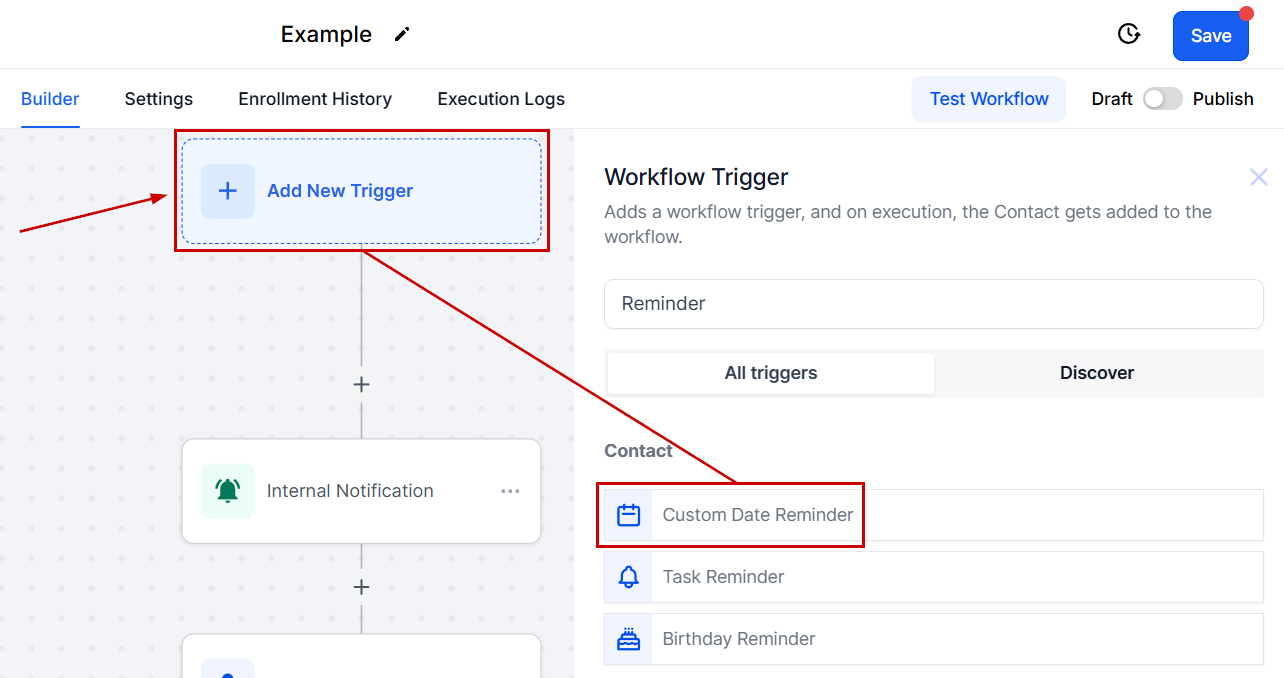
Custom Date Field
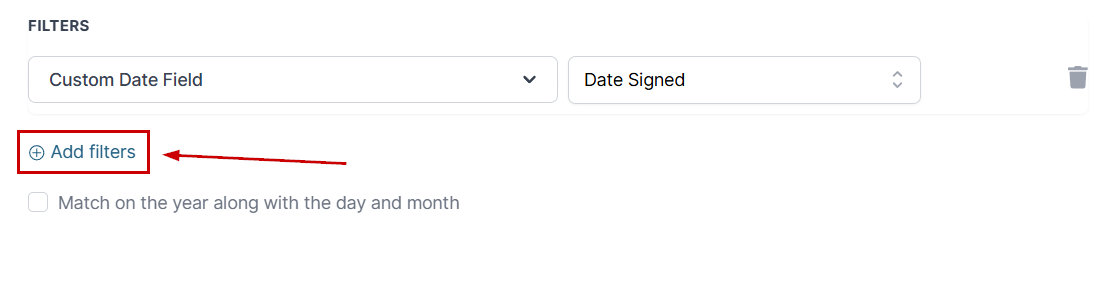
You will need to add a filter with the Custom Date Field, as this will only trigger if a date has already been established in your CRM, for example, a signature day for a contract.
Once you've selected a custom date you can include additional filters by clicking + Add Filter.
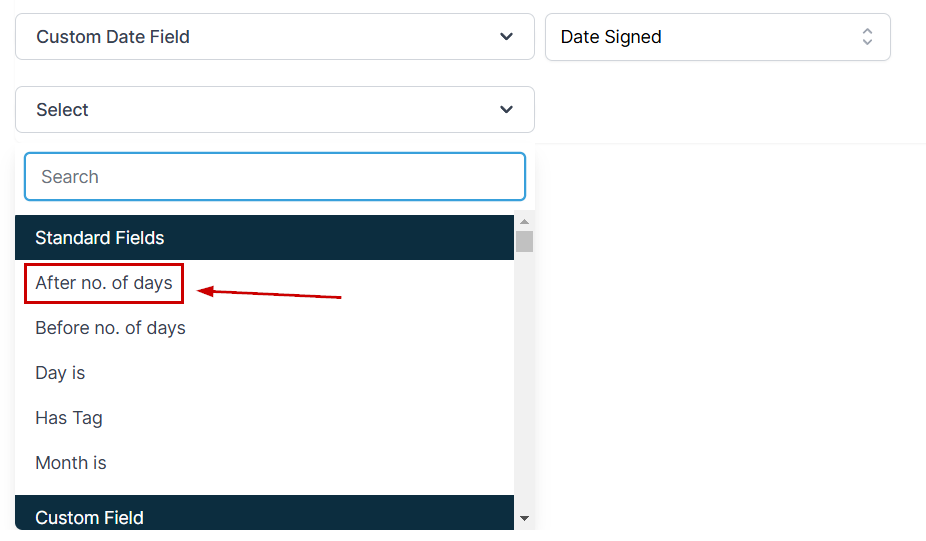
After No. of Days
The After No. of Days filter allows you to set the reminder after a specific number of days since the selected date.
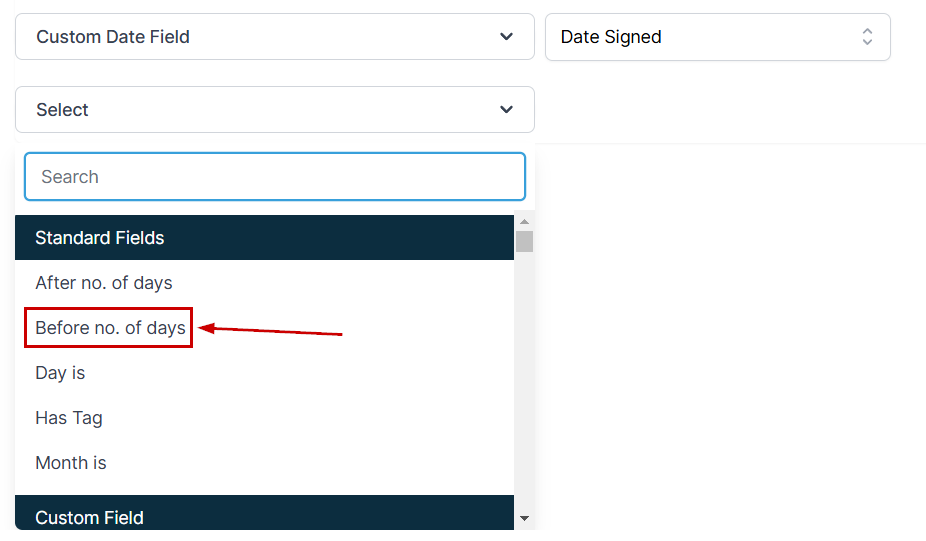
Before No. of Days
With the Before No. of Days filter, you can send a notification a few days before the selected date. For example, you can select an event's start date and use this to send reminders on the days leading up to it.
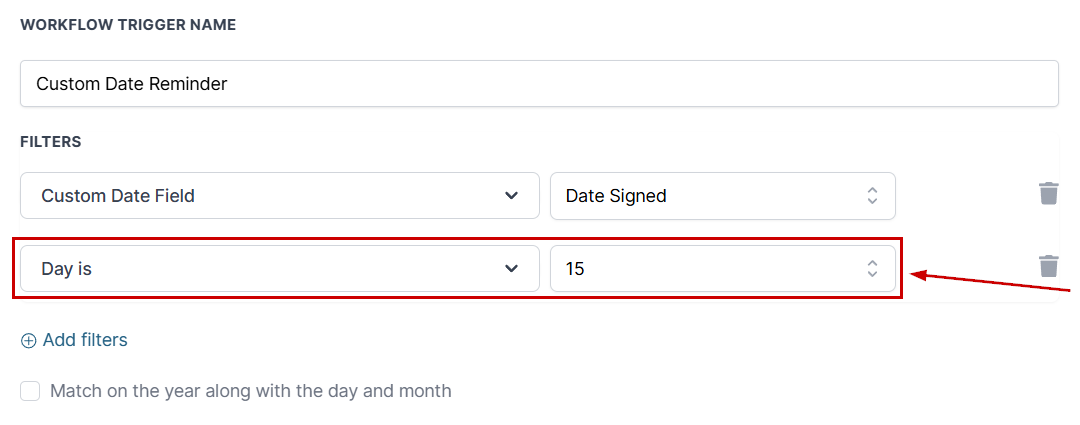
Day Is
Selecting the Day Is filter lets you select a specific day in the month, like the 15th or the 1st to trigger your workflow. Perfect for monthly subscriptions!
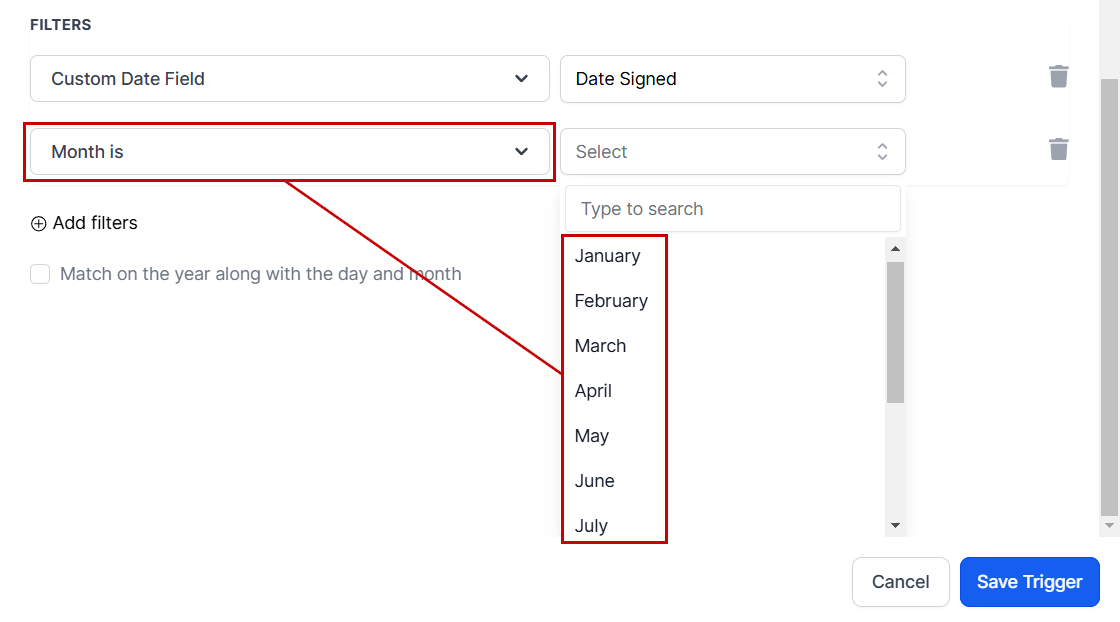
Month Is
This triggers the workflow on the selected month. You can use it in conjunction with the Day is filter or simply keep it alone to trigger on the first of the month.
Has Tag
Select a tag from the CRM. When a tag is allocated to the contact's workflow, the workflow will only be triggered on the selected date for customers who have the tag.
Was this article helpful?
That’s Great!
Thank you for your feedback
Sorry! We couldn't be helpful
Thank you for your feedback
Feedback sent
We appreciate your effort and will try to fix the article