Appointment confirmation and reminder campaigns are essential for improving client engagement and reducing no-shows. By automating these communications, businesses can ensure their clients are well-prepared and consistently reminded of their upcoming appointments. In this guide, you’ll learn how to create and optimize these campaigns to keep your calendar running smoothly.
Accessing Calendar Settings
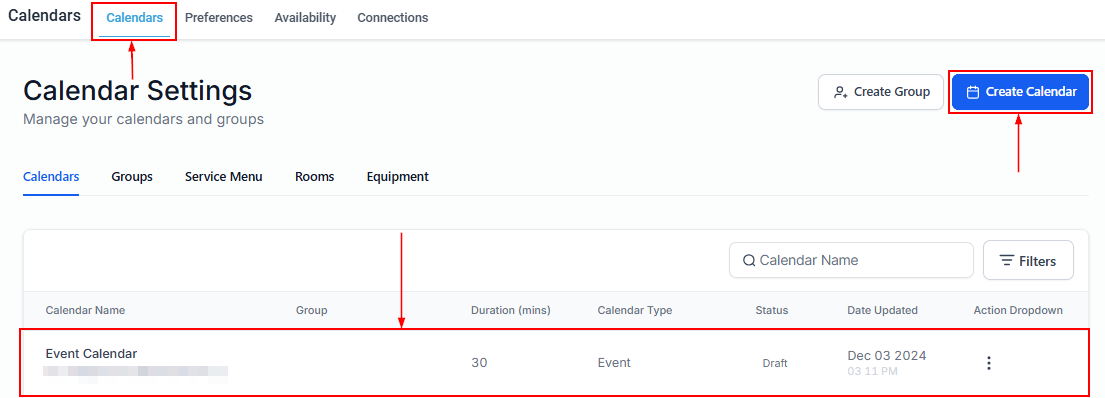
Navigate to the "Settings" section and select “Calendars”. Create the calendar you wish to set up confirmations and reminders for or you can use an existing Calendar within the CRM. Configure your preferences as desired, then save the calendar.
Creating a Workflow
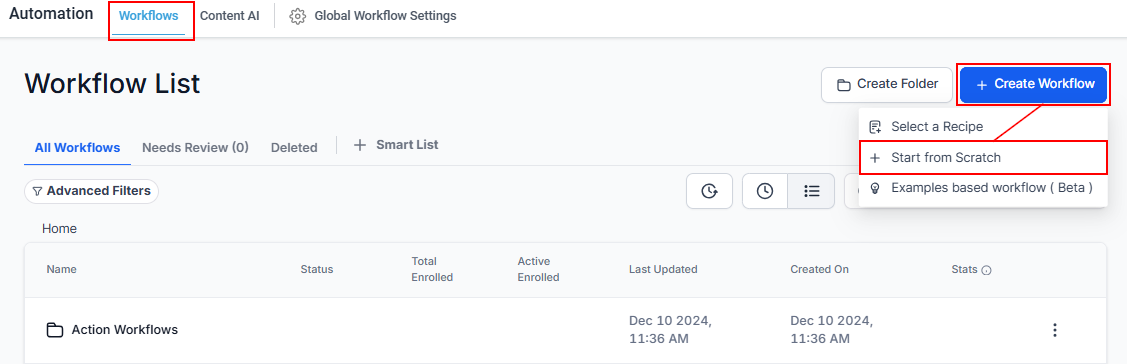
Then go to the “Automation” section and select “Workflow”. Choose to start from scratch.
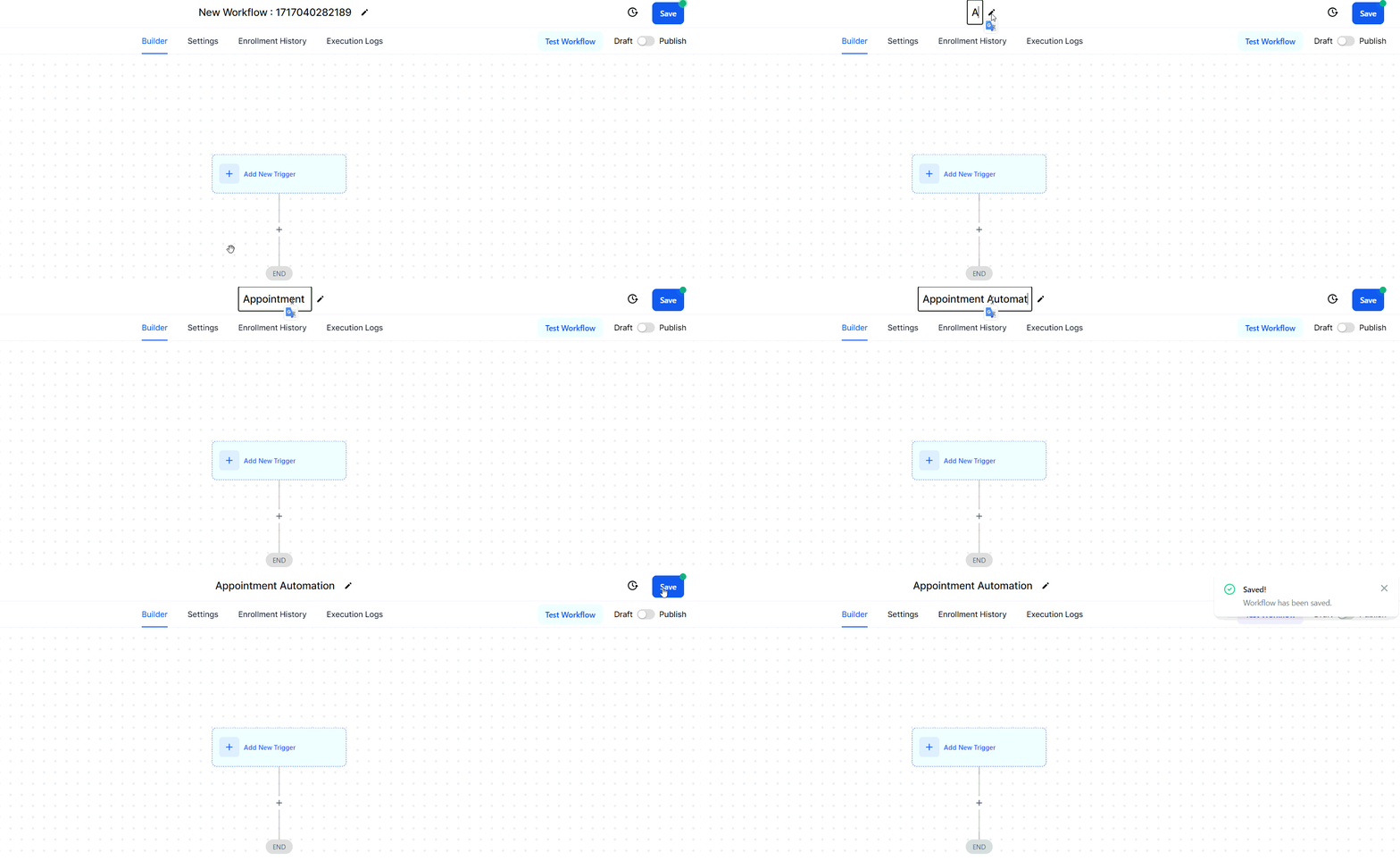
Within the workflow builder name your workflow (e.g., "Appointment Automation").
Defining the Trigger
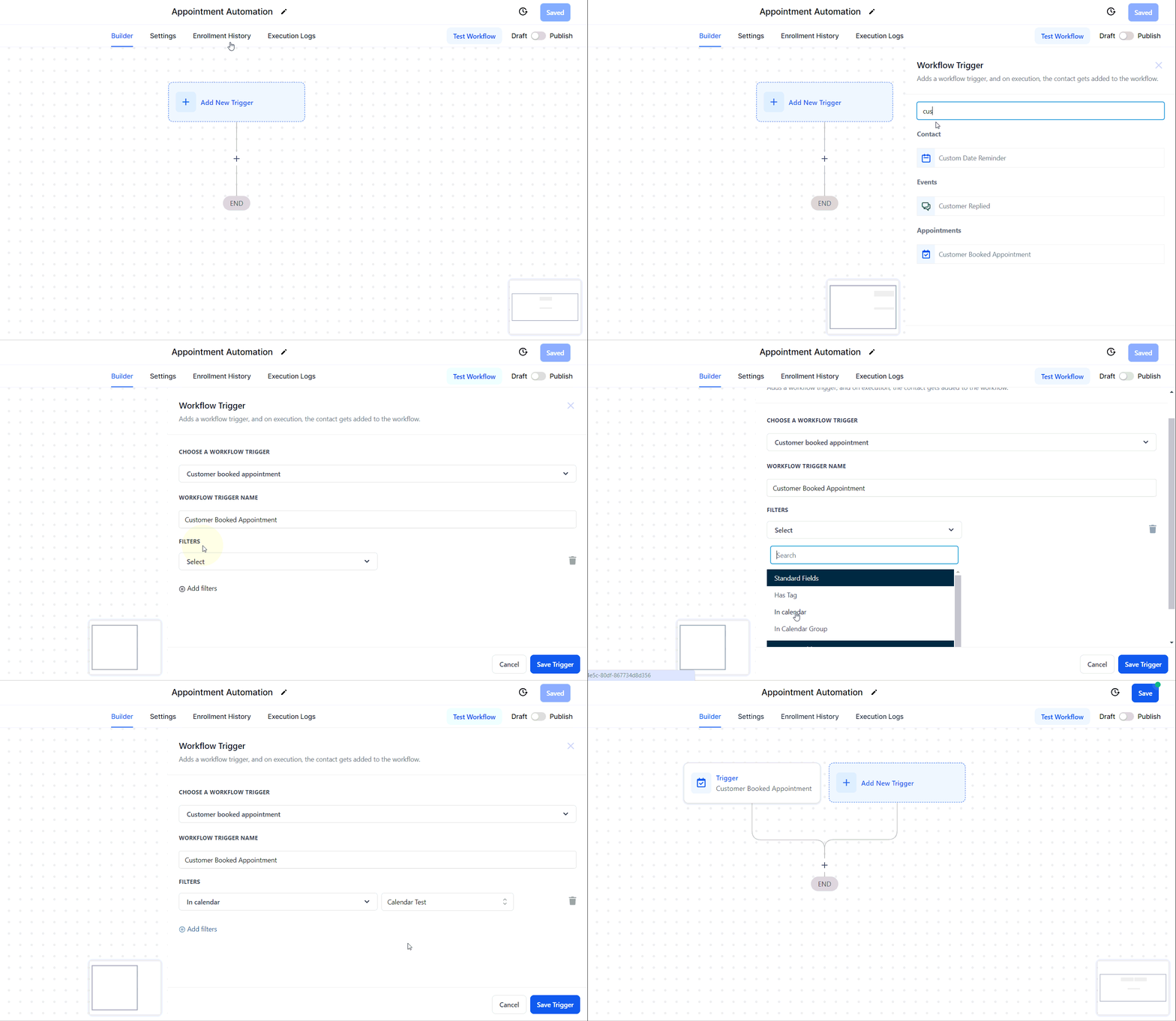
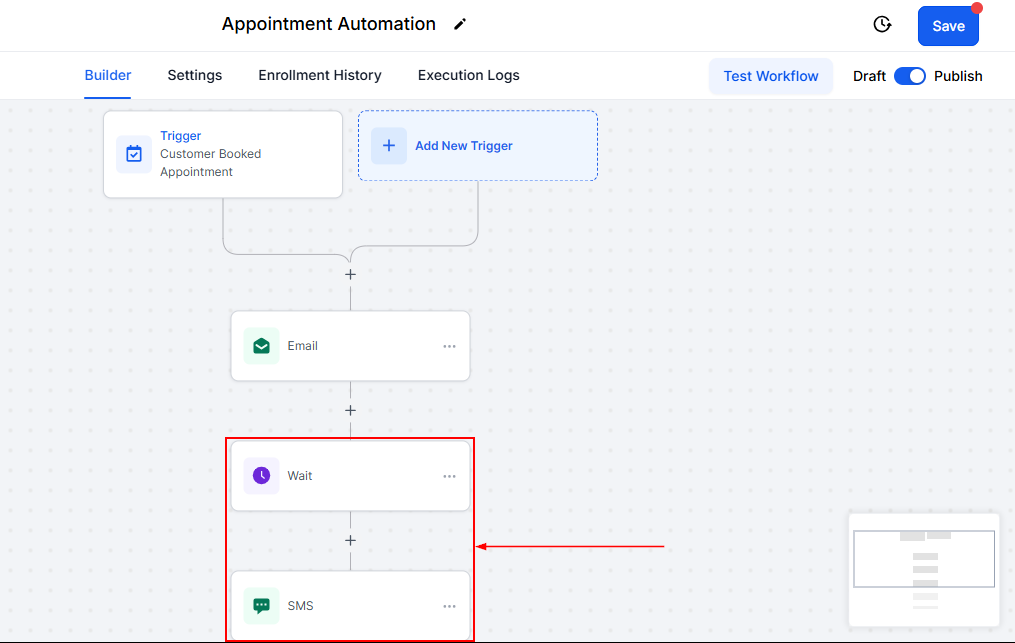
Go ahead to search for and select the “Customer Booked Appointment” trigger. Specify whether the appointment is in a calendar group or an individual calendar, and select and save the appropriate option.
Crafting Your Messages
Confirmation Email
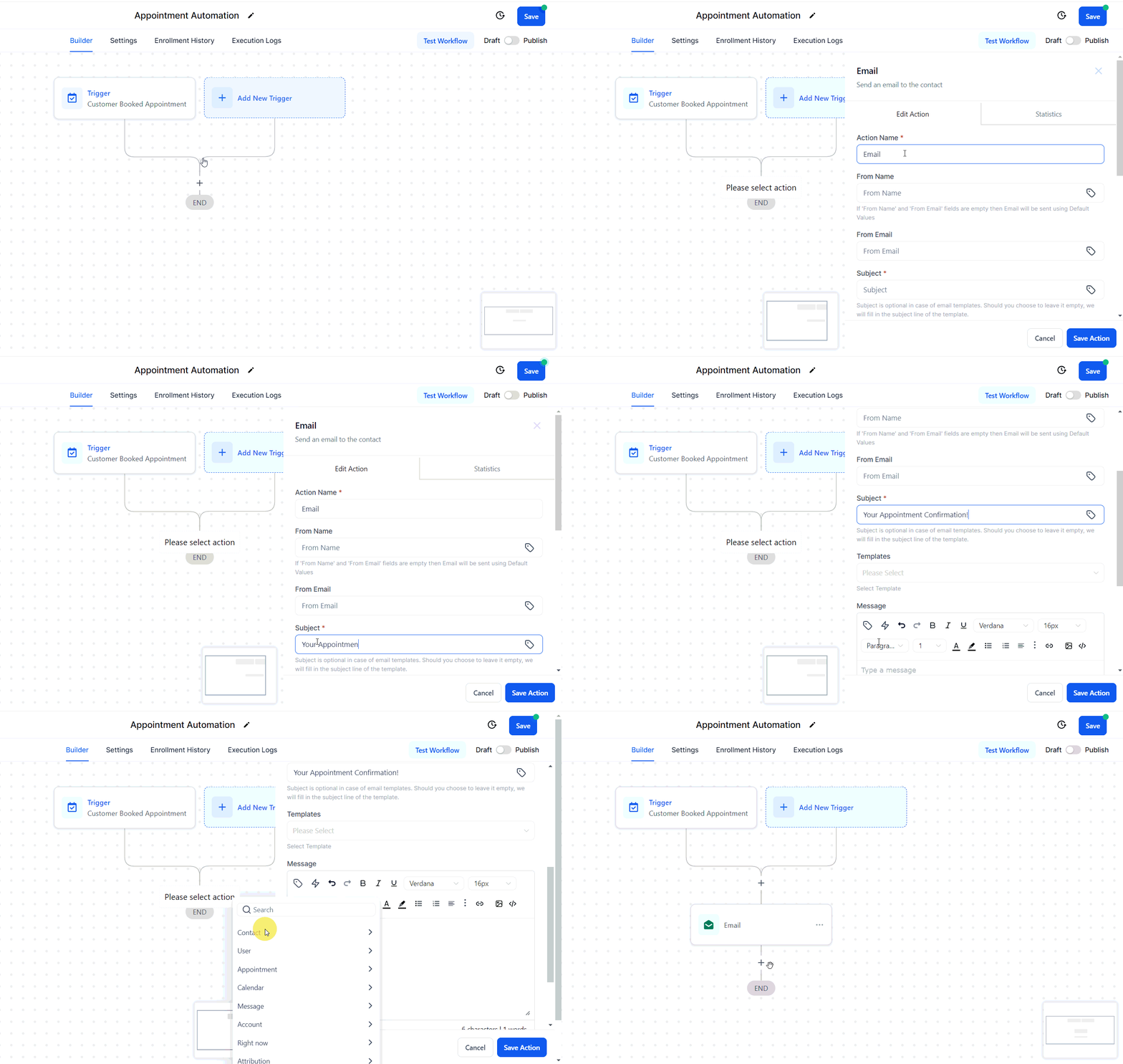
Start by creating an email to be sent immediately after an appointment is booked. Customize the email with details such as the appointment date, time, and location using custom values for a personalized touch. You can also use the Templates you created in your CRM.
Confirmation SMS
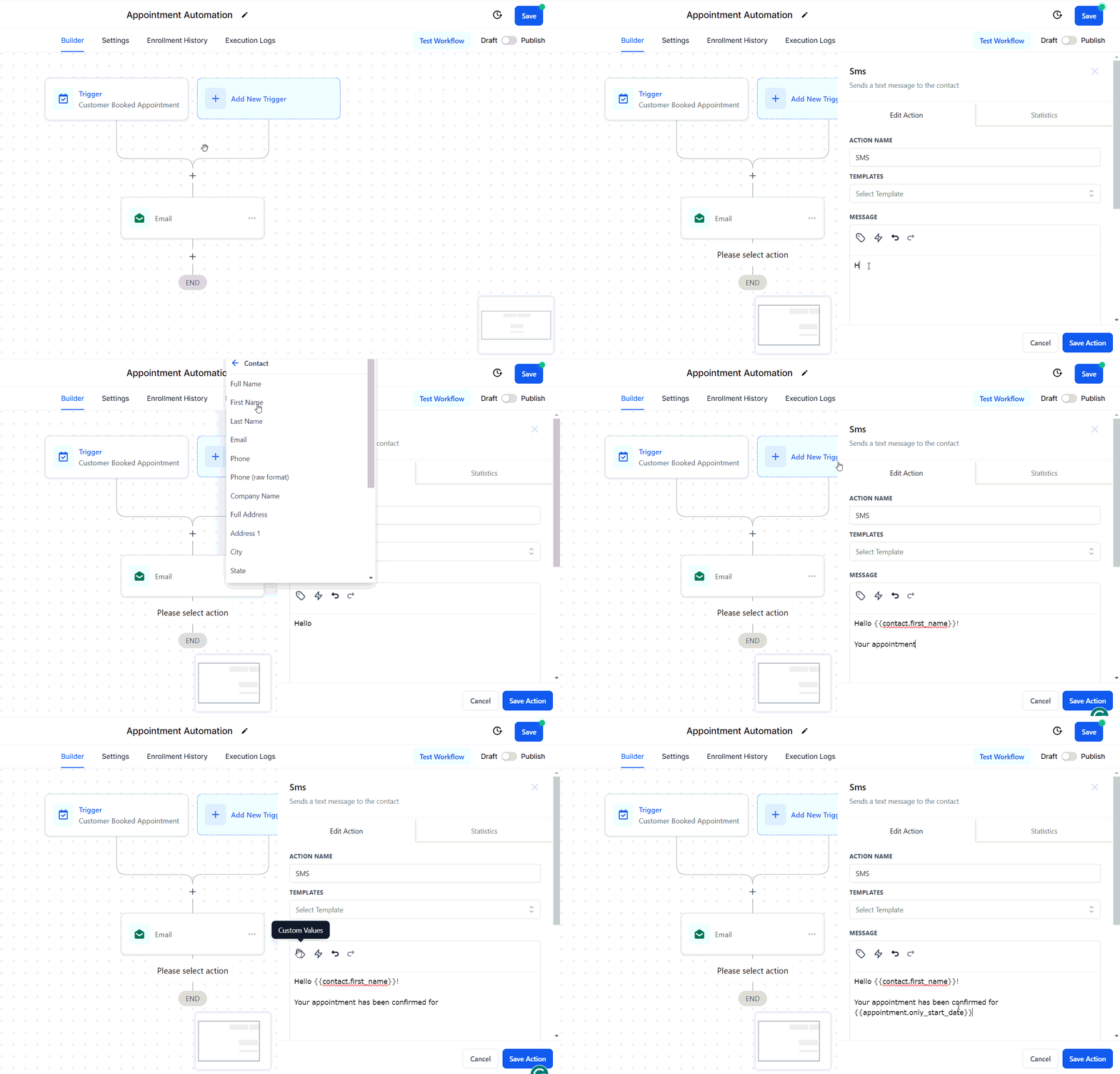
Similarly, create a short SMS message confirming the appointment details.
Setting Up Reminders
First Reminder
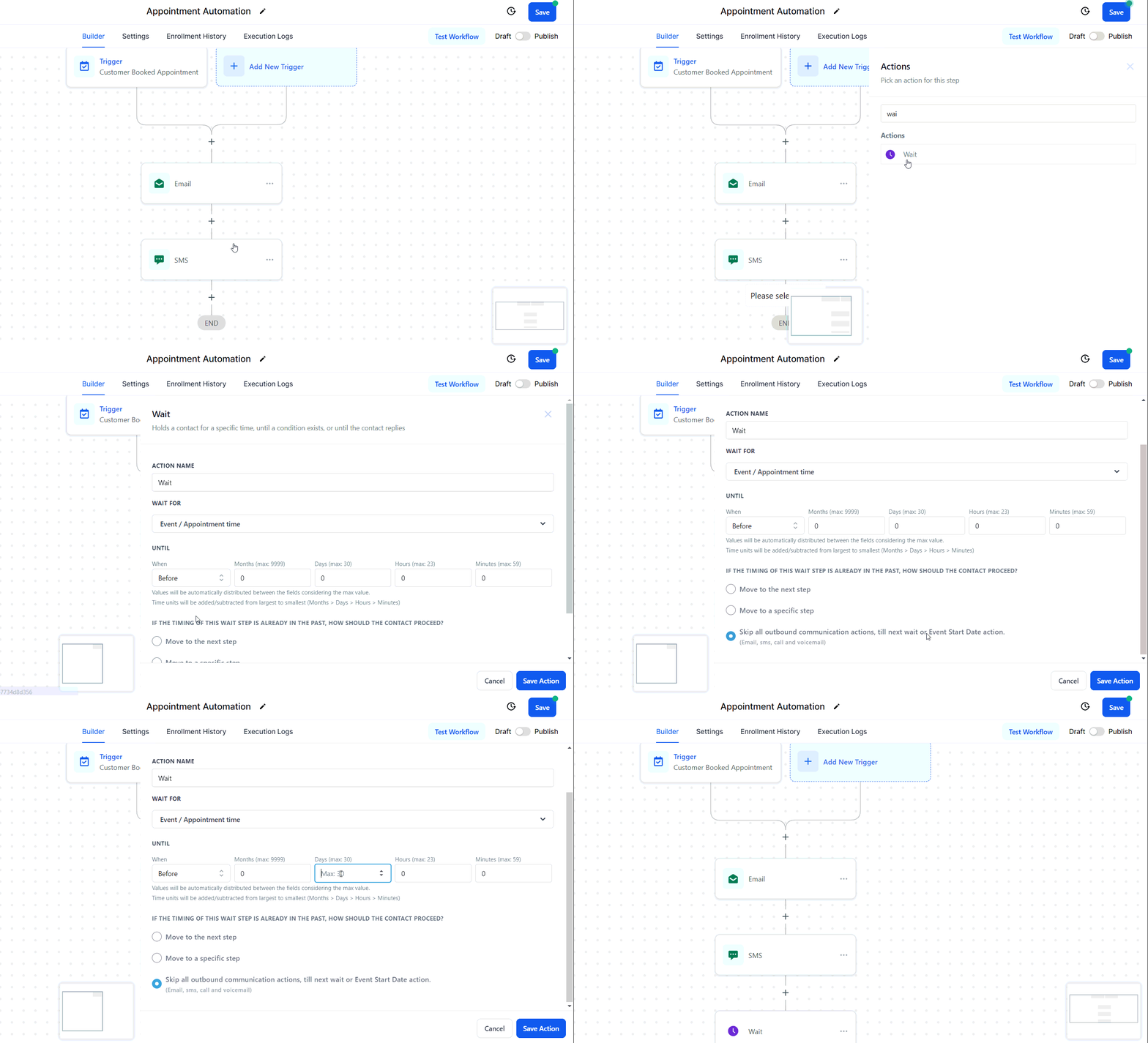
Add a Wait action to delay this reminder until two days before the appointment. Ensure the system skips this action if the appointment time has already passed. Then draft a short, friendly SMS or email reminder to notify the client.
Second Reminder
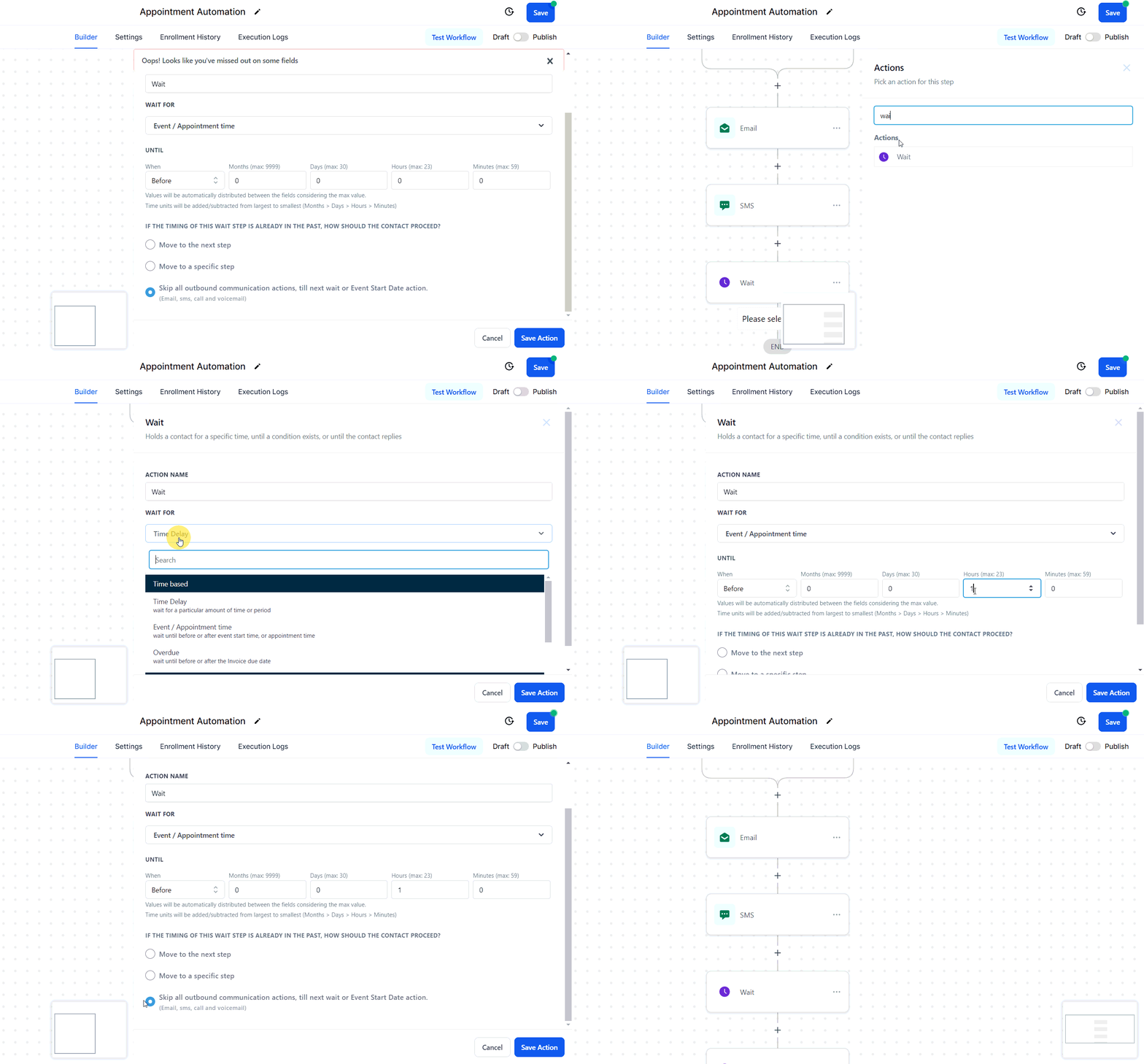
Create another Wait action for one hour before the appointment.
Reminder Messages
Customize SMS messages for both reminders, ensuring they are concise and informative and that they come after the appropriate wait step.
Publishing Your Workflow
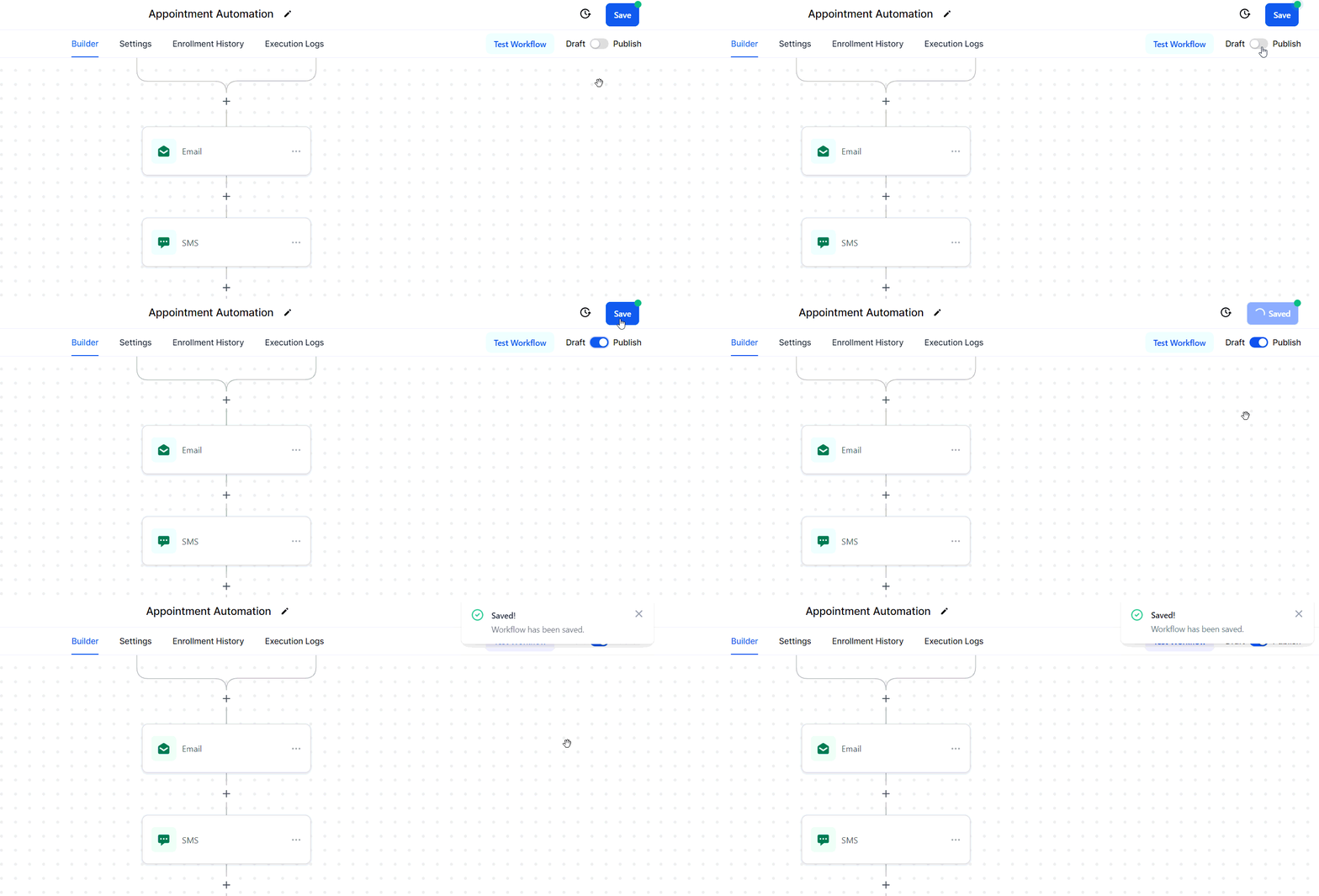
Once your workflow is complete, don't forget to publish and save it to activate the workflow.
Appointment confirmation and reminder campaigns are powerful tools for maintaining client engagement and minimizing no-shows. By automating these communications, you can ensure a smooth appointment process that saves time and increases client satisfaction. With the steps outlined above, setting up your campaigns is straightforward and effective.
Troubleshooting Tips and FAQs
Q: What if my reminders aren't being sent?
- A: Double-check that your workflow is published and all triggers are correctly configured.
Q: Can I send email reminders as well?
- A: Yes, you can include emails in your workflow alongside SMS reminders for better coverage.
Q: How do I customize reminder messages?
- A: Use custom values to insert appointment-specific details, ensuring each message feels tailored.
Was this article helpful?
That’s Great!
Thank you for your feedback
Sorry! We couldn't be helpful
Thank you for your feedback
Feedback sent
We appreciate your effort and will try to fix the article