The embed widget element allows you to seamlessly integrate a variety of online content into your dashboards through the use of iframes. This feature enables the inclusion of diverse elements such as web pages, Google Data Studio reports, Google Docs, slideshows, calendars, Loom videos, YouTube videos, social media posts, feeds, and more.
Benefits of Embedding Elements
Before diving into the step-by-step process, let's explore the primary benefits of utilizing this new feature:
- Dynamic Dashboards: By embedding live integrations, your dashboard becomes a real-time business hub, offering immediate access to essential data and content.
- Effortless Integration: Embed a wide range of objects, including social media posts and presentations, directly into your dashboard. This eliminates the need for toggling between multiple platforms, thereby enhancing productivity.
- Customizable Widgets: Tailor your dashboard by adding diverse content, from Instagram posts to Google Docs. This customization ensures a versatile and enriched user experience that aligns with your business needs.
Guide to Embedding Content
Follow these simple steps to start embedding custom objects into your dashboard:
Access the Dashboard
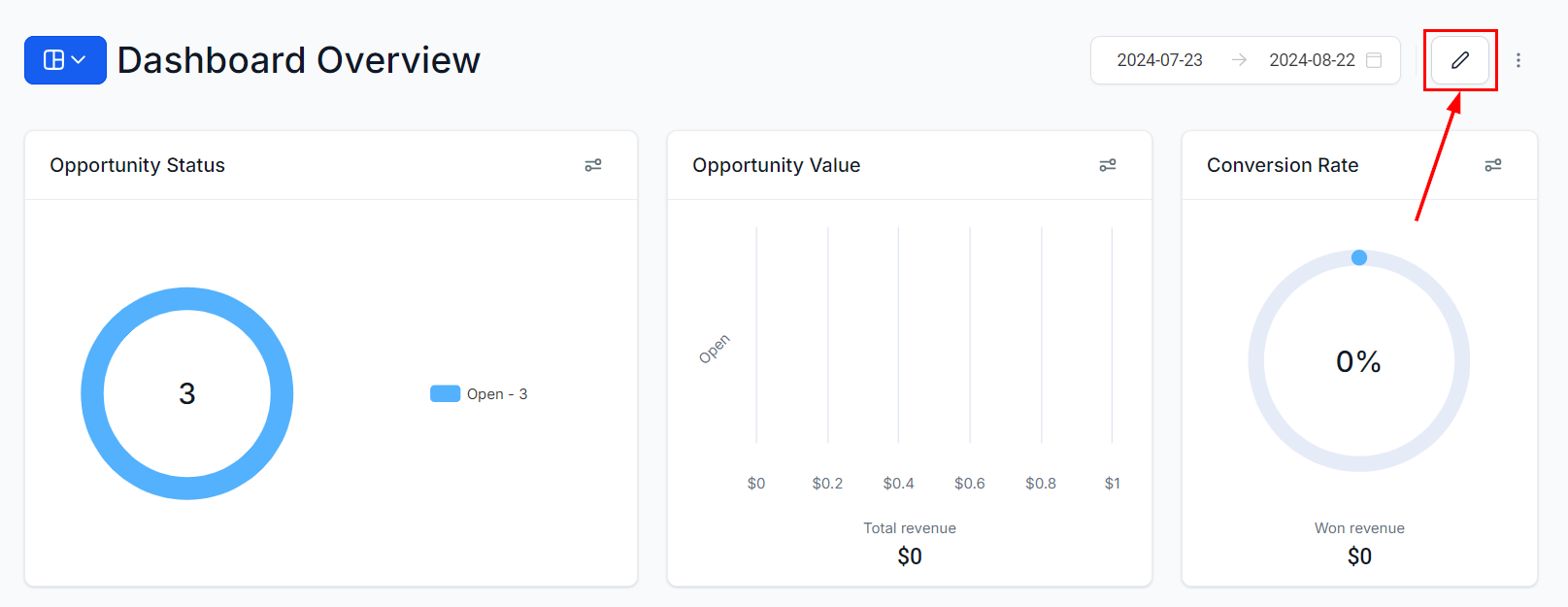
Navigate to the Dashboard Tab from the left-hand menu and click on the edit button to enter the customization mode.
Add a Widget
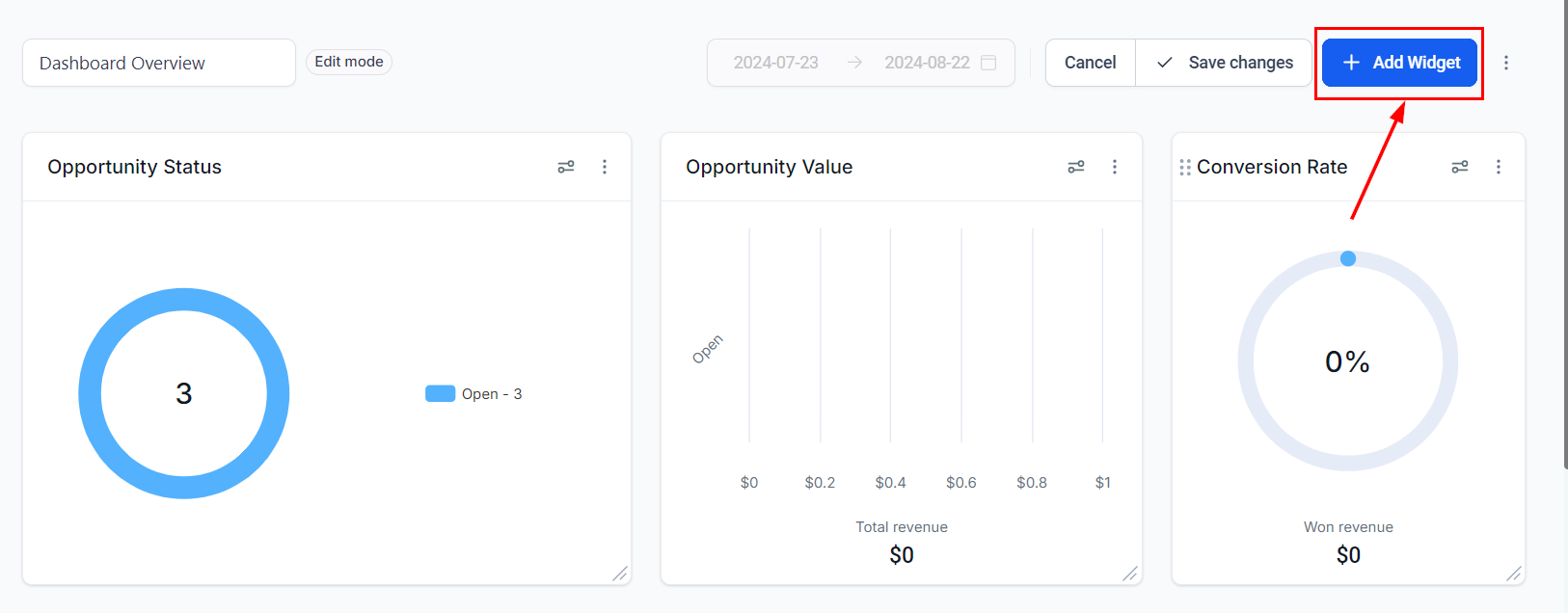
Click on the "Add widget" button to initiate the embedding process.
Select Element
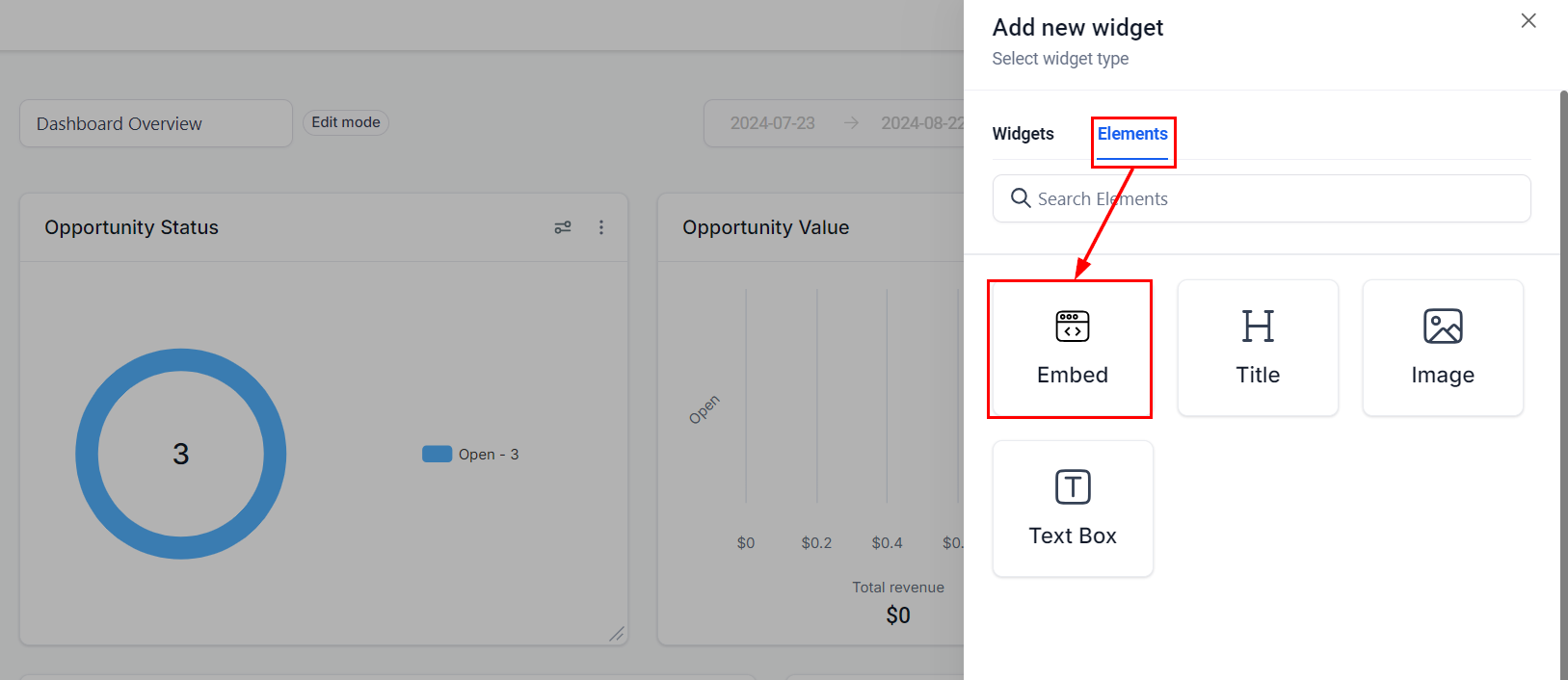
Navigate to the Elements tab and select “Embed” to proceed with embedding an online object.
Name Your Widget
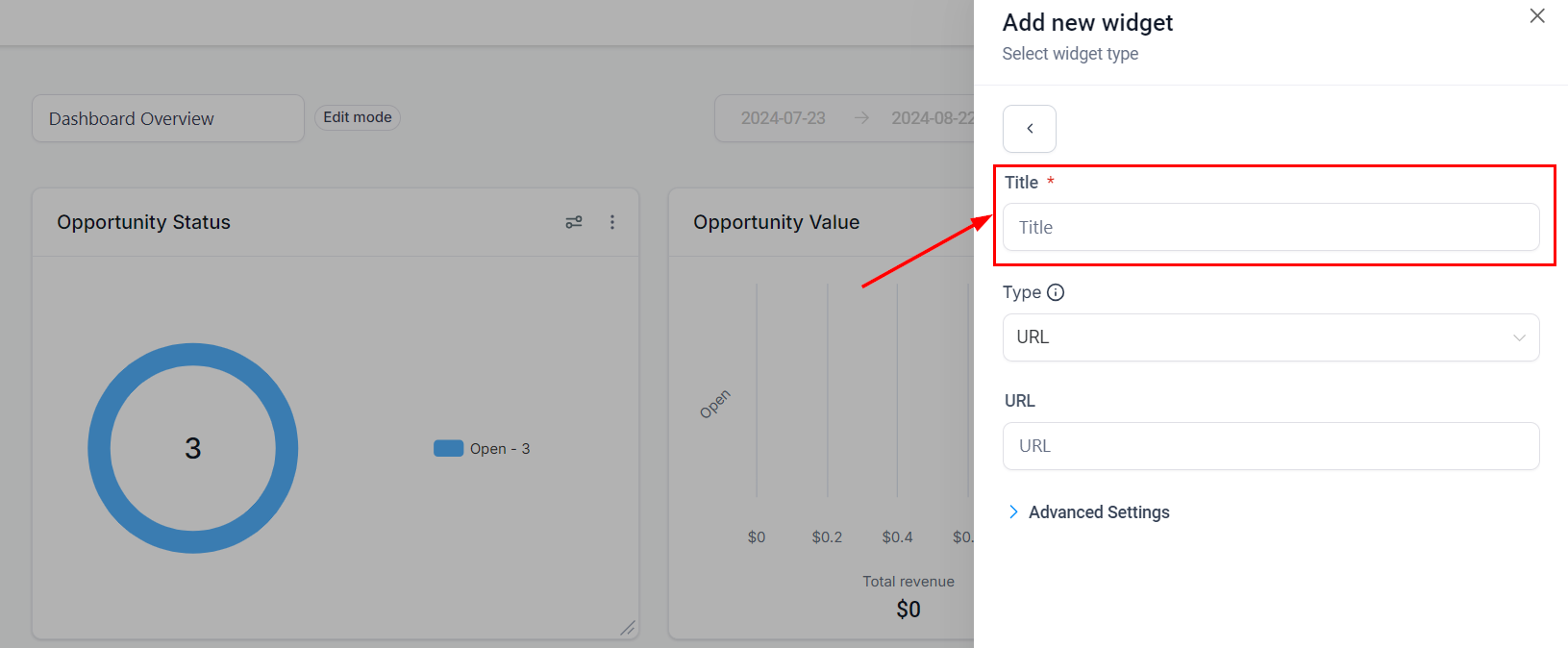
Input a title for your widget to easily identify it on your dashboard.
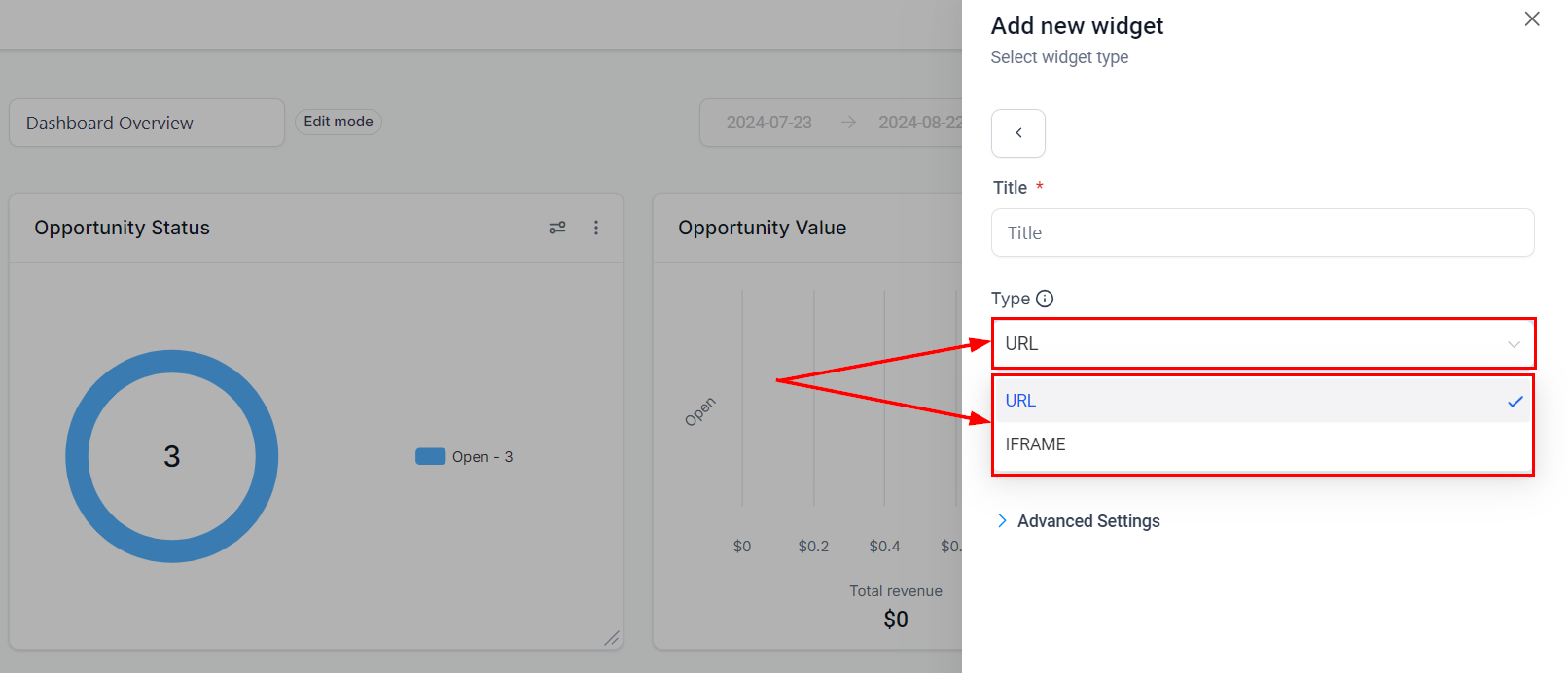
Choose Embed Type
- For embedding a specific URL, select “URL” in the “Type” section and ensure the URL is valid.
- If embedding content that provides iframe code, choose “IFRAME” as the type and paste the code in the provided text box.
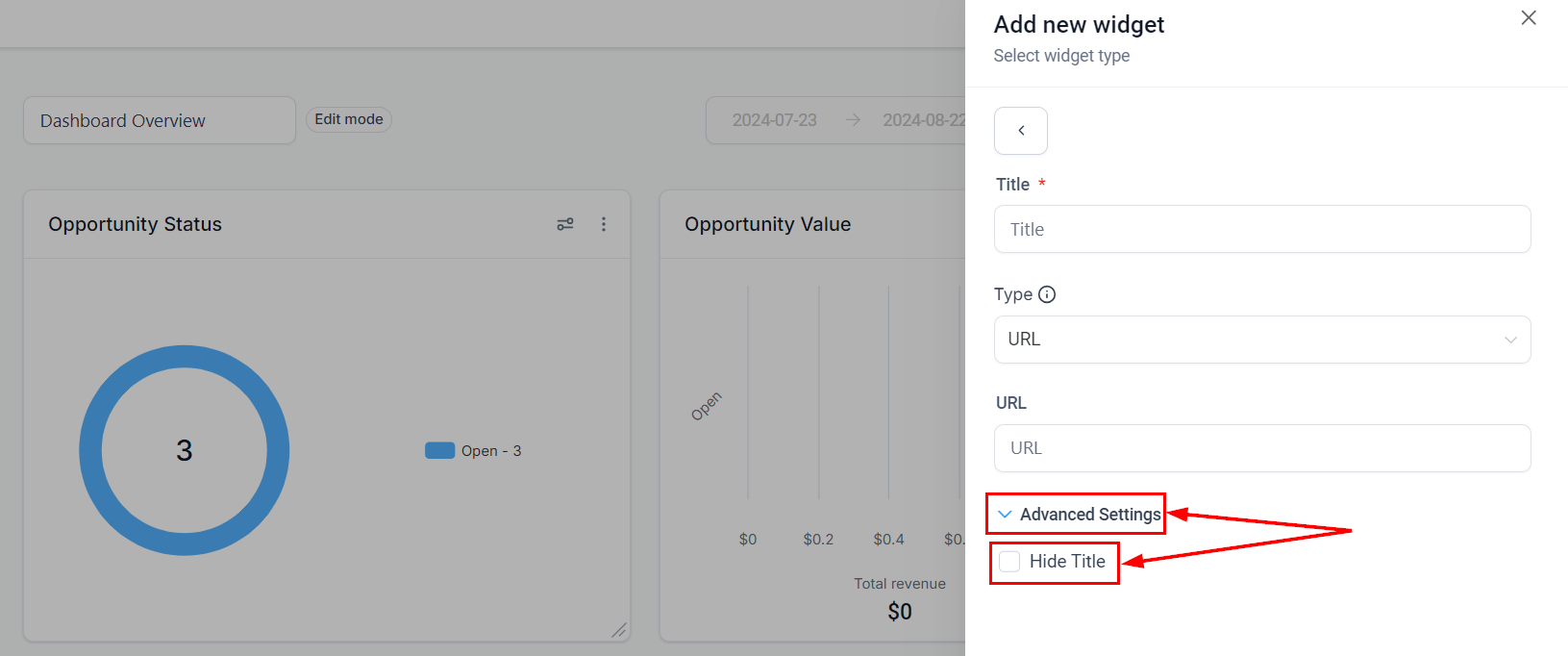
Advanced Settings
You may choose to hide the widget title for a cleaner look by selecting “Hide Title” in the advanced settings.
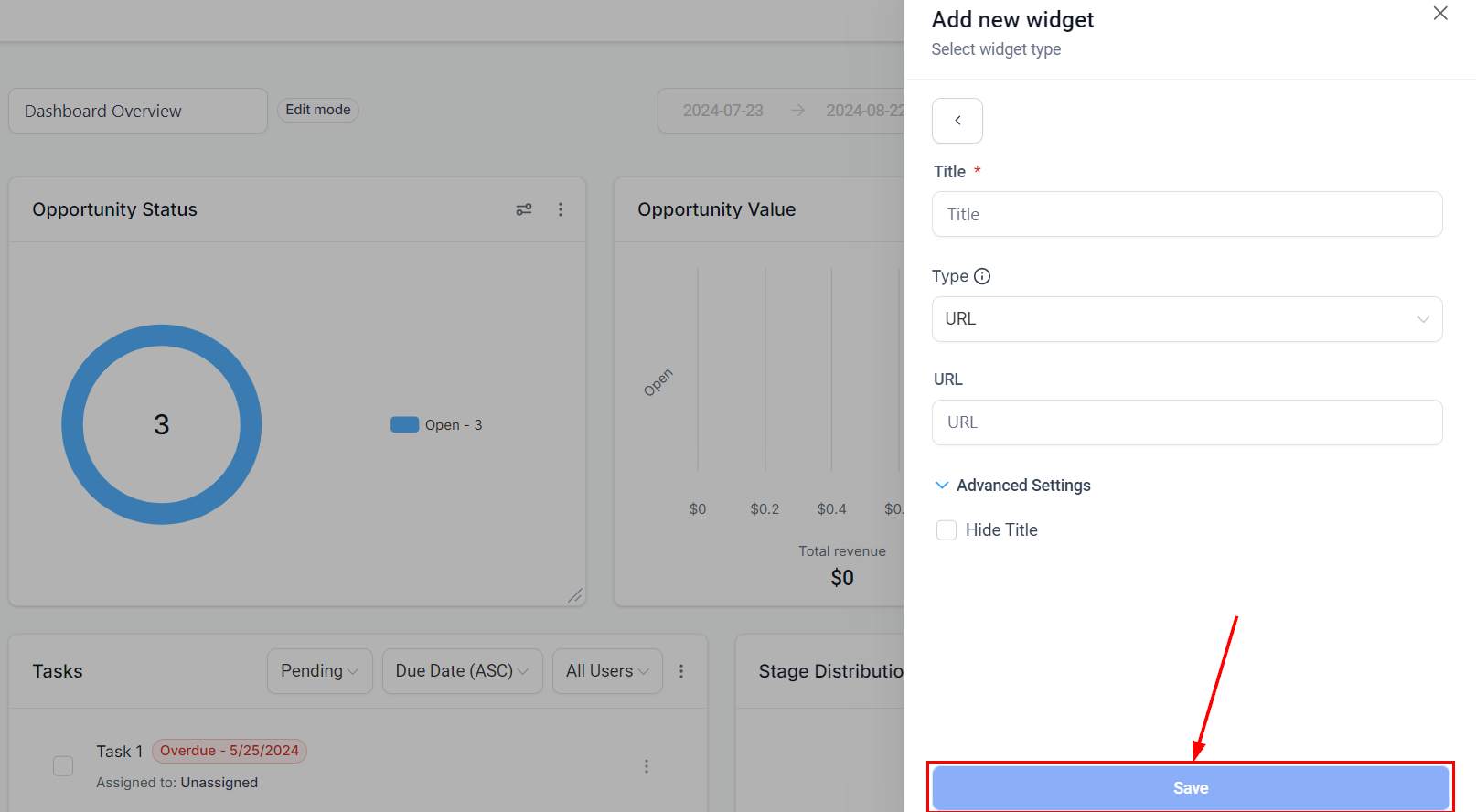
Save Your Widget
Click “Save” to apply the changes and add your new widget to the dashboard.
Embedding Different Types of Content:
1. YouTube Videos
- Add an Embed element to your dashboard.
- Copy the video’s ID number from the YouTube URL (found after
/watch?v=). - Insert this ID into the following URL structure: https://www.youtube.com/embed/. Example:If your YouTube URL is https://www.youtube.com/watch?v=abcdefg, copy the video ID abcdefg and add it to the embed URL:https://www.youtube.com/embed/abcdefg.
- Use this final URL in your embed element configuration.
2. TikTok Videos
- Add an Embed element to your dashboard.
- Copy the video’s ID number from the TikTok URL (found after /video/).
- Insert this ID into the following URL structure: https://www.tiktok.com/embed/. Example:If your TikTok URL is https://www.tiktok.com/@username/video/1234567890, copy the video ID 1234567890 and add it to the embed URL:https://www.tiktok.com/embed/1234567890.
- Use this final URL in your embed element configuration.
3. Instagram Posts
- Get the shareable link for your Instagram post.
- Replace the part of the URL that follows the post ID with /embed/. Example:If your Instagram URL is https://www.instagram.com/p/abcdefg/?utm_source=ig_web_copy_link, replace ?utm_source=ig_web_copy_link with /embed/ to get the final URL:https://www.instagram.com/p/abcdefg/embed/.
- Use this final URL in your embed element configuration.
The newly added widget will now be visible on your dashboard, integrating the selected online content seamlessly.
Frequently Asked Questions
Q: What if my embedded content doesn't display correctly?
- A: Ensure the URL is fully qualified and correct. If using iframe, verify the code is accurate and complete.
Q: Can I embed content from any website?
- A: While many websites support embedding through IFrames, some might restrict it due to security policies. Always check the source website's embedding policies.
Was this article helpful?
That’s Great!
Thank you for your feedback
Sorry! We couldn't be helpful
Thank you for your feedback
Feedback sent
We appreciate your effort and will try to fix the article