Managing your brand's visual identity just got easier! The Content AI Image feature empowers businesses to oversee their AI-generated images with precision. From reviewing generated content to tracking costs and variations, this tool is a one-stop solution for maintaining brand consistency and maximizing efficiency. Whether you’re creating visuals for social media, blogs, or websites, this section simplifies the entire process, ensuring that your visual content aligns with your business goals.
To get started, navigate to the Marketing > Content AI > Image.
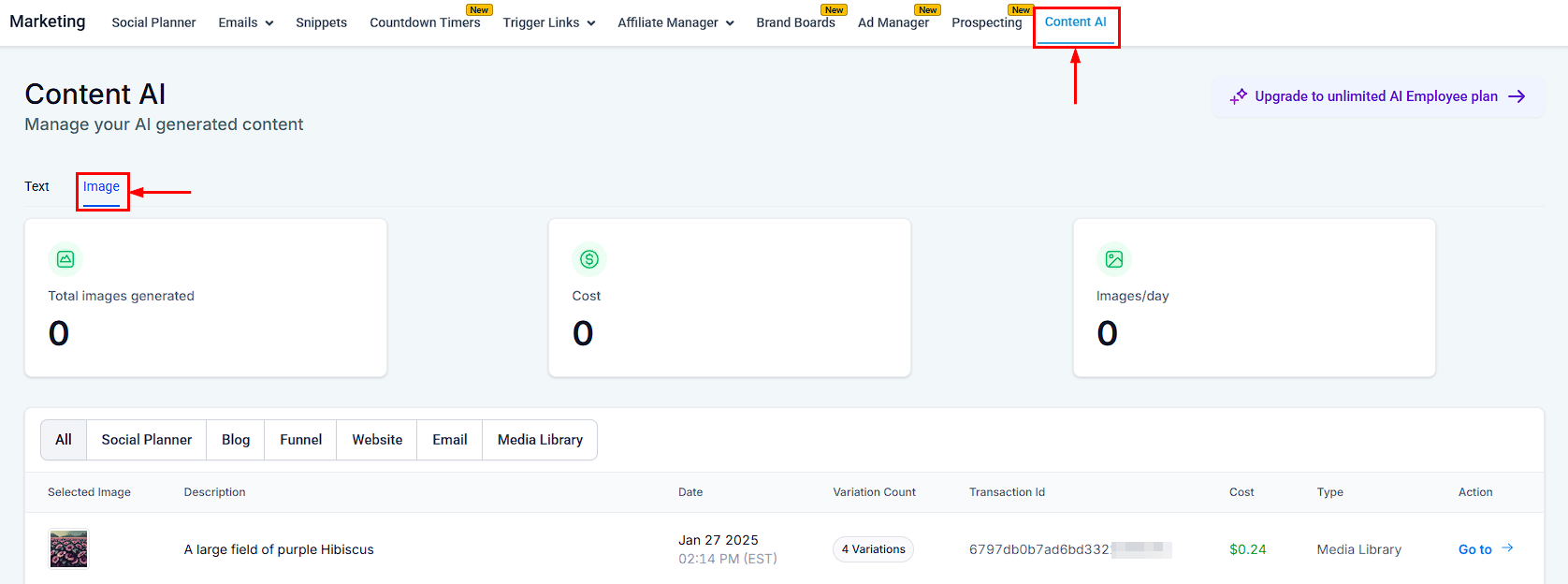
Content AI Image Dashboard
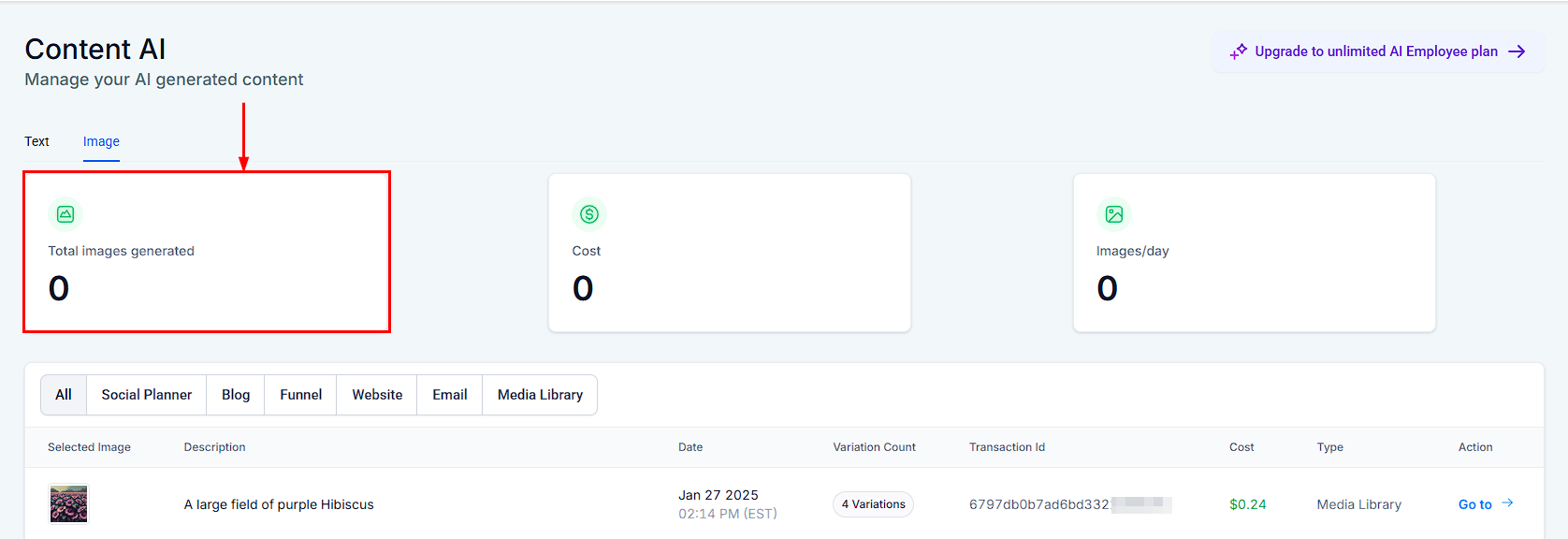
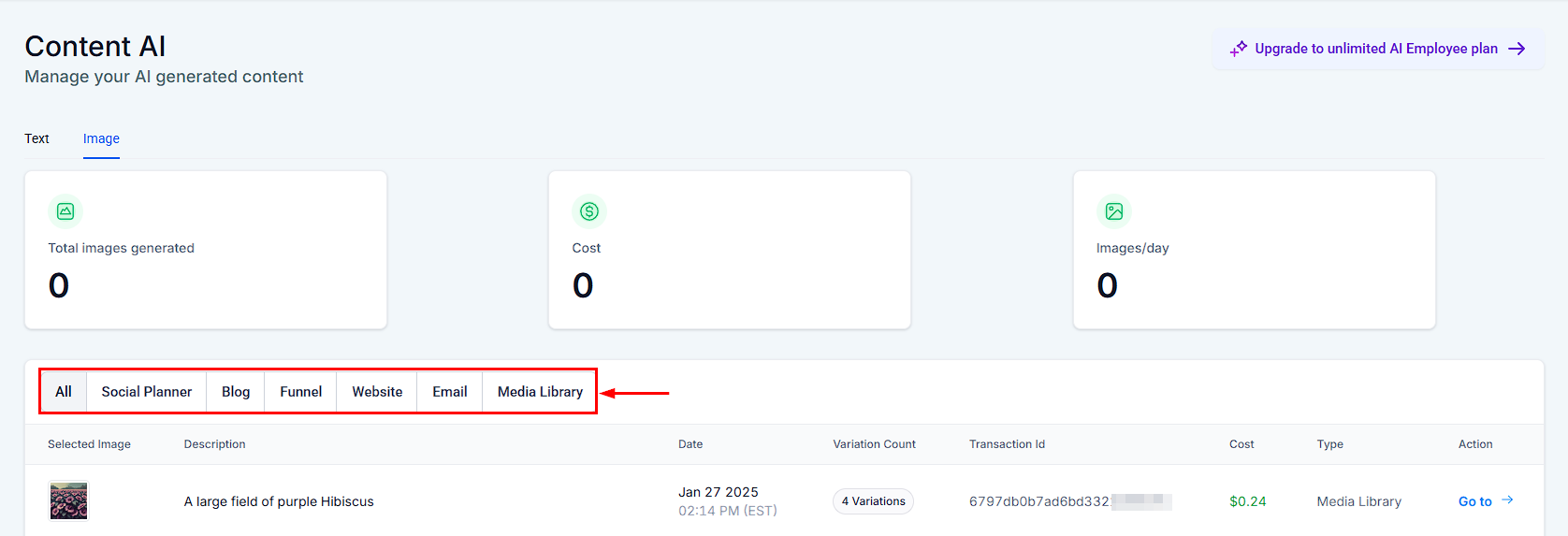
Total Images Generated
Here you will be able to see the total number of images generated by Content AI within your CRM system across all sections.
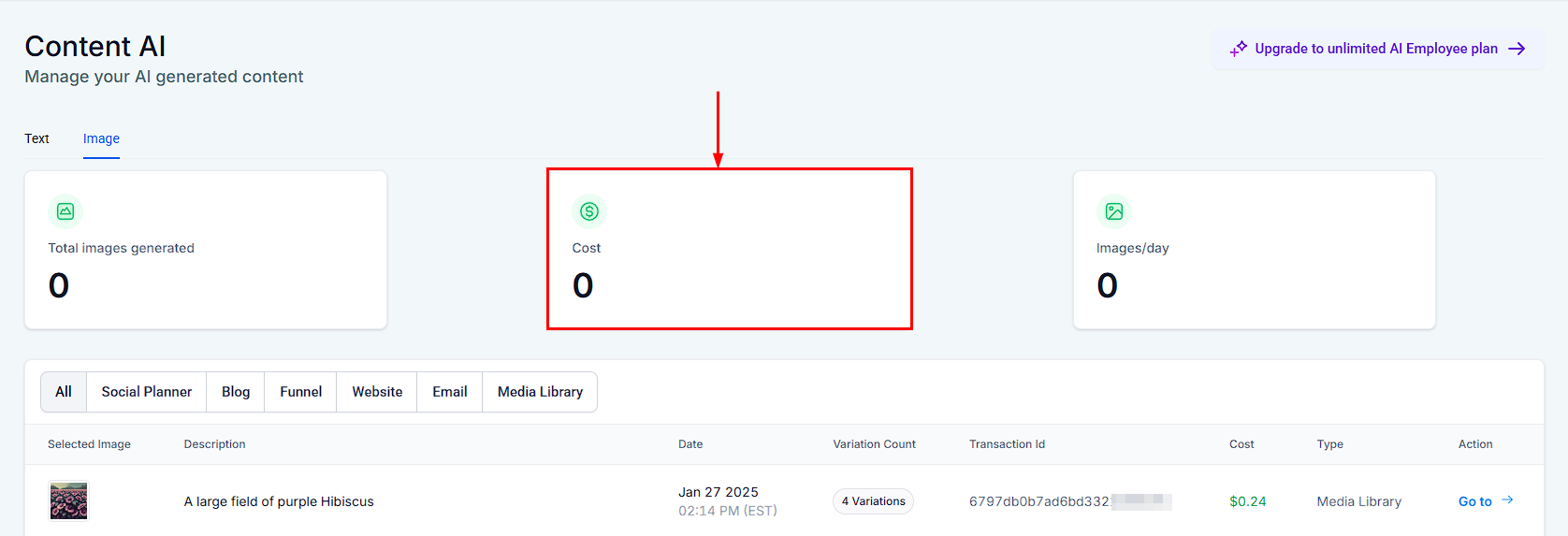
Cost
This dashboard shows you the total cost for all Content AI-generated images throughout your CRM.
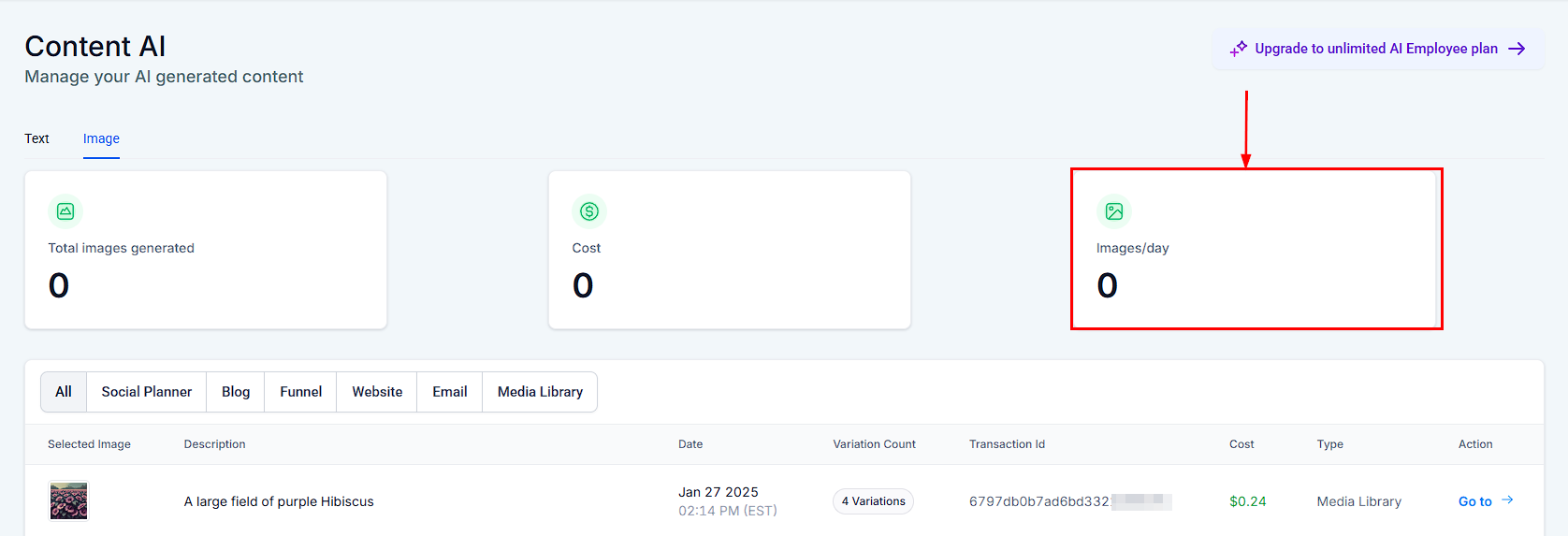
Images/Day
This shows you the average number of images created per day using Content AI in your CRM.
Content AI Image Table
Once an image is generated in your CRM, it will be registered on the Image details table. These are sections in which you can generate AI Images;
- All
- Social Planner
- Blog
- Funnel
- Website
- Media Library
Assessing previous logs of generated content can also save time for businesses, as they can reuse content that has already been generated and make necessary tweaks or adjustments as needed.
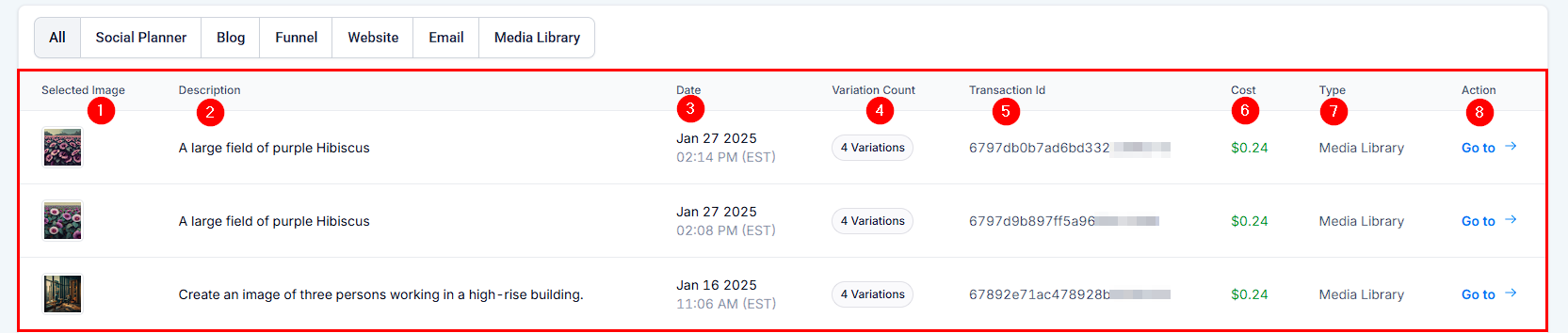
- Selected Image: This column shows the selected image created by Content AI.
- Description: You can see the description of the image generated here.
- Date: This shows the date and time this Image was created.
- Variation Count: This shows the number of variations created in Content AI.
- Transaction ID: This shows the transaction ID of each image generated by Content AI.
- Cost: This column shows the cost for each Content AI image generated.
- Type: This column specifies the category under which the image was created.
- Action: You can save any variations you generate to your media library if you would like to reuse them in the future by clicking on the "Go To" option, which directs you to the image page. You will see the "Save to Library" button in front of each image variation; click on it to Save it!
And that's it! With the Content AI Image section, you can efficiently manage your visual content, track costs, and save time by reusing or tweaking previous creations.
Was this article helpful?
That’s Great!
Thank you for your feedback
Sorry! We couldn't be helpful
Thank you for your feedback
Feedback sent
We appreciate your effort and will try to fix the article