A Brand Voice helps you set a standard for how your content should sound, the information it contains, its audience, and style. This voice might evolve and depart from its original creation as your business grows. So, you might be wondering, how can I change it?
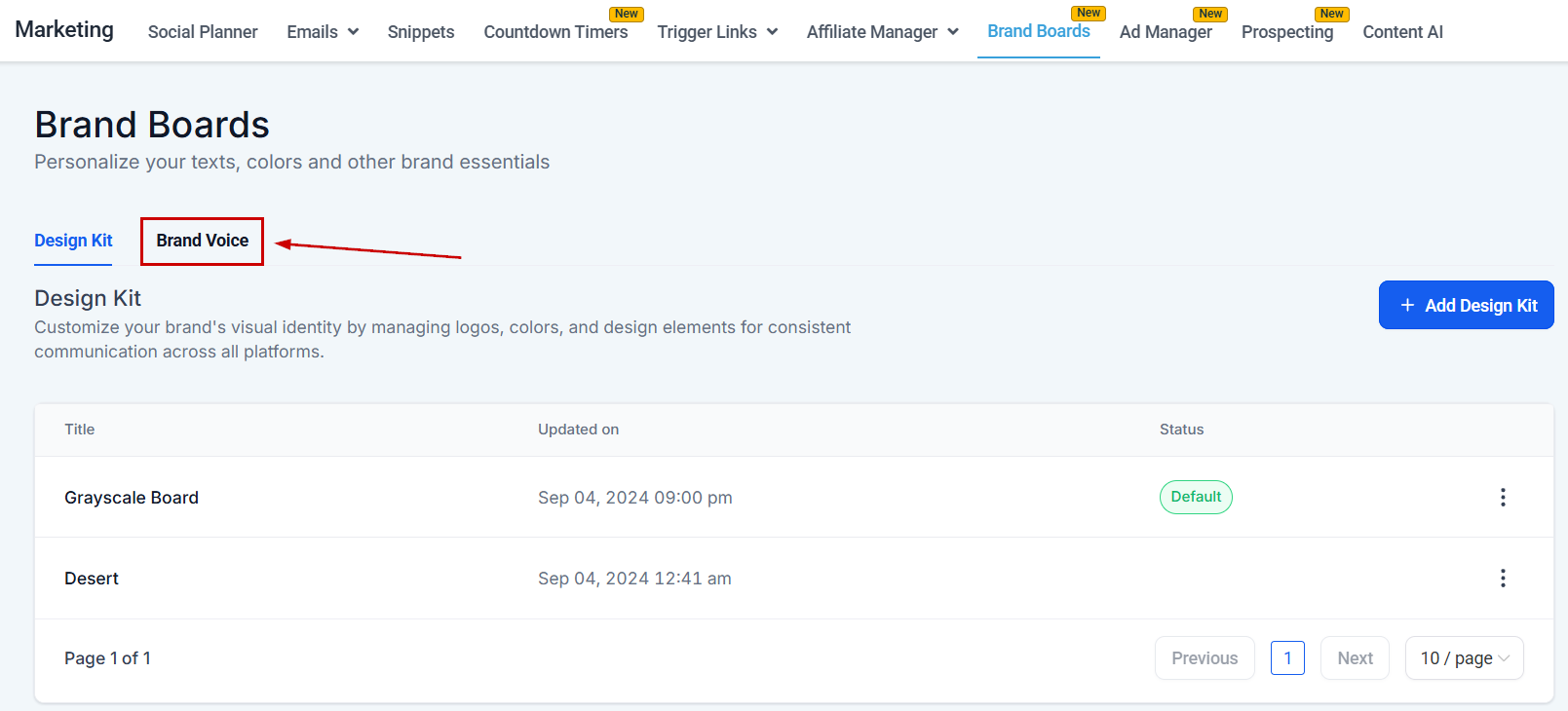
Head to the Brand Boards tab inside the Marketing section and switch to the Brand Voice tab.
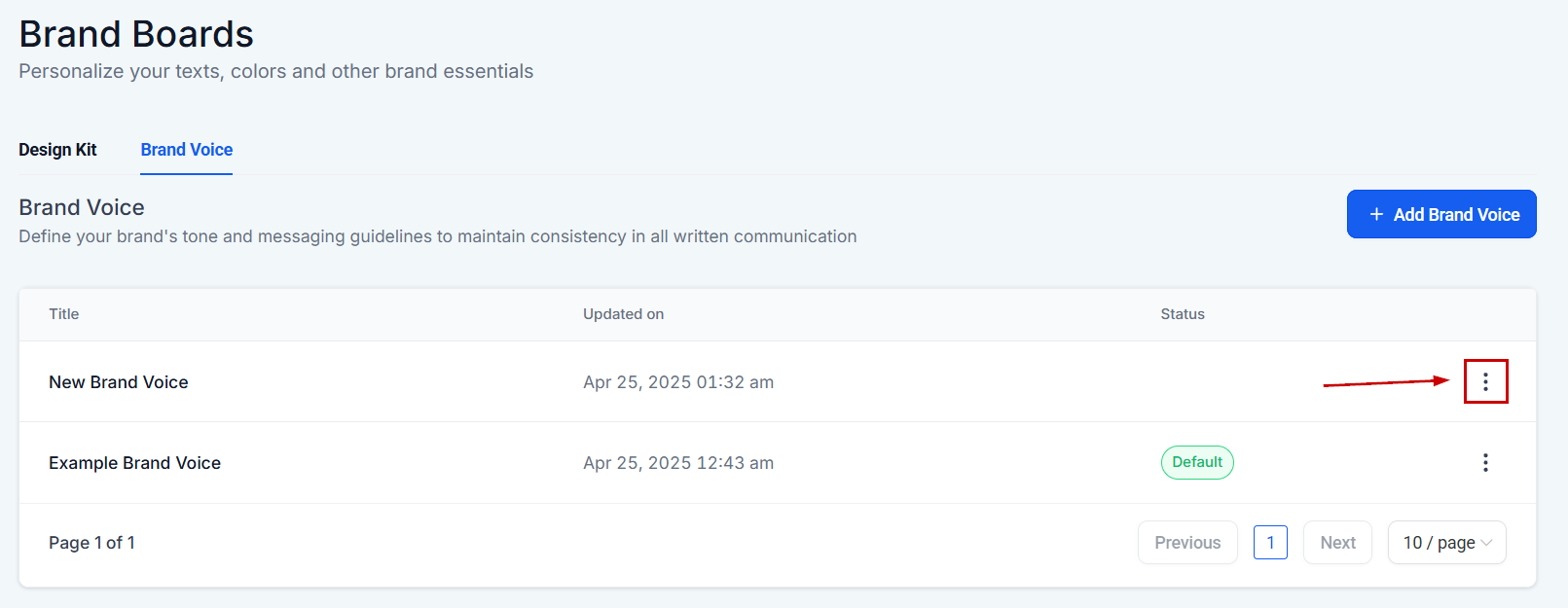
Click the three-dot icon next to the voice you want to edit.
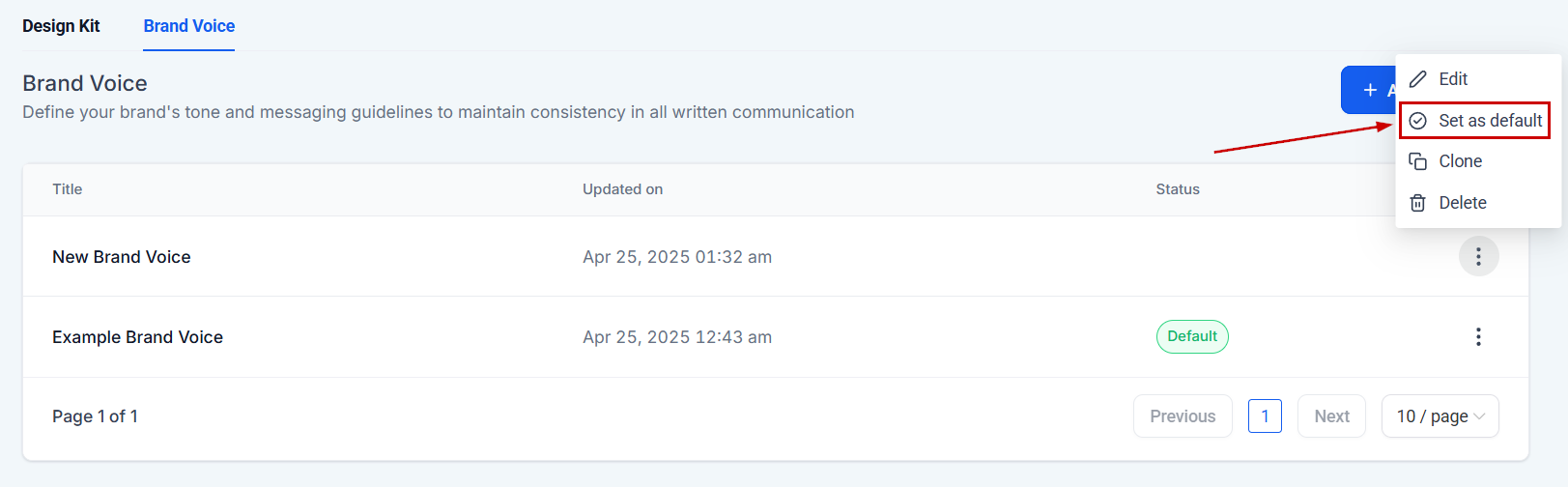
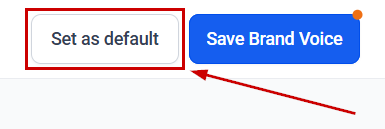
If you've already created a new Brand Voice you'd like to use, click “Set as Default.”
Editing a Brand Voice
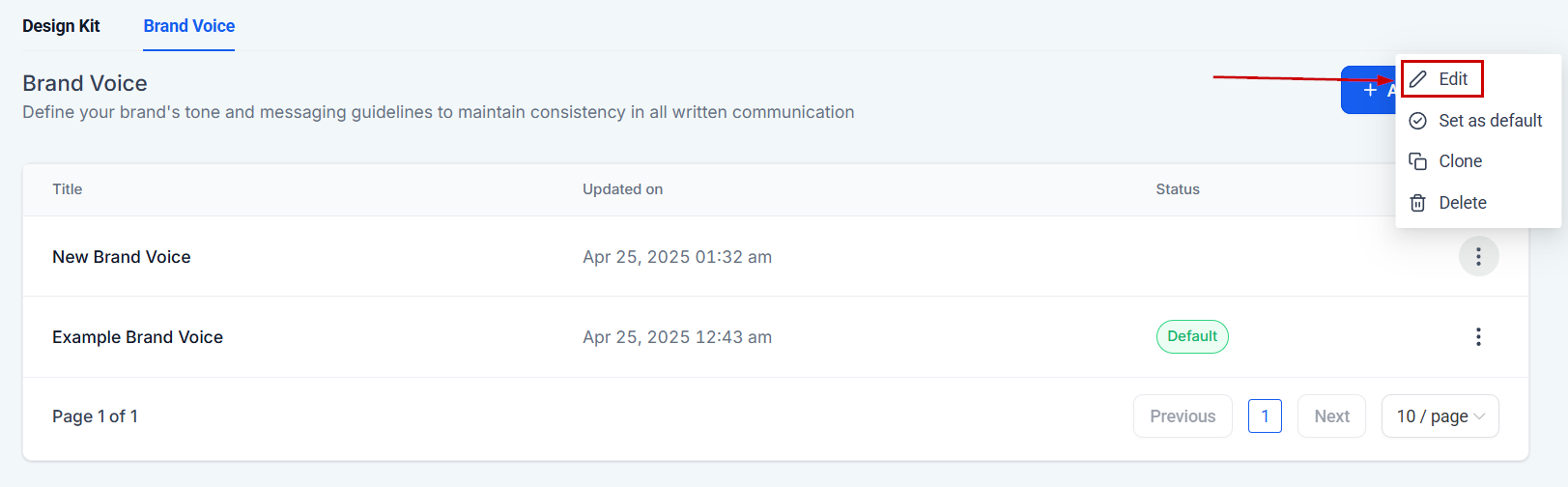
If you want to make a few changes to the voice before selecting it as the Default, click Edit.
Make any necessary changes or add new information. The more details you add, the more accurately your Content AI will capture your brand's personality. Remember, you must fill in the following questions obligatorily:
- Brand Name
- Tone of Voice
- Target Audience
- Customer Pain Points
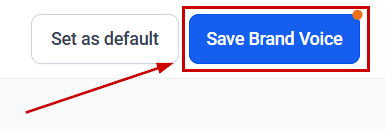
Click Save Brand Voice to update your voice's settings.
Click Set as Default to change the Content AI's auto-selected voice and style.
Following the steps outlined in this guide will help you seamlessly incorporate any necessary updates, preserving consistency and ensuring your content stays useful!
Was this article helpful?
That’s Great!
Thank you for your feedback
Sorry! We couldn't be helpful
Thank you for your feedback
Feedback sent
We appreciate your effort and will try to fix the article