The Image Editor in Ad Manager allows for advanced image editing that is designed to enhance your advertisement strategy. This tool provides versatile options for creating visuals for Google and Meta. Let's take a look at how to navigate these features to assist your content creation process.
Navigate to Ad Manager
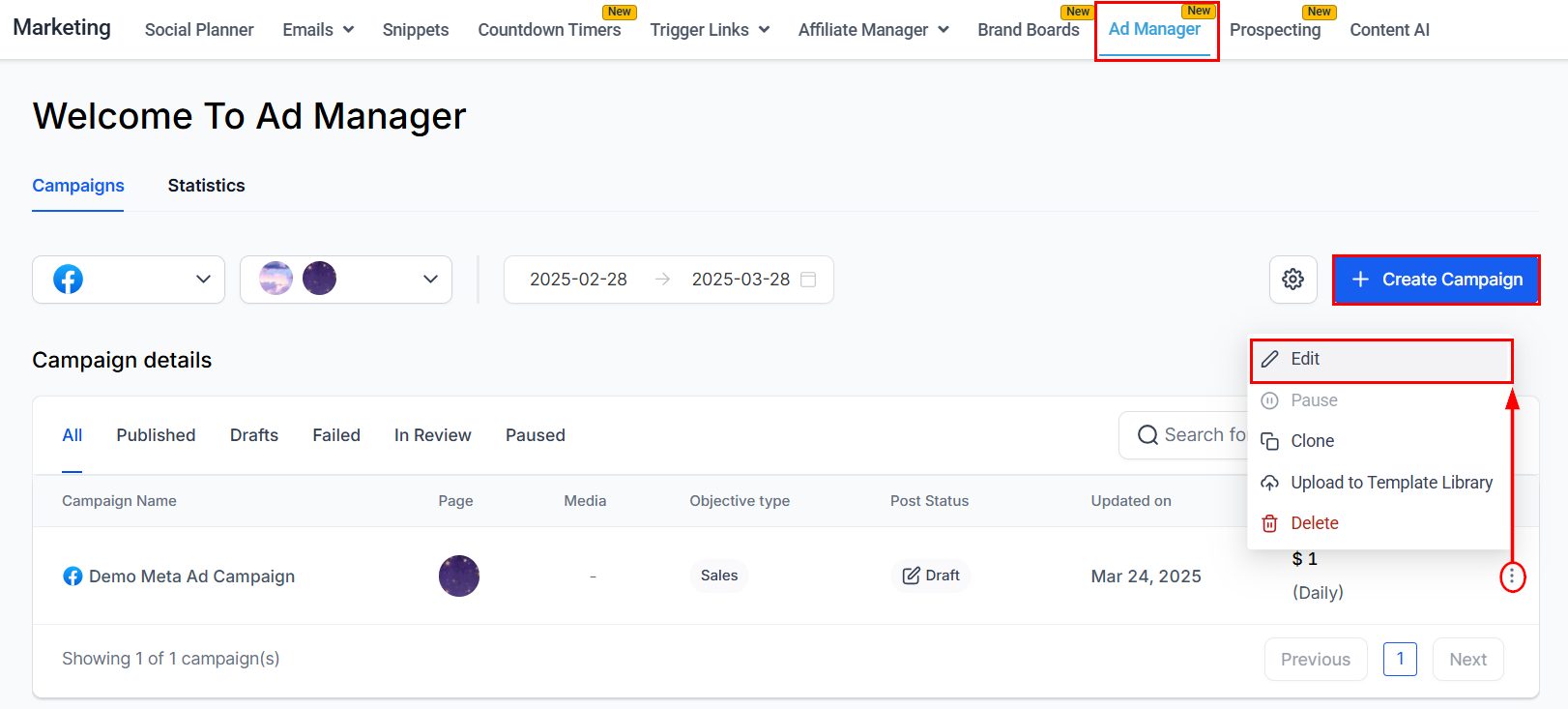
Start by going to the “Marketing” tab in the left sidebar and then to Ad Manager. Here, create a new campaign or edit a drafted campaign in the list.
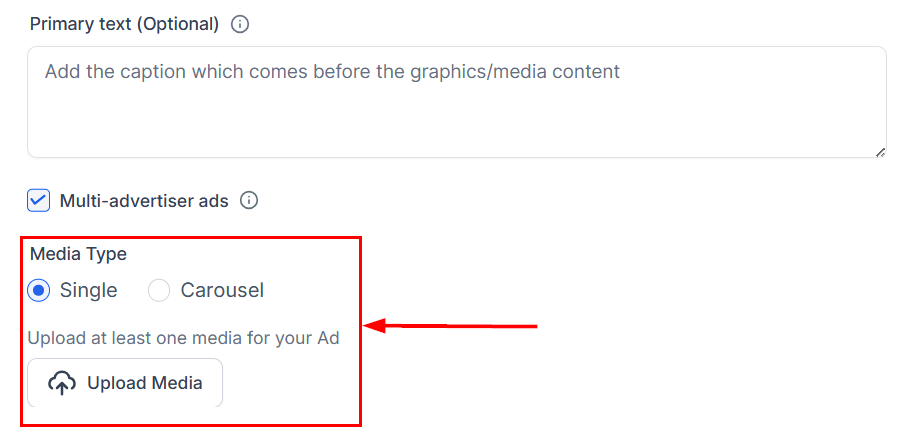
In the campaign editor, navigate to the Media Type section within the Ad Content step. If no media has been added, upload the necessary assets, ensuring that an image is included so you can explore the image editor's features.
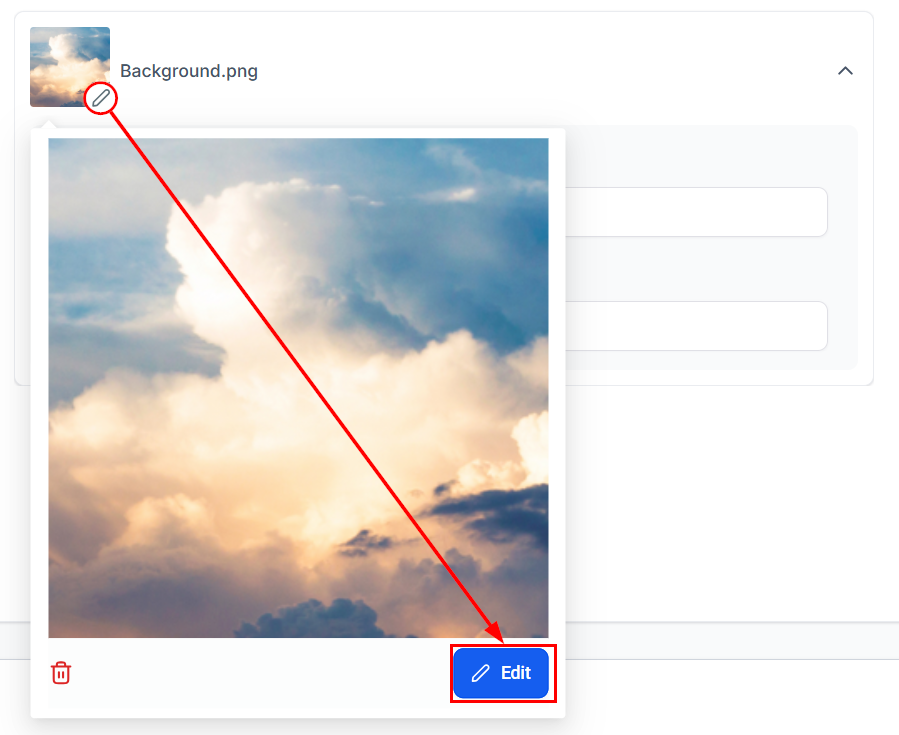
After uploading, click the pencil icon to modify the image features. Let's dive into the editing tool.
Editing Your Image
Crop
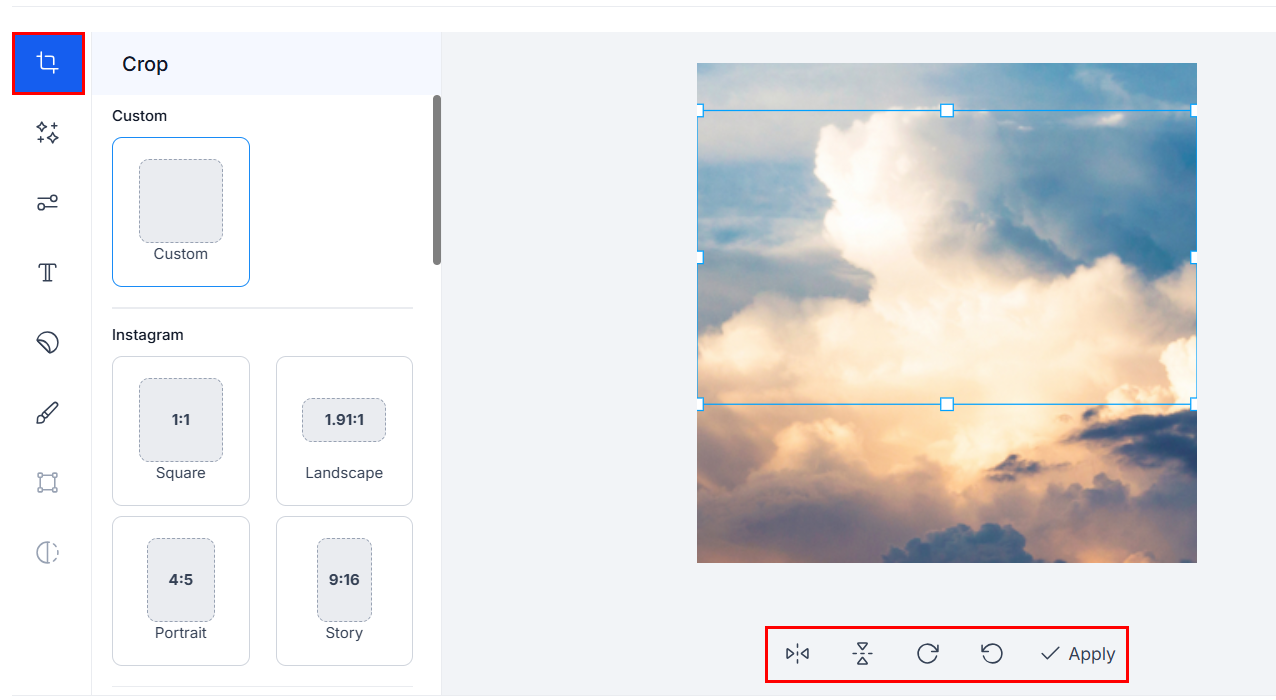
The first option you'll have for editing your image is to crop it. You have the option to custom crop and a variety of common ratios to choose from.
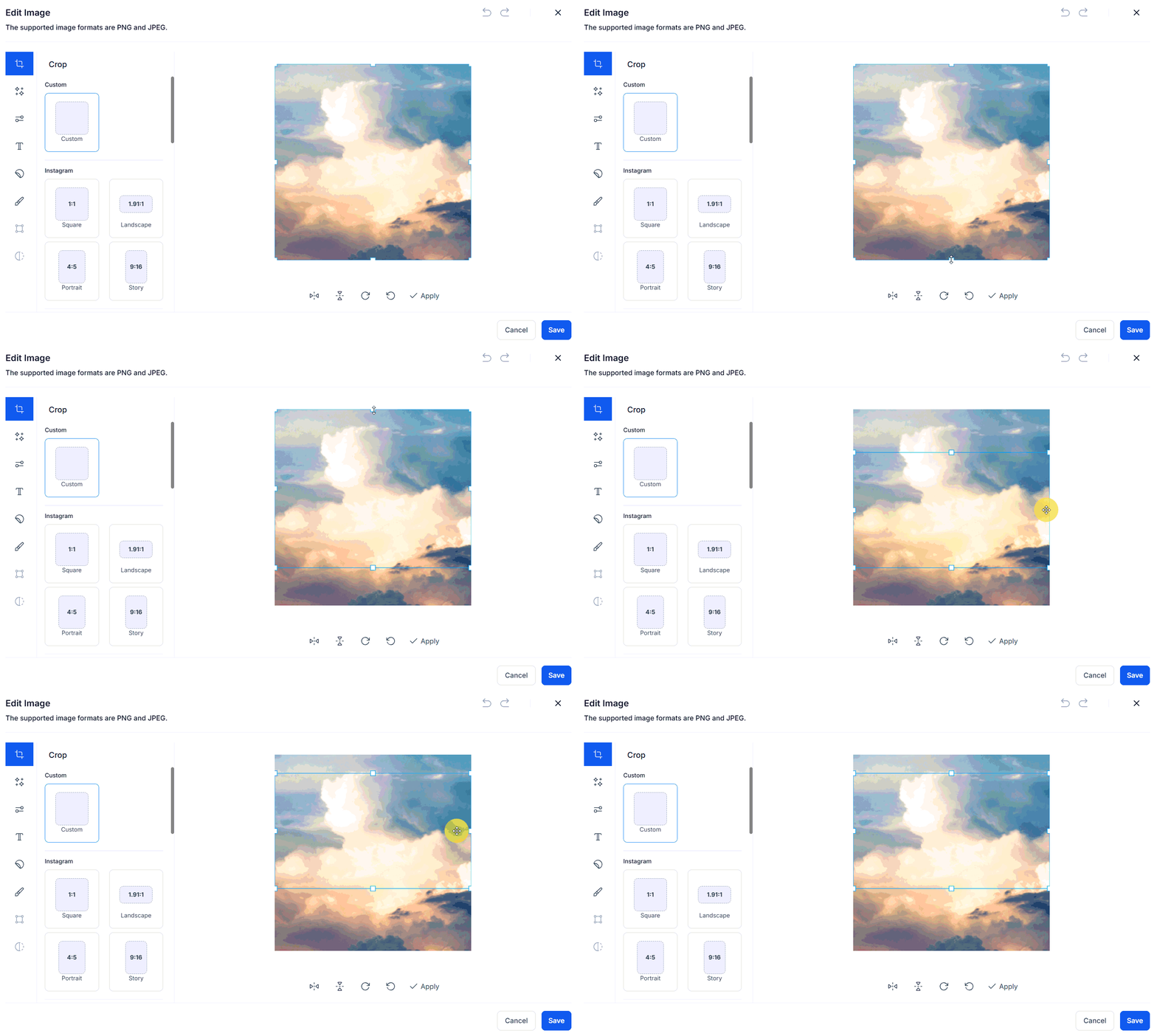
At the bottom of the Crop section, you can also choose to flip horizontally and vertically, rotate clockwise and counterclockwise, and select Apply once you have adjusted your image to your liking.
Filters
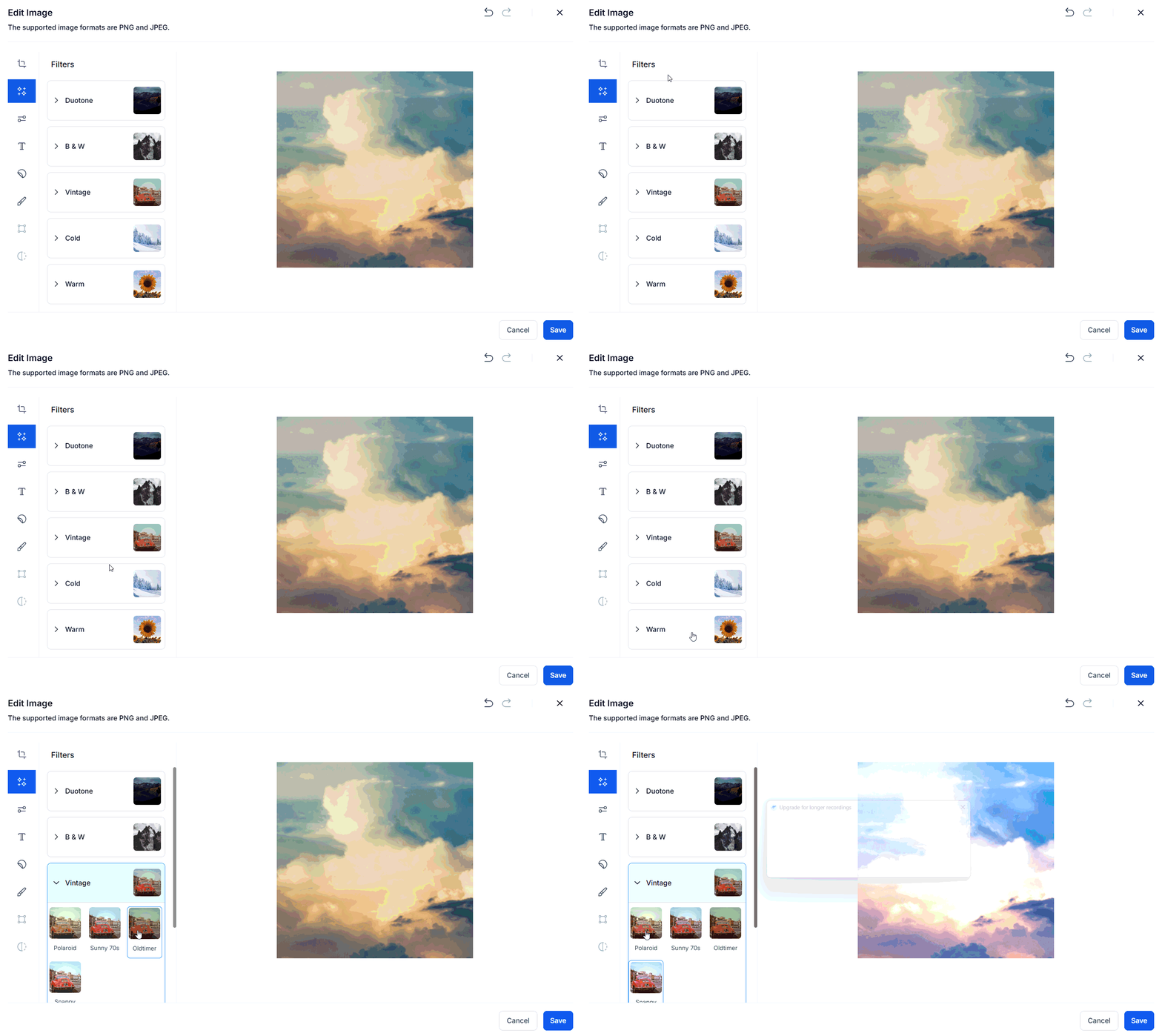
In the Filters tab, you have 5 categories to choose from. When you click on the category, a dropdown will appear with a preview of each filter you can then choose from.
Adjustments
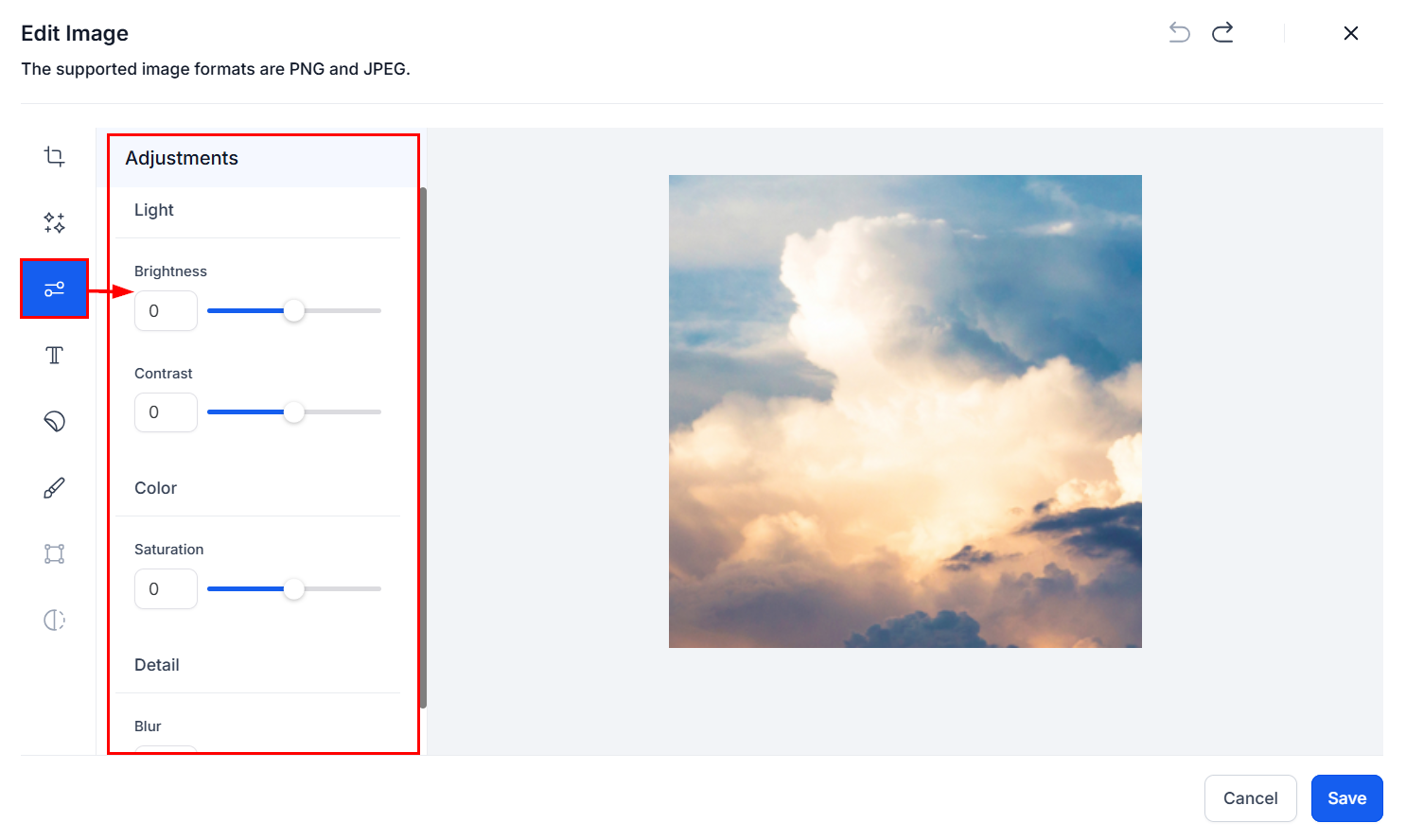
The Adjustments tab allows you to drag the slider to adjust the brightness, contrast, and saturation and blur the image.
Text
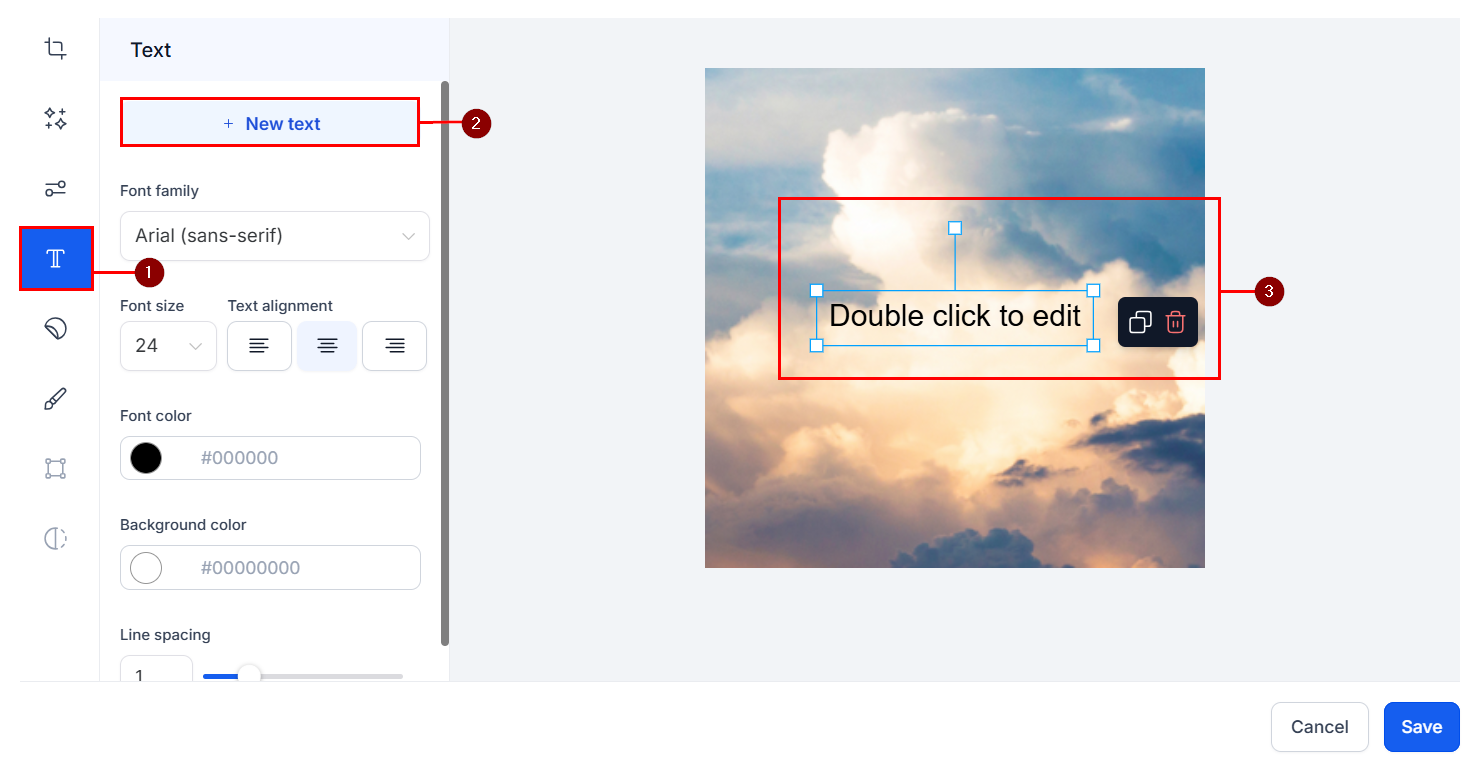
You can add text to your image in the text tab. Click on + New Text, and a text box will appear. Double-click on your newly added text box to begin customizing. You can customize your text by choosing the font family, font size, alignment of the text, color, background color, and even the line spacing!
Stickers
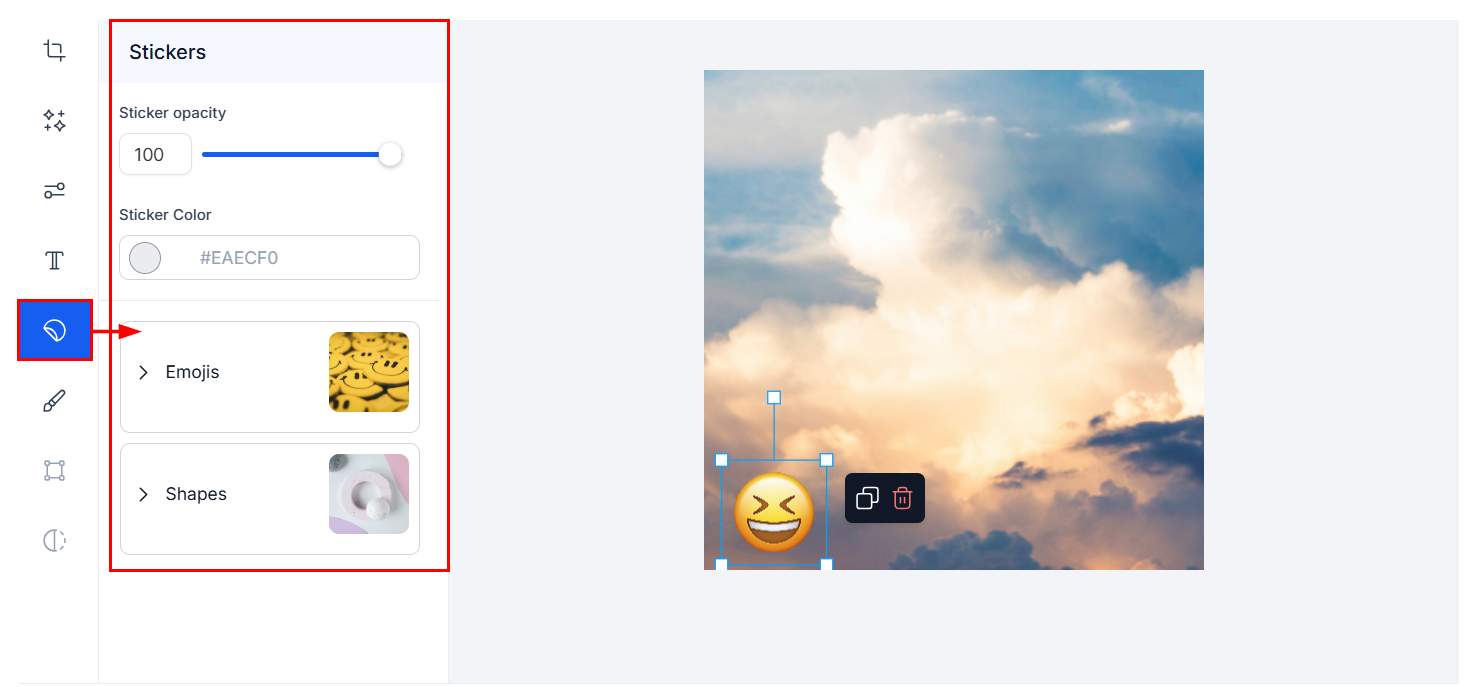
By selecting the sticker categories, a drop-down will appear with the emojis and shapes you have available. Adjust your sticker opacity and color by dragging the slider or entering the hex code, respectively.
Brush
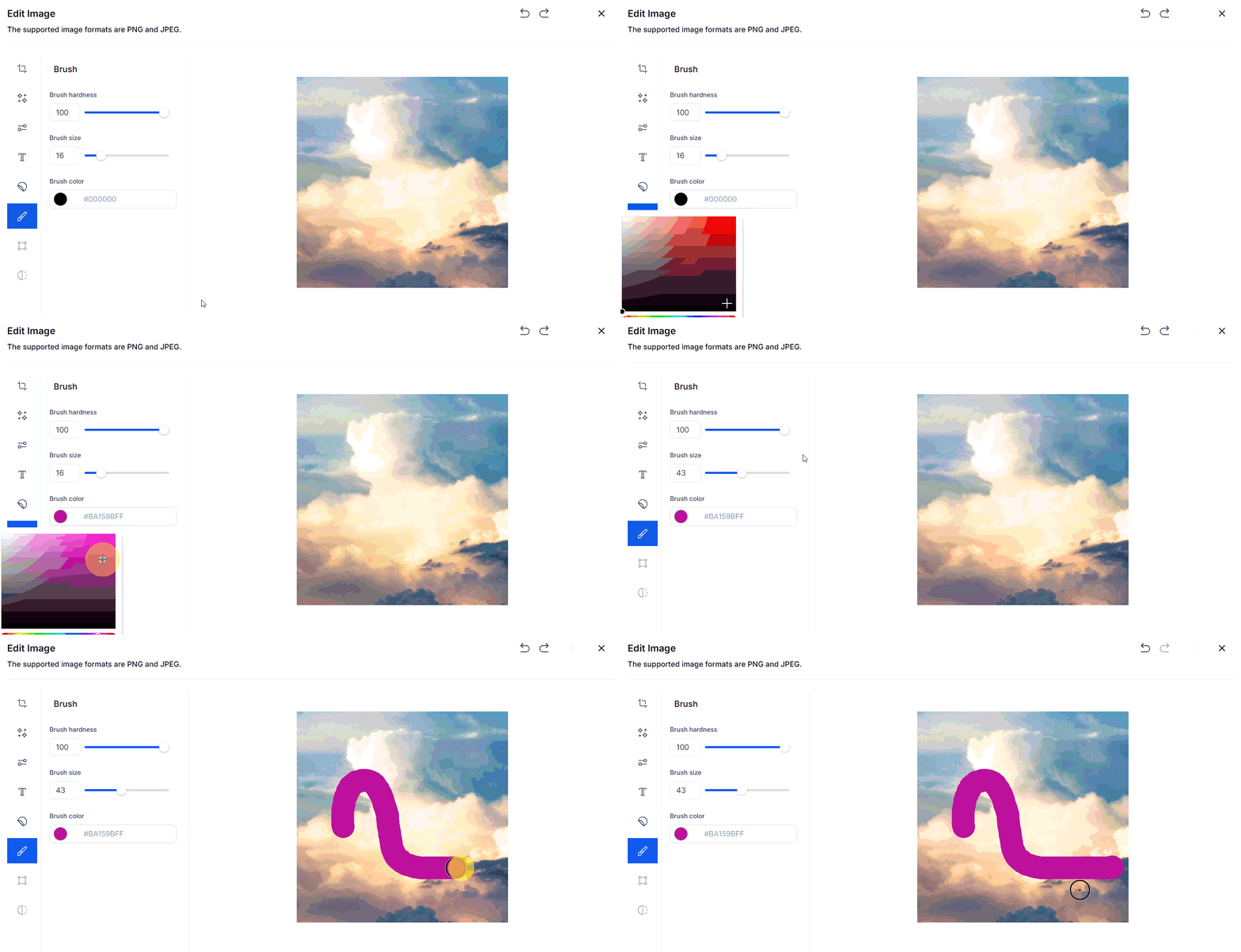
The brush allows you to adjust the brush's hardness, brush size, and color. Once you have adjusted these settings, you can draw on your image!
Undo & Redo
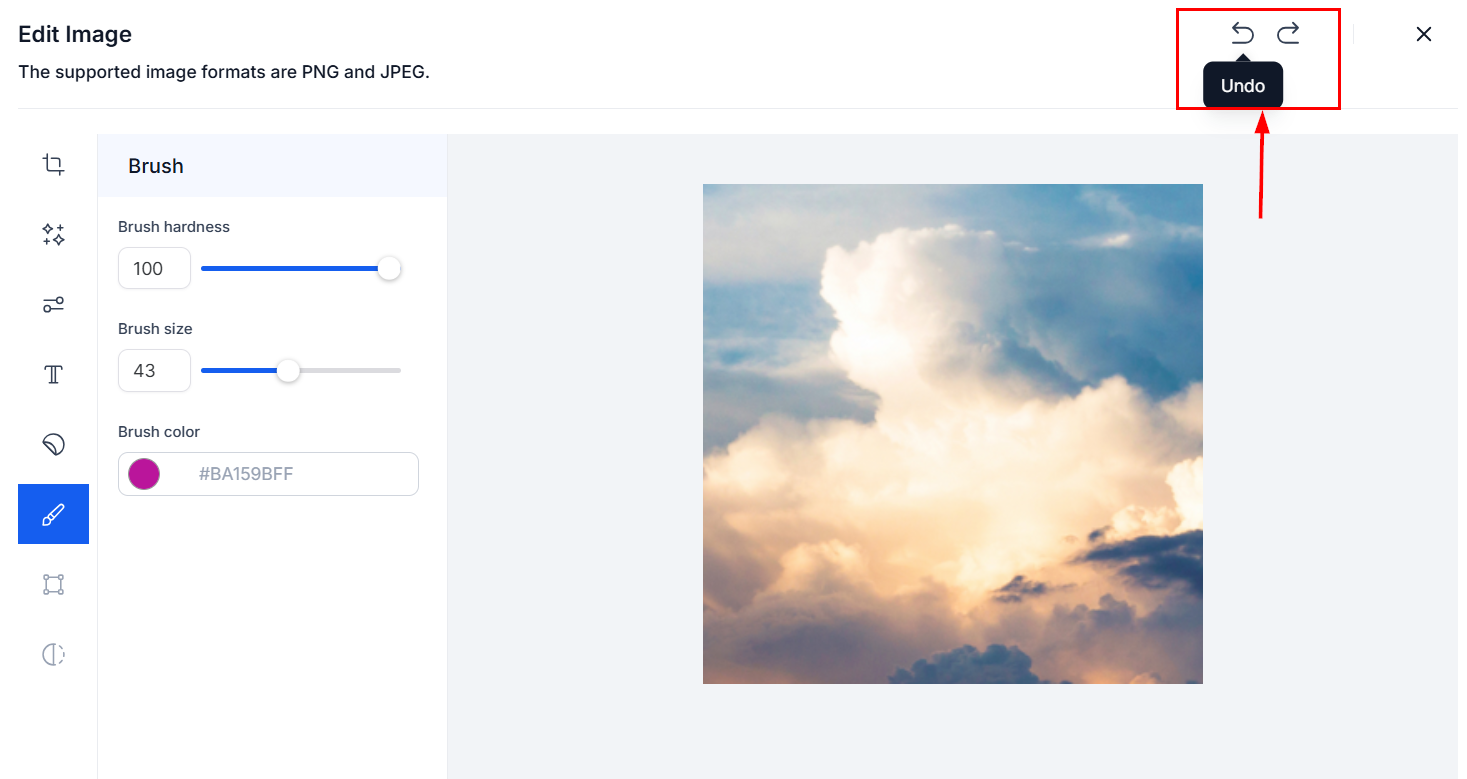
If you are unhappy with a change you've applied, you can use the undo and redo buttons on the top right.
Remember to save your changes once you have completed editing your image!
The image editor provides versatile tools to enhance your Ad Manager content. With features like text, stickers, and image adjustments, you can create standout visuals for any platform.
Was this article helpful?
That’s Great!
Thank you for your feedback
Sorry! We couldn't be helpful
Thank you for your feedback
Feedback sent
We appreciate your effort and will try to fix the article