The Ad Manager settings section has five tabs: 'Integrations,' ‘Pages,’ ‘Conversions’, ‘Audiences’, and ‘Subscription’. Each tab serves a distinct purpose, offering essential tools and information for managing your ad campaigns. It is important to note that these settings remain consistent across all accounts, except the Integrations tab, which is not available in the Default Ad Manager, as this does not require an ad account connection. This article will explore the critical importance of Ad Manager settings and the various operations you can perform within this section. Understanding these settings is essential for effectively managing your ad campaigns and ensuring optimal performance.
Accessing Ad Manager Settings
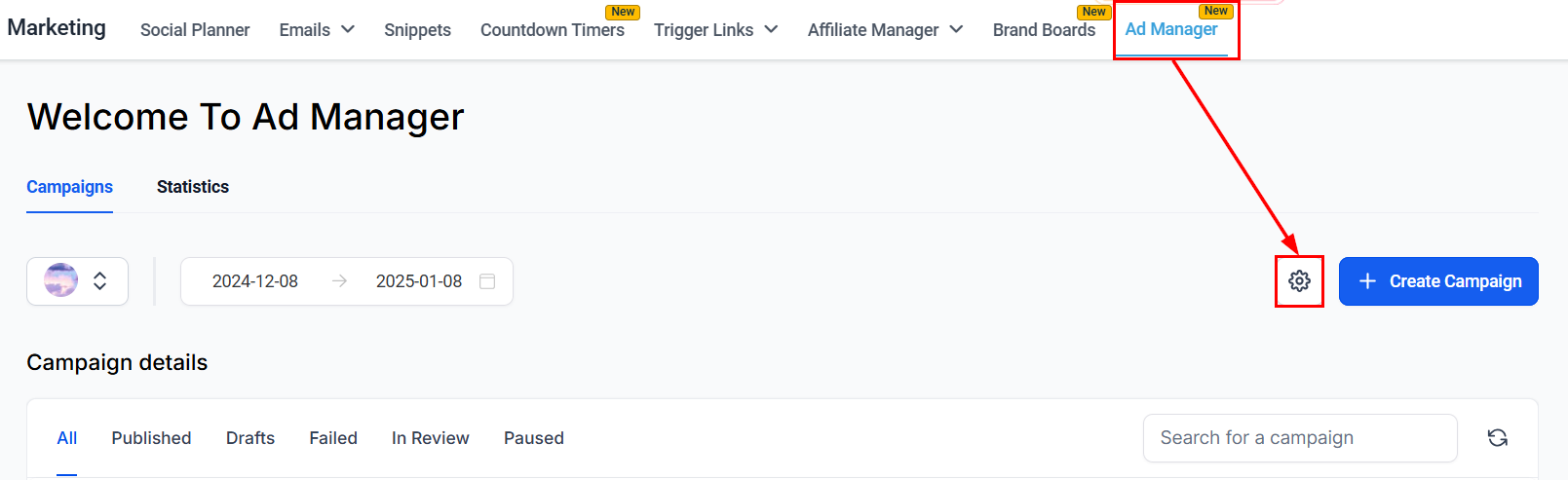
To access the Ad Manager settings, simply click the settings icon on the Ad Manager home page, as highlighted in the screenshot below.
Integrations Tab
The Integrations tab displays the details of the Meta Ad account connected during the initial Facebook Ad Manager integration. Currently, Ad Manager supports the integration of a single Meta Ad account. However, future updates will allow for the addition of multiple ad accounts.
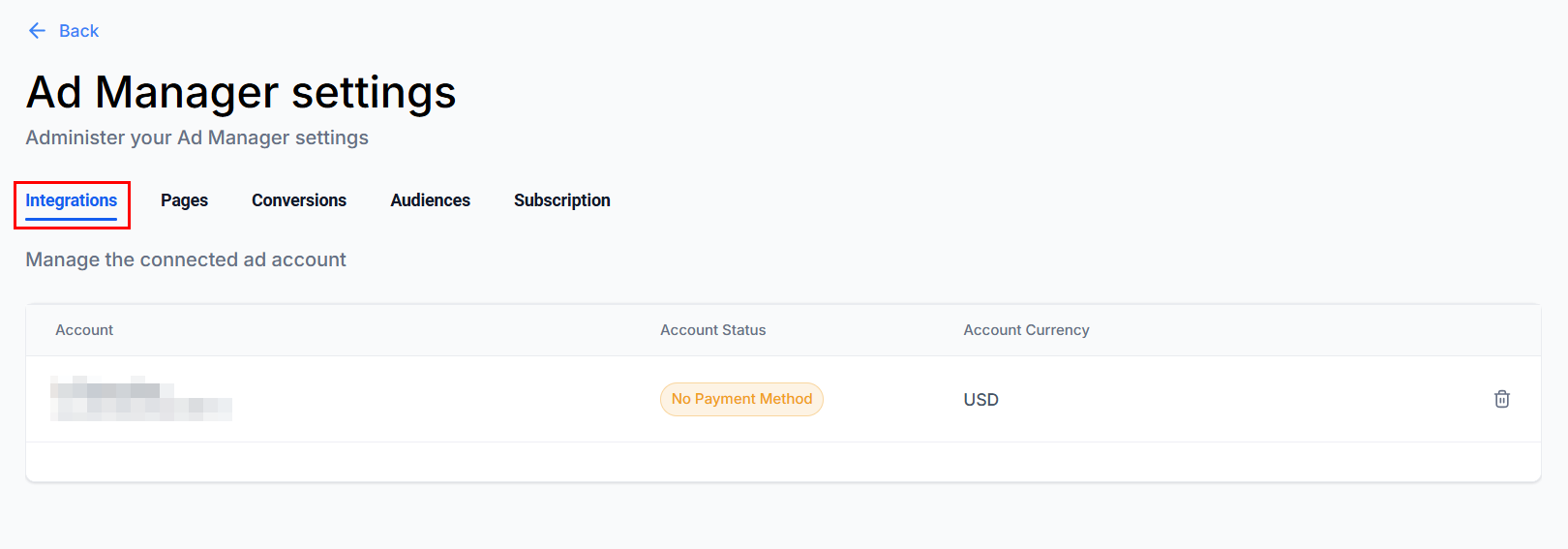
Remove the connected ad account by clicking the delete button. If you opt to delete the account, a confirmation prompt will appear, and all campaigns in Ad Manager will no longer be visible.
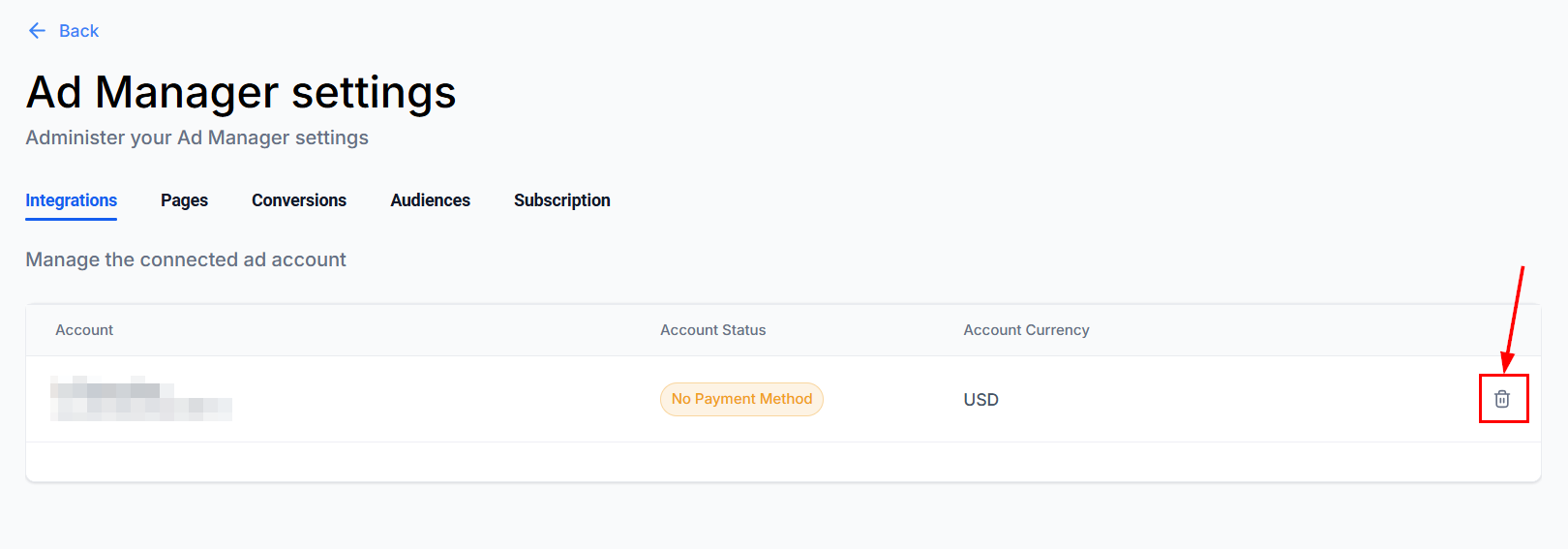
After deleting the ad account, users will be redirected to the onboarding page to connect to a new ad account.
? Note: If the same ad account is reconnected to Ad Manager, all previously connected campaigns and pages will be restored, and no data will be lost.
Pages Tab
The Pages tab displays a list of all Facebook pages connected to Ad Manager.
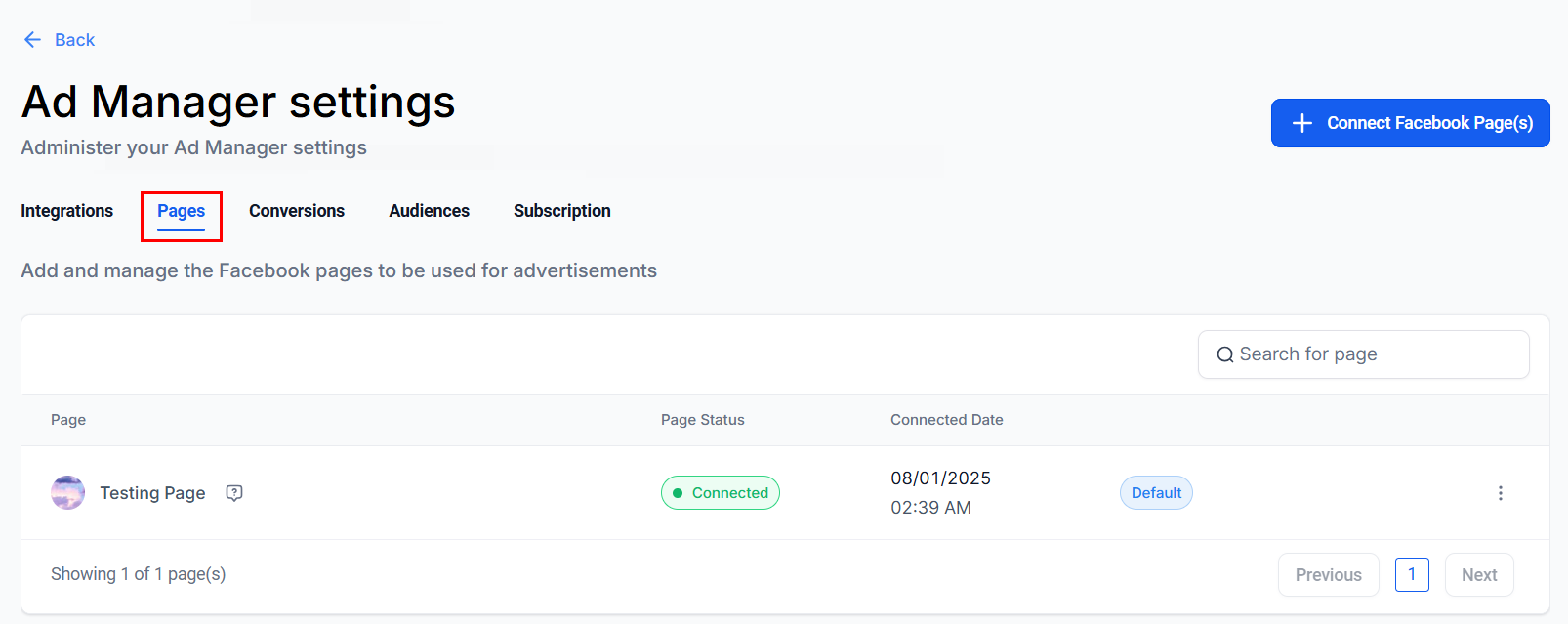
Add or delete pages by clicking the "Connect Facebook page(s)" or the delete button, respectively.
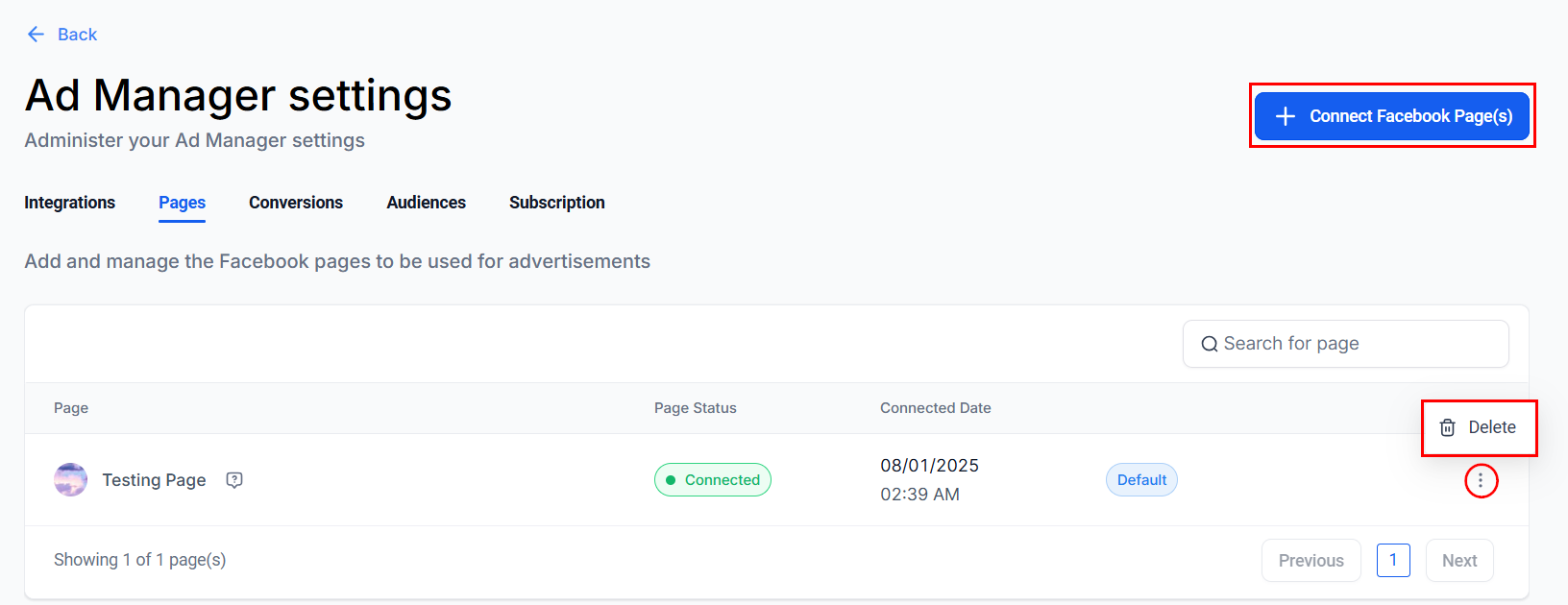
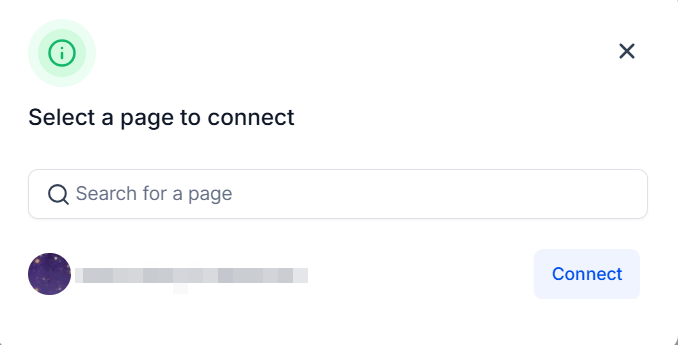
To connect a new page to Ad Manager, click the "Connect Facebook page(s)" button. A modal will open, displaying a list of Facebook pages associated with the connected Business Manager, allowing you to select the desired page.
When deleting a connected Facebook page, you will be prompted with a confirmation that the action cannot be undone. Once confirmed, the selected page will be unlinked from Ad Manager, and no future ads can be published on that page through Ad Manager. However, previously published ads will remain on Facebook but cannot be managed by Ad Manager.
?Note: If a delinked Facebook page is reconnected to Ad Manager, all previously created campaigns on that page will be visible again in the campaign details section.
Conversions Tab
The Conversions tab lists all the pixels imported from the connected Meta Ad account, along with those created in Ad Manager.
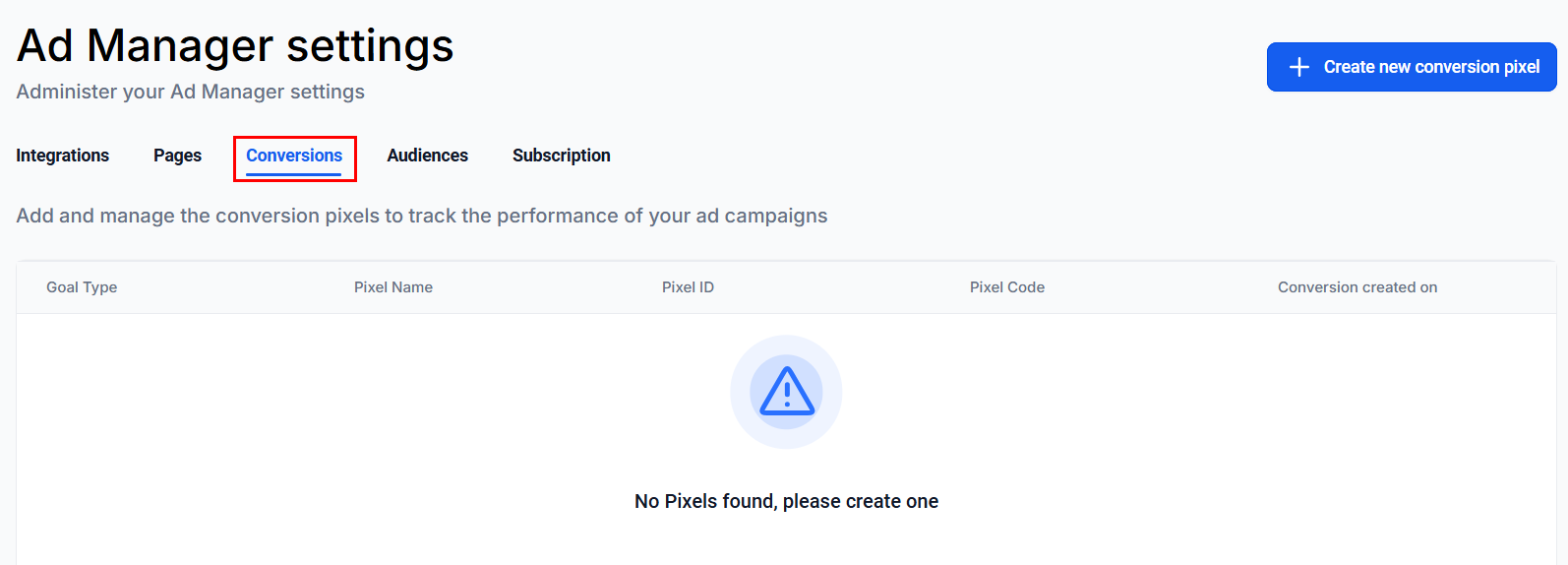
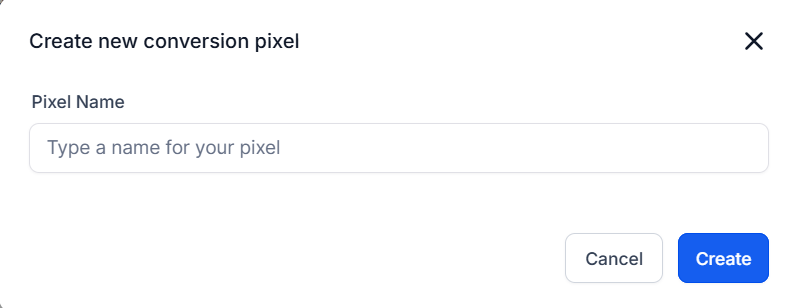
Clicking the "Create new conversion pixel" button opens a dialog where users can name the pixel. The pixel ID and code are automatically generated for easy use when creating workflows to send CAPI events back to Facebook.
?Note: Currently, only one pixel can be created using Ad Manager. This pixel can be used for both Lead and Funnel events without any restrictions from Facebook.
Audiences Tab
Upon selecting the Audiences tab, you can view a comprehensive list of all audiences created within Ad Manager, as well as those previously created on the Meta platform and imported from the connected ad account.
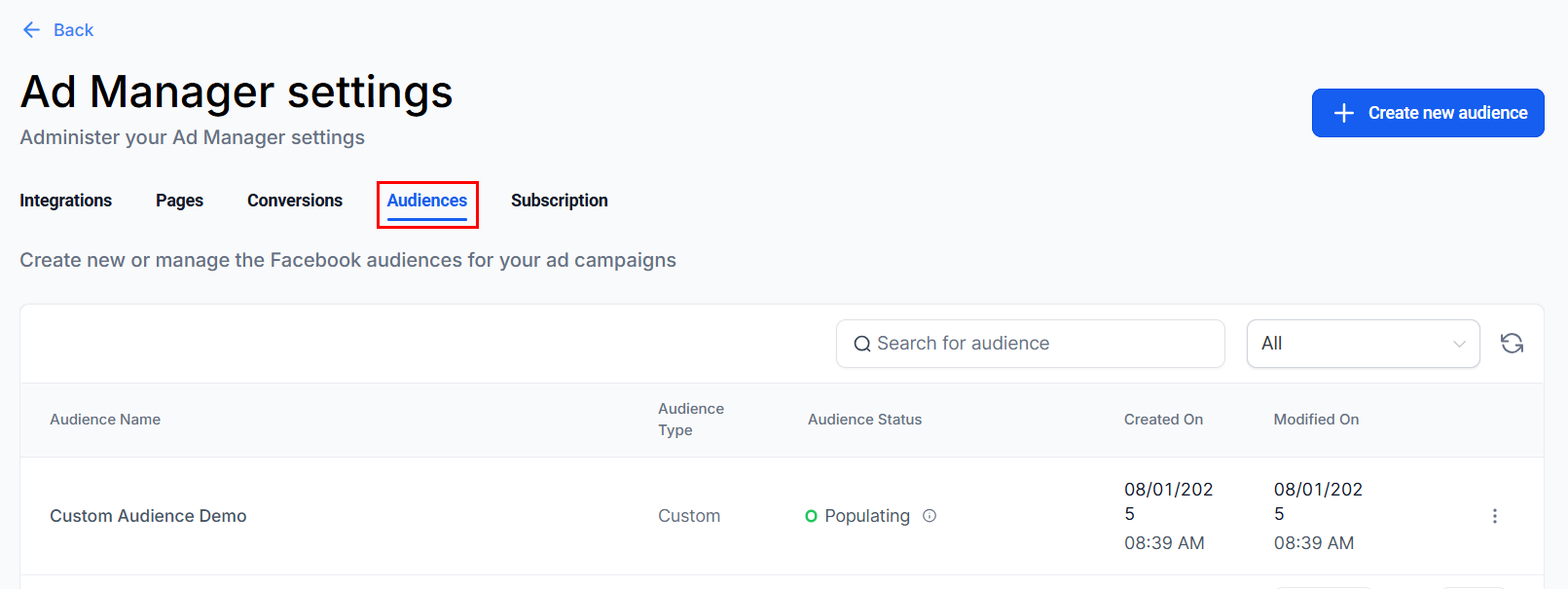
Create new audiences by clicking the 'Create New Audience' button, which presents two options: Lookalike Audience and Custom Audience. Selecting either option initiates the respective flow for audience creation. Once the process is completed, the newly created audience will appear in the list.
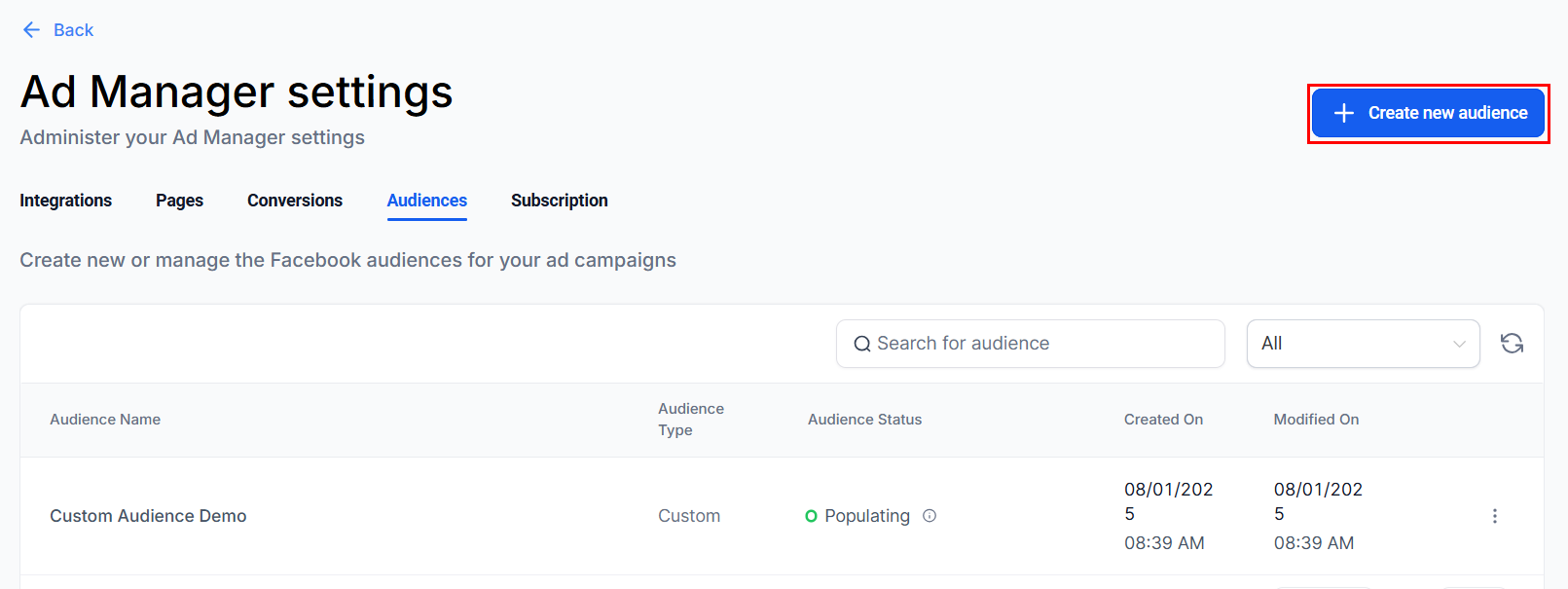
Edit the name and description of an existing audience by clicking the ellipsis icon next to the audience and selecting Edit. To delete an audience, click the Delete button, which will remove it from all draft and paused campaigns, provided the audience is not linked to any active campaigns. If an attempt is made to delete an audience associated with one or more active campaigns, a validation message will appear, notifying the user that the audience cannot be deleted as it is part of an active campaign.
Subscription Tab
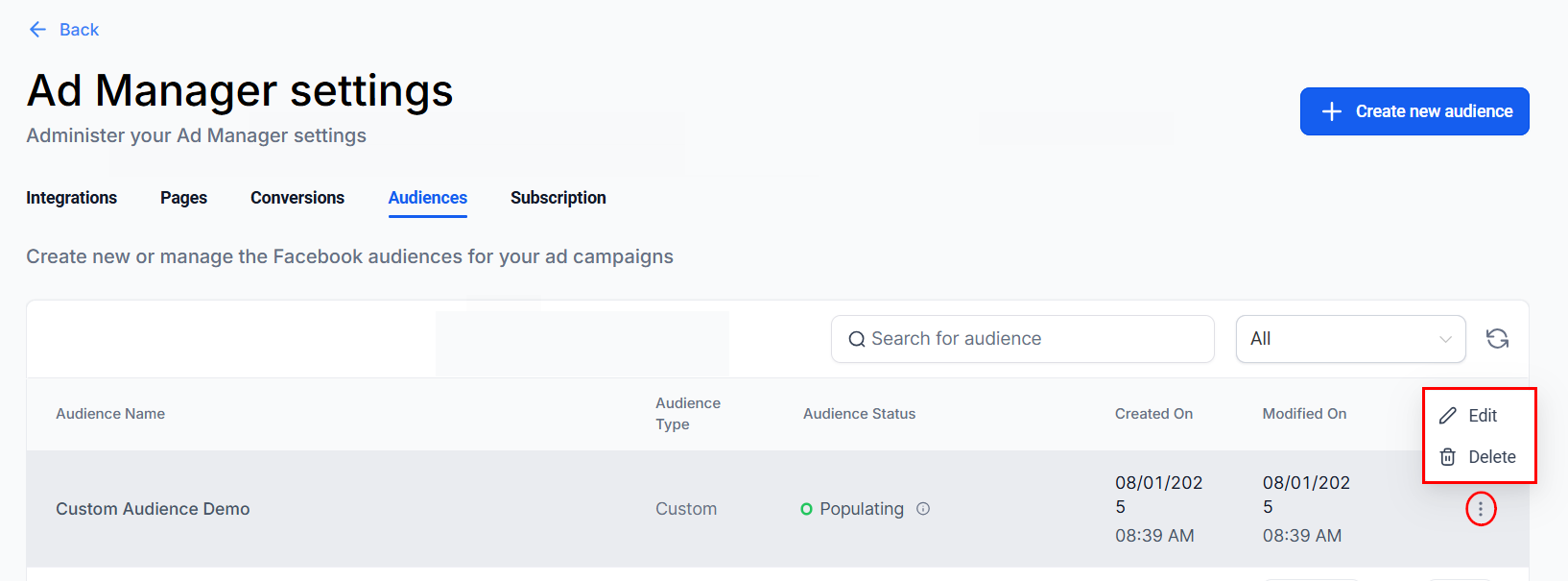
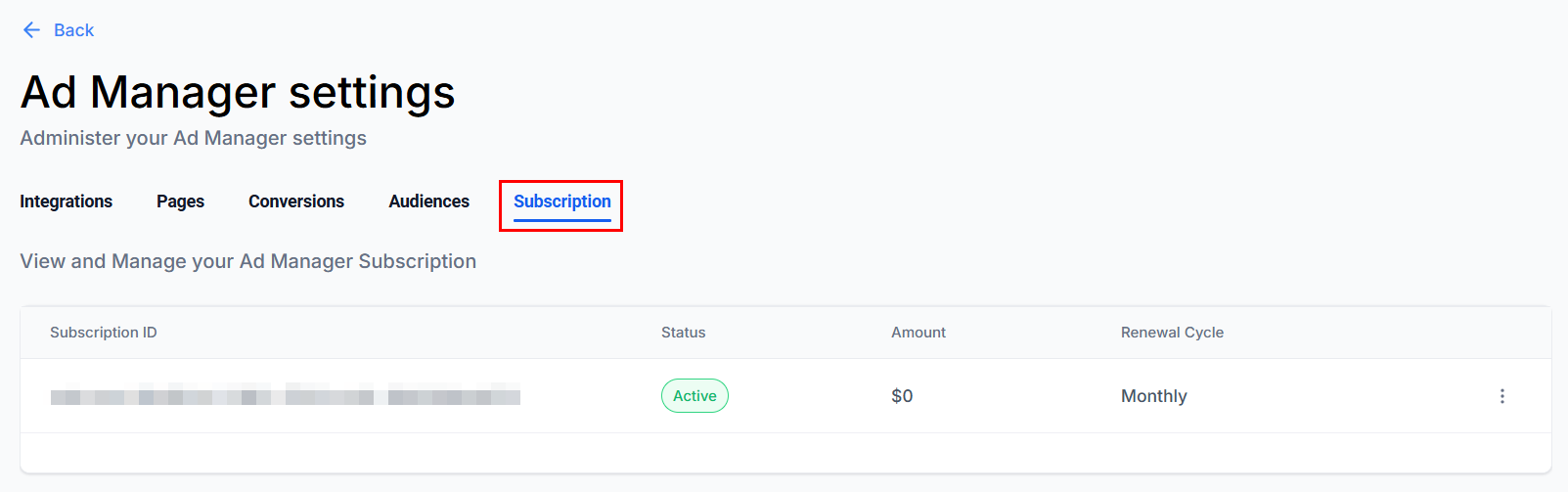
Use this tab to access and manage all aspects of your Ad Manager subscription. This includes viewing your current subscription plan, checking billing information, and canceling your plan.
Understanding and utilizing these settings will empower you to optimize your ad management processes and achieve better results. Whether you are connecting ad accounts, managing Facebook pages, creating conversion pixels or audiences, or managing your subscription, the Ad Manager settings provide the necessary controls to ensure your campaigns run smoothly and efficiently. As you continue to explore and utilize these features, you'll be well-equipped to manage and grow your advertising efforts.
Was this article helpful?
That’s Great!
Thank you for your feedback
Sorry! We couldn't be helpful
Thank you for your feedback
Feedback sent
We appreciate your effort and will try to fix the article