The Documents & Contracts section serves as a central hub for managing Proposals, Estimates, and Contracts. Featuring a versatile builder that supports text, images, videos, tables, and more—along with digital signatures and document state management—this section offers a comprehensive solution for professional business communication.
This guide will provide an overview of the All Documents & Contracts section, ensuring you make the most of its features.
Navigate to Payments > Documents & Contracts > All Documents & Contracts to begin.
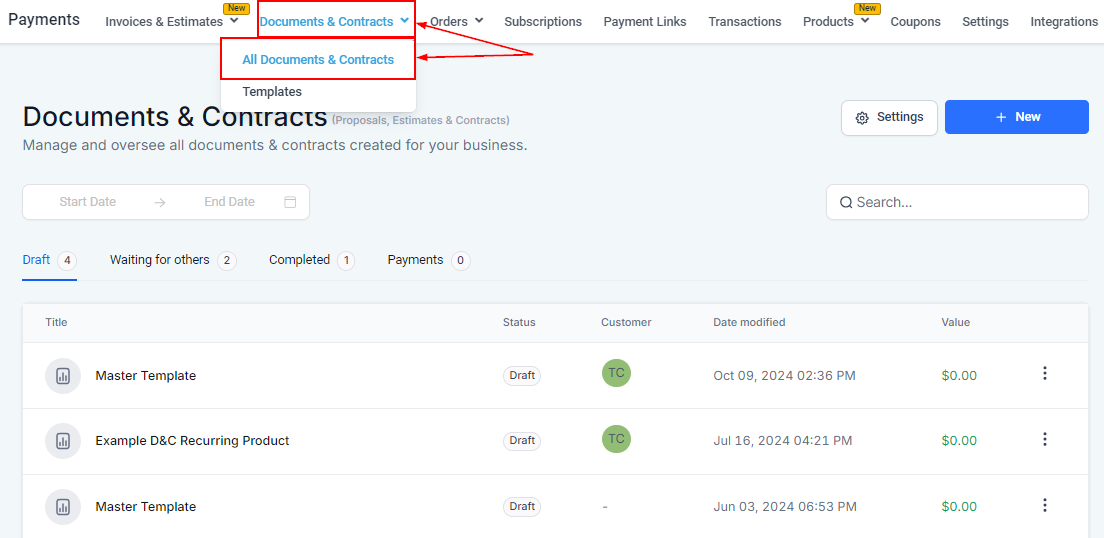
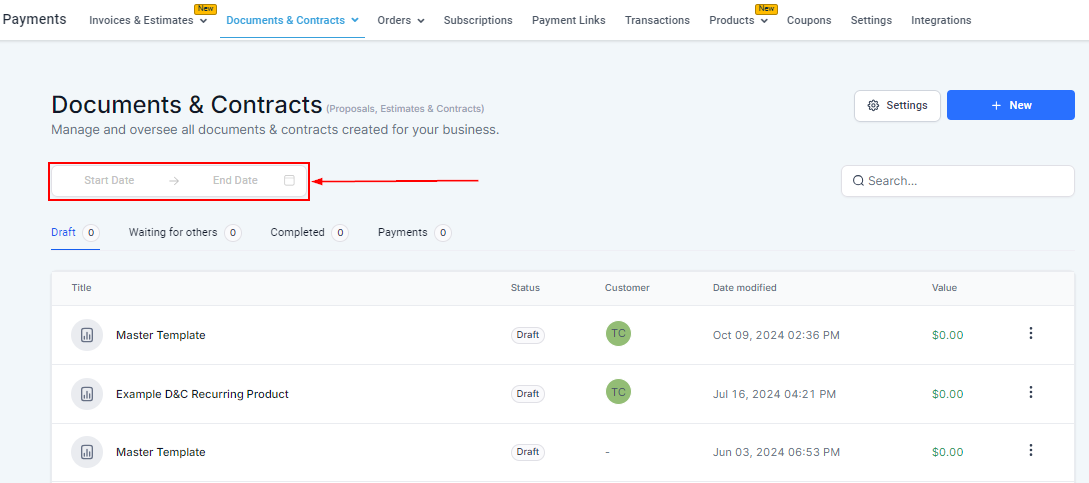
Date Range
Filter the list by selecting a specific Date range.
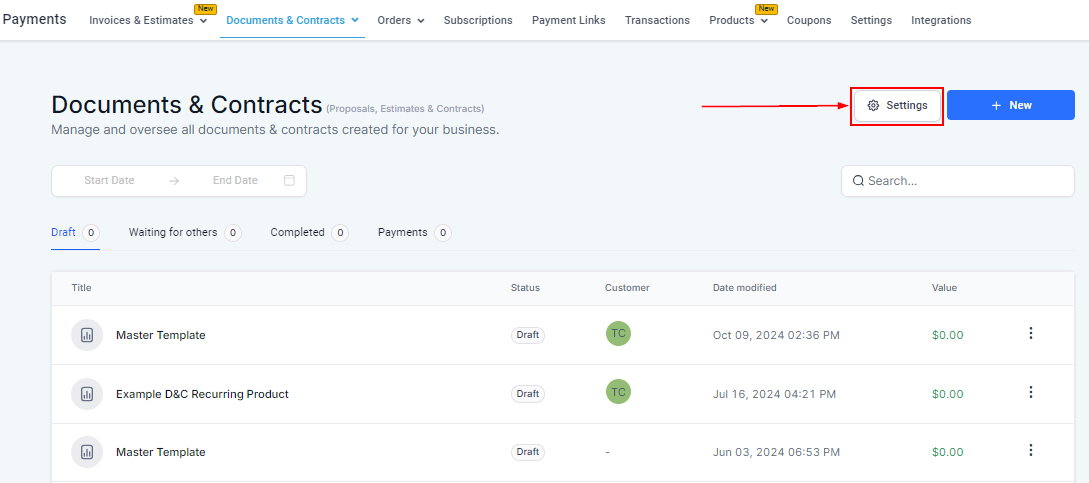
Settings
Configure the customer and team notifications as well as your product invoicing preferences within the Documents & Contracts settings.
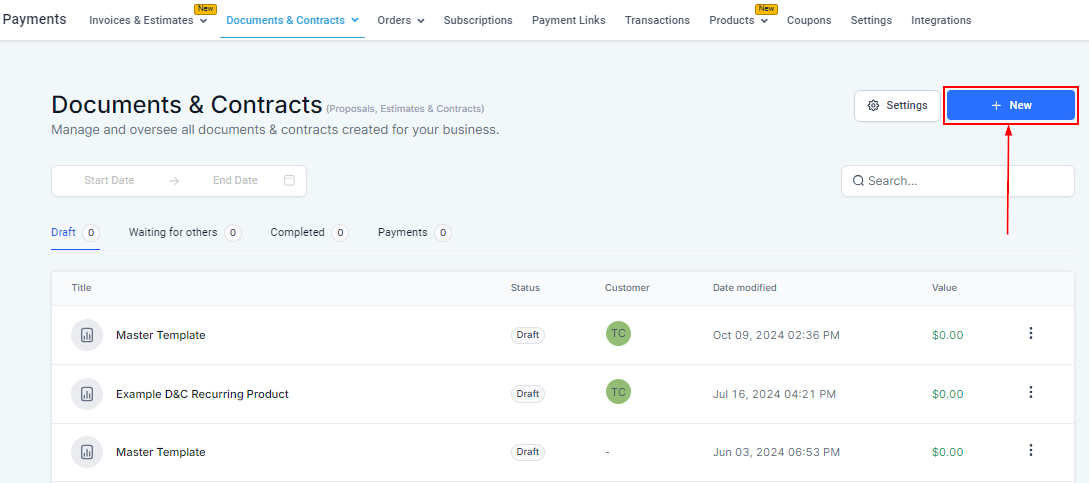
New
Create a new proposal, estimate, or contract from scratch or upload a PDF by clicking this option.
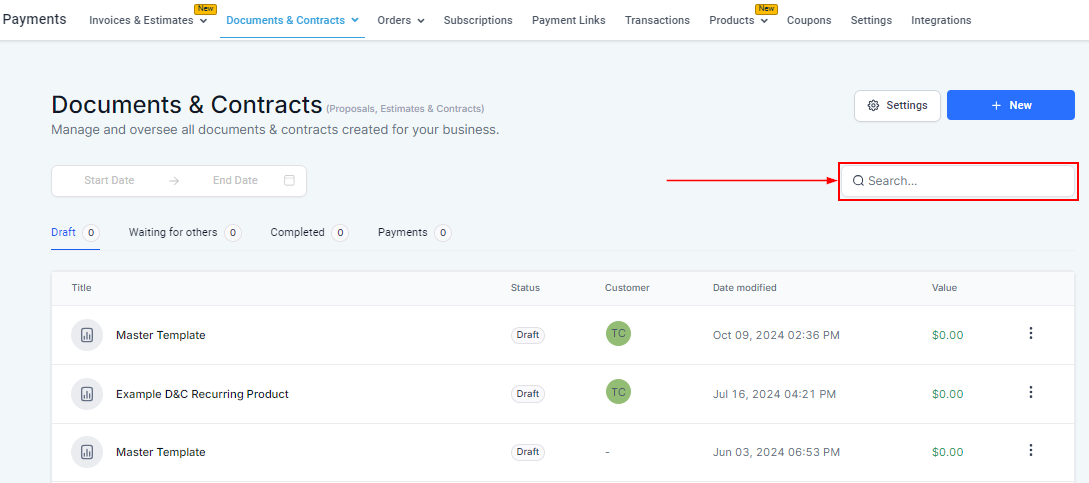
Search
Utilize the search bar to locate the required document easily.
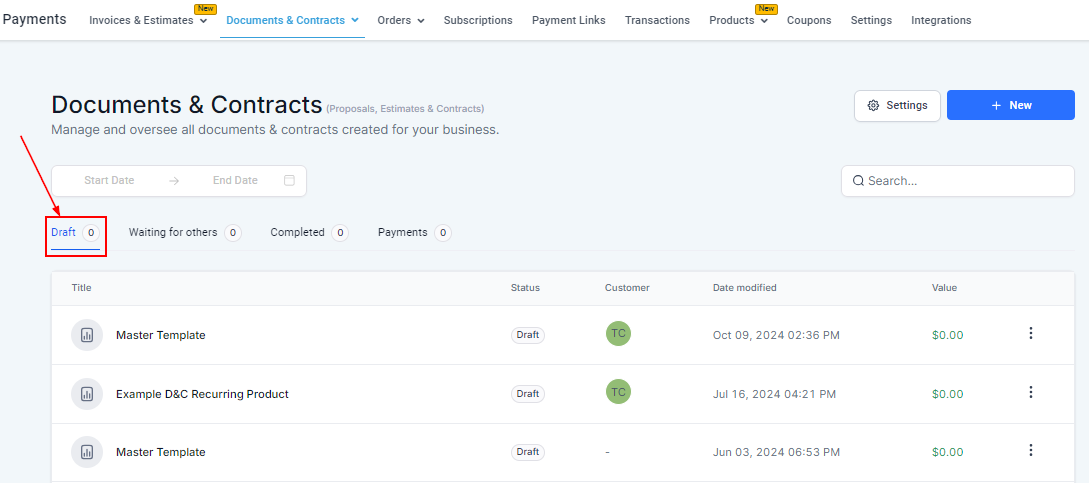
Draft
Within this section, you will see a list of all Documents and Contracts that have not yet been sent to the customer.
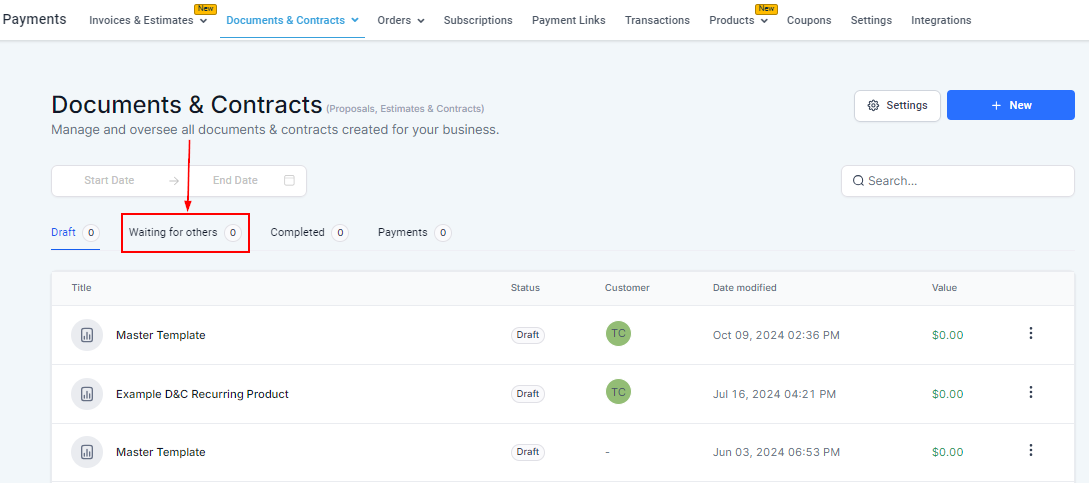
Waiting for Others
Navigate to the Waiting for Others tab to view the documents that have not been signed by all required signatories or require further action.
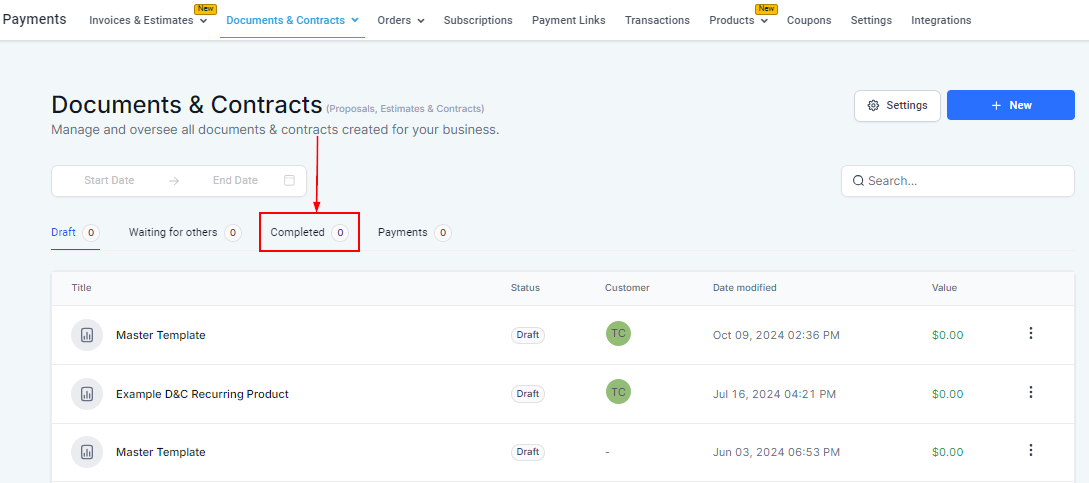
Completed
Navigate to the Completed tab to view the documents that have been finalized and require no further action.
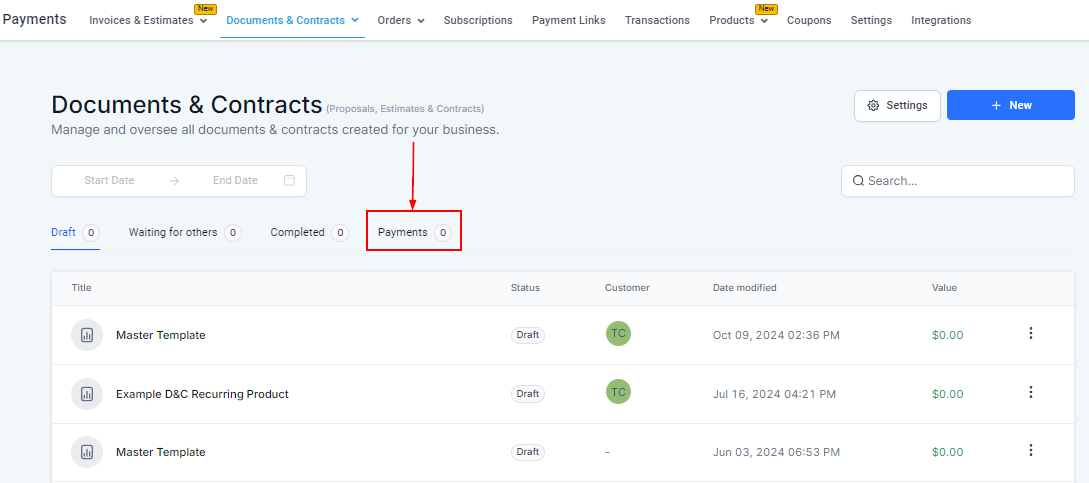
Payments
Shows the number of Documents or Contracts that involve any form of payment-related details.
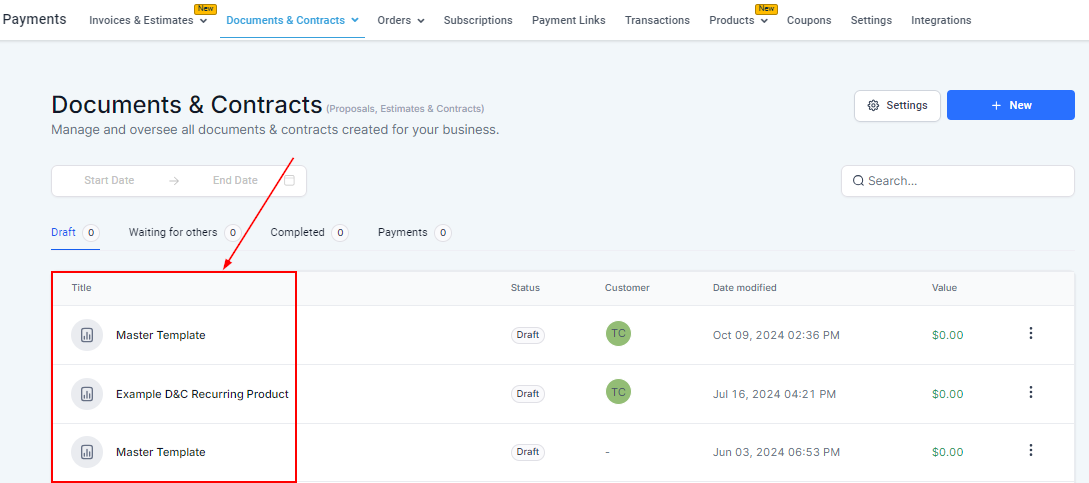
Title
Displays the name of the document for ease of identification.
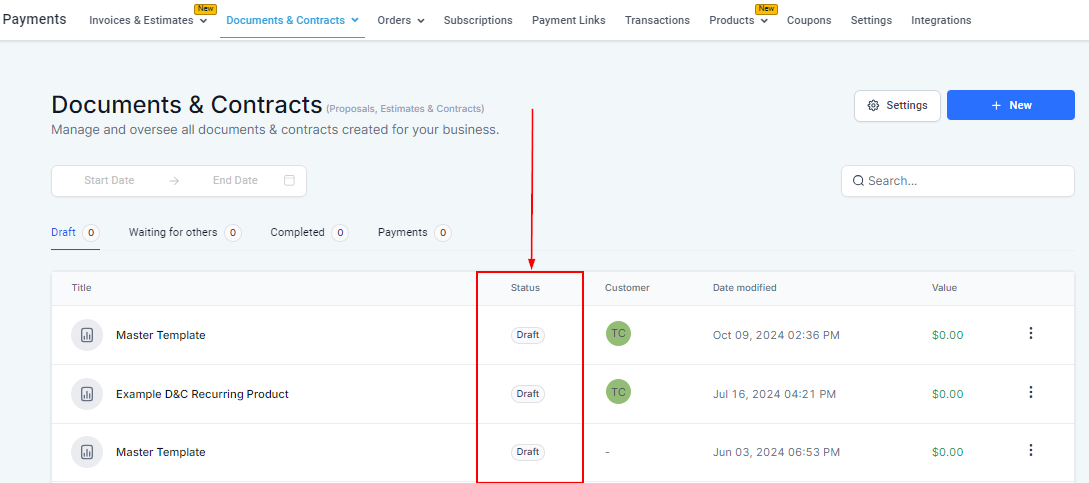
Status
Displays the current status of the document. In this section, all documents will be marked as "Draft."
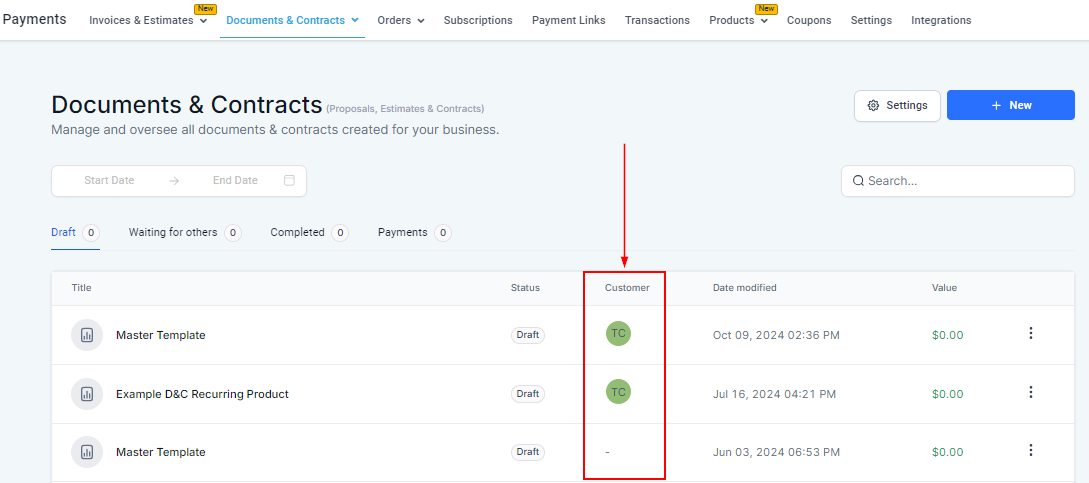
Customer
Shows the initials of the contact associated with the document, providing a quick reference to whom the document pertains.
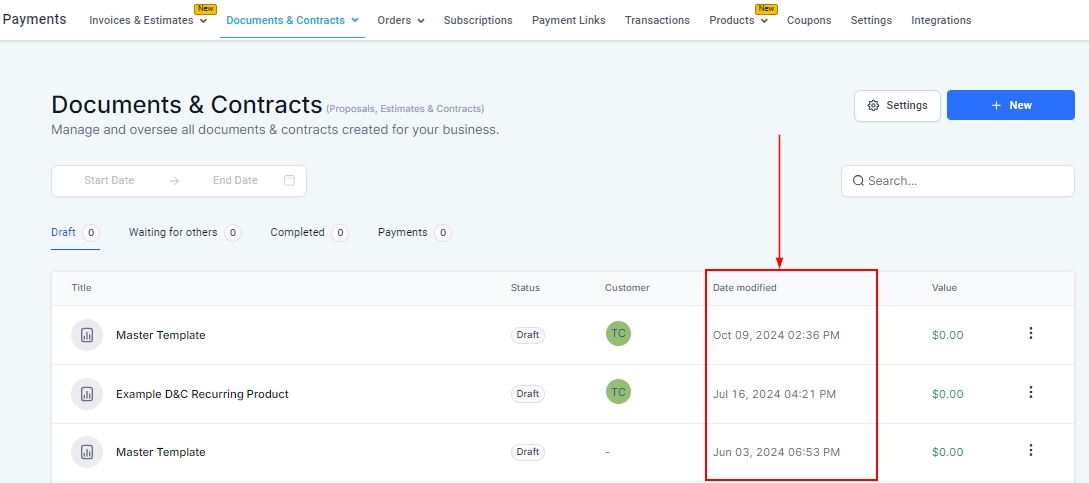
Date Modified
Reflects the most recent date and time when the document was last updated.
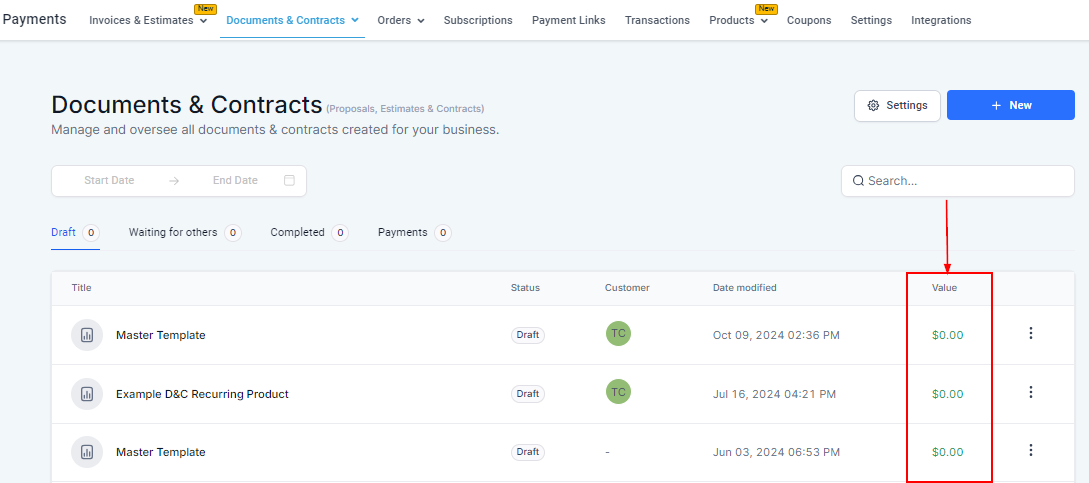
Value
Represents the monetary amount associated with the document, such as the total estimated cost or contract value.
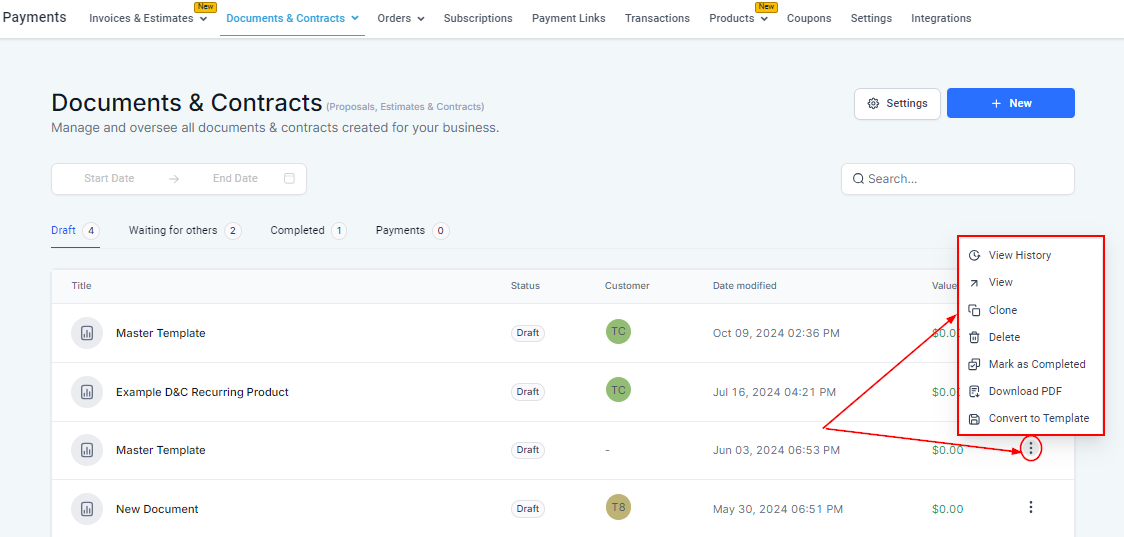
Action Menu
Within the action menu, you can perform a series of tasks:
- View History: Access the document’s revision history to see past changes and updates.
- View: Open and review the content of the document.
- Clone: Create a copy of the document, useful for repetitive tasks or templates.
- Delete: Permanently remove the document from the system
- Mark as Completed: Set a document's status to finalized, indicating no further action is required.
- Download PDF: Export the document as a PDF file for offline use or distribution.
- Convert to Template: Save the document as a template for future use, allowing for easy creation of similar documents.
By leveraging this section, you can efficiently handle proposals, estimates, and contracts, ensuring all documents are expertly managed throughout their lifecycle.
Was this article helpful?
That’s Great!
Thank you for your feedback
Sorry! We couldn't be helpful
Thank you for your feedback
Feedback sent
We appreciate your effort and will try to fix the article