Managing invoices efficiently is essential for keeping payments organized and up to date. When dealing with partially paid invoices, you may need to adjust key details such as due dates, product listings, or payment schedules. For this article, we will be using the Schedule Payment option as an example to demonstrate how to make these modifications.
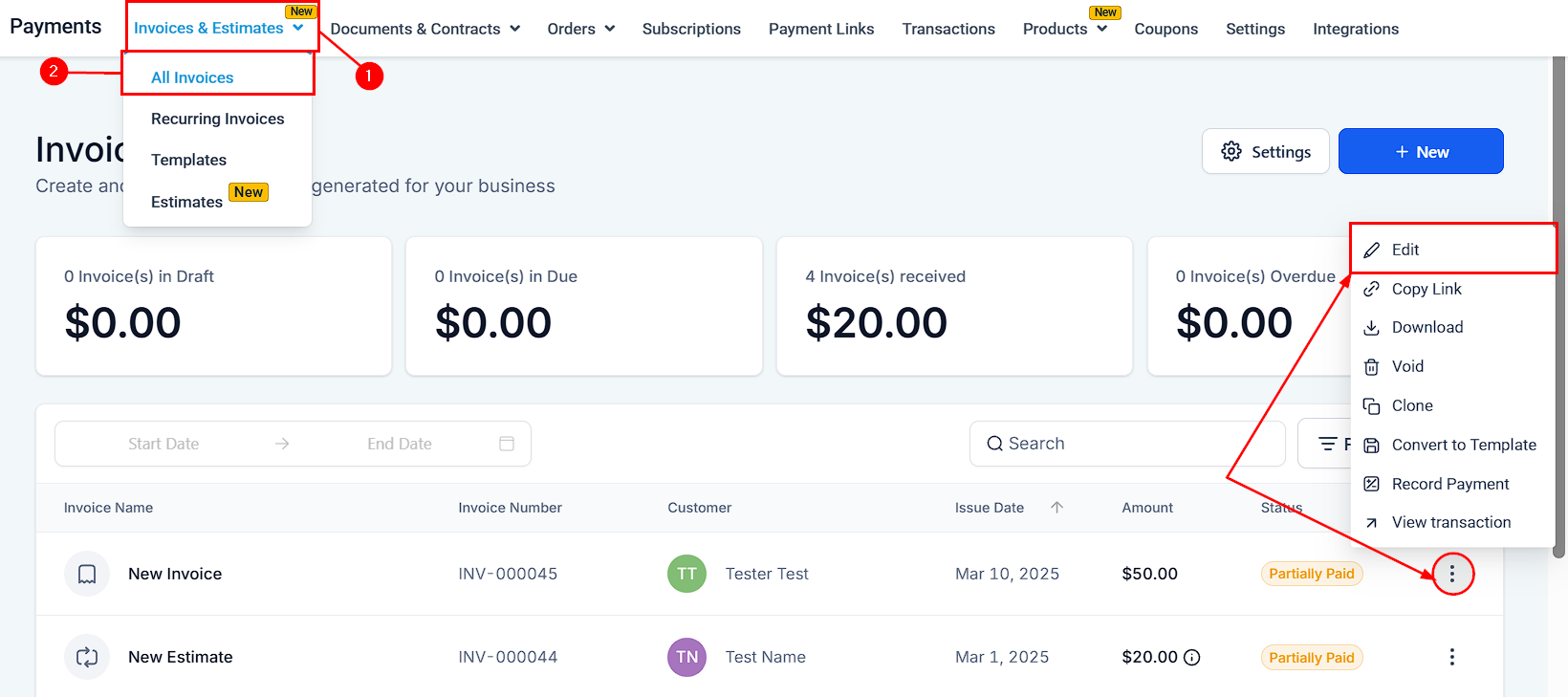
Go to Invoices & Estimates > All Invoices. Select a Partially Paid invoice, click on the three dotted button, and select Edit.
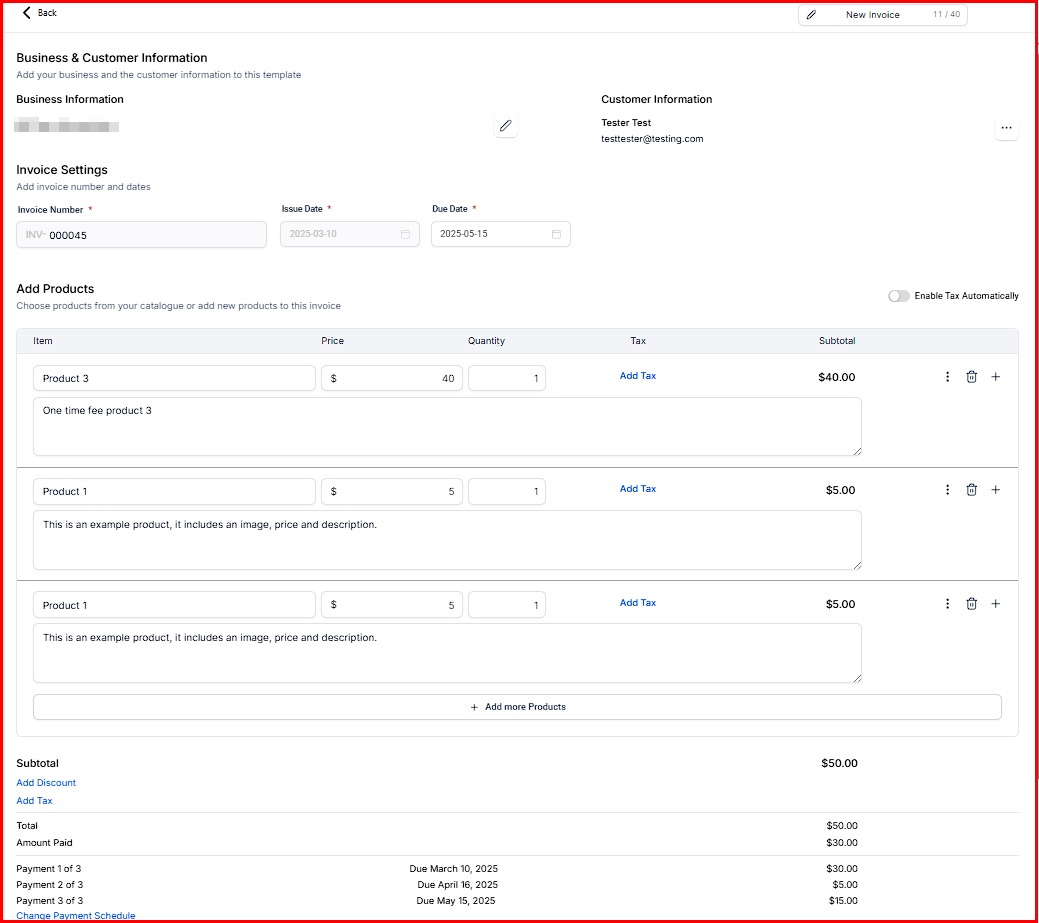
On the invoice interface, click on the Edit option for the specific section—invoice details, products, business info, or payment plans. You can change the invoice due date, name, terms, and notes. Modify payment schedules, including due dates and amounts. You can also add or remove products and update the invoice amount or business details.
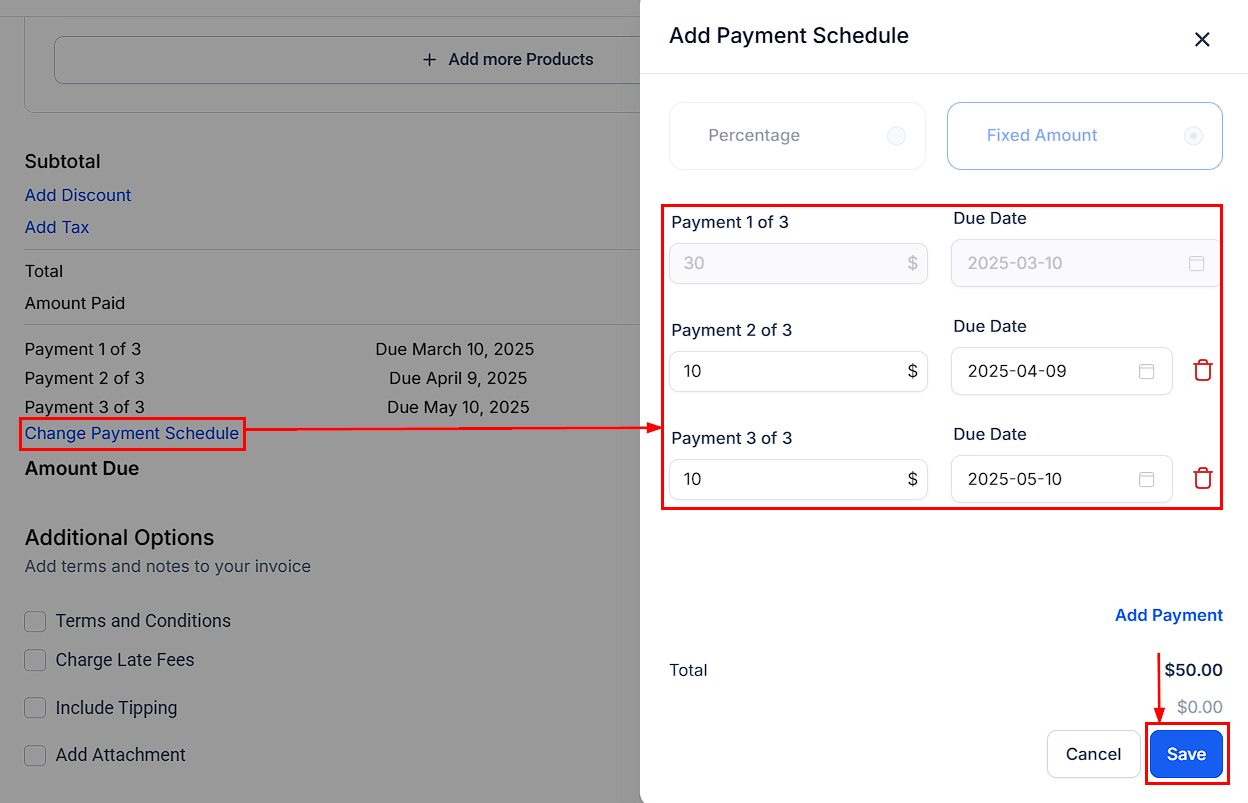
Within the invoice, scroll down and select the Change Payment Schedule option. Edit the payment amount and date as needed, then click Save to apply the changes.
These updates take effect immediately, ensuring that your invoices remain accurate and aligned with your business needs.
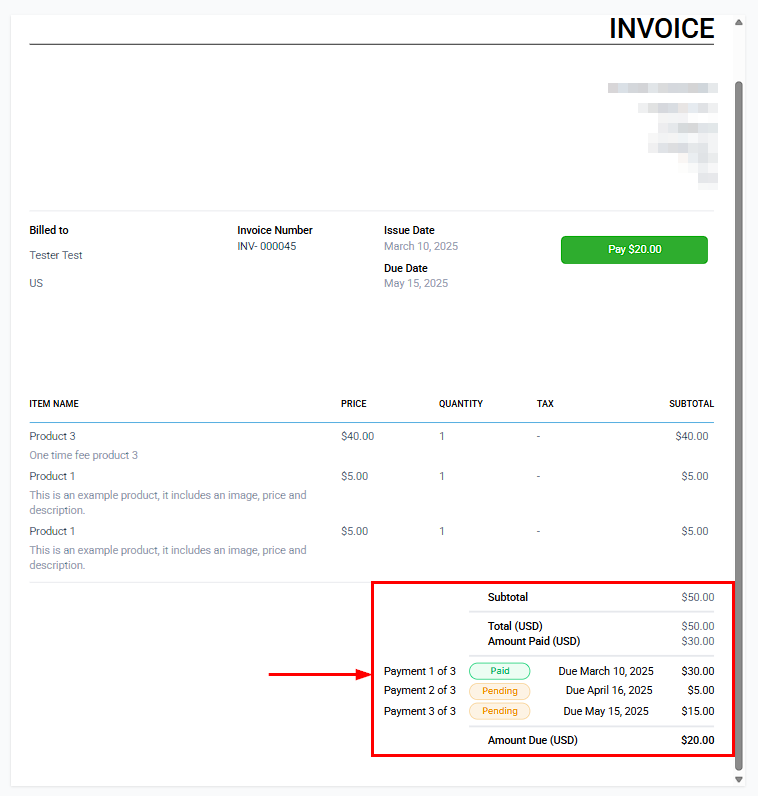
Editing a partially paid invoice gives you flexibility in managing payment terms, product details, and business information without needing to create a new invoice. Once the changes are saved, they apply instantly, ensuring accurate and up-to-date records.
Was this article helpful?
That’s Great!
Thank you for your feedback
Sorry! We couldn't be helpful
Thank you for your feedback
Feedback sent
We appreciate your effort and will try to fix the article