Managing contacts within a company is a crucial aspect of maintaining organized records. The process is straightforward, whether you need to add new contacts or remove outdated ones. In this guide, we will walk you through two easy methods for adding contacts to a company and the steps to remove contacts if needed, ensuring your company data stays up-to-date and accessible.
Adding Contacts to a Company
You can associate a contact with a company through either the Smart Lists section or the Company tab within your account.
Smart Lists
Navigate to the Contacts > Smart Lists section within your account, then select a contact to begin.
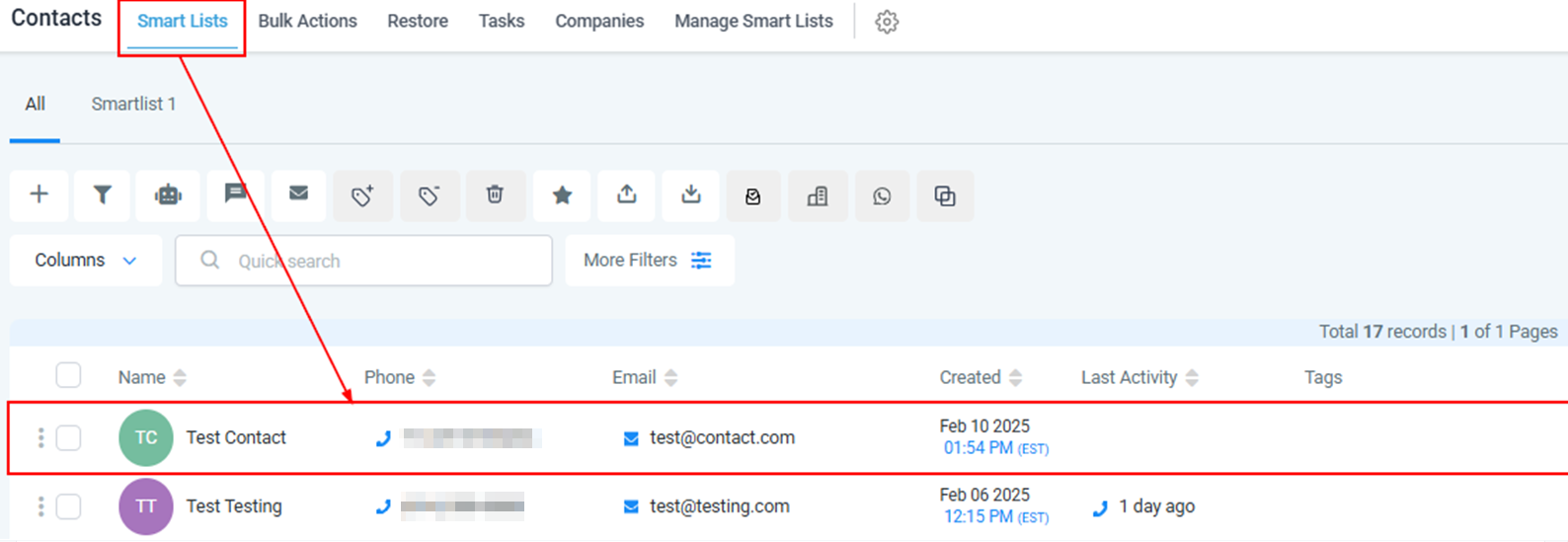
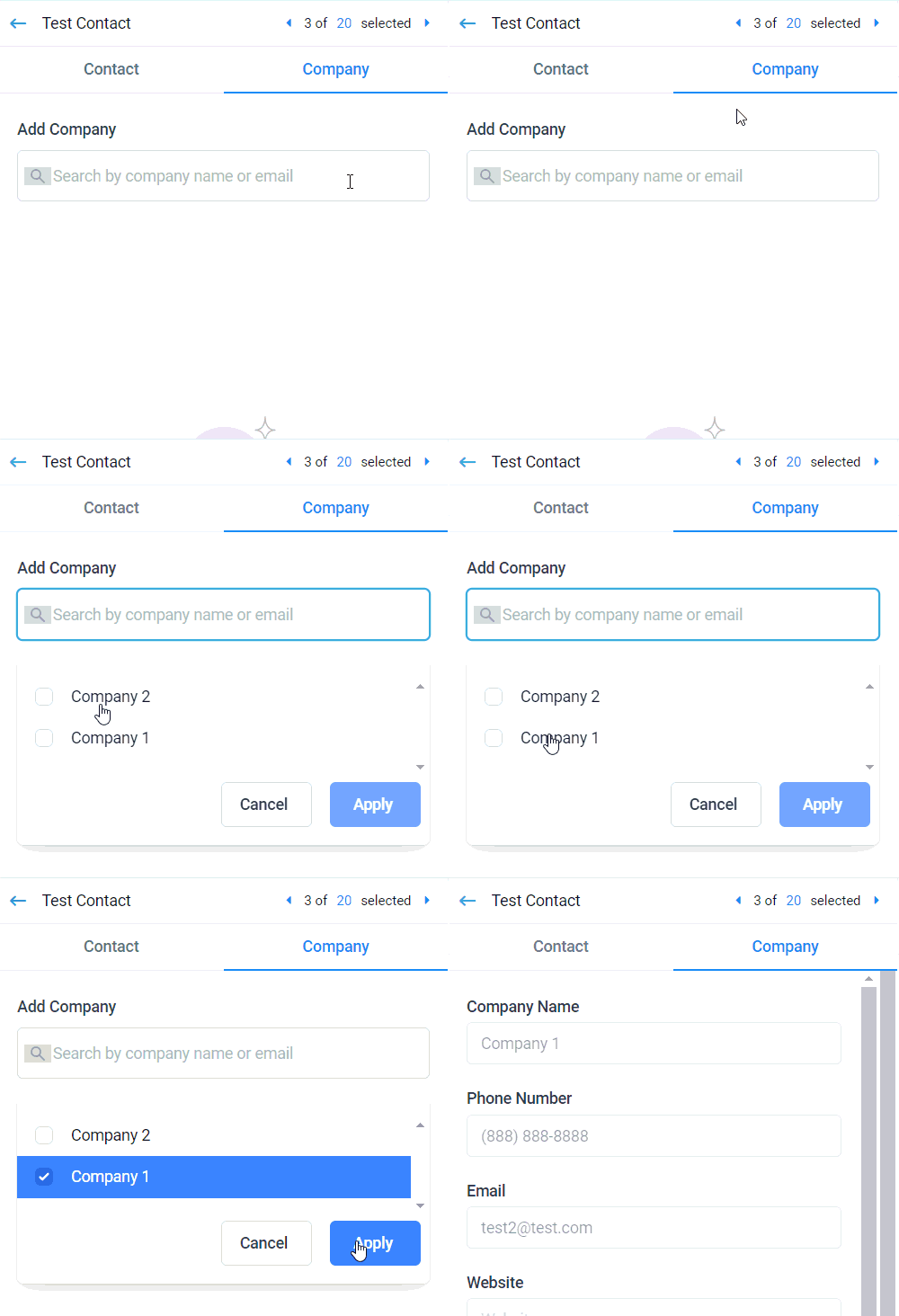
Go to the Company tab within the contact card and locate the relevant company using the search option. Select the desired contact, then click apply to add the contact accordingly.
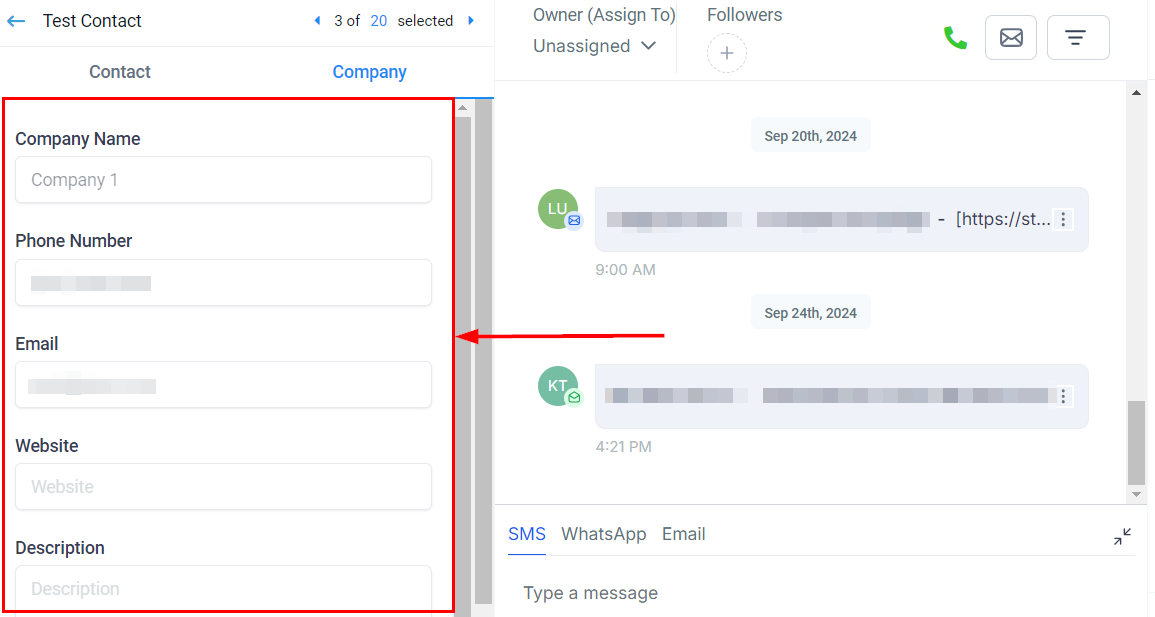
The company details will now appear on the contact card, enabling you to easily access the associated company's information. This ensures quick reference and seamless management of company-related data for the contact.
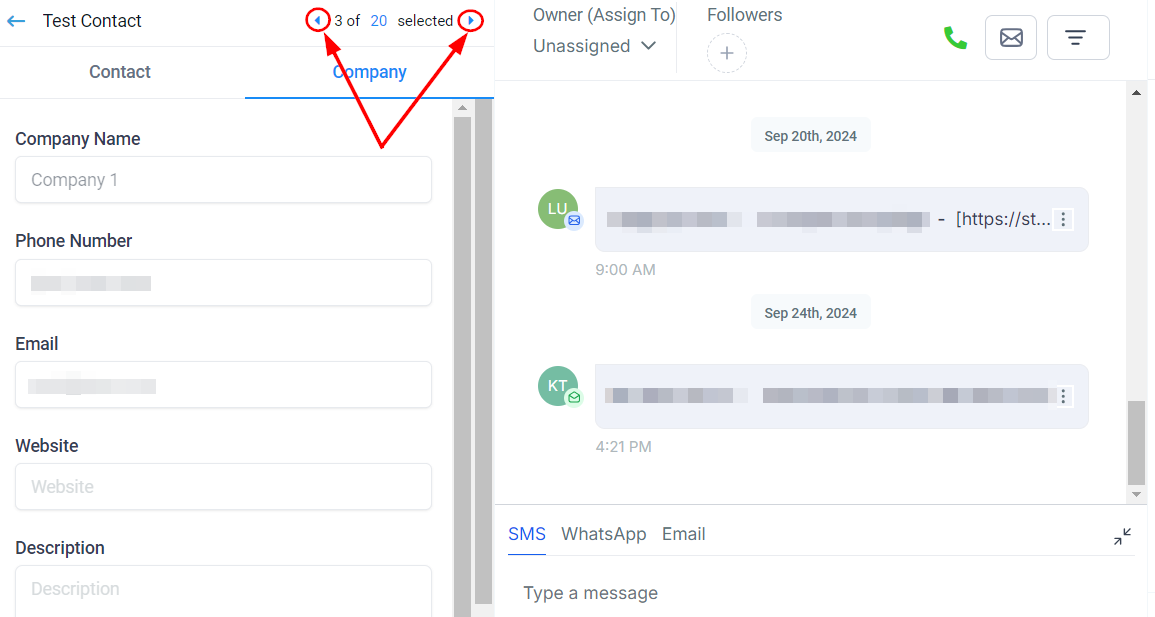
Use the arrow buttons to navigate between contact records to update multiple contacts.
Companies
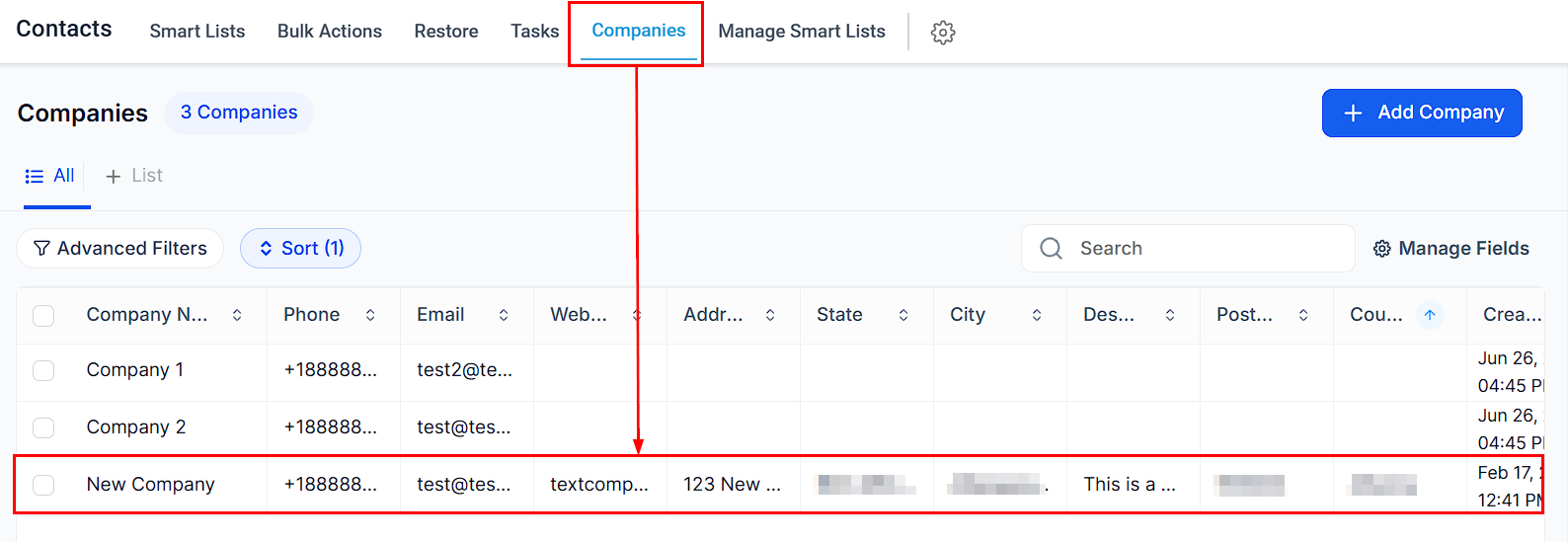
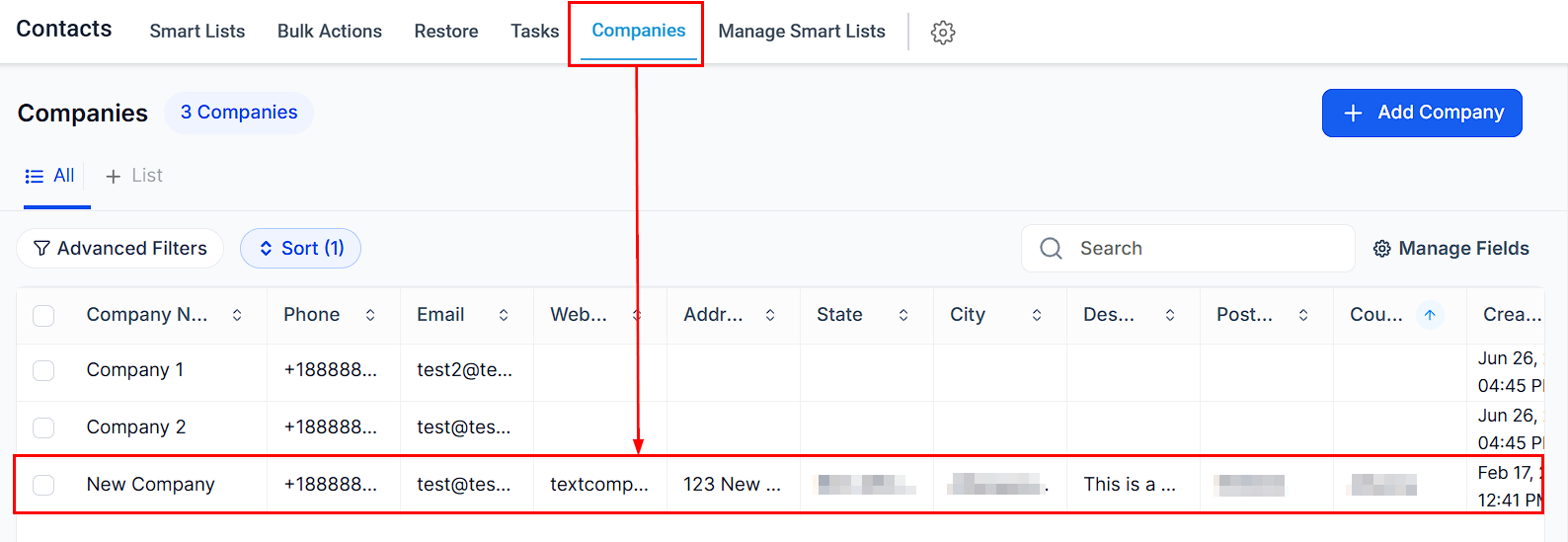
From the Companies tab, select the desired company from the Company list.
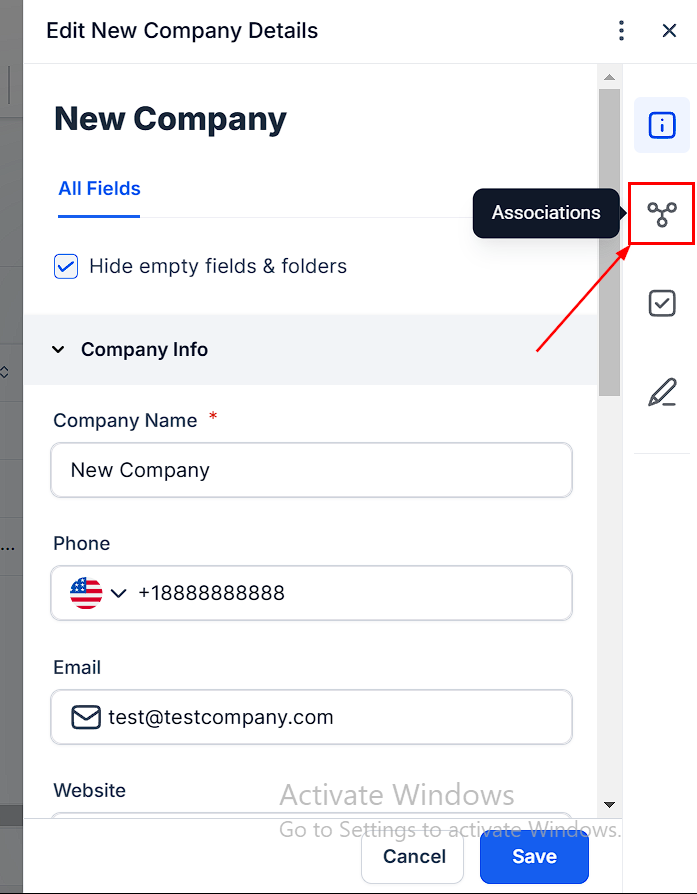
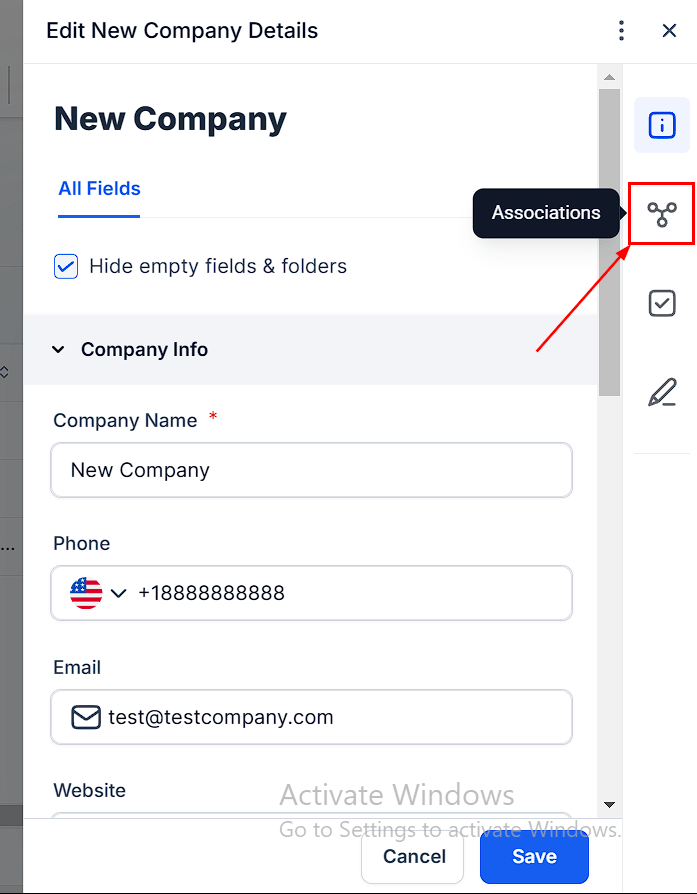
In the popup, select the "Association" tab on the right side of your screen.
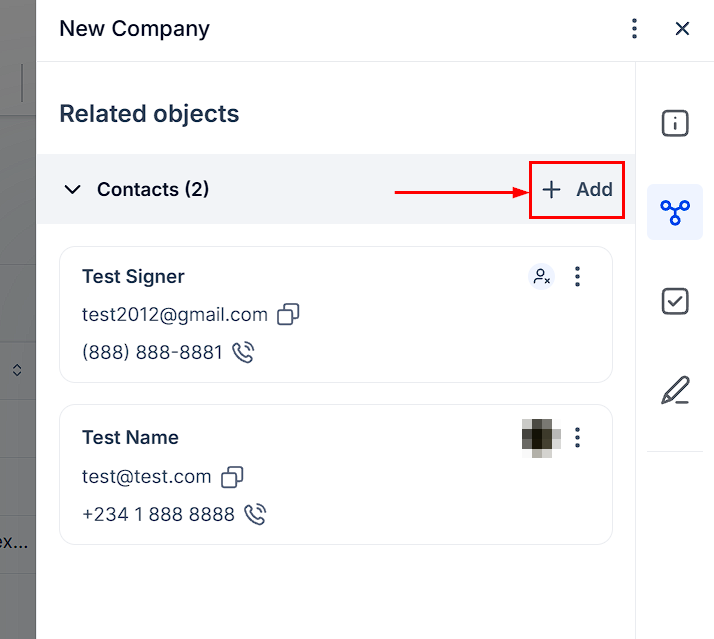
Click the “Add” button to search for the contact you wish to add.
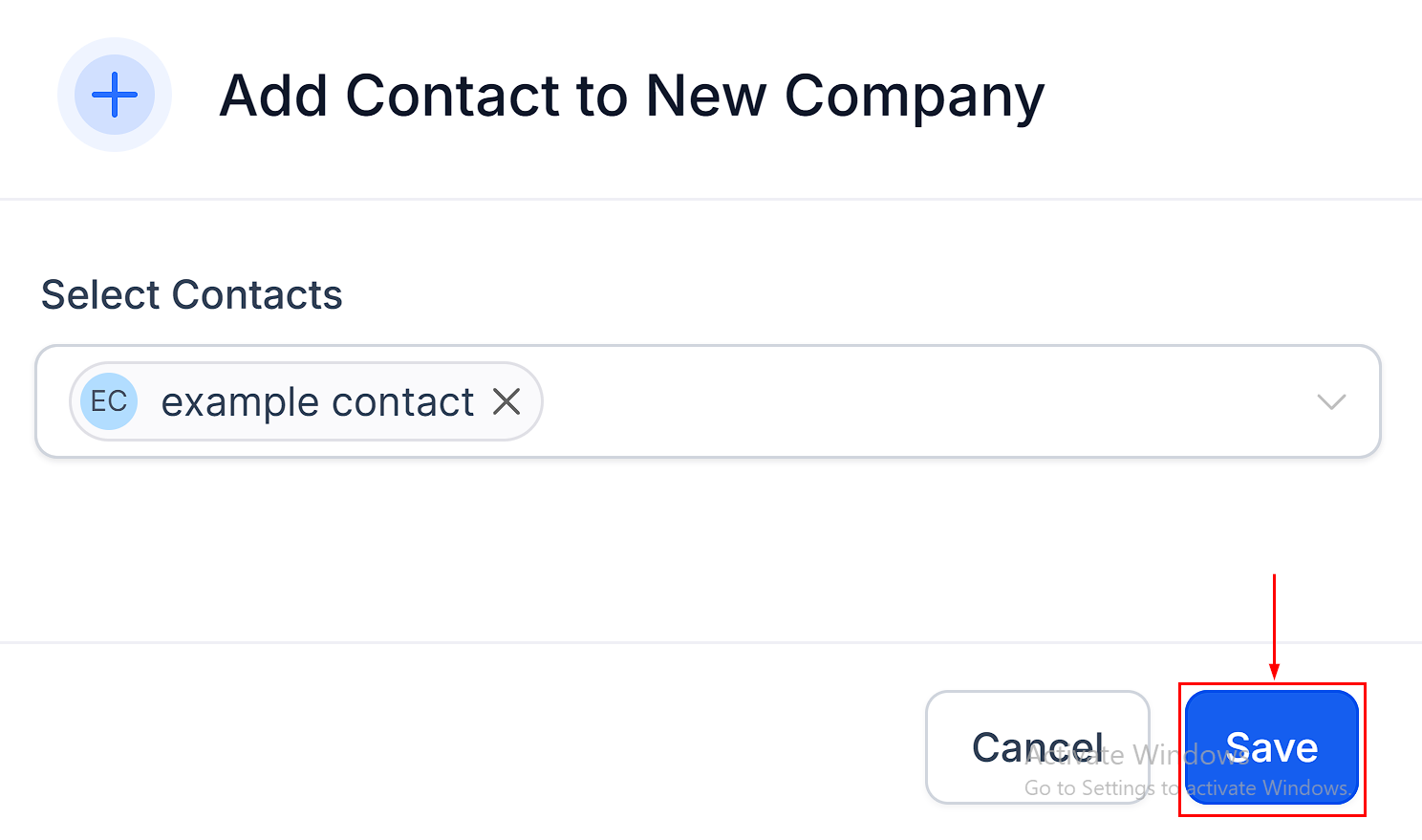
Confirm the addition by clicking the “Save” button.
Removing a Contact from a Company
To remove a contact from a company, start by navigating to the Company tab within your account. Locate and select the company from which you wish to remove the contact.
Select the Association option in the popup.
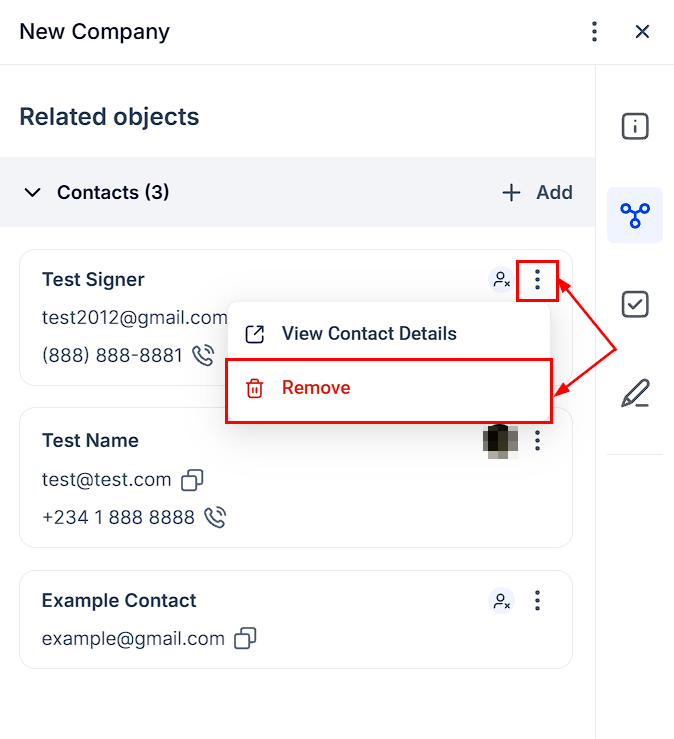
Once inside the Association tab, find the contact you want to remove, click on the three dots button, and select "Remove".
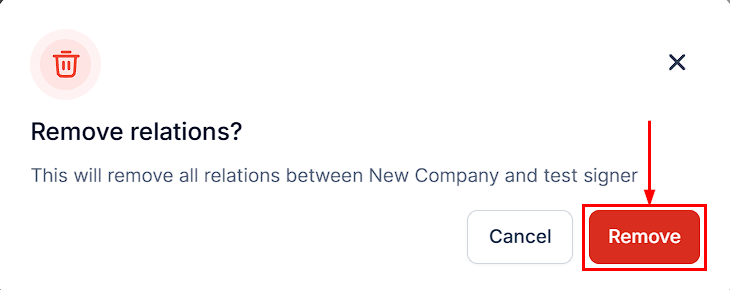
A confirmation prompt will appear asking if you're sure about the removal. To finalize, click "Remove."
? Please Note: Removing a contact from a company does not delete the contact from your contacts list; it simply removes the company's details from the contact's Company tab and removes the contact from the company's contact list. You can re-add the contact to the company at any time if needed.
By following these simple steps, you can easily add or remove contacts from companies, ensuring that your records remain clean and accurate.
Was this article helpful?
That’s Great!
Thank you for your feedback
Sorry! We couldn't be helpful
Thank you for your feedback
Feedback sent
We appreciate your effort and will try to fix the article