The Manual Call Action feature is an essential tool for managing your call queue efficiently. This function allows you to systematically organize and queue contacts requiring phone calls. Below is a guide on navigating and utilizing Manual Call Actions effectively.
Navigating Manual Calls in Conversations
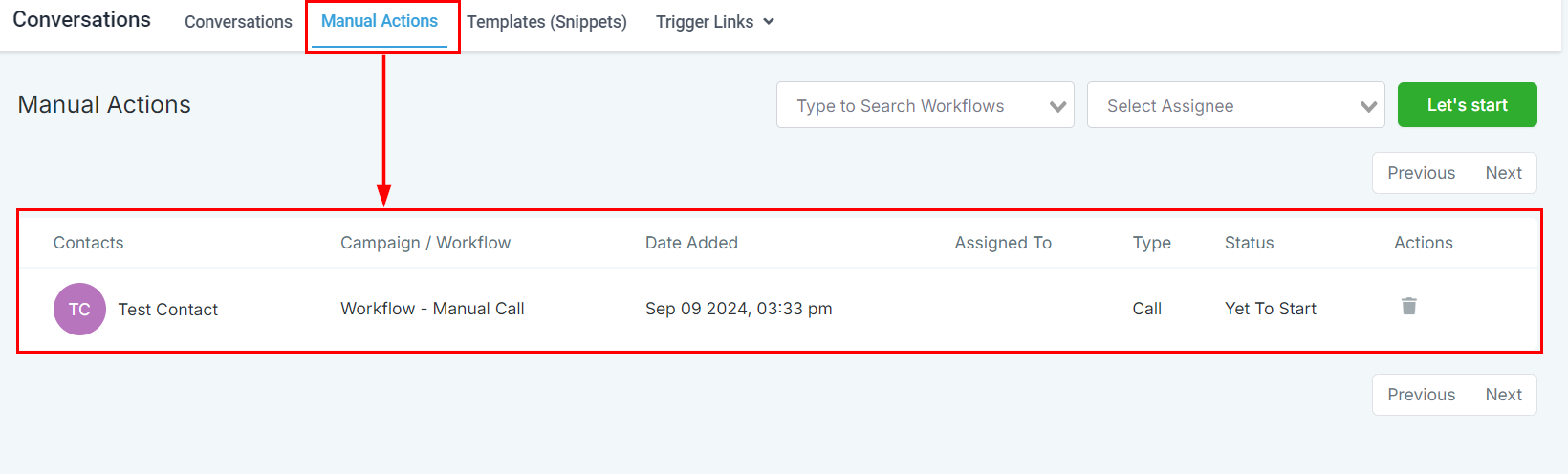
Start by selecting Conversations from the left-hand menu and then click Manual Actions in the top menu.
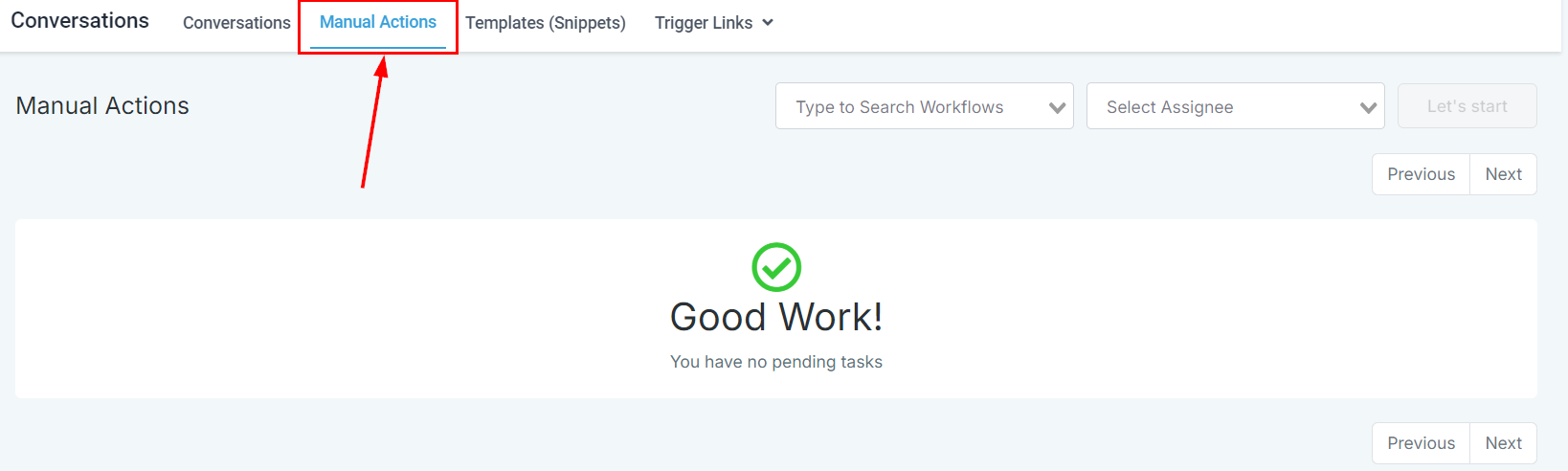
In the Manual Actions section, you will find a record of all previously created actions. You can sort these actions by workflows or assigned users.
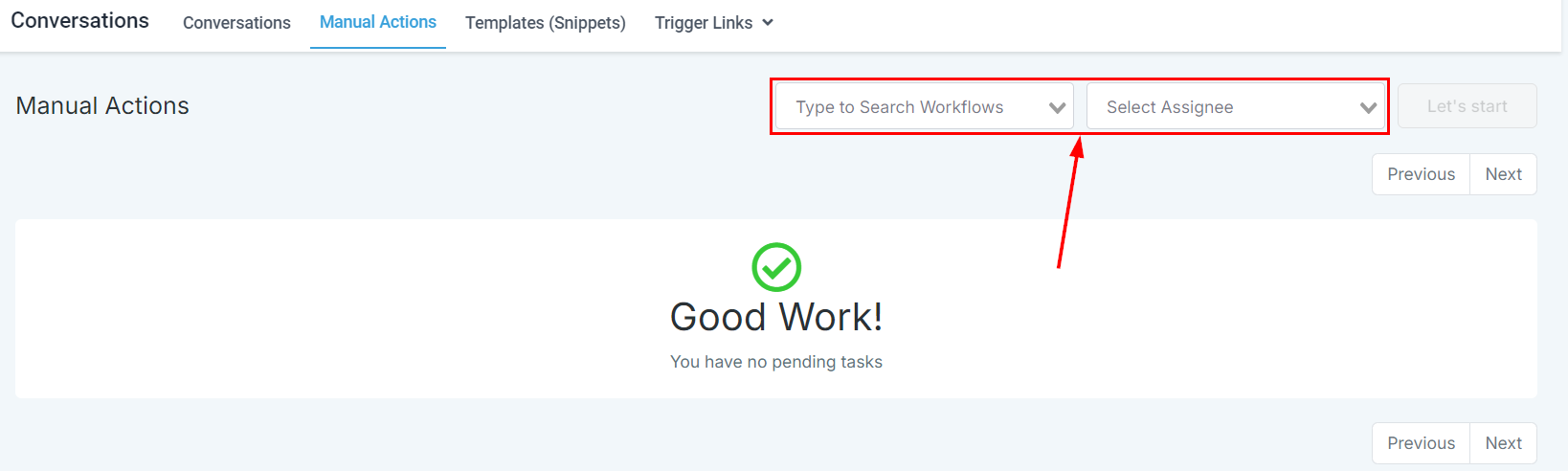
Since there are no pre-existing manual actions, you will need to create a new one.
Setting Up Manual Actions in Workflows
Navigate to Automation in the left-hand menu, then select Workflows from the upper left-hand section. Next, click Create Workflow in the main view, followed by Start from Scratch.
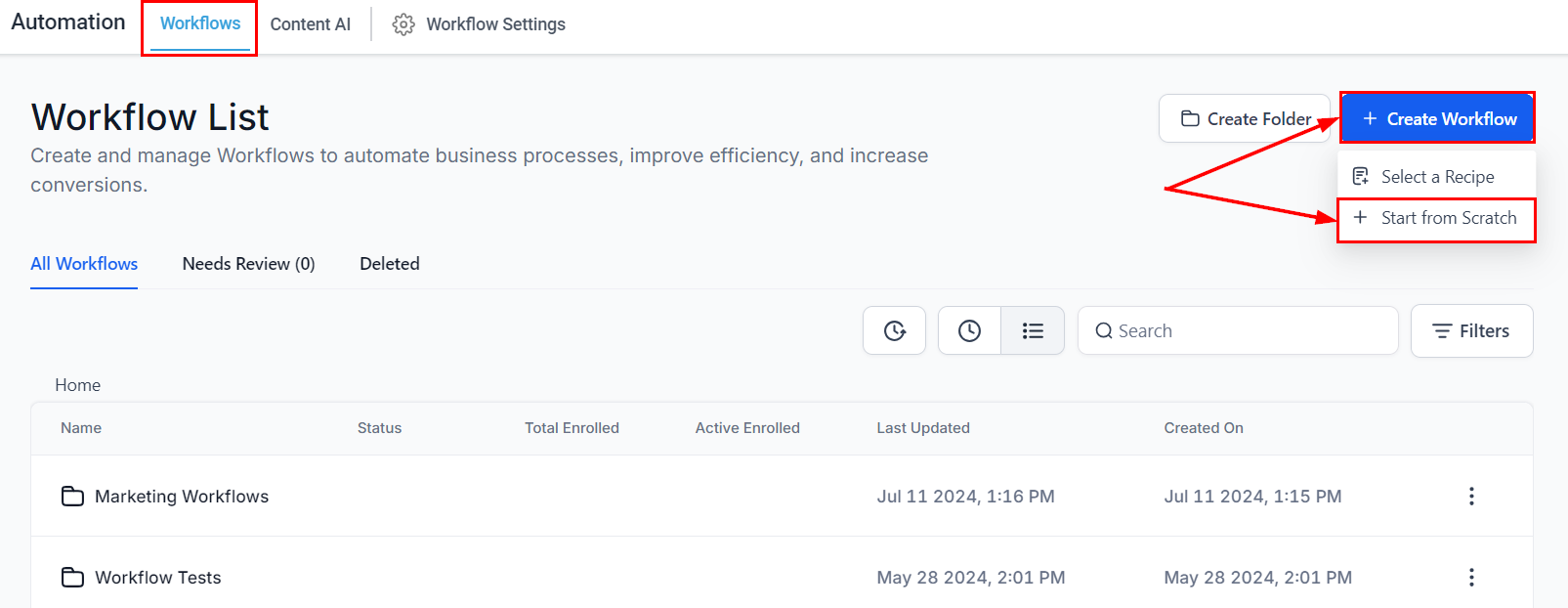
Configuring Actions
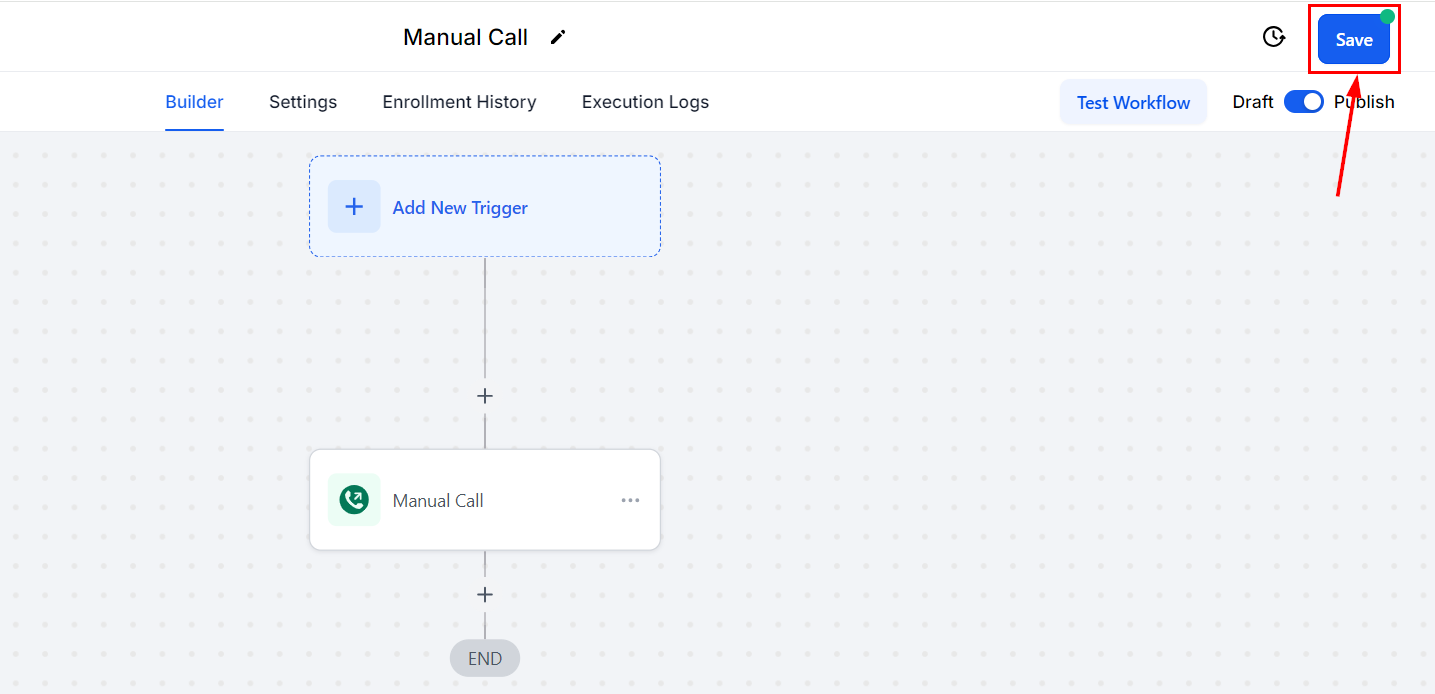
In the workflow editor, either configure a workflow trigger or choose to initiate the workflow manually by leaving the trigger section empty. Click Add an Action, then search for Manual Action. You will find two types of manual actions: Manual Calls and Manual SMS. Select Manual Calls to proceed.
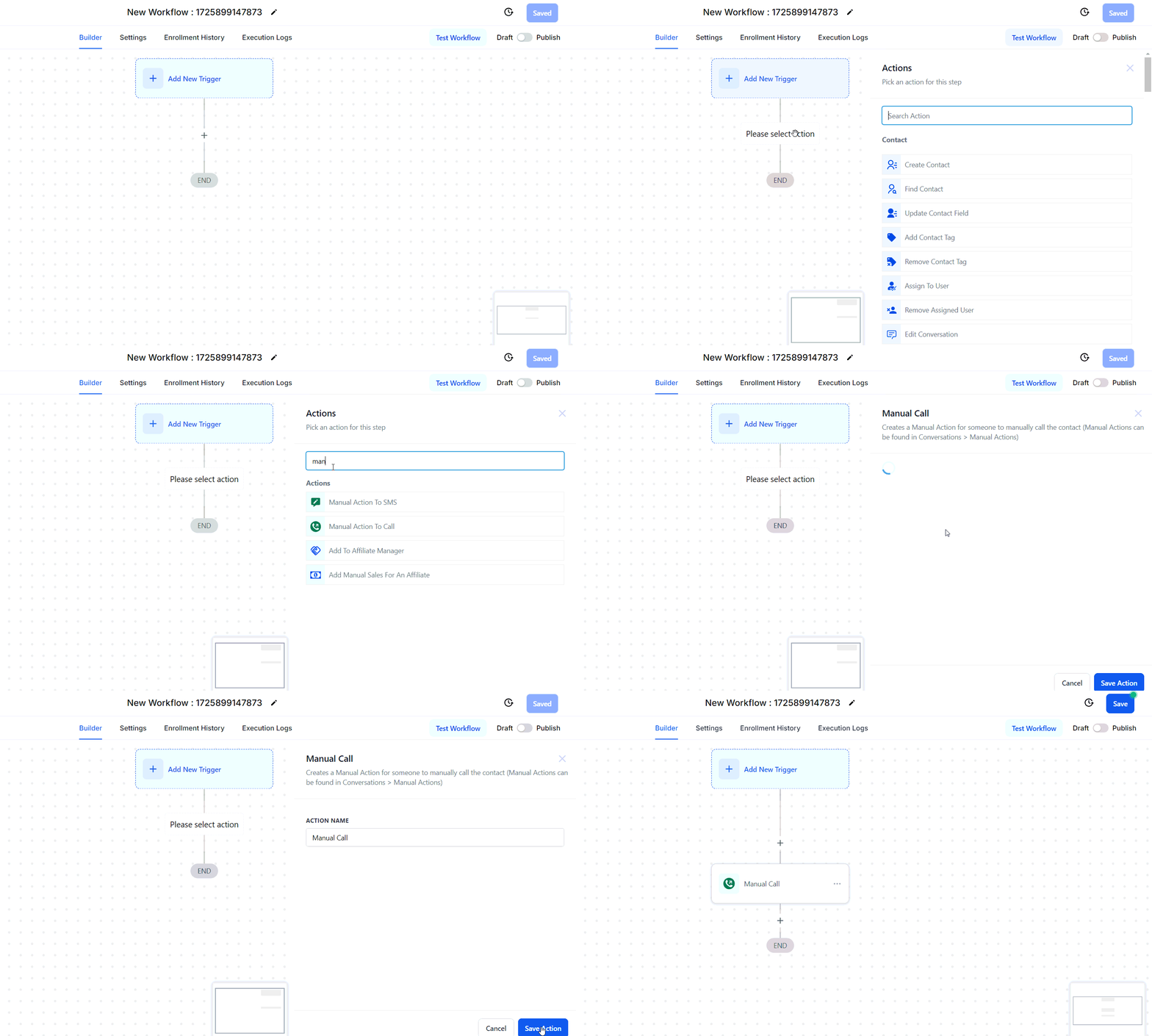
Name your workflow to identify it easily, then publish and save it!
Adding Contacts for a Manual Call
- If you added a trigger to the workflow: The manual call action will be added to each contact who satisfied the trigger criteria.
- If you opted to trigger the workflow manually:
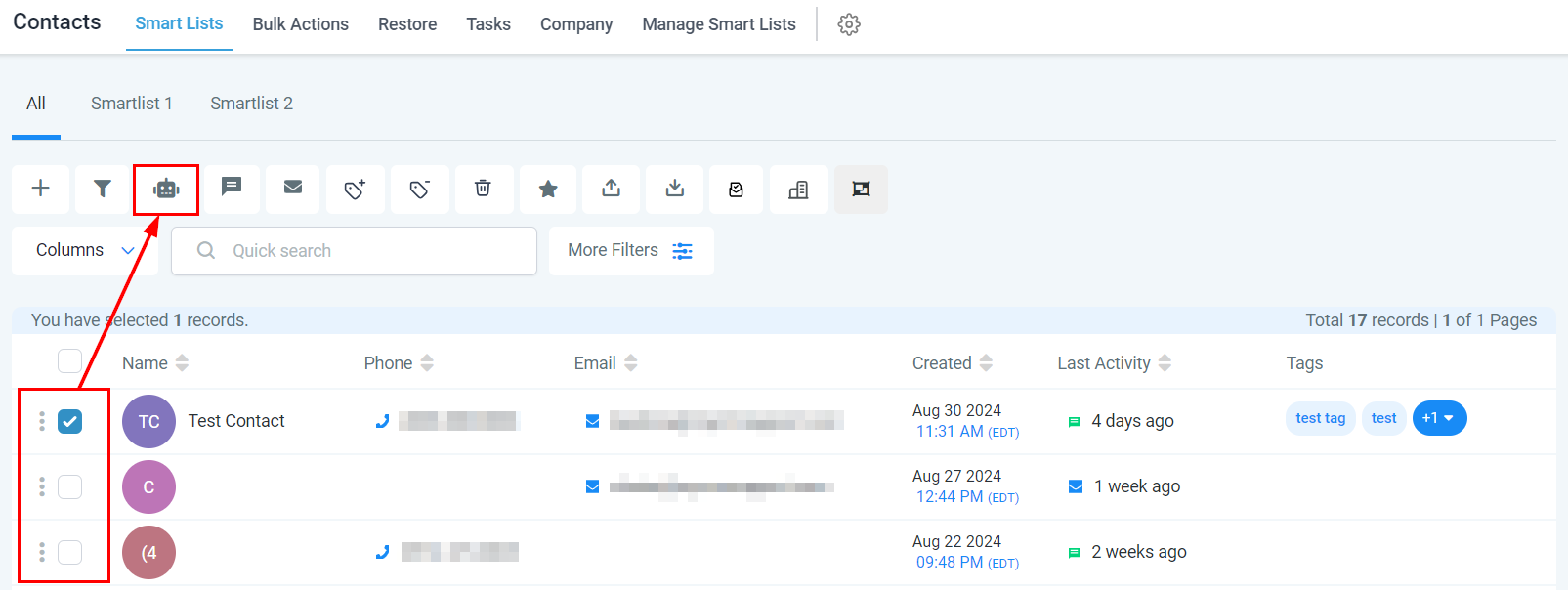
Navigate to Contacts in the left-hand menu, select one or more contacts by checking the boxes next to their names, and click the Add to Automation icon.
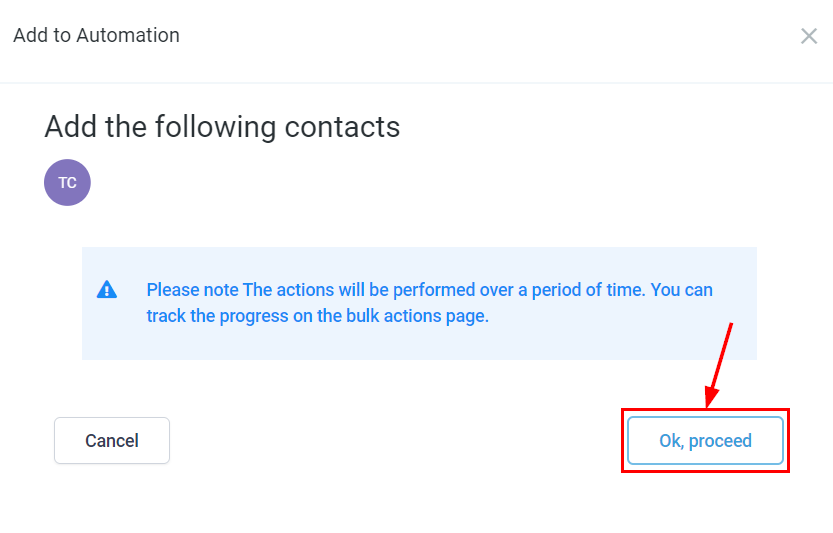
Review the contacts and details in the pop-up window, then click Ok, proceed.
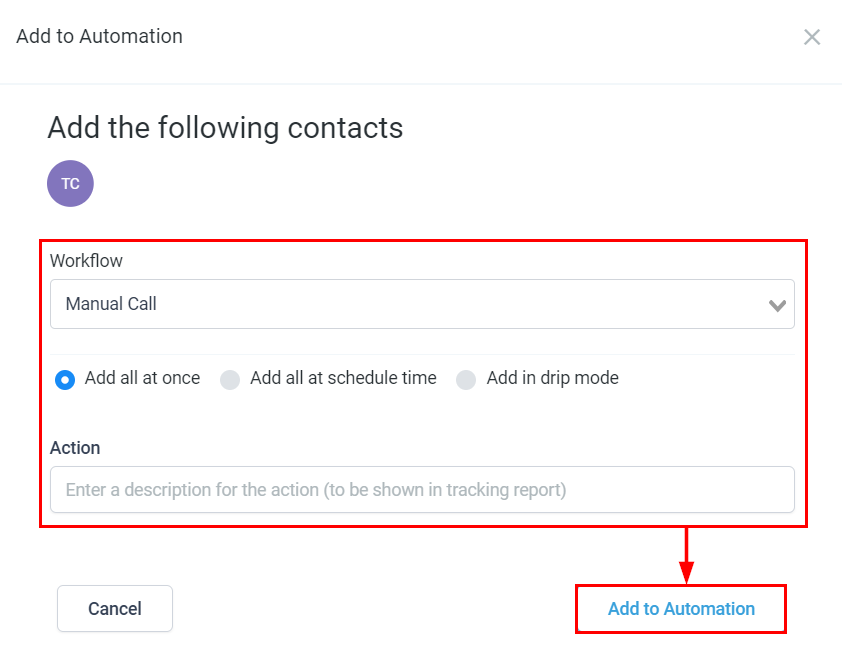
From the workflow list, select the manual action workflow you just created, choose your preferred bulk action delivery option, enter a name for the action, and click Add to Automation.
Starting the Manual Call Action
Return to the Manual Actions tab within Conversations. You will now see the manual action you added for the selected contact in the workflow.
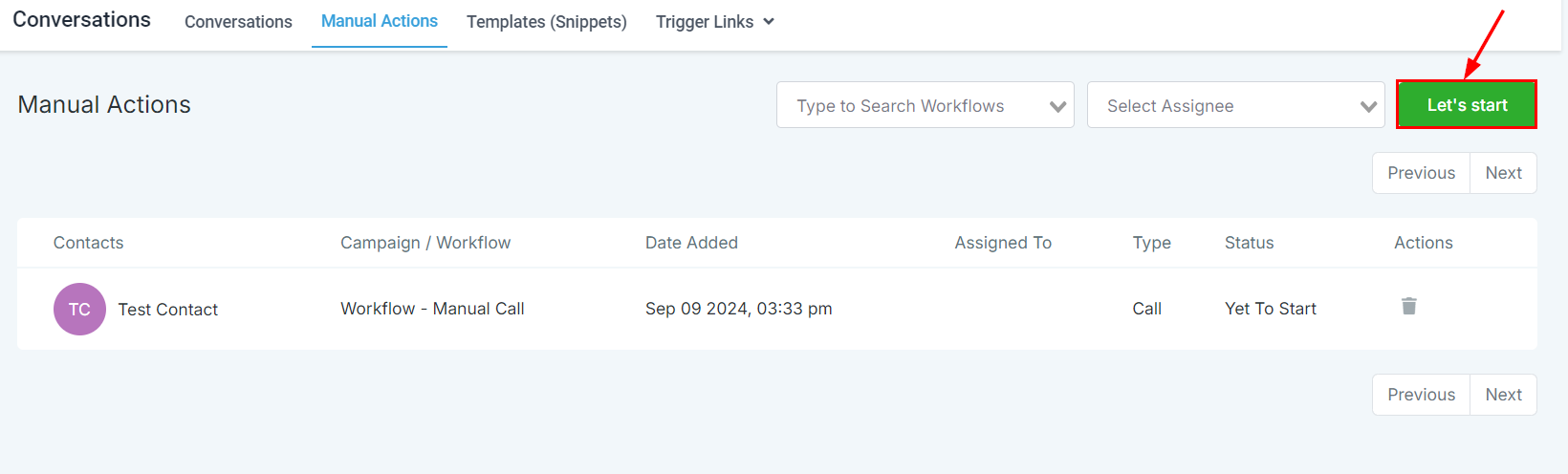
To initiate the manual call action, click Let’s Start. This will direct you to the contact’s page and automatically dial the number.
Use the dialer dropdown in the top right of the contact’s page to view call details.
If you have multiple contacts queued, the system will automatically dial the next contact once the previous call concludes.
The Manual Call Action feature is a valuable asset to enhance efficiency. By following the steps outlined above, you can effectively manage and execute manual call tasks, ensuring a streamlined and organized approach to contacting your leads.
Was this article helpful?
That’s Great!
Thank you for your feedback
Sorry! We couldn't be helpful
Thank you for your feedback
Feedback sent
We appreciate your effort and will try to fix the article