Internal Chat is a valuable feature within the Conversations module that enables private communication between team members. It streamlines internal discussions, promotes real-time collaboration, and keeps conversations secure and confidential. Unlike contact-based conversations, internal chats are visible only to the selected participants, ensuring privacy within your team environment.
How to Start an Internal Chat
Open the Conversations module and click New or select the pen and paper (note) icon.
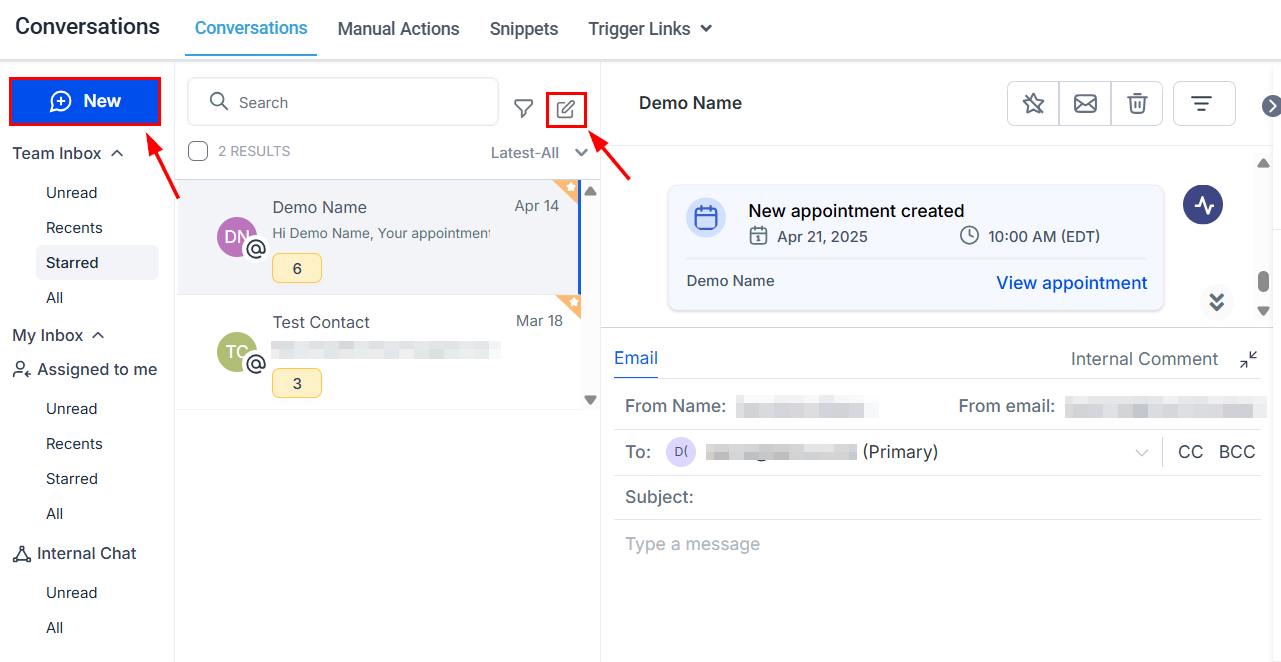
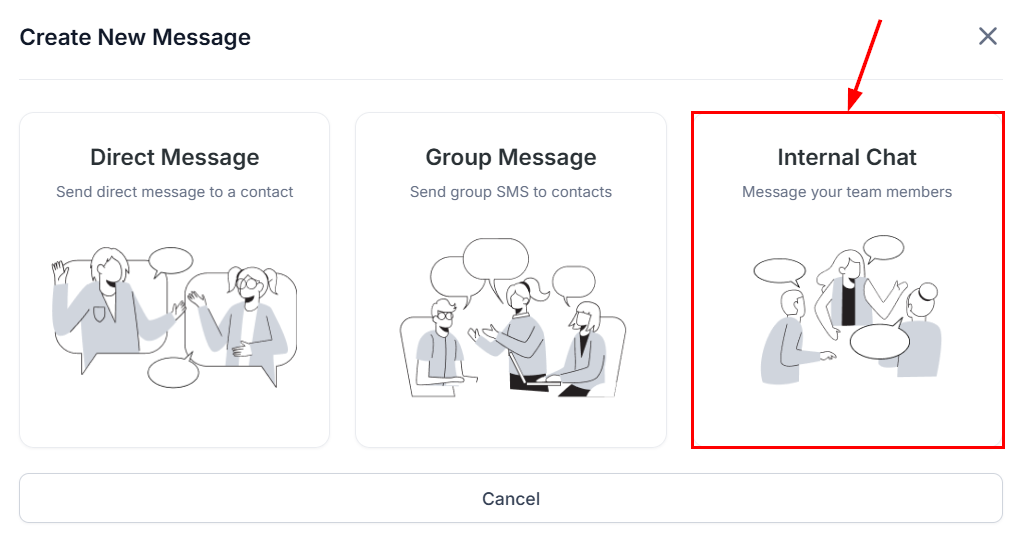
Next, select the Internal Chat option from the available options.
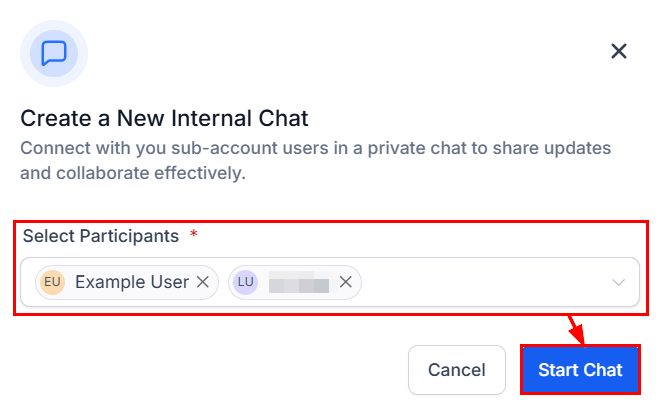
This will prompt you to choose the users you’d like to include. Once you have selected the relevant people, click Start Chat to begin the conversation.
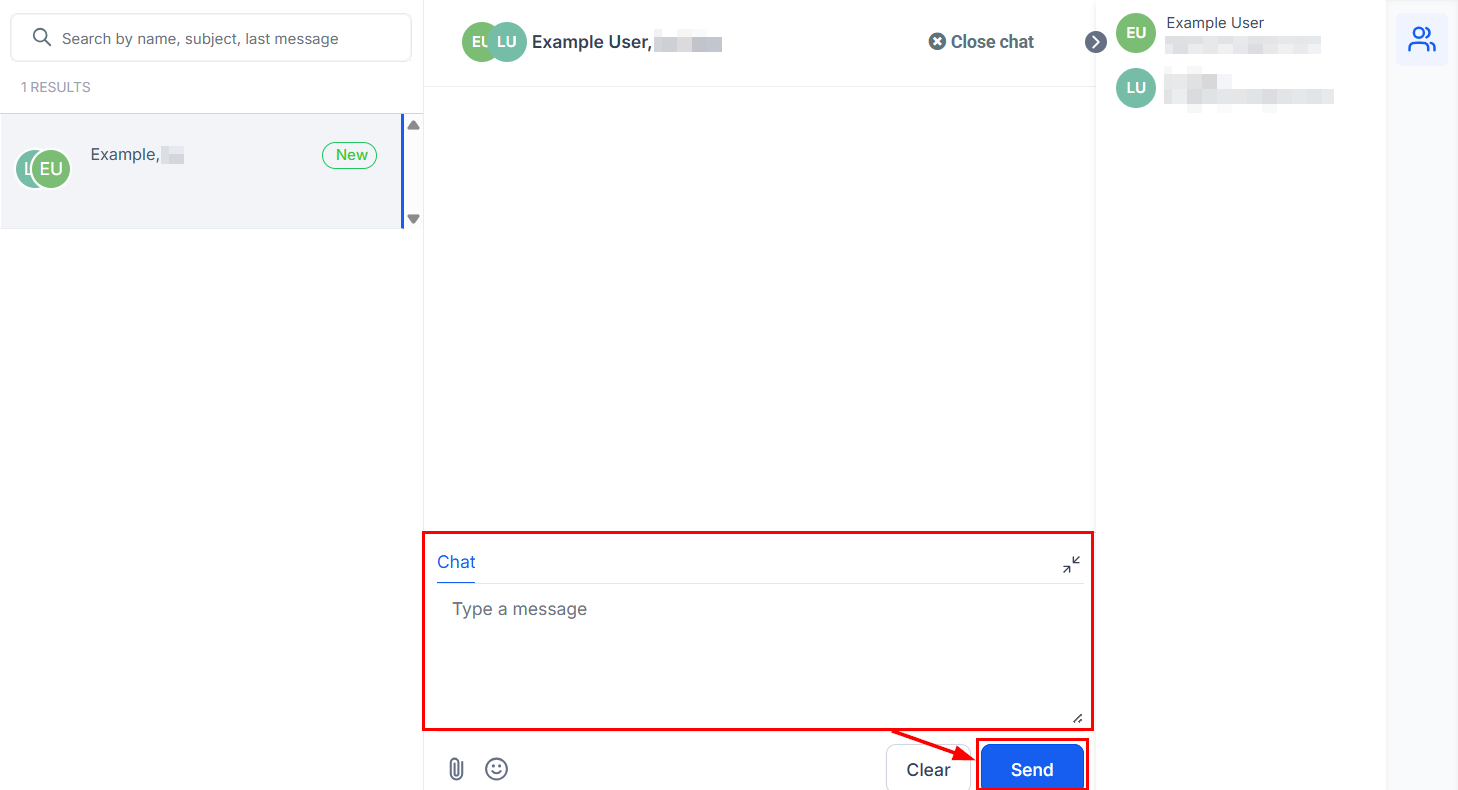
Internal chats support text, emojis, and file attachments, offering a flexible space for effective internal communication. If you wish to be included in the chat, enter your message, then press send.
Organizing Internal Chats
To keep your internal chats organized, you can add a subject line by clicking the edit icon at the top center panel of the chat window.
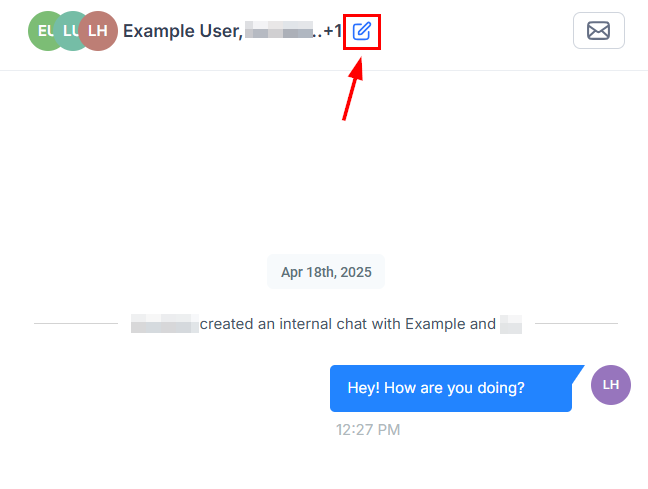
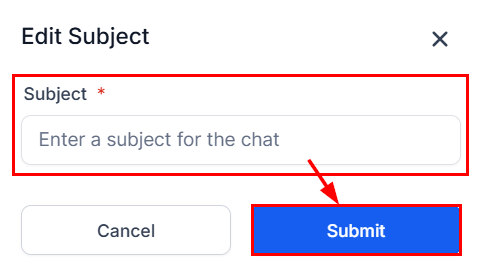
Next, enter the desired subject line, and then click Submit.
Once a subject is added, you can easily search for internal chats by subject, participant names, or the last message sent.
Adding Users to an Existing Internal Chat
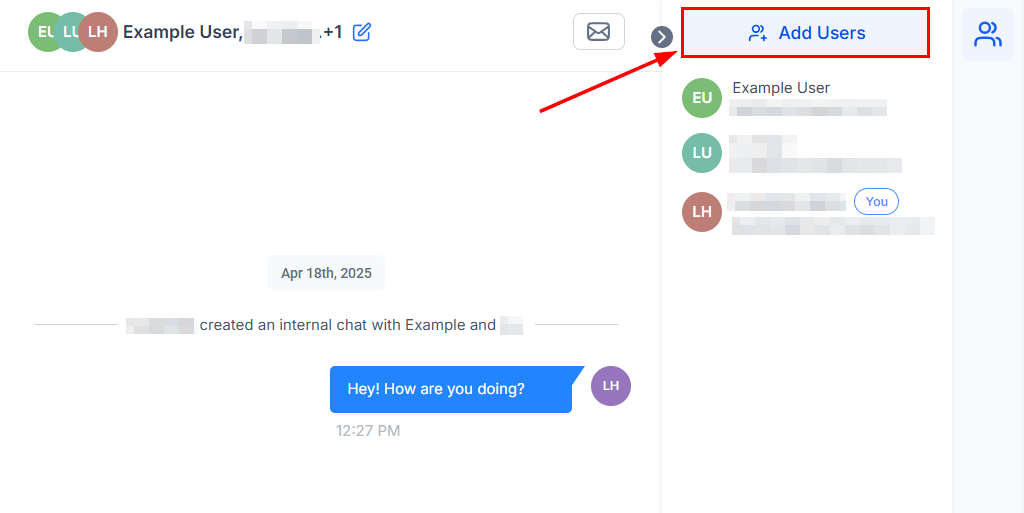
Open the existing internal chat and click Add Users in the right-hand panel.
Select the team members you’d like to add and click Next.
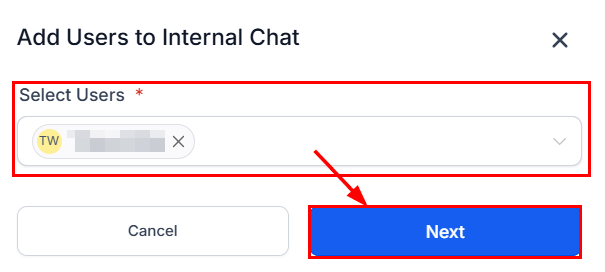
You will then be prompted to define the level of access the new participants should have to the existing chat history- either full access, limited access, or no access at all. Once you've made your selection, click Confirm to finalize the addition. This ensures that participants receive the appropriate context for the conversation based on your preferences.
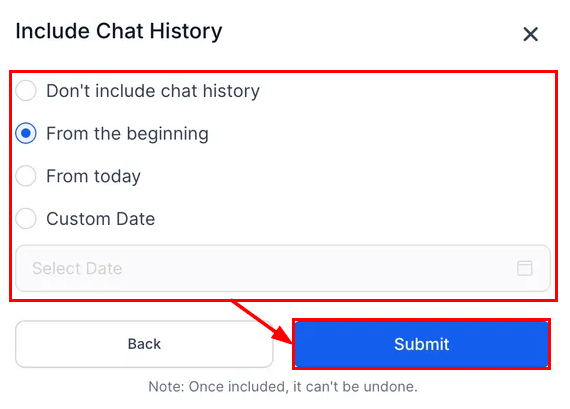
Note: Once added, users cannot be removed from the chat.
Managing Internal Chat Notifications
Stay updated on internal messages by customizing your notification preferences:
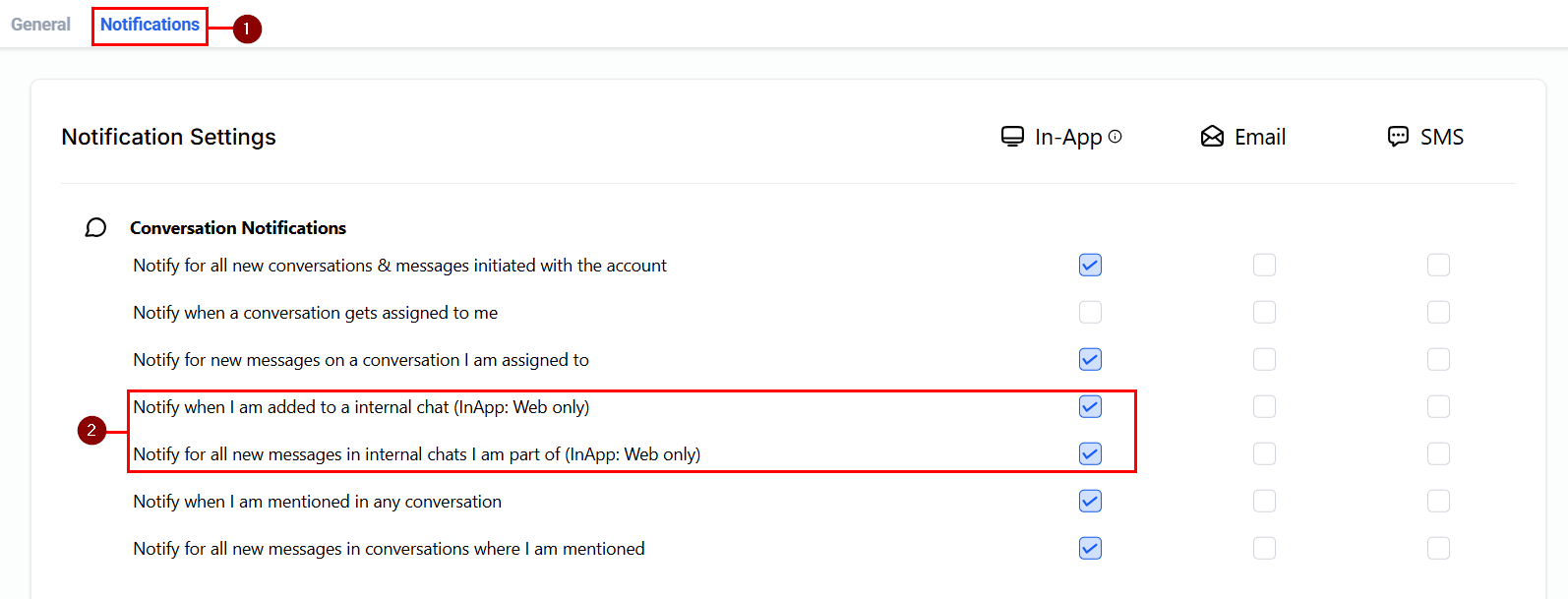
Navigate to Settings > My Profile > Notifications
Here, you can choose to receive:
- Notifications for every message in internal chats you're part of.
- Notifications only when added to a new internal chat.
Internal Chat is designed to boost efficiency and clarity within your team’s communication. By leveraging its features, you can foster stronger collaboration and maintain focus across your internal workflows.
Was this article helpful?
That’s Great!
Thank you for your feedback
Sorry! We couldn't be helpful
Thank you for your feedback
Feedback sent
We appreciate your effort and will try to fix the article