Having a good social media presence helps your business achieve bigger audiences and promote more sales. One of the ways you can amplify that reach is by integrating your Facebook account into your CRM, doing so enables seamless access to incoming Messenger Messages directly within the conversation tab.
NOTE: Facebook messaging connection settings are only available for Facebook Pages connected to Meta Business.
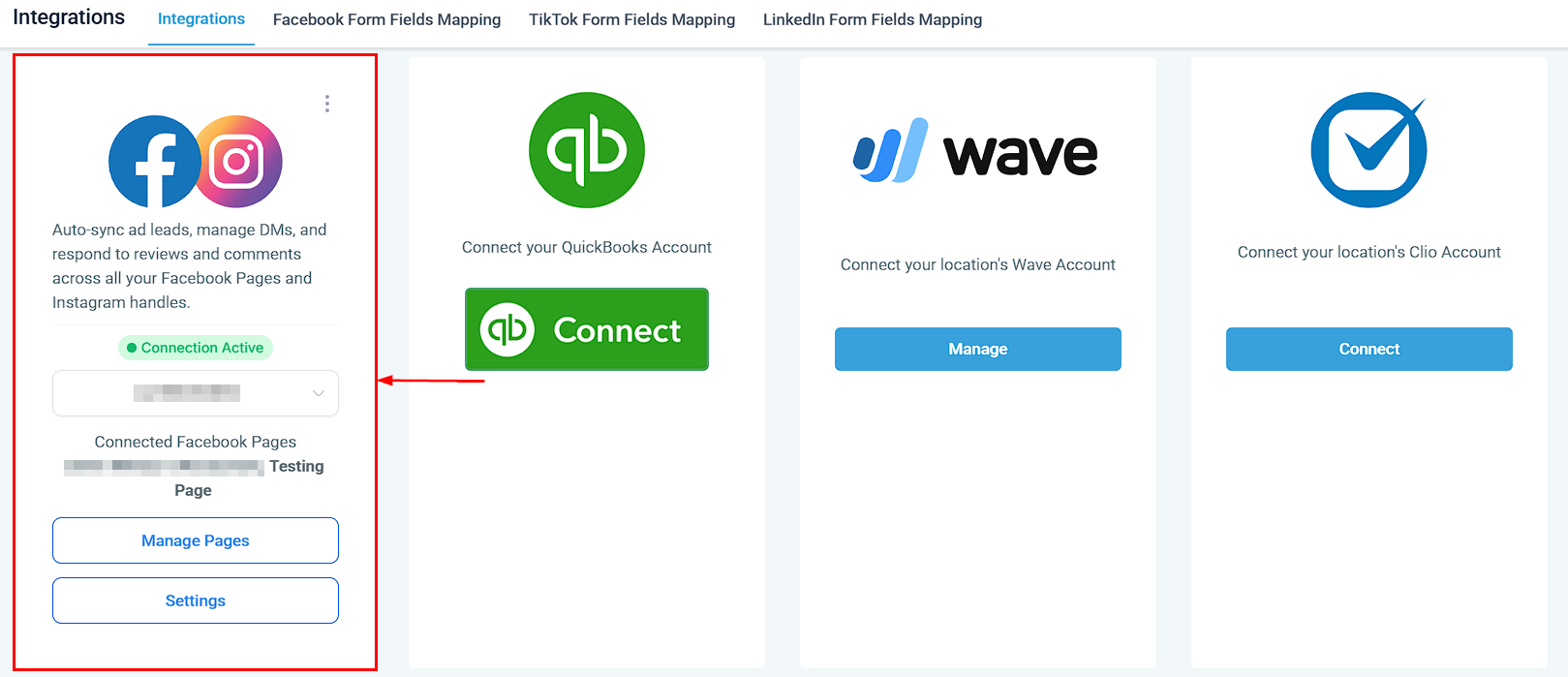
Creating Messenger Messages
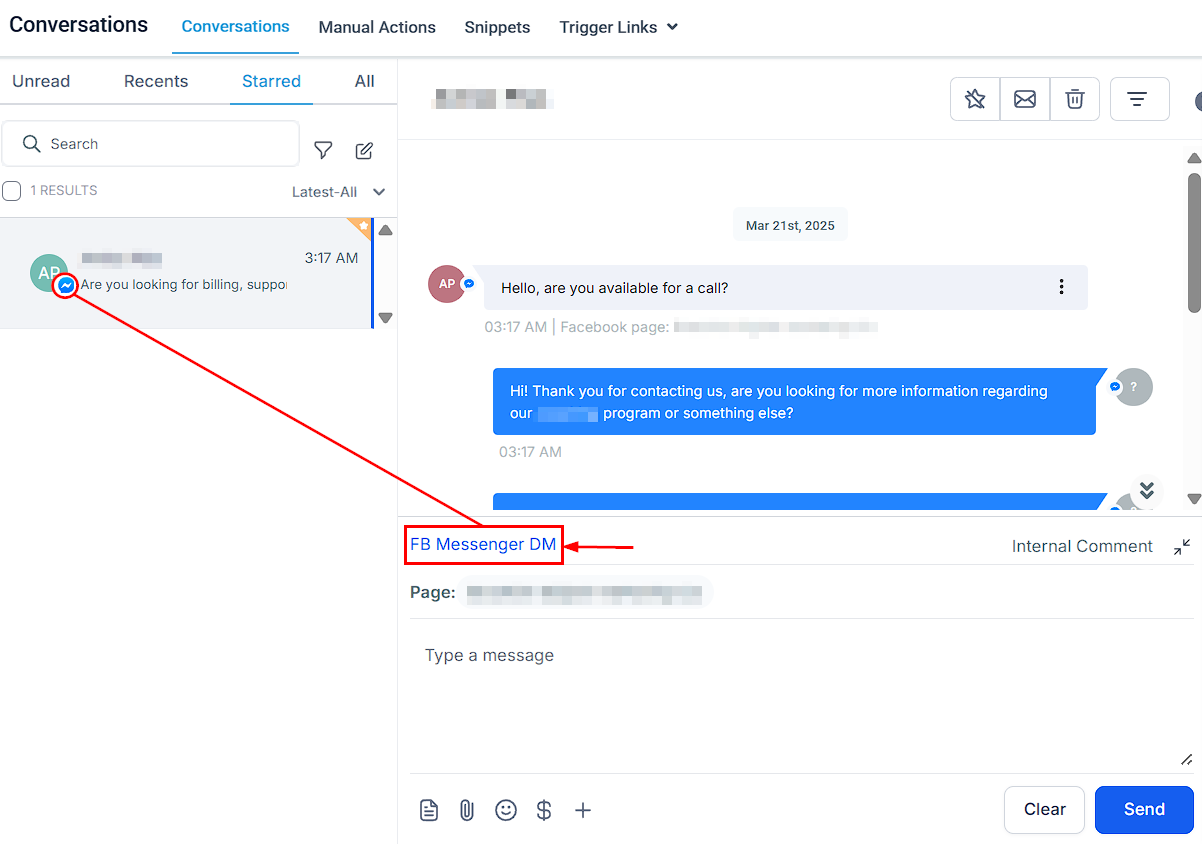
When you receive a message notification, the CRM indicates the platform from which the message originated, which is especially helpful when managing multiple integrated communication channels.
If a client has previously contacted your business through Facebook, you can respond via Messenger directly within the contact conversation. However, if the client has not communicated with you through Facebook before, the option to send a Facebook message will not be available.
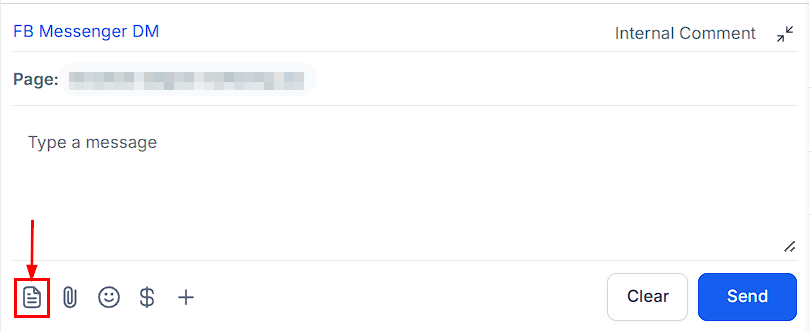
Using SMS Snippets in Facebook Messages
You can also leverage SMS snippets within your Facebook messages. To do so, click the paper icon at the bottom of the message box. A popup will appear, allowing you to select from your existing snippets in the CRM. Choose the desired snippet from the dropdown menu to insert it into your message.
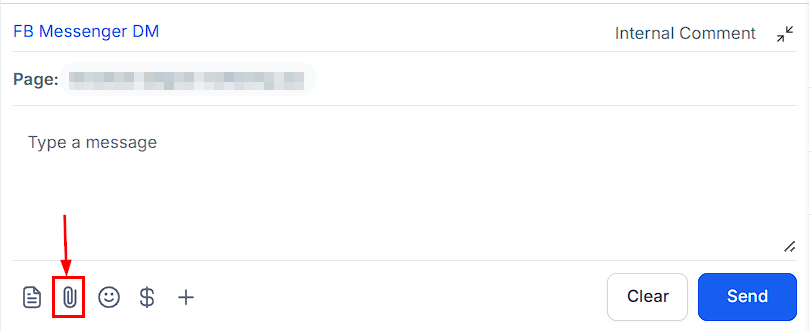
Attaching Files to Messenger Messages
To attach files or images to your Facebook message, click the paperclip icon at the bottom of the message box. This action will prompt you to Upload from your System or your Media, allowing you to select and upload the desired files or images. Follow the prompts to complete the attachment process.
Adding Emojis to Facebook Messages
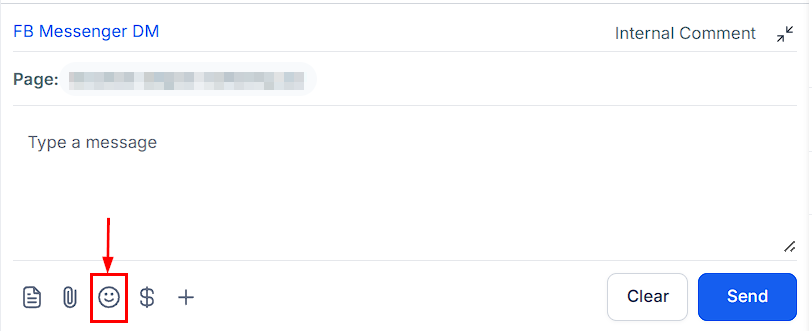
To include an emoji in your message, click the smiley face icon at the bottom of the message box. You can search for specific emojis using the search bar or browse through different categories. To add multiple emojis, simply repeat the process for each one.
Requesting Payment via Facebook Message
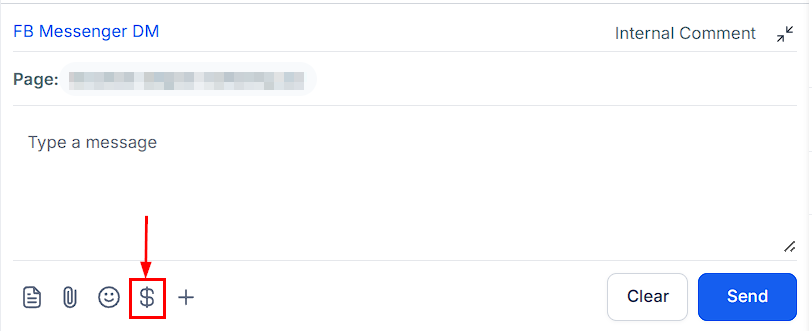
To request payment from a customer, click the money icon next to the SMS template icon in the message box. A popup will appear, prompting you to fill in the necessary invoice details. Once completed, click 'Copy link and mark as sent' to finalize the process.
Utilizing Custom Values
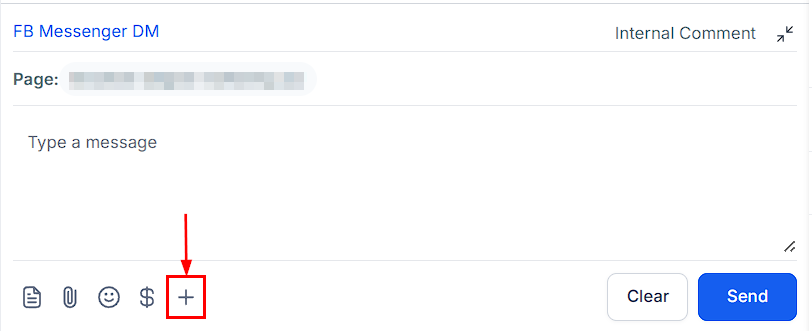
By clicking the '+' button, you can access and insert custom values into your messages. Using custom values allows you to personalize communications and enhance customer engagement.
Internal Comment
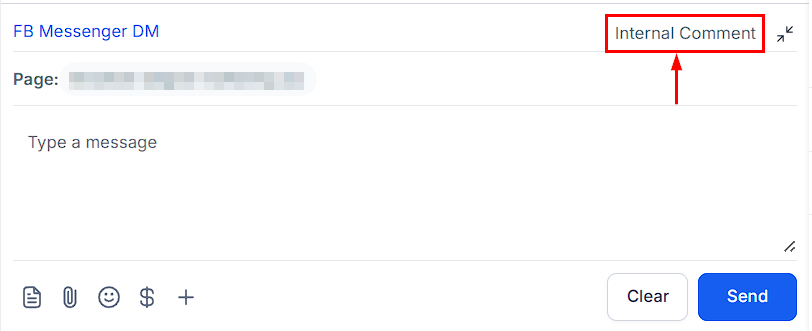
If you need to add a note for internal team reference, you can use the internal comments feature within the conversation tab. Internal comments are not visible to the client and serve as a way to provide context, instructions, or updates for other team members handling the conversation.
Collapsing the Message Box
To minimize the message box, click the icon located in the top right corner, resembling four corners. This will collapse the message box and discard any unsent content, so ensure that you send or save your message before closing.
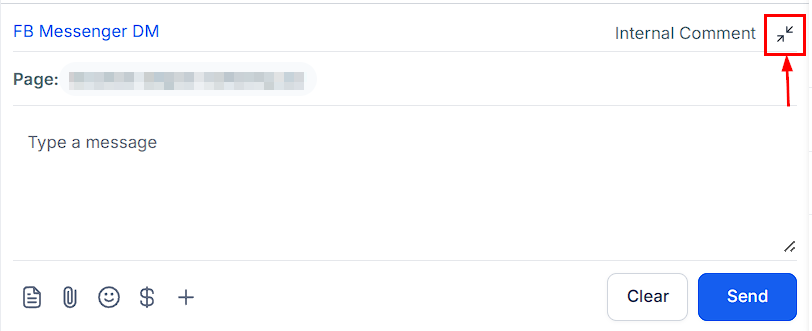
This allows you to manage multiple communication channels efficiently and also provides various features like file attachment, emoji inclusion, SMS template usage, and payment requests directly through Facebook messages. These tools enhance your ability to engage with clients, offering a seamless and professional customer experience.
Was this article helpful?
That’s Great!
Thank you for your feedback
Sorry! We couldn't be helpful
Thank you for your feedback
Feedback sent
We appreciate your effort and will try to fix the article