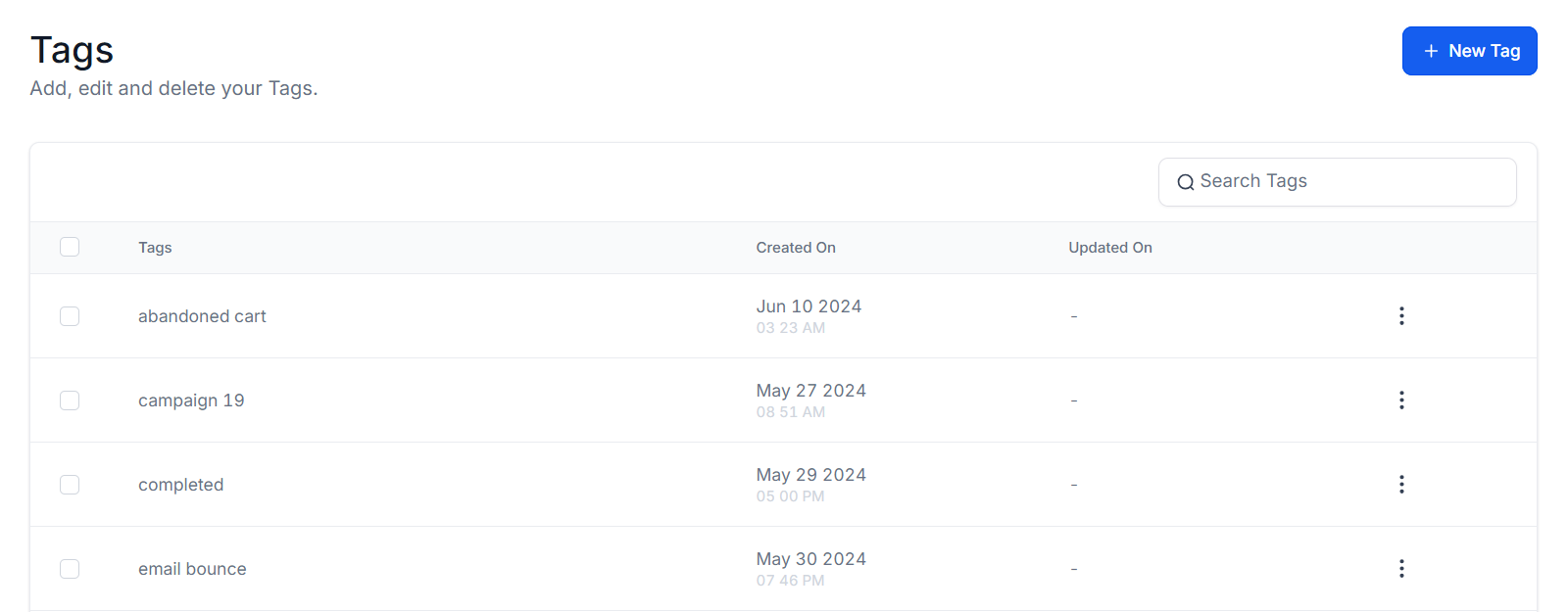
The Tags section within your system offers a robust feature for managing contact tags. While tags can be created in other areas, the Tags section allows you to adjust or delete existing tags. These tags are useful for quickly identifying contacts and can trigger various actions, such as merging contacts, adding them to workflows, or initiating automated email follow-ups.
To get started, locate the Tags section within your Account Settings.
Creating a New Tag
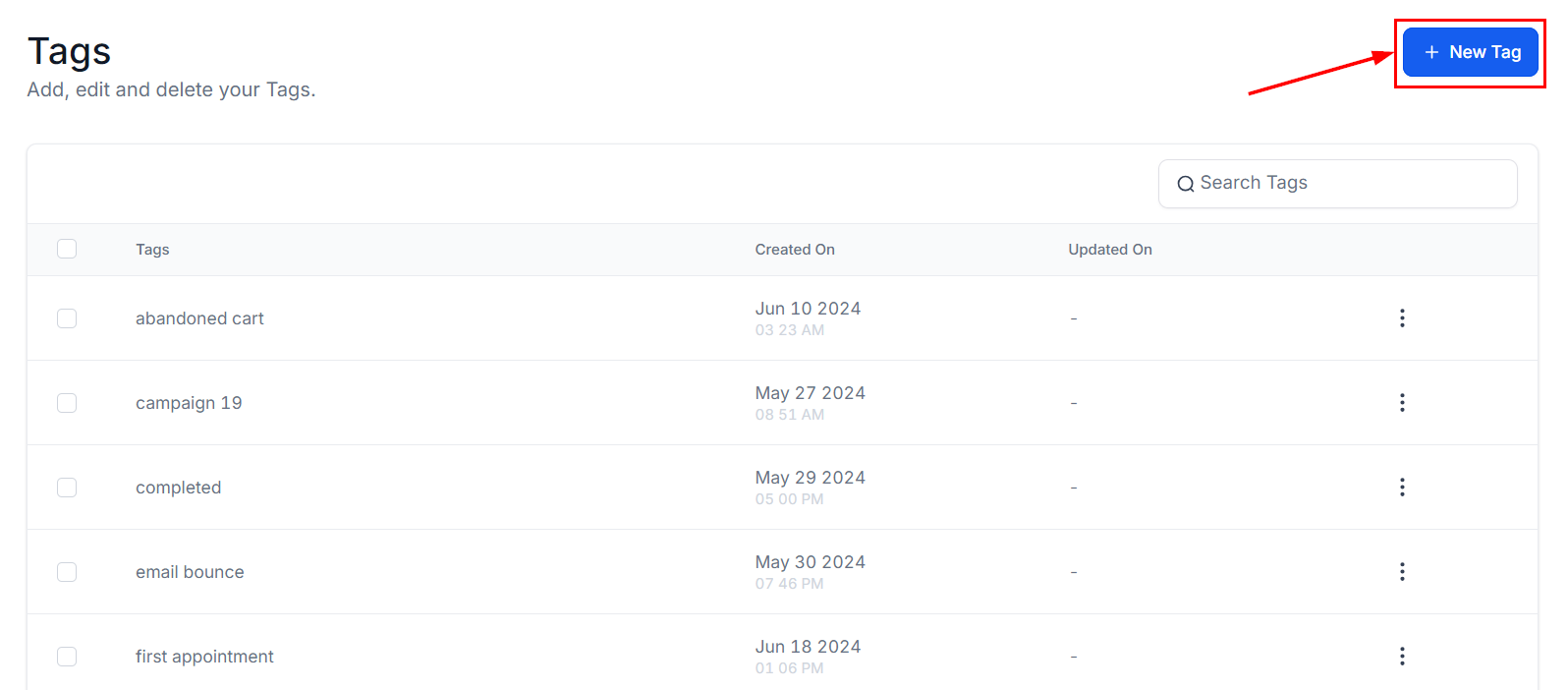
To add a new contact tag, simply click the "+ New Tag" button. This quick and straightforward process allows you to organize your lead data more effectively by creating tags that suit your needs. Assign an appropriate title, such as "New Lead" or "Paid Customers," type in the desired tag name, and click "Add."
Searching Tags
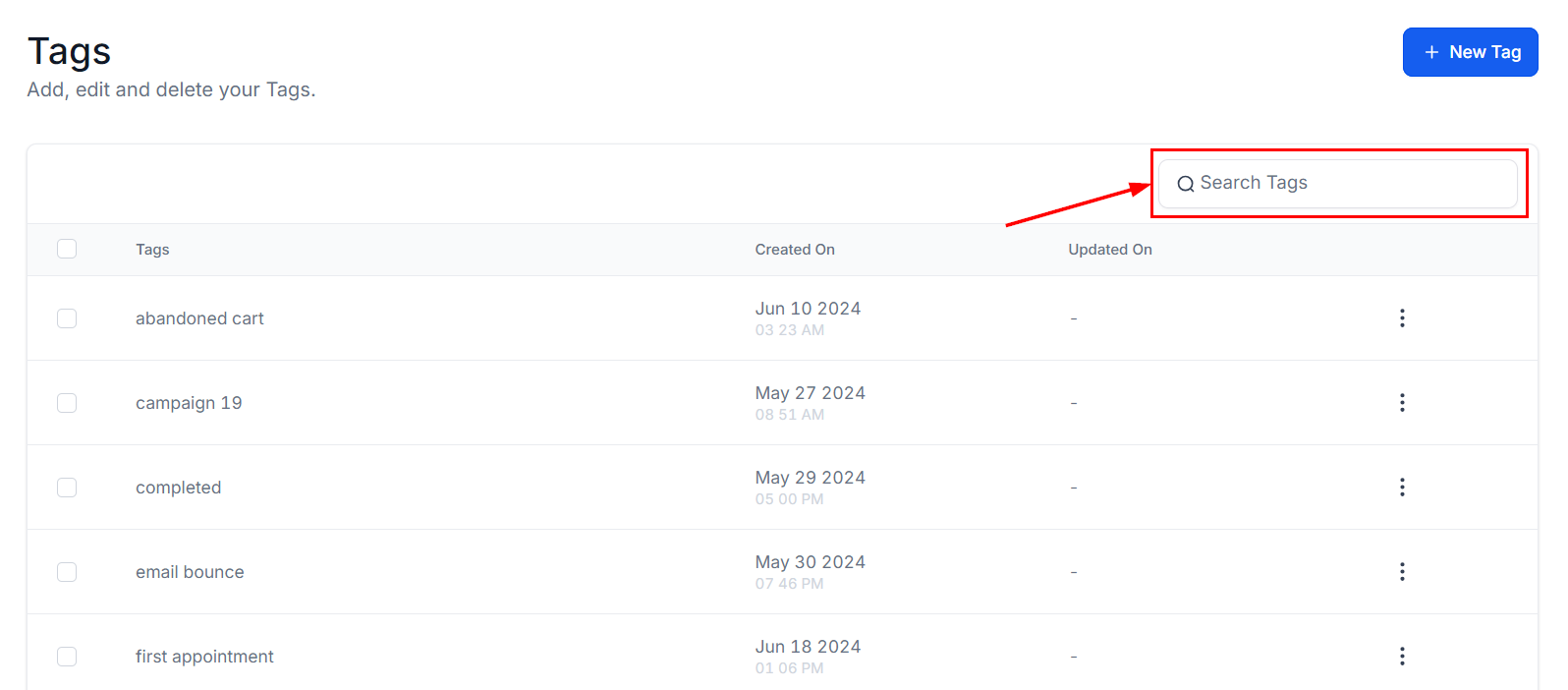
If you need to quickly locate a specific tag from the list, use the search box. Simply type the tag name into the search field to find it instantly.
Tag List
Tags
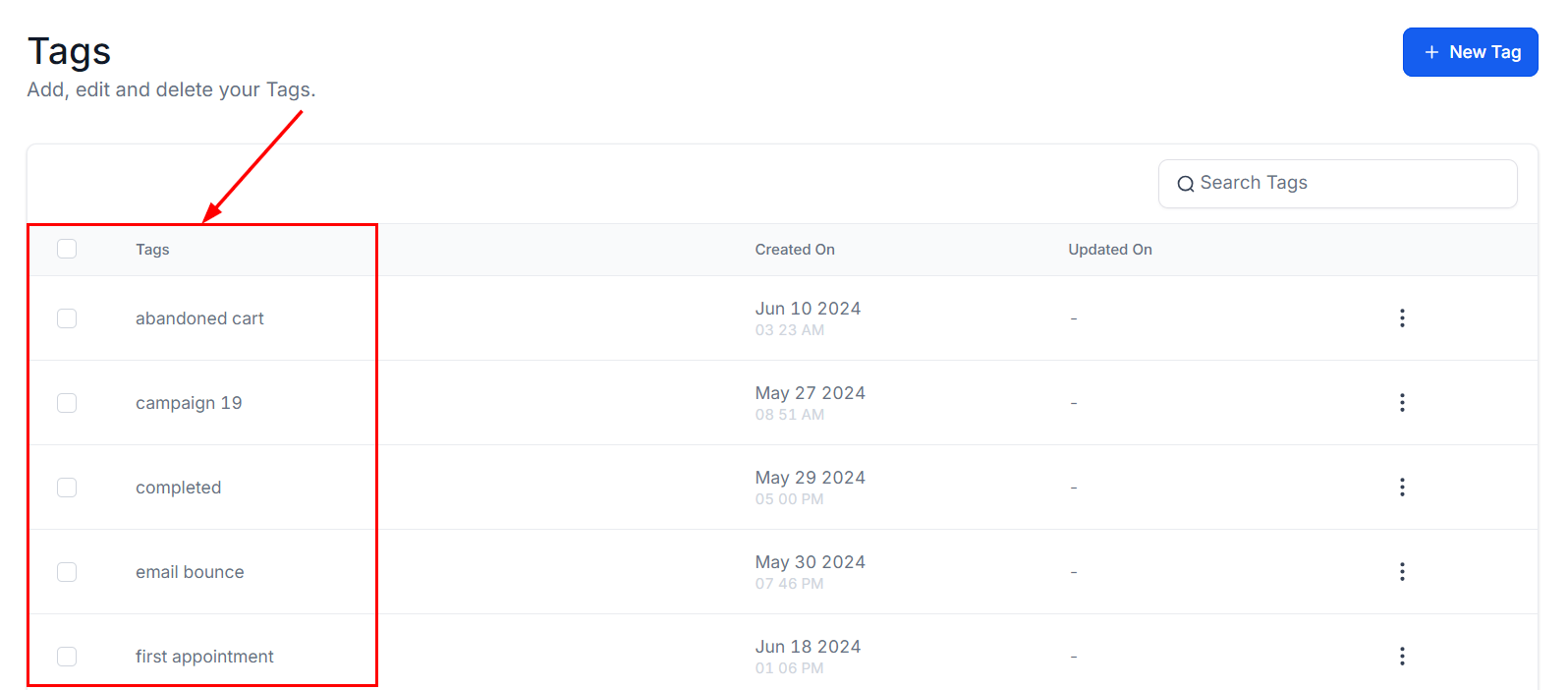
The Tags column provides a comprehensive view of every tag you have created. It displays all the names associated with your existing tags.
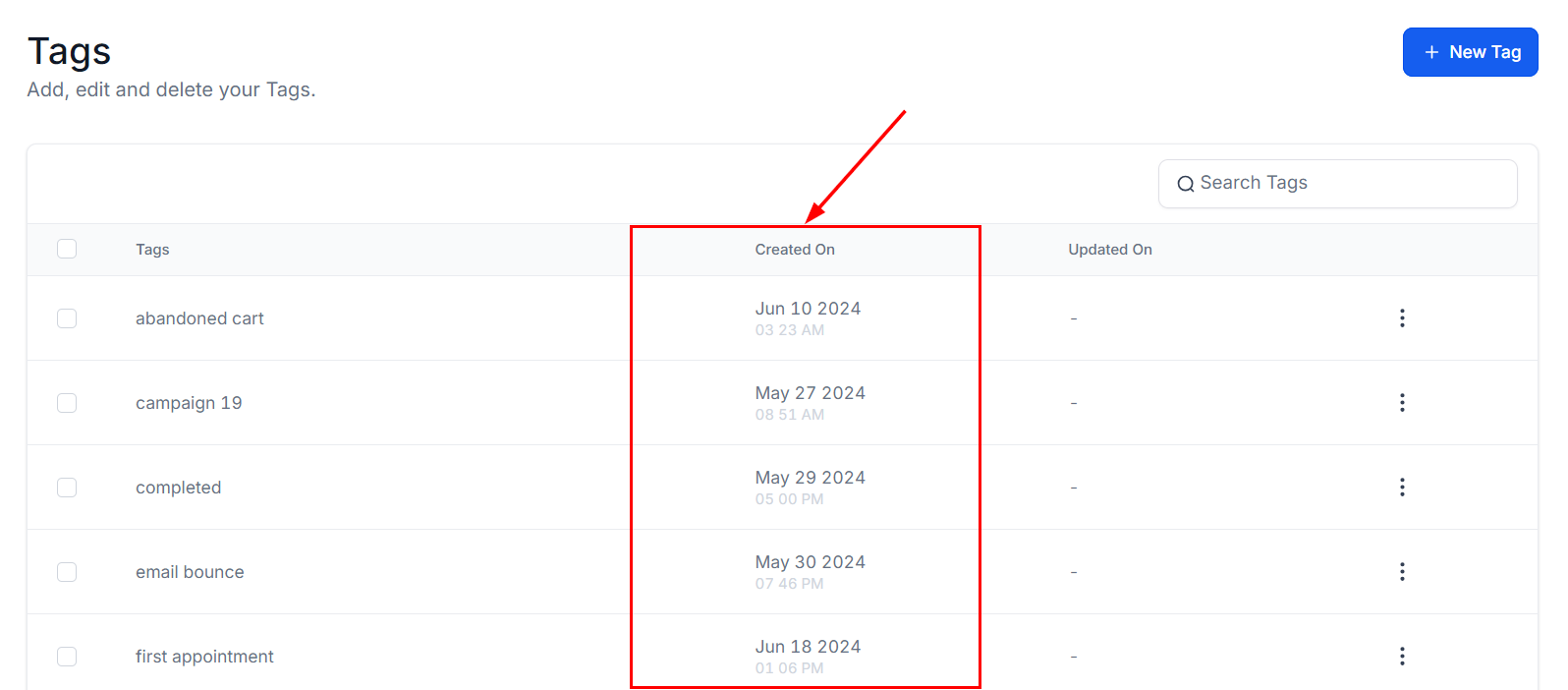
Created On
The Created On column shows the exact date and time each tag was initially created, offering clear visibility into when tags were added to your system.
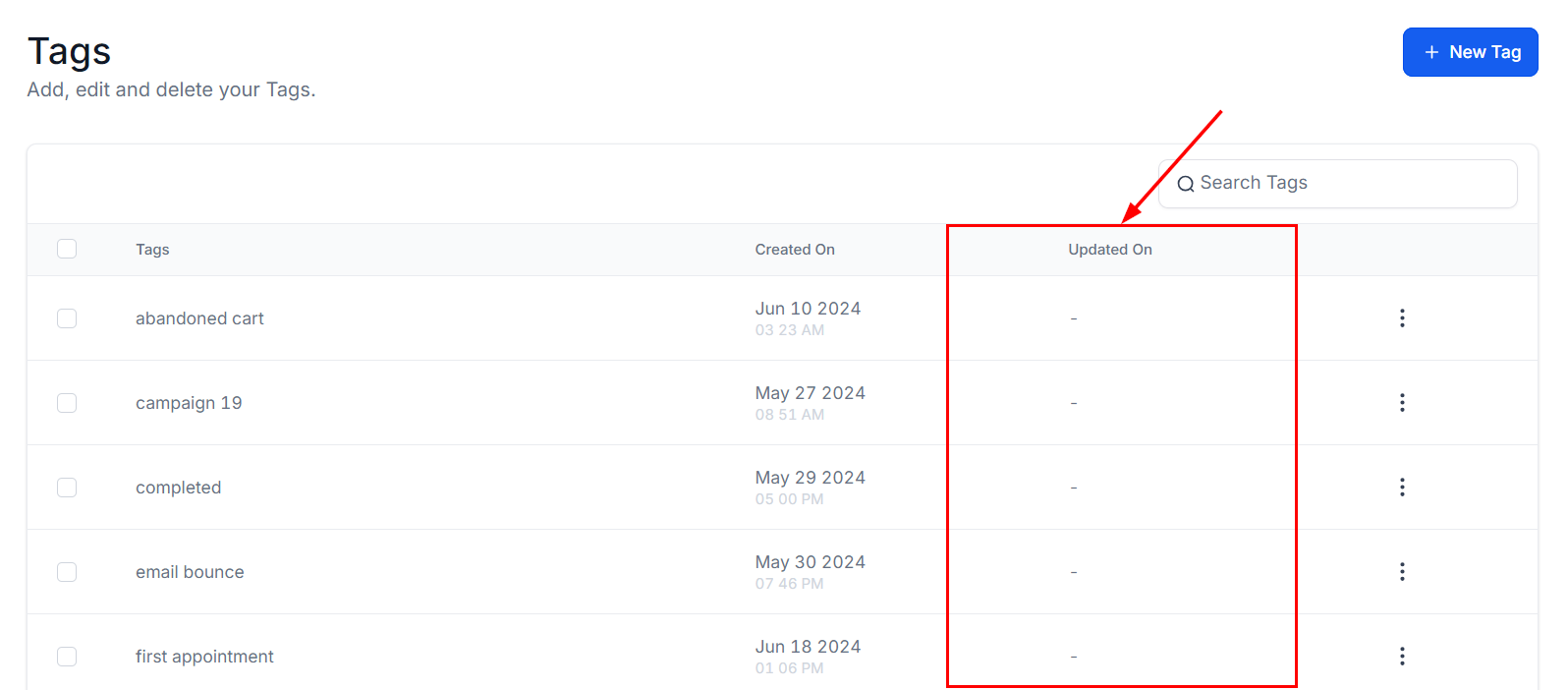
Updated On
The Updated On column indicates the last time each tag was edited, displaying the precise date and time any changes were made. If no updates have been made to the tag, the column will display a “-” sign.
Tag Action
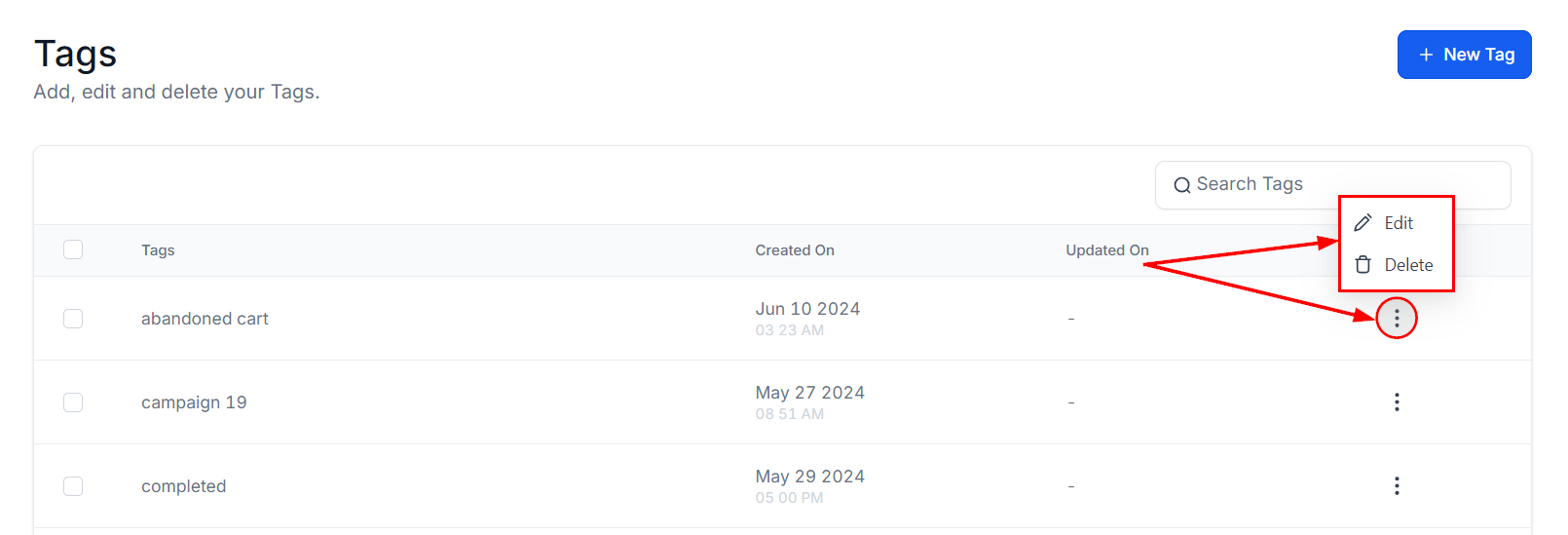
The three-dot menu on the far right of each tag entry allows you to edit or delete tags as needed.
- Edit: The edit option enables you to quickly modify tag names. Simply click the edit button, and a new window will appear for efficient tag modifications.
- Delete: The delete option allows you to remove one or multiple tags from your list. If a tag is no longer needed, it can be deleted with just a click. Please note that deleting a tag is permanent; you will need to recreate it if necessary by using the add tag button.
Bulk Action
For added convenience, you can perform bulk actions by selecting multiple tags via the checkboxes. This feature allows you to delete selected tags simultaneously, saving you time.
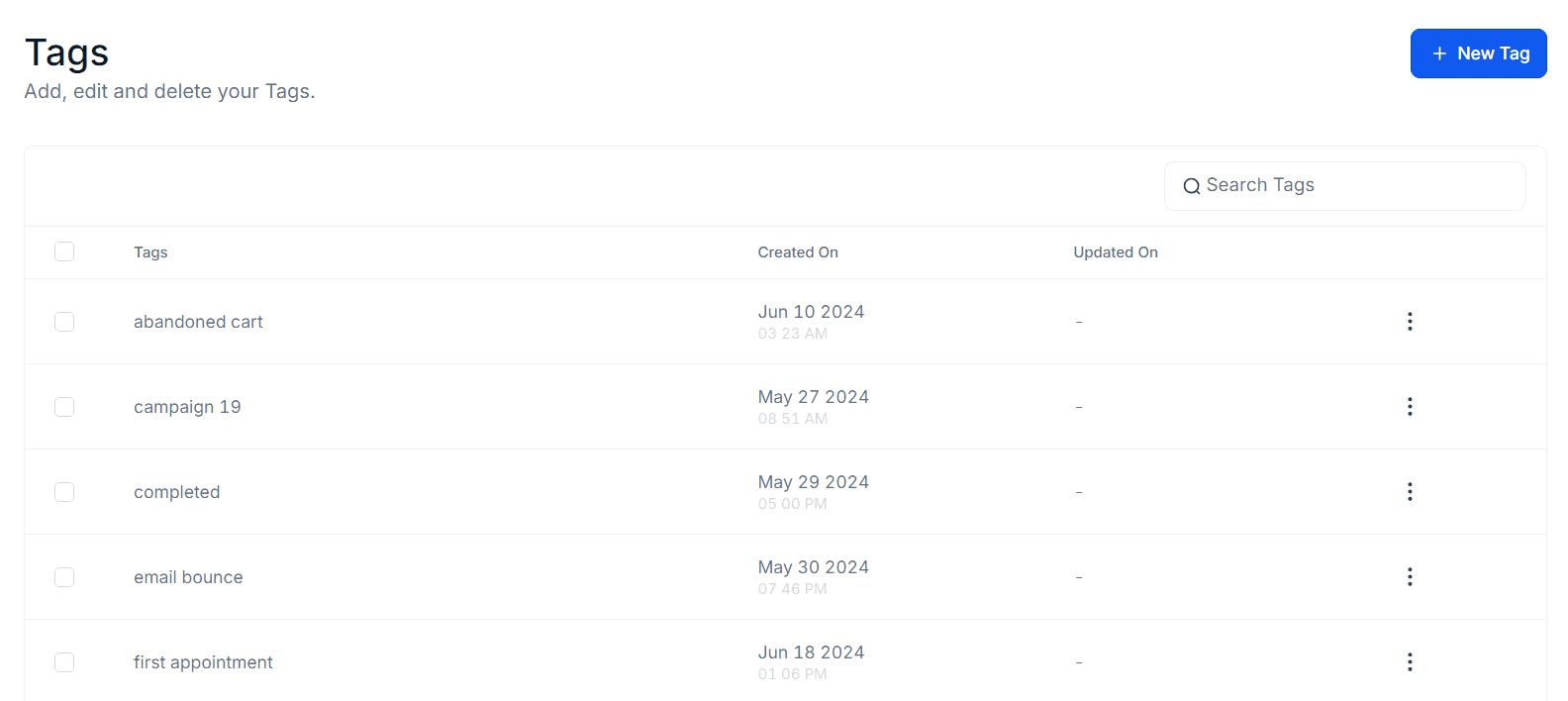
Now you are all set to create, edit, and organize tags efficiently.
Was this article helpful?
That’s Great!
Thank you for your feedback
Sorry! We couldn't be helpful
Thank you for your feedback
Feedback sent
We appreciate your effort and will try to fix the article