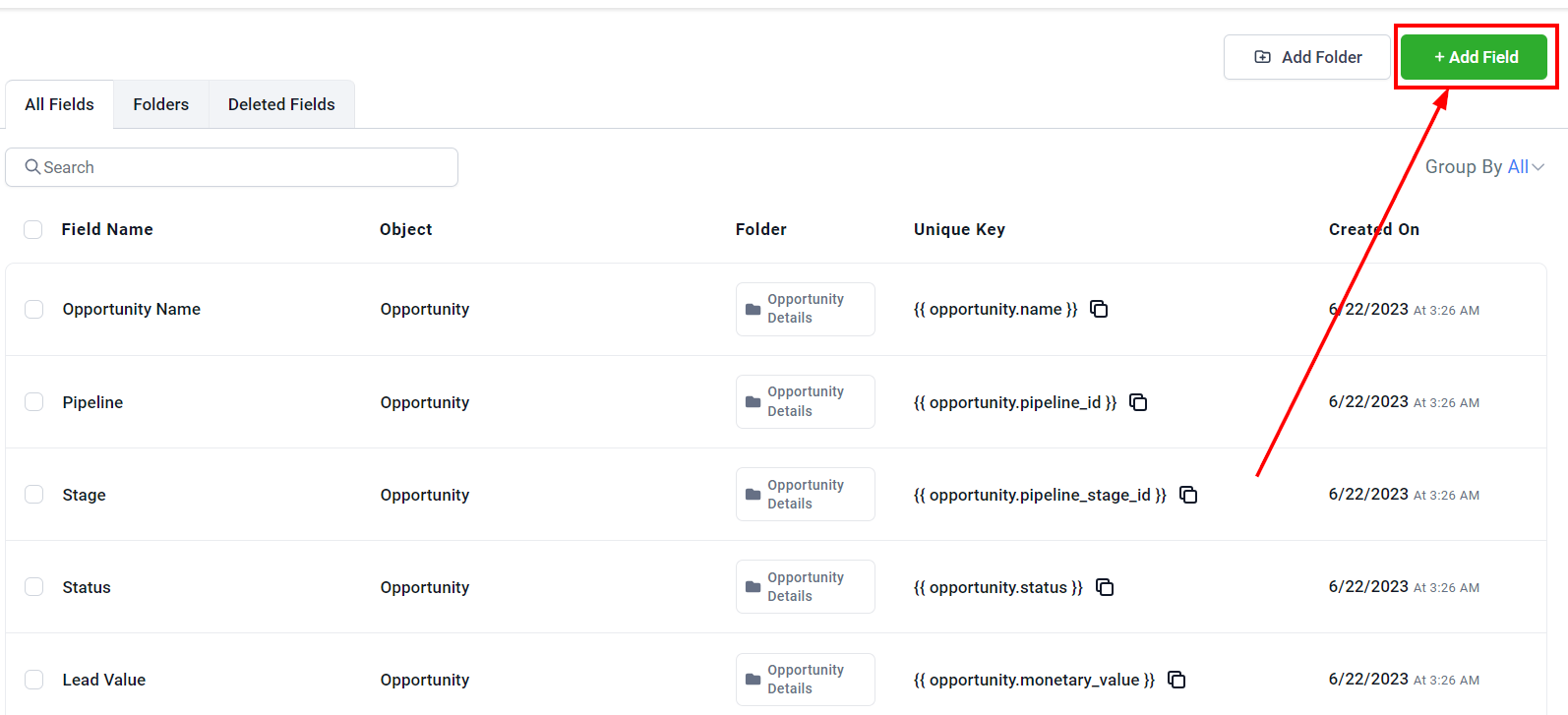
In this article, you will learn how to create a custom field and integrate it into your Contact Details to enable file attachments within a contact record. Begin by navigating to the Settings category, selecting the Custom Fields section, and clicking the "+Add Field" button to initiate the creation of your custom field.
File Upload
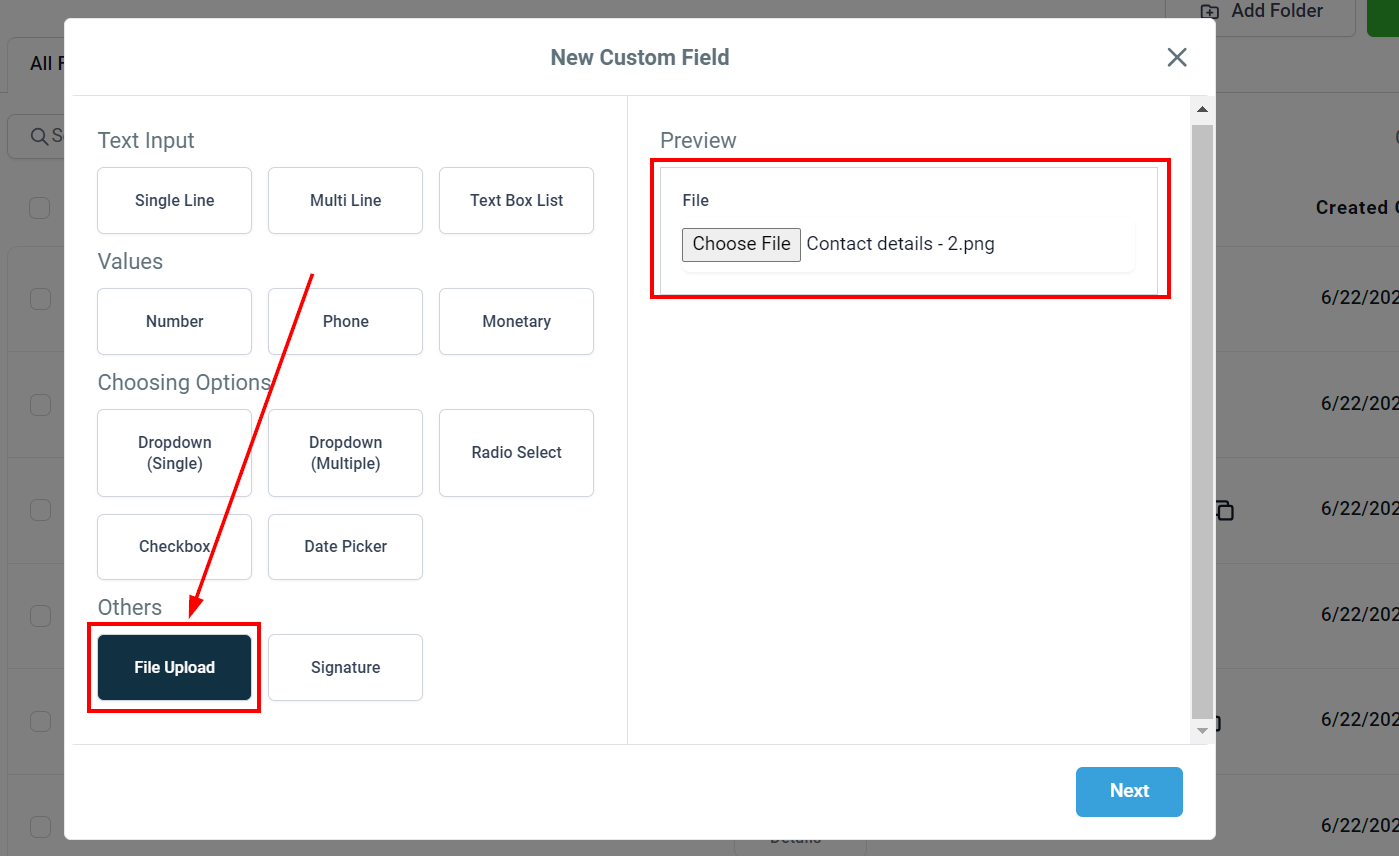
A popup window will appear. Click on File Upload and then upload your file using the Preview section located in the upper right corner of the popup if you so desire.
File Name
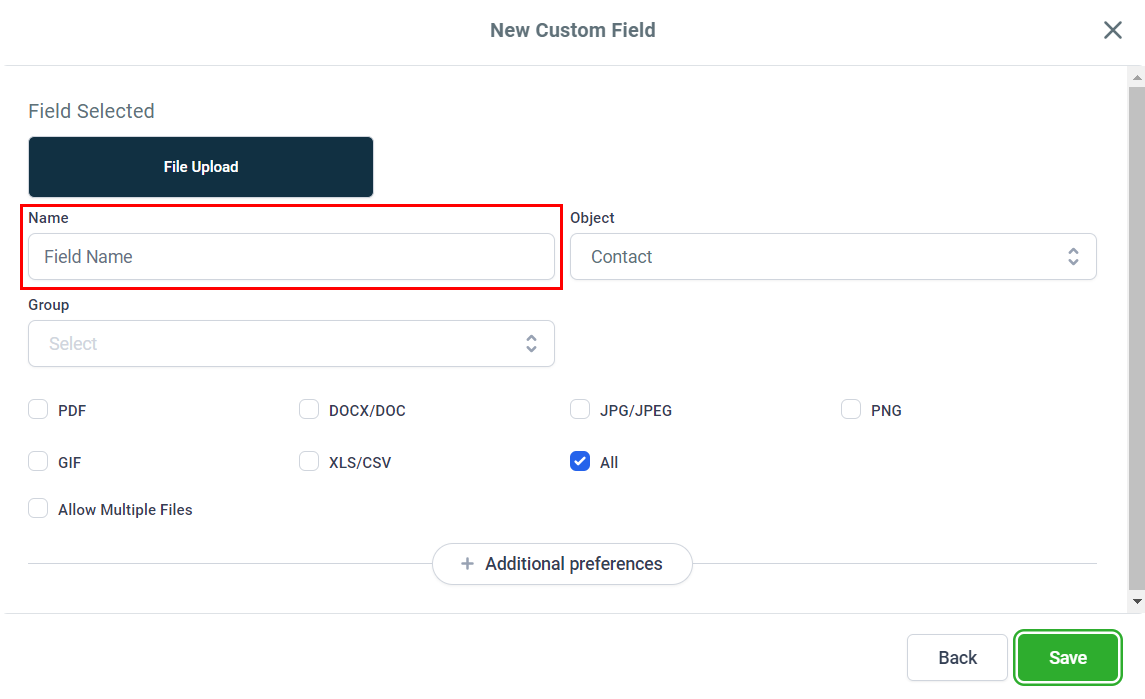
In the next window, give your new field a name to easily identify it.
Select Object
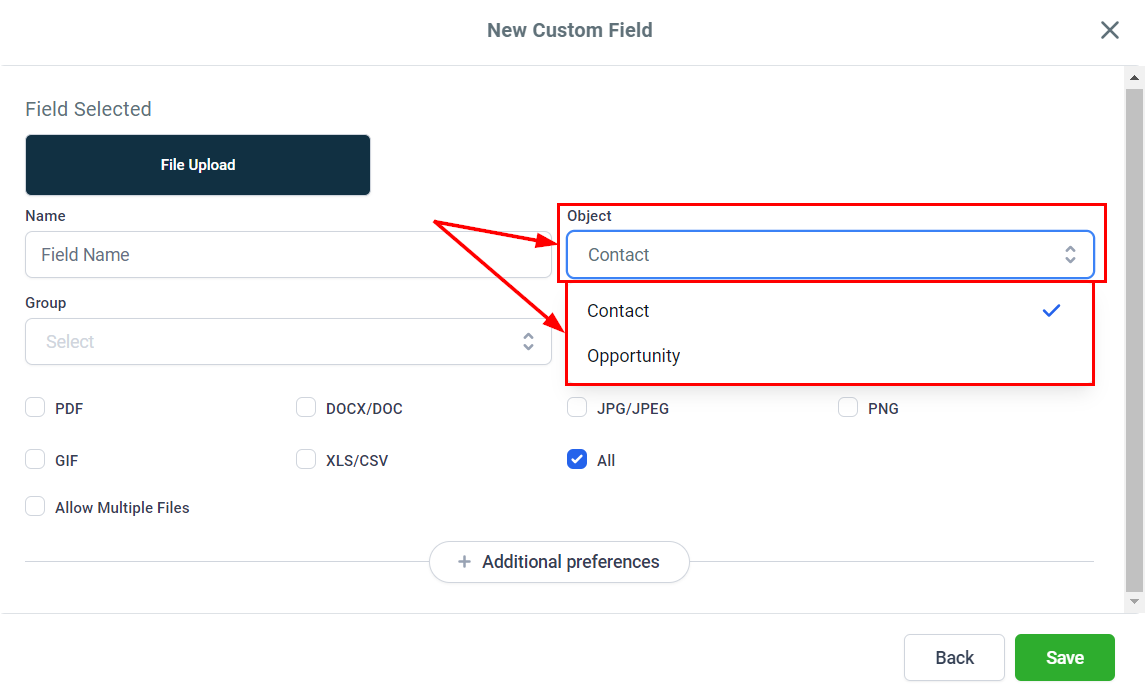
Next, choose the section within your system where you want this custom field to be applied: in Contact or Opportunity details. Since we wish to view the file(s) within a Contact record, we will choose the Contact Object here.
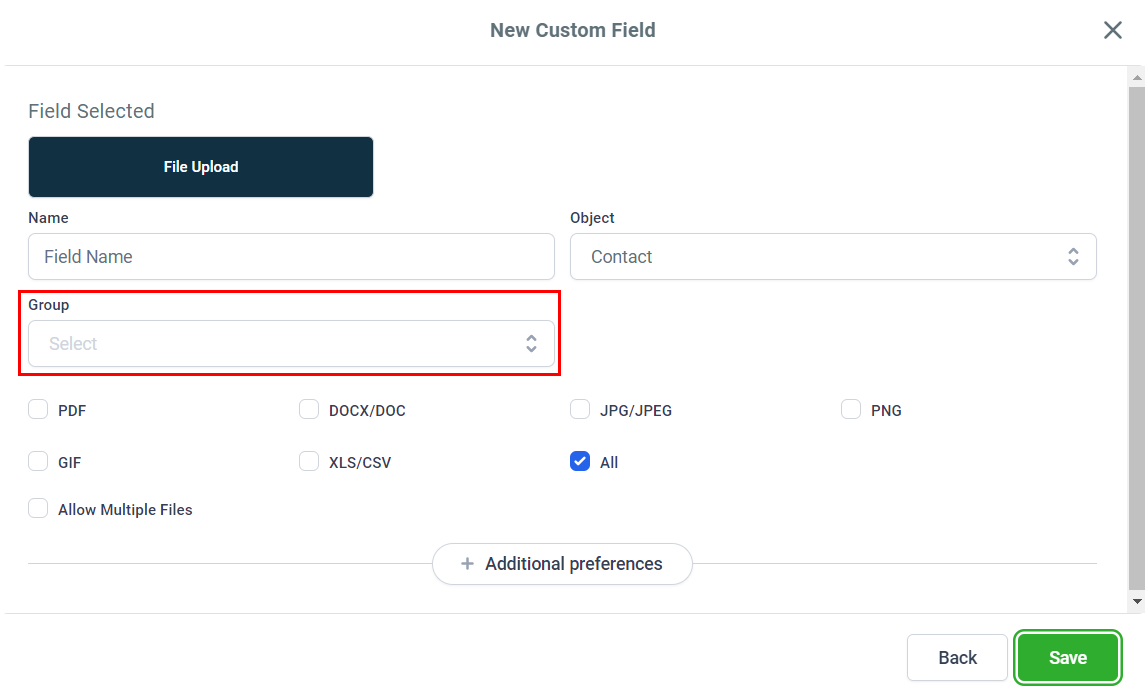
Choose A Group
Select the group in which you want the custom field to reside.
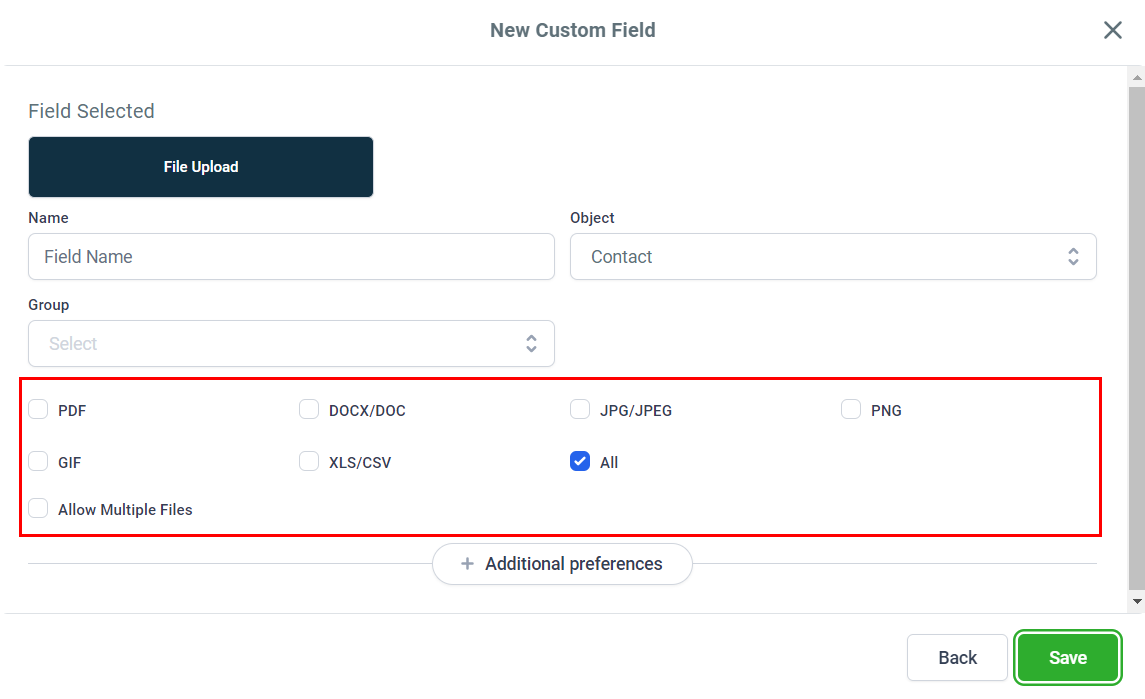
File Type
Specify the types of files that can be attached to this custom field. Alternatively, select "All" to allow any file type.
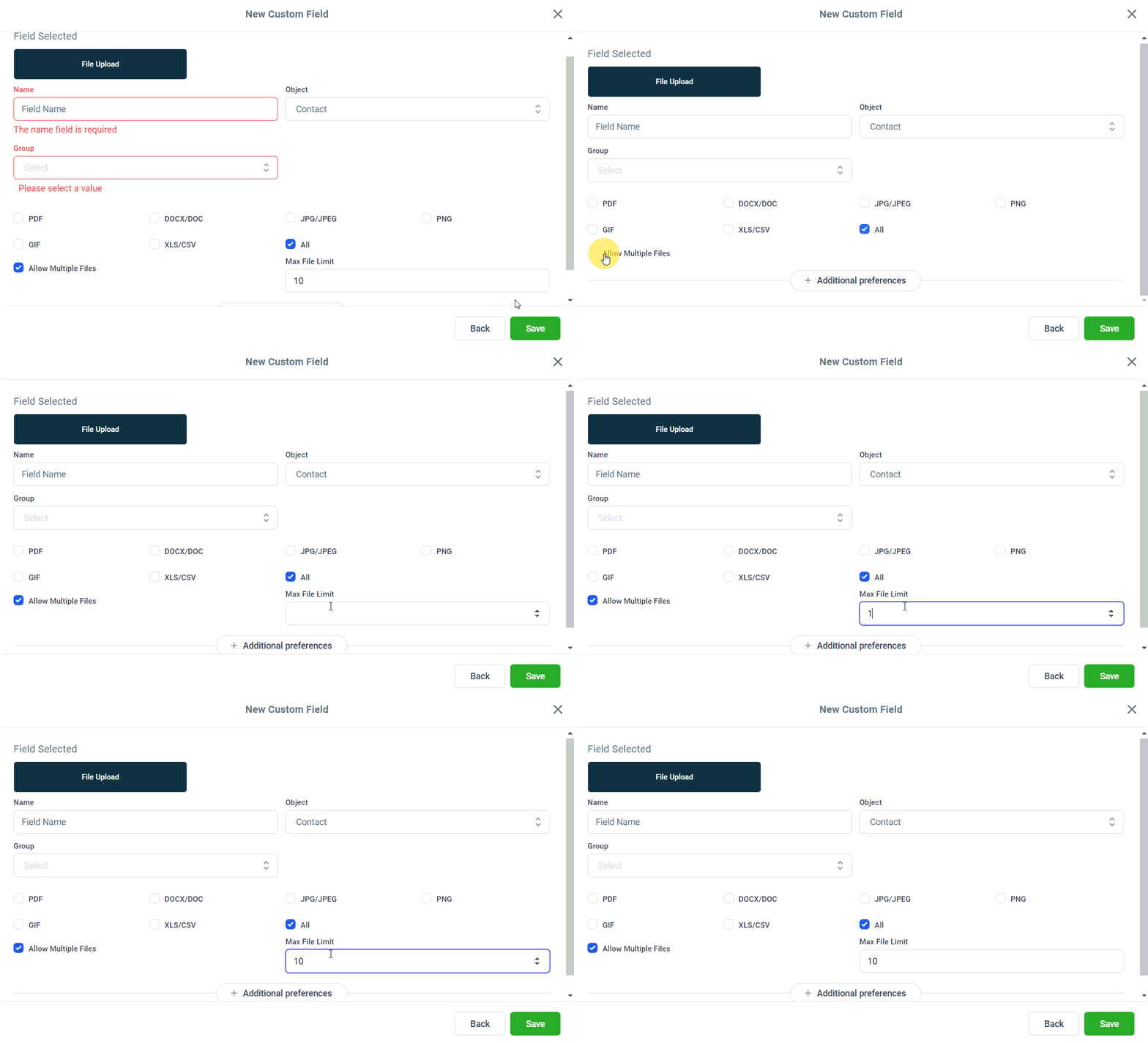
Allow Multiple Files
If you need to attach multiple files to a single custom field, enable the toggle and set the maximum number of files that can be attached.
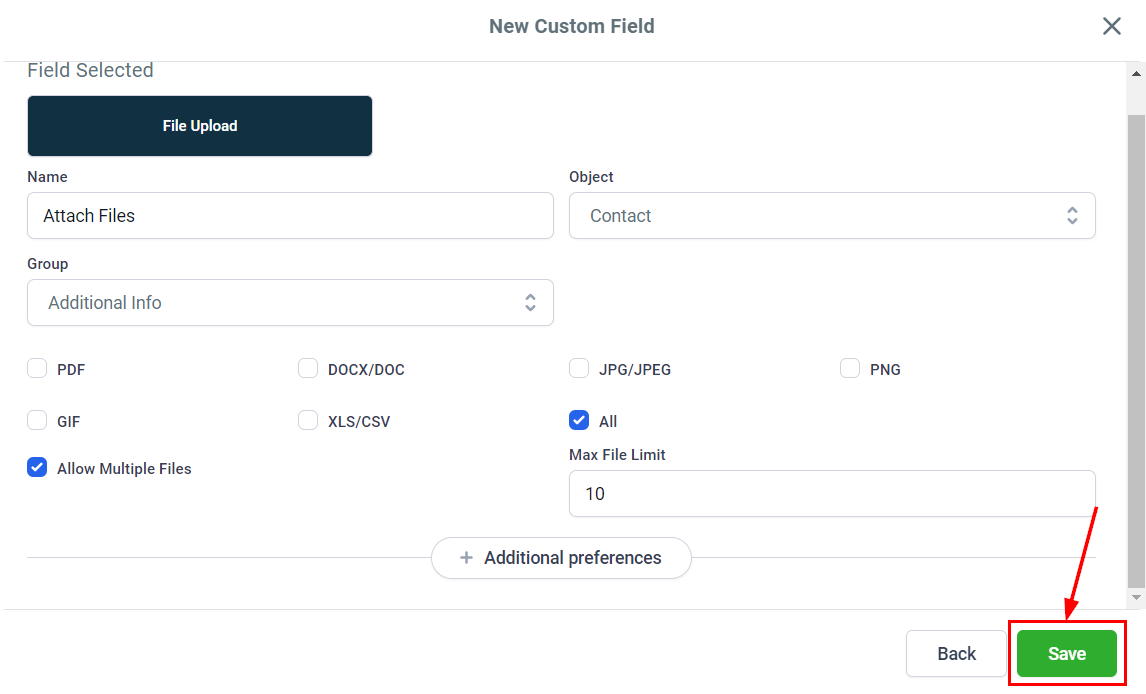
Configure any other additional preferences, then click Save.
How to Use Your Custom Field
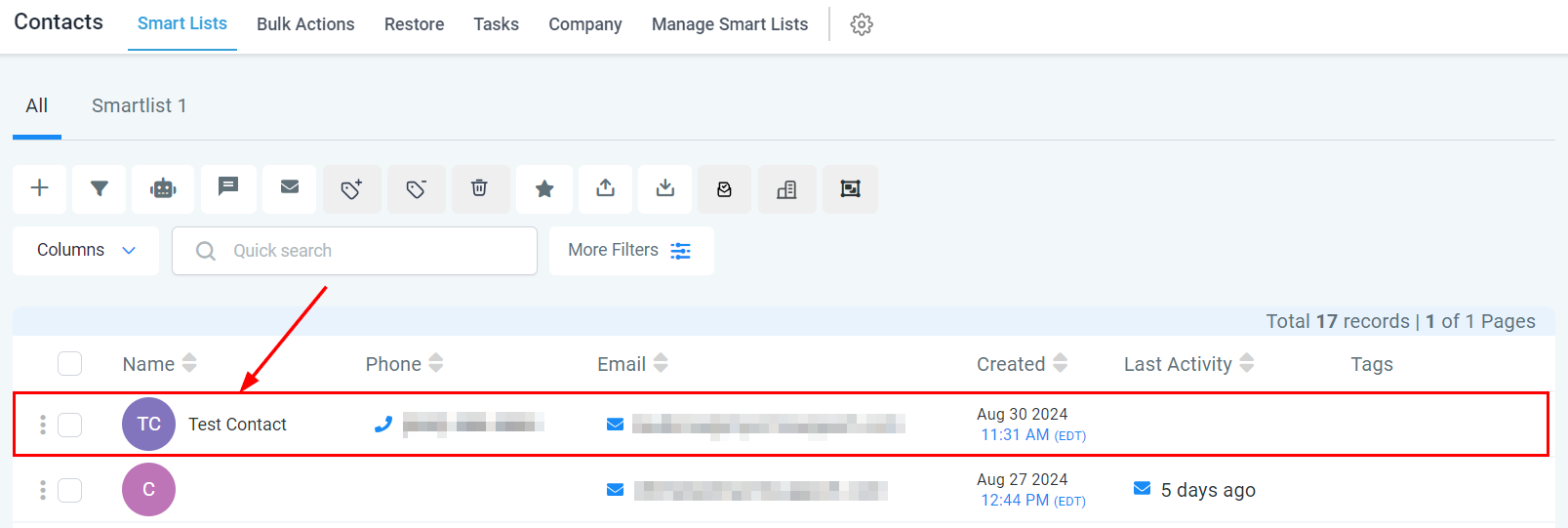
To see your custom field in action, navigate to the Contacts section from the left menu and open an individual contact record.
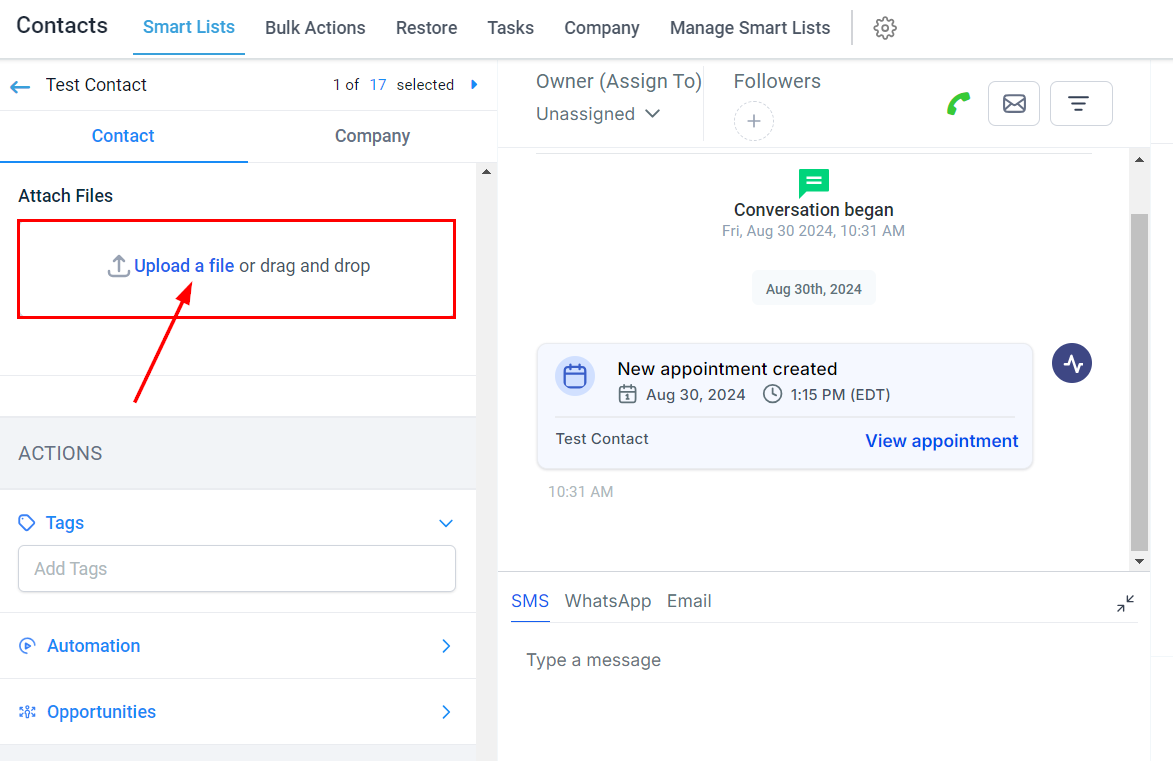
Within the contact record, locate the group you have added the custom field, then scroll down to find the new option to add files. To upload a file, click the Upload a File button, select the desired file from your local file browser, and after the file has been uploaded, click Save.
This process enables you to effectively organize and manage additional information within your contact or opportunity records, ensuring your data is both comprehensive and accessible.
Was this article helpful?
That’s Great!
Thank you for your feedback
Sorry! We couldn't be helpful
Thank you for your feedback
Feedback sent
We appreciate your effort and will try to fix the article