Make your membership courses discoverable on the GoKollab Marketplace to expand their reach and visibility to a broader audience. With this functionality, you can also set exclusive pricing models for your courses, enhancing your ability to tailor their offerings for potential students. Additionally, a dedicated page within GoKollab enables users to seamlessly switch between or access courses, providing a streamlined experience for all members.
How to List a Course on GoKollab Marketplace
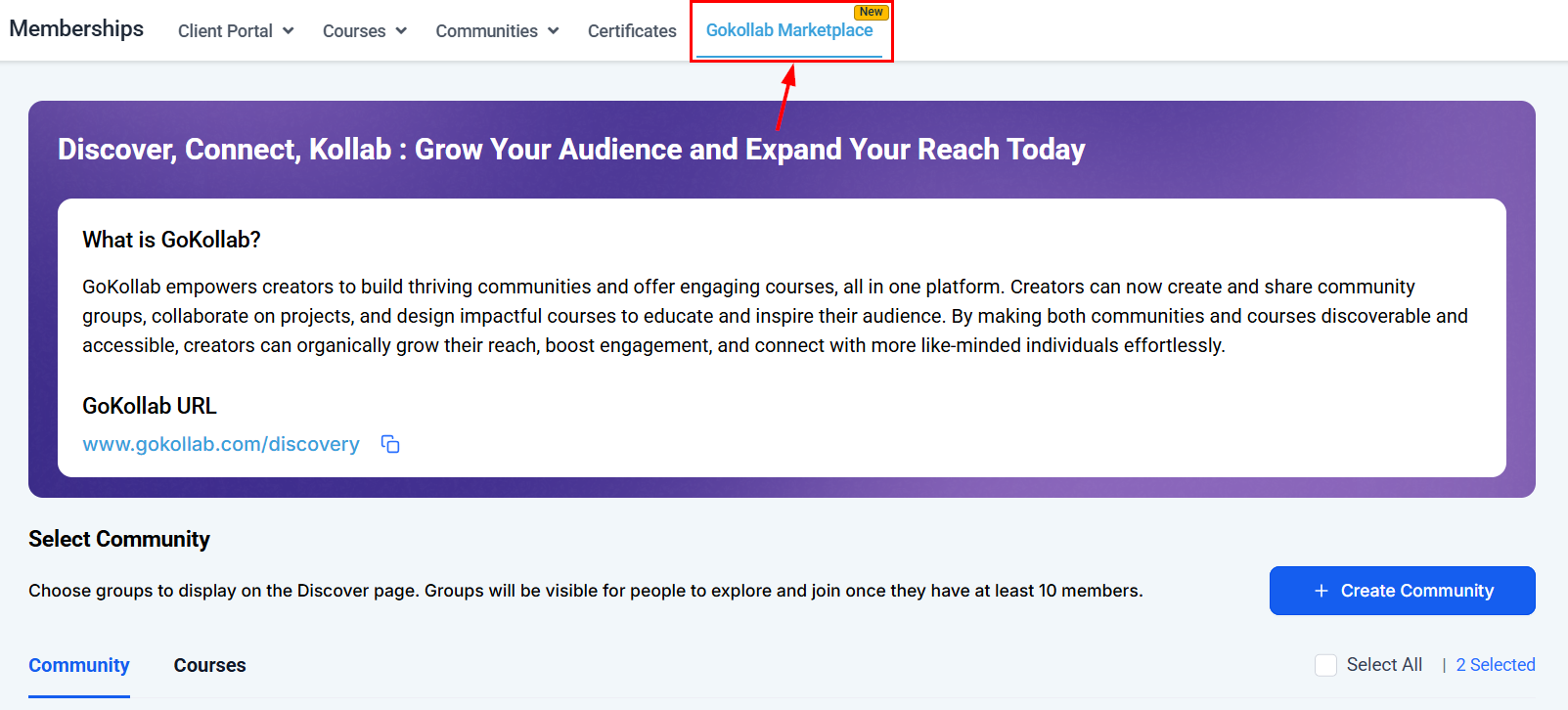
Log in to your account and navigate to Memberships > GoKollab Marketplace.
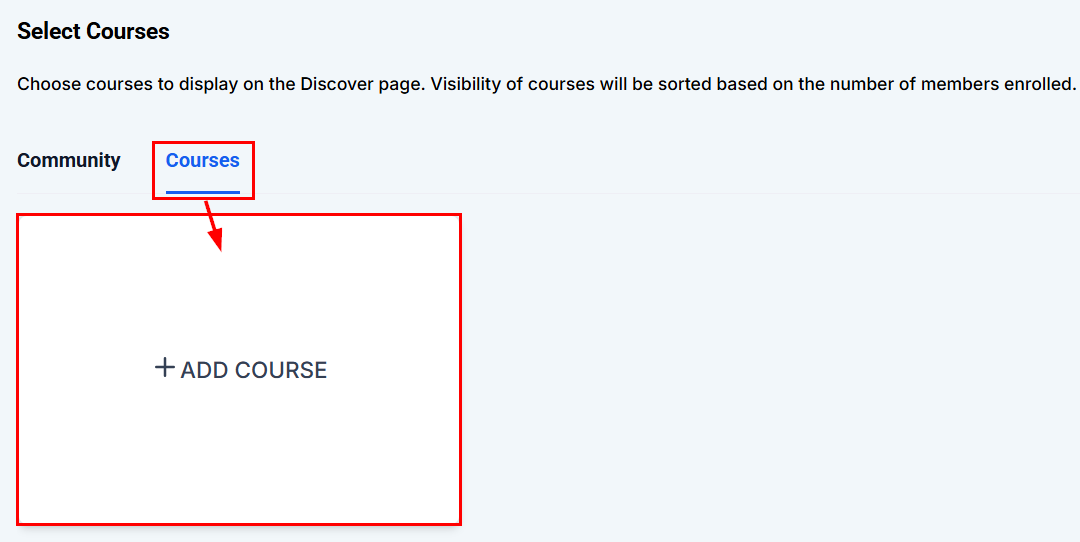
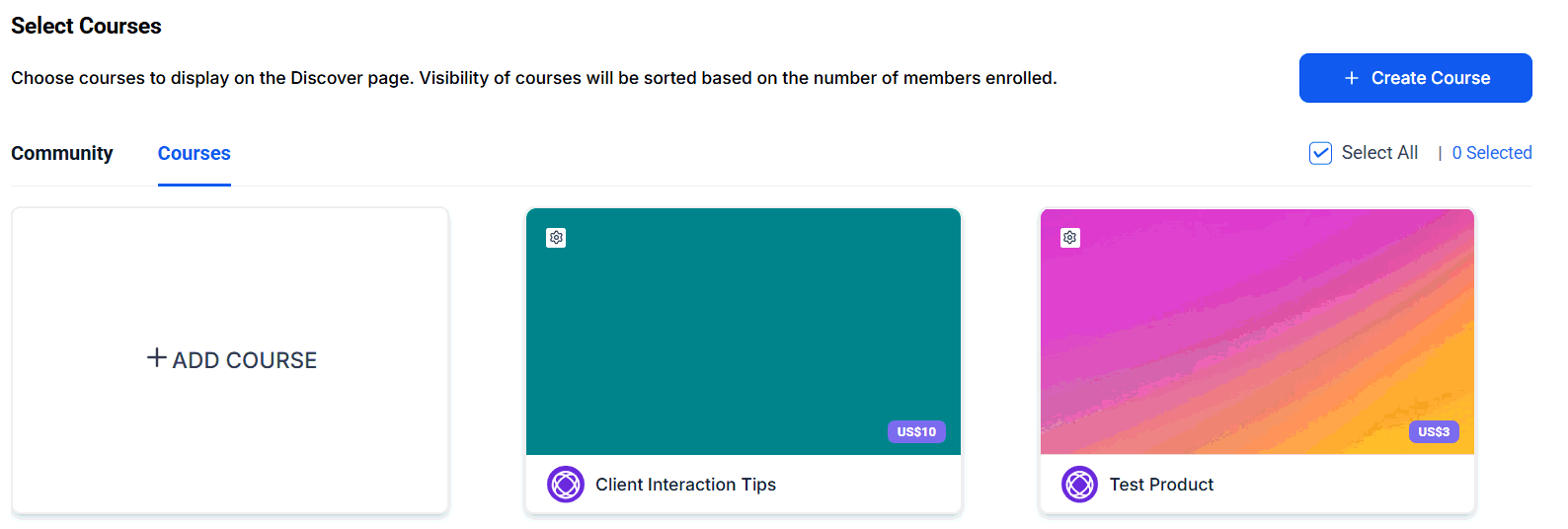
From here, go to the Courses tab and click on the + Add Course button.
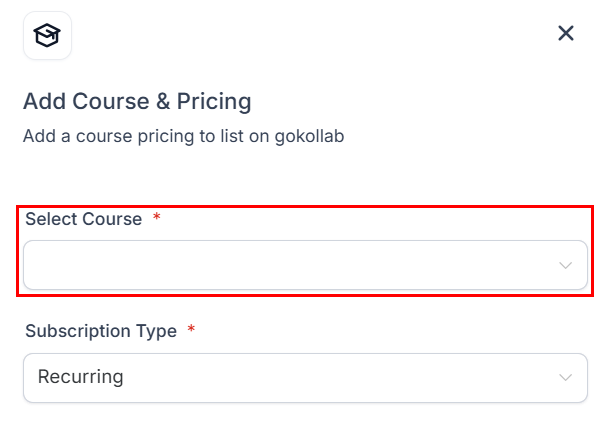
From the dropdown list of existing courses, select the course you wish to make discoverable.
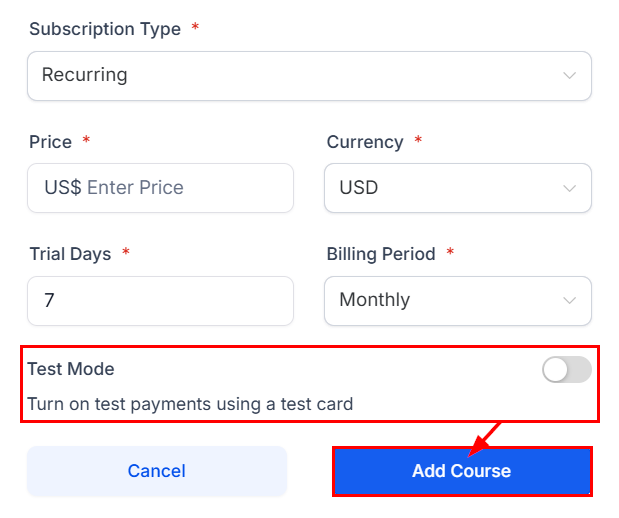
Choose the pricing model, set the subscription type, and enter the price and other relevant details.
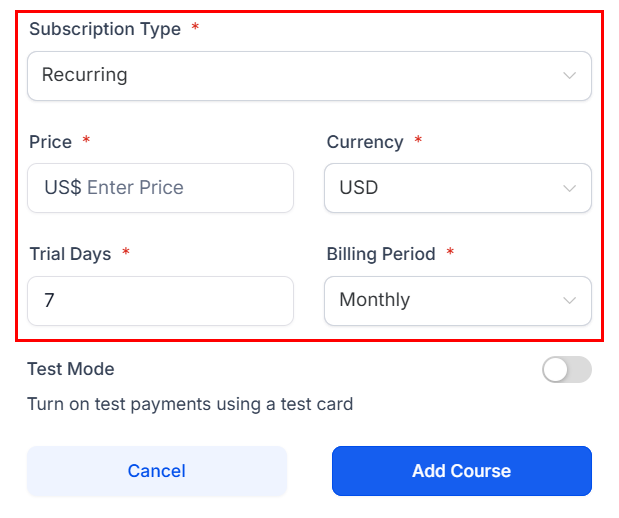
Next, define the payment mode, then click on Add Course to make it publicly visible on the GoKollab Marketplace.
Managing Your Discoverable Courses
In the same tab, you can select or deselect multiple courses to either list or unlist them from the GoKollab Marketplace. This gives you full control over which courses remain visible to potential students.
How to View All Courses Enrolled in GoKollab
To view all the courses you've enrolled in, simply:
- Look for the new My Courses icon in the GoKollab Group Switcher.
- Alternatively, you can visit https://gokollab.com/courses/my-courses to access a complete list of courses you've enrolled in.
By listing courses on the GoKollab Marketplace, you gain access to an expanded audience, while users benefit from easy access to their course materials.
Was this article helpful?
That’s Great!
Thank you for your feedback
Sorry! We couldn't be helpful
Thank you for your feedback
Feedback sent
We appreciate your effort and will try to fix the article