Quizzes are a great way to engage your audience, but the real magic happens after they hit "Submit." The Quiz Submission Trigger lets you automate actions based on quiz results, saving time and enhancing user experiences. Whether you're sending feedback, segmenting users, or assigning tasks, this feature makes it easy to turn responses into actionable insights.
Adding the Quiz Submitted Trigger
Go to the Automation section and click Create Workflow or edit an existing one. In the workflow editor, click Add New Trigger and select Quiz Submitted.
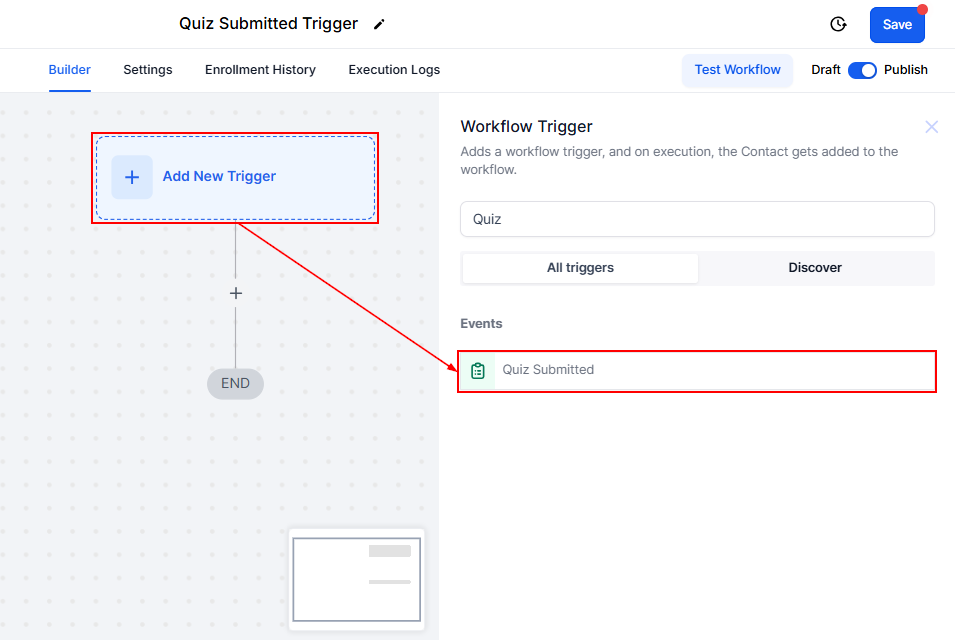
Quiz Name
Choose the quiz you want to automate by selecting its name. This ensures the trigger only activates for submissions from that specific quiz. For example, if you have multiple quizzes for different campaigns, you can set up separate triggers for each one.
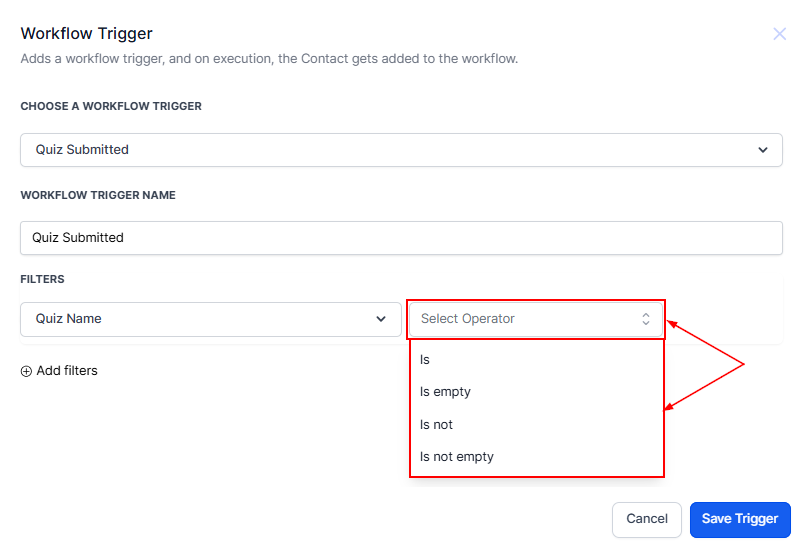
Add Filters
Click on Add Filters to Add conditions to refine when the trigger should activate
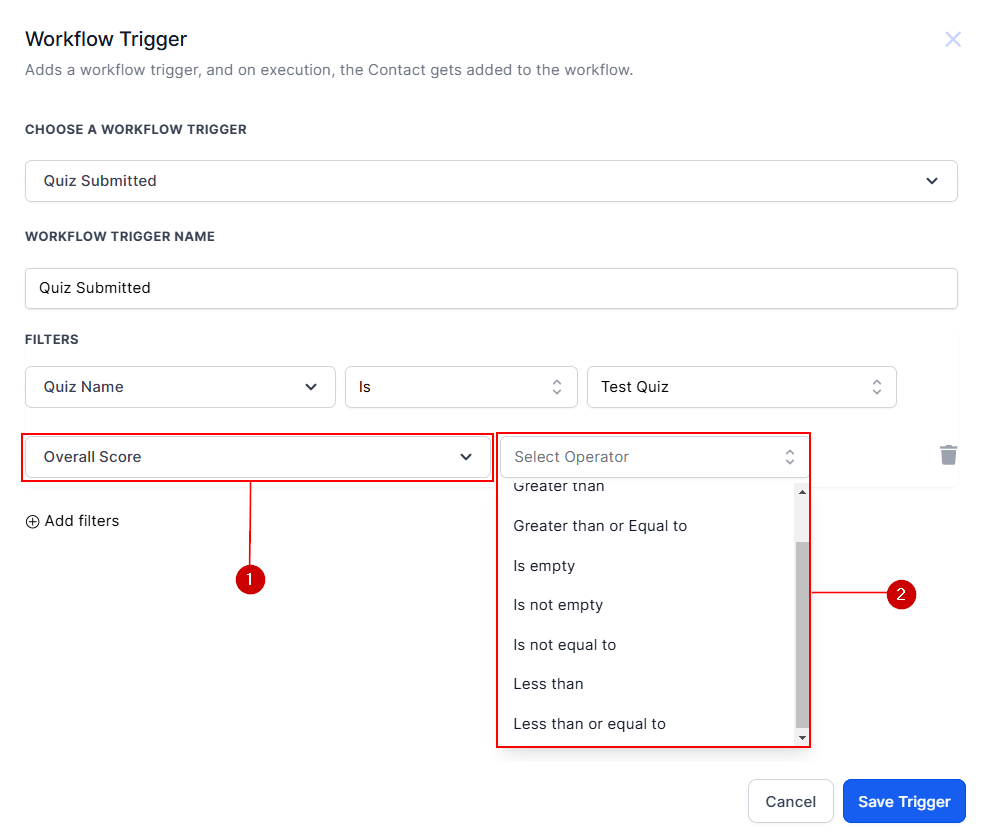
Overall Score
Set minimum or maximum score thresholds to trigger actions only for specific results. For instance, you might send a congratulatory email to users who score above 80% or a follow-up message to those who score below 50%.
Terms and Condition
Apply logic based on user responses to specific questions or categories. For example, if a user selects a particular answer, you can trigger a specific action, like assigning them to a sales team or sending a product recommendation.
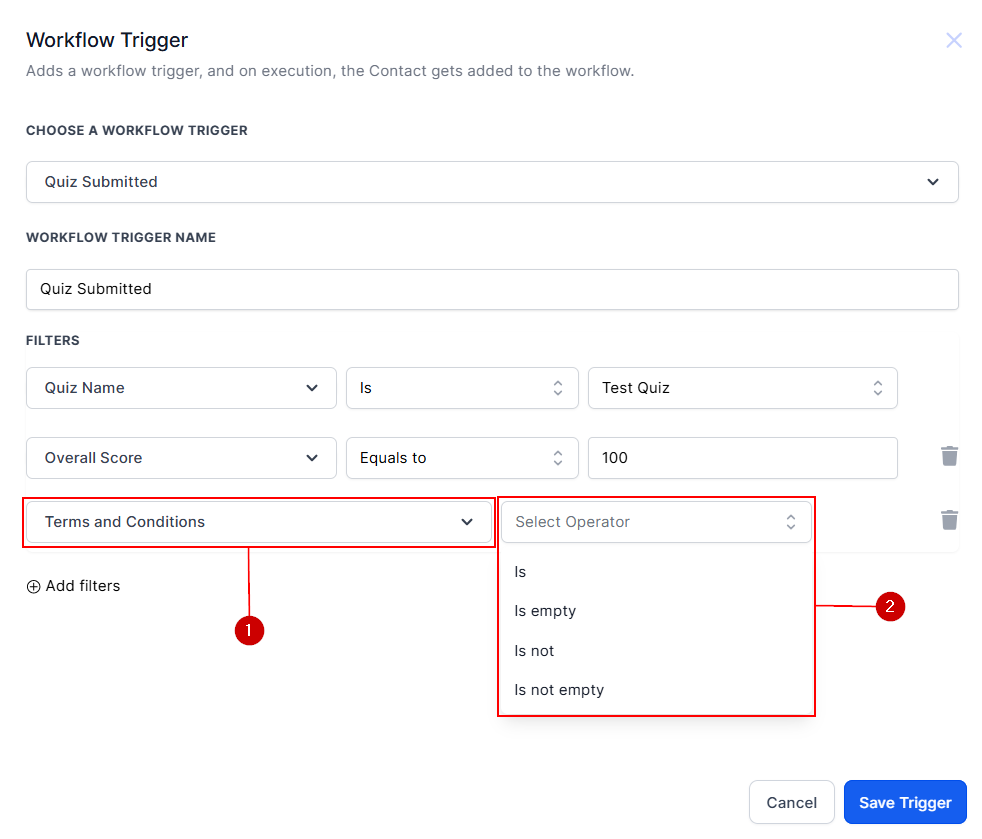
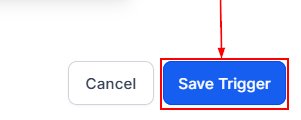
Once you’ve set up your filters and reminders, click "Save Trigger" to finalize your quiz-submitted workflow.
?NOTE: You can add workflow actions to automate tasks such as notifications, follow-ups, or account updates.
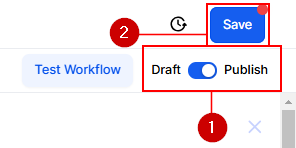
Publish and Save to activate the workflow to start automating actions based on quiz submissions.
The Quiz Submission Trigger simplifies automation, helping you save time and engage users effectively. Start using it today to turn quiz responses into meaningful actions.
FAQs
Q: Can I trigger actions for different scores?
- Yes, set conditions for specific score ranges.
Q: Does it work for all quizzes?
- Yes, it applies to any quiz.
Q: Can I integrate with third-party tools?
- Connect with CRMs or email platforms.
Can I use multiple actions?
- Yes, combine actions like emails, CRM updates, and notifications
Was this article helpful?
That’s Great!
Thank you for your feedback
Sorry! We couldn't be helpful
Thank you for your feedback
Feedback sent
We appreciate your effort and will try to fix the article