This User Login workflow will be activated each time a user logs in to your membership platform, ensuring efficient management and monitoring of user activity, ultimately leading to an enhanced user experience and improved membership administration. The User Login trigger initiates the specified workflow when a user signs in to their membership account.
Adding the User Login Trigger
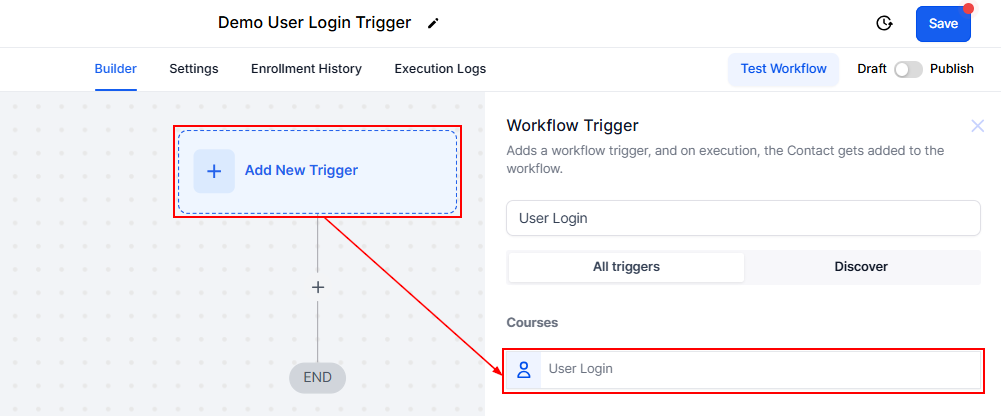
To set up this trigger, simply click on the “Add New Trigger” button and choose the User Login option from the list of available triggers.
Filters
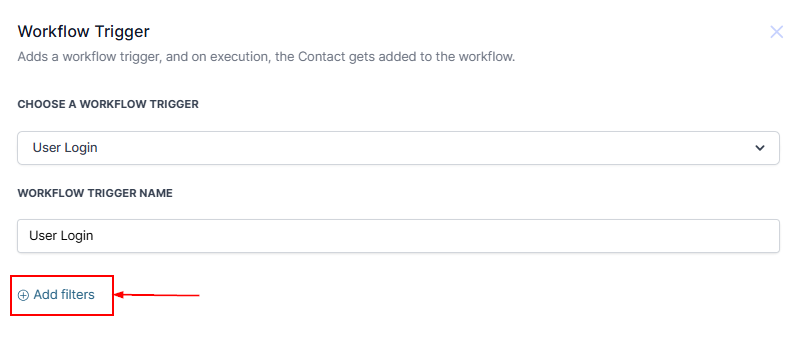
You have the option to add additional filters using the “Add Filter” button.
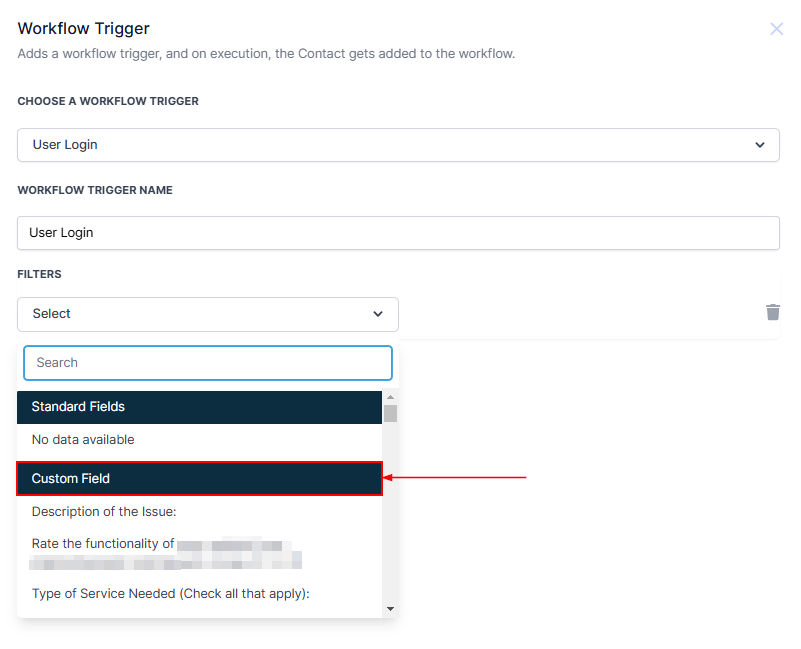
?NOTE: Here you will not see any standard fields, but you can choose a Custom Field from your list to trigger the workflow.
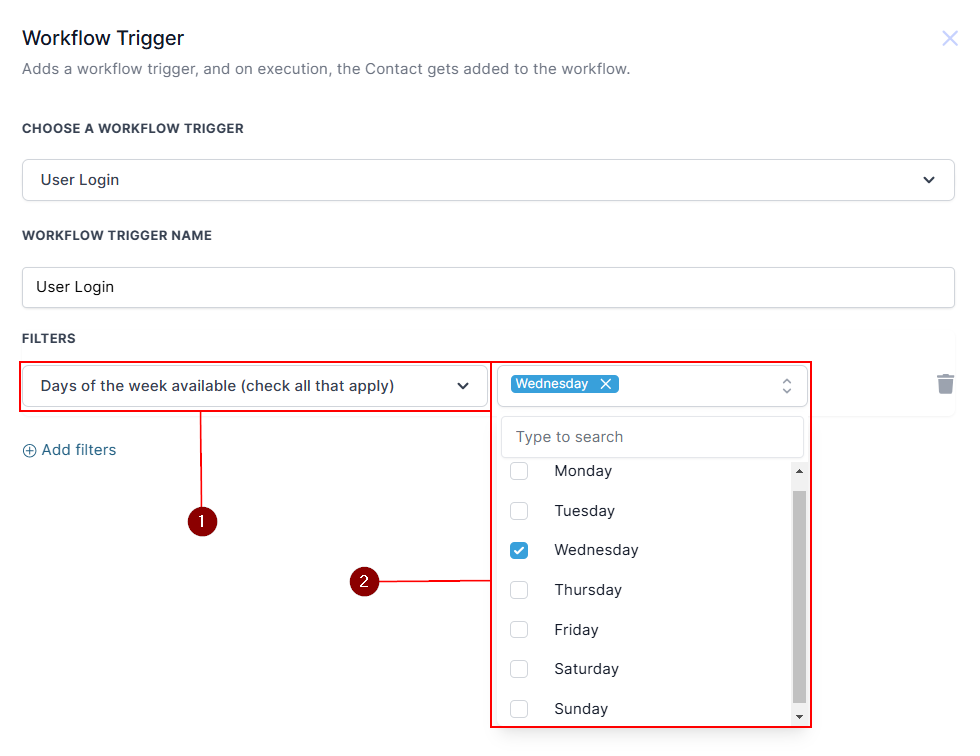
For example, if you have a custom field for "Days of the week available", and that’s broken into sections, you can set that up as your workflow trigger. Play around with your custom fields and see what works best for your scenario.
?NOTE: Not sure how to set up Custom Fields or filters? Refer to other related articles for step-by-step guidance.
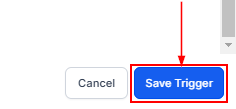
Once all filters have been selected, click the Save Trigger button in the bottom right corner to save the trigger.
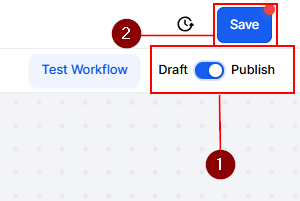
After adding the trigger and its associated actions, don’t forget to Publish and Save the workflow to activate it.
The User Login Trigger helps you stay on top of user activity, creating a more organized and personalized experience for your members. Set it up to simplify your workflow and make membership management easier.
Was this article helpful?
That’s Great!
Thank you for your feedback
Sorry! We couldn't be helpful
Thank you for your feedback
Feedback sent
We appreciate your effort and will try to fix the article