Adding a button to your webpage is a practical and essential step to enhance user interaction and functionality. Start by selecting the button element and dragging it to your desired location within your editor's workspace. Once placed, you can customize its appearance and functionality to match your design goals and ensure it integrates seamlessly with the rest of your content. Let’s dive into the details to make your button stand out.
General Settings
The button setting is a bit complex compared to the previous Elements setting.
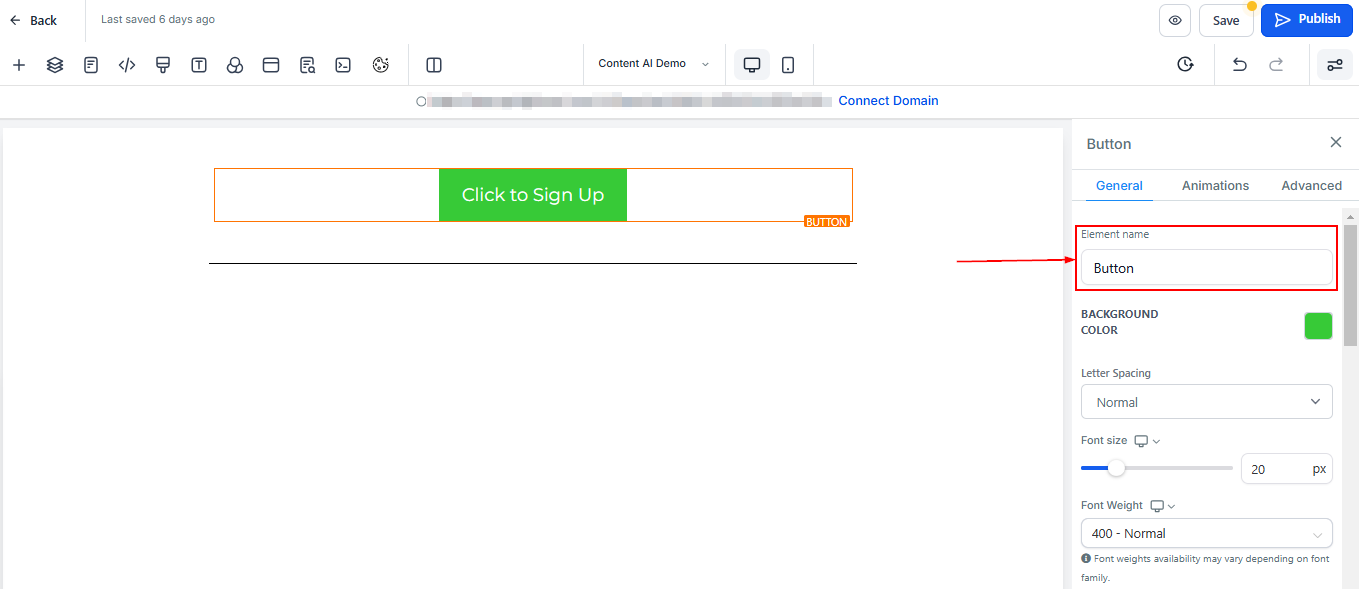
Element Name/Title
The editing toolbar for the selected element appears on the left side of the editor. You can rename the default name or title displayed at the top of the screen for ease of navigation as you create your funnel page.
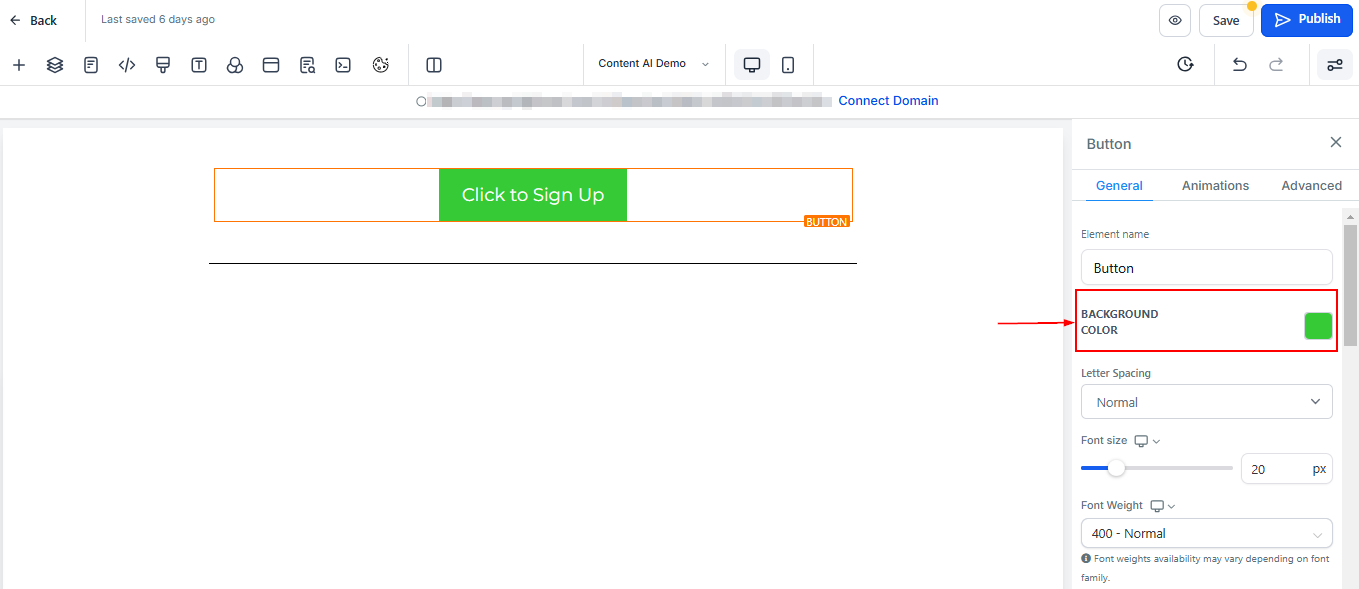
Background Color
To change the background color of your button, select the content you want to modify and choose your preferred color. If you can't find the color you are looking for, input the color code and add custom colors.
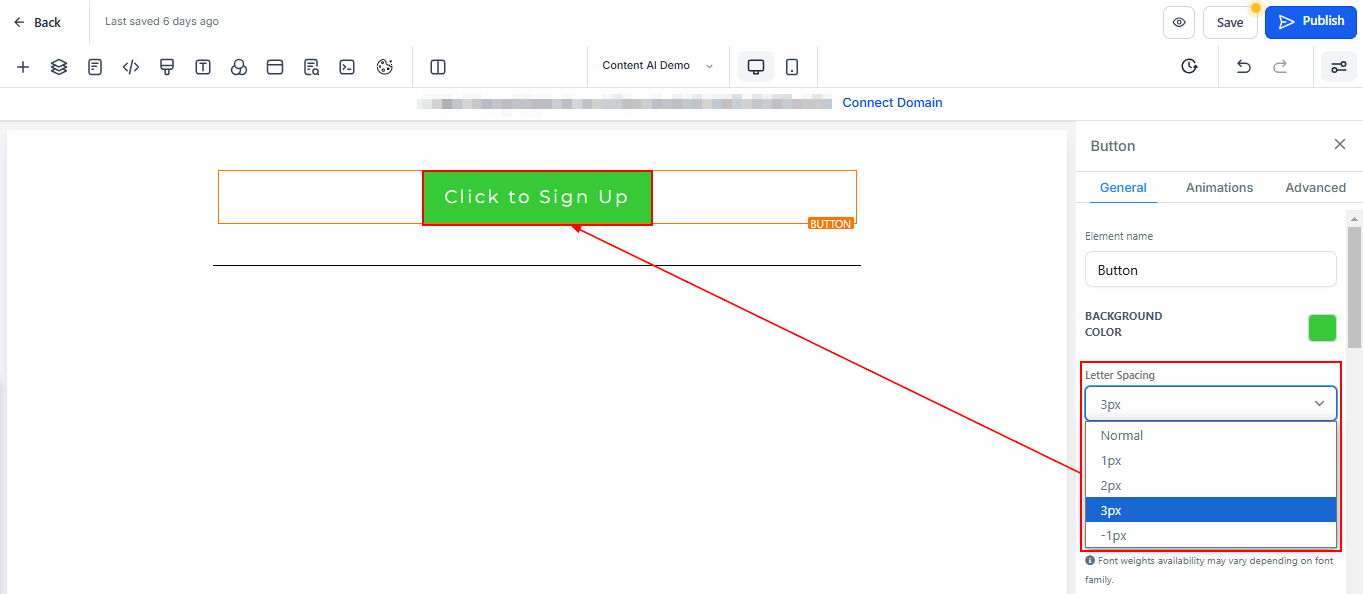
Letter Spacing
You can decide how wide apart you want the letter in your button to be by clicking on this option.
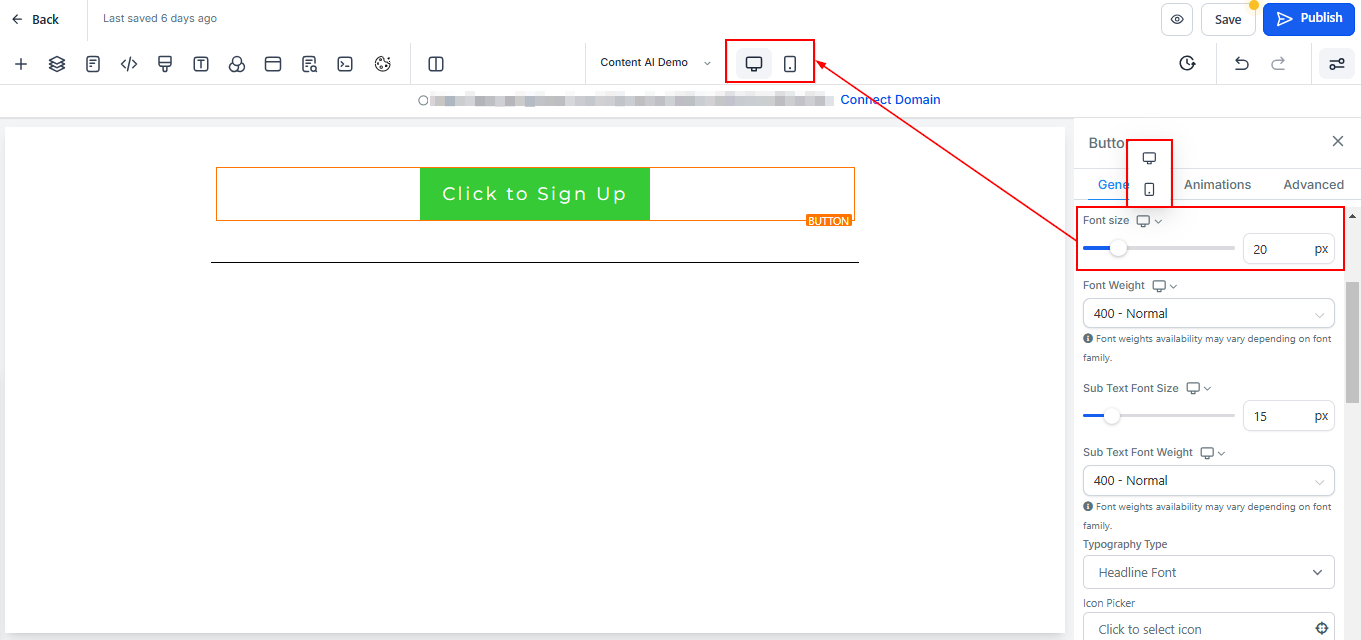
Desktop and Mobile Font Size
You can adjust the mobile and desktop font sizes of the text/content simply by adjusting the size bars.
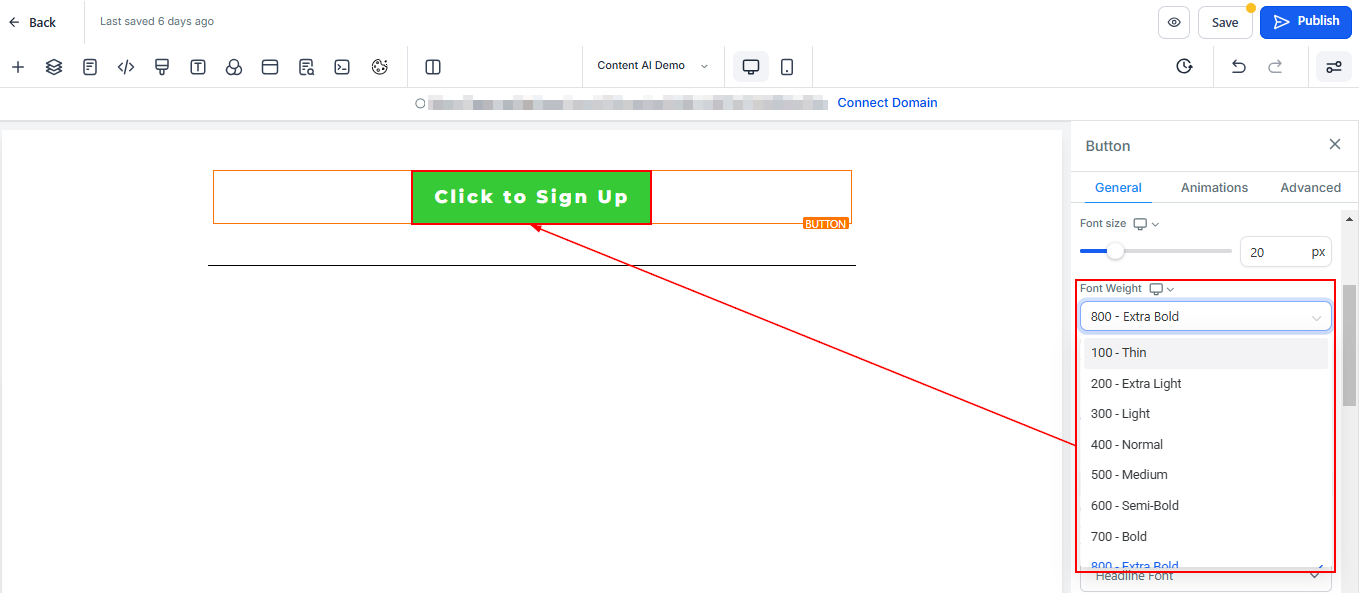
Desktop and Mobile Font Weight
This setting allows you to change the thickness of your button text. Choose from options like light, regular, bold, or extra bold to match the tone and style of your design.
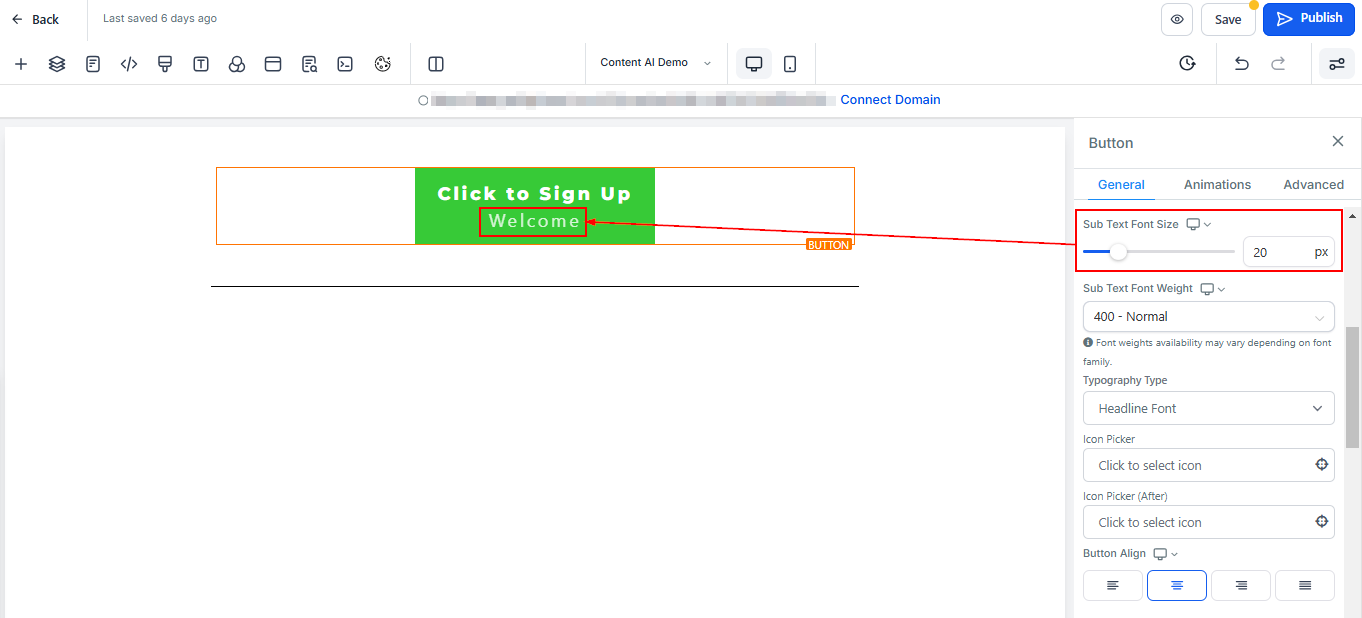
Sub-Text Desktop and Mobile Font Size
You can adjust the mobile and desktop font sizes of the sub-text/content simply by adjusting the size bars.
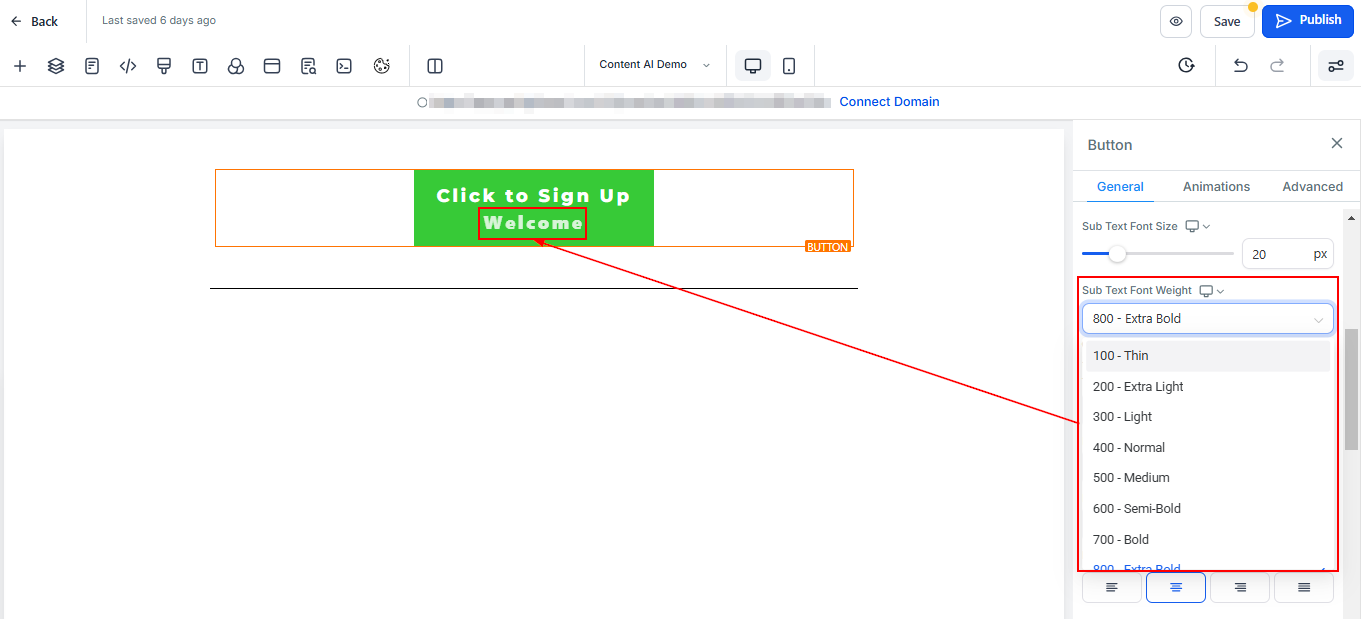
Sub-Text Desktop and Mobile Font Weight
Similar to the main text, you can adjust the thickness of your sub-text. This helps you create a clear hierarchy between the main button text and any additional details.
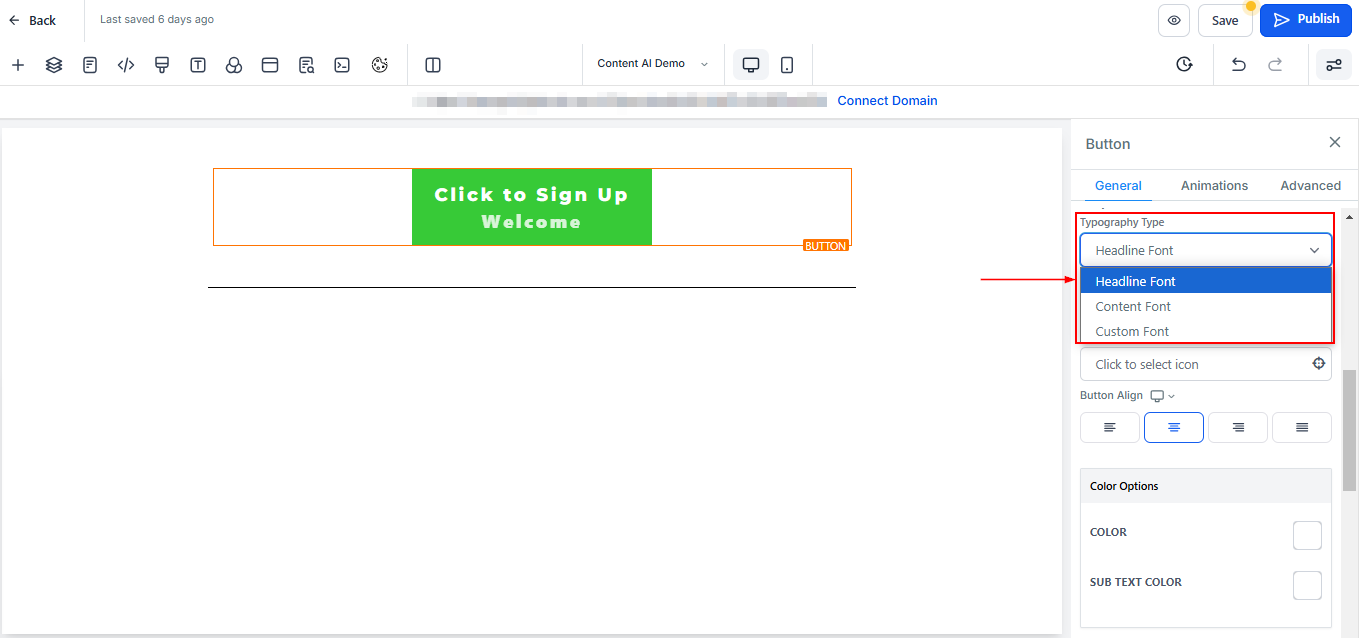
Typography Type
Here you can edit the font of the button text/content. Select the previously chosen button or content font from the settings or choose a new typography font from the drop-down menu.
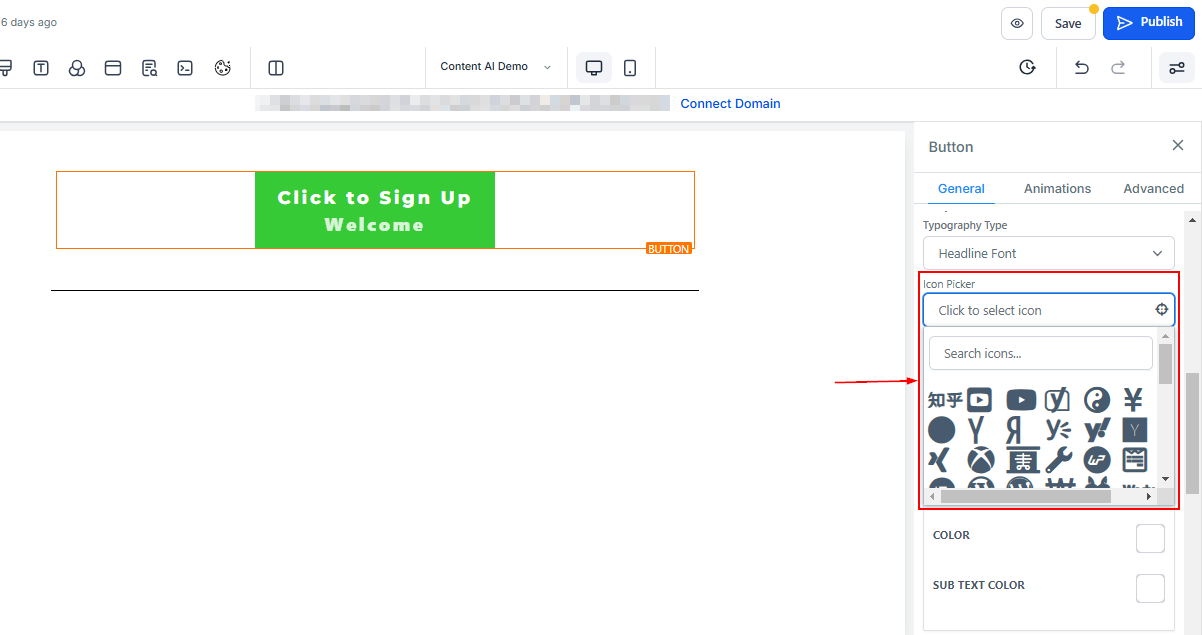
Icon Picker
Add an icon to your button by selecting from the available options or using the search bar to find the specific icon you want. This will place an icon before your text on your button.
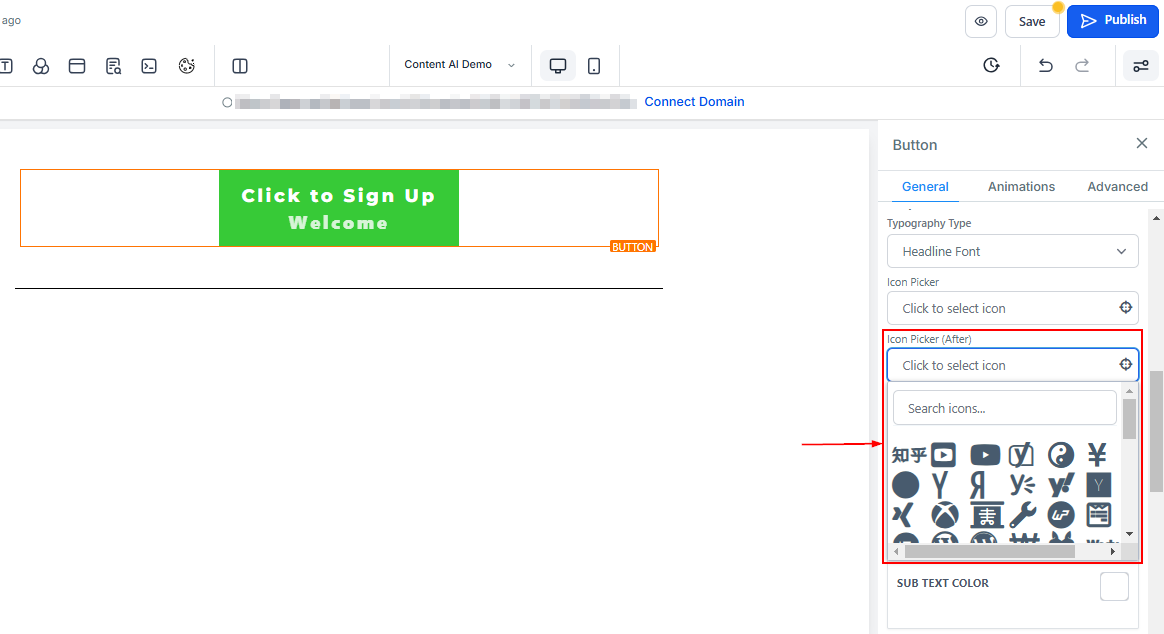
Icon Picker (After)
Here you can add an icon to your buttons. when you add an icon, it's going to position after the text in the button.
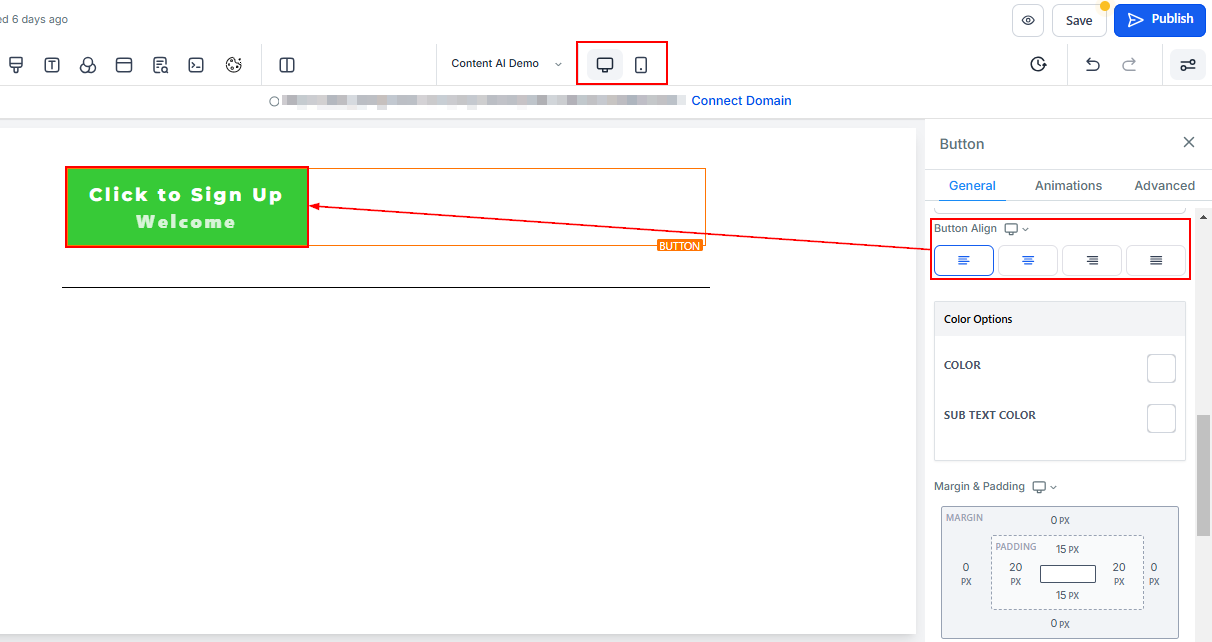
Desktop and Mobile Button Align
This setting lets you align your button text and icons to the left, center, or right. Adjust it to ensure your button looks perfectly positioned on both desktop and mobile views.
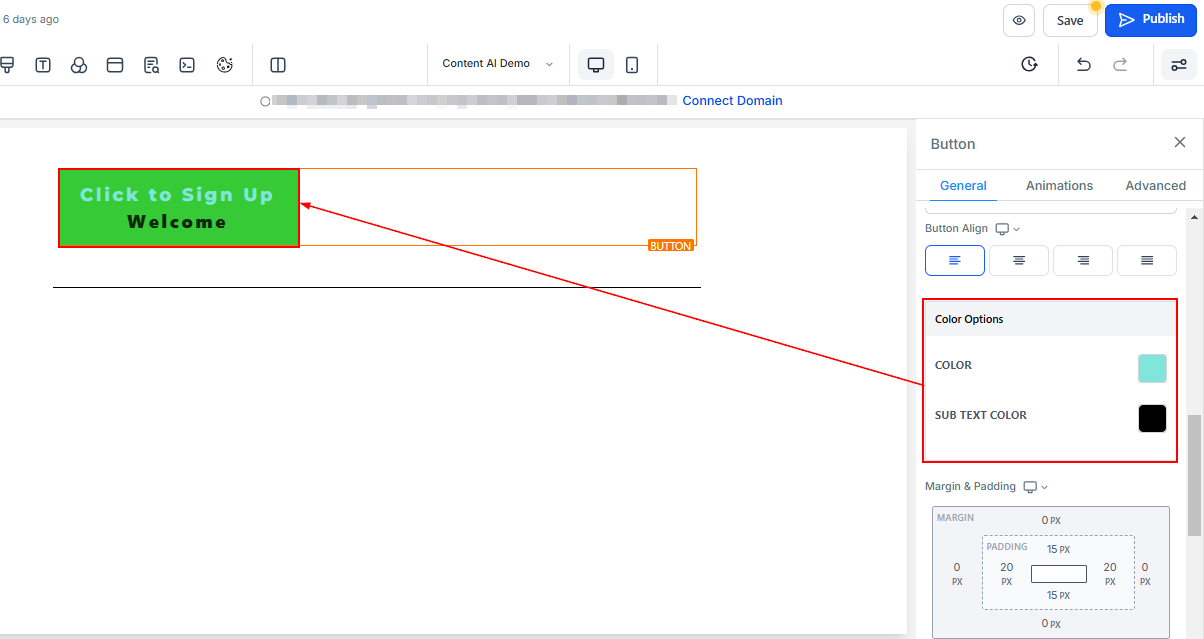
Color Options
- Color: You can only adjust the text color in the button here, For example, the "Click to Signup" text
- Sub-Text Color: When you add a sub-text to your button, you can only adjust the color in the button here.
Spacing Option
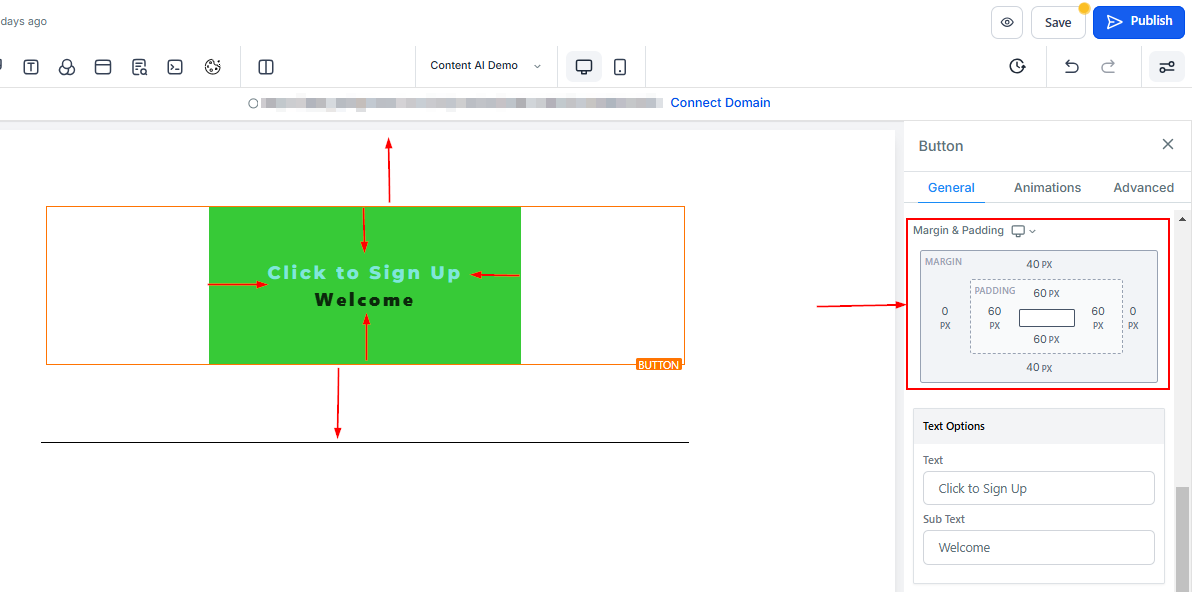
There are different spacing options available for adjusting your button. Depending on the Edit option you are working on, the settings will only apply to that option.
- Padding Left, Right, Top, and Bottom: These four (4) different toggle bars move the content to either the left, right, top, or bottom depending on the toggle bar you click on.
- Margin Top and Bottom: You can adjust the top or bottom margin of your content by toggling its bars.
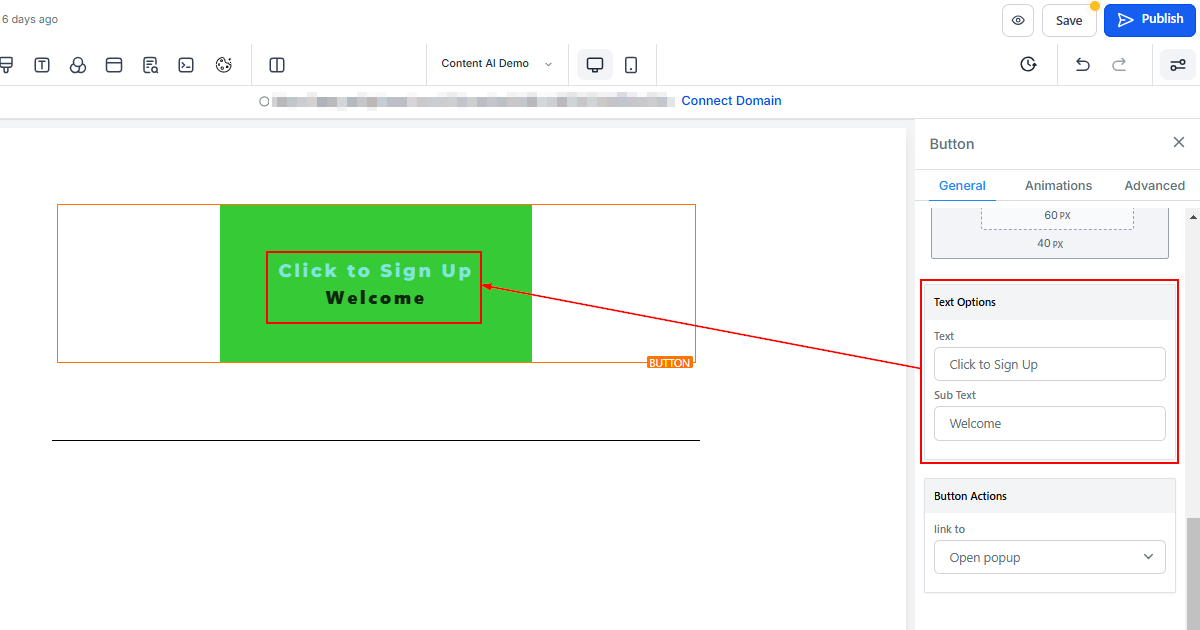
Text Options
- Text: This is where you can add/edit the text in your button.
- Subtext: If you like to add a subtext to your button, simply type it here.
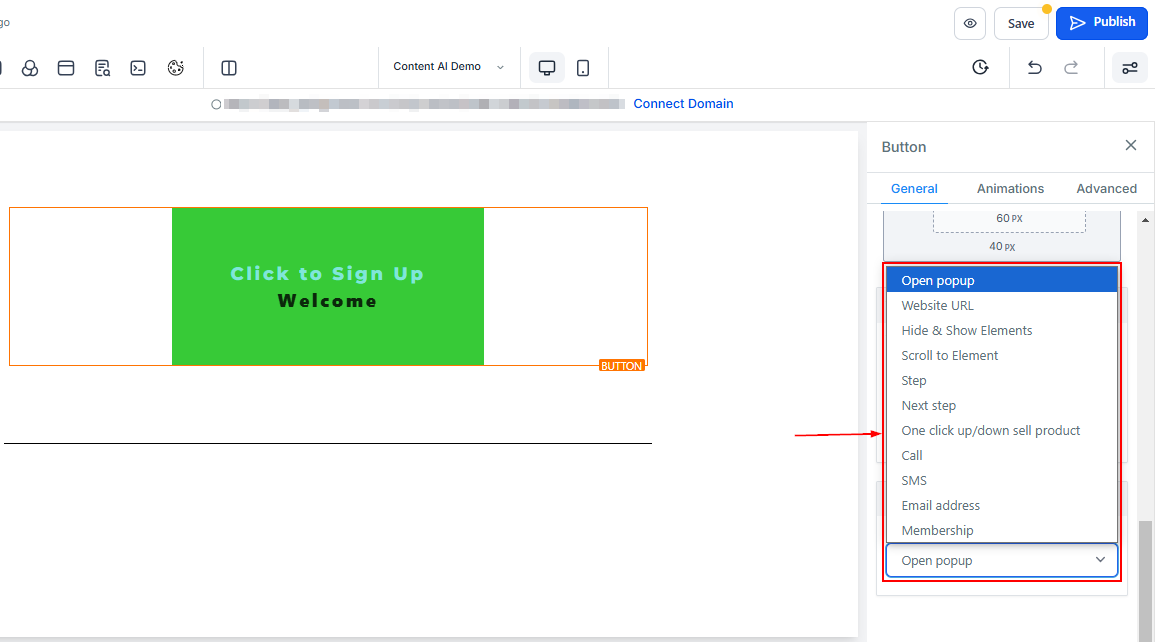
Button Actions
- Link To: You can select from the options where you like to link this particular button to.
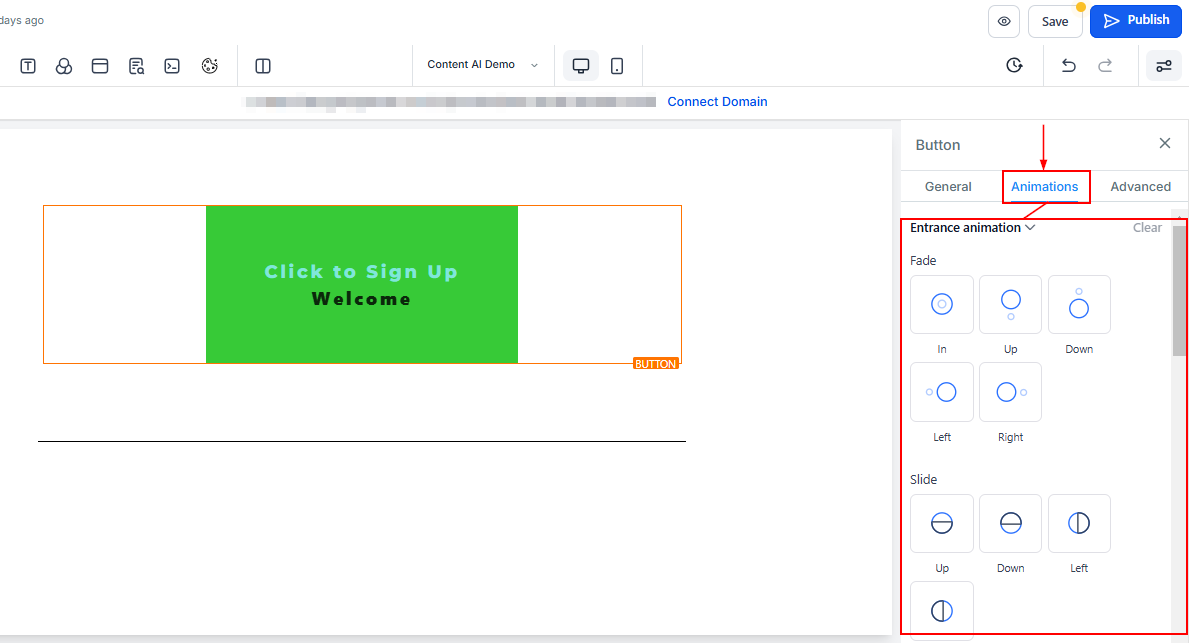
Animations Settings
Entrance Animation
Choose an animation effect for when the button first appears on the page, such as fade-in, slide-up, and much more.
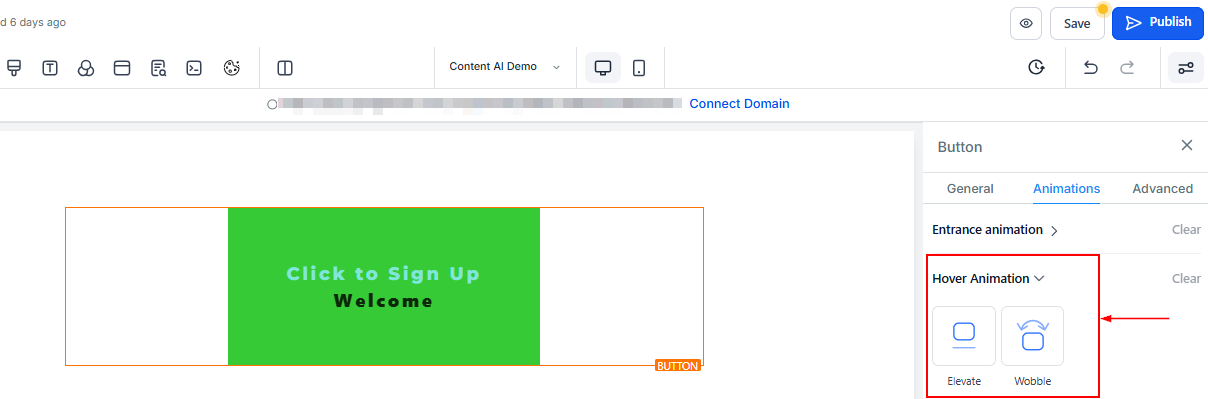
Hover Animation
Add an effect that triggers when users hover over the button.
Advanced Settings
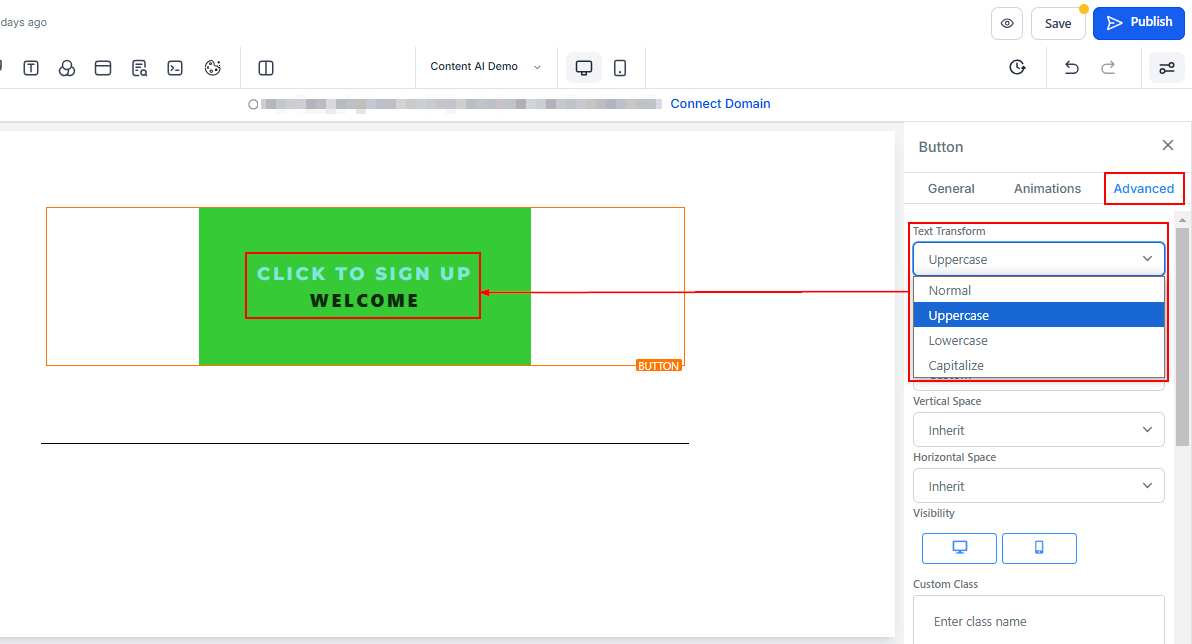
Text Transform
In the Text Transform, you can decide to change the text to Uppercase, Lowercase, or just capitalize each word.
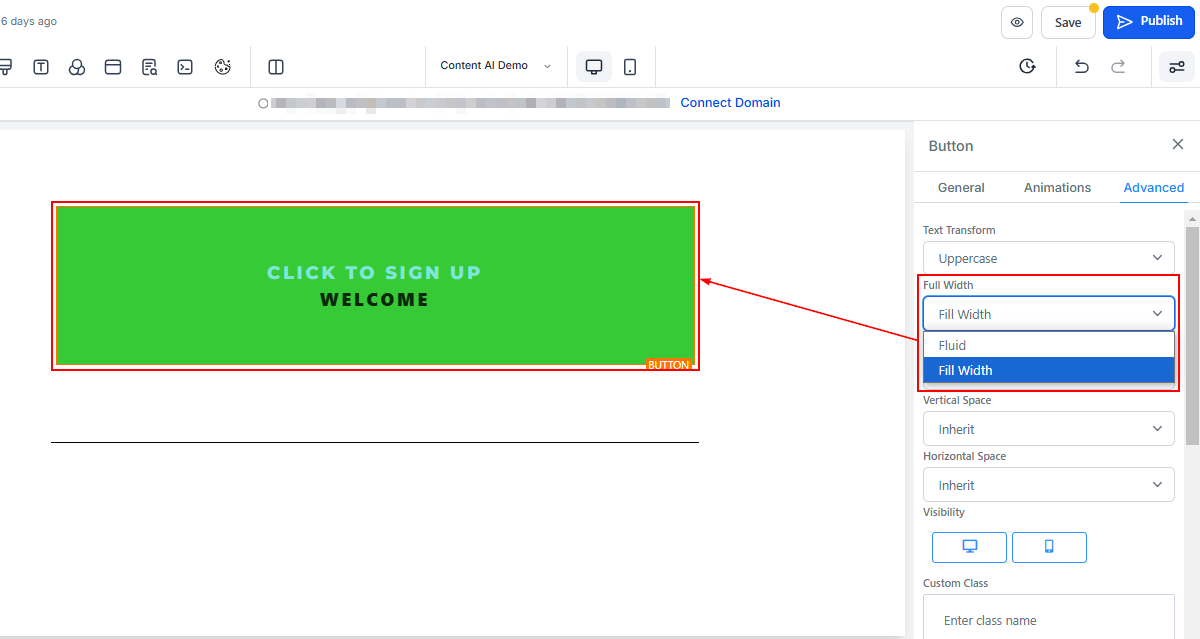
Full Width
You can decide to make the button a full size of the element box or just as fluid.
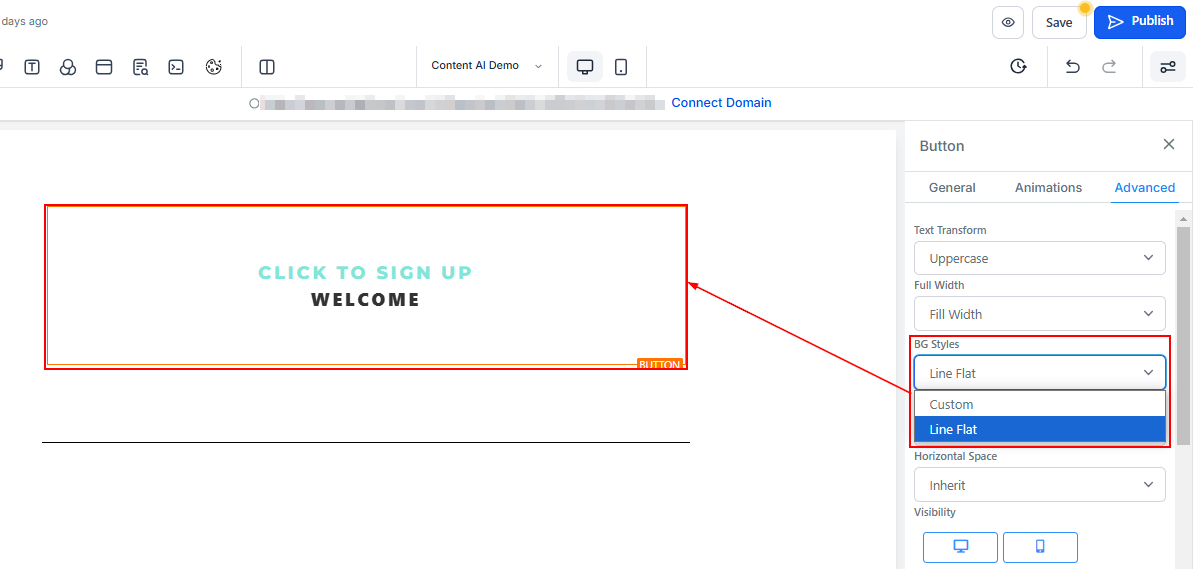
BG Styles
You can decide to keep the background of your button or just remove it so it's just the text that will appear.
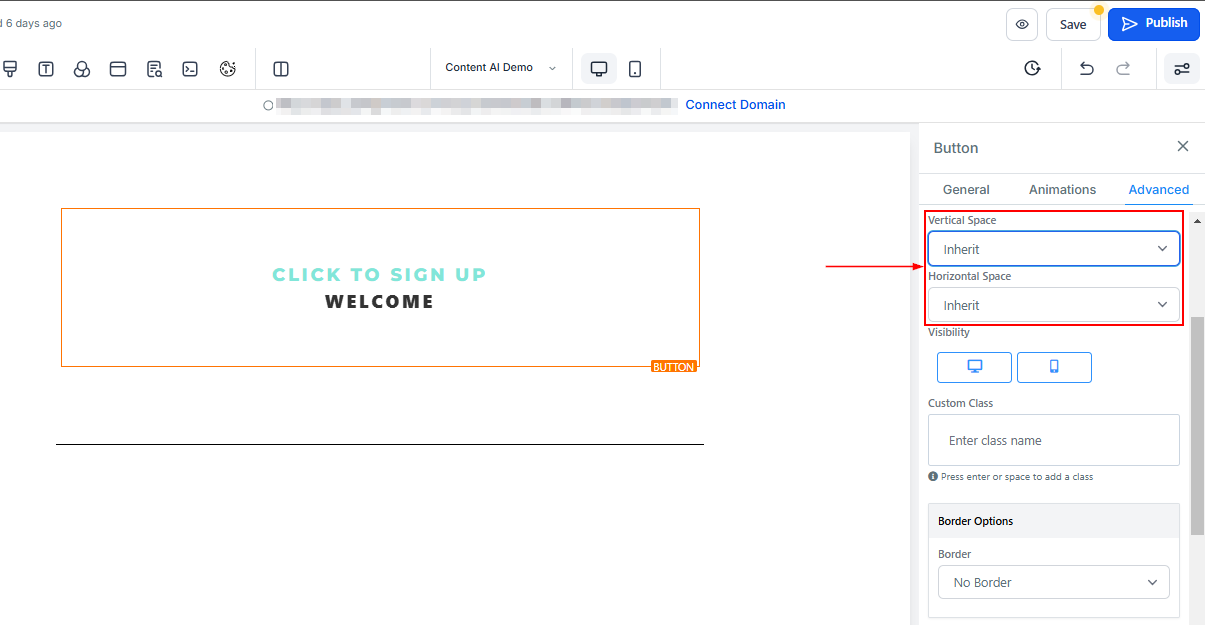
Vertical and Horizontal Spaces
You can increase or decrease the height and width of the button in these spaces.
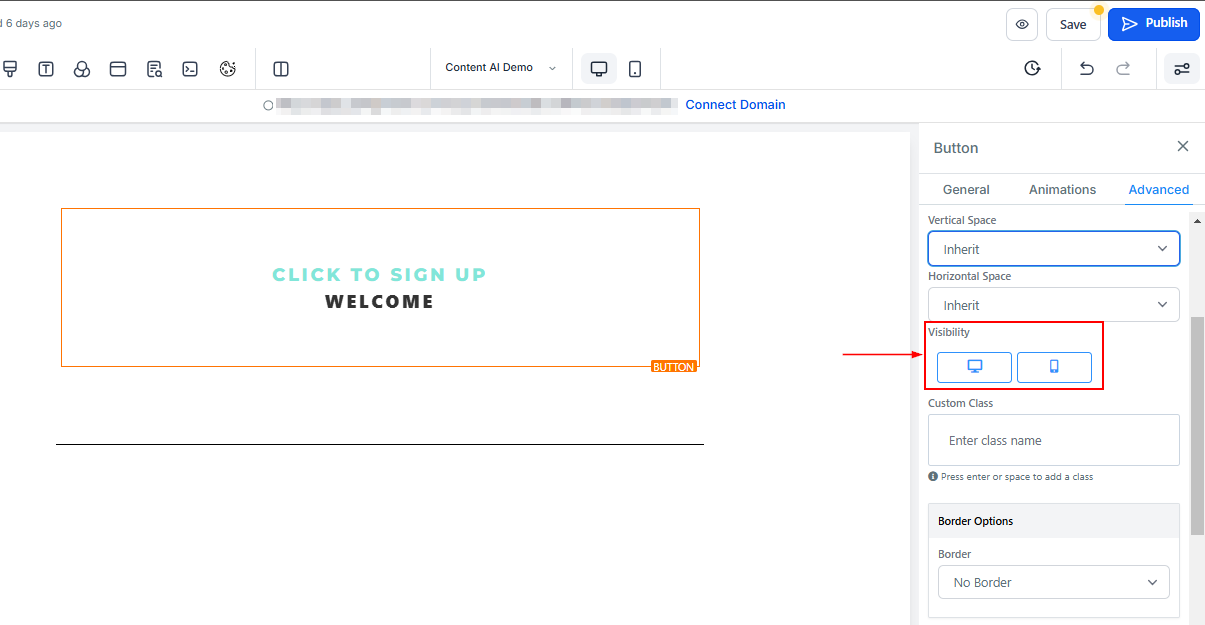
Visibility
You can make this page visible on both desktop and mobile, and you can also select just one of the two by simply clicking on the one you want to activate.
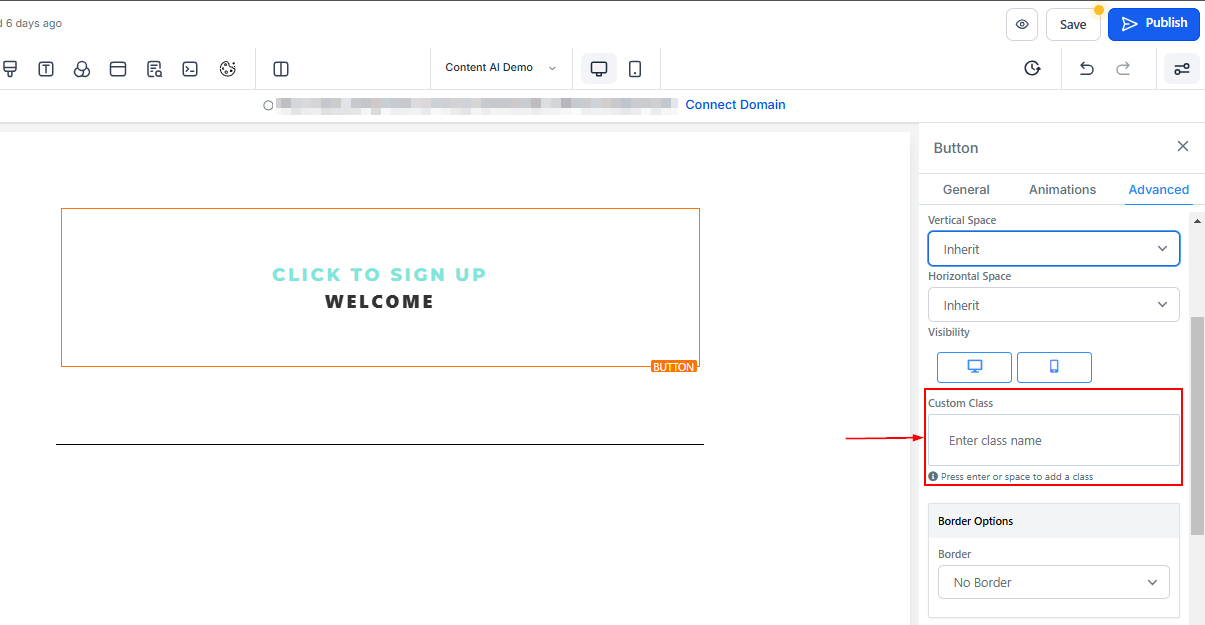
Custom Class
Add a Custom Class by typing a desired class name in the Custom Class field.
Border Options
- Border: You can choose the type of border you want. Once you select any of the border types, the settings for the border pop up.
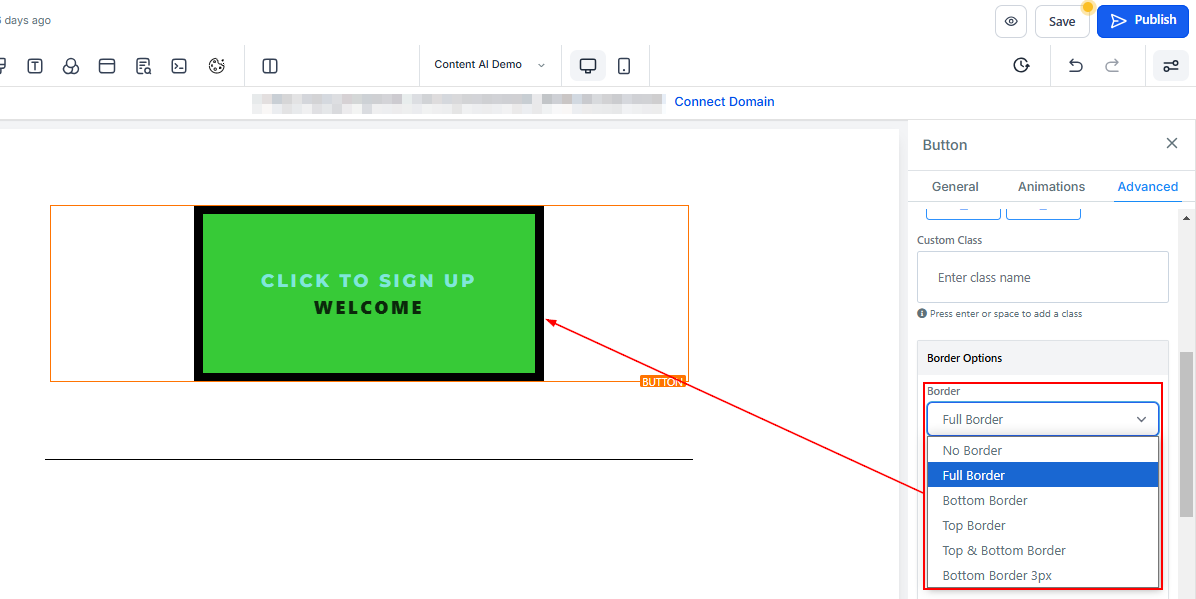
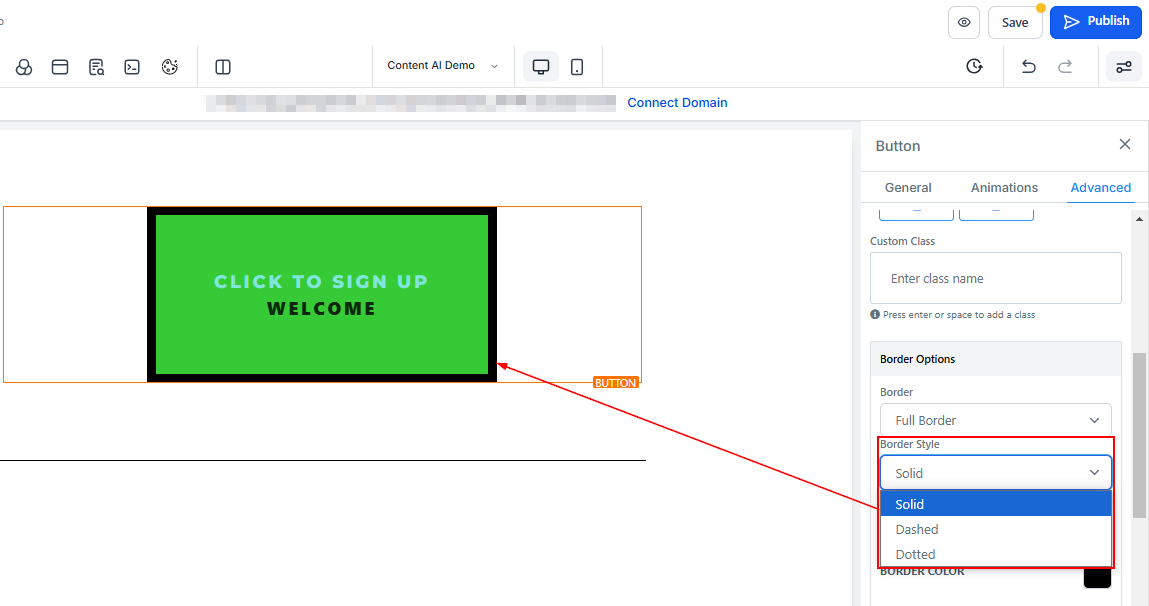
- Style: There are three (3) Different styles for your border, It could be a solid, Dashed, or Dotted border.
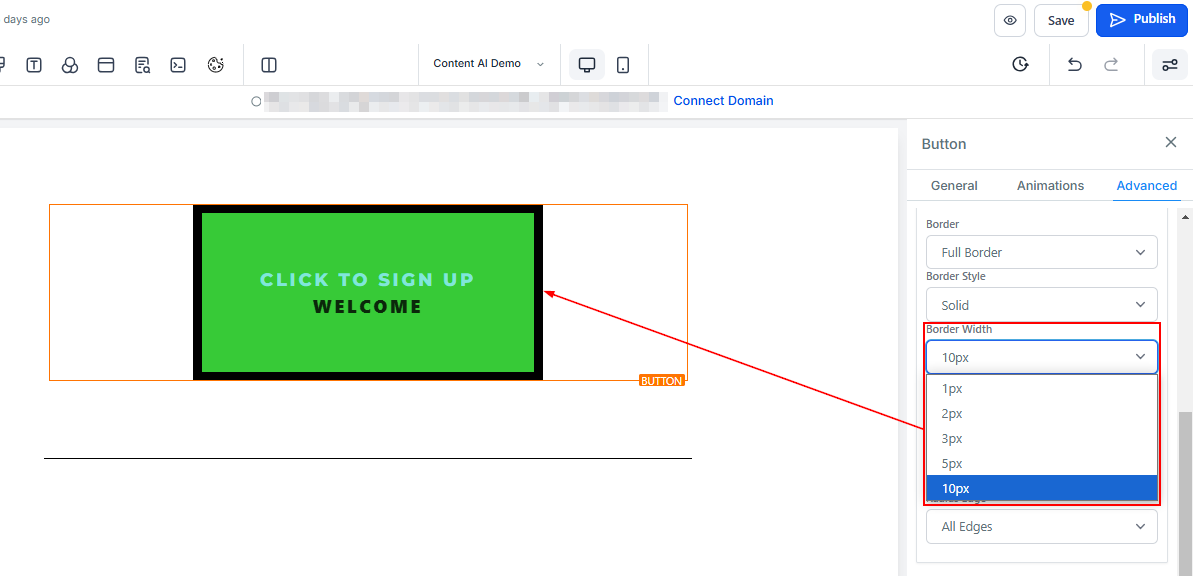
- Width: When you increase the border width, it increases the thickness of the border.
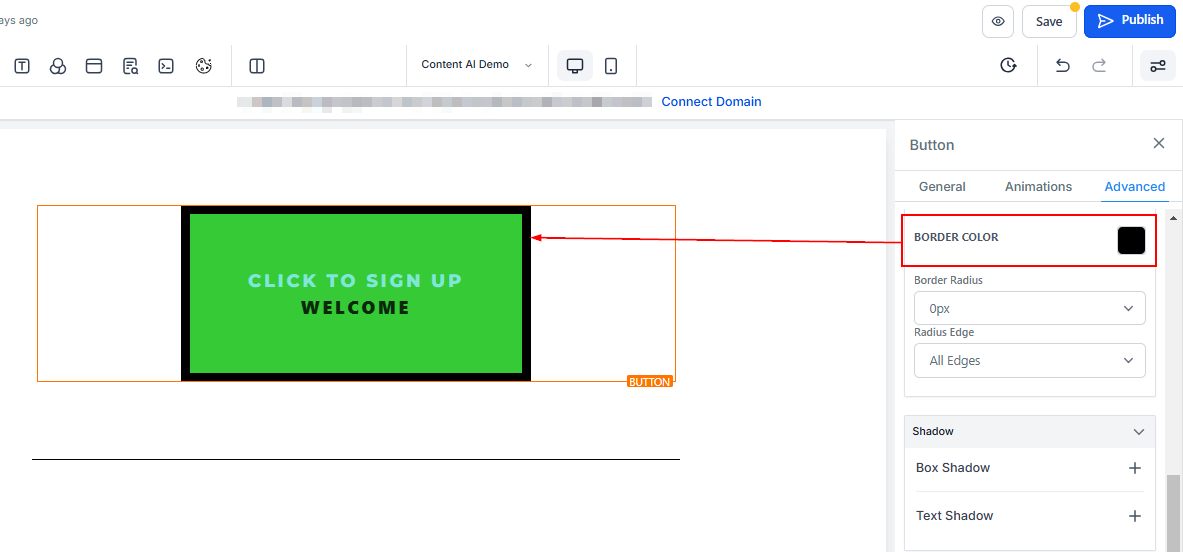
- Color: To change the color of the border, click on this color icon.
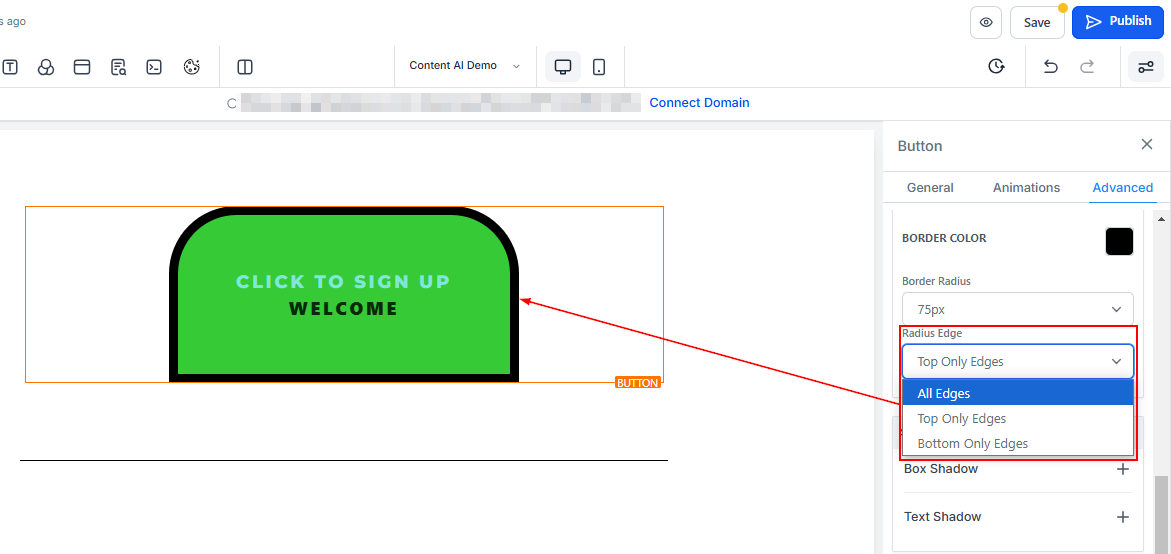
- Radius: Adjusting the radius of your border curves the edges of the border, the higher the number you select, the curvier it becomes.
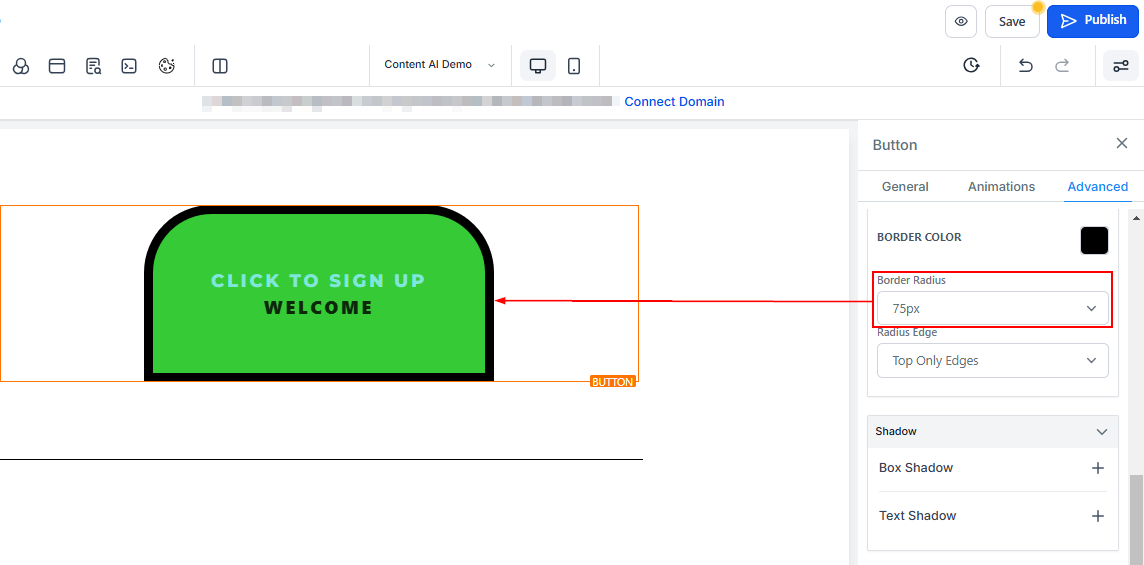
Radius Edge: You can decide the corner of the border you want to curve, either all edges, Top only or bottom edge only.
Shadow
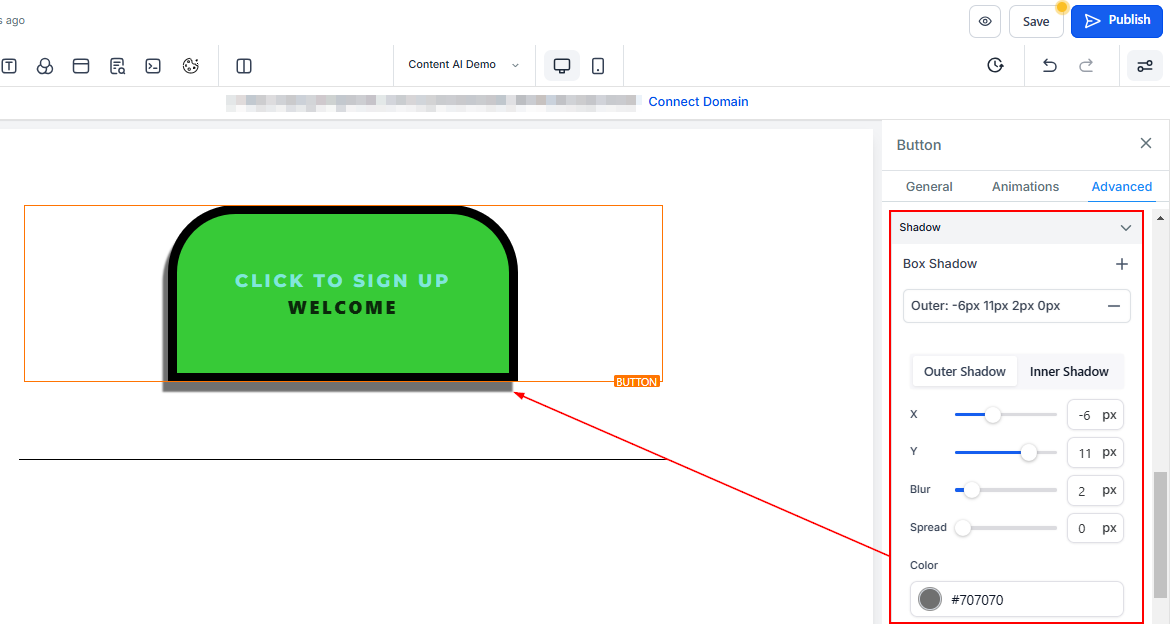
Box Shadow: Add a shadow effect to your button to make it pop.
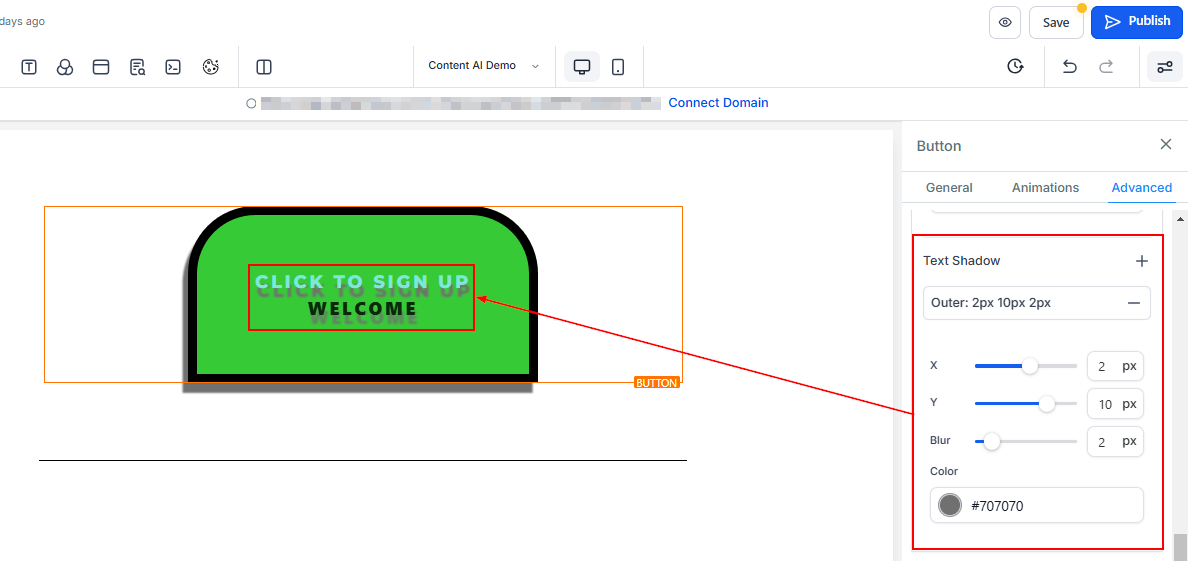
- Text Shadow: If you want your text/content to have a shadow, simply select how strong or light you want the shadow to be.
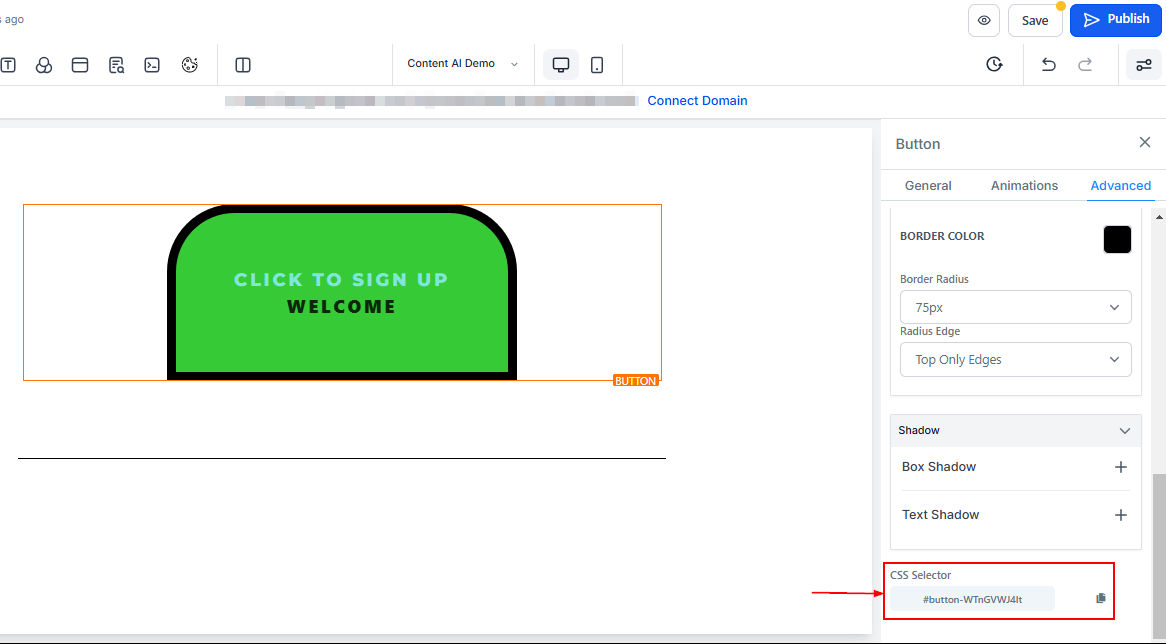
CSS Selector
Click the copy icon on the right side of the reference number you want to copy to copy the CSS Selector.
And that’s it! With these steps, you can easily add and customize a button that not only looks great but also drives action.
Was this article helpful?
That’s Great!
Thank you for your feedback
Sorry! We couldn't be helpful
Thank you for your feedback
Feedback sent
We appreciate your effort and will try to fix the article