This guide will walk you through automating affiliate commission payments using PayPal. Before proceeding, ensure your PayPal account is connected. You can verify this by navigating to the Payments tab and selecting Integrations. If your account is connected, you'll see the option to Manage it. If not, please connect your account first. For assistance, refer to our available articles on setting up PayPal integrations.
How It Works
Initiating and Confirming Payouts
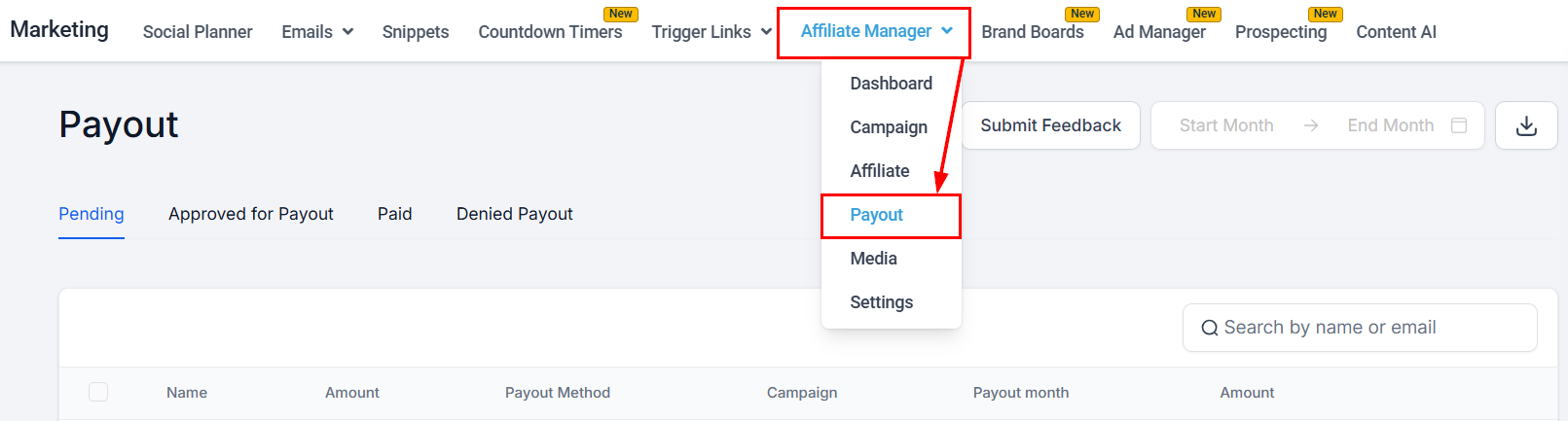
Go to the Payout section of your Affiliate Manager inside of the marketing section.
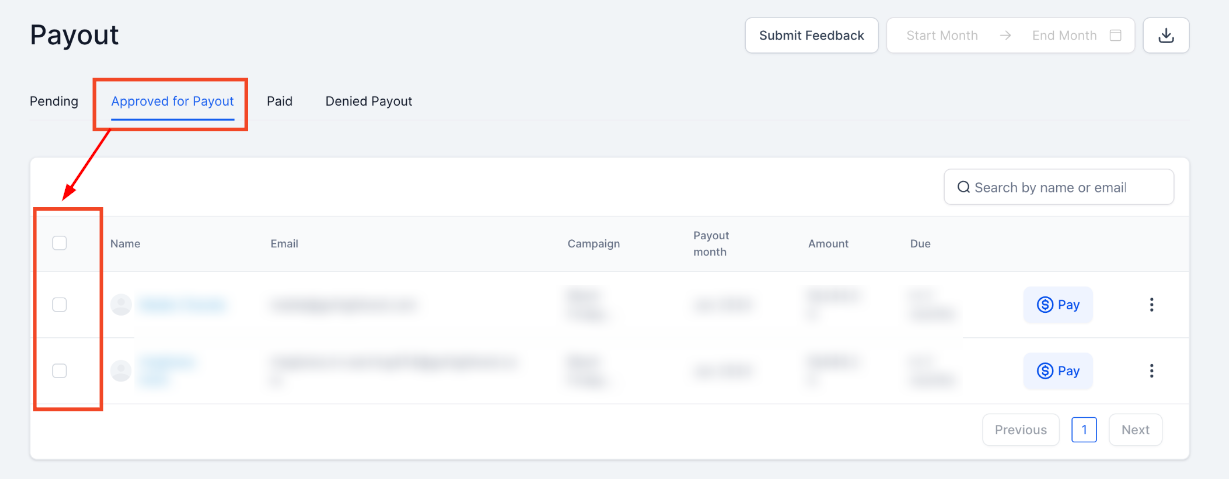
Select the Approved for Payout tab. Here, you can select the affiliates for payout by checking the box next to their name.
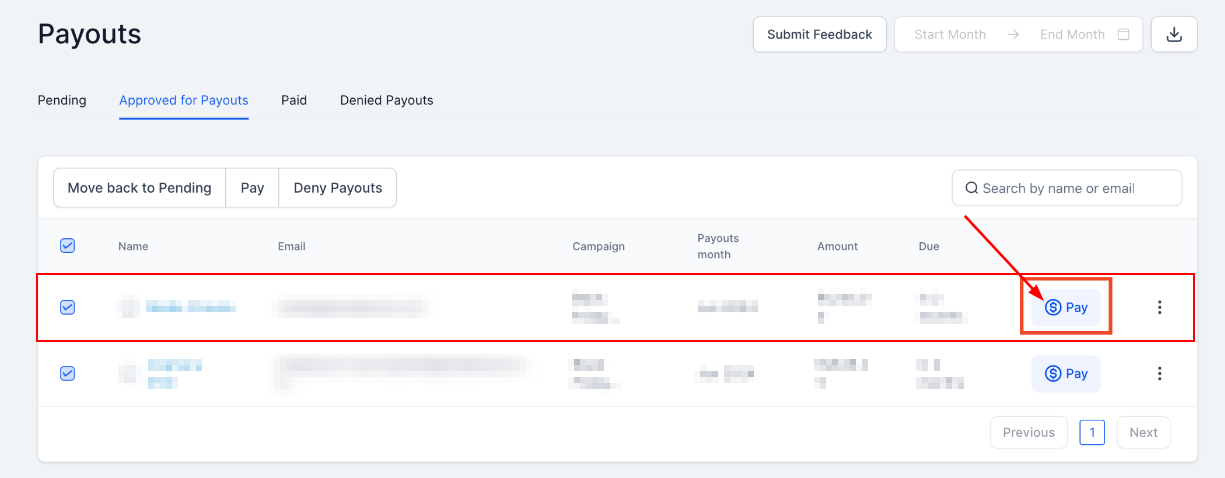
To finalize the payout the actions will vary depending if you're paying out to just one affiliate or several at the time. For individual payout click the $Pay button.
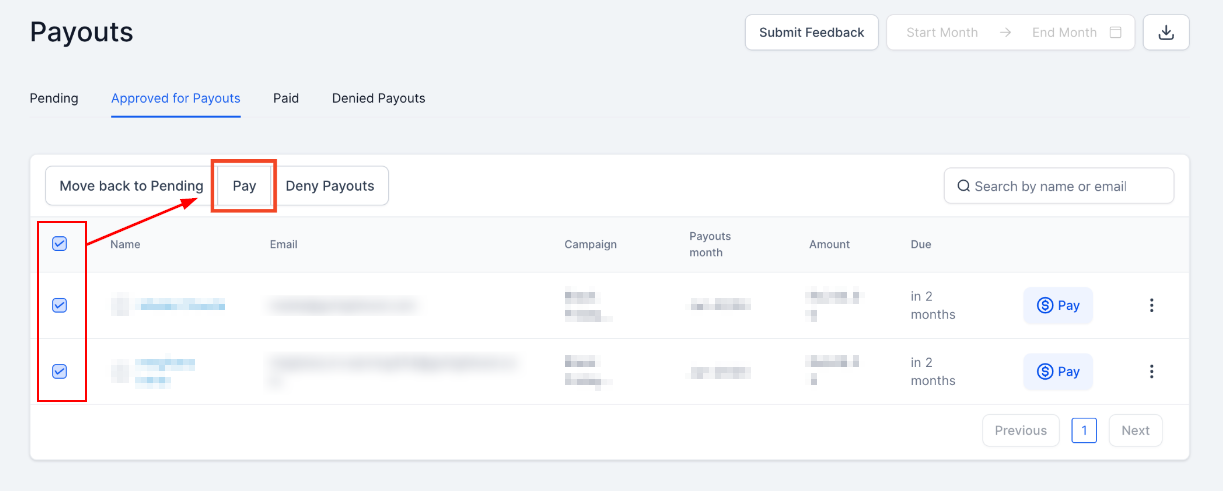
To pay multiple affiliates, click on the Pay button on top. This will be for all affiliates you selected.
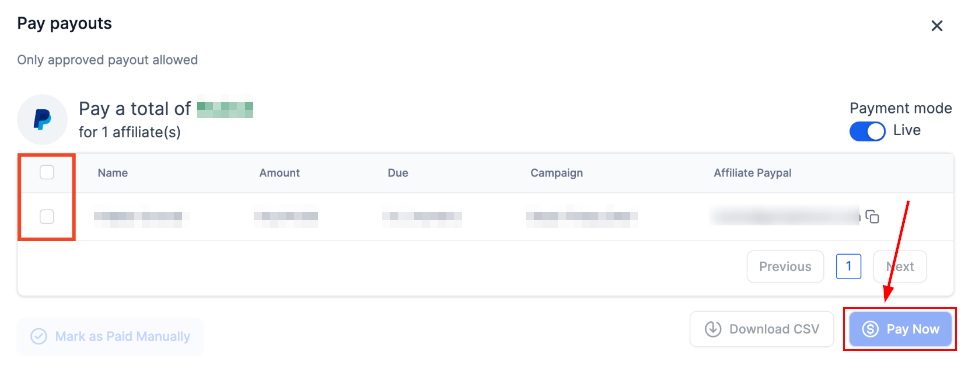
Review and confirm the details for the payout. If everything is correct, click on Pay Now to finalize.
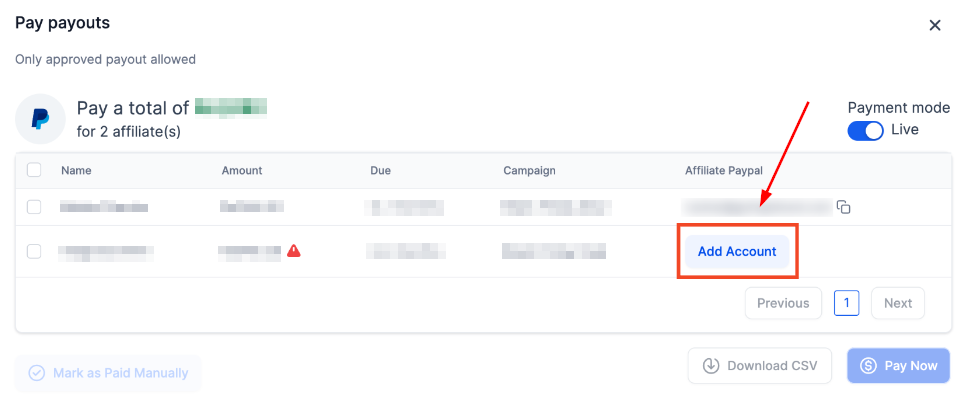
If you have not added a PayPal account for any of the affiliates, click on Add Account to do it. Once you add it, click Pay Now to complete the action.
?Note: Affiliates can also add their payout information in the Commissions section of their affiliate Dashboard once you have enabled the option in the Affiliate Manager Settings.
Completed Payments
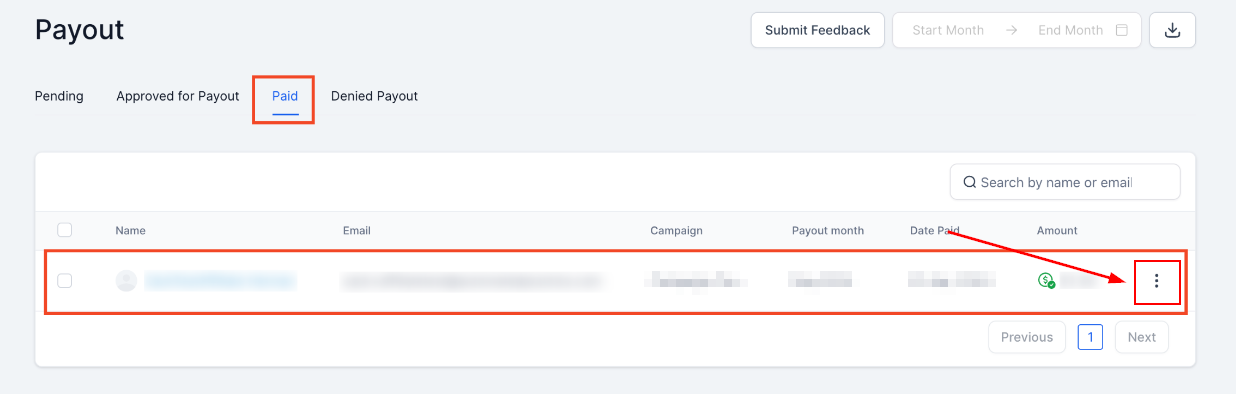
You can see the successful payments under the Paid tab. For more details on a payment, click the three dots to view them.
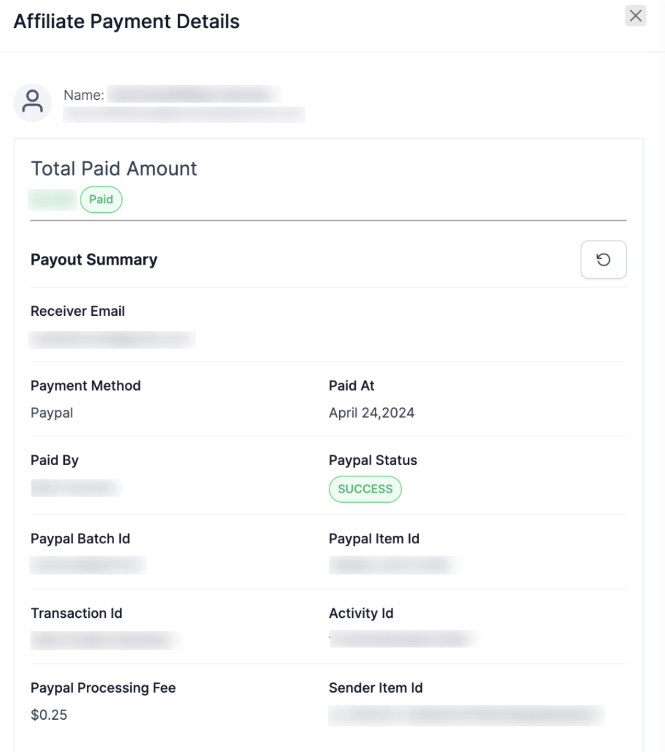
You will then be able to see the details of the payment, including the payment date and amount, as well as its status.
That's all there is to it. You can use this to advance the commission payout to your affiliates or ensure the commissions are paid on time.
? Note: PayPal may take some time to process payments, during which the transaction status may temporarily appear as "Pending." To view the most up-to-date status, click the refresh icon. It is recommended that affiliates regularly monitor their transaction status within the Commissions section of their account for real-time updates.
Was this article helpful?
That’s Great!
Thank you for your feedback
Sorry! We couldn't be helpful
Thank you for your feedback
Feedback sent
We appreciate your effort and will try to fix the article