URL parameters, also known as query strings, pass information to and from a website by appending it to the URL. In the context of forms, they can be used to pre-populate fields when the form loads.
Key Points
- Each form field that can be pre-filled using URL parameters has a unique query key.
- Not all types of fields support URL parameters. For example, signature fields and dropdowns cannot be pre-populated in this way.
To successfully pre-fill form fields using URL parameters, follow these steps:
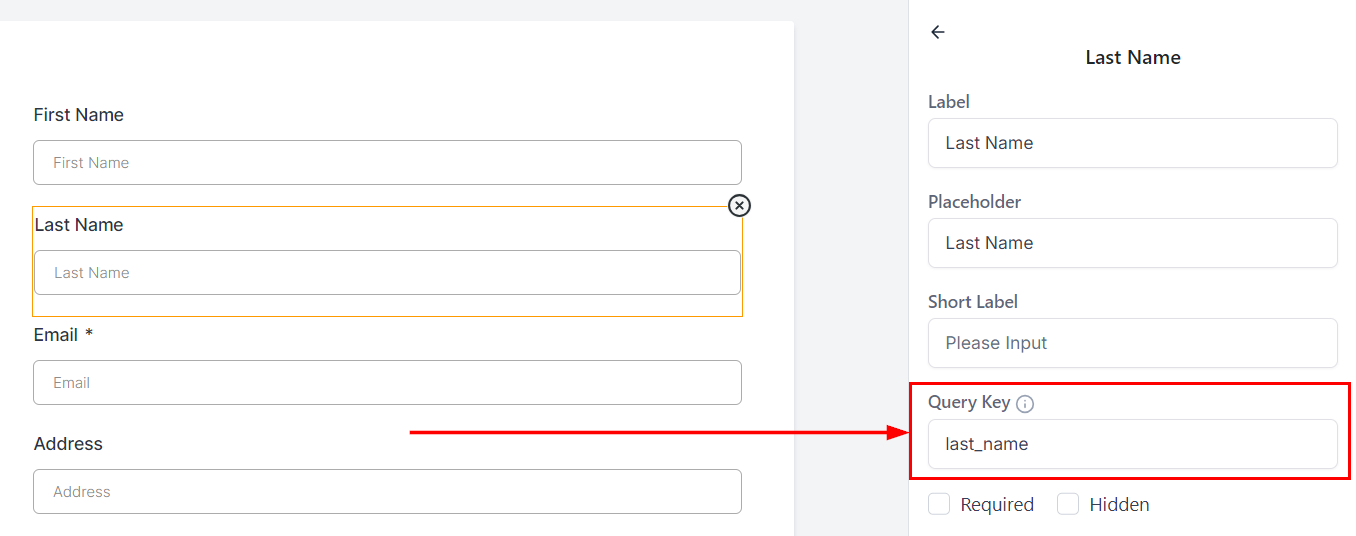
Identify the Query Key for Each Field
In the form builder, each field that supports URL parameters will have a query key. Note down these keys as they will be used in the URL.
Constructing the URL
Start with the base URL of your form, then append a question mark ? to indicate the start of your parameters.
For each field you wish to pre-fill, add the query key followed by an equal sign = and the value you want to pre-populate. Separate multiple parameters with an ampersand &.
Practical Example
Let's say you want to pre-fill a form with the first name, last name, state, and email. Assuming you have the following query keys:
- First Name:
first_name - Last Name:
last_name - State:
state - Email:
email
Your URL might look something like this:
http://yourformurl.com?first_name={{contact.first_name}}&last_name={{contact.last_name}}&state={{contact.state}}&email={{contact.email}}
This URL can be shared with the intended recipient through any communication channel. Each custom field will be dynamically populated based on the information in the recipient's contact card. If any fields are left empty, the link will remain intact, and the corresponding form fields will remain unfilled.
Note: Only contact custom fields and custom values can be used in URL parameters, opportunity custom values will not populate any data.
Testing and Troubleshooting
After constructing your URL, it's important to test it to ensure that the fields are being pre-filled as expected.
Simply navigate to the URL you've constructed. The form should load with the fields pre-filled with the values you specified.
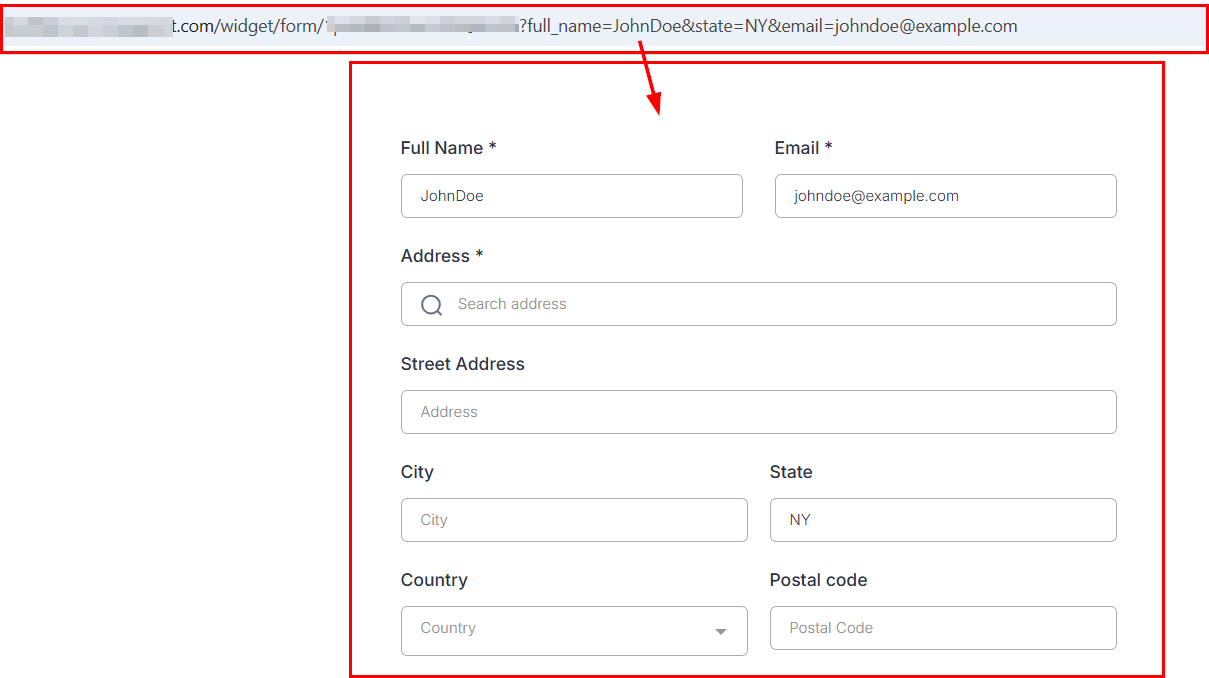
If a field is not pre-filling, double-check the query key and ensure there are no typos.
Additionally, ensure that there are no spaces or special characters in the values that might break the URL.
Frequently Asked Questions
Can I pre-fill dropdowns or signature fields using URL parameters?
- No, these field types do not support pre-filling via URL parameters.
Is there a limit to how many fields I can pre-fill using URL parameters?
- There is no inherent limit, but overly long URLs may be unwieldy or exceed browser limitations.
Was this article helpful?
That’s Great!
Thank you for your feedback
Sorry! We couldn't be helpful
Thank you for your feedback
Feedback sent
We appreciate your effort and will try to fix the article