Adding a video background to your funnel or website is an excellent way to create a visually engaging and professional-looking page. It can captivate your audience, enhance your branding, and leave a lasting impression. This guide walks you through adding and customizing video backgrounds using your CRM, ensuring seamless integration and optimal performance.
Before adding a video background, ensure your video is hosted within the CRM platform. External sources like YouTube or Vimeo are not supported. Upload your video to the CRM's Media Storage in MP4 format for compatibility.
Creating or Editing a Funnel/Website
Within the CRM, locate and click on the “Sites” option. Here, you can choose from both the Funnels and Websites options. In the funnels section click on the “New Funnel” button to add a new funnel to start from scratch or edit an existing one.
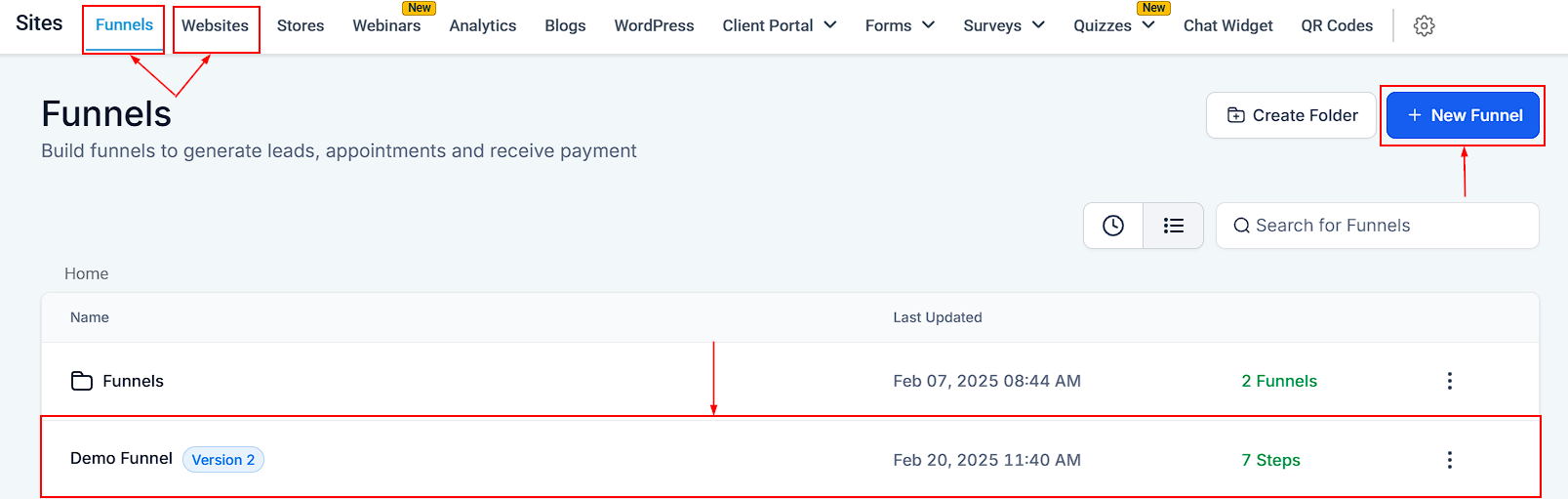
Adding and Customizing Video Backgrounds
Once you’ve created or opened a funnel/website, follow these steps to add a video background.
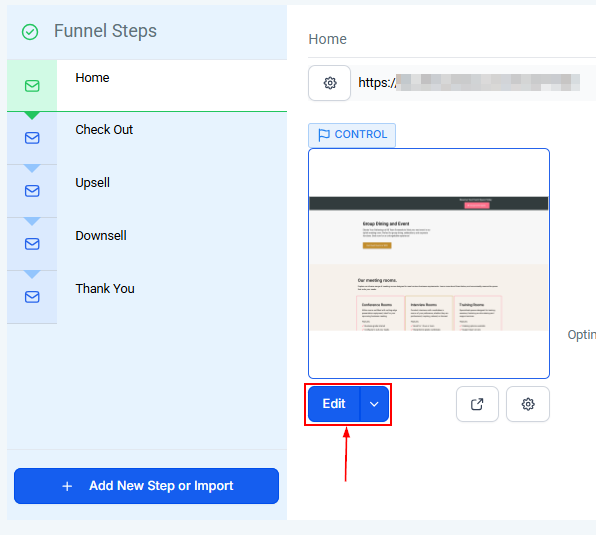
Choose the Funnel Step or Section
Select the step or section where you want to add the video background. Click on the Edit button to access the customization settings.
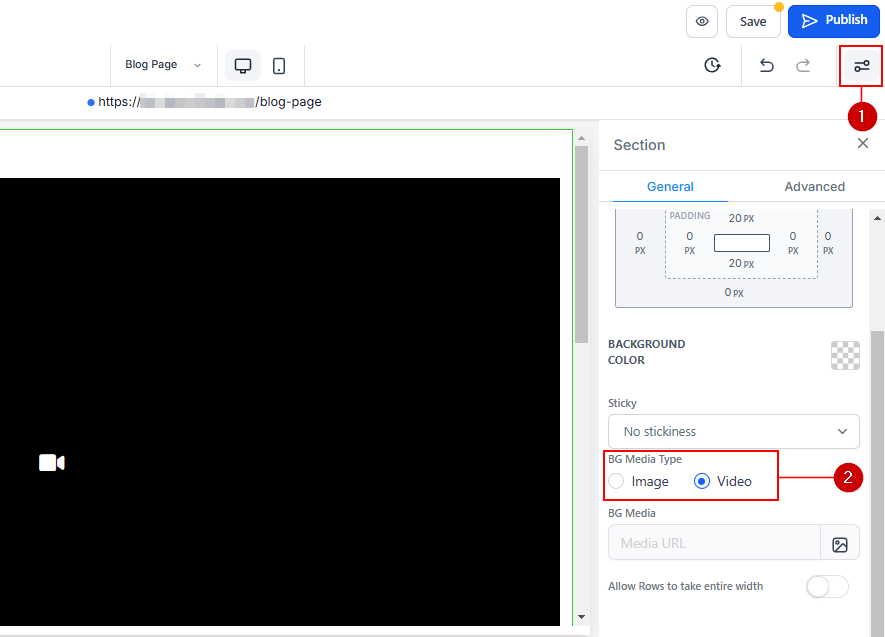
Enable Background Media Type
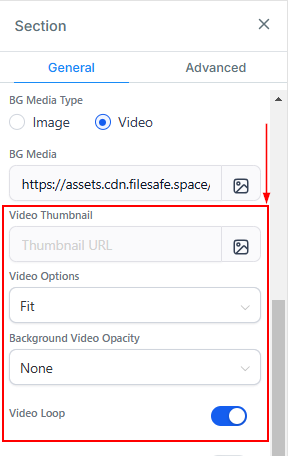
Once in the funnel/website builder, scroll through the customization settings until you find the "Background Media Type" option. Select "Video" as your preferred background type.
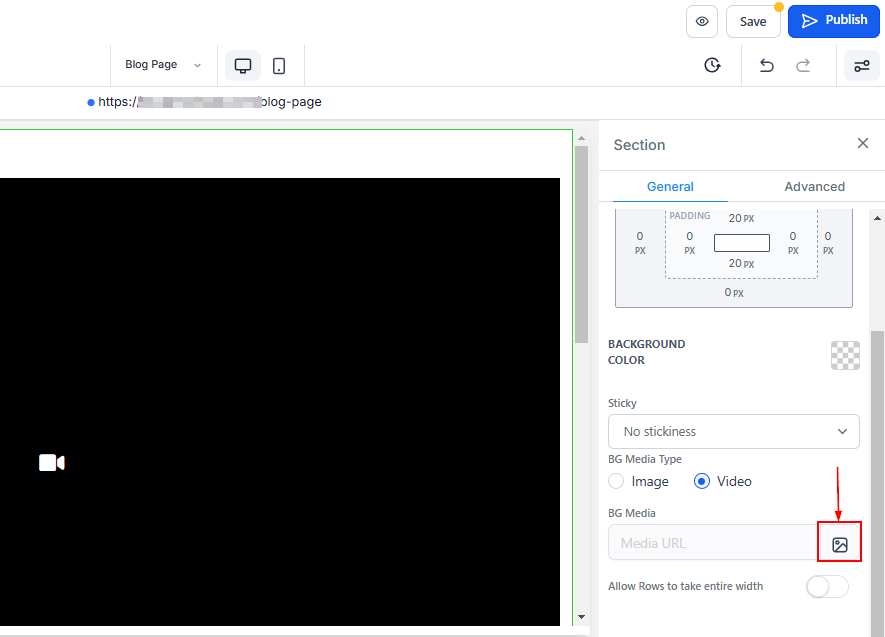
Select Your Video
Choose the video file you uploaded to the CRM’s Media Storage. Ensure the video aligns with your site’s tone and enhances the user experience.
Customize Video Settings
- Video Thumbnail: Choose a thumbnail that represents the video’s content.
- Video Fit: Use the "Cover" option to ensure the video fills the section seamlessly.
- Background Video Opacity: Adjust the opacity to balance the video with overlaying text or images.
- Loop Video: Enable this option if you want the video to replay continuously.
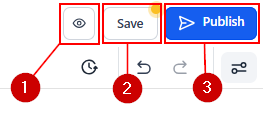
Always preview your page to confirm the video displays correctly and does not disrupt the user experience. Once you’re satisfied with the result, click Save and Publish to make the changes live.
Adding video backgrounds to your funnel or website is a powerful way to enhance its visual appeal and create a dynamic user experience. By following these steps, you can seamlessly integrate videos that align with your brand and captivate your audience.
Troubleshooting and Tips
- Supported Video Formats: Only MP4 videos are supported. If you have videos in other formats (.MOV, etc.), use a converter to change them to MP4 before uploading.
- Optimizing Video for Web: Ensure your video is optimized for web use to prevent slow loading times, which can negatively impact user experience.
- Video Content Considerations: Choose a video that complements your page content without distracting from the main message. Subtle, slow-moving videos often work best.
FAQs
Q: Can I use videos from external platforms?
- A: No, videos must be hosted within the CRM platform.
Q: Will adding a video background slow down my page?
- A: If the video is optimized correctly, it should not significantly impact loading times. However, it's always good to test your page's performance.
Was this article helpful?
That’s Great!
Thank you for your feedback
Sorry! We couldn't be helpful
Thank you for your feedback
Feedback sent
We appreciate your effort and will try to fix the article